
Multiple invoice sellers and branches
Issue invoices on behalf of several legal entities and print a branch address as sender. How to set up invoice sellers, branches, number ranges and the DATEV export per entity.
Does your company invoice on behalf of more than one legal entity? Or should a branch appear with its own address as the sender? The invoicing settings have a section called Invoice sellers for exactly that.
Two terms:
- Invoice seller: a legal entity with its own legal name, VAT ID, bank account, logo and DATEV client. Your company itself is always the first seller, the Default. Every plan includes one seller. Additional sellers are agreed by contract.
- Branch: a store or office of one seller. A branch only changes what the document prints as sender address and contact, and prefills the cost center. It has no legal data and no number range of its own. Branches are free and unlimited.
As long as you have one seller and no branches, nothing changes in your invoices. The pickers only appear once there is something to pick.
Add an invoice seller
- Open Invoices and switch to the Settings tab.
- Scroll to Invoice sellers. Your company is listed as the default, with the details from the sections above.
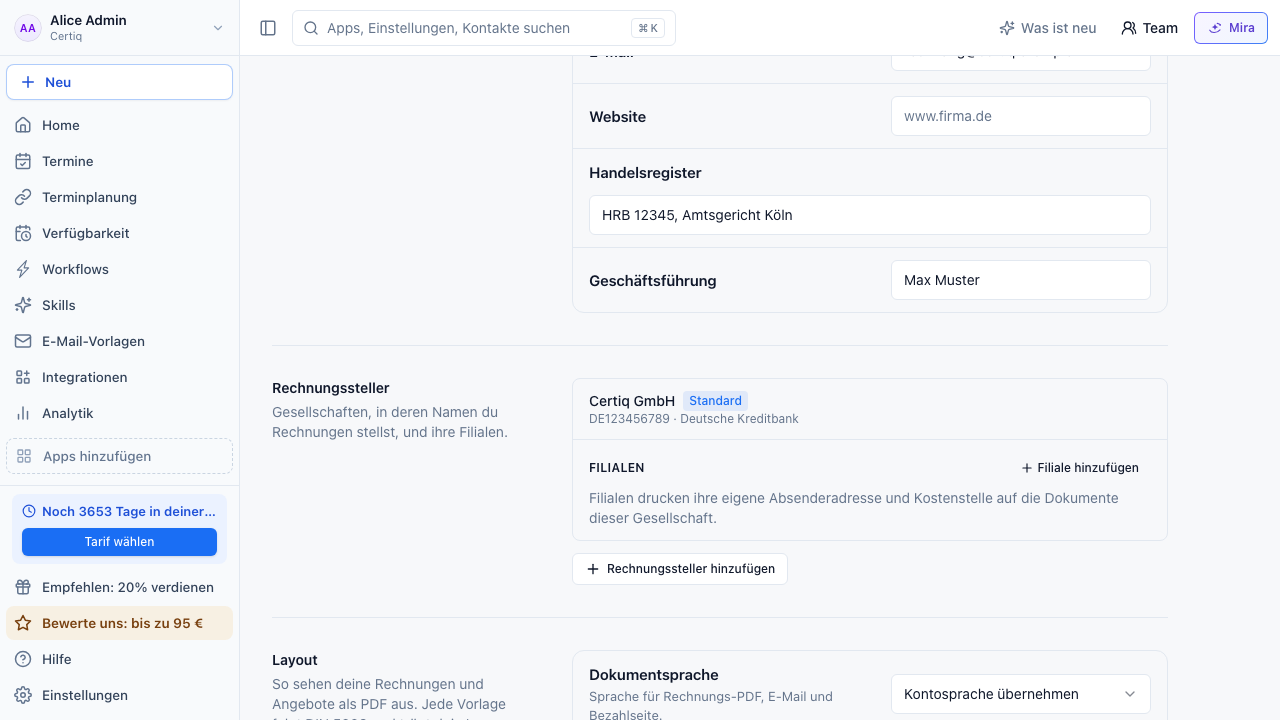
- Click Add invoice seller.
- Enter the entity's company details, tax details, contact, bank account, logo and layout, and its DATEV numbers. Nothing is taken from your company settings.
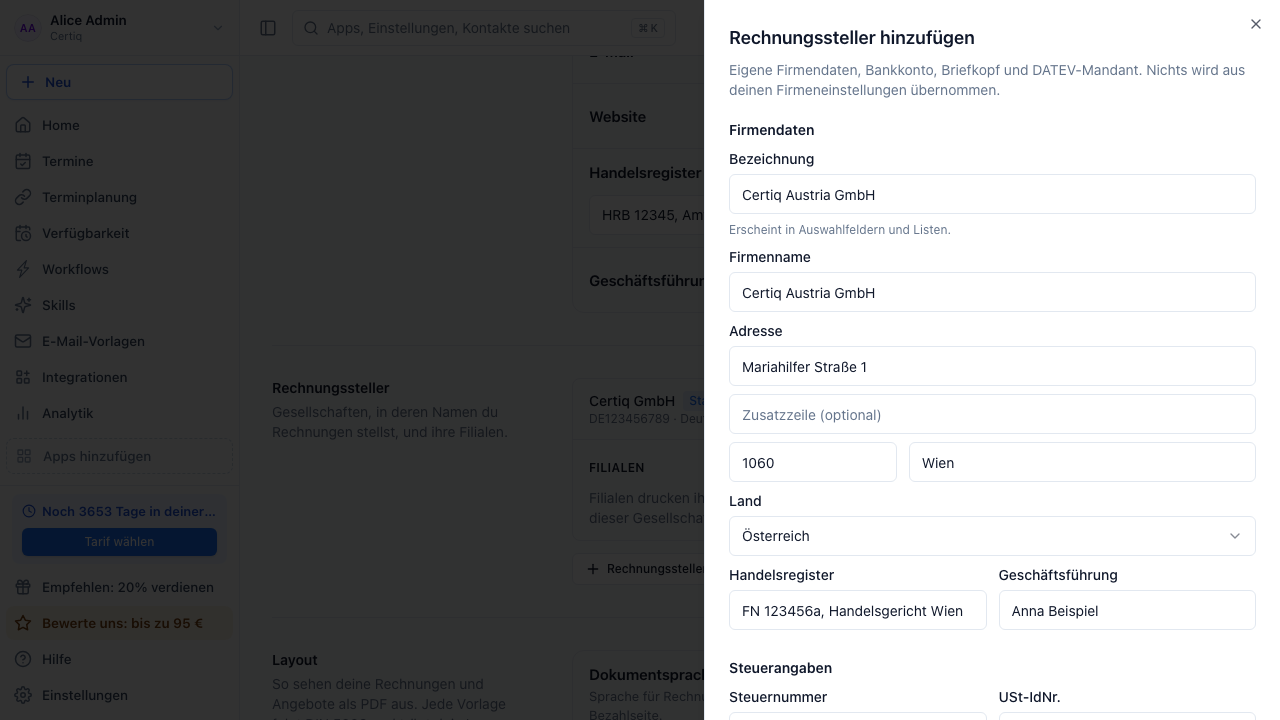
- Save.
The bank account is picked from your existing bank accounts. New accounts are added in the Payment section.
Create a number range
Every seller numbers its own documents. Without its own number range it cannot issue an invoice.
- Open the seller with the pencil icon.
- Scroll to Number ranges and click Number range next to Invoices.
- Enter a name, the format and the next number, for example
AT-RE-{YYYY}-{####}.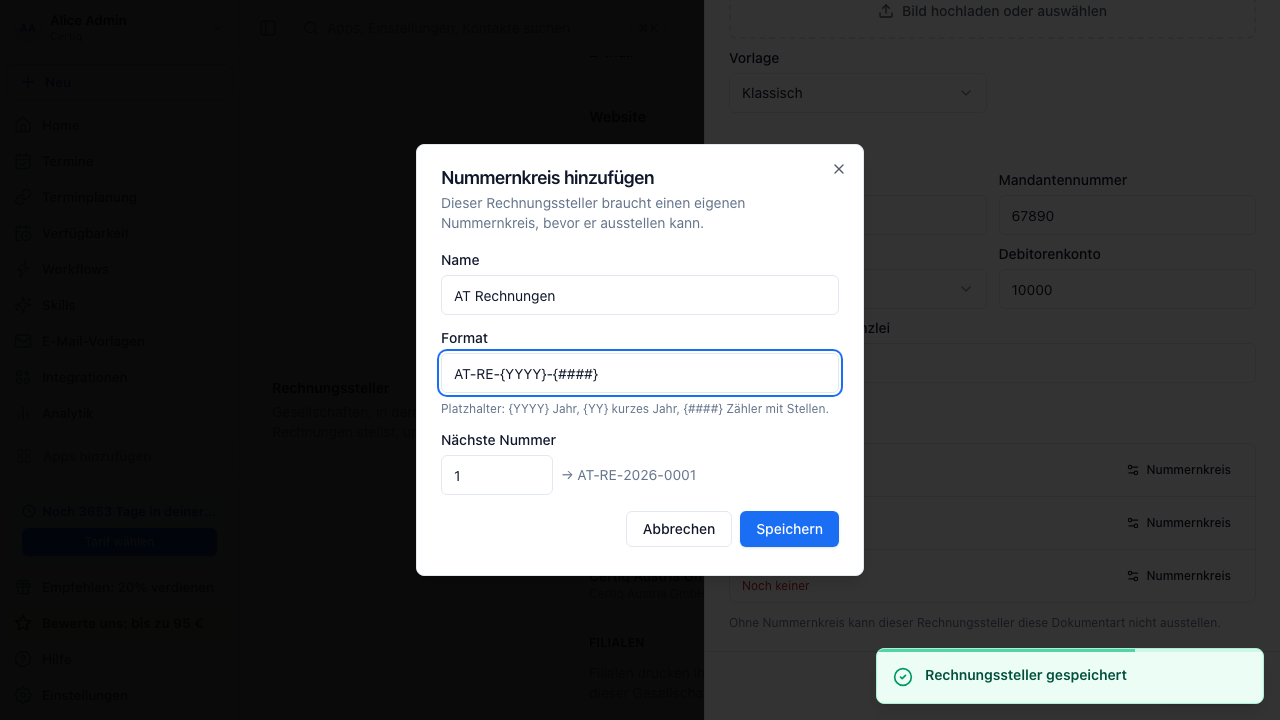
- Save. Repeat for offers, credit notes and cancellation invoices if the entity issues those too.
Formats and placeholders are explained in Customize invoice numbers.
Plan limit
If your plan includes one seller, Add invoice seller is greyed out and a line below says how many your plan includes. For more legal entities reach out via Contact us. Archived sellers still count.
Add branches
Every seller can have branches, the default included.
- Click Add branch on the seller's card.
- Enter name, address, phone, email and optionally your own branch ID and a cost center.
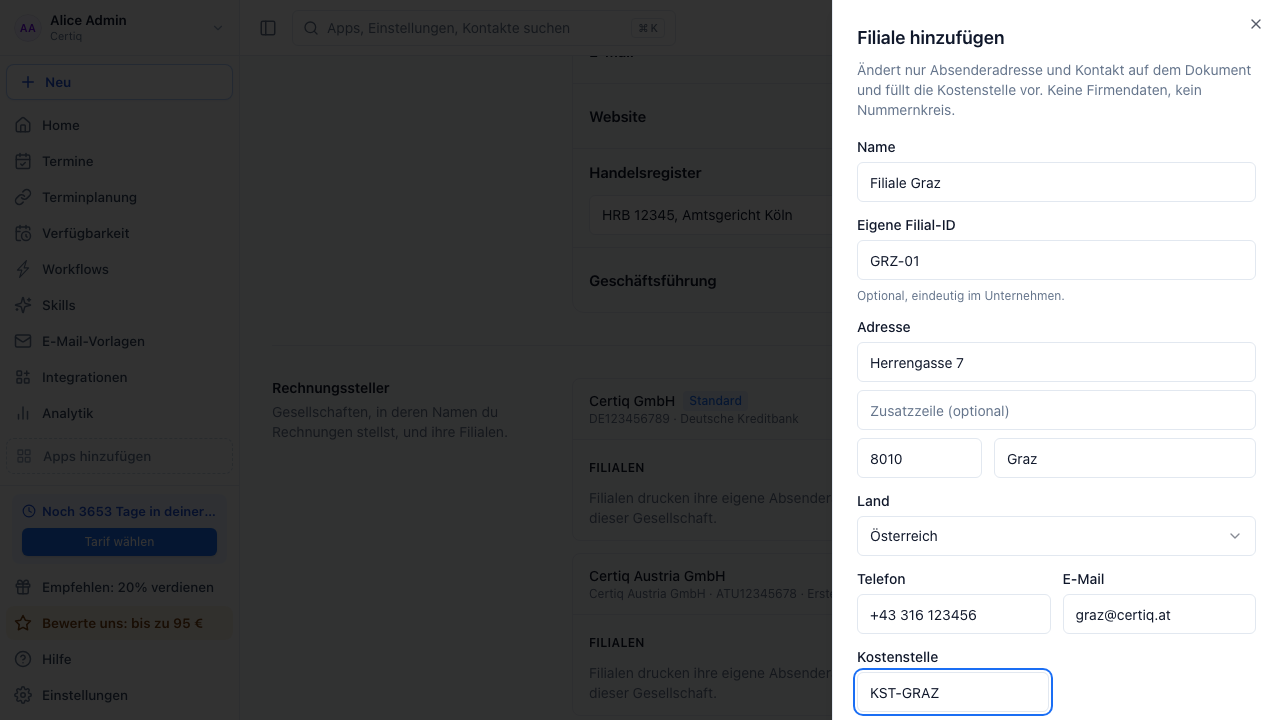
- Save.
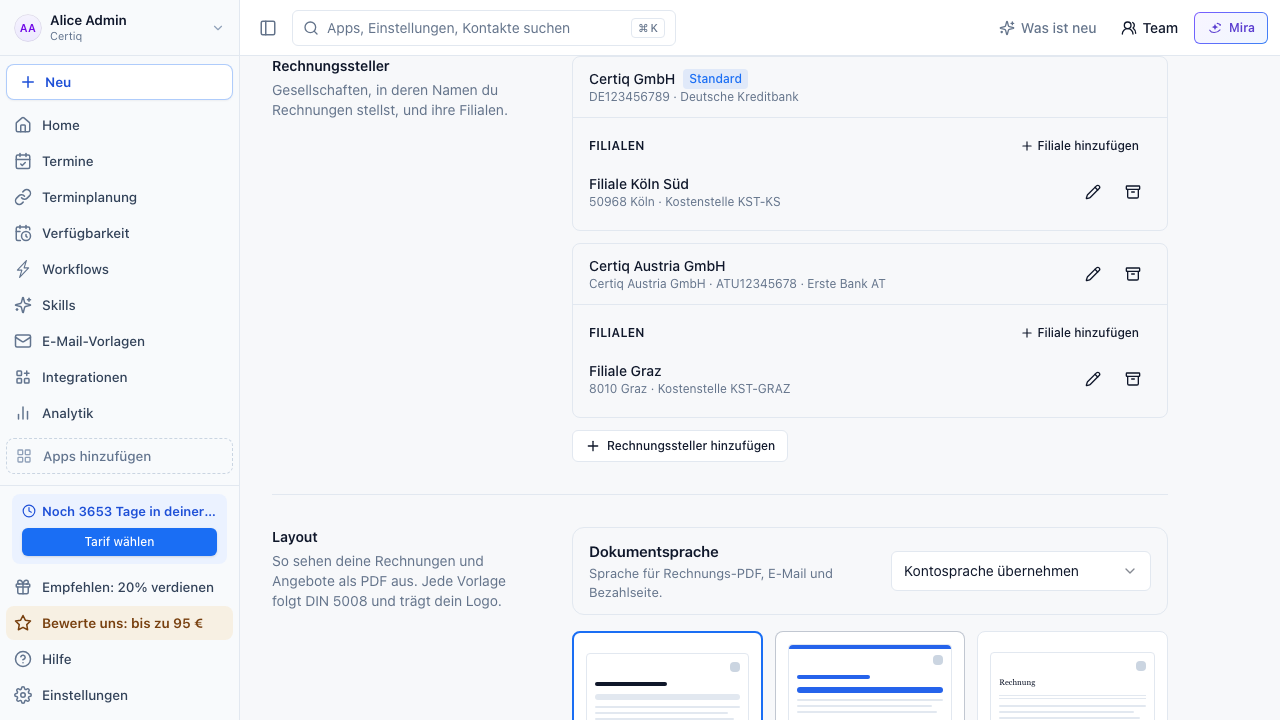
A branch's cost center is copied onto new documents of that branch. You can change it there at any time.
Write an invoice for an entity or branch
Once there is more than one seller, the invoice editor shows an Invoice seller field at the top. If branches exist, Branch sits next to it.
- Create a new invoice, offer or credit note.
- Pick the seller, or pick a branch directly. A branch selects its seller automatically.
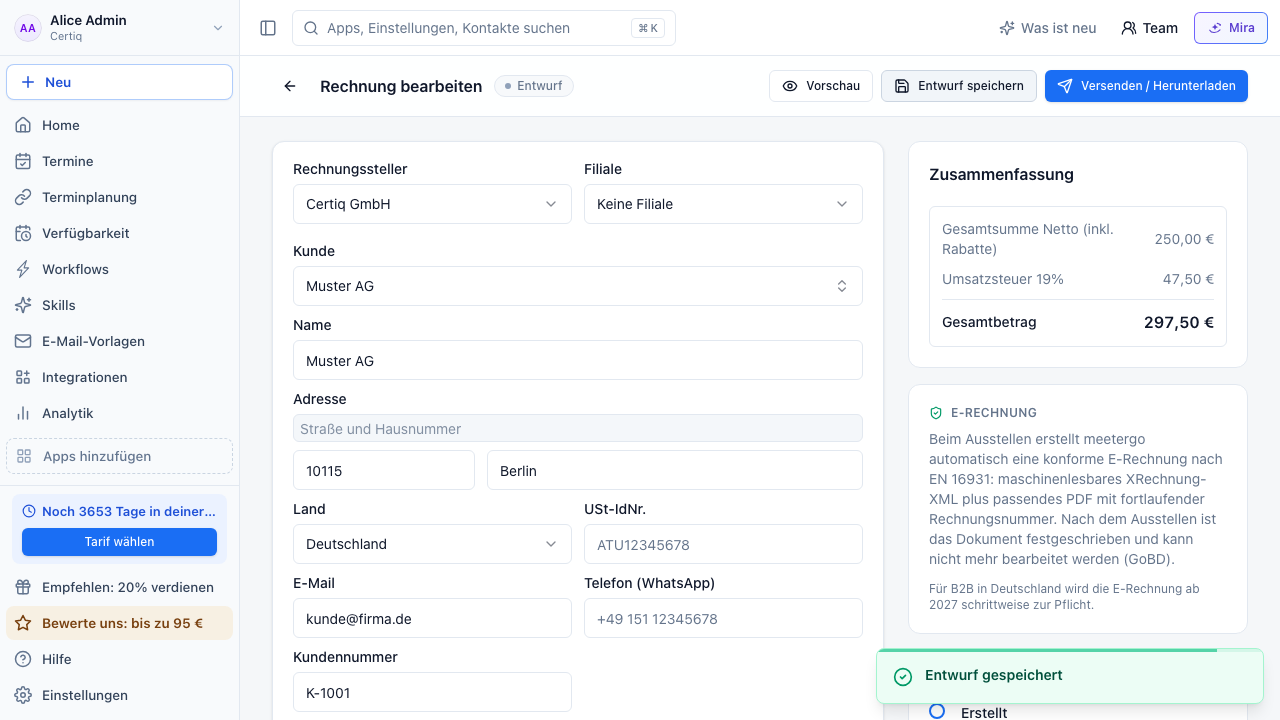
- Click Preview to check the PDF with the new sender.
If you switch the seller, a branch of another entity is deselected automatically. Whenever the branch changes, the cost center follows the selected branch. If it has no cost center or you deselect the branch, the field is cleared. You can enter your own cost center afterwards.
Issuing freezes the seller and the branch. Later changes to the entity or the branch do not alter issued documents. A finalized document shows Issued by at the top.
More details
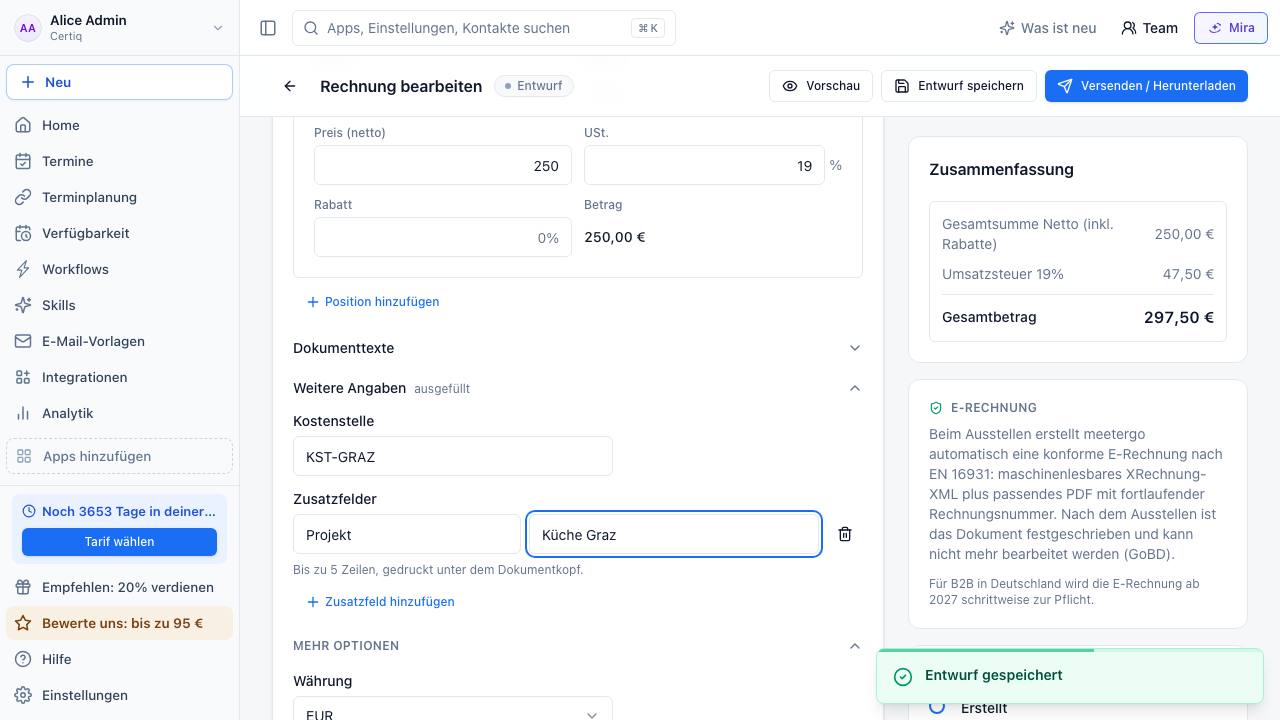
Below the line items you find More details. It stays collapsed while empty.
- Cost center: printed on the PDF and exported to DATEV as KOST1.
- Custom fields: up to five rows of label and value, printed under the document header, for example a project number.
- Customer number: lives on the customer card and is printed on the document.
Copies via CC and BCC
When sending, you can enter up to five addresses in CC and five in BCC. Separate several addresses with a comma.
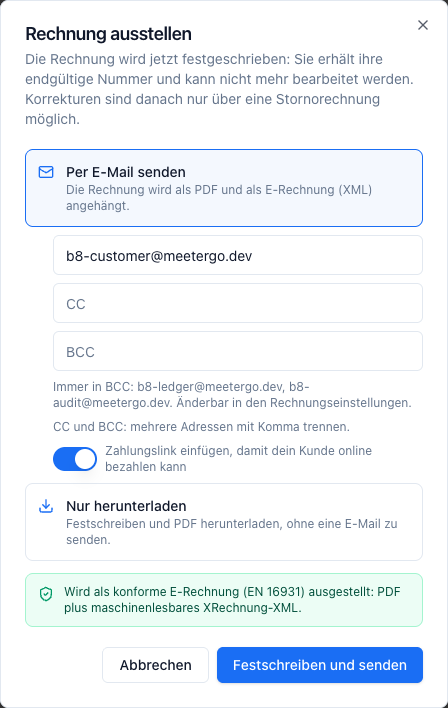
If your bookkeeping should always get a copy, enter it in the invoicing settings under Email wording as Default BCC. It is added to every send and shown below the BCC field. The field is for extra recipients only. Change the default in invoicing settings.
List and DATEV export
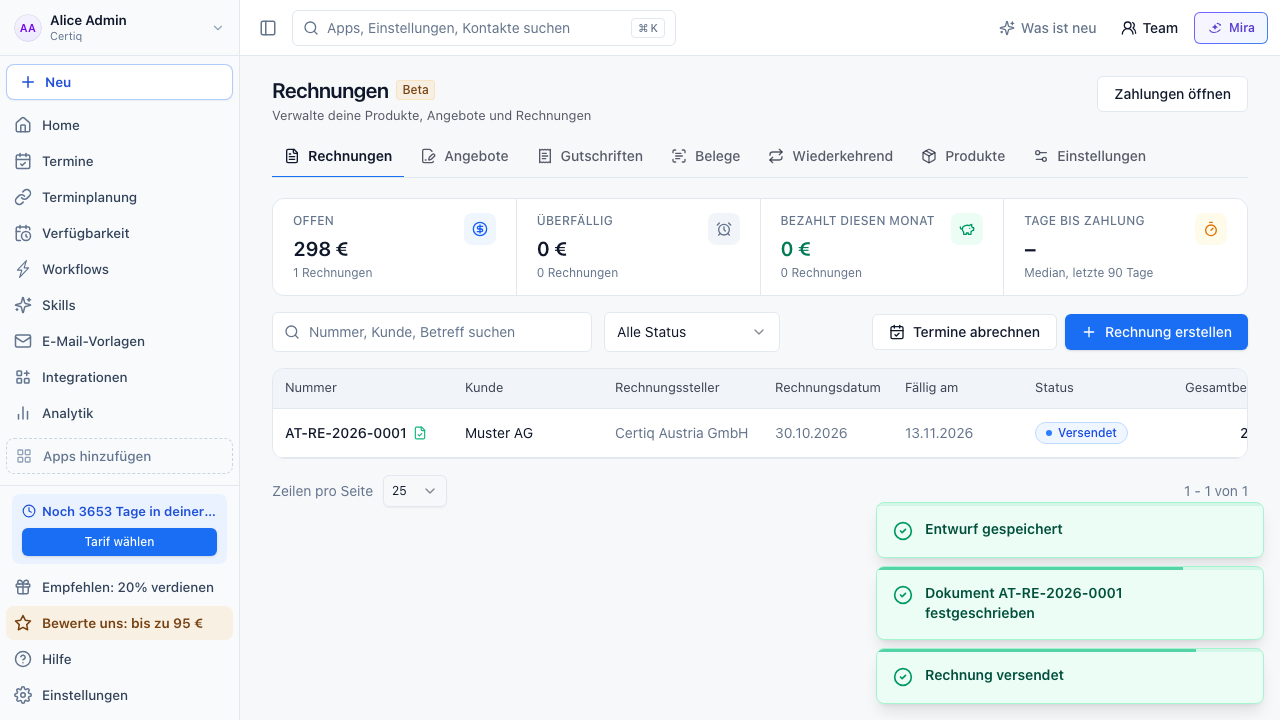
With more than one seller the invoice list shows an Invoice seller column and filter. Choose all sellers, your default company or an individual seller.
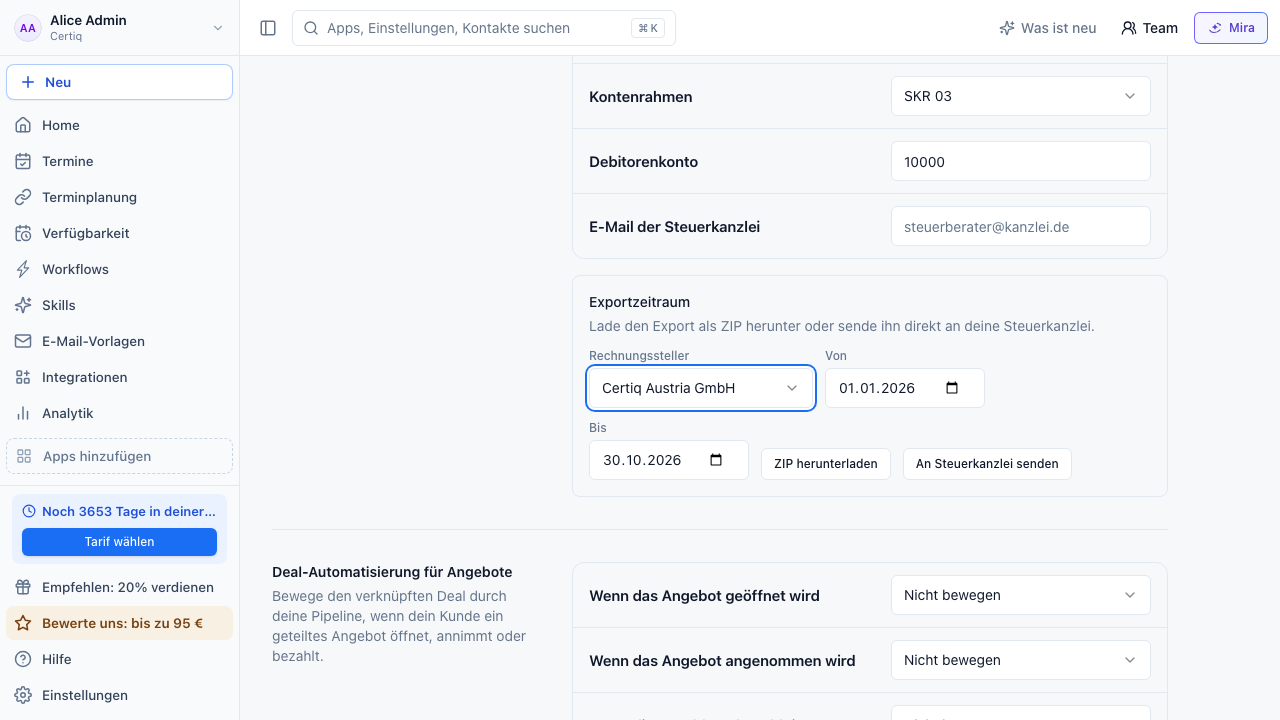
Every seller is its own DATEV client. In the DATEV export section you therefore choose which entity to export. The export contains only that entity's documents and uses its consultant and client numbers.
Archive and restore
Archive a seller or branch you no longer need with the archive icon. It can then no longer be picked for new documents. Issued documents stay unchanged. Restore brings either back at any time.
A seller with active recurring invoices cannot be archived. Move those to another seller first.
Was this article helpful?
Let us know if this article answered your questions.
Related articles
- Customize invoice numbersSet your own format, prefix and start number for invoice numbers. How number ranges work for invoices, offers, order confirmations, credit notes and cancellations.
- Customize the invoice emailChange the greeting, intro text, signature and subject of the email your invoice arrives in. Why this is not the booking confirmation.
- Upload and review bills and receiptsUpload or email supplier invoices and receipts, review the extracted fields, retry failed documents and find the originals in Files.