
How to set start time increments
Control how available time slots are displayed to your customers
Start time increments control the spacing of available times on a meeting type booking page. For example, a 15-minute increment can show 15:00, 15:15, 15:30, and 15:45, while a 60-minute increment only shows times on the hour.
 1 / 2
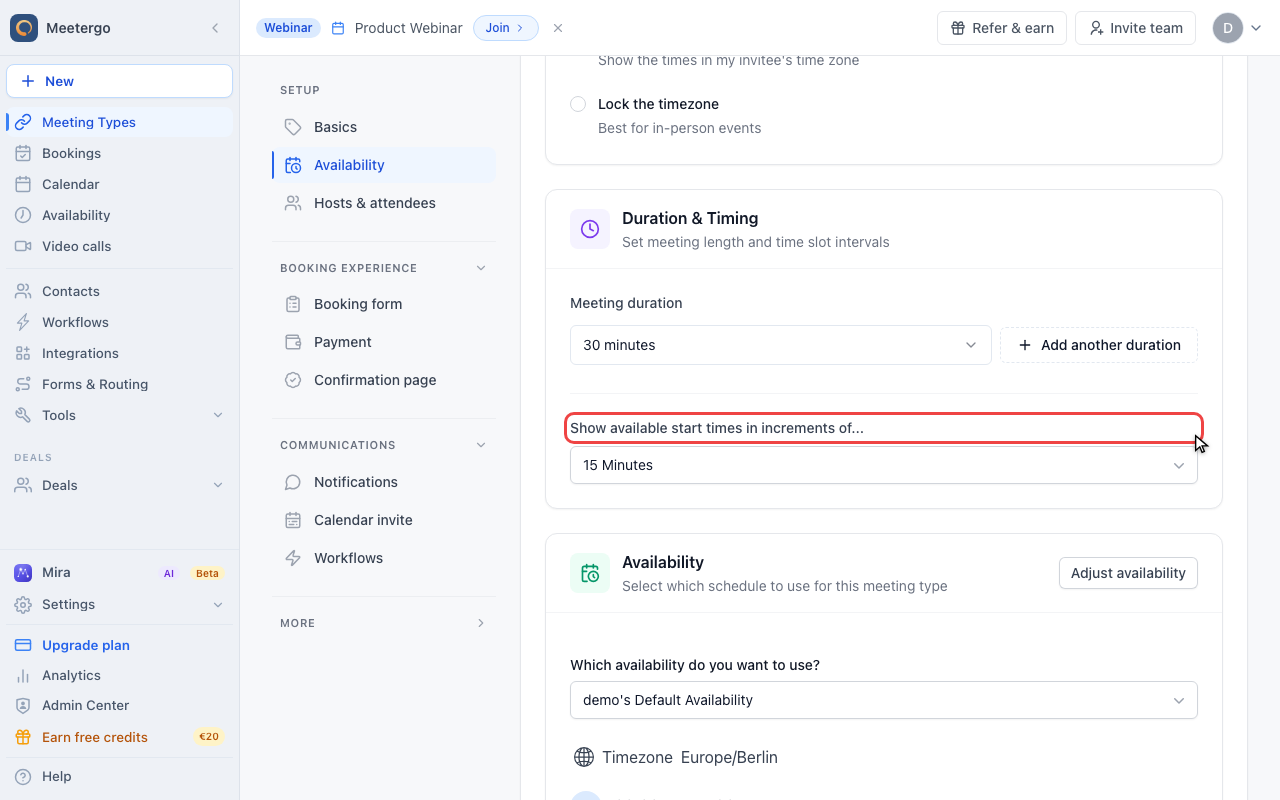
1 / 2Find Show available start times in increments of. This setting controls how booking times are spaced on the booking page.
Open timing settings
Find start time increments
Find Show available start times in increments of. This setting controls how booking times are spaced on the booking page.
Choose the interval
Open the interval menu
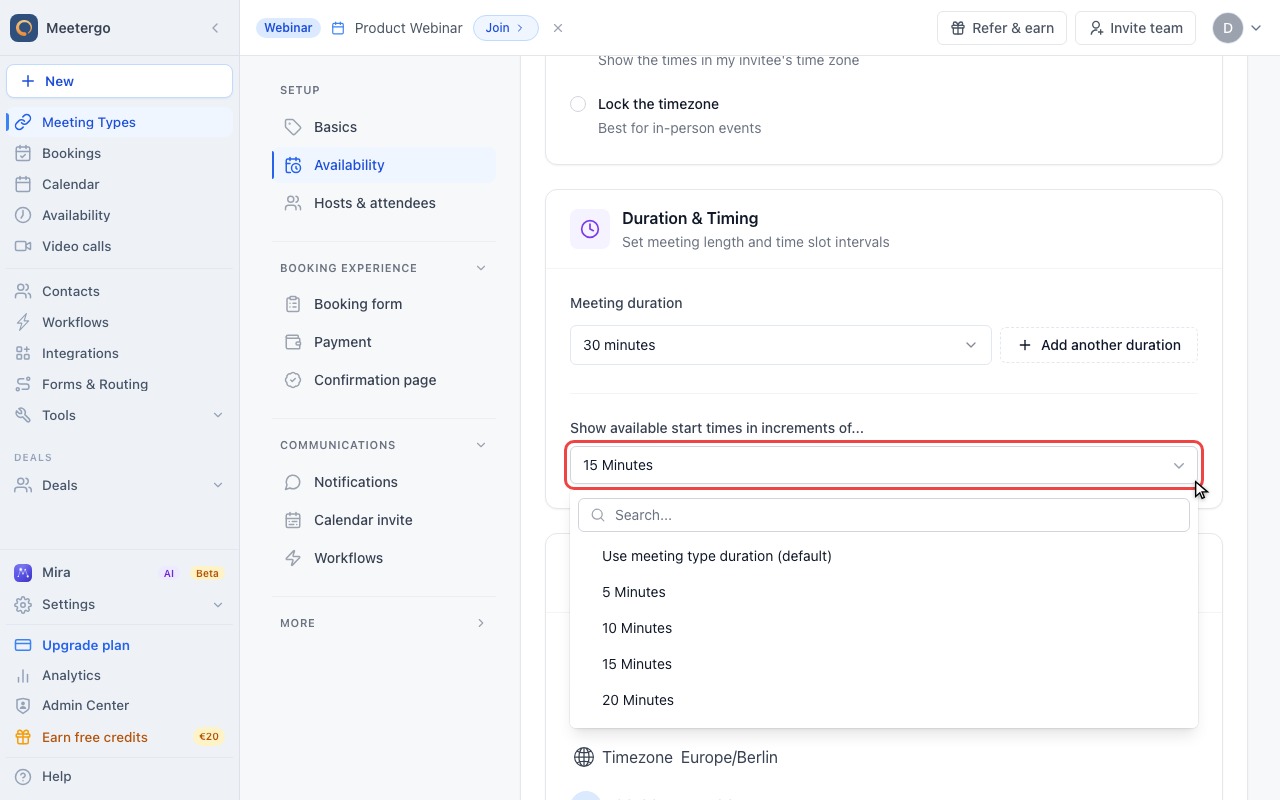
Open the dropdown and choose the spacing you want invitees to see. Save changes after selecting the new interval.
Understanding start time increments vs. buffers
Start time increments and buffers solve different problems:
- Buffers add protective time before or after meetings but don't change the displayed booking times. A buffer only takes effect after someone books a time slot.
- Start time increments control which start times invitees see when booking. This setting determines the spacing between available times.
If you want your customers to see booking times like 15:00, 16:05, 17:10 (with 65-minute gaps), you need to adjust the start time increments, not the buffer settings.
Practical example
Let's say you have:
- A 60-minute meeting type
- Start time increments set to 65 minutes
- Availability from 15:00 to 18:00
Your customers will see these available times:
- 15:00
- 16:05
- 17:10
This is useful when you want built-in transition time between meetings that's visible to customers from the start.
When to use start time increments vs. buffers
| Use Case | Solution |
|---|---|
| You want 5-minute breaks between meetings, but customers should see clean times like 15:00, 16:00 | Use buffers |
| You want customers to see staggered times like 15:00, 16:05, 17:10 from the start | Use start time increments |
| You need preparation time that only applies after a booking is made | Use buffers |
| You want to control the exact spacing of displayed time slots | Use start time increments |
FAQ
Can I combine start time increments with buffers?
Yes, both settings work independently. Start time increments control which times are displayed, while buffers protect time around booked meetings.
Why don't I see my increment changes reflected?
Make sure to save your changes after adjusting the setting. The new increment applies to the booking page view, not to already scheduled meetings.
What increment values are available?
meetergo offers several increment options from short minute-based intervals up to longer intervals. The available options depend on your meeting duration.
Was this article helpful?
Let us know if this article answered your questions.