
How to use buffers
Buffers create breathing room in your schedule by adding extra time before or after your meetings. They ensure you have space to prepare, travel between locations, or decompress after important calls without your calendar feeling cramped.
 1 / 3
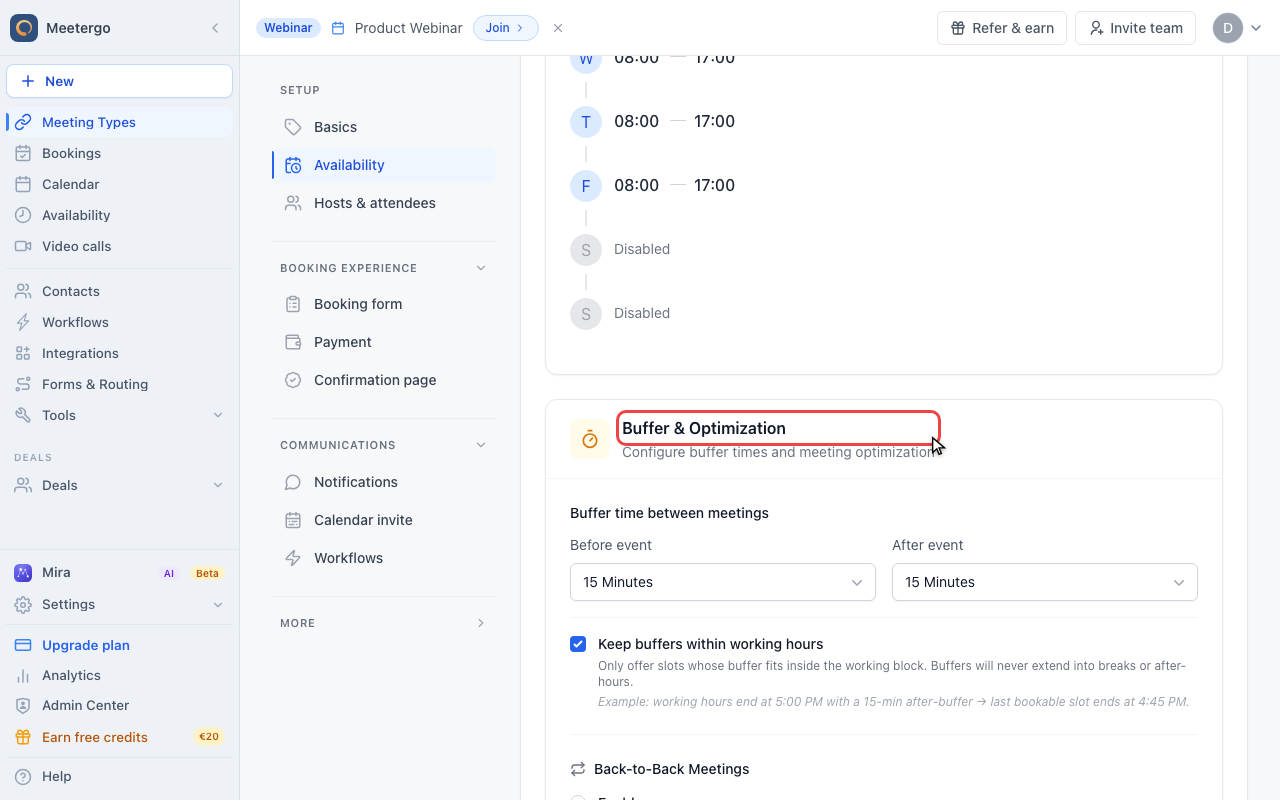
1 / 3Scroll to Buffer & Optimization to edit the time protected around each booking.
Open buffer settings
Find Buffer & Optimization
Scroll to Buffer & Optimization to edit the time protected around each booking.
Review before and after buffers
Use the before and after controls to decide how much time meetergo should block around the meeting.
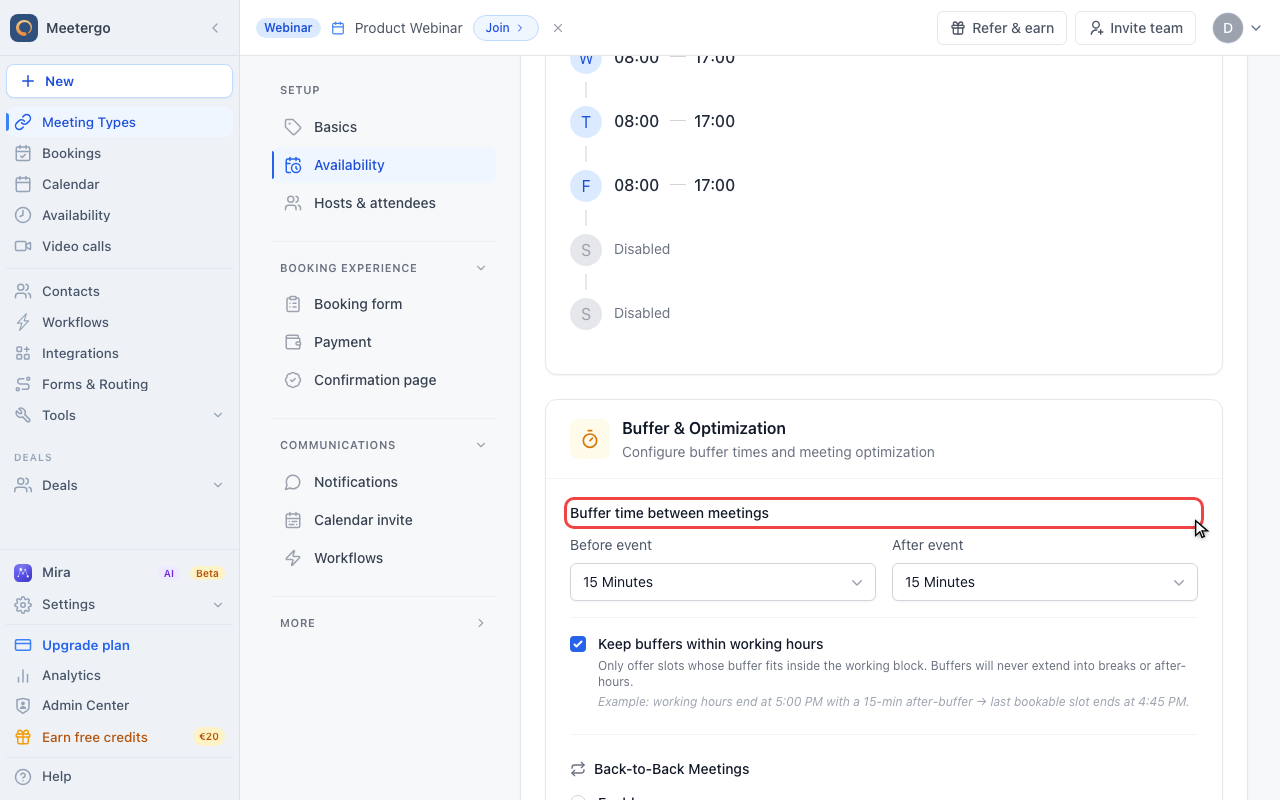
Review buffer behavior
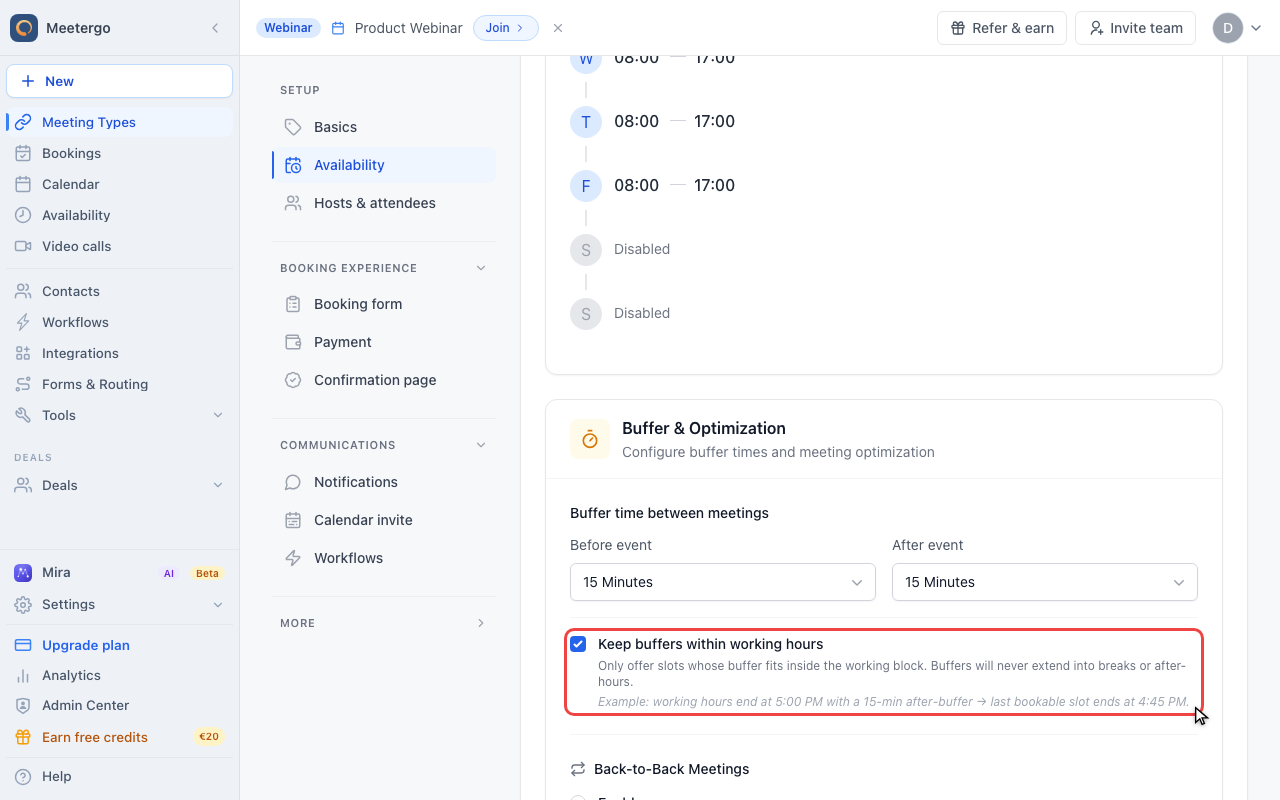
Keep buffers inside working hours
Enable this option when the buffer should fit inside the same availability block instead of extending into breaks or after-hours.
What are buffers?
Buffers are protective time blocks that surround your meetergo meetings. They serve essential purposes:
- Give you preparation time before important conversations
- Allow travel time between different meeting locations
- Provide space for post-meeting notes and mental transitions
- Prevent back-to-back scheduling that leaves you feeling overwhelmed
Each Meeting Type you create can have completely customized buffer settings that match your specific needs.
Adding buffers to a Meeting Type
Open the Meeting Type, go to Availability, and use Buffer & Optimization to choose the buffer before or after the event. Save the Meeting Type to apply the new settings to future bookings.
Buffer times can also be synced to your connected calendar as separate events, so you can see the protected time directly in Google Calendar, Outlook, or other connected calendars.
If you don't want buffer events in your calendar, you can disable this in your calendar connection's advanced settings by turning off "Sync buffers to calendar".
Removing buffers from Meeting Types
For upcoming meetings that haven't been scheduled yet:
Set the before and after buffer controls to 0 minutes, then save the Meeting Type.
For meetings that are already on your calendar, buffers can't be modified. The meeting needs to be canceled and rebooked with the new buffer settings.
Understanding how buffer logic works
meetergo's buffer system operates with intelligent logic to protect your time effectively. Buffers only apply to meetings booked through your meetergo links, but the system considers your entire calendar when checking availability to prevent any scheduling conflicts.
Here's a practical example: If you have a 30-minute meeting with 15-minute buffers both before and after, meetergo needs to find a full 60-minute block of free time. Your actual meeting remains 30 minutes, but those buffer periods ensure no other appointments can be scheduled too close.
Buffers in team booking scenarios
When multiple team members are involved in Meeting Types, buffer settings can create interesting dynamics in availability.
- For round robin Meeting Types: Individual buffer settings on other Meeting Types might cause uneven distribution of meetings among team members.
- For collective Meeting Types: If one person has buffers on their other Meeting Types, those buffers could block time slots that would otherwise be available for the group meeting.
Troubleshooting the buffer message
meetergo's scheduling system may display a buffer message when certain time slots appear unavailable. This indicates that buffer settings are preventing booking at that specific time.
Common reasons you might see this message include buffer time overlapping with existing meetings, insufficient calendar space to accommodate both the meeting duration and required buffers, or legacy buffer settings still attached to previously scheduled meetings.
Resolving buffer-related scheduling issues
When buffer appears but no meetergo meetings are scheduled:
This situation typically occurs when non-meetergo events are consuming your buffer time. Try deleting the conflicting calendar event or changing its status to free (don't forget to check all-day events). Alternatively, you can temporarily set the buffer time to 0 minutes for the Meeting Type you're trying to schedule.
When buffer shows outdated buffer settings:
meetergo doesn't automatically update buffers on meetings that were already scheduled before you changed your Meeting Type settings. These existing meetings continue following their original buffer rules. To address this, cancel and rebook the mentioned booking.
When your calendar appears free but meetings won't book:
This problem often stems from "double buffers" - using both before and after buffers that create larger blocked time periods than expected. The solution is to edit your Meeting Type to use either a before or after buffer instead of both. For meetings already booked, you have to cancel and rebook it.
FAQ
Do buffers count toward my actual meeting time?
No, buffers are separate from your meeting duration. A 30-minute meeting with buffers is still 30 minutes long - the buffers simply protect surrounding time slots.
Can different Meeting Types have different buffer settings?
Yes, each Meeting Type operates independently with its own buffer configuration. You might use longer buffers for important client calls and shorter ones for internal team meetings.
What happens if I change buffer settings after meetings are already scheduled?
Existing scheduled meetings keep their original buffer settings. Only new bookings will use the updated buffer configuration. In case you want to modify the buffer, you need to cancel and rebook the meeting.
Was this article helpful?
Let us know if this article answered your questions.