
Team Availability Overview
Understand how availability works for teams with round-robin, collective meetings, and group scheduling
When multiple team members handle bookings, availability becomes more complex. meetergo offers several ways to manage team scheduling—from distributing bookings among members to requiring everyone's availability for group meetings.
 1 / 7
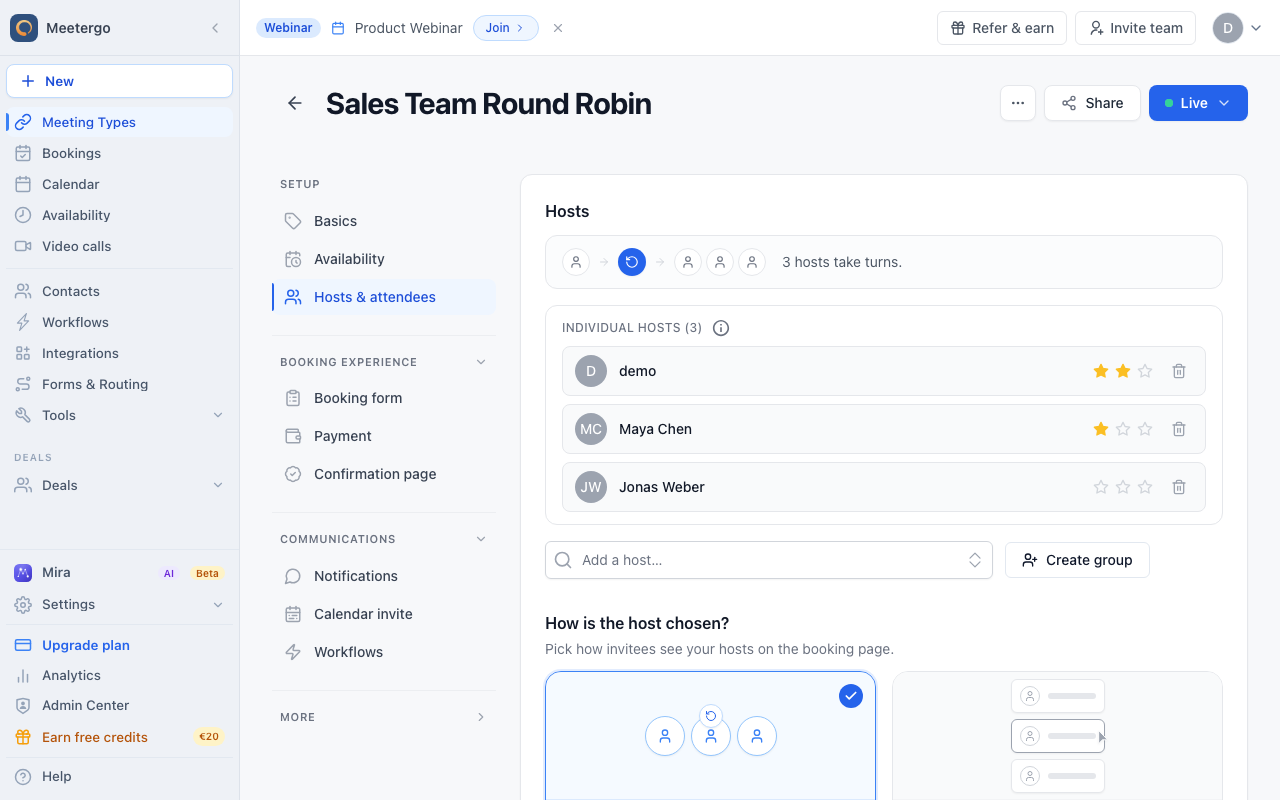
1 / 7Individual hosts in the pool can take turns for round robin bookings. Each host keeps their own calendar conflicts and default availability.
Review the team host pool
Check the host pool
Individual hosts in the pool can take turns for round robin bookings. Each host keeps their own calendar conflicts and default availability.
Review host selection
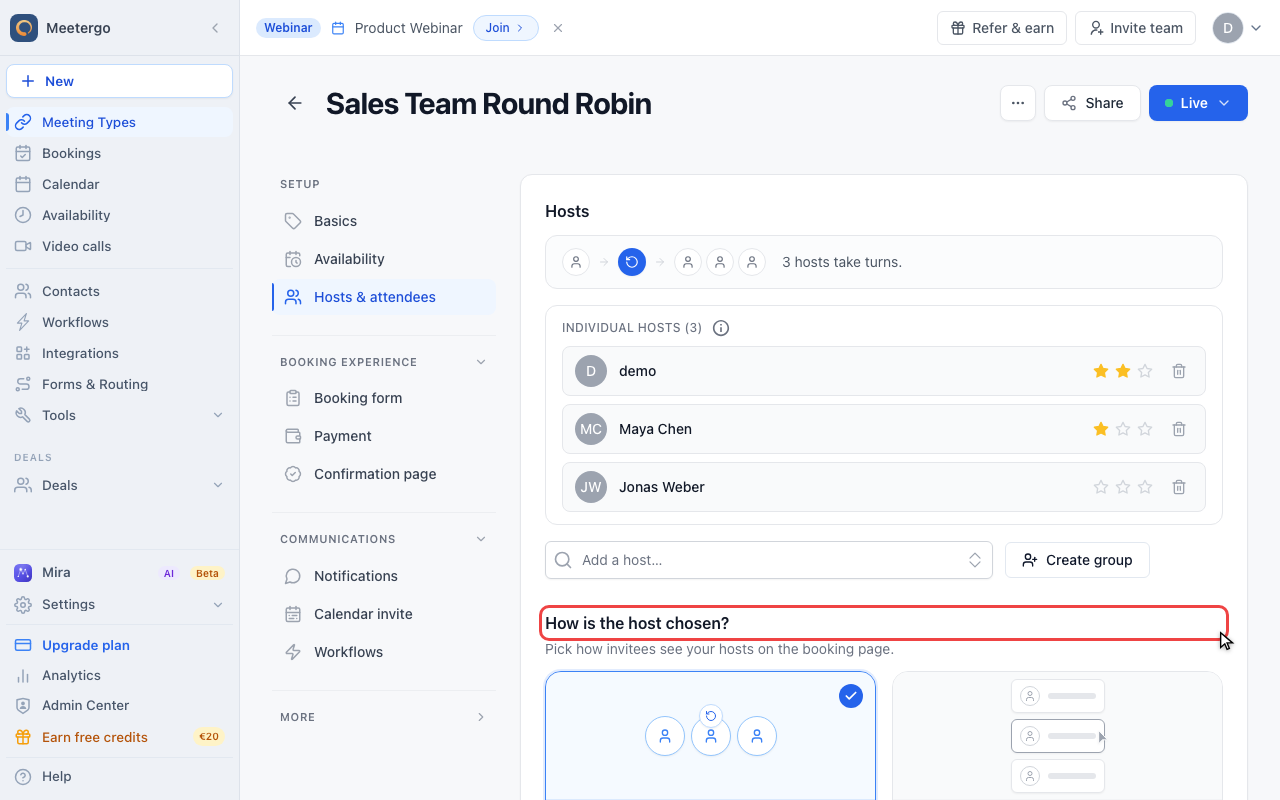
The host selection mode decides whether meetergo rotates hosts automatically or lets invitees choose a specific host.
Check the rotation strategy
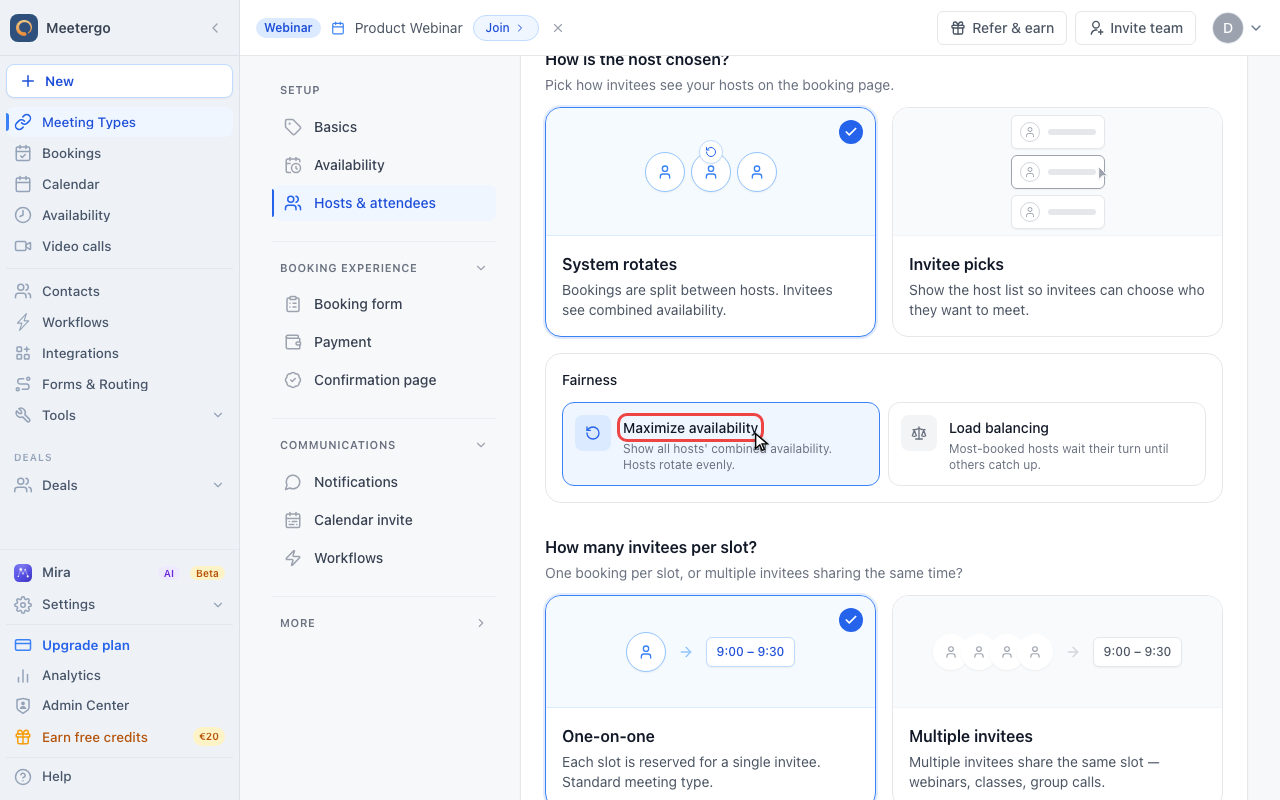
Use Maximize availability for the broadest combined host availability, or Load balancing when fairness should be stricter.
Choose the availability mode
Review individual host availability
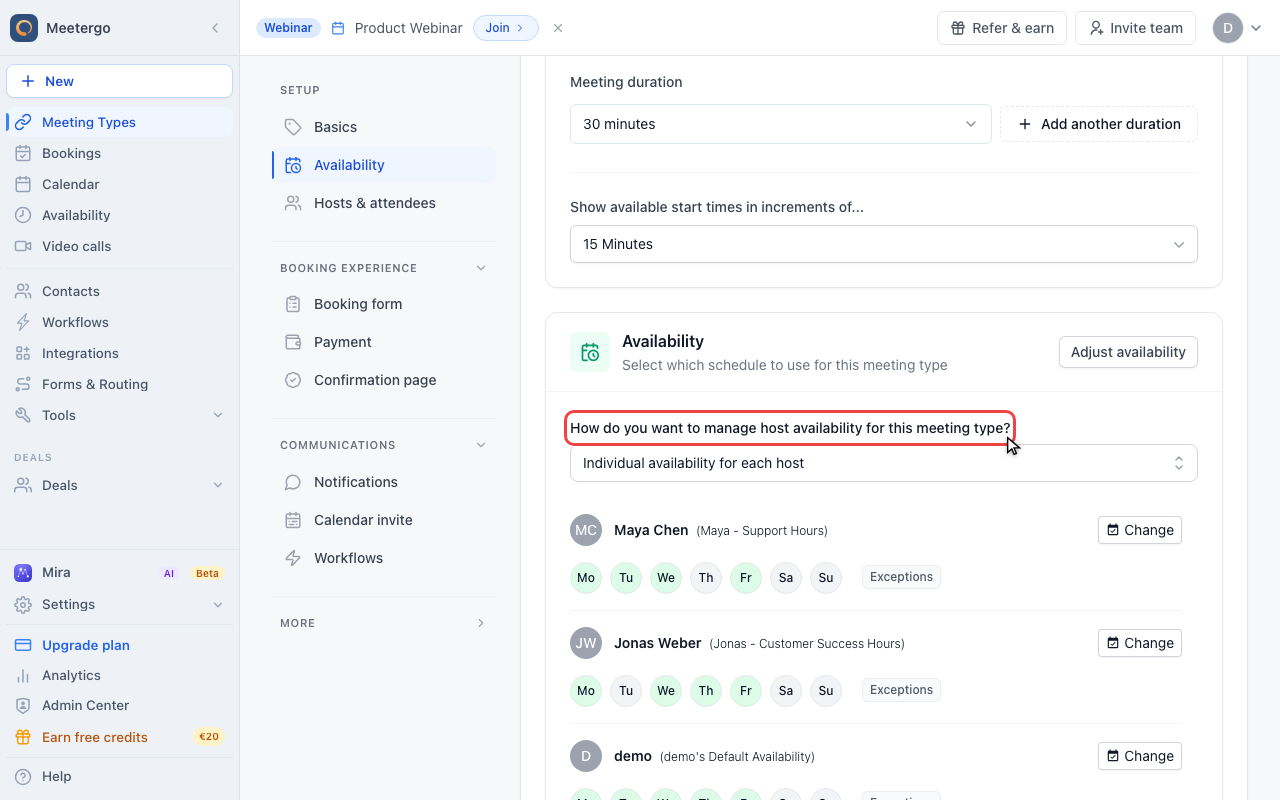
With individual availability, each host keeps their own schedule. Round robin can offer a slot when at least one eligible host is available.
Open the availability mode menu
Open the mode menu to choose between individual host schedules and one common schedule for all hosts.
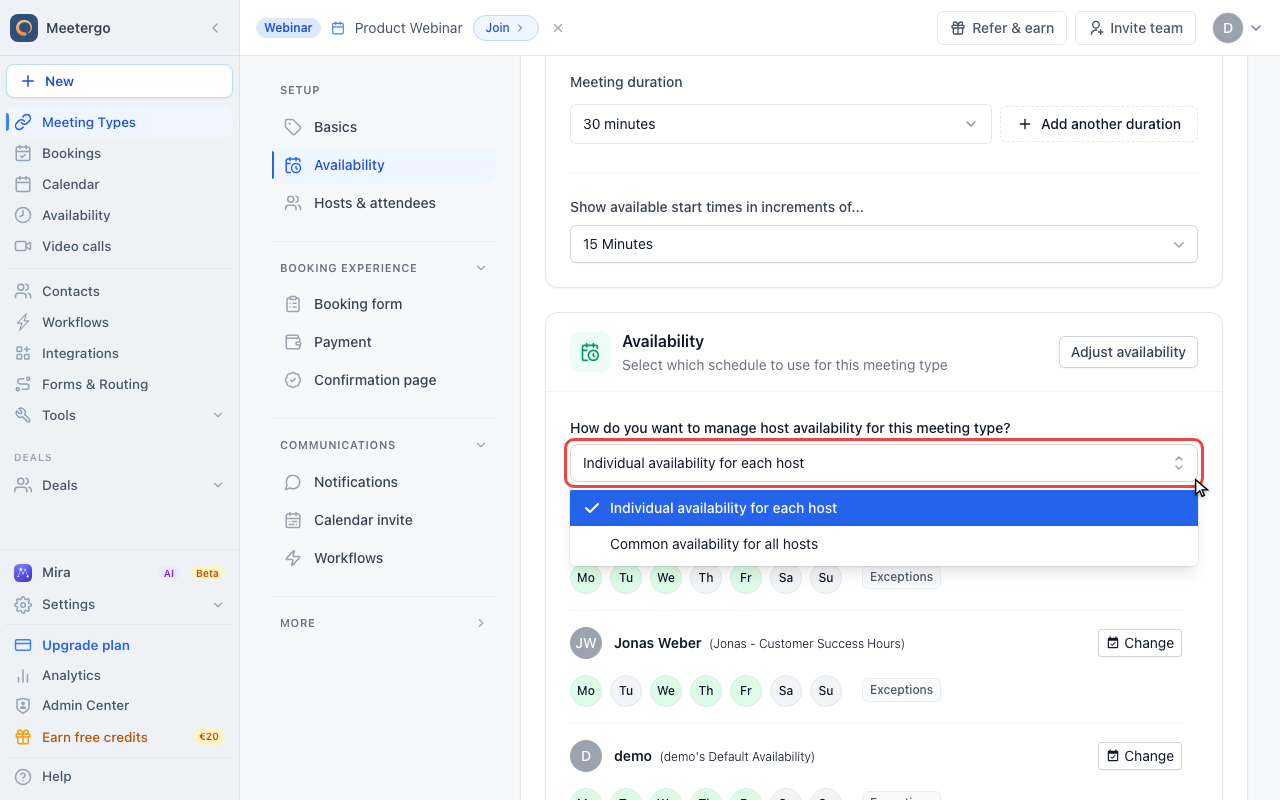
Switch to common availability
Common availability overrides individual host schedules for this meeting type. Calendar conflicts are still checked for the selected hosts.
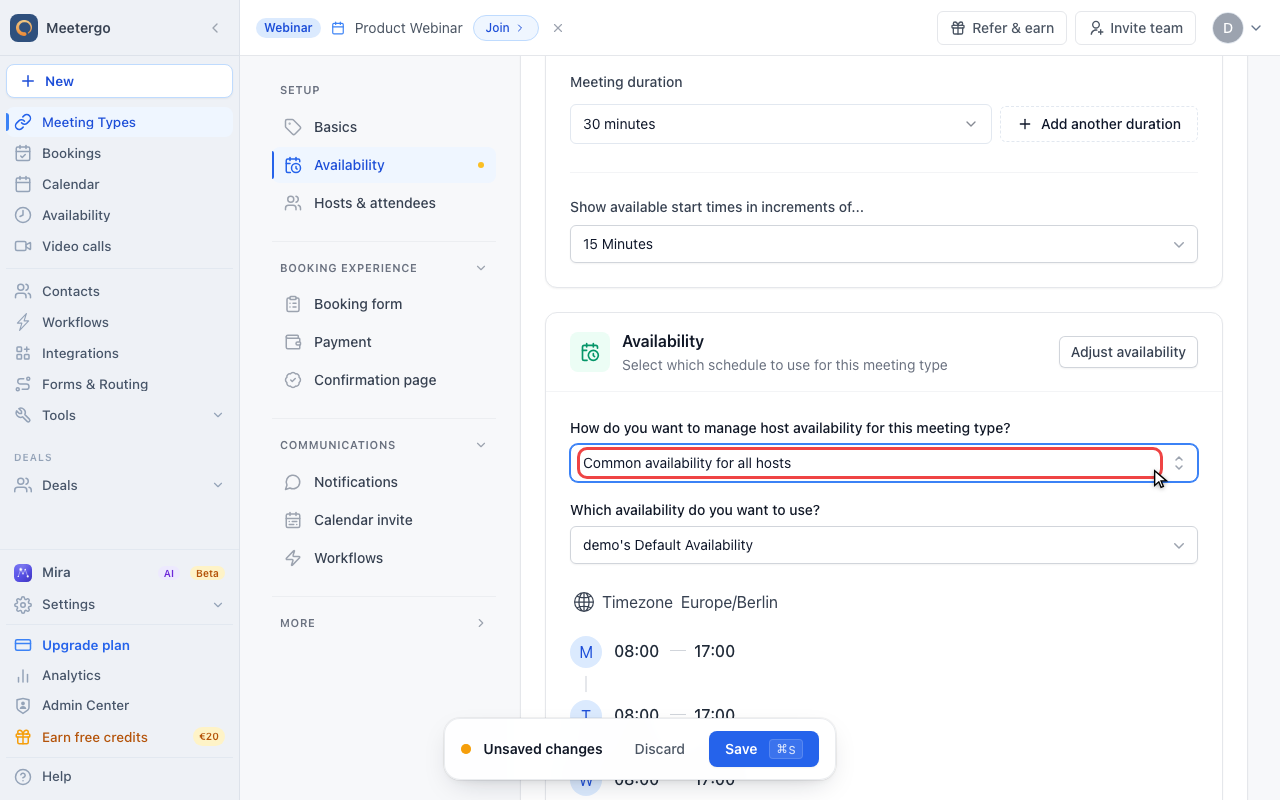
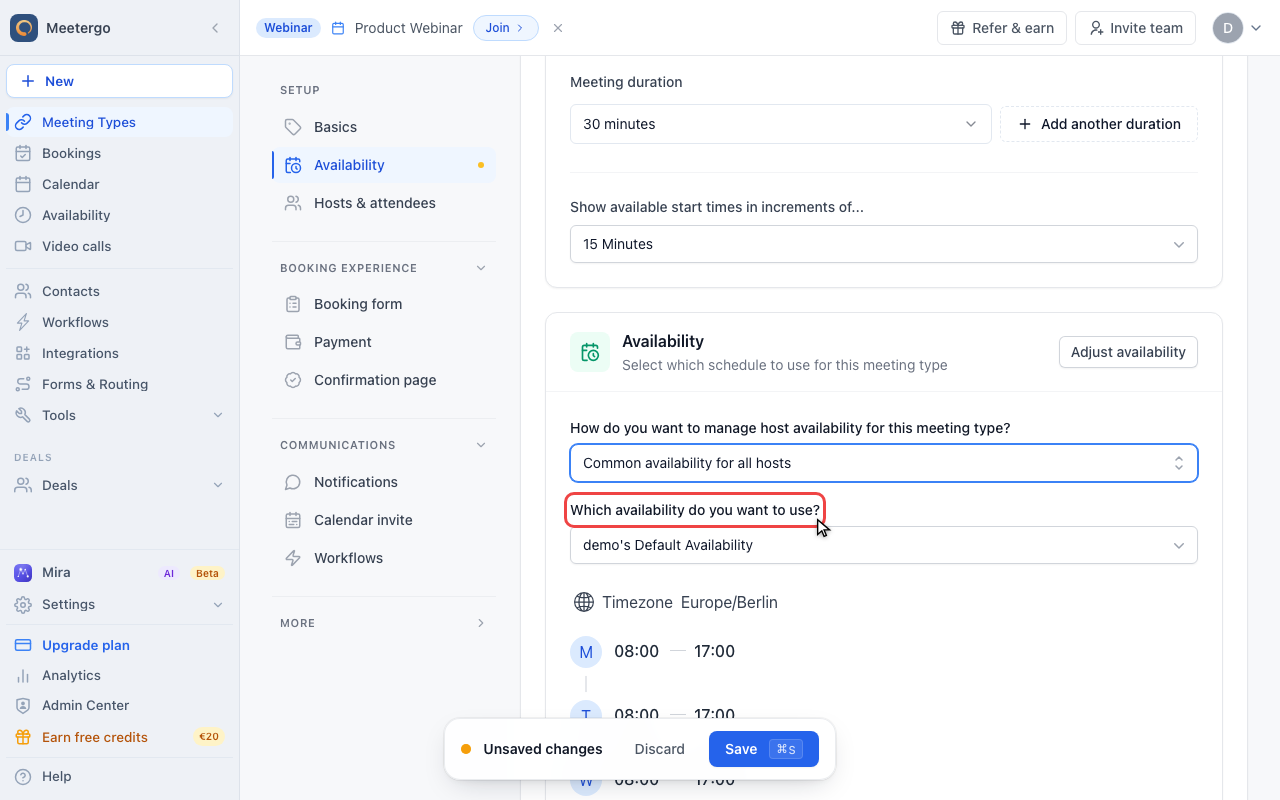
Choose the shared schedule
Select the schedule all hosts should share for this meeting type, then save only after the preview looks correct.
Team Scheduling Options
| Mode | How It Works | Best For |
|---|---|---|
| Round Robin | Rotates bookings among team members | Sales teams, support queues |
| Collective | Requires all selected members available | Panel interviews, group calls |
| Individual | Each person has their own booking page | Personal scheduling |
How Each Mode Calculates Availability
The mode you pick decides how the individual schedules of your hosts are combined into the slots invitees see.
Round Robin
A slot appears as soon as at least one eligible host is free for it, so the booking page shows the union of everybody's availability. Each host still brings their own schedule, calendar conflicts, buffers, and minimum notice, and meetergo picks the host at the moment of booking. Adding hosts therefore widens the booking page.
For the rotation itself, how a host is chosen, and the setup steps, see How to have a single booking link for your team and Understanding round robin scheduling.
Collective
A slot only appears when every required host is free for it, so the booking page shows the intersection of their availability. Adding hosts therefore narrows the booking page, sometimes drastically, and one host with a tight schedule or a full calendar becomes the limit for the whole page.
For setting one up, see Setting up a group meeting with multiple hosts.
With Common availability, one shared schedule replaces the individual host schedules for that meeting type. Calendar conflicts are still checked per host, so it narrows the page rather than forcing slots open.
Groups and Teams
Groups organize users for team scheduling features.
Creating a Group
- Go to Team → Groups
- Click Create Group
- Name your group (e.g., "Sales Team")
- Add members
- Optionally assign group admins
Group Limits
- Up to 30 members per group
- Up to 20 admins per group
- Users can belong to multiple groups
Group Availability
A group's availability is the combination of all members:
- Round robin: Any member's availability
- Collective: Intersection of all members' availability
Individual Availability Impact
Each team member's personal availability affects team scheduling:
Calendar Connections
- Members should connect their calendars
- Busy times are automatically blocked
- Multiple calendars can be checked
Availability Settings
Each member sets their own:
- Working hours
- Buffer times
- Minimum notice periods
Vacations and Time Off
When team members block time:
- Round robin skips them during that period
- Collective meetings lose those slots entirely
Managing Team Availability
Dashboard View
Admins can see:
- Each member's connected calendars
- Current availability status
- Upcoming bookings per member
Coverage Gaps
Watch for times when:
- All team members are unavailable
- Only one person covers a time slot
- Certain days have limited coverage
Balancing Workload
Monitor booking distribution:
- Check who's getting more meetings
- Adjust priority settings if needed
- Ensure fair distribution
Best Practices
Ensure Calendar Connections
Before enabling team scheduling:
- Verify all members have connected calendars
- Check that calendars sync properly
- Test with sample bookings
Align Working Hours
For collective meetings:
- Coordinate team availability windows
- Consider time zone differences
- Set realistic overlapping hours
Regular Check-Ins
Periodically review:
- Are bookings distributing fairly?
- Is team capacity appropriate?
- Do availability settings need updating?
Clear Communication
Make sure team members know:
- They're part of team scheduling
- Their availability affects bookings
- How to block time when needed
Troubleshooting
No Available Slots
If the team booking page shows no availability:
- Check each member's calendar for conflicts
- Verify availability settings aren't too restrictive
- For collective meetings, ensure schedule overlap
- Review minimum notice and buffer settings
Uneven Distribution
If bookings aren't distributing evenly:
- Check distribution settings
- Verify all members have similar availability
- Review priority configurations
- Look for members with restrictive schedules
Wrong Host Assigned
If the wrong team member is assigned:
- Check group membership
- Verify round-robin order
- Look for availability constraints
- Review assignment logs
FAQ
Can a team member opt out of round robin temporarily?
Yes, they can block their calendar or be temporarily removed from the group.
What if a team member is sick?
Set them out of office so round robin skips them and their existing appointments can be handed to the rest of the team, see Out of office.
Can attendees choose which team member to meet?
With standard round robin, no. For choice-based scheduling, create individual meeting types or use a different configuration.
Do team members see each other's calendars?
Team members see aggregated availability but not each other's detailed calendar events (for privacy).
Related Articles
Was this article helpful?
Let us know if this article answered your questions.