
Host Approval
Require hosts to confirm bookings before they're finalized, set the approval expiry window, and approve or decline requests.
Host approval lets you review and approve meeting requests before they're added to your calendar. This article explains how to set up and use this feature.
Looking for Double Opt-In? Check out our Double Opt-In article to learn about email confirmation for attendees.
 1 / 6
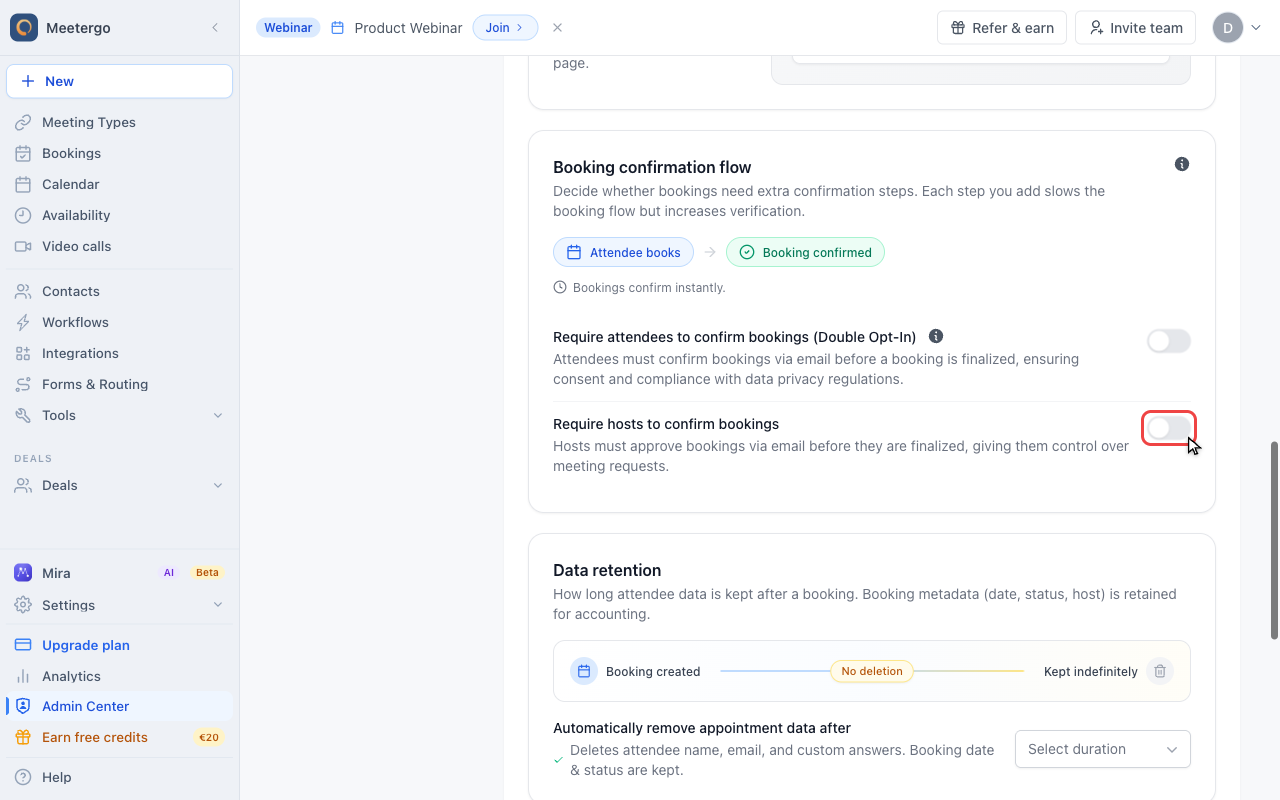
1 / 6Enable Require hosts to confirm bookings when every meeting type should wait for host approval before the appointment is confirmed.
Enable host approval
Turn on host approval
Enable Require hosts to confirm bookings when every meeting type should wait for host approval before the appointment is confirmed.
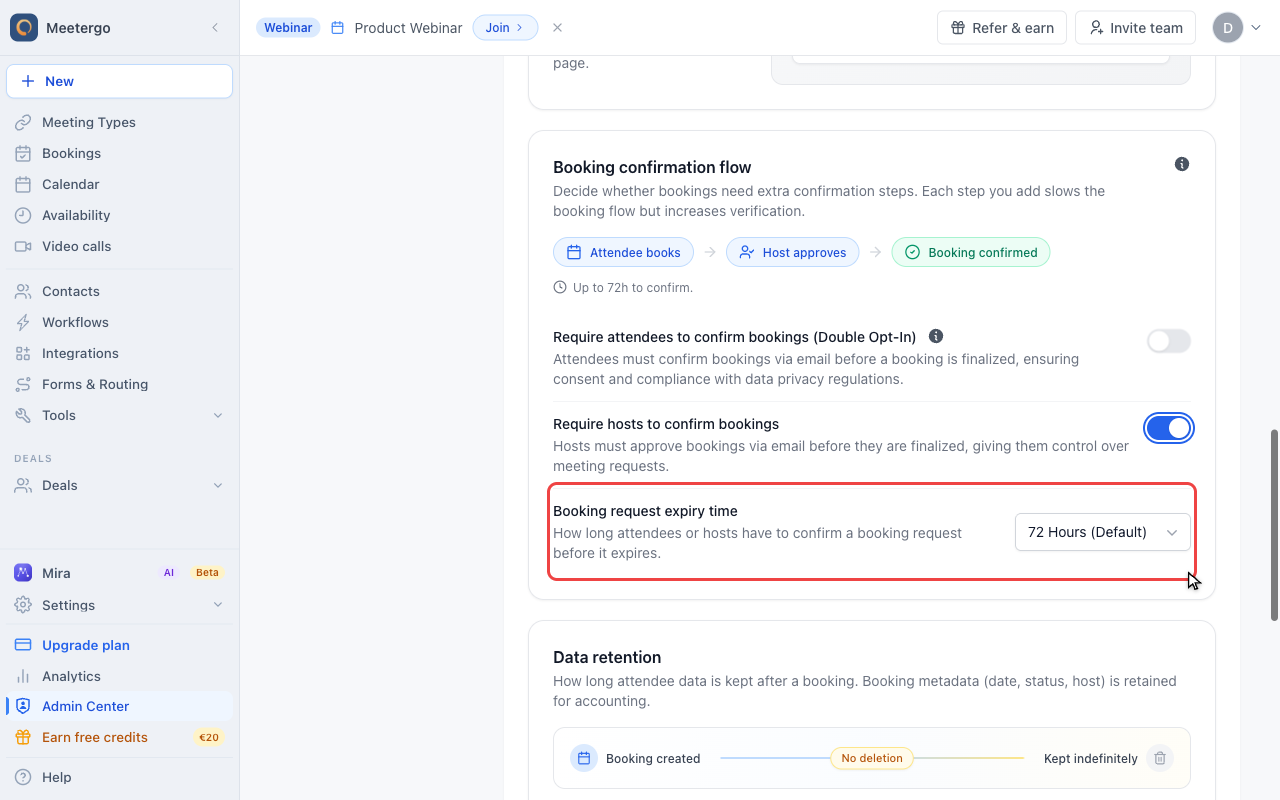
Set the approval window
Choose how long hosts have to approve a request before it expires and the time slot becomes available again.
Override one meeting type
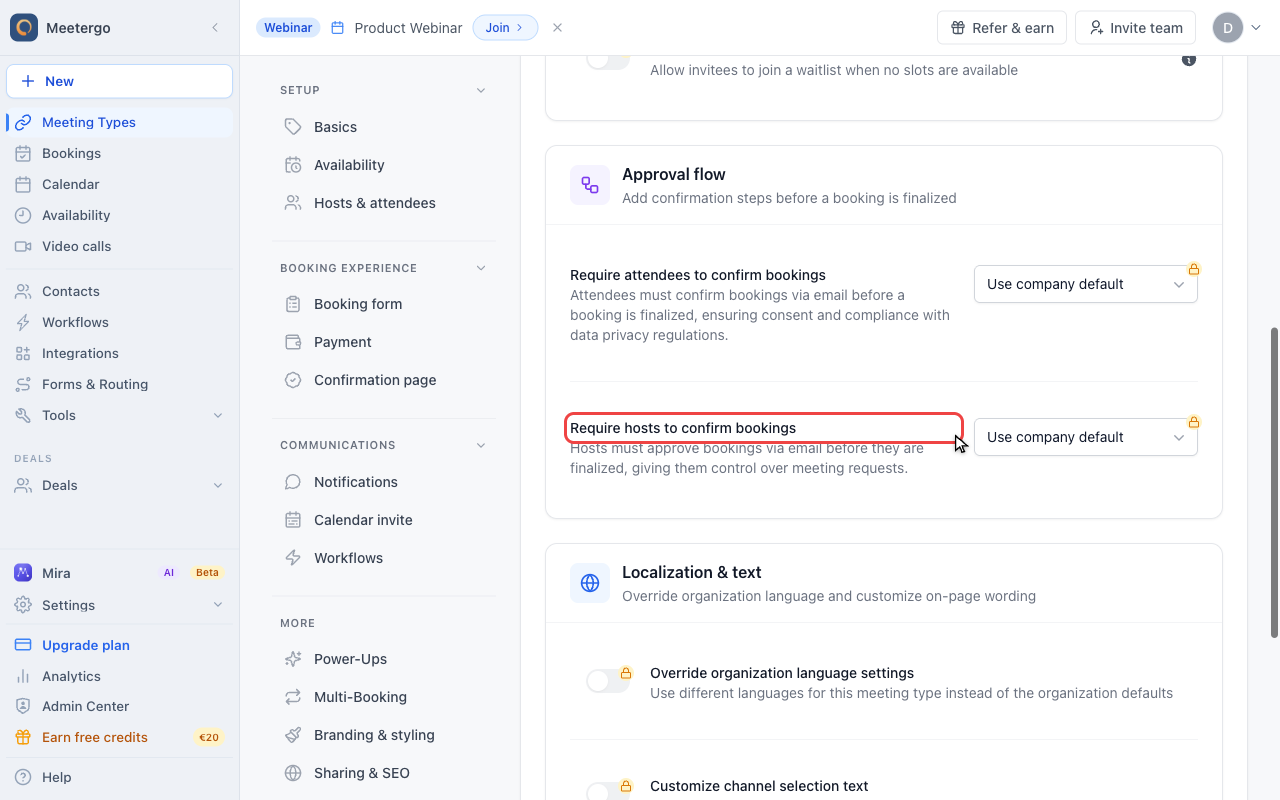
Review the meeting type override
Use this row to keep the company default, force host approval on, or disable it for this meeting type.
Review pending requests
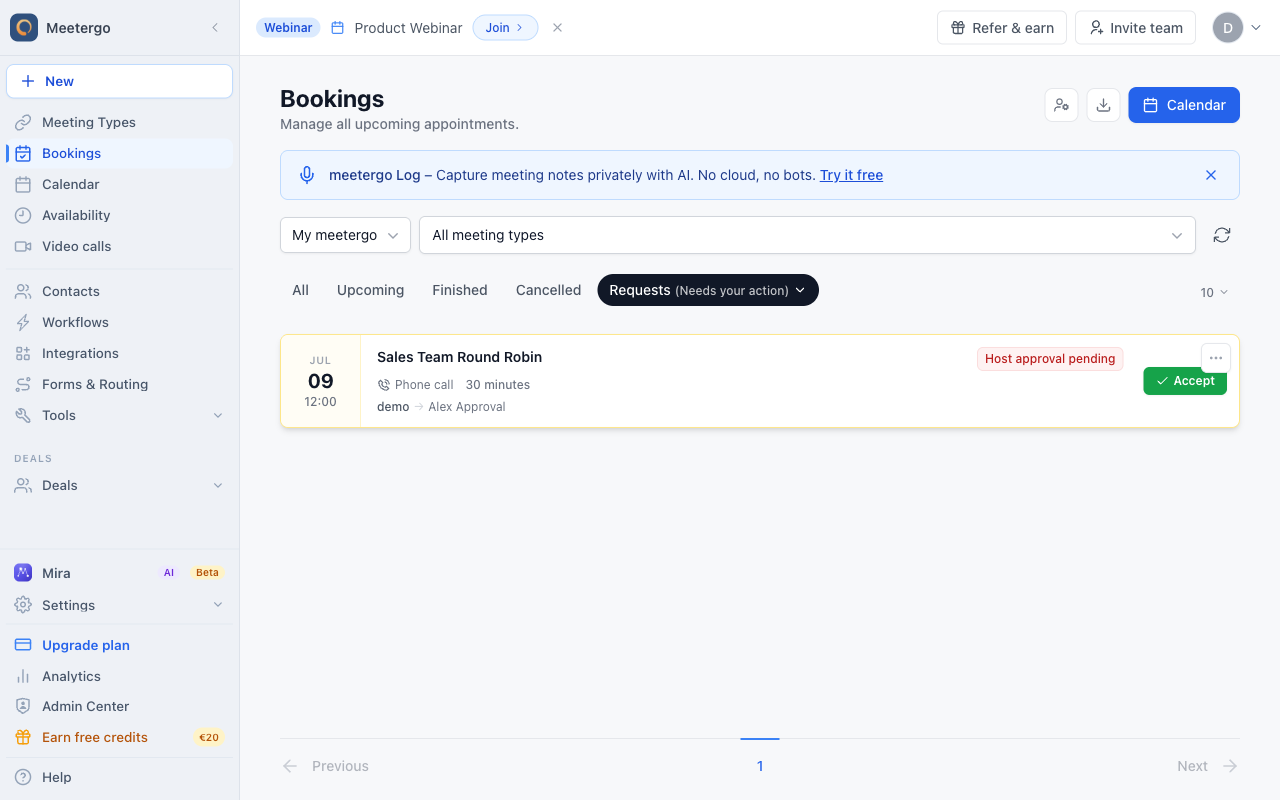
Find the pending request
Each pending request shows the meeting type, attendee, host, requested time, and the quick accept action.
Open the request details
Open a request to review the attendee, time, location, and host before deciding.
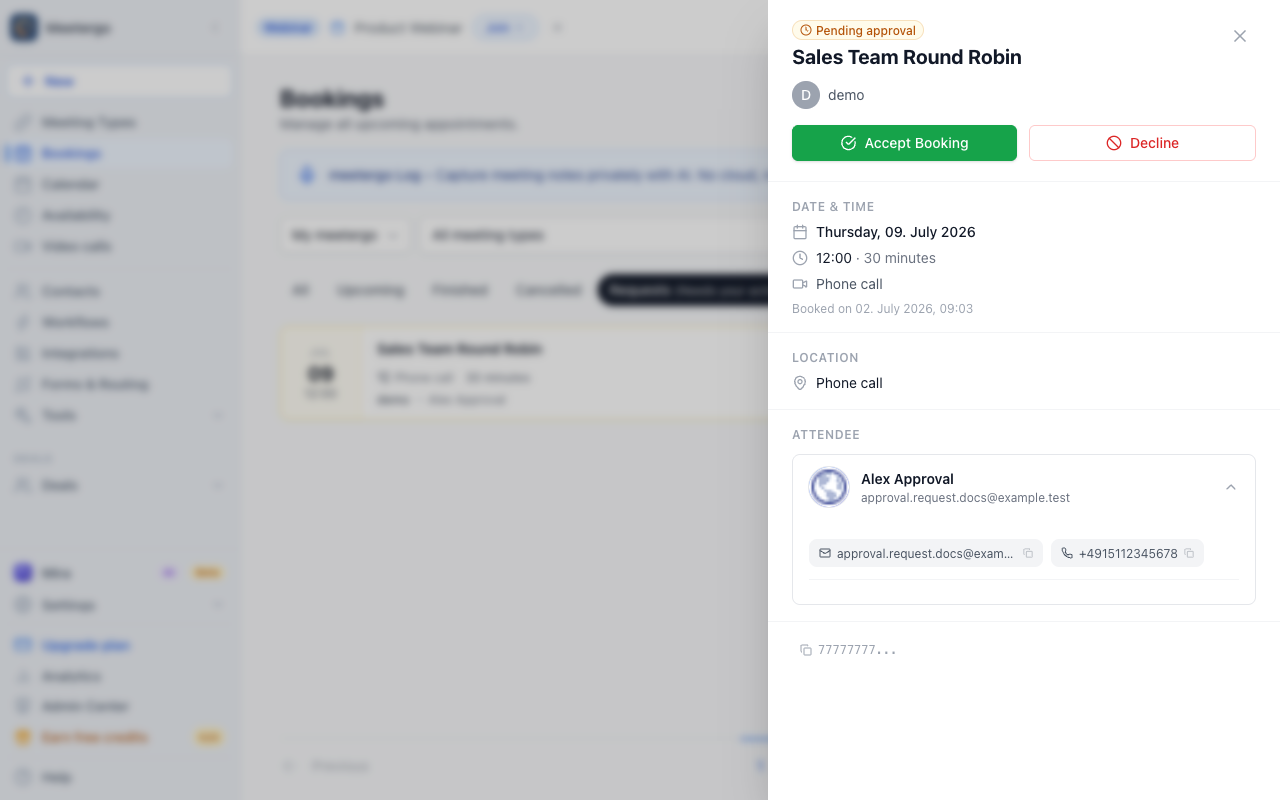
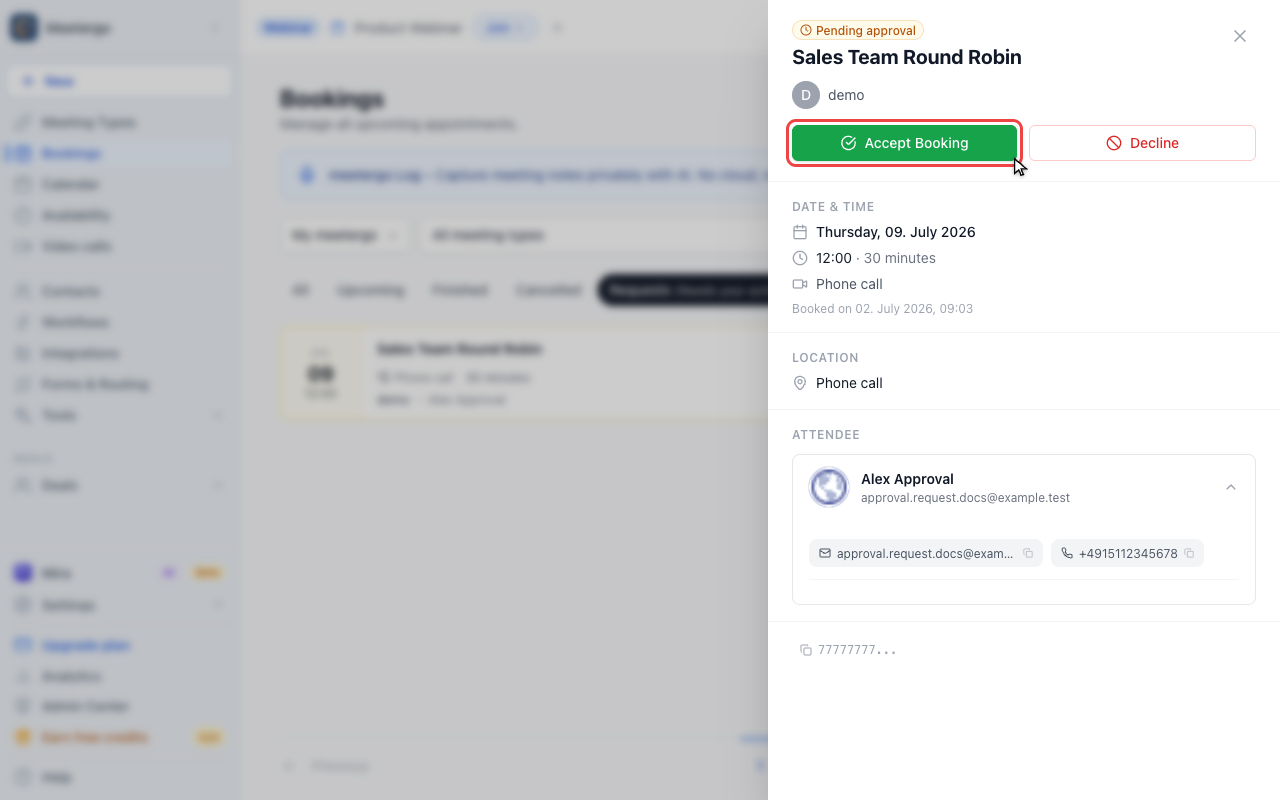
Accept only after review
Click Accept Booking only when the request is correct. Use Decline when the meeting should not be scheduled.
Who Can Approve a Booking Request
Approval is not limited to the assigned host. The following people can review and approve requests from the dashboard:
- The assigned host — always, via the approve/decline email buttons or the dashboard
- Team admins — for requests assigned to hosts in their team. Filter the user dropdown above the list by the team or by the host's name to make their pending requests visible
- Company admins — for any request in the organization
Approval notification emails are only sent to the assigned host. When a team or company admin approves a request, the attendee still receives the regular confirmation email.
Approval Window
By default, booking requests expire after 72 hours if they are not approved. The time slot becomes available again for new bookings.
Setting it to 1 week is recommended if your team doesn't review requests on weekends or public holidays, because a request arriving on Friday afternoon otherwise expires before Monday.
You change the window under Booking request expiry time in your organization's privacy settings, and the same deadline applies to double opt-in. See Change the confirmation deadline.
Customize Host Notification
Here's how to customize the host notification:
- Go to Email Templates
- Create a new email template and select the Require Host Confirmation preset
- Save the template
- Click Select default emails and set your template as the default for Require Host Confirmation
- Now you can customize the template to match your needs
- Save your changes
FAQ
What happens when I approve a booking?
The attendee receives a confirmation email, and the meeting is added to all calendars.
Can attendees reschedule approved meetings?
Yes, if you've enabled rescheduling.
How does this work with Double Opt-In?
If you use both features, the host must approve the booking first, then the opt in notification is sent to attendee. Once attendee confirms, the booking is finalized.
Related Articles
Was this article helpful?
Let us know if this article answered your questions.