
Reassigning Appointments to Other Team Members
Learn how to hand off single or multiple appointments to colleagues, e.g. when someone is sick, on vacation, or changes teams
The handoff feature lets you reassign appointments to other team members. This is especially useful when someone falls ill, goes on vacation, or is unexpectedly unavailable. meetergo offers two ways to do this: single reassignment for a specific appointment and the bulk handoff wizard for multiple appointments at once.
The handoff feature requires Premium or higher. If you see an "Unlock" button, an admin needs to upgrade the plan.
 1 / 20
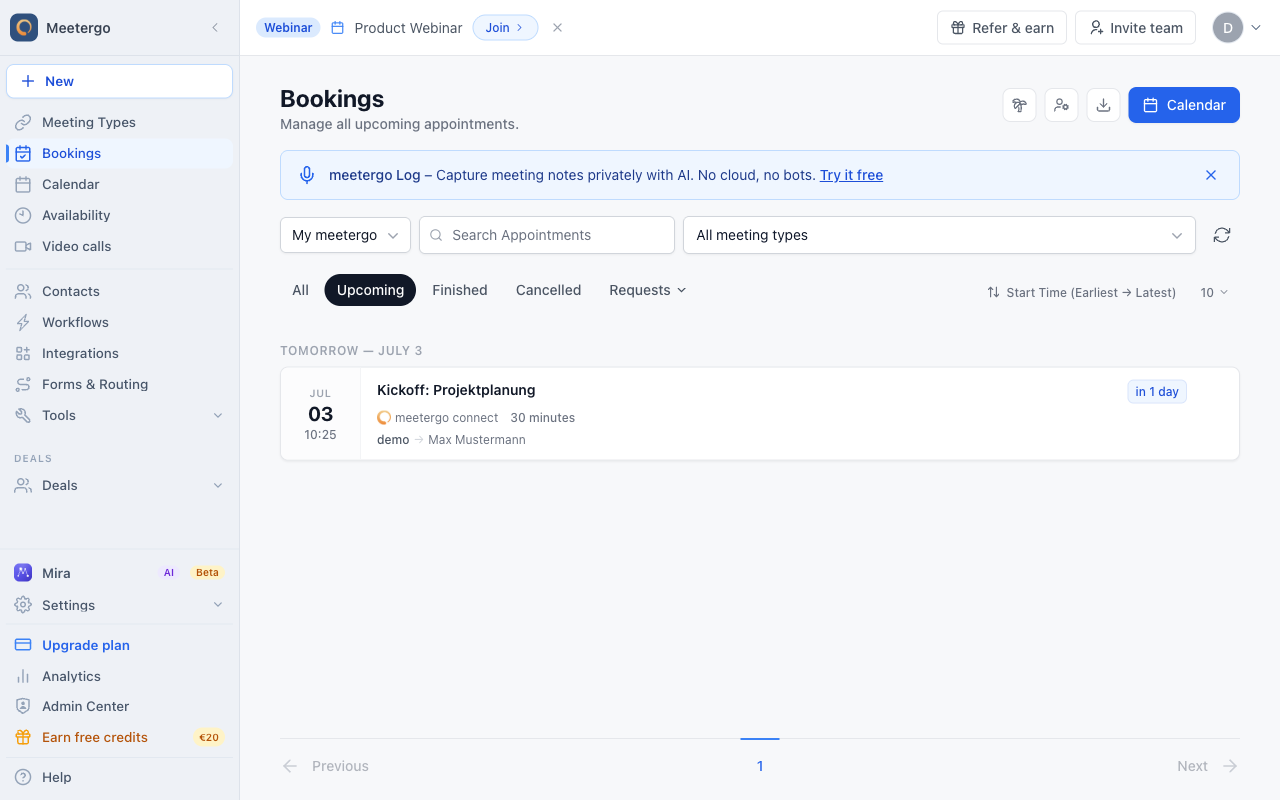
Locate the appointment in the Upcoming list. Use the scope picker, search, or meeting type filter if the list is long.
Reassign one appointment
Find the appointment
Locate the appointment in the Upcoming list. Use the scope picker, search, or meeting type filter if the list is long.
Open the actions menu
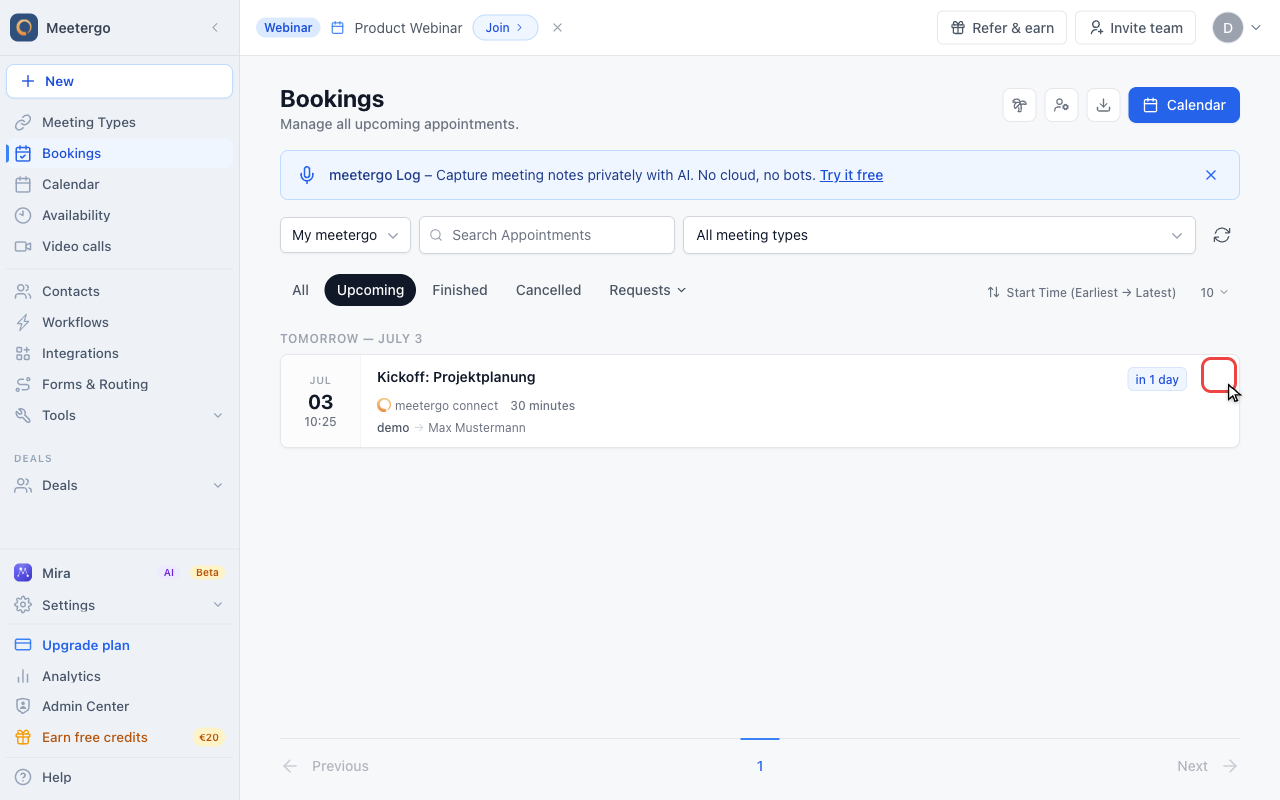
Open the appointment actions menu to see the host actions for this booking.
Choose Reassign
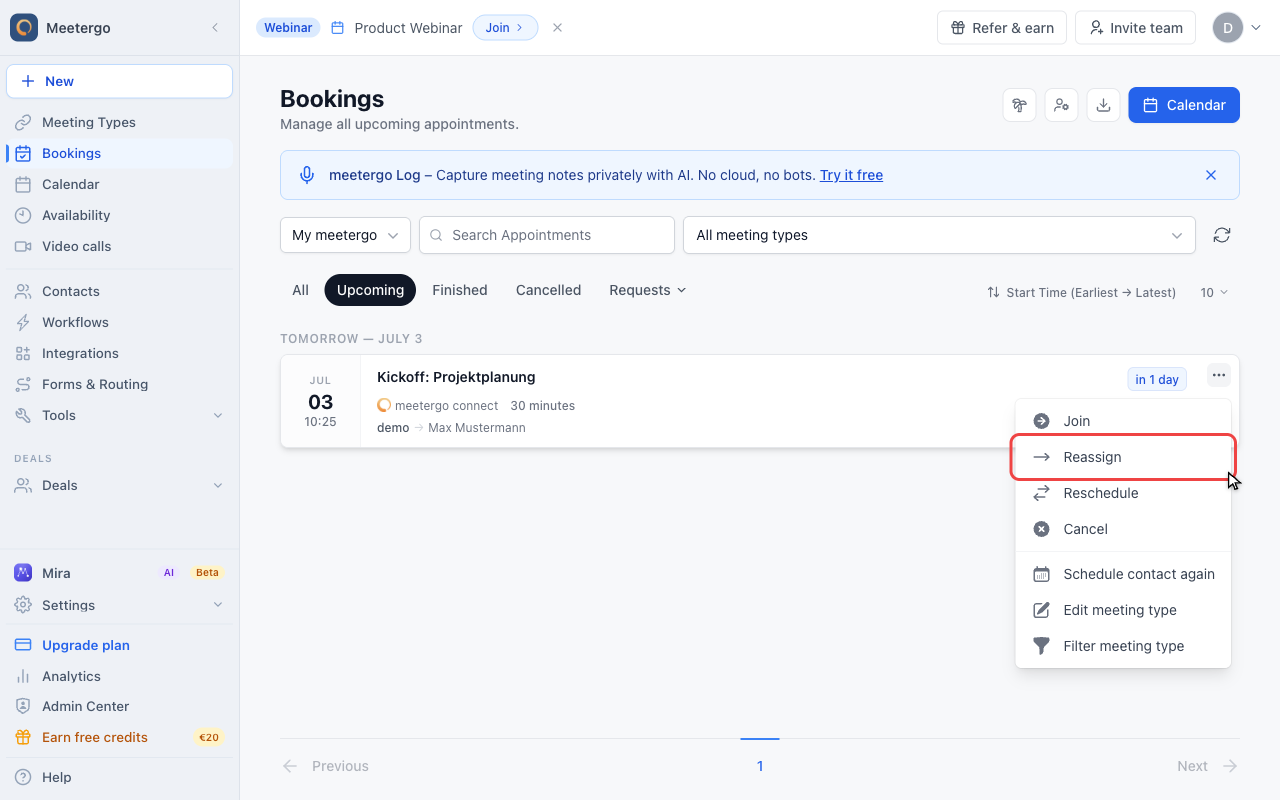
Choose Reassign to open the single appointment handoff dialog. The appointment is not changed yet.
Review the handoff dialog
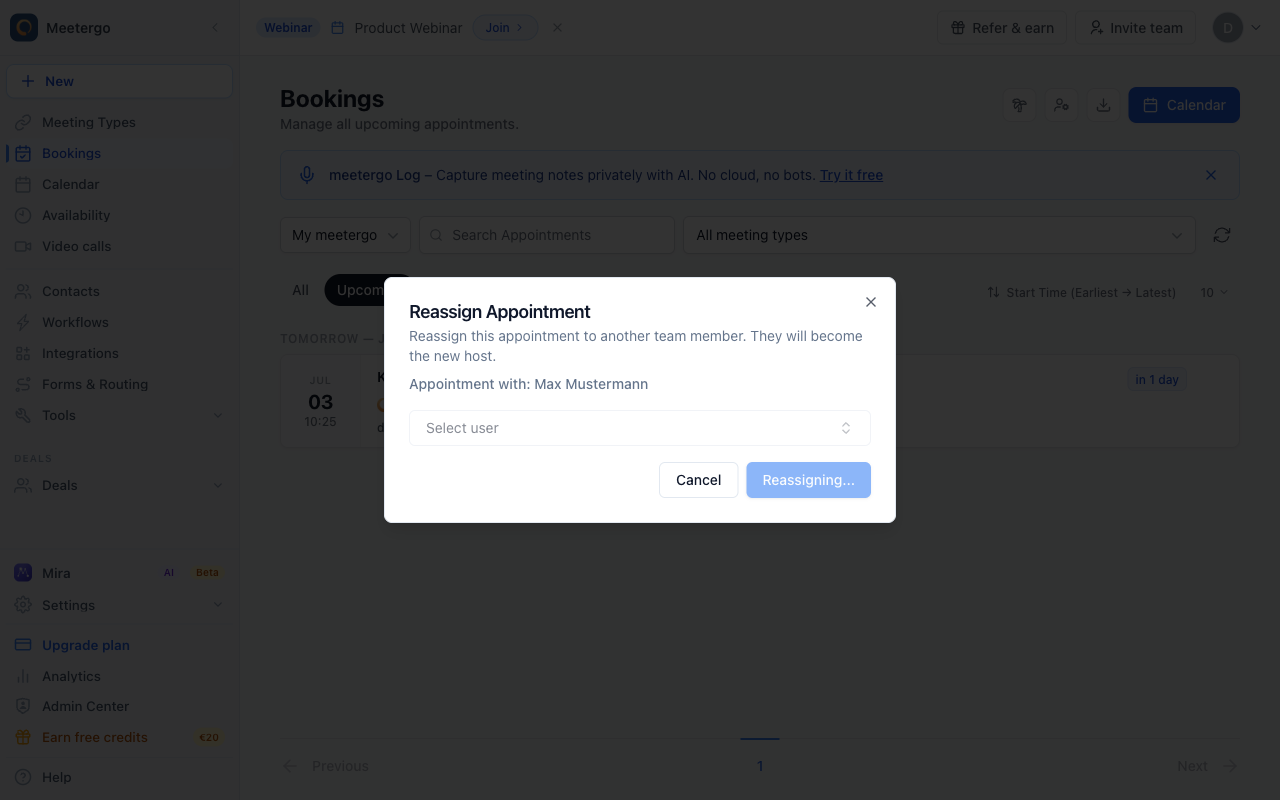
The dialog shows the attendee and lets you choose the new host.
Open the user selector
Open the user selector to see available team members for this appointment.
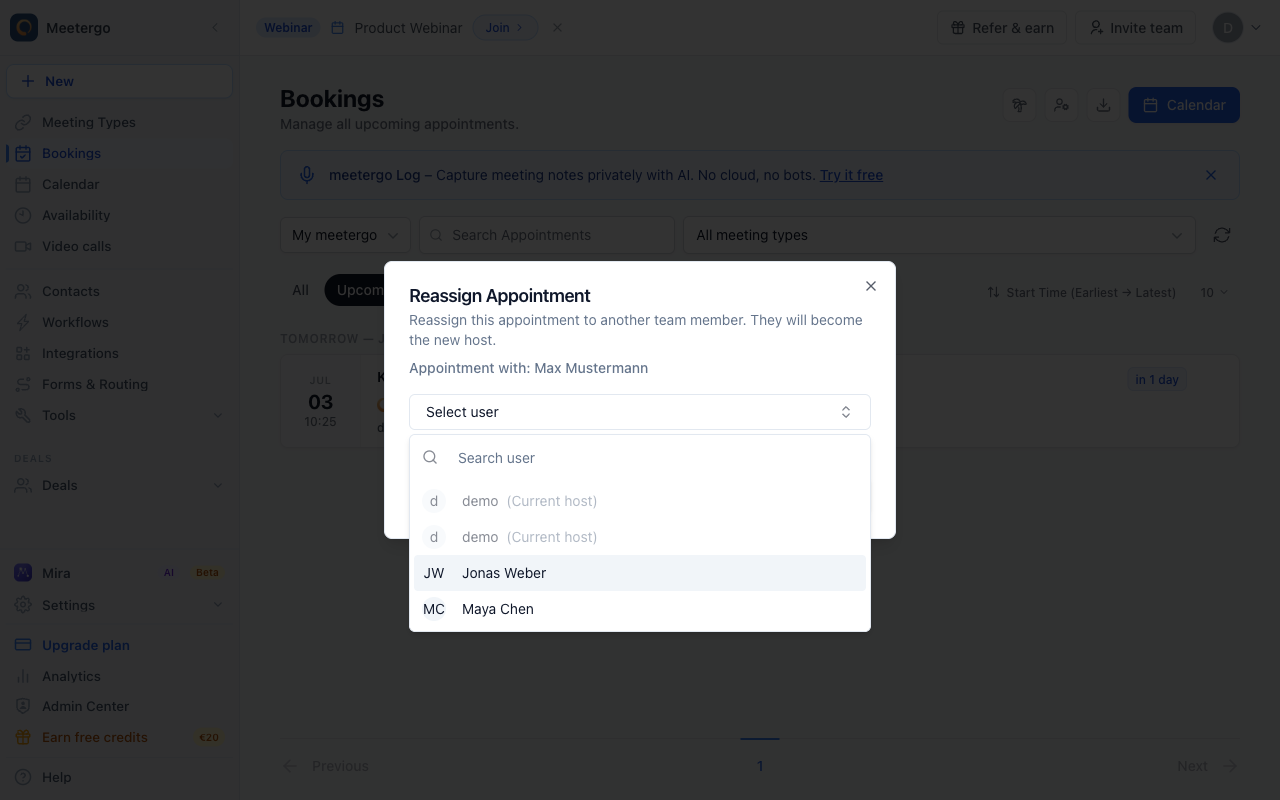
Choose the new host
Select the colleague who should take over the appointment. Current hosts cannot be selected again.
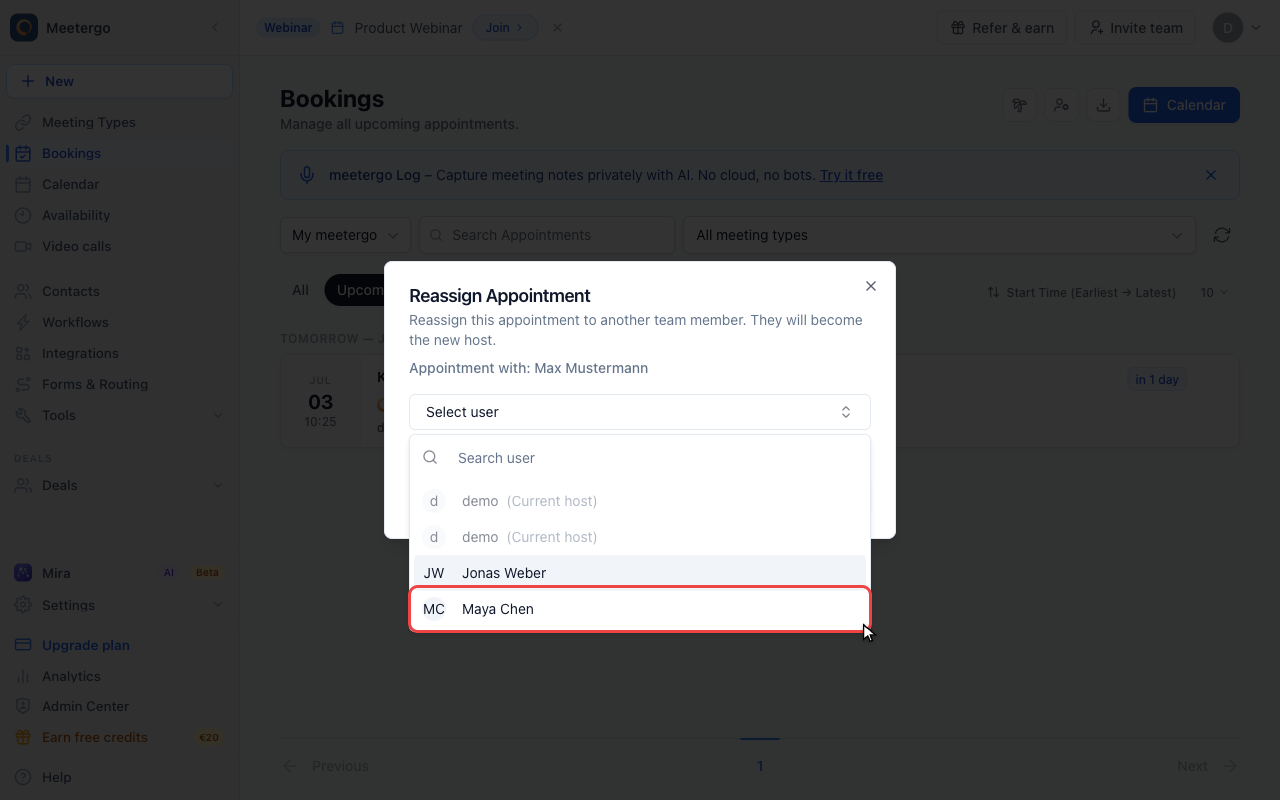
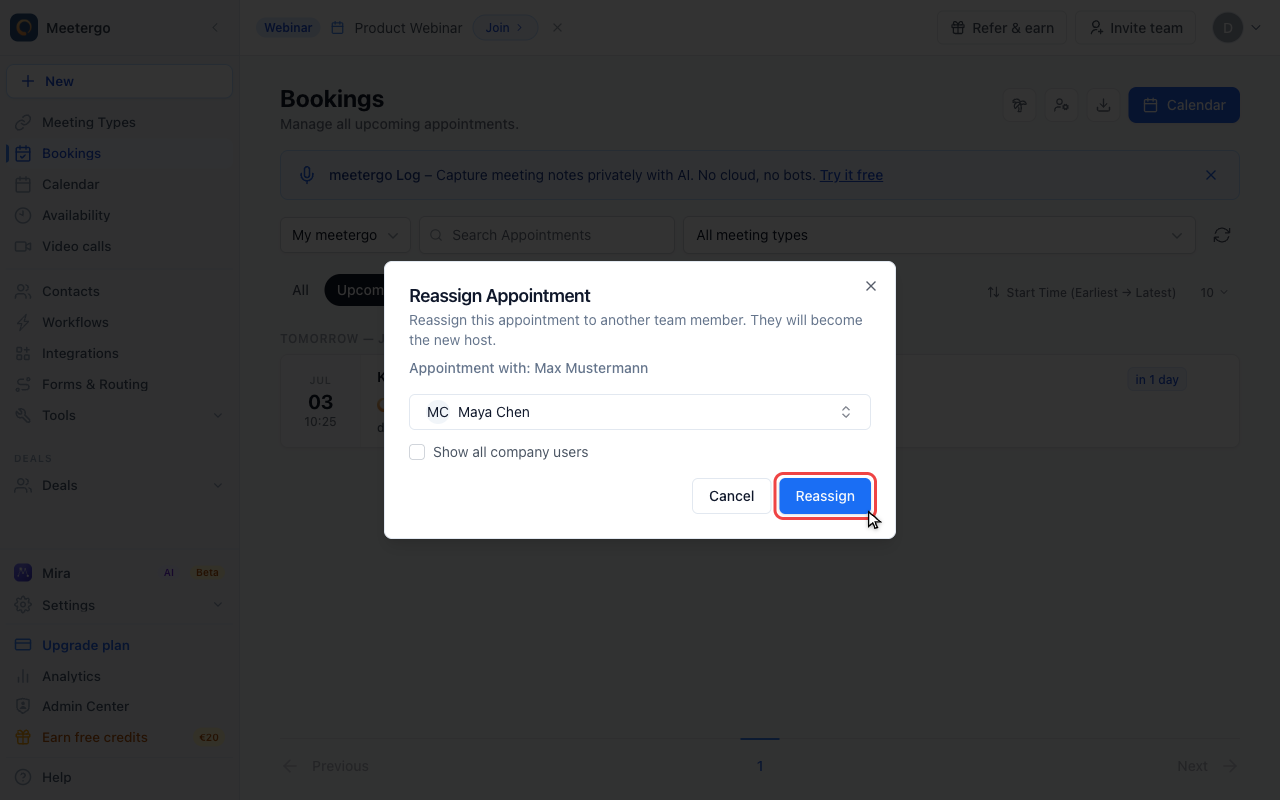
Confirm only after checking
Click Reassign only after the new host is correct. meetergo updates the host and sends the handoff notifications.
Set up bulk handoff
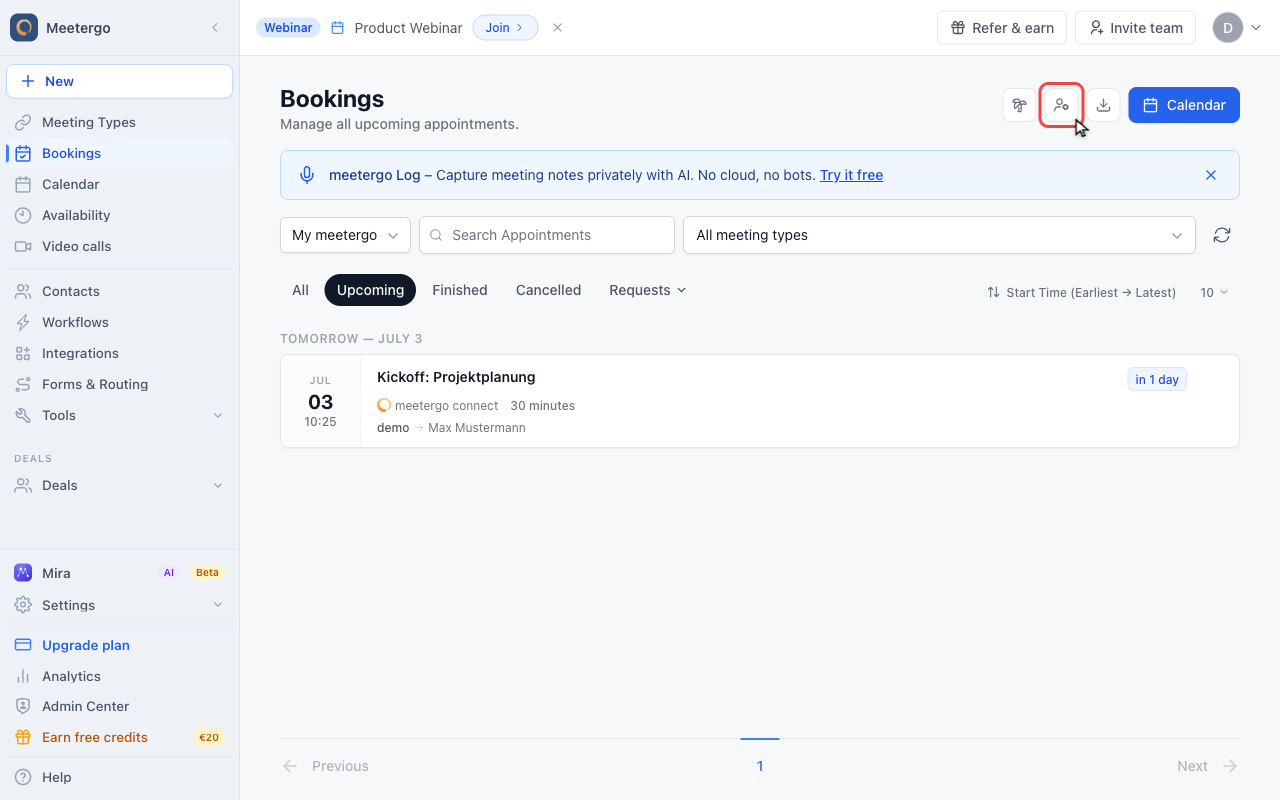
Open bulk handoff
Click Reassign appointments in the page header when multiple bookings should move together.
Review the wizard
The wizard starts by asking whose appointments should be handed off and who should receive them.
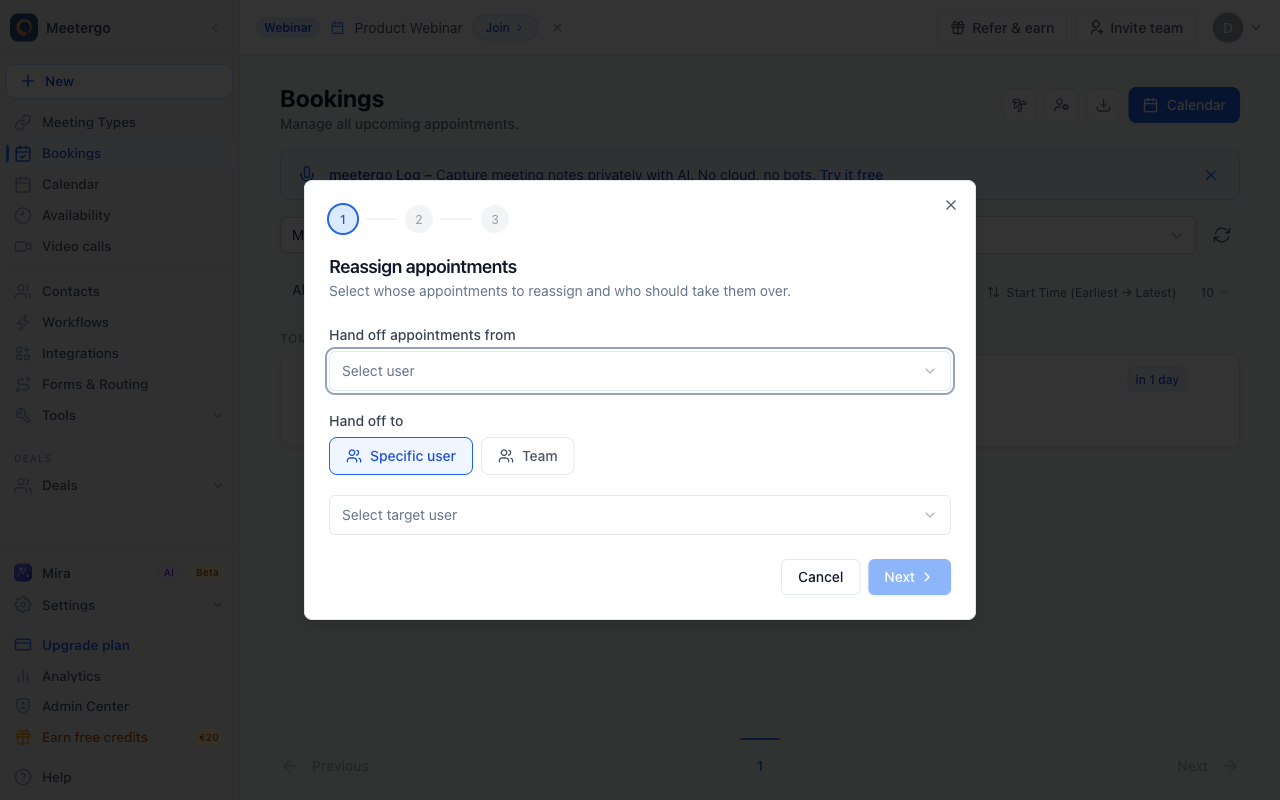
Open the source selector
Open the source selector to choose the person whose appointments should move.
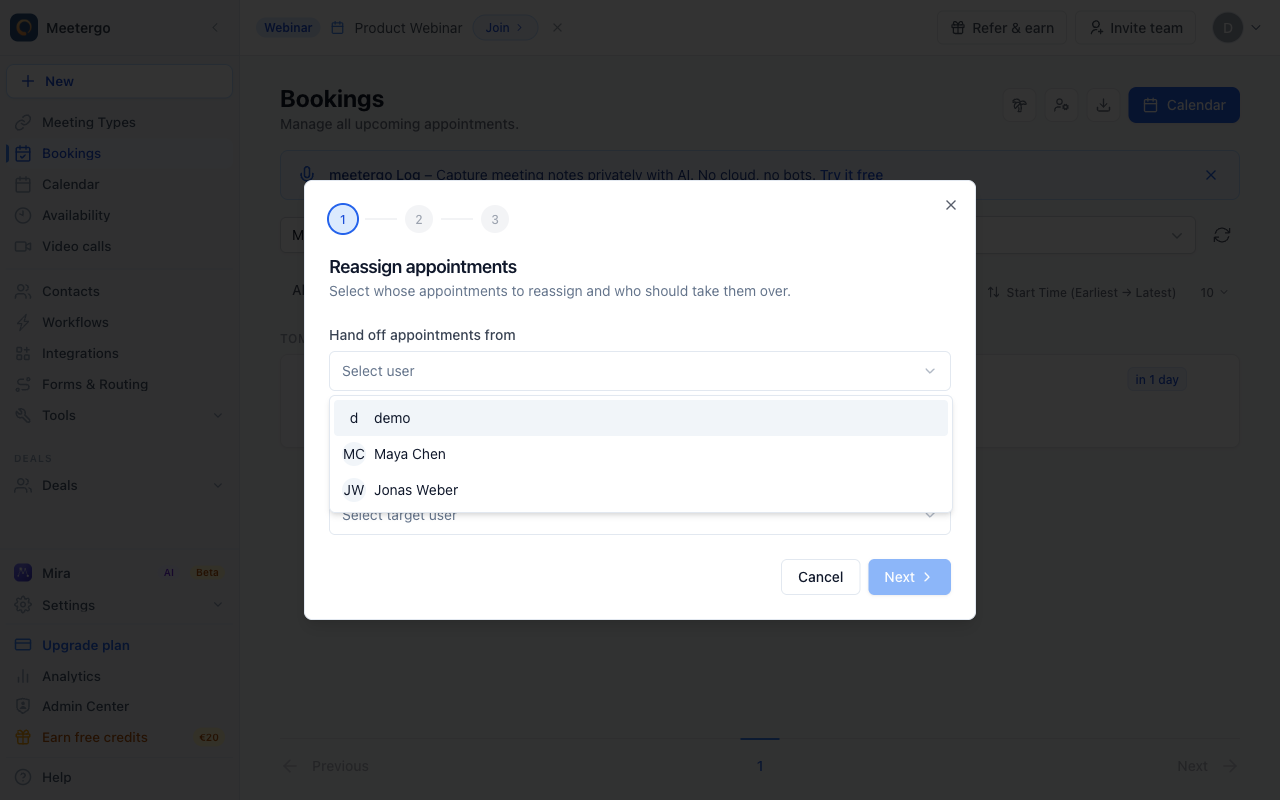
Select the source host
Select the host whose appointments need to be covered.
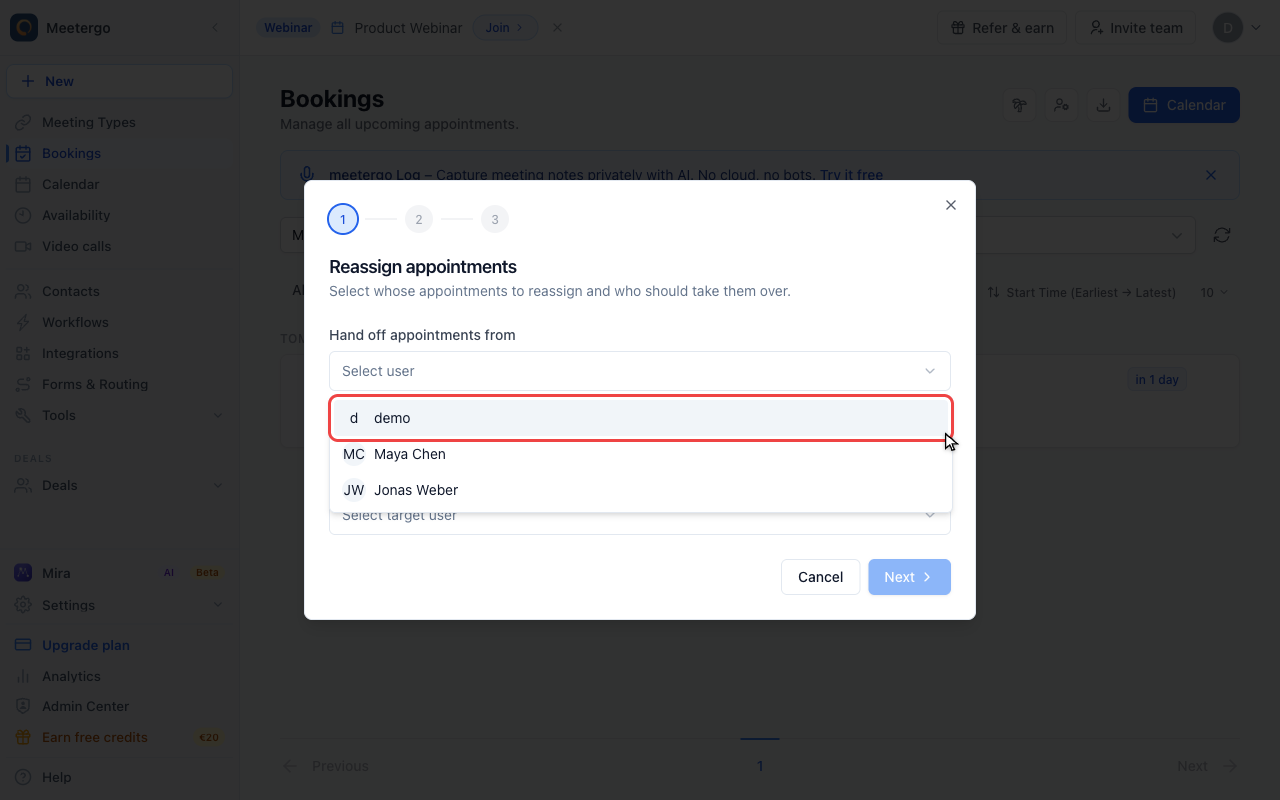
Use a team target
Choose Team when appointments should be distributed across several workspace members.
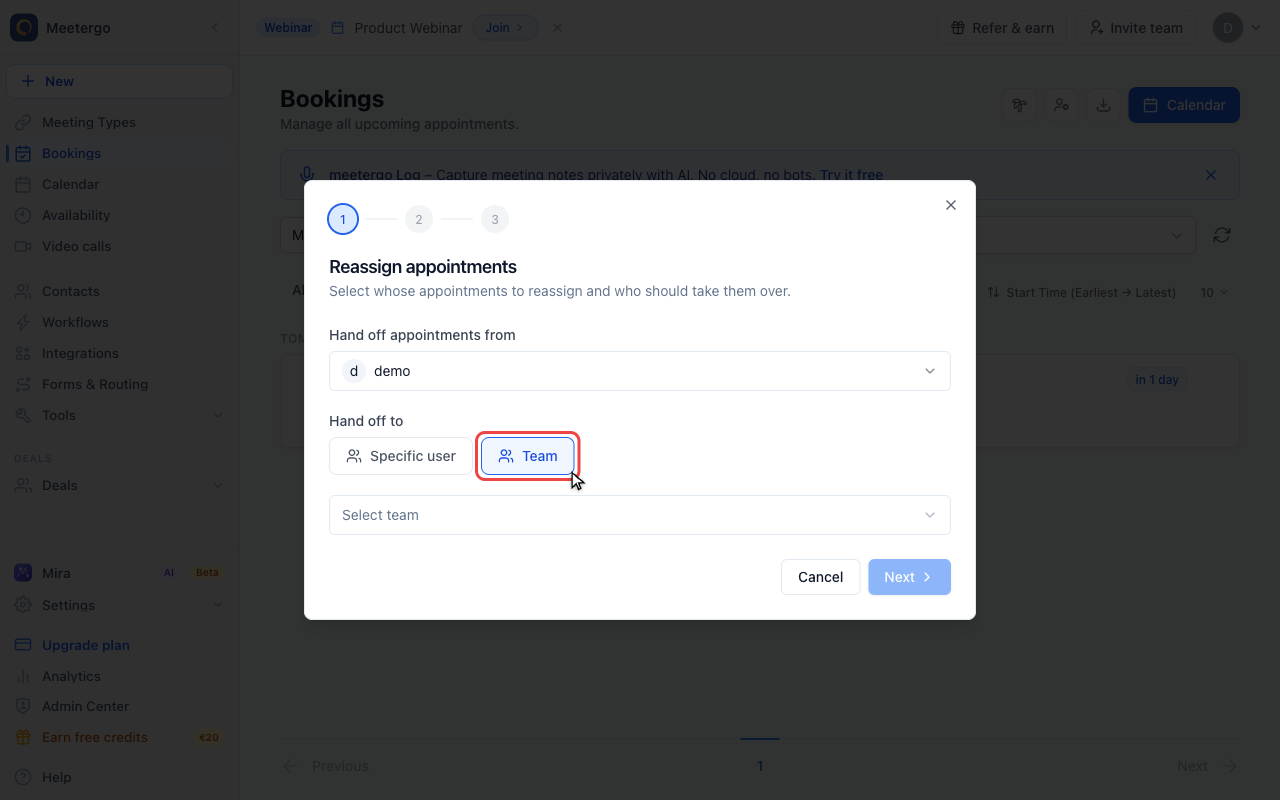
Open the team selector
Open the team selector to choose the workspace that should cover the appointments.
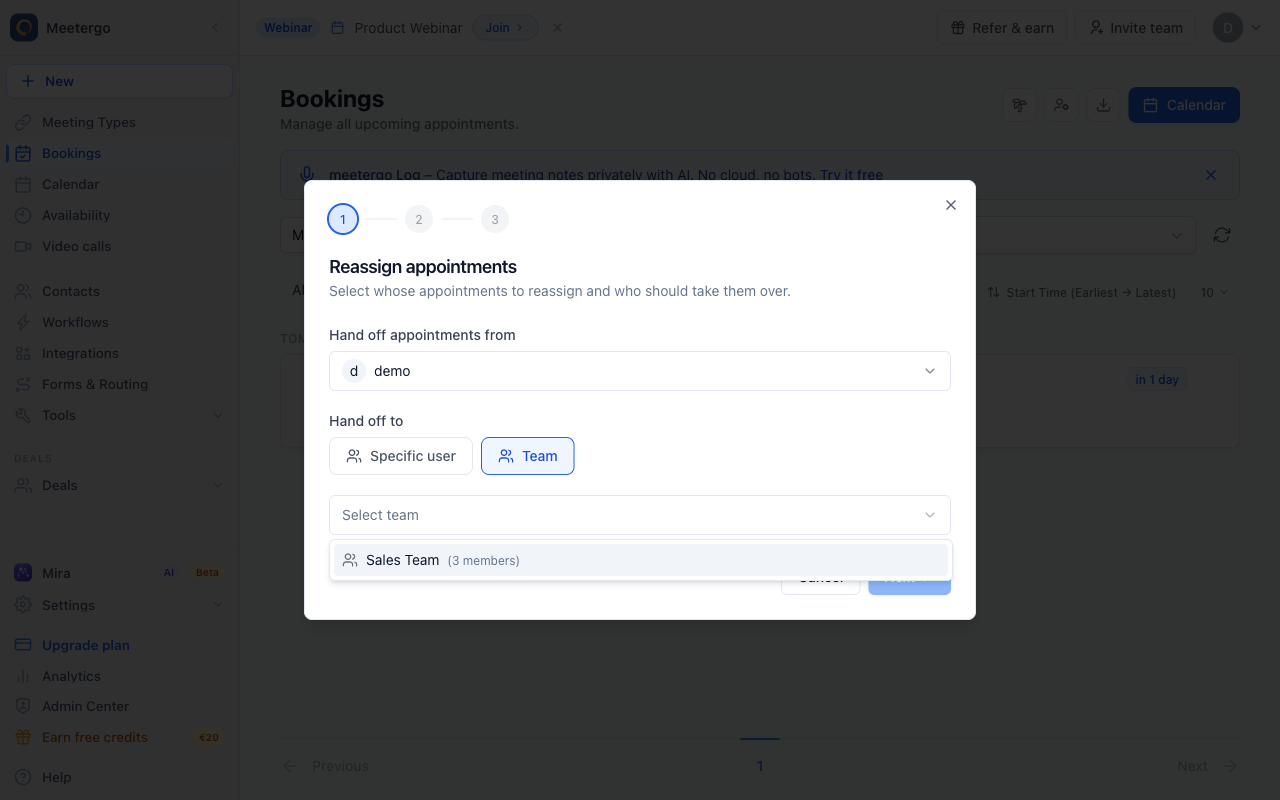
Choose Sales Team
Select the team that should receive the handoff.
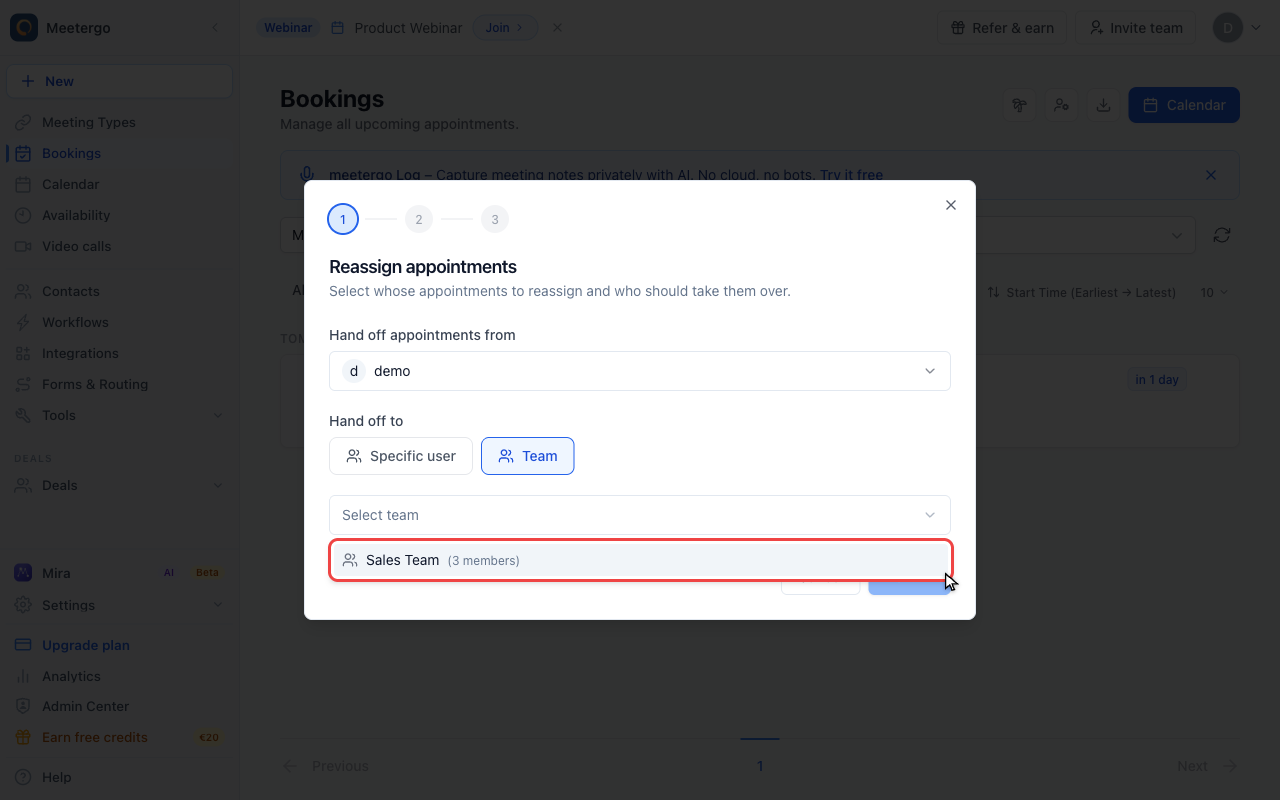
Continue to the date range
Continue once the source host and target team are correct.
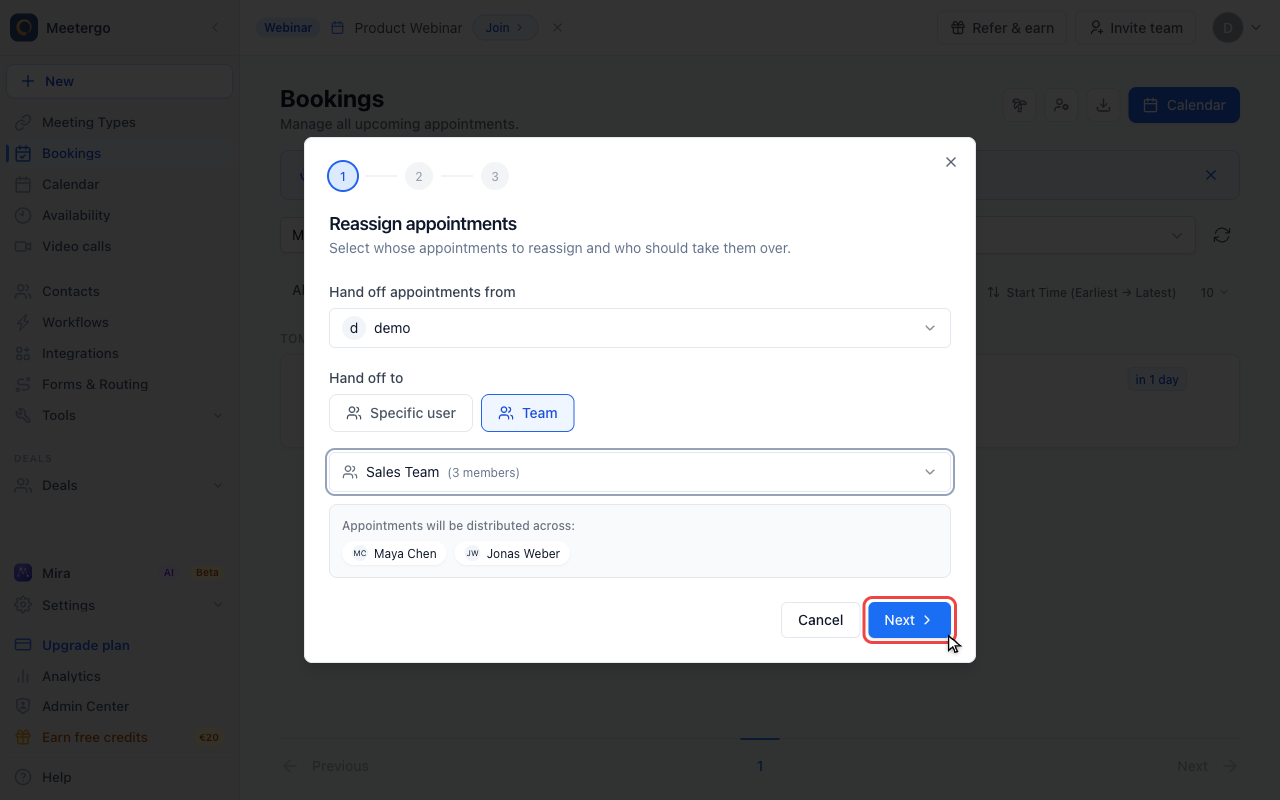
Review the handoff preview
Check the affected count
Choose the period and check how many appointments are affected before continuing.
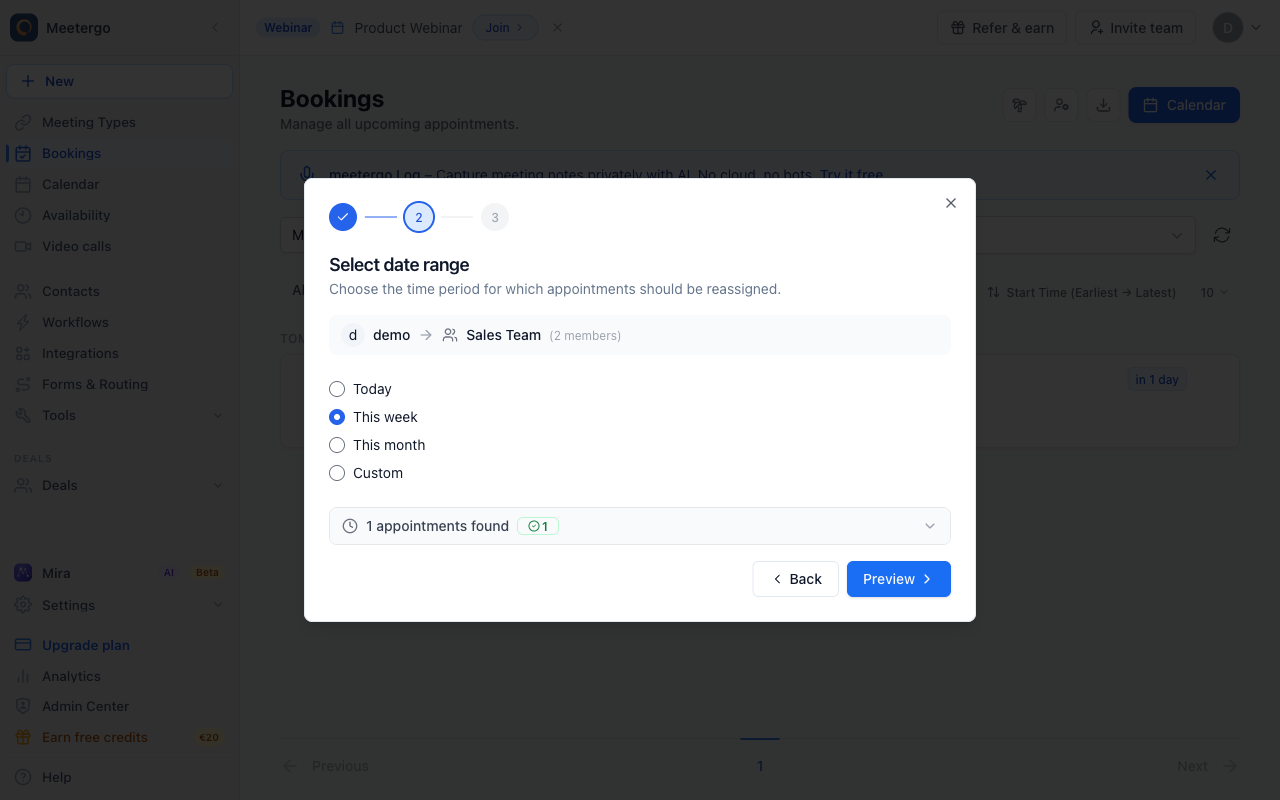
Open the preview
Open the preview to see each appointment and the planned target host.
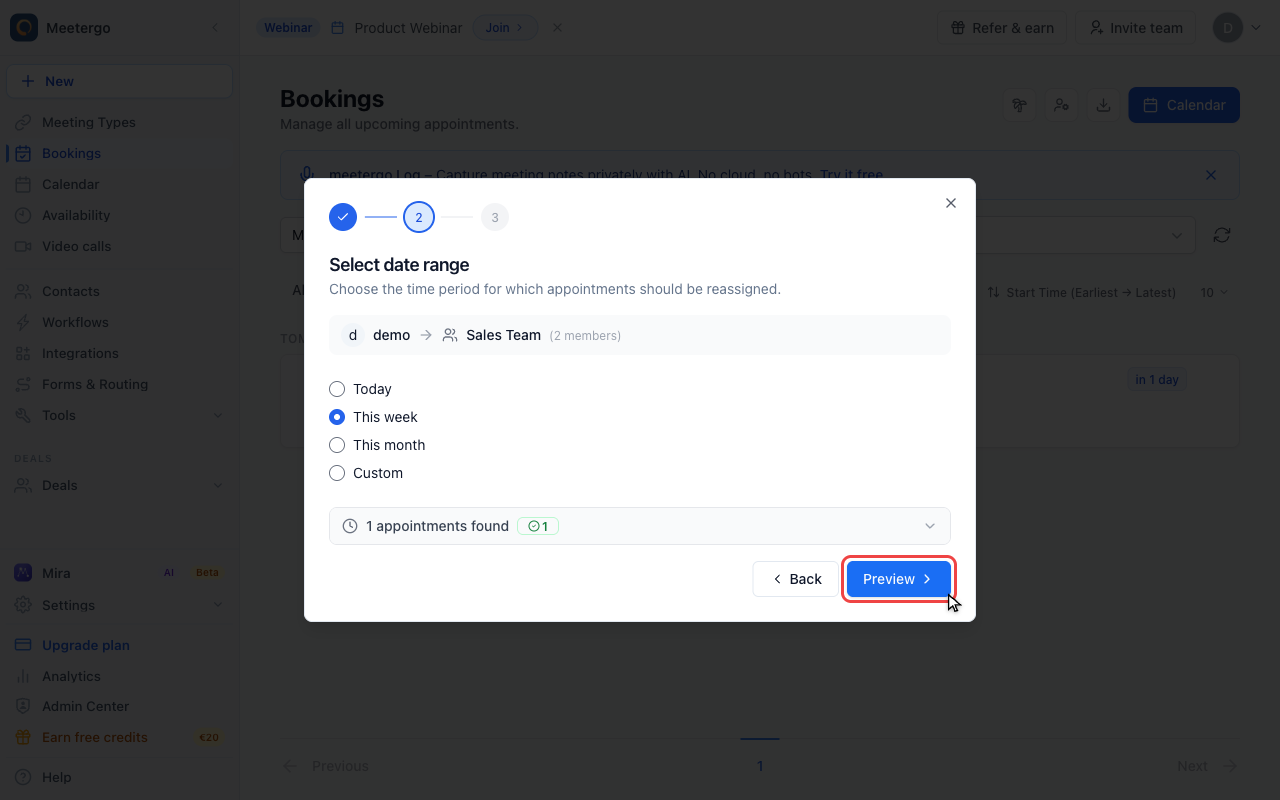
Review appointment availability
The preview shows total, available, and conflicting appointments before any handoff is submitted.
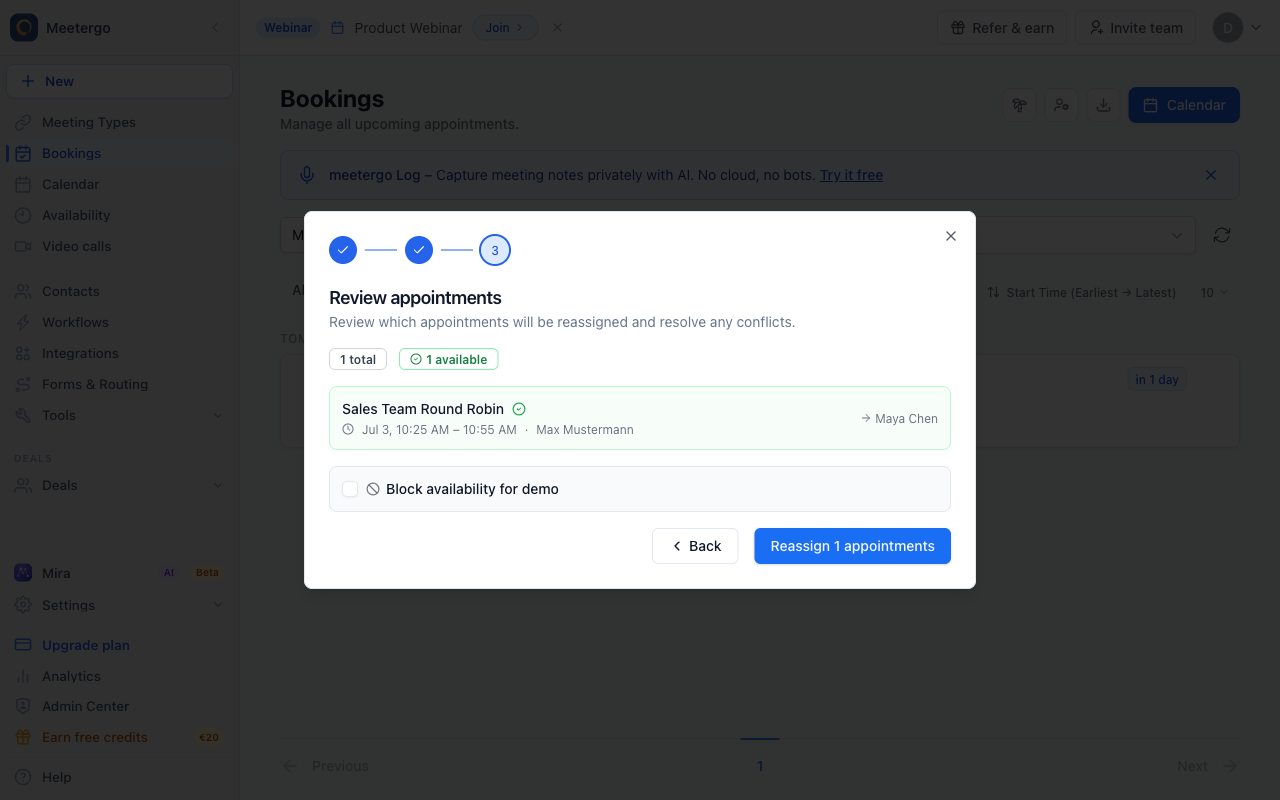
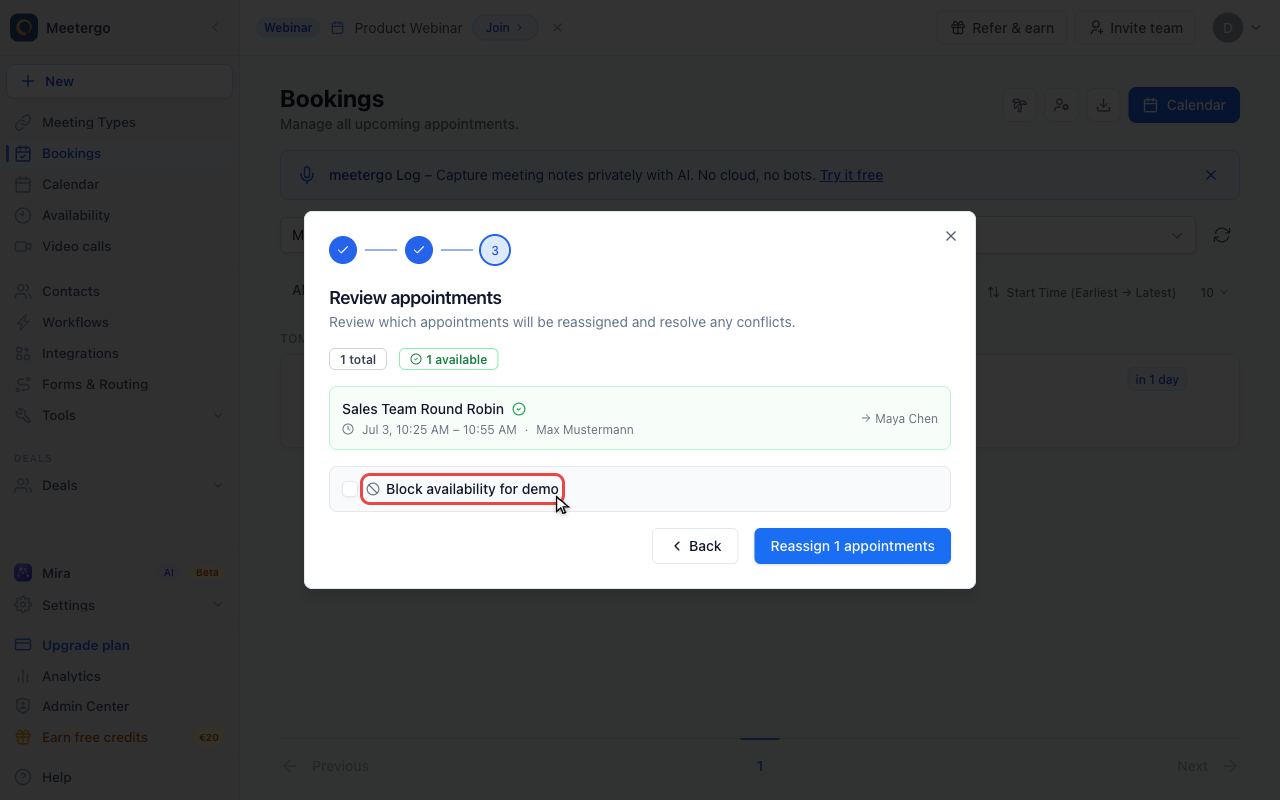
Optionally block availability
Use Block availability if the source host should stop receiving new bookings during the selected period.
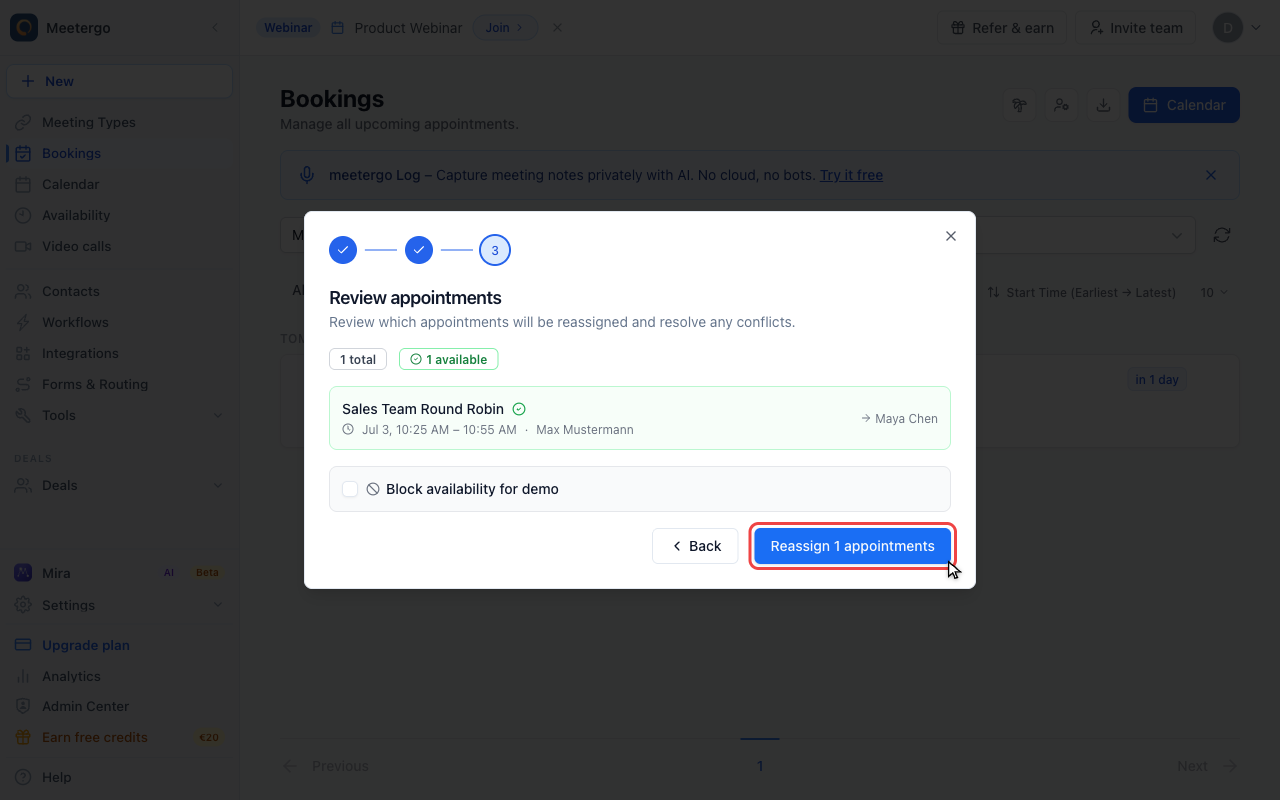
Reassign only after review
Submit the handoff only after the preview, conflicts, and availability blocking option are correct.
Reassigning a Single Appointment
To hand off a specific appointment to another team member:
- Go to Bookings in the left navigation
- Open the appointment you want to reassign
- Click Reassign (or the reassign icon)
- Pick the team member who should take over from the searchable list. Start typing to filter by name. Each person shows an availability hint for the appointment time so you can spot conflicts before reassigning.
The list only offers members of the appointment's own team, sorted alphabetically. Current hosts of the appointment are greyed out and can't be selected again.
Company admins see a Show all company users toggle. Turn it on to widen the list beyond the appointment's team to everyone in the organization (subject to your organization's handoff permissions).
- Click Reassign to complete the handoff
What happens next:
- The new team member is set as the host
- The appointment appears in the new host's calendar
- The appointment is removed from the previous host's calendar
- For online meetings, a new meeting link is automatically generated
- All attendees and the new host are notified by email
Availability Warning
The user list loads independently of calendar availability. After you select a colleague, meetergo checks their availability. If the check is still running or cannot finish, a notice appears. You can still reassign the appointment after checking the calendar yourself. If the user list cannot load, use Retry.
If the selected team member has a calendar conflict at the appointment time (e.g. another event in their connected calendar), a warning appears. You can then decide:
- Choose a different team member or click Cancel.
- Click Reassign to complete the handoff despite the conflict.
Reassigning Multiple Appointments at Once (Bulk Handoff)
When a team member is unavailable for an extended period (e.g. illness, vacation), you can use the bulk handoff wizard to reassign all affected appointments at once.
- Go to Bookings in the left navigation
- Click Reassign appointments in the top bar
The wizard guides you through four steps:
Step 1: Select Source and Target
- Hand off appointments from: Select the team member whose appointments should be reassigned
- Hand off to: Choose between:
- Specific user — All appointments go to one person
- Team — Appointments are distributed across team/workspace members (based on calendar availability)
Step 2: Select Date Range
Choose the time period for which appointments should be reassigned:
| Option | Time period |
|---|---|
| Today | Today's appointments only |
| This week | From today until end of the week |
| This month | From today until end of the month |
| Custom | Freely selectable date range |
A preview shows how many appointments are affected in the selected period — split into available (green) and conflicting (yellow).
Step 3: Preview and Reassign
The preview shows each affected appointment with:
- Green checkmark ✅ — Target team member is available, handoff can proceed
- Yellow warning ⚠️ — There is a calendar conflict for the target (e.g. another appointment) — the conflict reason is shown
Reassignment options:
- Reassign available — Only appointments without conflicts are reassigned
- Reassign all anyway — All appointments are reassigned, including those with conflicts
Blocking the Source User's Availability
In the preview step, you can optionally block the source user's availability:
- Check the Block availability for [Name] checkbox
- Optionally enter a reason (e.g. "Sick leave", "Vacation")
- meetergo automatically creates an availability exception (blocker rule) for the selected period
When you block the availability, no new bookings can be made for this team member during the selected period. Existing appointments are handed off, and the booking link automatically shows only the availability of the remaining team members.
Step 4: Results
After the handoff you see a summary:
- How many appointments were successfully reassigned
- Whether availability was blocked (with time period and reason)
- If any appointments could not be reassigned, they are listed separately
If you're planning your own absence, the out-of-office feature handles all of this for you, including removing you from round robin queues while you are away and putting you back afterwards.
Permissions
The handoff feature can be restricted at the organization level:
| Setting | Who can reassign appointments |
|---|---|
| All | Every team member can reassign appointments |
| Admins and group admins only | Only organization and workspace admins |
| Nobody | Only organization admins can reassign appointments |
You can find this setting under Settings → Organization → Permissions.
Email Notifications
Emails are automatically sent with every handoff:
- To the new host: Notification that an appointment has been assigned
- To all attendees: Information that the host has changed
Email notifications can be disabled per meeting type. Go to the meeting type settings → Notifications and disable the corresponding emails.
FAQ
Can I reassign an appointment to someone who has a calendar conflict?
Yes. meetergo shows a warning, but you can proceed with the handoff by clicking "Reassign" (single reassignment) or "Reassign all anyway" (bulk handoff).
Are attendees notified about the reassignment?
Yes, by default all attendees receive an email informing them that the host has changed. This notification can be disabled per meeting type.
What happens to the online meeting link?
During reassignment, a new meeting link is automatically generated (e.g. for Google Meet, Microsoft Teams, or Zoom) that is associated with the new host.
Can I undo a reassignment?
There is no direct "undo" function. However, you can reassign the appointment again — back to the original host.
What is the difference between single reassignment and bulk handoff?
Single reassignment is for a specific appointment. The bulk handoff wizard is designed for scenarios where all of a person's appointments in a time period need to be reassigned — e.g. due to illness or vacation. The bulk handoff additionally offers a preview with conflict detection and the option to automatically block the source user's availability.
Does reassignment work with team distribution?
Yes. If you select Team as the target in the bulk handoff wizard, appointments are distributed across team members — taking calendar conflicts into account. meetergo distributes appointments to minimize conflicts.
Related Articles
Was this article helpful?
Let us know if this article answered your questions.