
Rescheduling a Meeting as a Host
Reschedule an appointment as the host by picking a new date and time from the booking's actions menu.
When your schedule changes, you can move a meeting to a new time that works better for you. This article explains how to reschedule any meeting you've booked in meetergo.
Are you an attendee looking to reschedule a meeting? Check out our attendee reschedule guide.
 1 / 8
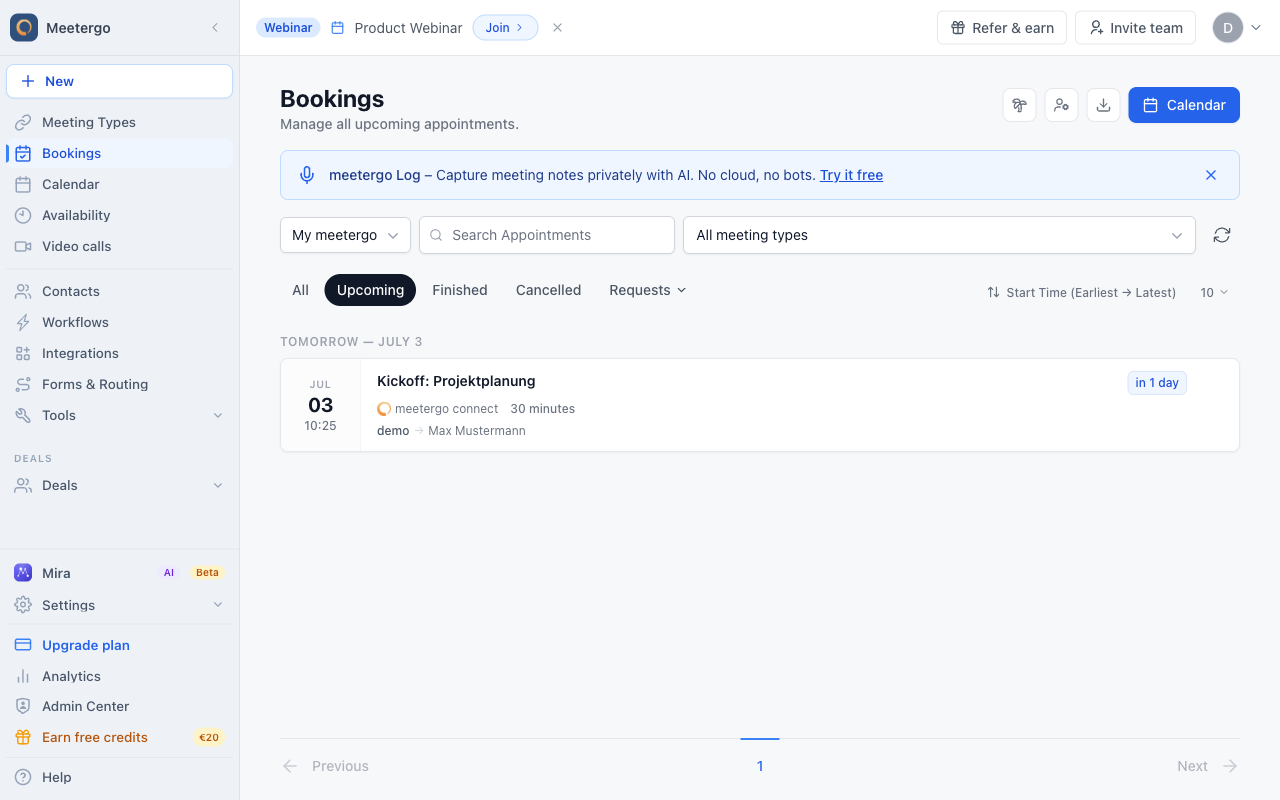
1 / 8Find the upcoming appointment you want to move. Use search, meeting type filters, or the scope picker if the list is long.
Open the booking
Find the appointment
Find the upcoming appointment you want to move. Use search, meeting type filters, or the scope picker if the list is long.
Open the actions menu
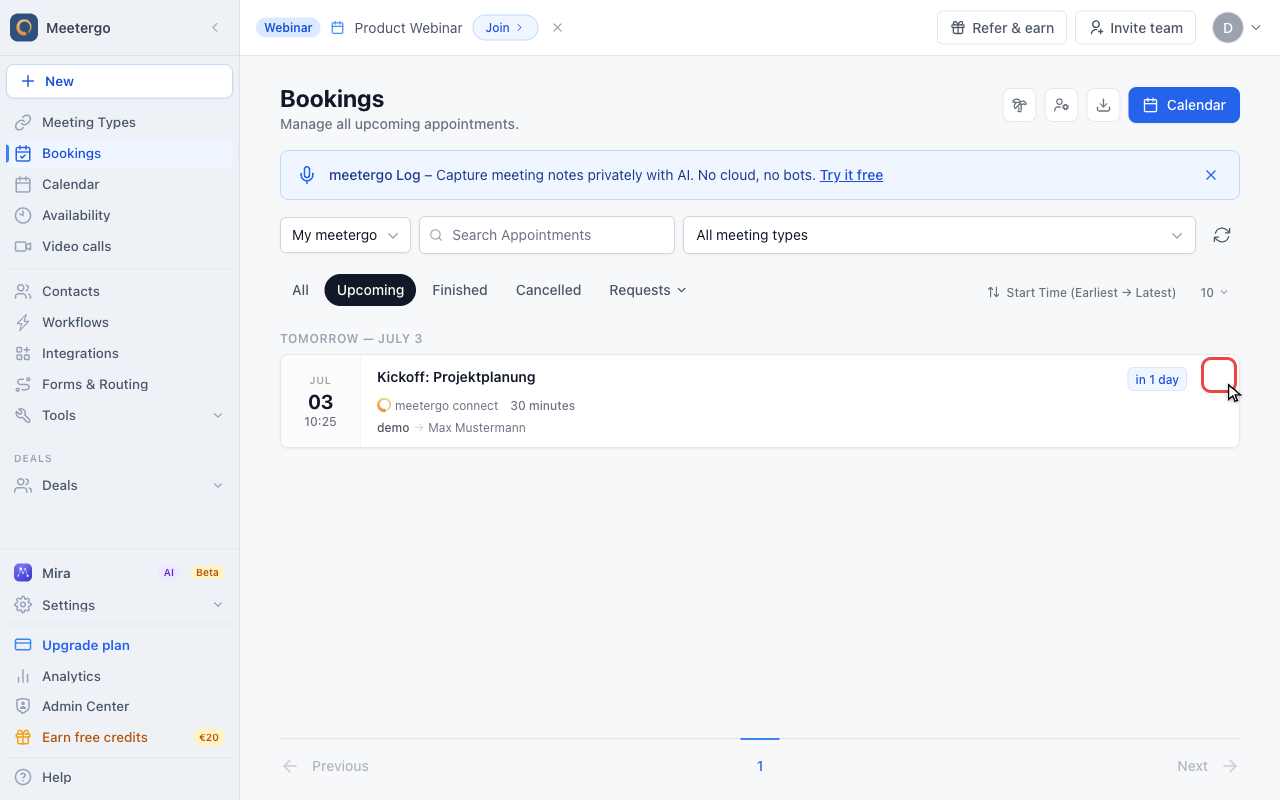
Open the three-dot actions menu on the appointment row to see the host actions.
Choose Reschedule
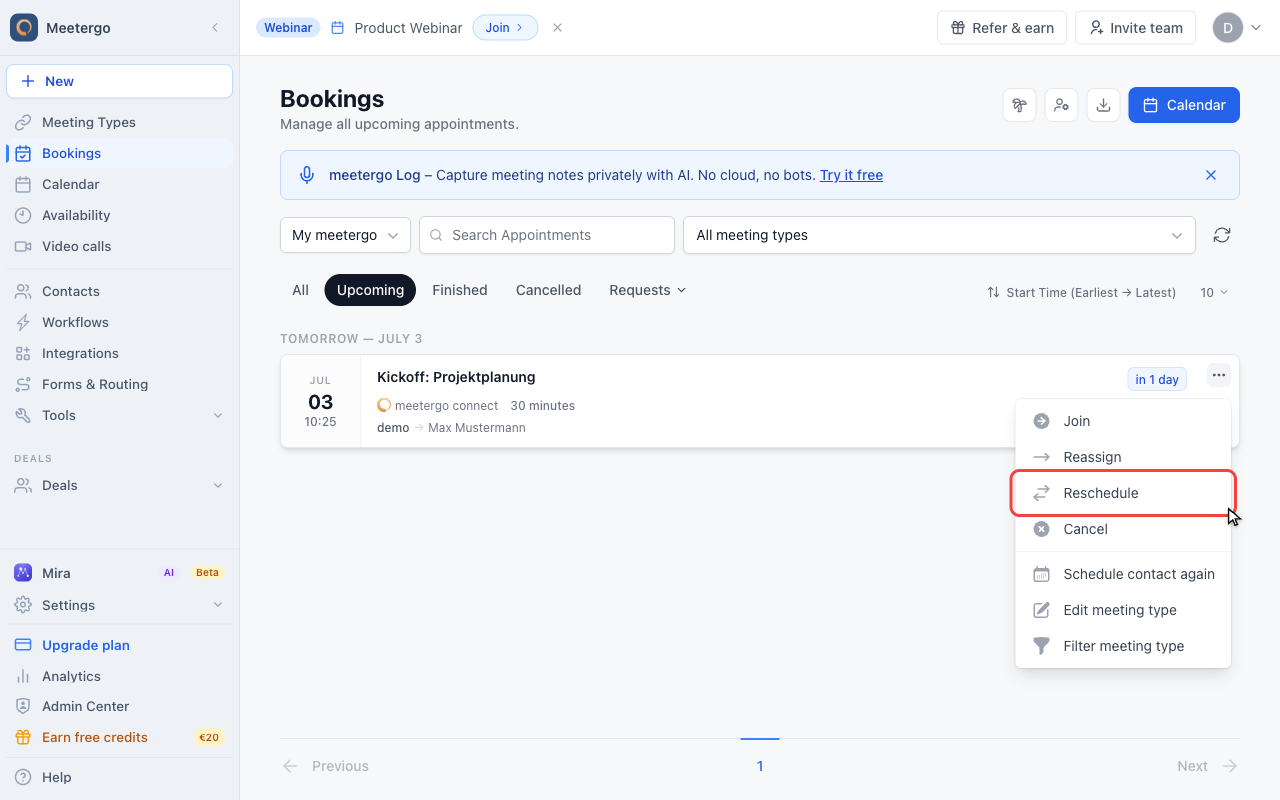
Choose Reschedule. This opens the reschedule dialog but does not change the appointment yet.
Choose the new time
Review the current appointment
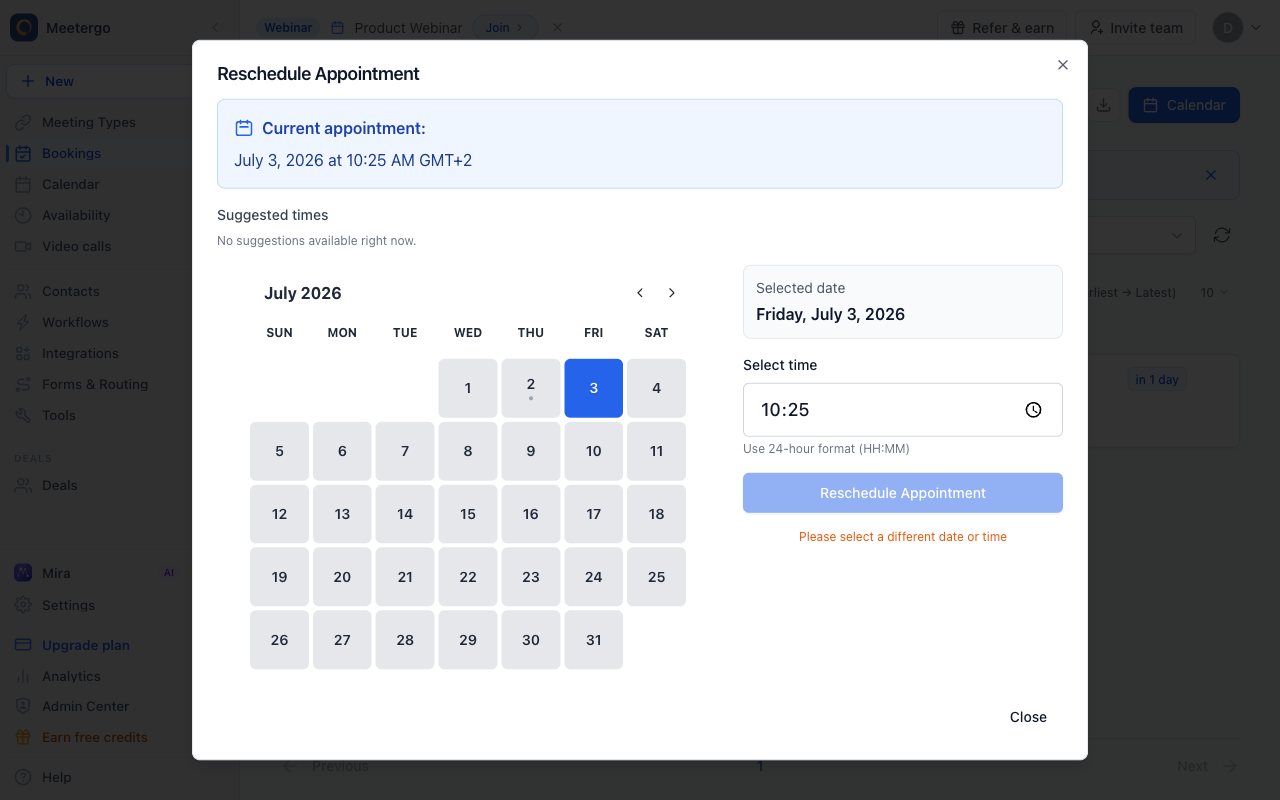
The dialog shows the current appointment time and preselects the existing date and time. Suggested times may appear above the calendar when available.
Select the new date
Pick the new appointment date in the calendar.
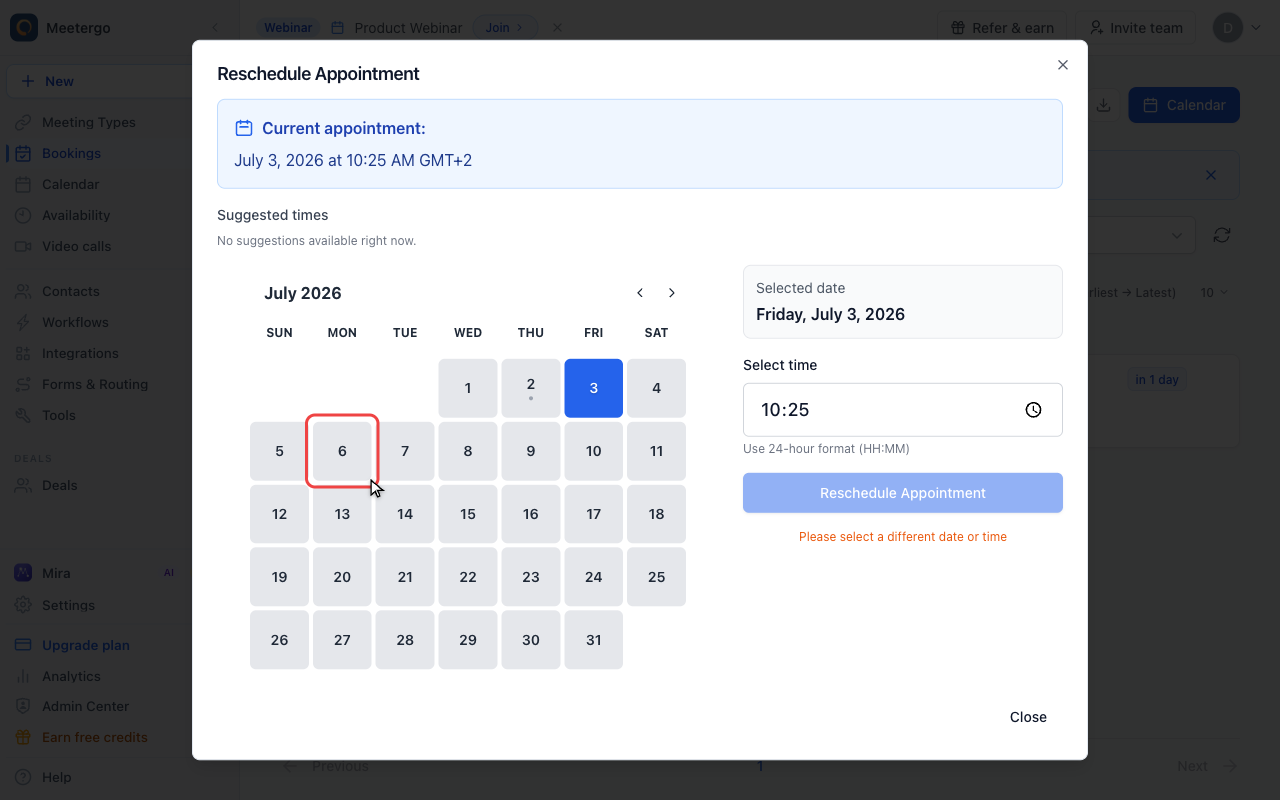
Check the selected date
Confirm that the selected date on the right matches the day you want to use.
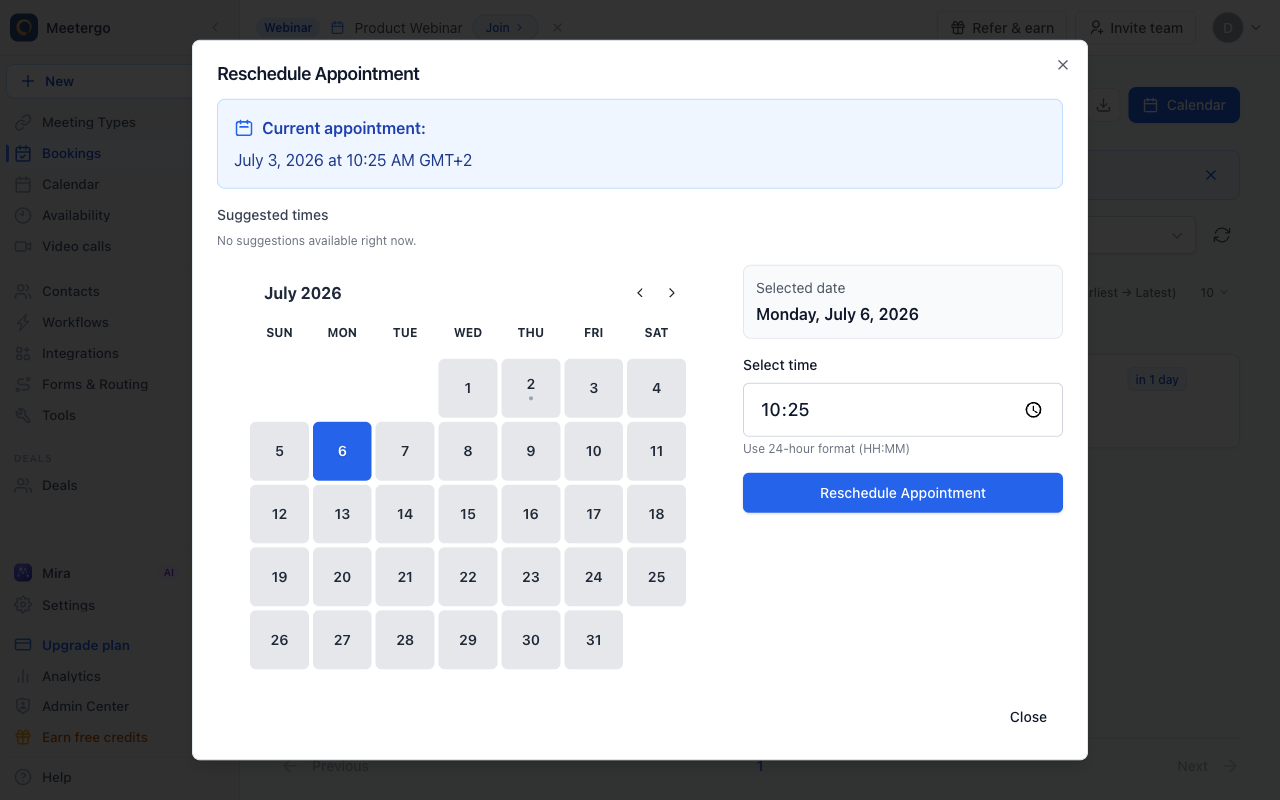
Enter the new time
Enter the new start time in 24-hour format. The button stays disabled until the date or time is different from the original appointment.
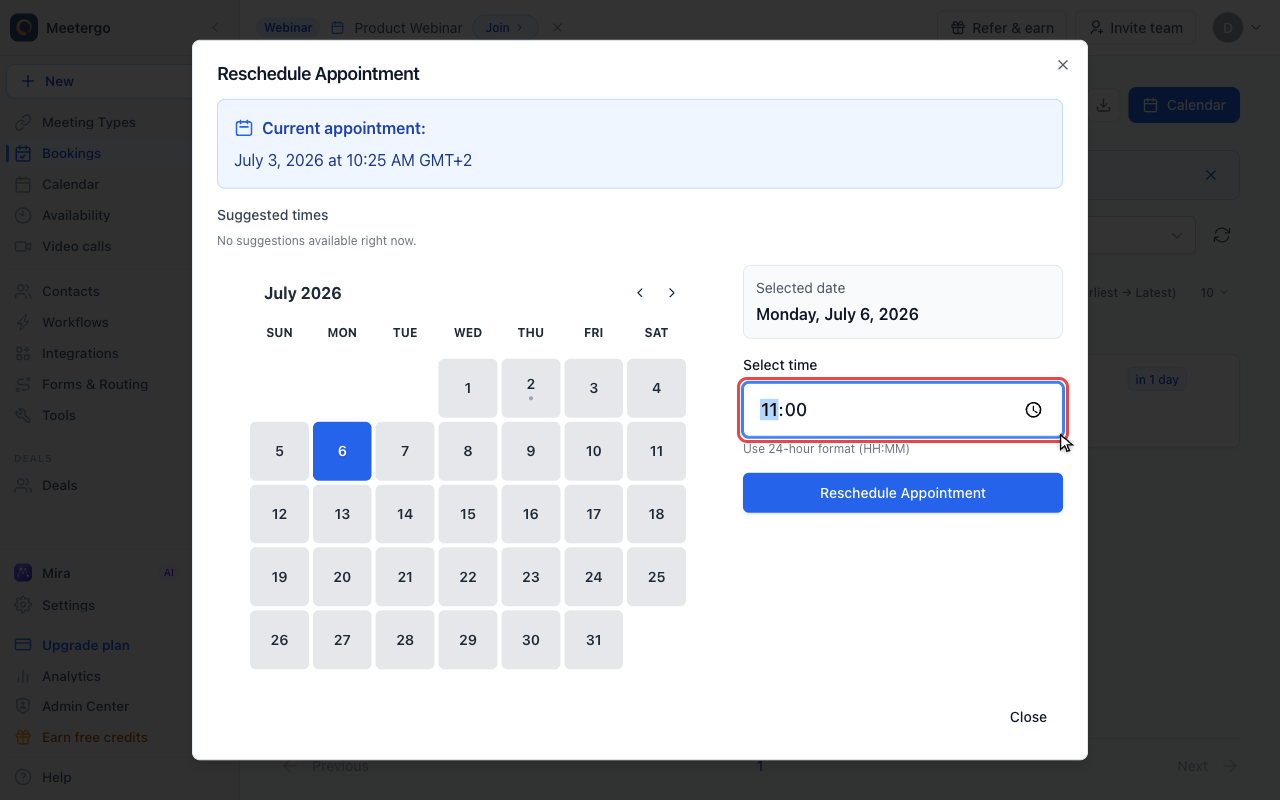
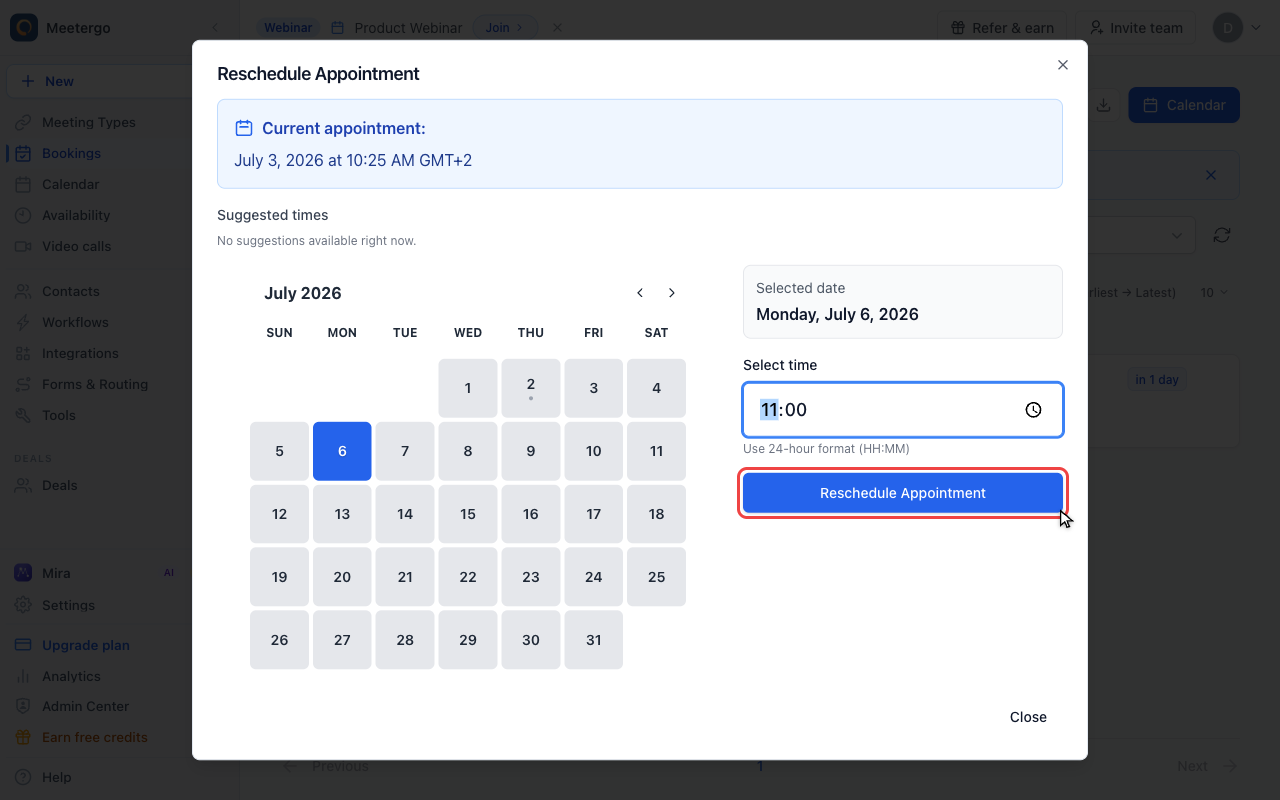
Review before rescheduling
Reschedule only after checking
Click Reschedule Appointment only after the date and time are correct. meetergo then updates the calendar event and sends the attendee notification.
Drag a booking in the calendar
In the Calendar week or day view you can also drag an upcoming booking to a new time or day. It snaps to the quarter hour. meetergo asks you to confirm the old and new time before anything changes, then reschedules it exactly like the steps above.
Only upcoming meetergo bookings you host, or manage as an admin, can be dragged. Events from your connected calendars, cancelled bookings and meetings that have already started stay in place.
What happens next
All attendees receive an automatic notification about the time change with the updated meeting details. The original calendar invite is updated, so everyone stays in sync without needing to add a new event.
FAQ
Can I reschedule a meeting multiple times?
Yes, you can reschedule a meeting as many times as needed. Each time you change the meeting, attendees receive a new notification with the updated details.
What happens if the new time doesn't work for an attendee?
Attendees receive the updated meeting time automatically. If the new time doesn't work for them, they can reach out to you directly to find an alternative time, and you can reschedule again.
Can I add a message when rescheduling?
The meeting reschedule notification includes the new time and date. If you need to explain the change, reach out to attendees directly through email or your preferred communication method.
Was this article helpful?
Let us know if this article answered your questions.
Related articles
- Booking Analytics and InsightsTrack booking performance with completed events, no-shows, conversion metrics, and team analytics
- Calendar View: Managing Appointments and AvailabilityNavigate the calendar, compare team schedules, create blockers, choose which event types and card rows are shown, colour appointments by meeting type, and show event titles from connected calendars instead of Private Event.
- Canceling a Booking as a HostCancel a scheduled booking as the host from the bookings list, add an optional reason, and notify the attendee automatically by email.
- Canceling a meetergo meeting as an attendeeCancel a booked meetergo appointment as an attendee using the cancellation link from your email, no login required.