
Rescheduling a Meeting as an Attendee
Reschedule a booked meetergo appointment as an attendee using the reschedule link from your confirmation email, no login needed.
Plans change. If you already booked a meeting through meetergo, use the reschedule link from your confirmation email or calendar invite to pick a new time without logging in.
Are you the host of the meeting? Use the host reschedule guide instead.
 1 / 3
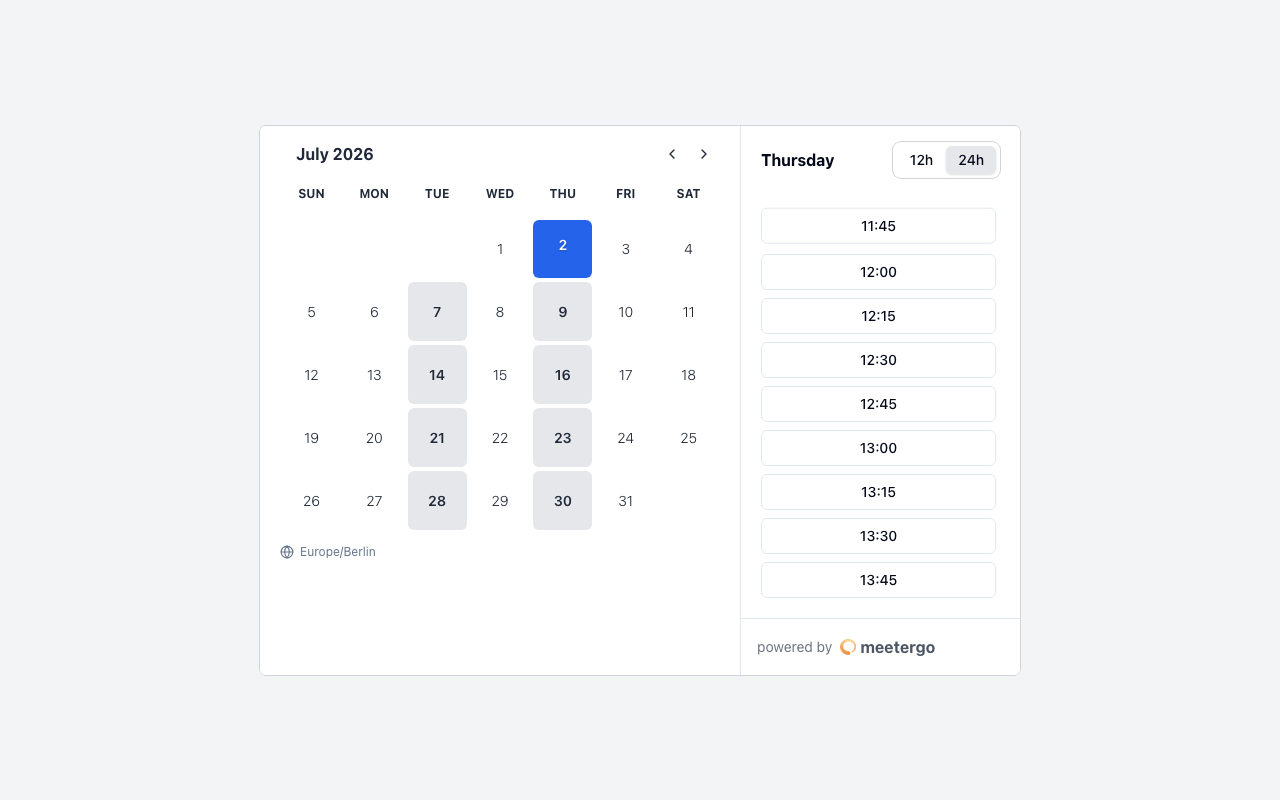
1 / 3The reschedule page shows the calendar, timezone, and available times for the meeting host.
Choose a new time
Review available slots
The reschedule page shows the calendar, timezone, and available times for the meeting host.
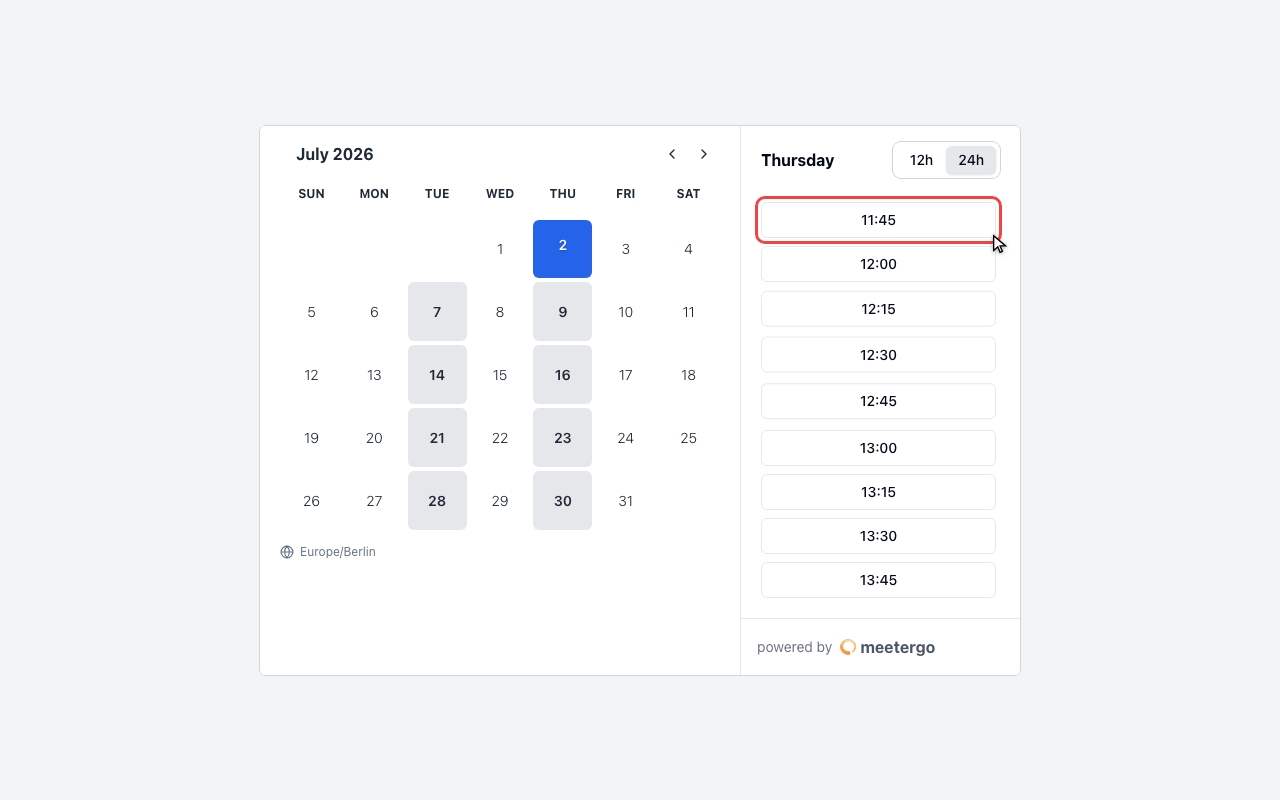
Select a new time slot
Pick the time that works for you. Selecting a slot only prepares the change; it does not reschedule the meeting yet.
Review before confirming
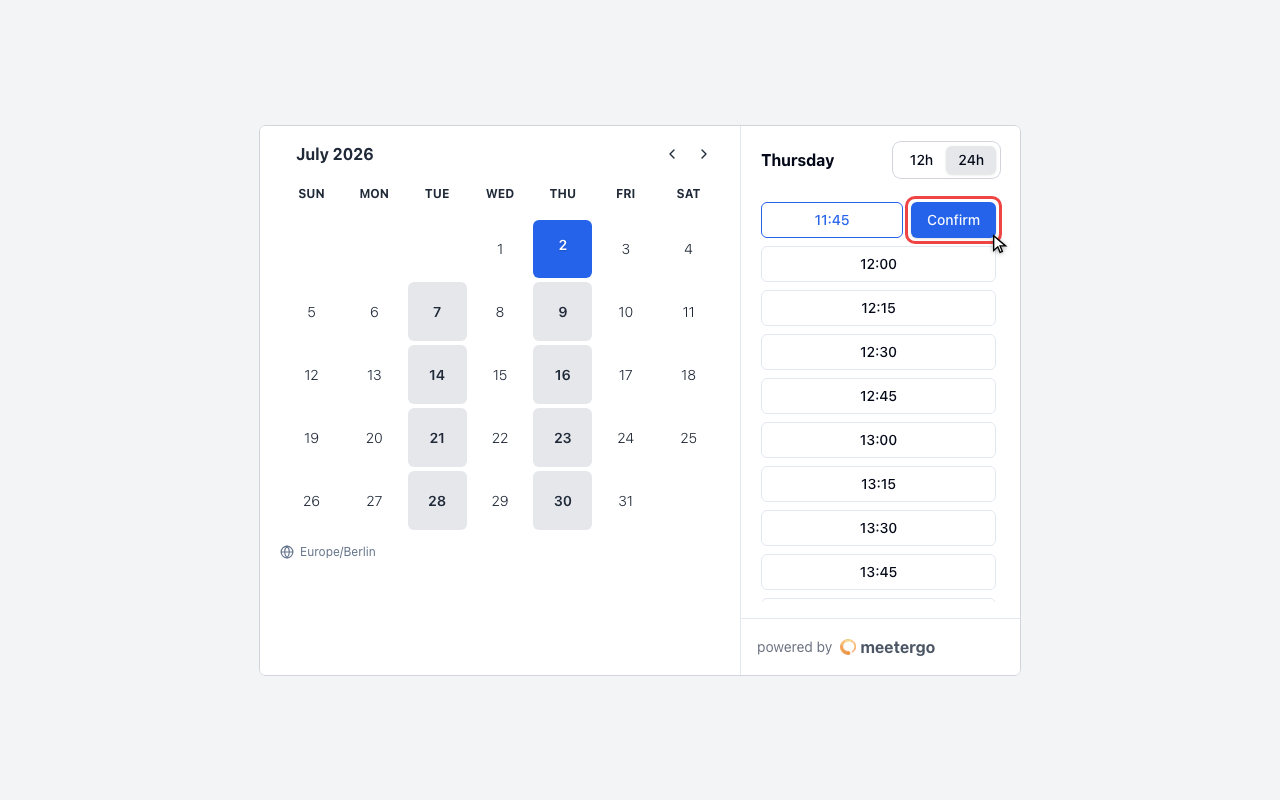
Confirm only after checking
Click Confirm only when the selected date and time are correct. After confirmation, the host is notified automatically.
What happens next
After you confirm the new time, meetergo updates the appointment and notifies the host automatically. The host receives the new meeting details, so you do not need to send a separate message unless you want to explain why the time changed.
Try to reschedule as soon as you know you cannot make the original time. That gives the host time to adjust their calendar or offer the original slot to someone else.
FAQ
What if I cannot find the reschedule link?
Check your spam or junk folder first. If the confirmation email is still missing, contact the host and ask them to resend the meeting details.
Can I cancel instead of rescheduling?
Yes. Use the cancellation link from the same confirmation email or calendar invite if you no longer want to attend.
Can I change the time again later?
Yes. You can reschedule again from the same link as long as the meeting is still eligible for attendee rescheduling.
Was this article helpful?
Let us know if this article answered your questions.
Related articles
- Booking Analytics and InsightsTrack booking performance with completed events, no-shows, conversion metrics, and team analytics
- Calendar View: Managing Appointments and AvailabilityNavigate the calendar, compare team schedules, create blockers, choose which event types and card rows are shown, colour appointments by meeting type, and show event titles from connected calendars instead of Private Event.
- Canceling a Booking as a HostCancel a scheduled booking as the host from the bookings list, add an optional reason, and notify the attendee automatically by email.
- Canceling a meetergo meeting as an attendeeCancel a booked meetergo appointment as an attendee using the cancellation link from your email, no login required.