
Sending Quick Messages to Attendees
Send prepared or customized follow-up emails from a booking's attendee details
Use quick messages when you need to contact one attendee from a booking, for example to send a reminder, follow up after a no-show, or ask for missing information. The message starts from a template, but you can change the template, language, subject, and body before sending.
 1 / 10
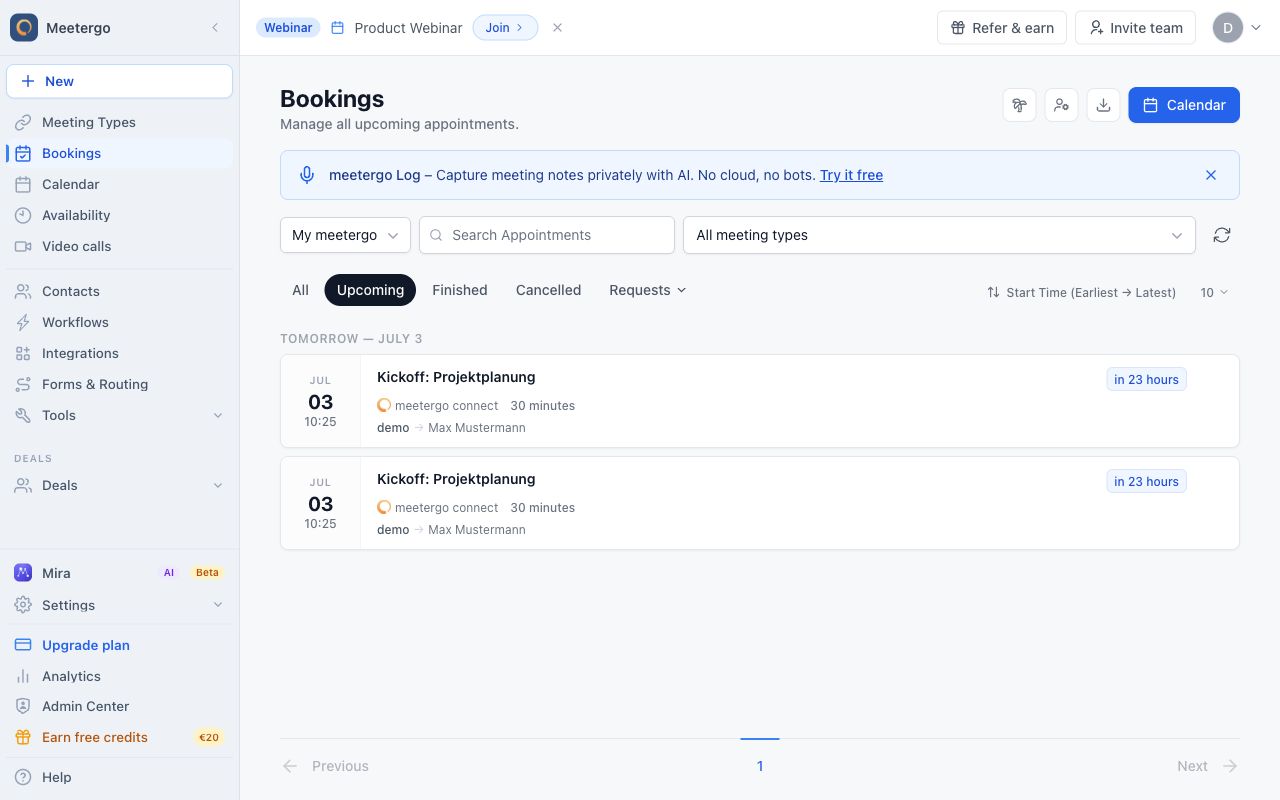
Select the appointment in the Upcoming list. Search or filter first if the list is long.
Open the attendee details
Find the appointment
Select the appointment in the Upcoming list. Search or filter first if the list is long.
Open the booking details
Open the booking to review the attendee before writing the message.
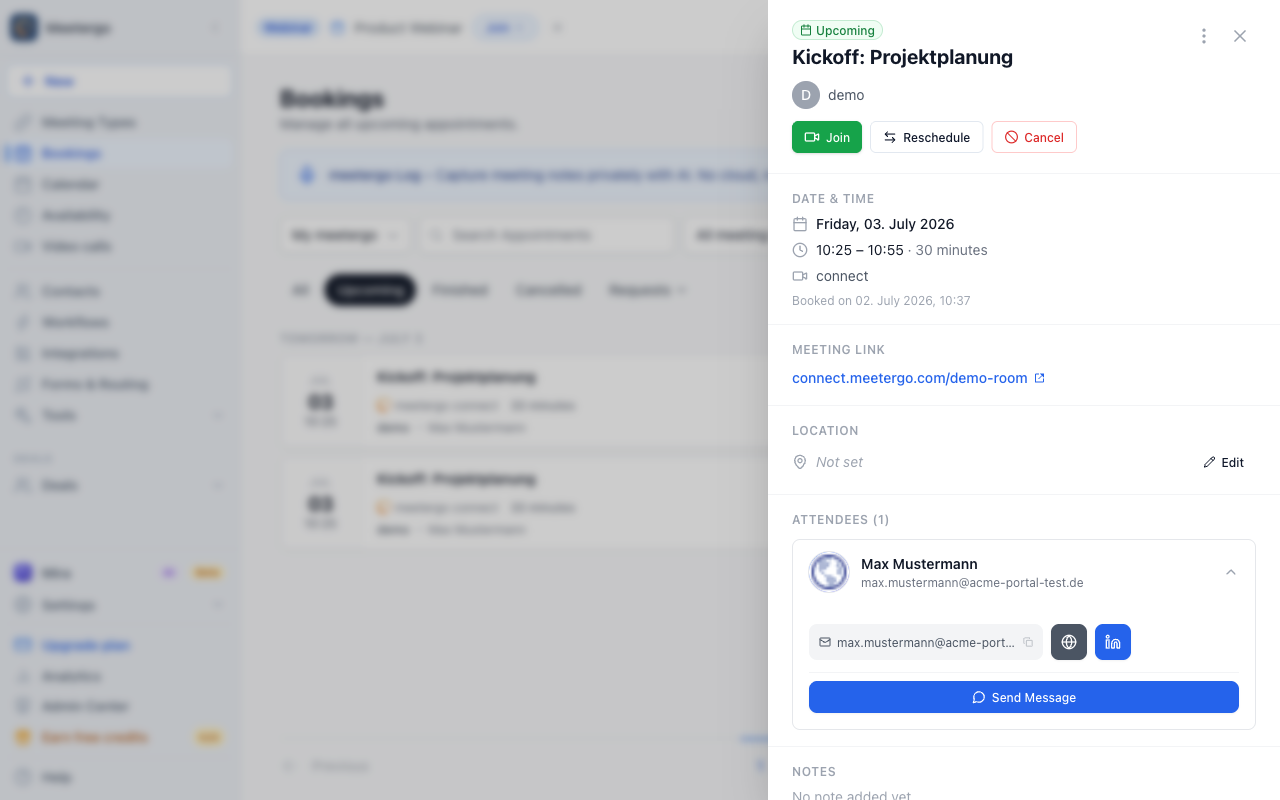
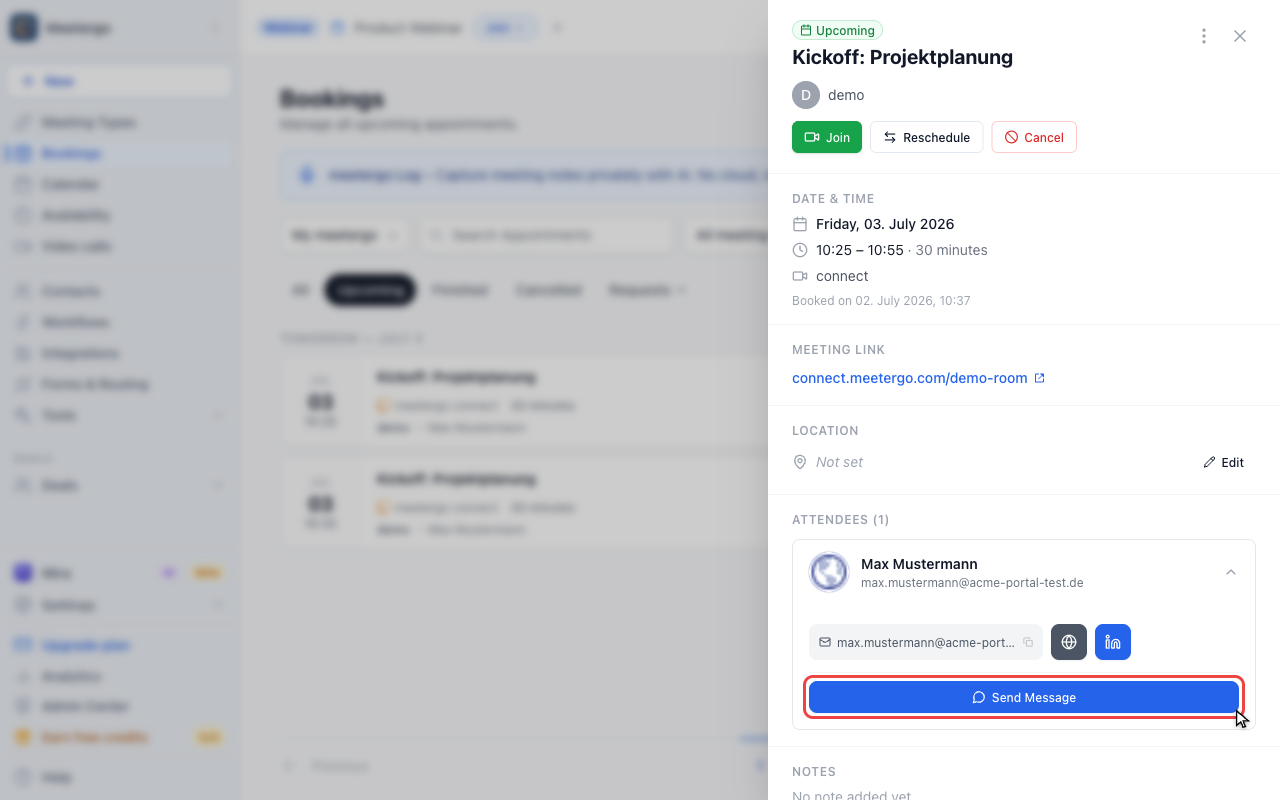
Click Send Message
Use Send Message in the attendee actions to start a one-off email for this attendee.
Compose the quick message
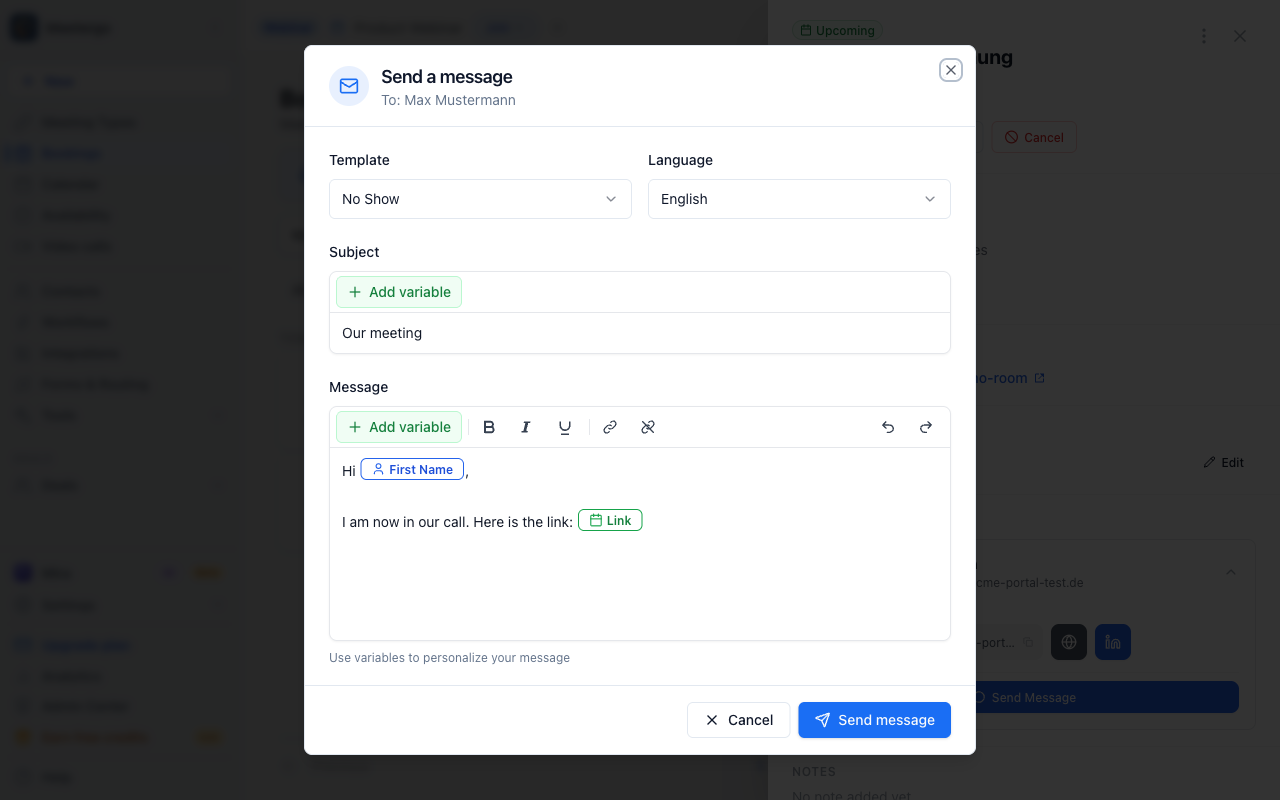
Review the message dialog
The dialog shows the recipient, meeting date, template, language, subject, and message body.
Open the language menu
Open Language when the message should use a different template language.
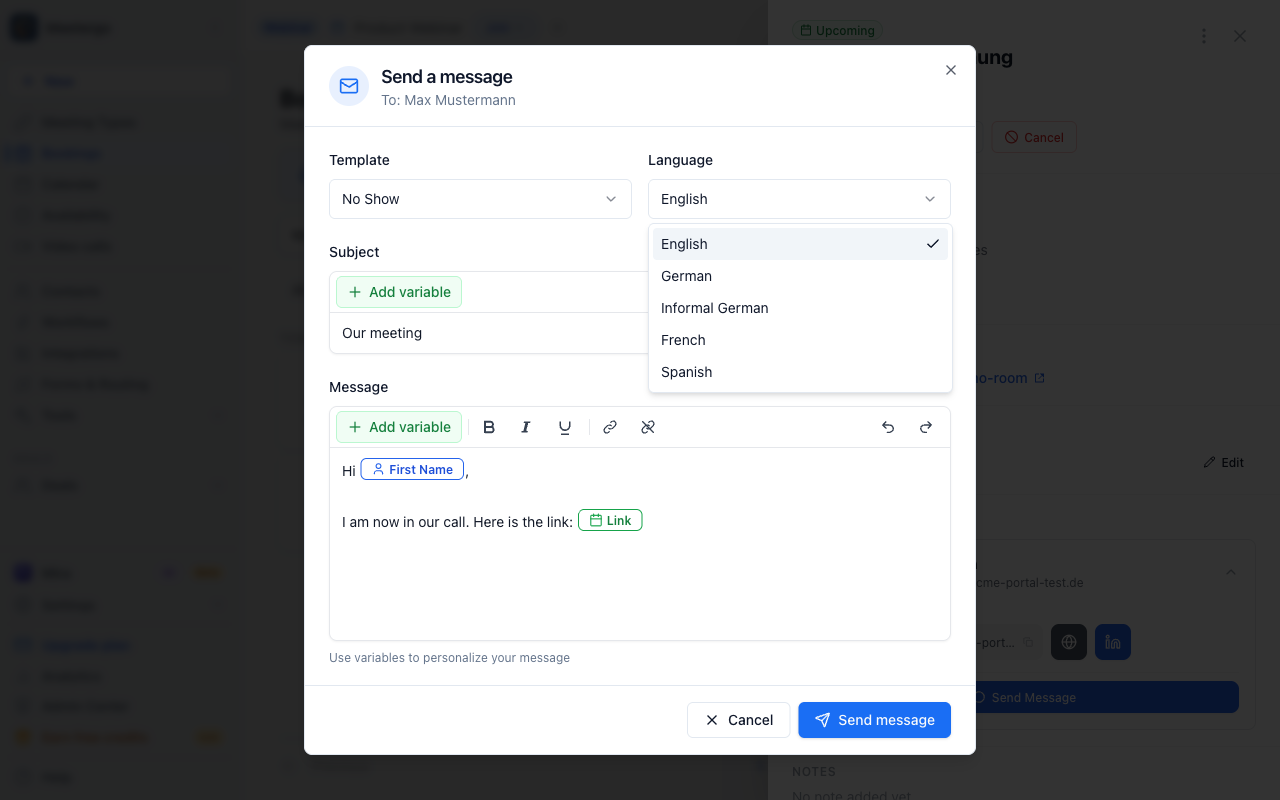
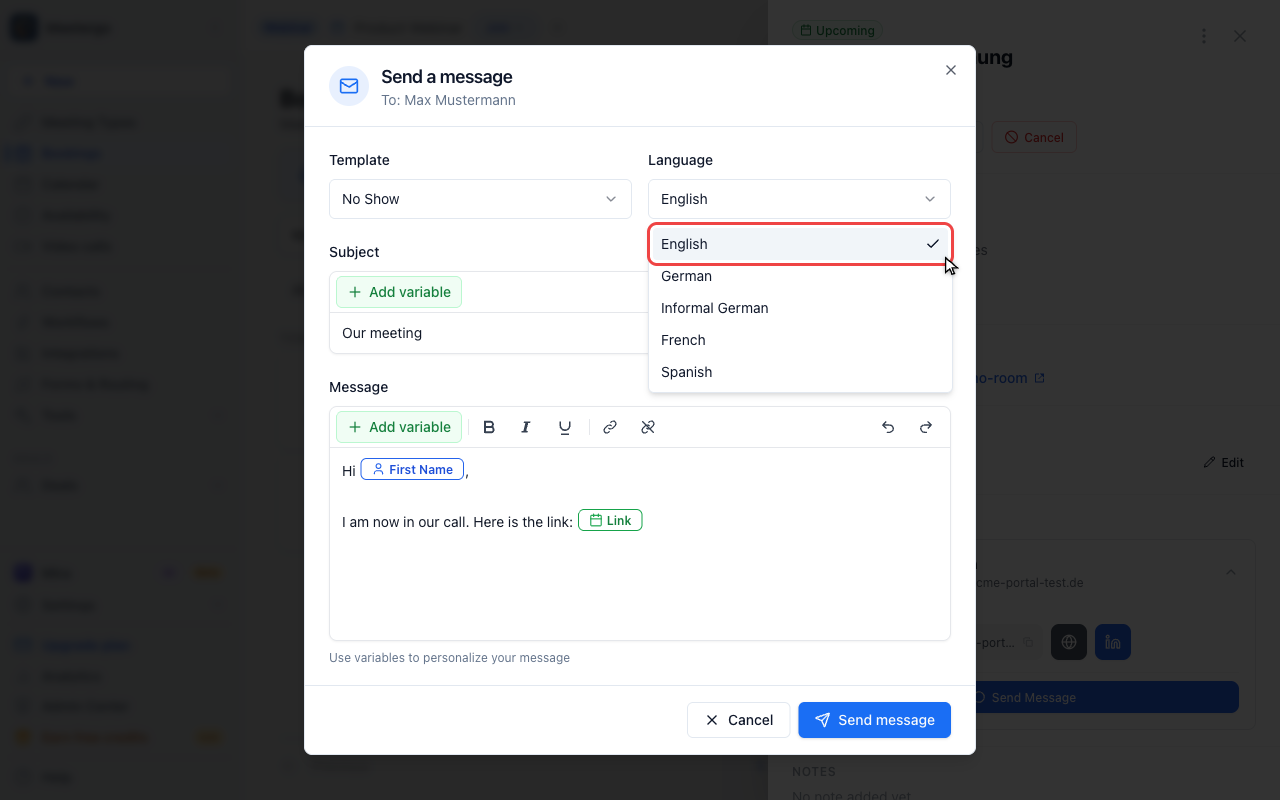
Choose the message language
Choose the language this email should use before reviewing the message text.
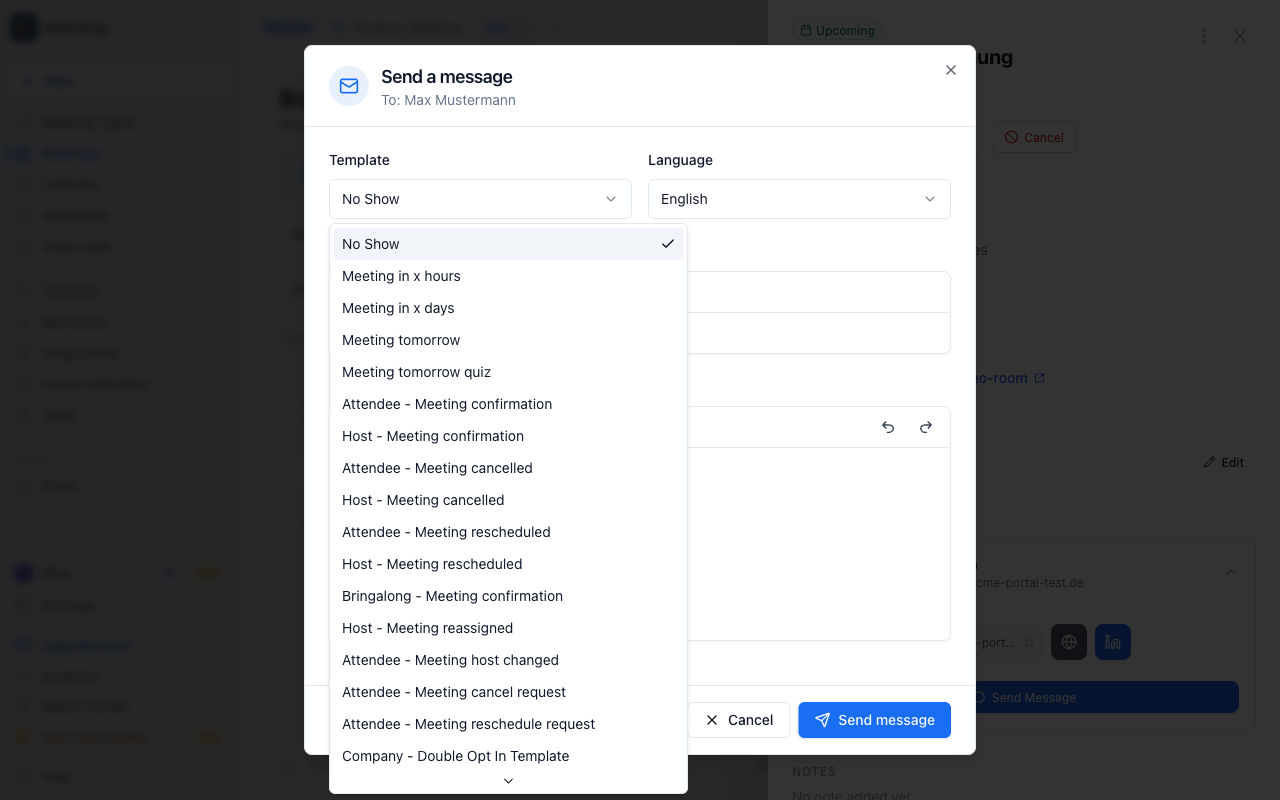
Open the template menu
Open Template to choose from follow-up and reminder messages.
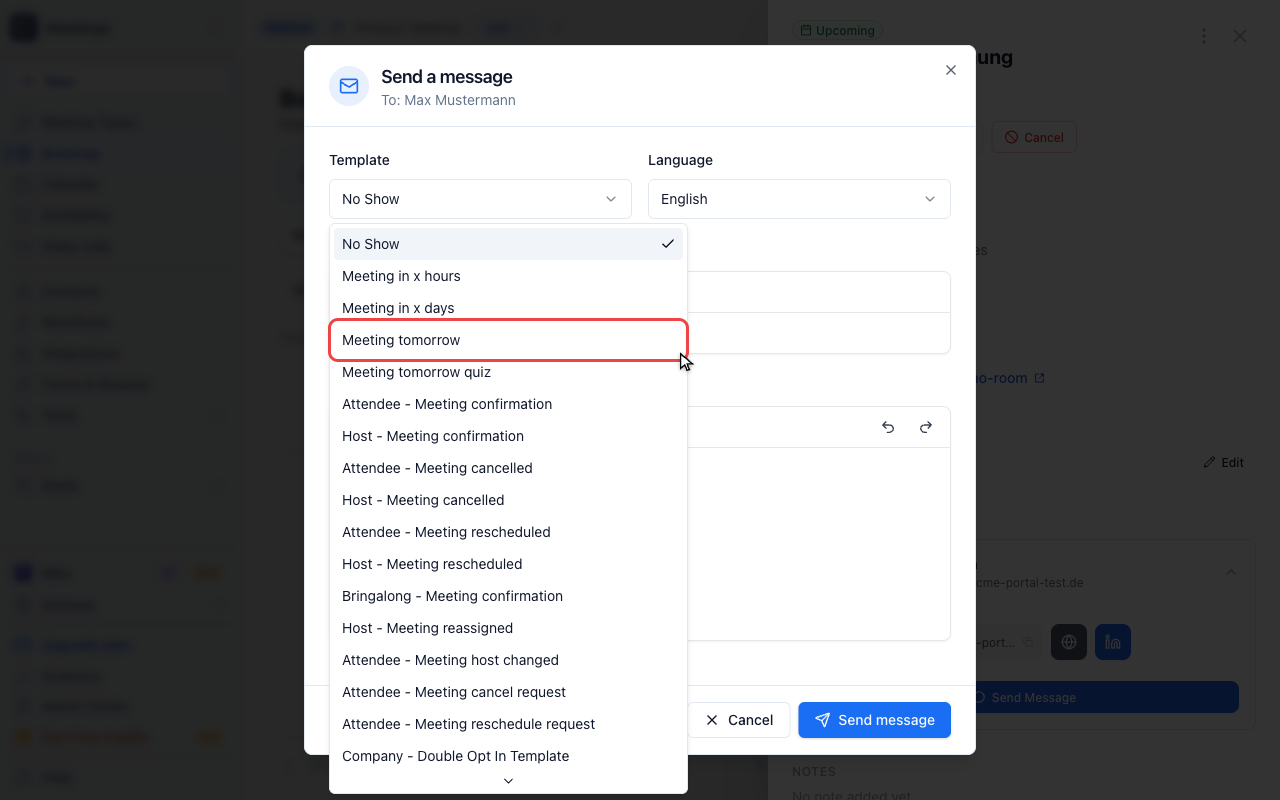
Choose Meeting tomorrow
Choose a template that matches the reason for the message. You can still edit the generated subject and body afterward.
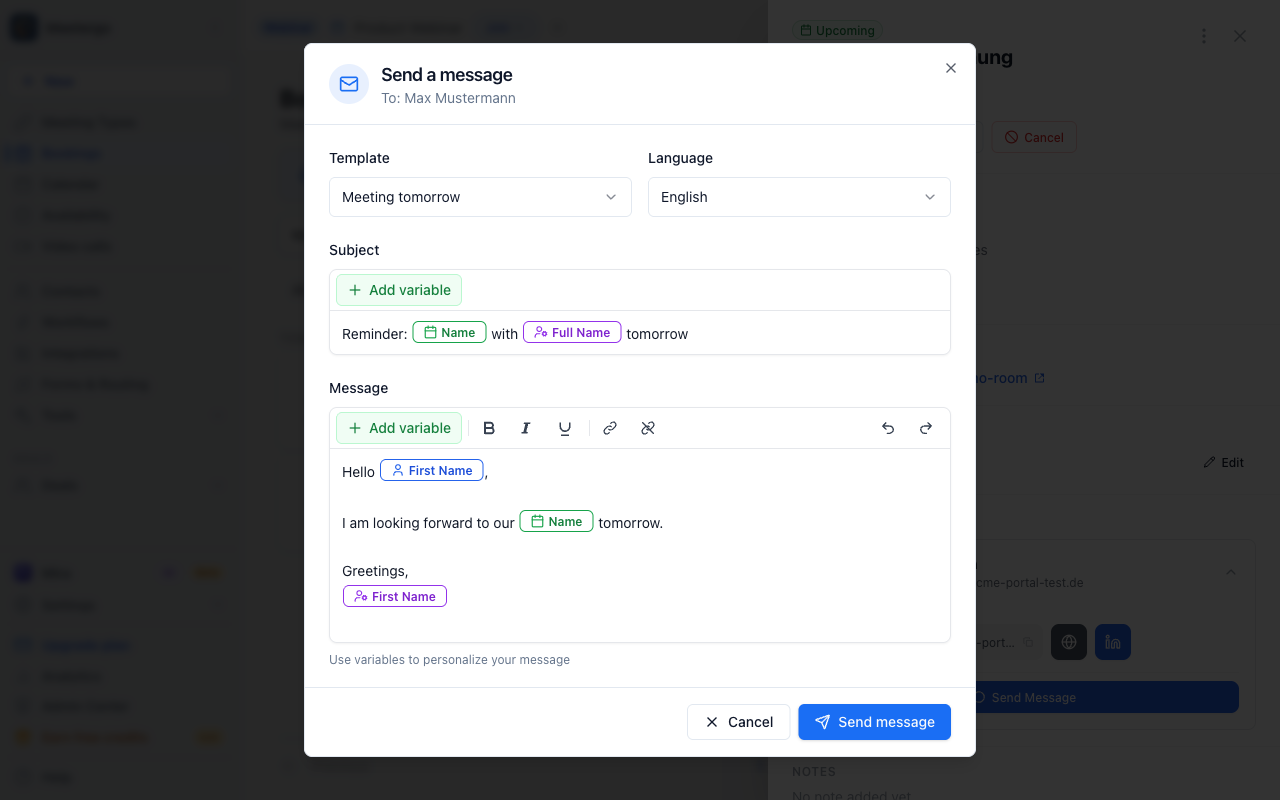
Review before sending
Check the generated message
Review the selected template, language, subject, and message body before sending.
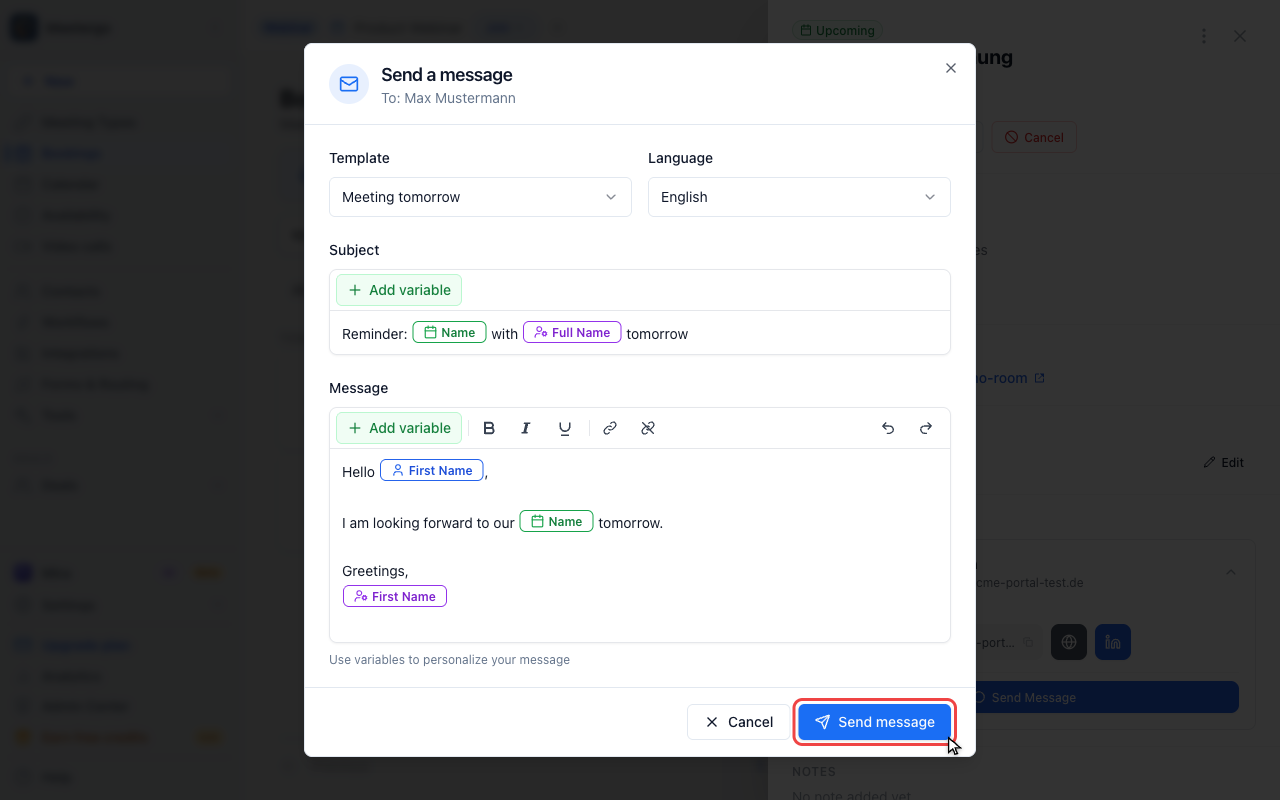
Send only after checking
Click Send message only when the recipient, language, subject, and text are correct.
Available Templates
The template menu includes these built-in messages:
- No Show - follow up when an attendee missed the meeting
- Meeting in x hours - send an extra same-day reminder
- Meeting in x days - remind an attendee a few days before the meeting
- Meeting tomorrow - remind an attendee about tomorrow's meeting
- Meeting tomorrow quiz - send an interactive confirmation reminder
Custom company email templates also appear in the same menu when your workspace has created them.
Personalization
Before sending, you can adjust:
- Template - choose the reason for the message
- Language - switch between English, German, informal German, French, or Spanish
- Subject - edit the email subject
- Message - edit the email body
Use dynamic tags like {{attendee.firstname}} or {{meetingType.name}} to personalize the message automatically.
Before You Send
Check the recipient, language, subject, and message body carefully. Quick messages are sent to one attendee at a time.
If you see Upgrade to send instead of Send message, Quick Mail is not enabled for your workspace plan yet.
FAQ
Can I send one quick message to multiple attendees?
No. Quick messages are individual attendee emails. For bulk communication, use workflows instead.
Can I use my own templates?
Yes. Company email templates appear in the template menu next to the built-in quick-message templates.
Why am I asked to wait before sending another message?
Quick messages are rate-limited to 5 messages per 5 minutes. Wait a few minutes, then try again.
Are dynamic tags replaced before the email is sent?
Yes. meetergo resolves supported dynamic tags, such as attendee and meeting type fields, when the email is sent.
Was this article helpful?
Let us know if this article answered your questions.
Related articles
- Booking Analytics and InsightsTrack booking performance with completed events, no-shows, conversion metrics, and team analytics
- Calendar View: Managing Appointments and AvailabilityNavigate the calendar, compare team schedules, create blockers, choose which event types and card rows are shown, colour appointments by meeting type, and show event titles from connected calendars instead of Private Event.
- Canceling a Booking as a HostCancel a scheduled booking as the host from the bookings list, add an optional reason, and notify the attendee automatically by email.
- Canceling a meetergo meeting as an attendeeCancel a booked meetergo appointment as an attendee using the cancellation link from your email, no login required.