
How to Show Cancellation Reason in Emails
Learn how to display the cancellation reason in your email notifications when a meeting is cancelled.
When a meeting is cancelled in meetergo, you can include the cancellation reason in the email notification sent to both hosts and attendees.
 1 / 4
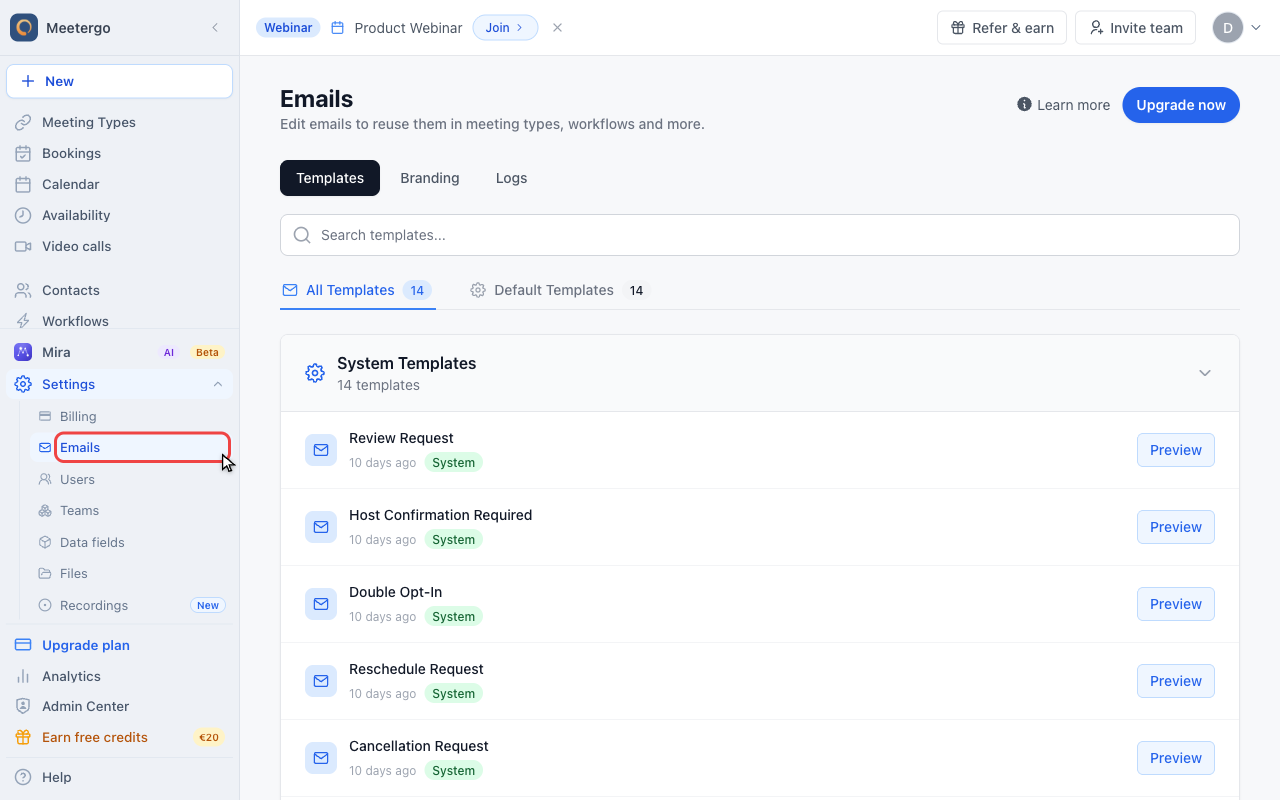
1 / 4The Templates tab lists system templates and custom templates. Use the search and category controls when the list is long.
Open email templates
Review the Templates tab
The Templates tab lists system templates and custom templates. Use the search and category controls when the list is long.
Open a cancellation template
Find the cancellation templates
Cancellation templates include separate messages for attendees and hosts. Add the reason variable to each message where it should appear.
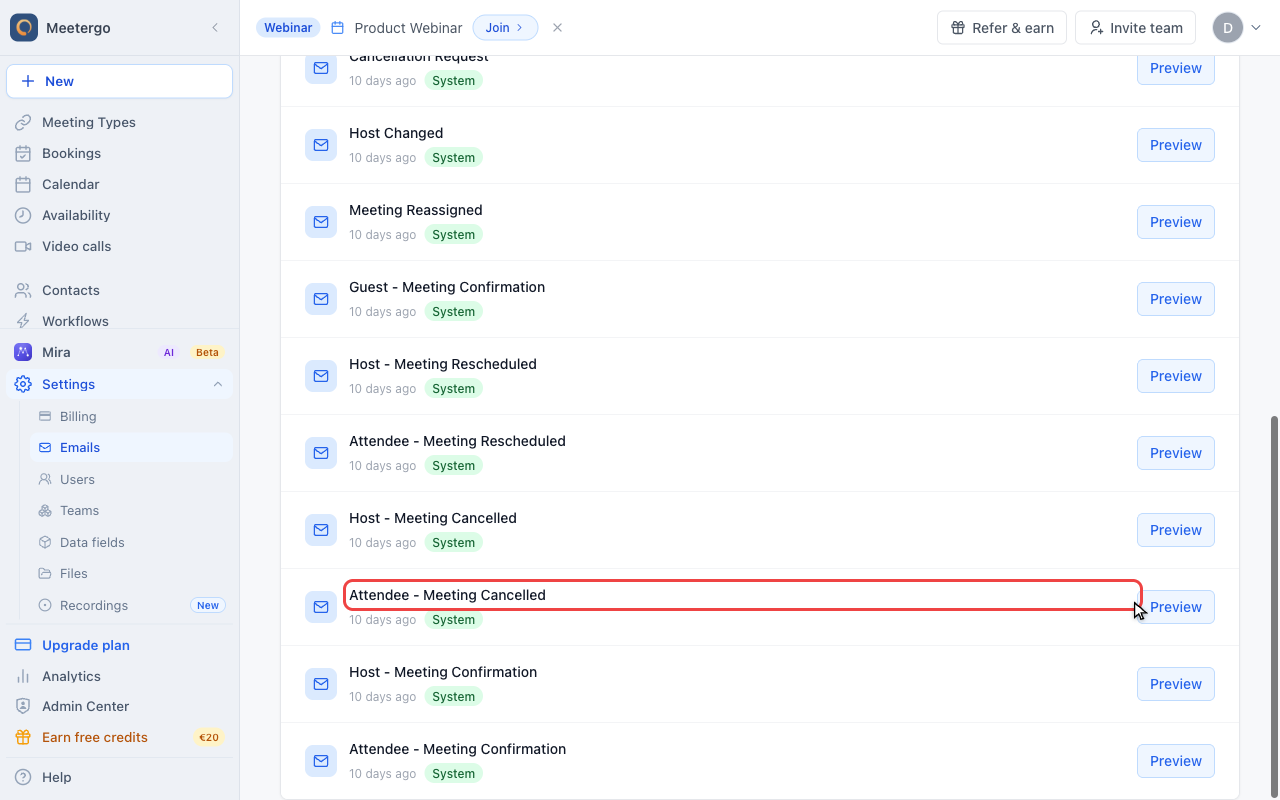
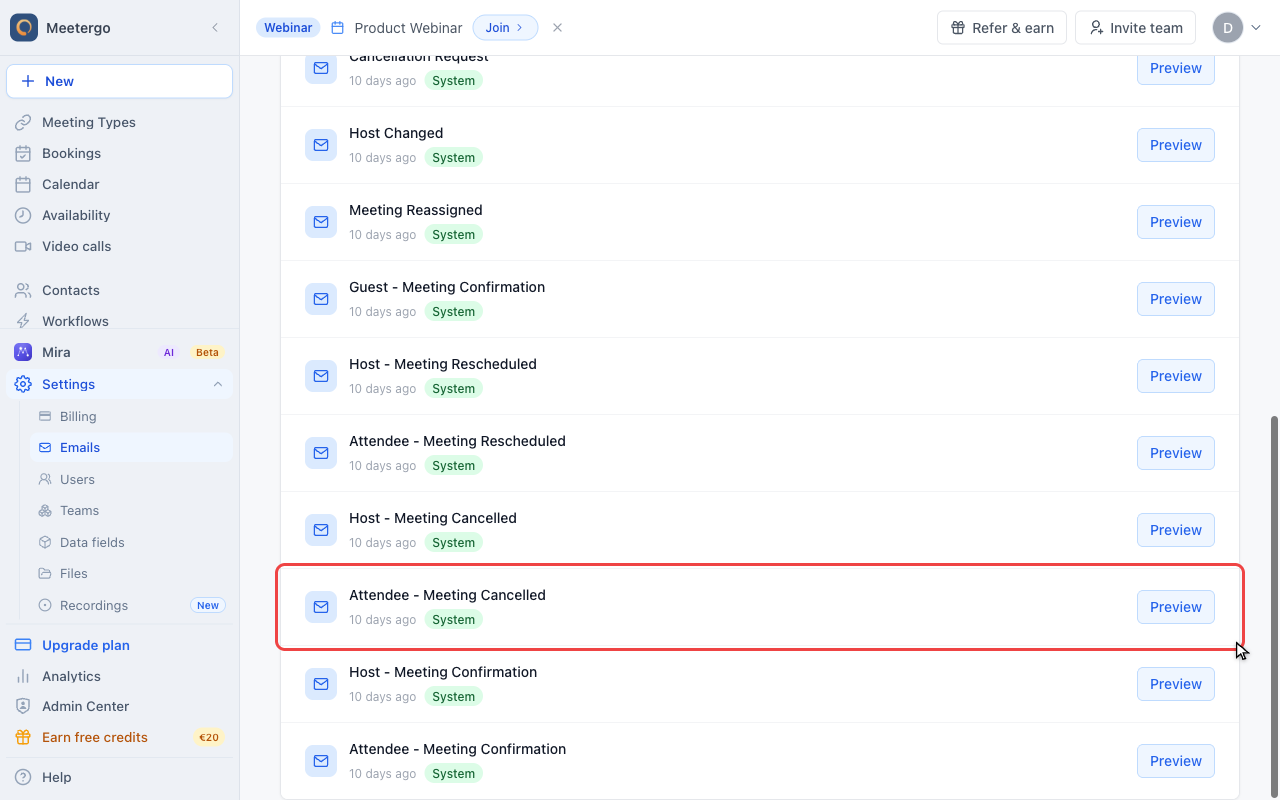
Open Attendee - Meeting Cancelled
Open the attendee cancellation template first. Repeat the same change for the host cancellation template if hosts should see the reason too.
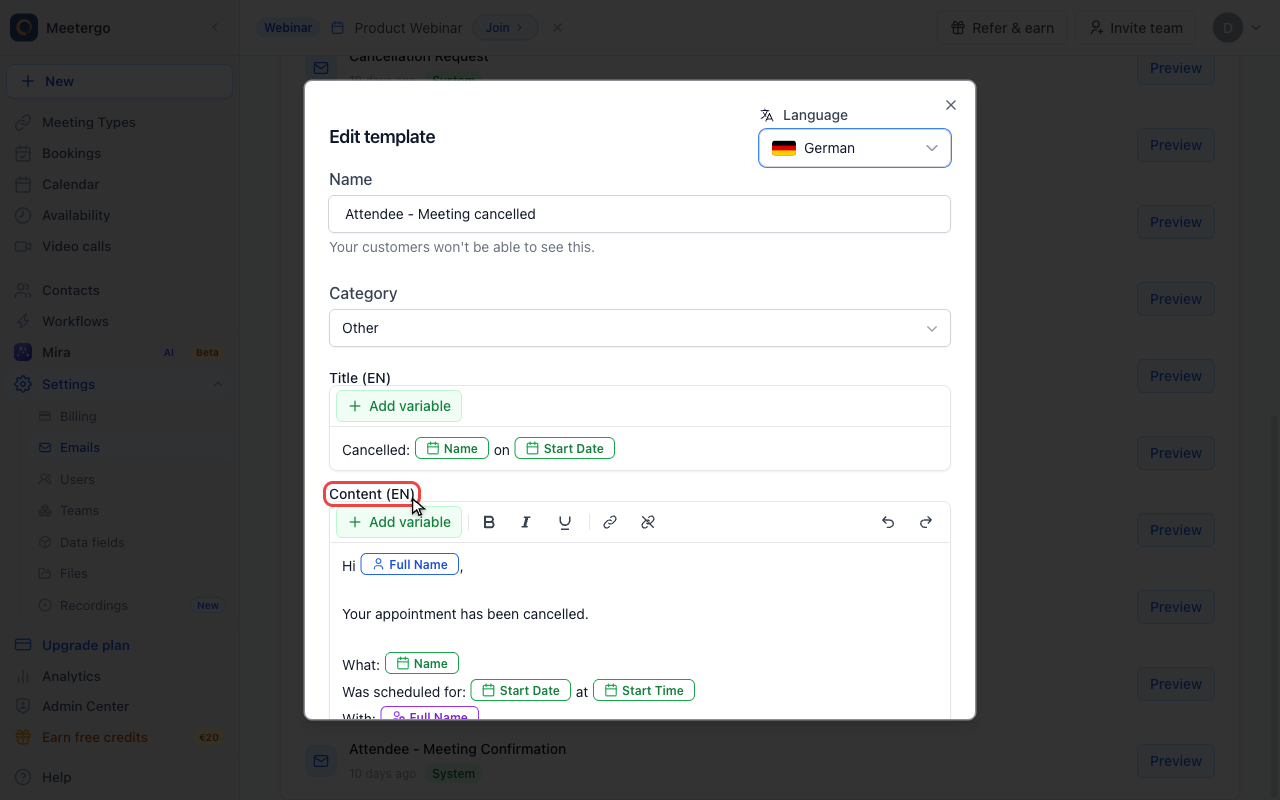
Add the cancellation reason
Edit the message content
Place {!M.Meeting.CancellationReason} where the labeled reason should appear, or use {!M.Meeting.CancellationReasonText} for raw text without the label.
How It Works
- If a reason was provided: The email will show a localized label followed by the reason. For example:
Cancellation Reason: Had to reschedule due to conflict - If no reason was provided: Nothing is displayed
The label is automatically translated based on the recipient's language:
| Language | Label |
|---|---|
| English | Cancellation Reason |
| German | Stornierungsgrund |
| French | Motif d'annulation |
| Spanish | Motivo de cancelación |
| Polish | Powód anulowania |
| Dutch | Reden voor annulering |
| Italian | Motivo dell'annullamento |
| Norwegian | Avbestillingsgrunn |
| Swedish | Anledning till avbokning |
| Turkish | İptal Nedeni |
Inline Variant (No Label)
Want to embed the reason mid-sentence — without the automatic "Cancellation Reason:" label and without the two leading newlines? Use this variable instead:
{!M.Meeting.CancellationReasonText}
This variable inserts only the raw text the attendee entered — nothing else. If no reason was provided, it renders as an empty string.
Example: Template: Unfortunately I have to cancel our call because {!M.Meeting.CancellationReasonText}. Result: Unfortunately I have to cancel our call because I have an urgent conflict.
Example Template
Here's an example of a cancellation email template with the reason included (labeled variant):
Hi {!M.Guest.Fullname},

Your {!M.Meeting.Name} with {!M.Host.Fullname} at {!M.Meeting.StartTime} on {!M.Meeting.StartDate} has been cancelled.{!M.Meeting.CancellationReason}

Best regards,
{!M.Host.Fullname}
And the same template using the inline variant:
Hi {!M.Guest.Fullname},

unfortunately I have to cancel our call because {!M.Meeting.CancellationReasonText}.
I'm sorry about that.

Best regards,
{!M.Host.Fullname}
Related Articles
- Email Templates - Learn how to customize all your email notifications
- Dynamic Variables Usage and Examples - See all available variables for your templates
Was this article helpful?
Let us know if this article answered your questions.