
Cancellation and Rescheduling Policies
Control when and if attendees can cancel or reschedule their bookings
By default, attendees can cancel or reschedule their bookings until the meeting starts. You can add minimum notice periods to a meeting type so last-minute self-service changes are blocked.
 1 / 5
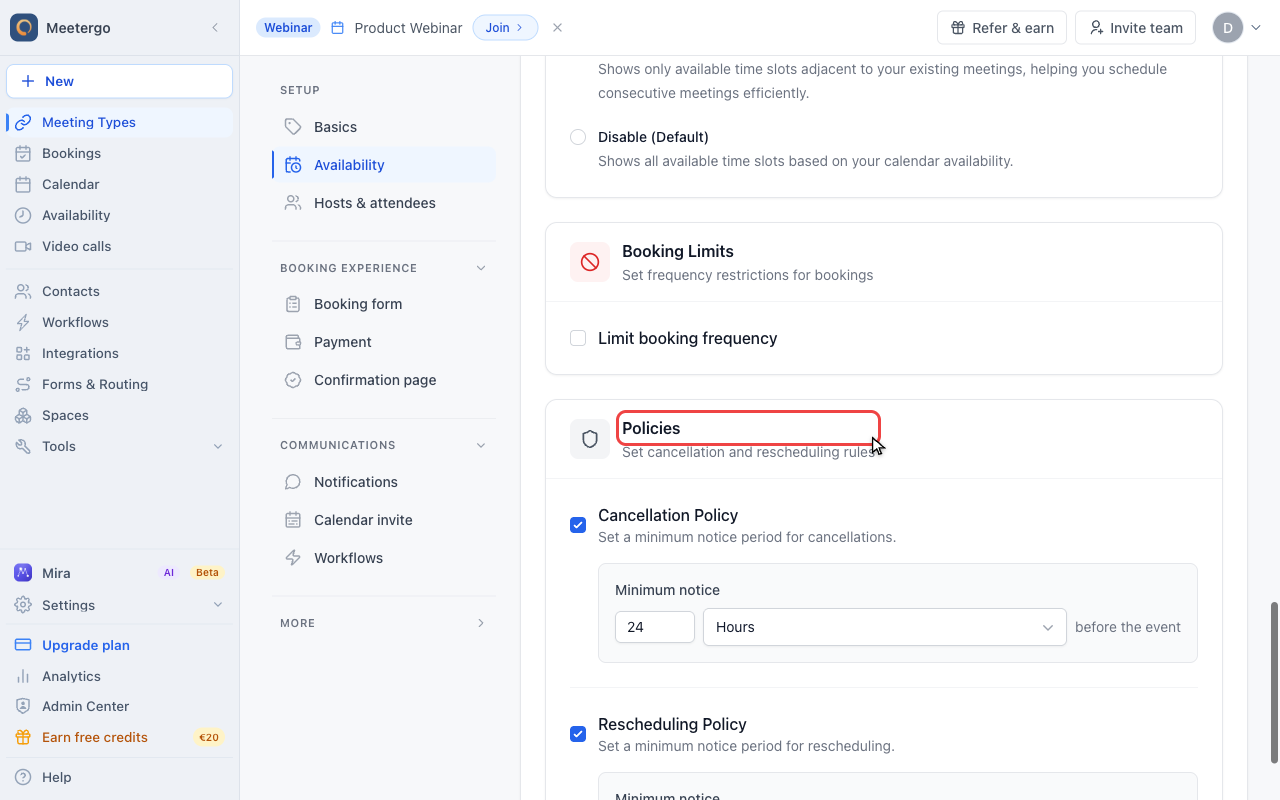
1 / 5The Policies card controls cancellation and rescheduling rules for this meeting type.
Review Policies
Find Policies
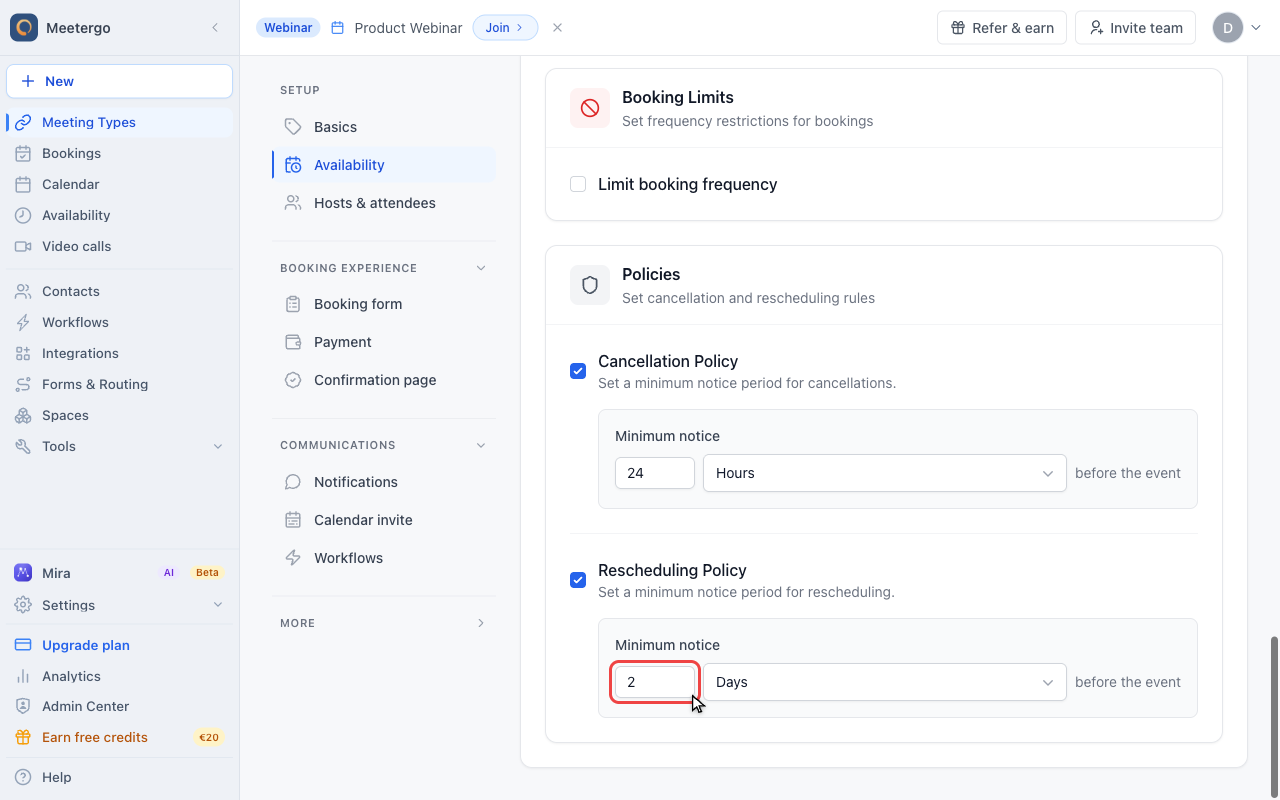
The Policies card controls cancellation and rescheduling rules for this meeting type.
Set cancellation notice
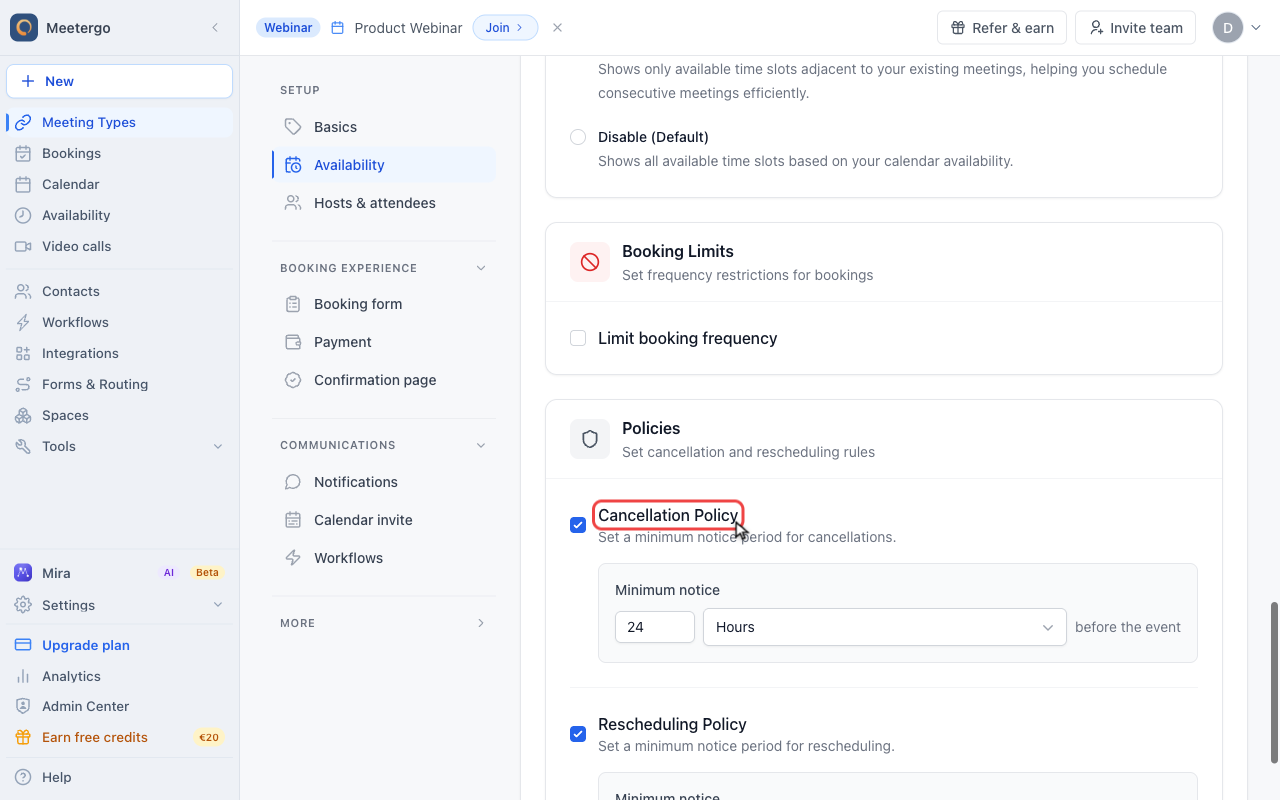
Enable Cancellation Policy
Enable Cancellation Policy when attendees should cancel only before a minimum notice window.
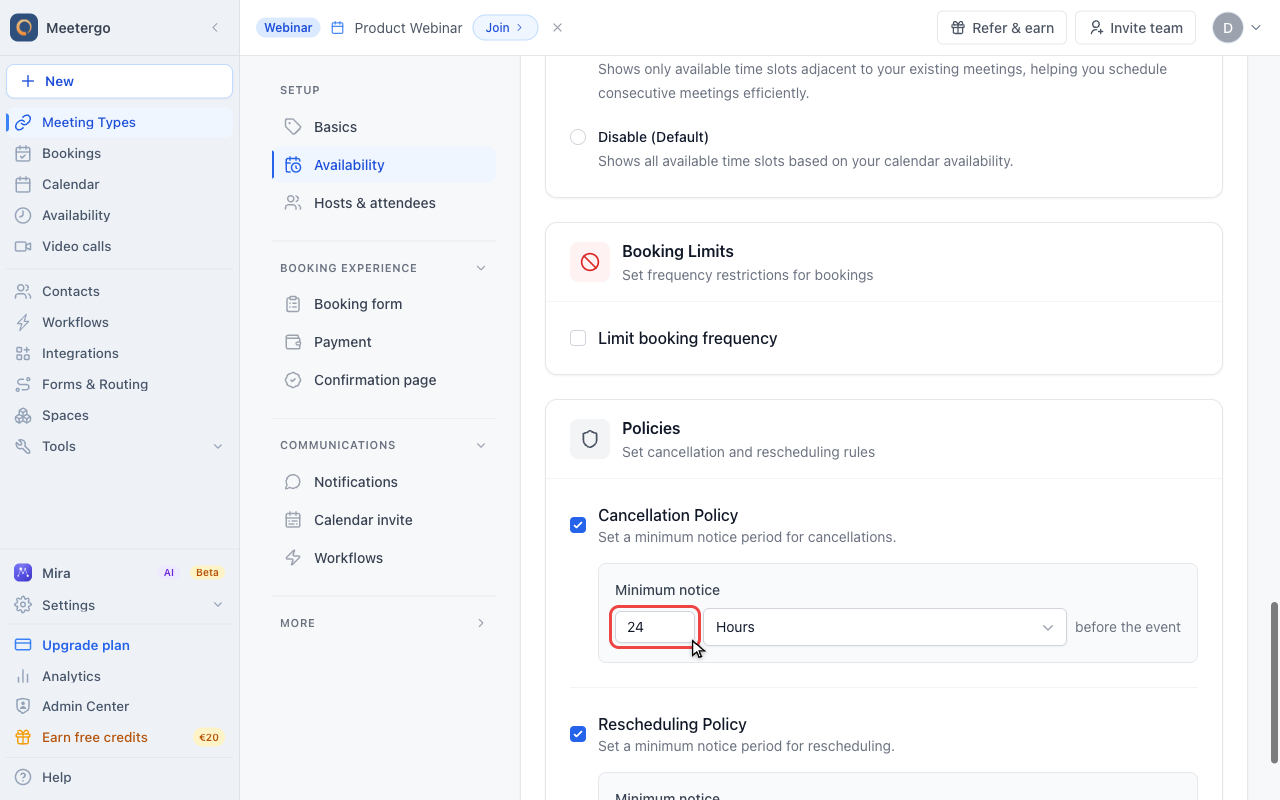
Set cancellation minimum notice
Set the amount and unit. In this example, attendees must cancel at least 24 hours before the event.
Set rescheduling notice
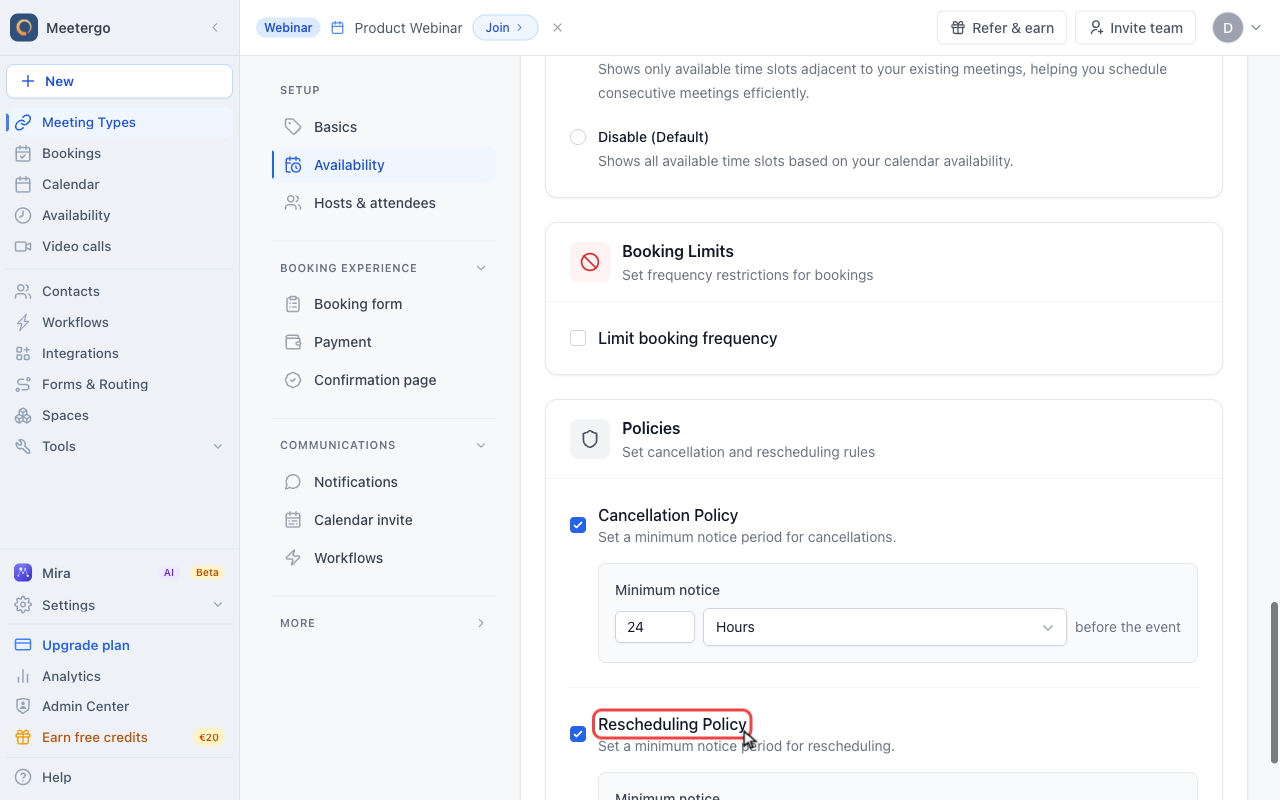
Enable Rescheduling Policy
Enable Rescheduling Policy when attendees should move bookings only before a separate notice window.
Set rescheduling minimum notice
Use a different value if rescheduling should be more or less flexible than cancellation. In this example, rescheduling requires two days' notice.
What Are Cancellation/Rescheduling Policies?
These policies control:
- Cancellation Policy: how far in advance attendees may cancel themselves
- Rescheduling Policy: how far in advance attendees may move the booking themselves
You can:
- Allow changes anytime (default)
- Require advance notice (e.g., 24 hours before)
- Use different notice periods for cancellation and rescheduling
Policies affect attendee self-service links. Hosts can still cancel or reschedule appointments manually.
Configure Policies
- Go to Meeting Types
- Edit your meeting type
- Open Availability
- Scroll to Policies
- Configure each policy:
- Enable the policy
- Enter the minimum notice
- Choose Hours or Days
- Save changes
Policy Units
| Unit | Description | Example |
|---|---|---|
| Hours | Require a number of hours before the meeting | Must cancel 24+ hours before |
| Days | Require a number of days before the meeting | Must reschedule 2+ days before |
Common Configurations
Allow All Changes (Default)
- Cancellation: Not enabled
- Rescheduling: Not enabled
Attendees can freely cancel or reschedule until the meeting starts.
Require 24-Hour Notice
- Cancellation: Enabled, Hours mode, 24 hours
- Rescheduling: Enabled, Hours mode, 24 hours
Attendees must cancel or reschedule at least 24 hours before the scheduled time.
Different Windows for Each Action
- Cancellation: Enabled, Hours mode, 48 hours
- Rescheduling: Enabled, Hours mode, 4 hours
Cancellations need 48 hours notice, but rescheduling only needs 4 hours (more flexible for changes than outright cancellations).
Use Cases
High-Value Consultations
Restrict both actions with 48-72 hour notice:
- You block significant time
- Last-minute changes disrupt your schedule
- Creates commitment from attendees
Paid Sessions
Restrict cancellations but allow rescheduling:
- Protects your revenue
- Provides flexibility for date changes
- Reduces no-shows
Resource-Heavy Meetings
Use longer notice periods:
- Room bookings or equipment involved
- Coordination with other parties
- Preparation that can't be transferred
Low-Commitment Calls
Keep defaults (no restrictions):
- Quick discovery calls
- Casual catch-ups
- Networking meetings
What Attendees See
When Allowed
Booking confirmation emails and the booking page show:
- Cancel button (if cancellation allowed)
- Reschedule button (if rescheduling allowed)
When Restricted
If within the restriction window:
- The self-service change is no longer available
- The attendee needs to contact you directly
- You can still make the change as the host
Interaction with Other Settings
With Minimum Notice
These are different settings:
- Minimum notice: How far ahead bookings must be made
- Cancellation policy: How far ahead cancellations must be made
Example: 24-hour minimum notice for new bookings, 48-hour notice for cancellations.
With Confirmation Required
If bookings require confirmation:
- Unconfirmed bookings may have different rules
- Policies typically apply to confirmed bookings
With Paid Bookings
For Stripe-integrated meetings:
- Cancellation may trigger refund policies
- Check your payment settings for refund behavior
- The cancellation policy determines when cancellation is allowed; payment settings determine refund amounts
Best Practices
Match Your Business Model
| Business Type | Suggested Policy |
|---|---|
| Free consultations | No restrictions |
| Paid services | 24-48 hour cancellation notice |
| High-demand time | Longer rescheduling notice, 48h cancellation |
| Medical/legal | Follow industry-standard notice periods |
Communicate Clearly
In your meeting description:
- State the cancellation policy
- Explain why (if helpful)
- Provide contact info for exceptions
Balance Flexibility and Protection
Too strict:
- Attendees hesitate to book
- Poor experience for legitimate changes
Too loose:
- Higher no-show rates
- Last-minute schedule disruptions
Consider Time Zones
For international attendees:
- Shorter notice periods may fall during their night
- Allow reasonable windows for changes
Handling Exceptions
Even with policies enabled, you can:
- Cancel manually: You can always cancel on their behalf
- Reschedule manually: Create a new booking at the new time
- Provide direct contact: Let them request exceptions via email
FAQ
Can I set different policies for different meeting types?
Yes, each meeting type has its own cancellation and rescheduling policy settings.
What happens to existing bookings if I change the policy?
Existing bookings keep the policy that was active when booked. New bookings use the new policy.
Can attendees still contact me to request changes?
Yes, policies only affect the self-service buttons. You can always make changes on their behalf.
Do these policies apply to me as the host?
No, you can always cancel or reschedule your own meetings regardless of policy settings.
How are no-shows handled?
Policies don't prevent no-shows. They only control whether attendees can cancel or reschedule themselves. For no-show management, consider confirmation requirements.
Related Articles
Was this article helpful?
Let us know if this article answered your questions.