
Creating a Group Meeting Type
Create a group meeting type where several invitees can book the same time slot.
Use a group meeting type for webinars, trainings, classes, Q&A sessions, or any appointment where several invitees should book the same time slot. The walkthrough shows the creation path and the capacity settings to review before publishing.
 1 / 10
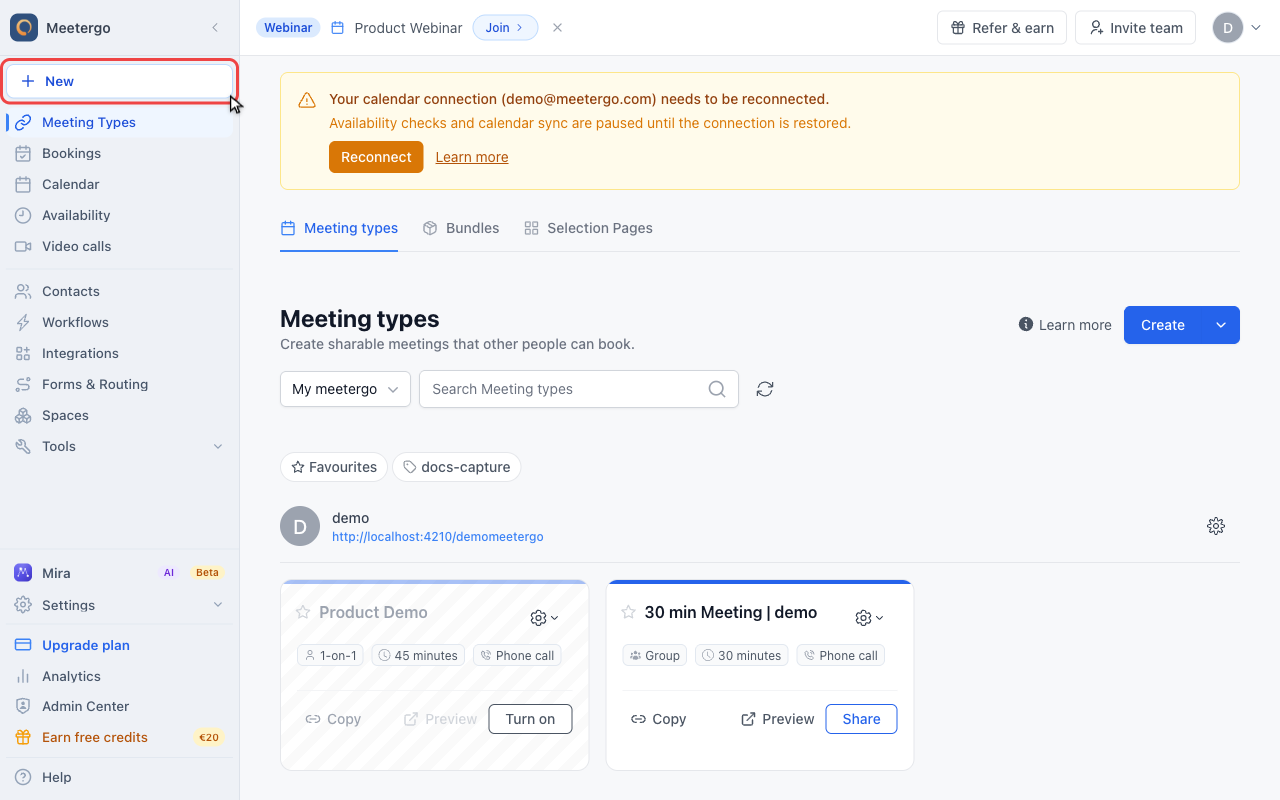
New opens the create menu with reusable meeting types, instant calls, one-off meetings, and polls.
Create a group meeting type
Click New
New opens the create menu with reusable meeting types, instant calls, one-off meetings, and polls.
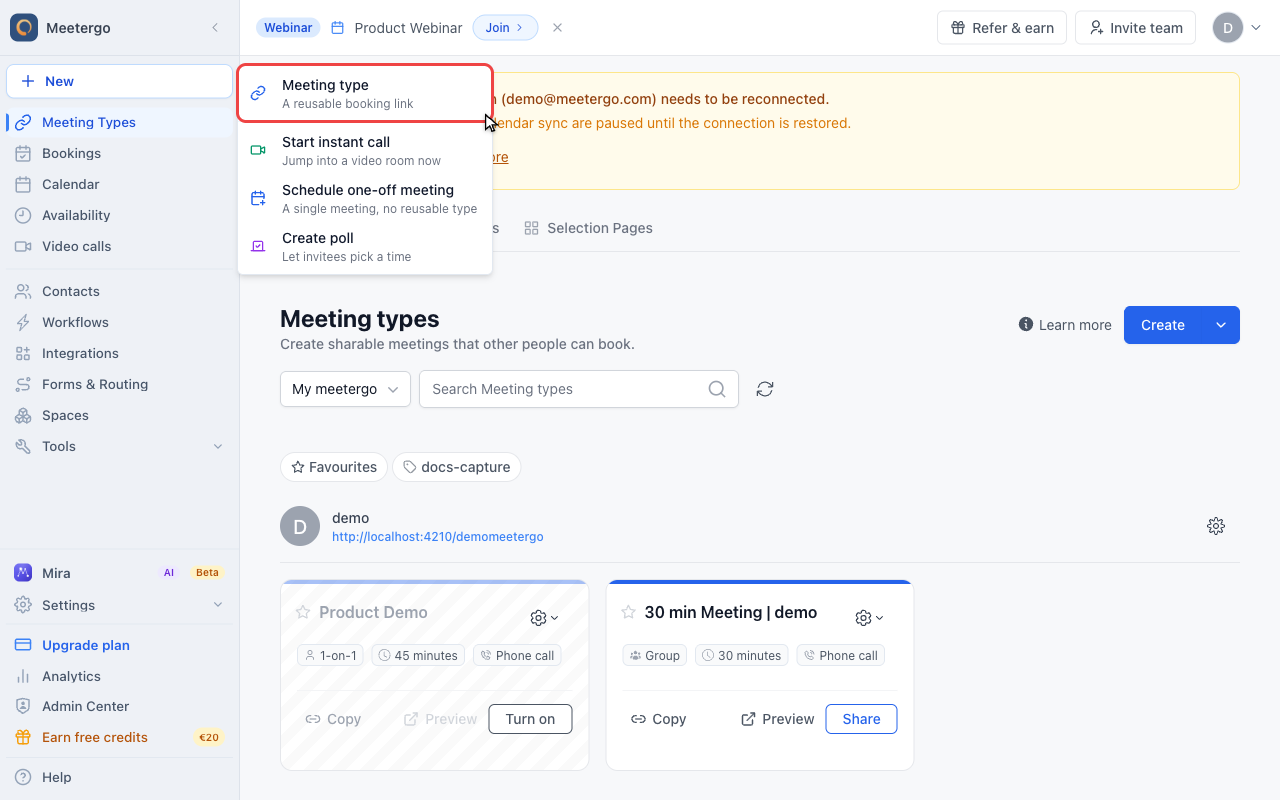
Choose Meeting type
Choose Meeting type to create a reusable booking link.
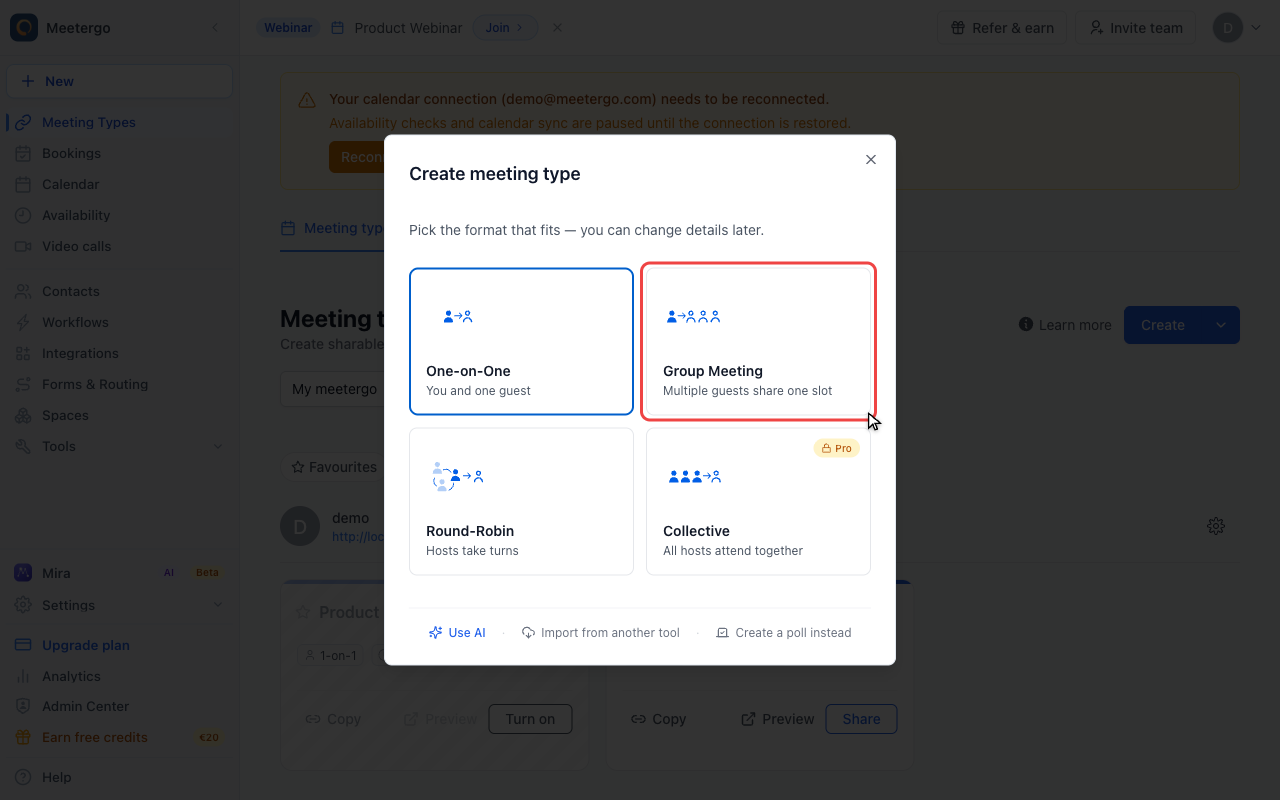
Select Group Meeting
Pick Group Meeting when multiple invitees should share one available time slot.
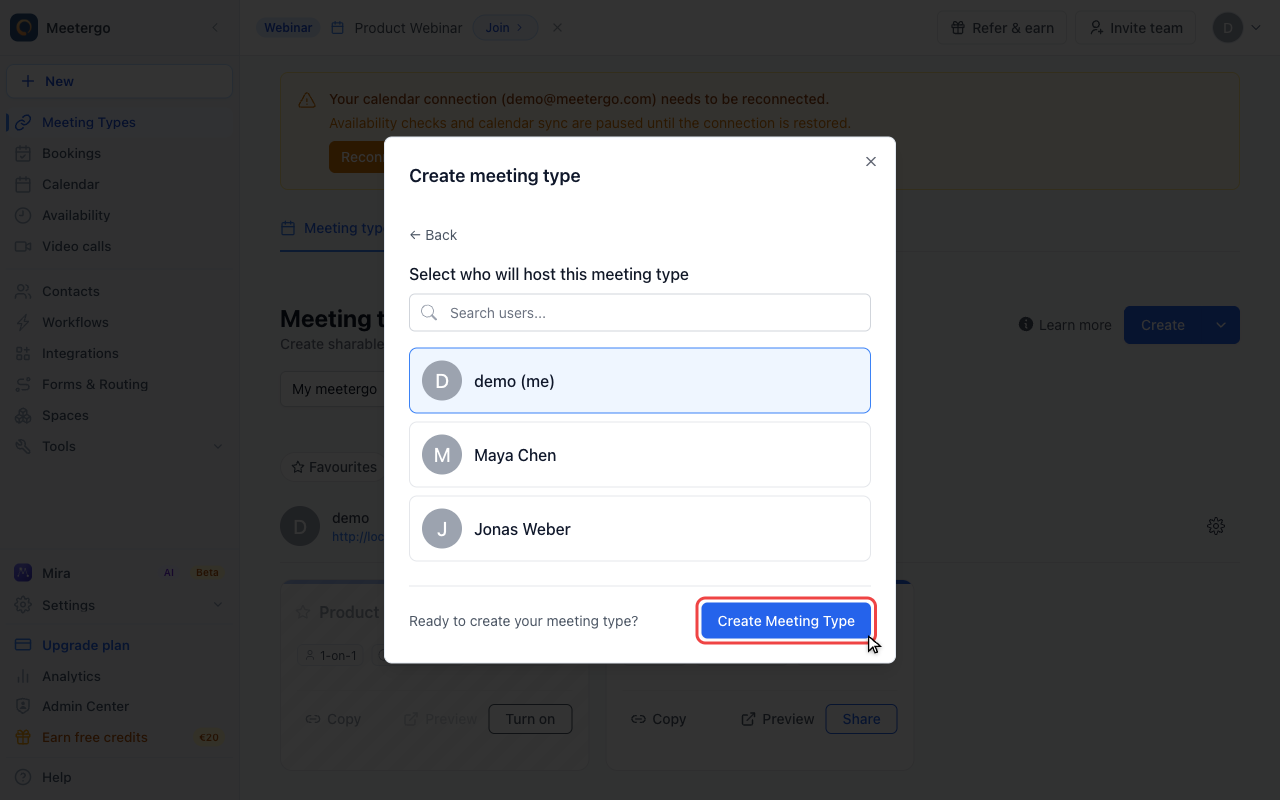
Choose the host
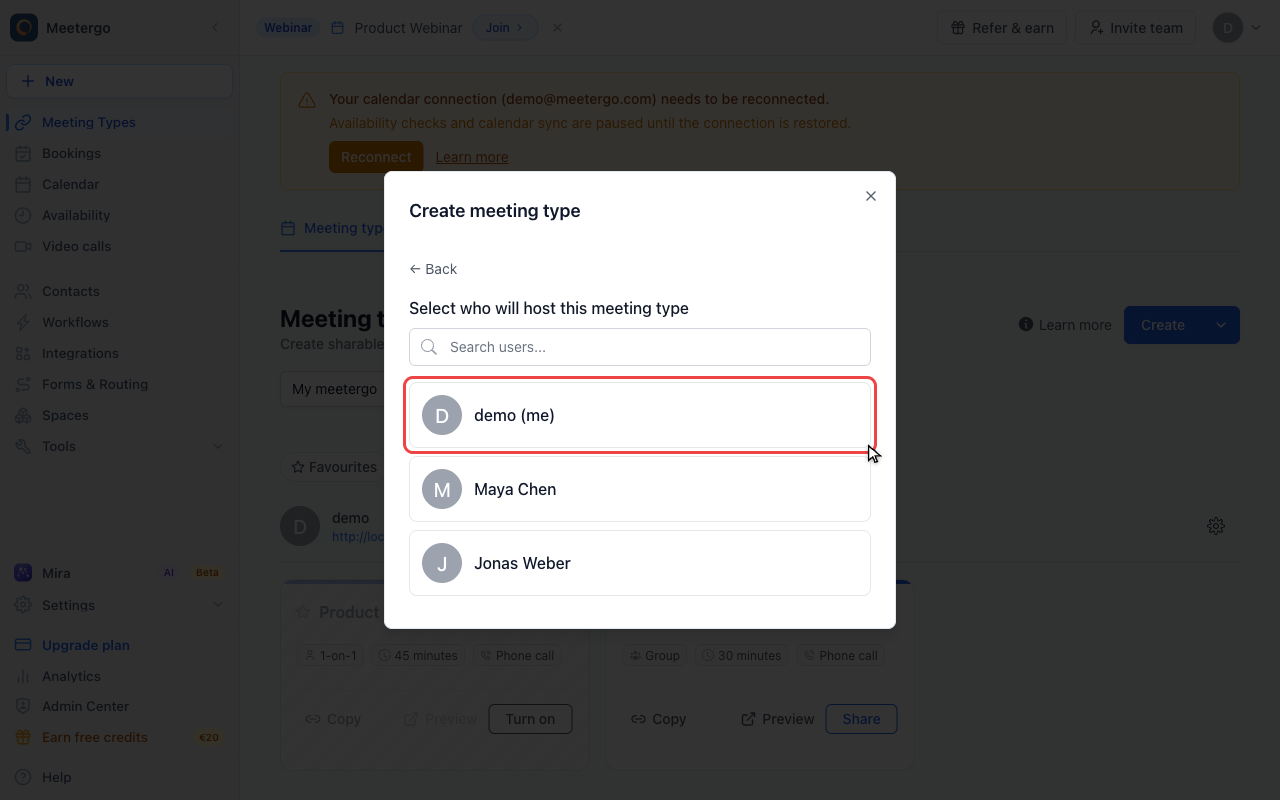
Select the host
Choose who hosts this group meeting type. In this example, the meeting is created for the current user.
Continue to the builder
Continue once the host is correct. This opens the builder but does not publish anything.
Configure the basics
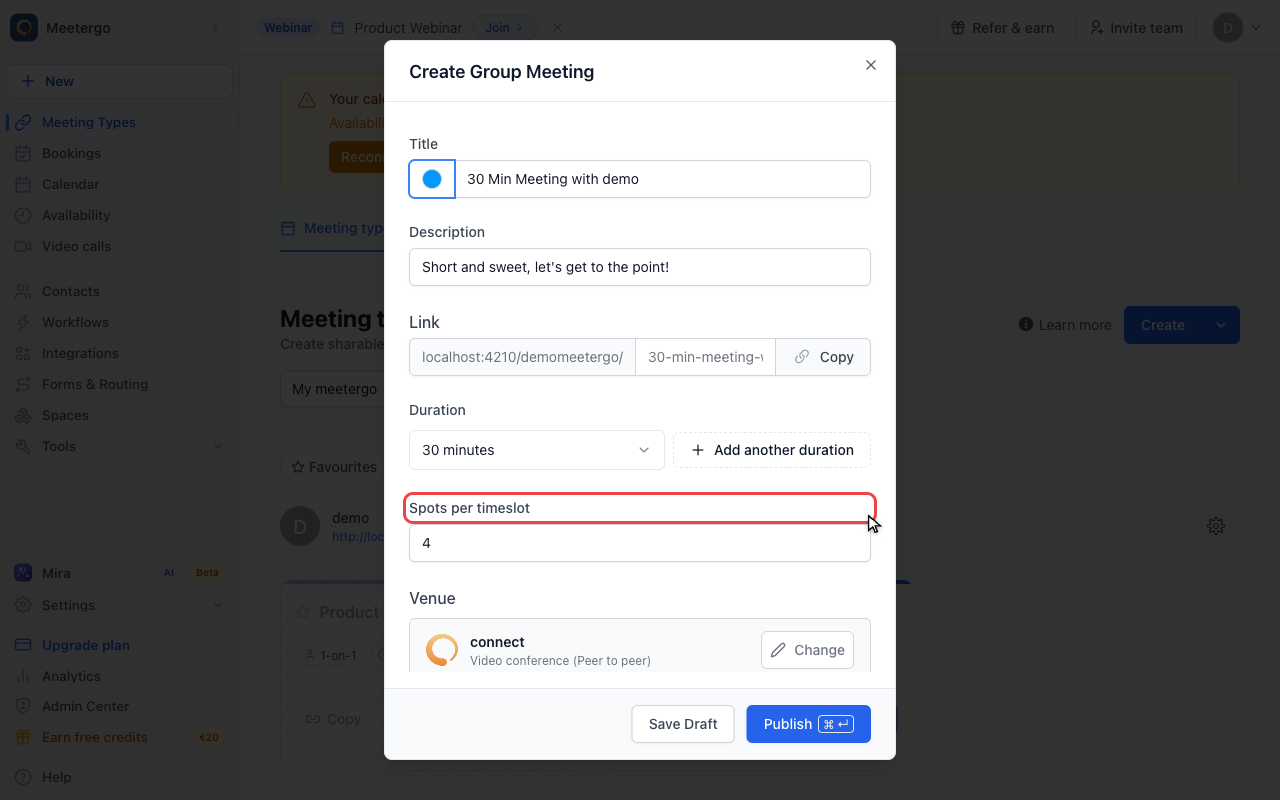
Fill in the basic details
Add a title, description, duration, and the initial number of spots per timeslot. Save Draft or Publish only after the details are ready.
Set attendee capacity
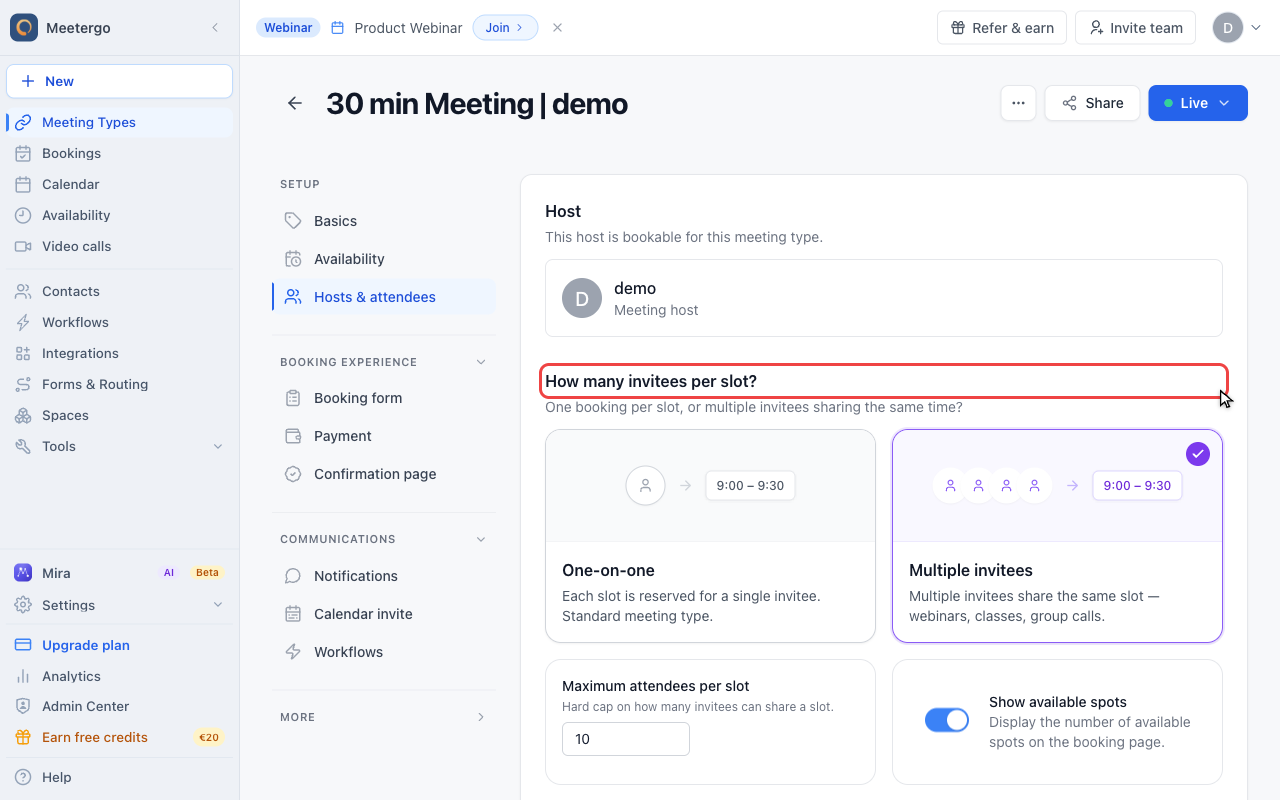
Review invitees per slot
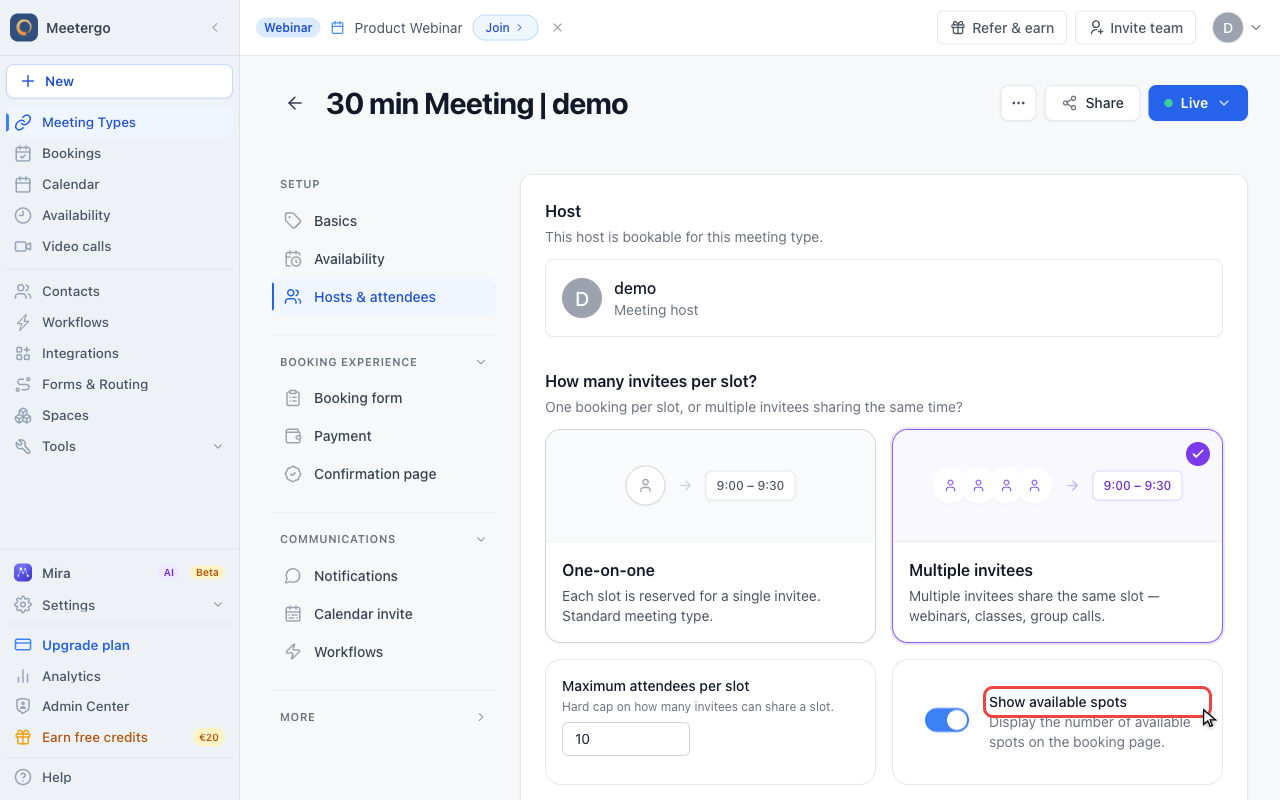
Multiple invitees must be selected for a group meeting type. This lets several people book the same slot.
Set the maximum attendees
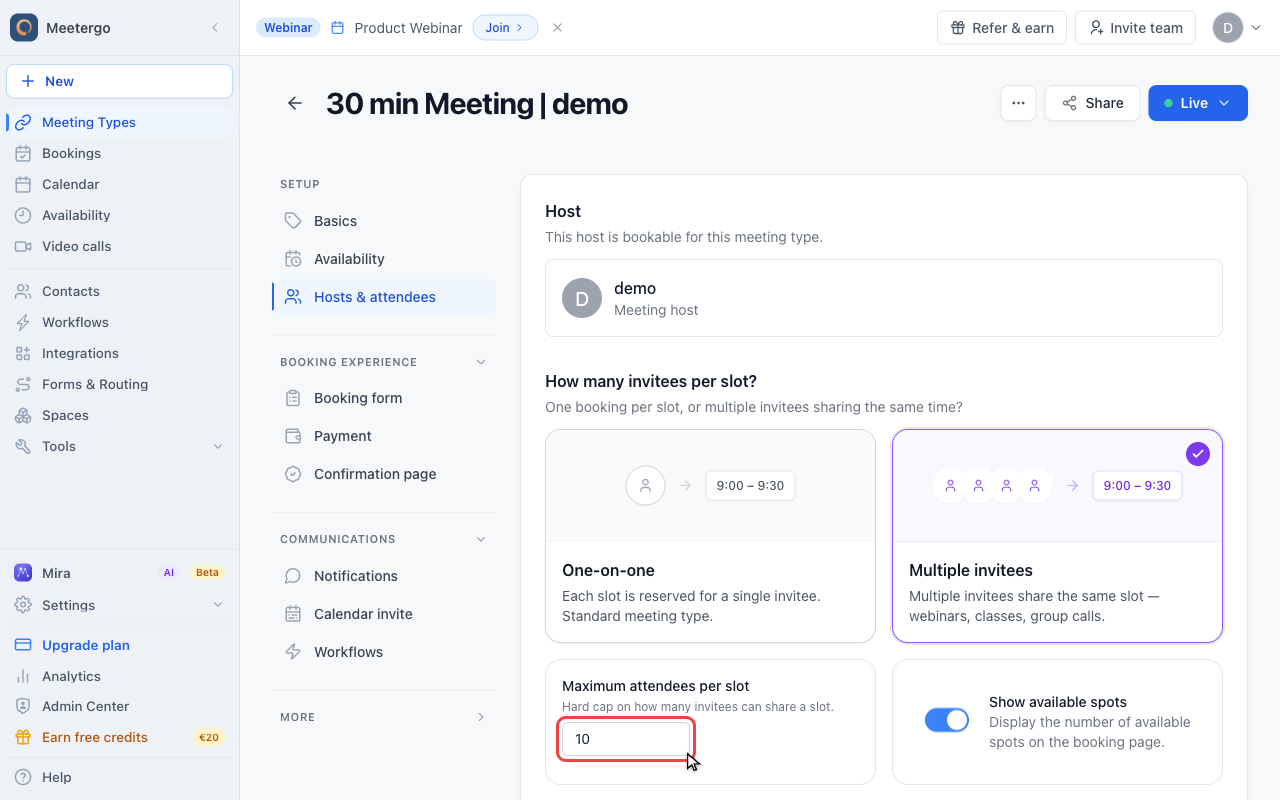
Maximum attendees per slot is the hard cap for how many invitees can reserve the same time.
Show available spots
Show available spots displays remaining capacity on the public booking page.
Control extra guests
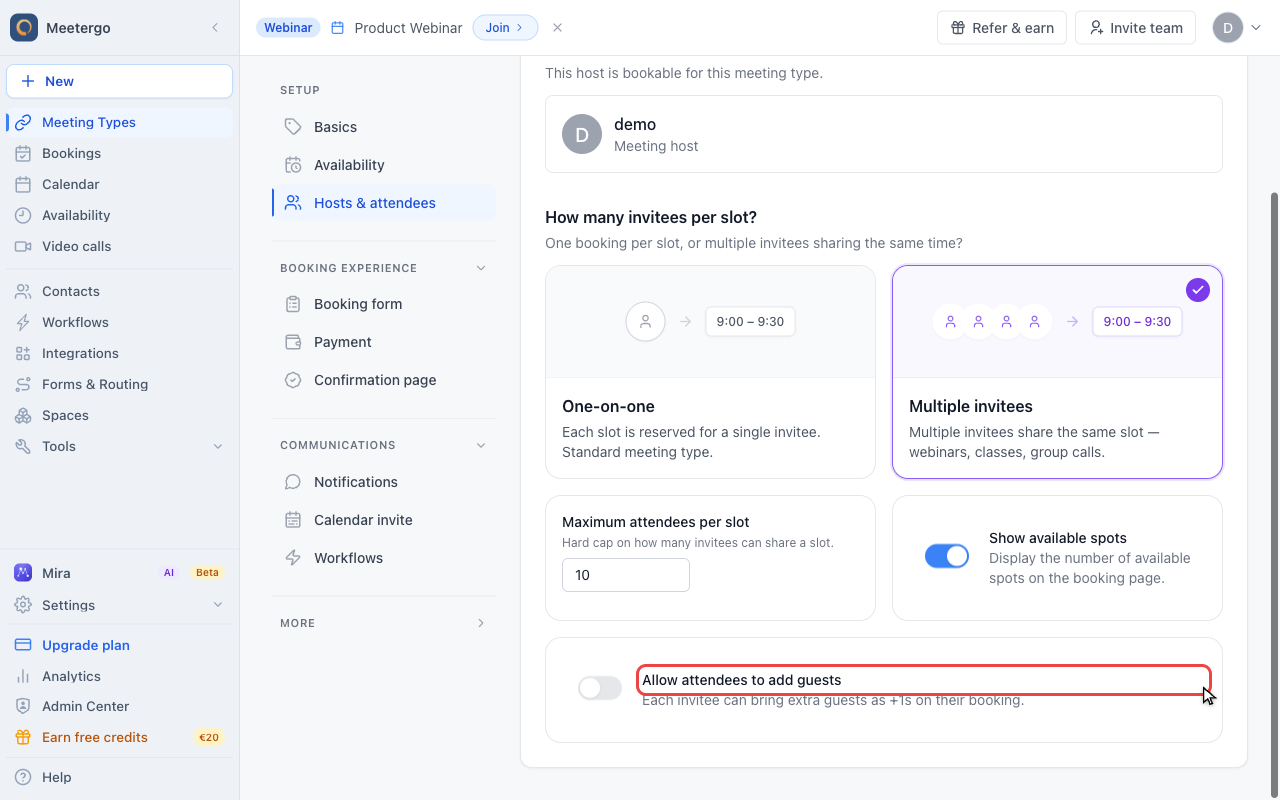
Allow attendees to add guests controls whether one booker can bring extra people in addition to the group capacity.
What to Configure Before Publishing
Before you publish the group meeting type, review these settings:
- Title and description: make it clear that several people may join the same session.
- Duration: choose the meeting length attendees will book.
- Spots per timeslot: set the first capacity limit while creating the meeting type.
- Venue: confirm the location or video provider everyone should use.
- Availability: make sure the meeting type is assigned to the right schedule.
- Booking form and notifications: collect the information you need and send the right instructions before the session.
Add Fixed Dates
Workshops and trainings often run on a few set dates instead of weekly hours. Add those dates right on the meeting type card in Scheduling:
- Click + Add first date (or + Date) on the card.
- Pick the day, the start time and the end time.
- Click Add date.
Each date appears as a chip on the card with its booked seats, for example 2/60. Click a chip to see who booked, or to remove the date. People who already booked a removed date keep their booking.
The first date gives the meeting type a schedule of its own that only holds your dates, so the meeting type is bookable on these dates only. Other meeting types that shared the old schedule do not change. The booking page switches to the list of dates, and the booking window no longer cuts off dates far in the future.
If the meeting type already has a schedule of its own with a booking window, a date after that window is not bookable yet. The card shows that date dimmed and tells you when the window ends. Change it in the meeting type under Availability → Booking Window. See Limit Future Bookings.
Understanding Attendee Slots
Attendee slots are the maximum number of invitees who can book the same time slot.
- If you set 10 spots for a webinar, up to 10 people can book that same session.
- Each booking uses one spot.
- If Show available spots is enabled, the public booking page shows remaining capacity.
- The host can view registered attendees in the dashboard after they book.
- Allow attendees to add guests is separate from group capacity. Keep it off when every participant should book their own spot.
Why Use a Group Meeting Type?
Group meeting types are ideal for:
- Webinars and presentations
- Training sessions and workshops
- Team meetings and collaborative sessions
- Community events and discussion groups
- Classes and educational sessions
They provide flexibility in managing multiple participants while maintaining a structured meeting environment.
FAQ
How Many Attendees Can I Include?
Set attendee capacity based on the size you can host well and the limits of your meeting provider. Consider these factors:
- Video conferencing tools have different participant limits, for example Zoom, Google Meet, and Microsoft Teams.
- Meeting quality may degrade with too many participants.
- Larger groups usually need clearer moderation and preparation.
Can I Customize Slot Availability?
Yes. Use the Availability tab on the meeting type to choose the schedule, booking window, buffers, and booking limits for this group meeting type.
How Do I Create a Group Meeting Type for a Fixed Event?
Add the dates right on the meeting type card. See Add fixed dates.
Can Attendees See Who Else Has Registered?
No. Attendees do not see the other registrants on the booking page. The host can view the attendee list in the dashboard.
Can I Send Different Communications to Group Attendees?
Yes. Use the meeting type communication settings or workflows to send preparation material, reminders, and joining instructions for the group session.
Was this article helpful?
Let us know if this article answered your questions.
Related articles
- Account Owner MatchingRoute round-robin bookings to the user who already owns the booker as a contact
- Allow or Disable Guest InvitationsControl whether attendees can add additional guests to their bookings
- Booking Confirmation: Why It Happens and How to Turn It OffFind out which setting makes attendees or hosts confirm a booking again, change the confirmation deadline, resend a confirmation email, and switch booking confirmation off for your whole company or a single meeting type.
- Booking questions and the booking button textAdd your own questions to the booking form, and change the booking button text: rename the Book now button, edit field labels, help text and placeholders, and find where the other text on your booking page comes from.