
How to disable, customize, or time email notifications for a meeting type
Turn each booking email off, keep the company standard, or write a custom version per meeting type, set when the reminder email and follow-up are sent, and remove the ICS attachment, the invite.ics calendar file, from the booking confirmation email.
Every meeting type controls its own emails on the Notifications tab. Each message uses one simple control with three options, so you can turn an email off, keep the shared company version, or write one just for this meeting type.
 1 / 4
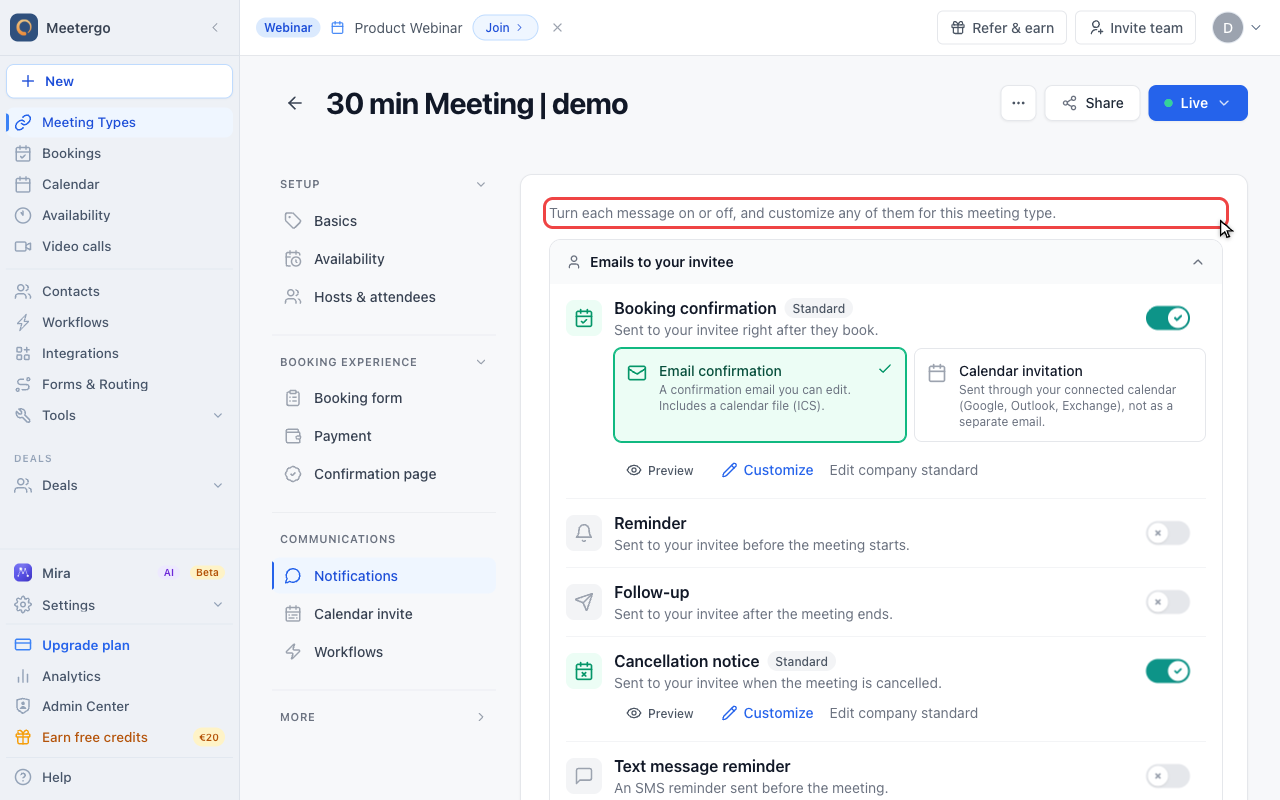
1 / 4The intro explains the model: turn each message on or off and customize any active message for this meeting type.
Review message groups
Find the per-message controls
The intro explains the model: turn each message on or off and customize any active message for this meeting type.
Start with invitee emails
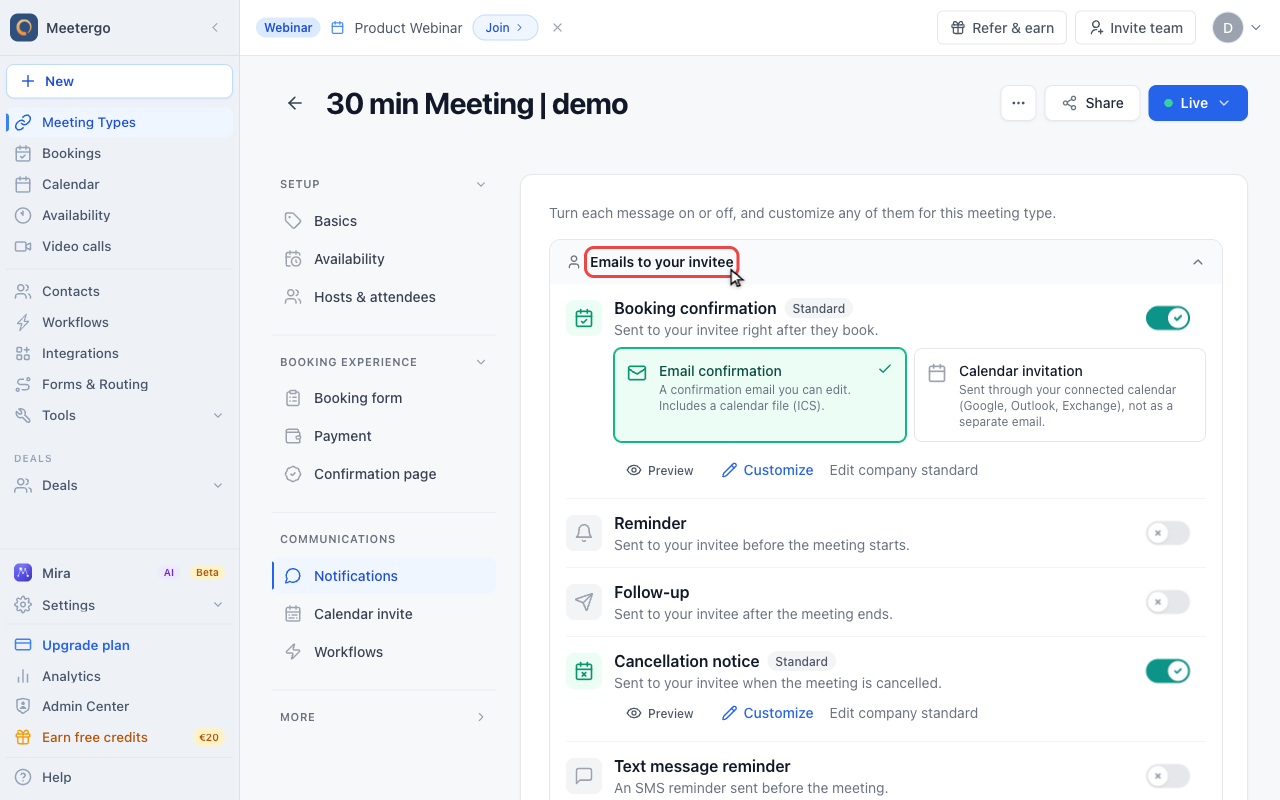
Emails to your invitee includes the booking confirmation, reminders, follow-ups, cancellations, and SMS-related messages.
Choose Off, Standard, or Custom
Review the booking confirmation
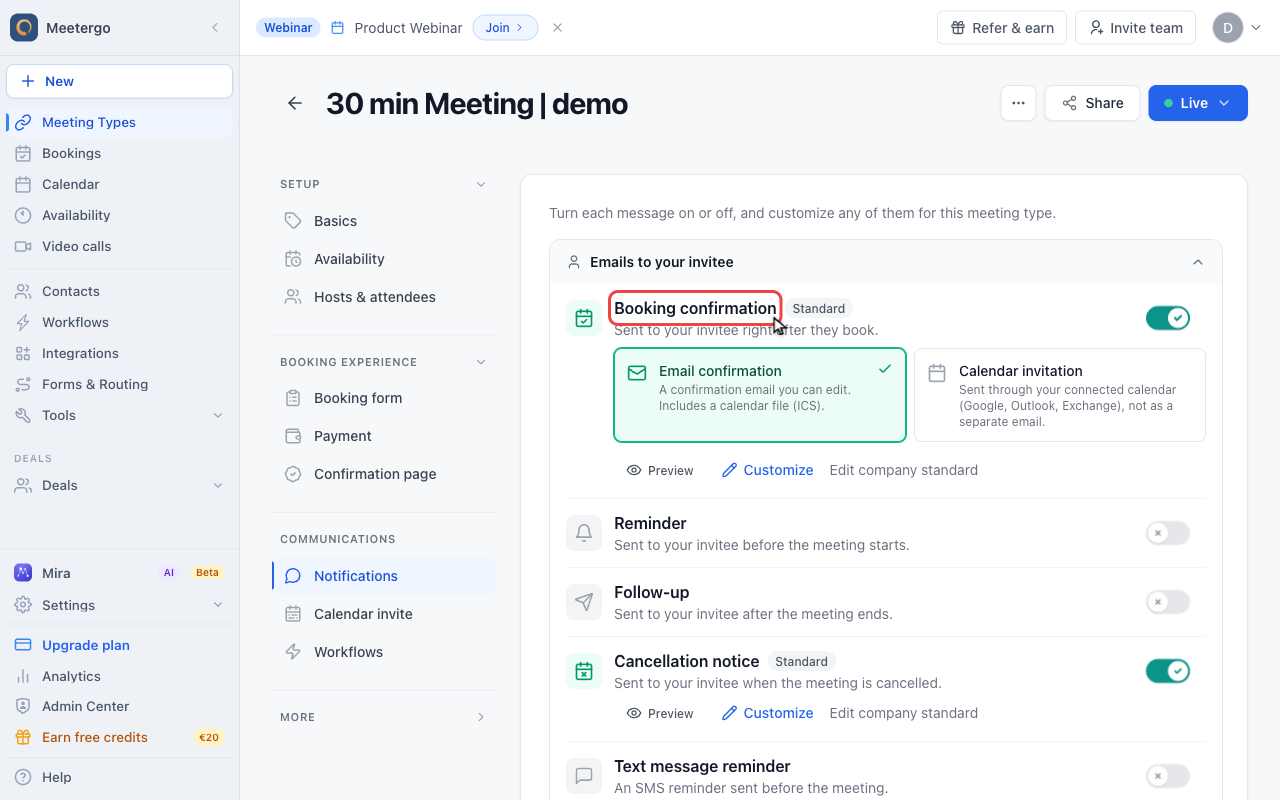
The booking confirmation can be sent as an editable email confirmation or as a calendar invitation through a connected calendar.
Customize a message
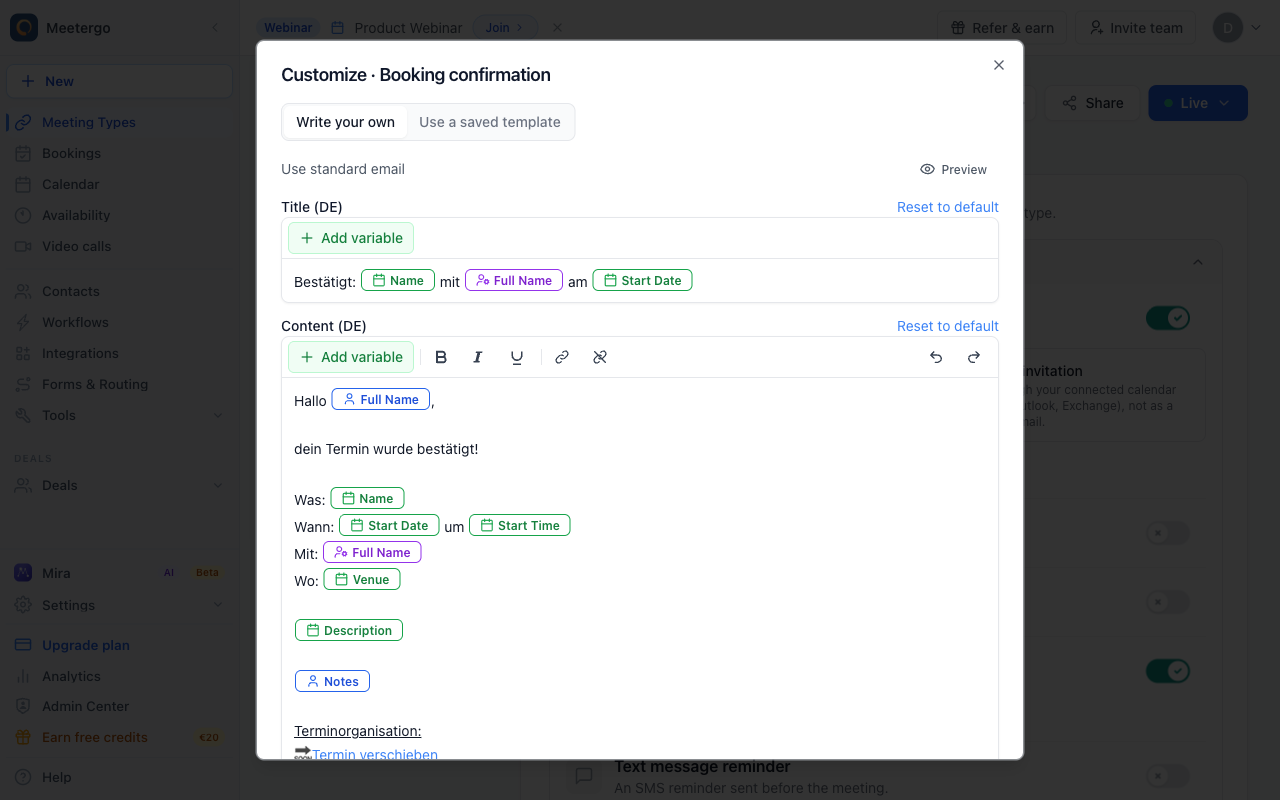
Use Customize to open the message editor for this meeting type. Close it without saving when you only want to review the current setup.
The three states
For every message you will see a single control:
- Off - the email is not sent for this meeting type.
- Standard - the company-wide template is sent. Editing the company standard changes it for every meeting type.
- Custom - a version specific to this meeting type is sent. Editing it only affects this meeting type.
A short line under each message always tells you exactly what will be sent, so you never have to guess.
How to change a notification
- Go to your Meeting Types
- Click on the meeting type you want to edit
- Open the Notifications tab
- For each message, choose Off, Standard, or Custom
- Choose Custom to open the editor and write your own subject and content
- In Standard, use Preview to see what is sent, or Customize to write a version for this meeting type
- Click Save to apply your changes
Messages are grouped by who receives them: emails to your invitee, emails to you and your team, and a section for less common messages. Open a group to see every message inside it.
Choosing when the reminder and follow-up are sent
Reminder and Follow-up are the two messages whose send time you set yourself. Open the message and you get two extra fields:
- Timing - a number plus minutes, hours, or days. For the reminder this counts back from the meeting start, for the follow-up it counts forward from it.
- Recipient - all attendees, all hosts, or everyone.
The same fields exist for the Text message reminder, which uses SMS credits.
A reminder is scheduled when the meeting is booked. Turning it on or changing its timing only affects bookings made afterwards, so it will not go out for meetings that are already in your calendar. See When reminders are scheduled.
Every other message here is sent when its event happens and has no send time to configure. The booking confirmation in particular goes out immediately after the booking and cannot be delayed. If you need a message that arrives some time after the booking, build a workflow with the When Booking is made trigger and set a delay there.
Need more than one reminder, or the same reminder across several meeting types? Use workflows instead and assign them on the meeting type's Workflows tab.
Turning emails off
You can set any message to Off, including the booking confirmation and the cancellation notice.
In the booking confirmation, choose between Email confirmation and Calendar invitation. Switching to Calendar invitation sends the event straight to your invitee's calendar instead of a confirmation email.
Removing the ICS calendar file from the confirmation email
The Email confirmation always carries a calendar file (invite.ics) as an attachment, so your invitee can add the meeting to their calendar with one click. There is no switch that keeps this email and drops the file. If you do not want the attachment, choose one of the two routes below instead.
| What you want | What to set |
|---|---|
| The event in the invitee's calendar, without a separate confirmation email | Booking confirmation -> Calendar invitation |
| A confirmation email with no calendar file attached | Booking confirmation -> Off, and send your own confirmation from a workflow |
Calendar invitation only replaces the email when your connected calendar can invite the attendee itself. Google, Outlook (Microsoft 365), Exchange, and SmartWe can do that. With Apple iCloud, CalDAV, or Nextcloud, and whenever the calendar sync fails, meetergo falls back to sending the confirmation email with the calendar file attached, so your invitee is never left without the appointment.
Workflow emails never carry a calendar file. To send a confirmation without one, build a workflow on the When Booking is made trigger, write your confirmation there, and set the booking confirmation on this tab to Off so your invitee only gets one email. See Workflows.
Want to add your own file, such as a PDF agenda or your terms, to the confirmation email? See Attaching files and PDFs to booking emails.
Turning off the calendar invite in your own emails
If a booking is not in your connected calendar, for example because you have not connected one, the emails meetergo sends you include a calendar invite. Your email program then adds the booking to your calendar, and later moves or removes it on reschedule and cancellation.
Want your calendar to hold only the synced bookings? In Emails to you and your team, turn off Calendar invite for hosts. You still get every email, just without the invite. The booking still lands in your connected calendar, and your invitee's emails do not change.
Using alternative communication channels
When you turn meetergo's emails off, you can still reach attendees through other channels:
- WhatsApp via Superchat - Send confirmations, reminders, and follow-ups through WhatsApp using our Superchat integration
- Custom Workflows - Build automated, multi-step sequences on the Workflows tab. See Workflows
Even with emails off, switching your invitee to a Calendar invitation still gives them the event in their calendar.
Looking for the "please confirm your booking" email? That one isn't on the Notifications tab. It comes from Double Opt-In or host approval and is switched off separately. See Booking Confirmation: Why It Happens and How to Turn It Off.
Looking for the title of the calendar event? The event name, location, and description live on the neighbouring Calendar invite tab, not on Notifications. See change the calendar event title, location, and description.
Wrong phone number or a blank location in your emails? That comes from the {!M.Meeting.Venue} variable, which resolves differently for each channel. See Venue: show the meeting location, link, or phone number in emails.
Was this article helpful?
Let us know if this article answered your questions.
Related articles
- Account Owner MatchingRoute round-robin bookings to the user who already owns the booker as a contact
- Allow or Disable Guest InvitationsControl whether attendees can add additional guests to their bookings
- Booking Confirmation: Why It Happens and How to Turn It OffFind out which setting makes attendees or hosts confirm a booking again, change the confirmation deadline, resend a confirmation email, and switch booking confirmation off for your whole company or a single meeting type.
- Booking questions and the booking button textAdd your own questions to the booking form, and change the booking button text: rename the Book now button, edit field labels, help text and placeholders, and find where the other text on your booking page comes from.