
Group Booking (Multiple Attendees Per Slot)
Allow multiple people to book the same time slot for webinars, classes, or group sessions
Group booking lets multiple attendees book the same time slot. This is perfect for webinars, workshops, classes, or any event where you want multiple participants in a single session.
 1 / 4
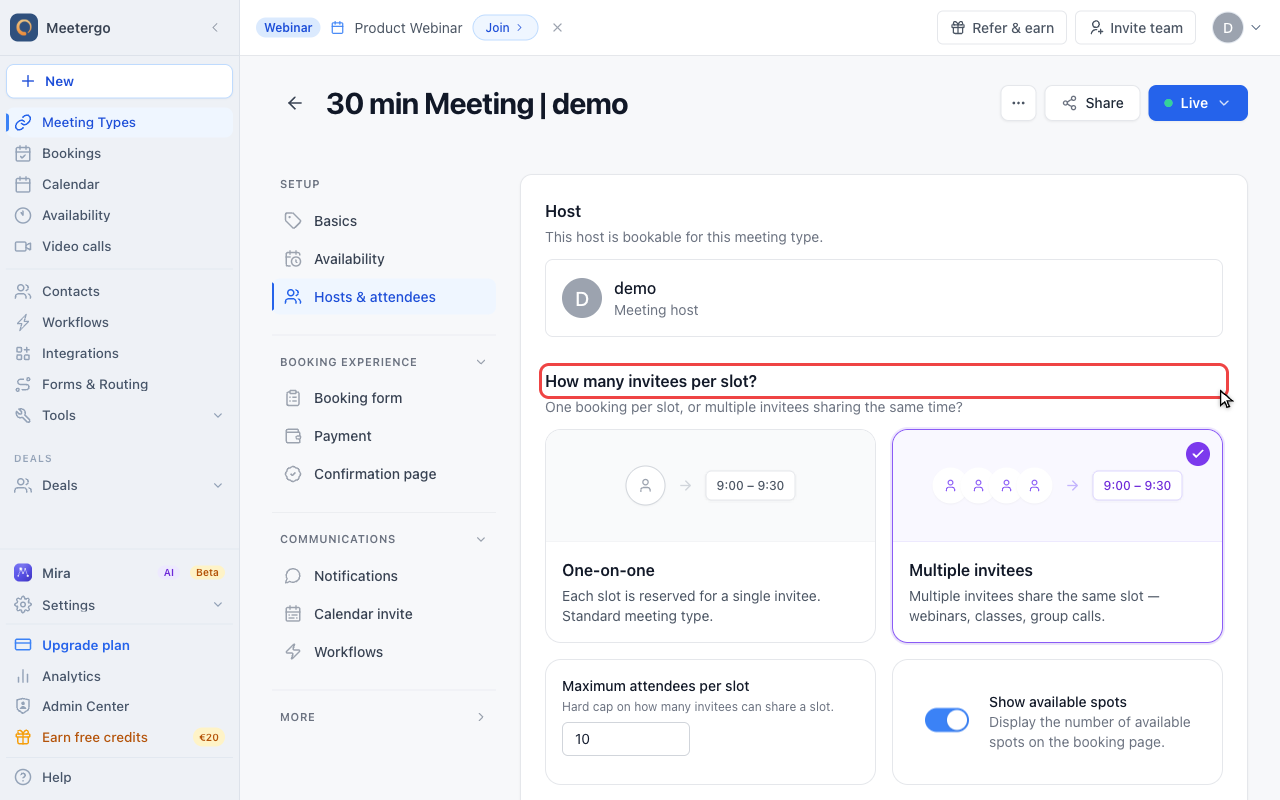
1 / 4How many invitees per slot? controls whether the meeting type is one-on-one or a group booking.
Set attendee capacity
Find invitee capacity
How many invitees per slot? controls whether the meeting type is one-on-one or a group booking.
Choose Multiple invitees
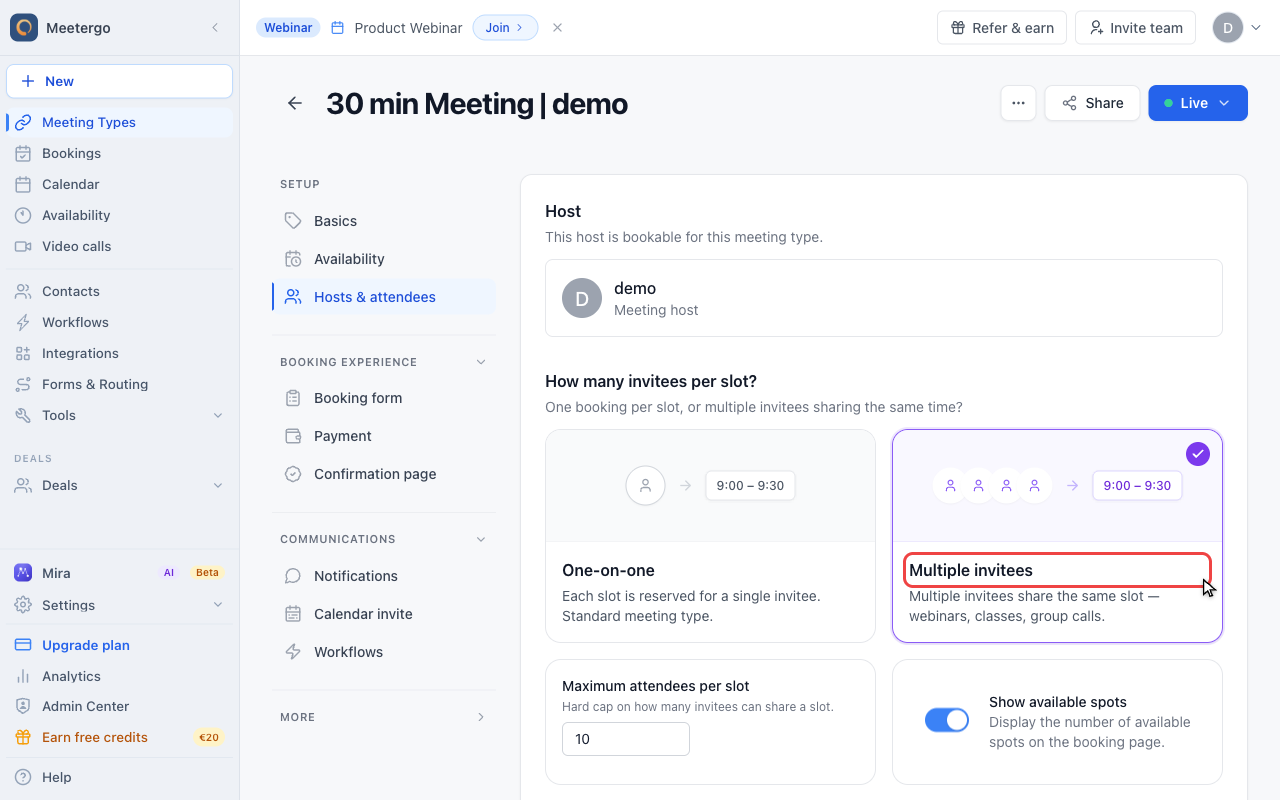
Multiple invitees lets more than one person reserve the same time. The demo is already enabled so the related controls are visible.
Set max spots
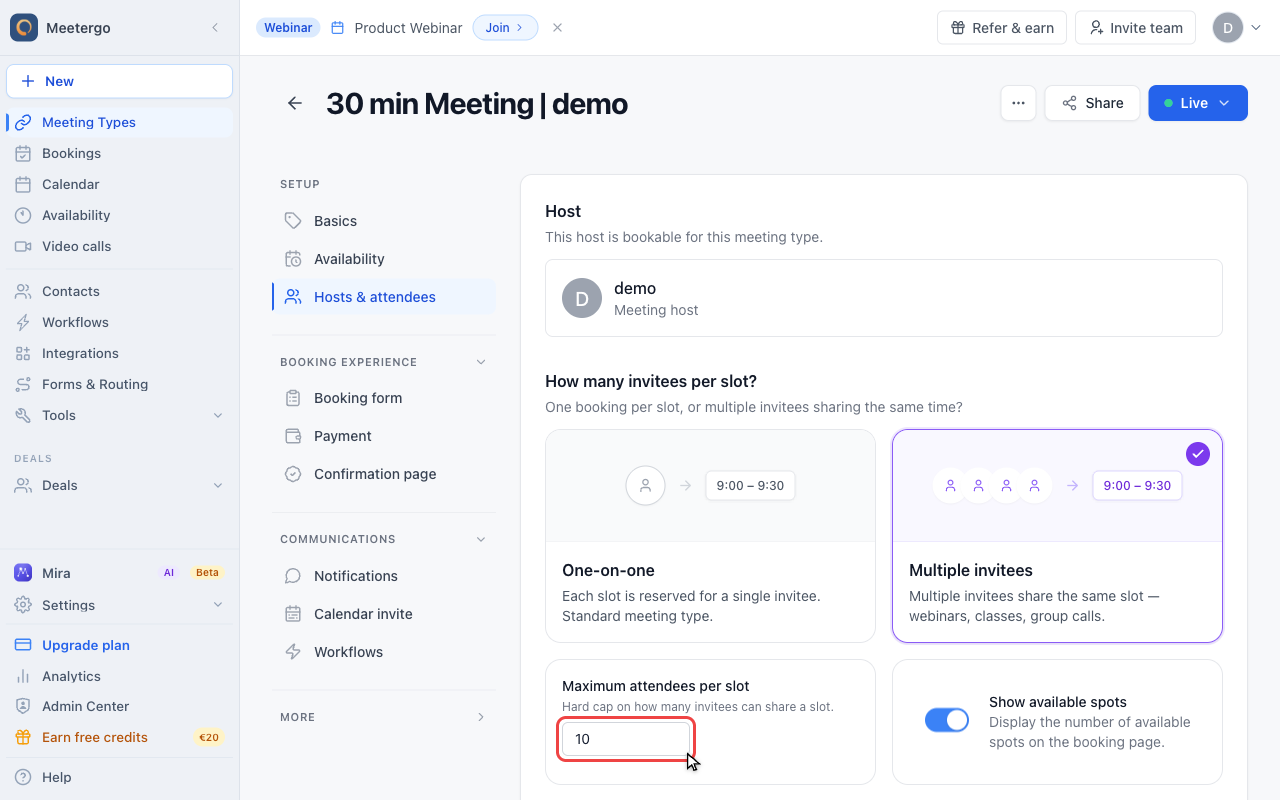
Max spots is the number of attendees who can book the same slot before it is full.
Show available spots
Show remaining capacity
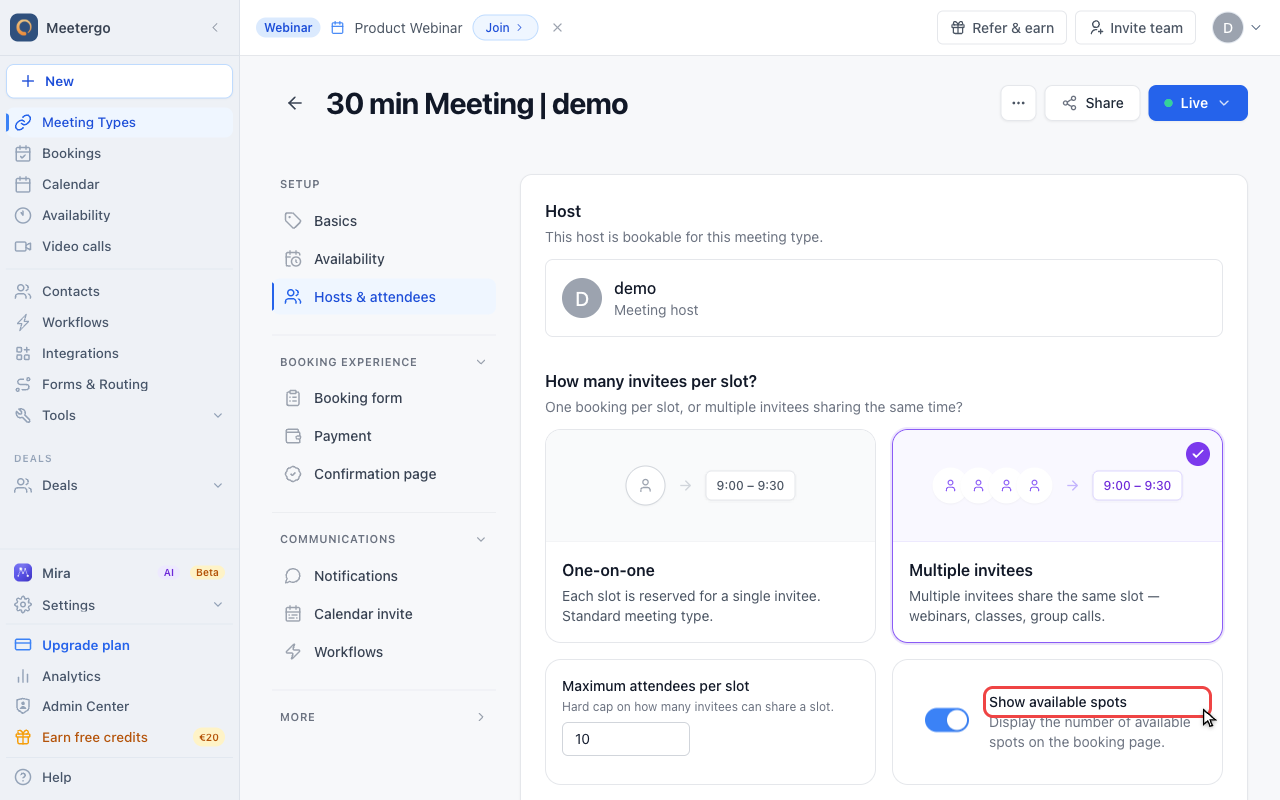
Enable Show available spots when invitees should see how many seats remain on the booking page.
Where the capacity setting lives
Instead of one person per time slot, you set a number of spots. Each booking takes one spot until the slot is full. You choose Multiple invitees and set Max spots while creating the meeting type, and Creating a Group Meeting Type walks through that setup and the rest of the settings to review before publishing.
The rest of this article covers what happens once people start booking: what attendees see, how you manage the registrations, and how group capacity interacts with video providers, buffers, and payments.
What Attendees See
Before Slot Fills
When spots are available:
- Time slot appears as bookable
- Attendee can select and book
Showing Availability
Optionally show remaining spots:
- "5 spots remaining"
- Creates urgency and transparency
Showing the Time Range
By default each time slot shows only its start time, for example "2:00 PM". If your group session is a fixed time window, you can show the full range instead, for example "2:00 PM - 4:00 PM":
- Open the meeting type and go to Advanced
- Under Localization & text, turn on Show time range instead of start time
- Save the meeting type
The end time follows the meeting type duration. The setting also applies when attendees reschedule.
When Slot Is Full
Once all spots are taken:
- Time slot no longer appears
- Or shows as "Full" (configurable)
Managing Group Bookings
View All Attendees
In your booking management:
- Find the time slot
- See all registered attendees
- View their contact information
Download the attendee list
Filter the Bookings page by this meeting type and export the registrations as a spreadsheet, one row per attendee including their booking form answers. See Export bookings and attendee lists as CSV (Excel).
Cancellations
When one attendee cancels:
- Their spot opens up
- Other attendees are not affected
- New bookings can fill the spot
Sending Updates
If you need to message all attendees:
- View the booking details
- Access attendee list
- Send group notification
Video Conferencing for Groups
meetergo Connect
Works automatically with multiple attendees joining the same link.
Zoom
- All attendees receive the same Zoom link
- Host admits participants from waiting room
- Webinar mode available for large groups
Microsoft Teams
- Single Teams meeting link for all
- Attendees join as participants
Google Meet
- Shared Meet link
- All attendees join the same call
Combining with Other Features
Buffers
Buffers apply to the entire time slot, not per attendee:
- 30-minute buffer after a group session
- Next group session respects the buffer
Confirmation
If using host confirmation:
- Each booking requires approval
- Approve individually or in batch
Payments
With Stripe integration:
- Each attendee pays individually
- Collect payment per booking
Best Practices
Set Realistic Capacity
Consider:
- Your video platform's participant limits
- How many people you can engage effectively
- Technical constraints (bandwidth, screen space)
Clear Descriptions
Explain in your meeting type description:
- This is a group session
- How many others might attend
- What to expect from the format
Time Management
Allow extra time for:
- Participants joining at different times
- More questions from larger groups
- Technical issues with multiple attendees
Follow-Up
After group sessions:
- Send group recap or resources
- Individual follow-up if needed
- Request feedback from all attendees
Limitations
Not for Different Groups
Group booking is for one shared session, not for booking multiple separate meetings. Each attendee joins the same call at the same time.
Calendar Events
Depending on your calendar integration:
- One calendar event is created
- Attendees are added as participants
- Or separate events per attendee
FAQ
What if I need to reduce capacity?
You can lower the spot count, but existing bookings remain. New bookings won't exceed the new limit.
Can I overbook?
Not automatically. The system stops at your set capacity. For exceptions, manually add attendees.
Do all attendees get the same confirmation email?
Yes, all attendees receive the same information including the meeting link and time.
Related Articles
Was this article helpful?
Let us know if this article answered your questions.