
How to create a One-off meeting
Create a single-use custom appointment outside your regular meeting types and availability, for unique or time-sensitive bookings.
One-off meetings are perfect for scheduling important, time-sensitive appointments that don't match your standard Meeting Types. Whether you need to meet outside your normal hours, involve special hosts, or set a unique duration, one-off meetings give you complete flexibility to create custom booking opportunities that expire after a single use.
 1 / 6
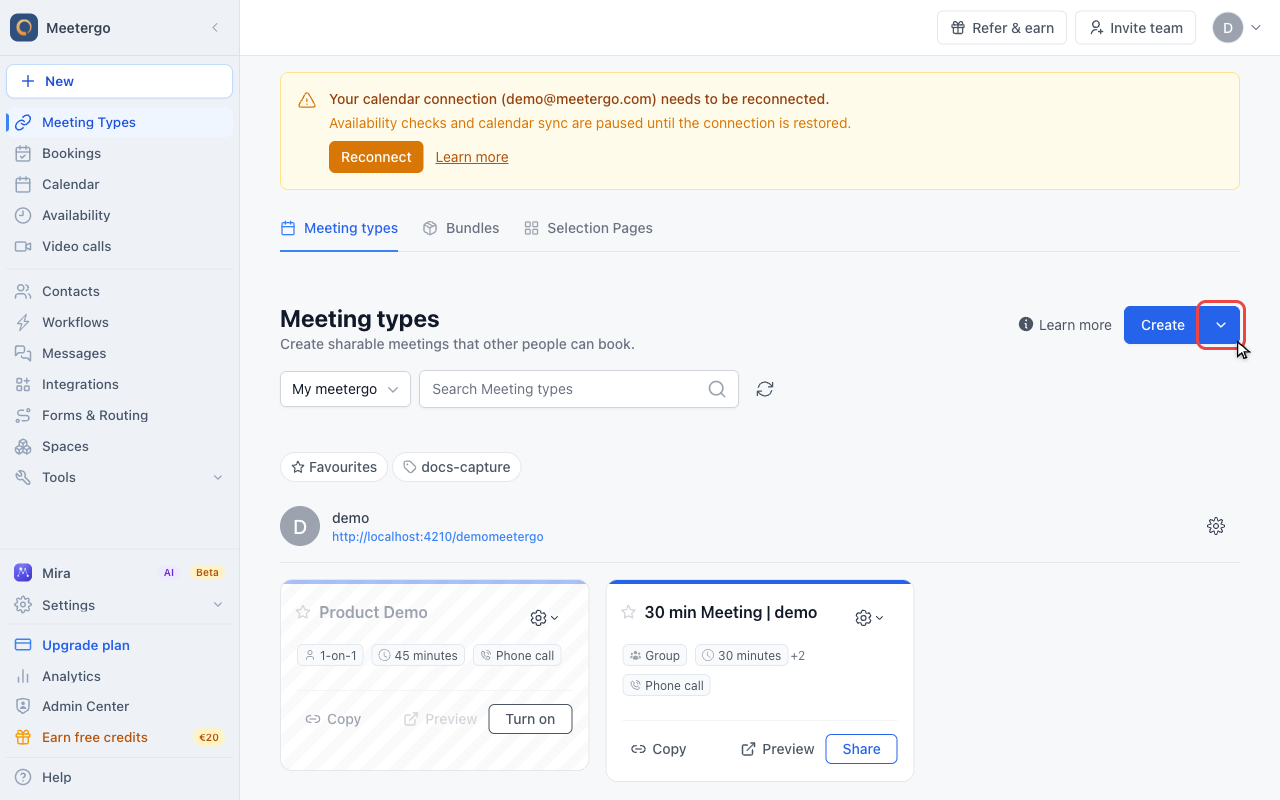
1 / 6The arrow next to Create opens quick actions for one-off meetings, instant calls, and polls.
Open one-off scheduling
Open more create options
The arrow next to Create opens quick actions for one-off meetings, instant calls, and polls.
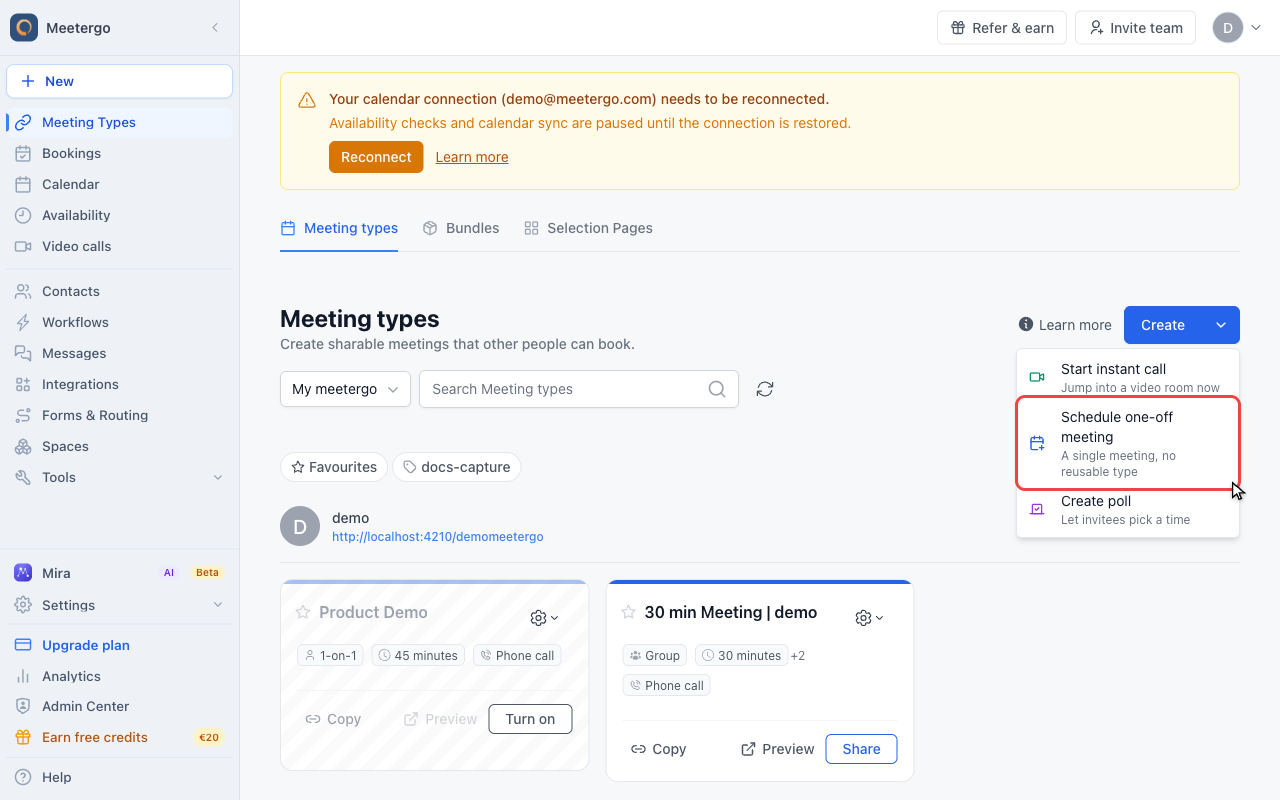
Choose Schedule one-off meeting
Choose Schedule one-off meeting for a single appointment that does not create a reusable meeting type.
Choose a time
Review the calendar
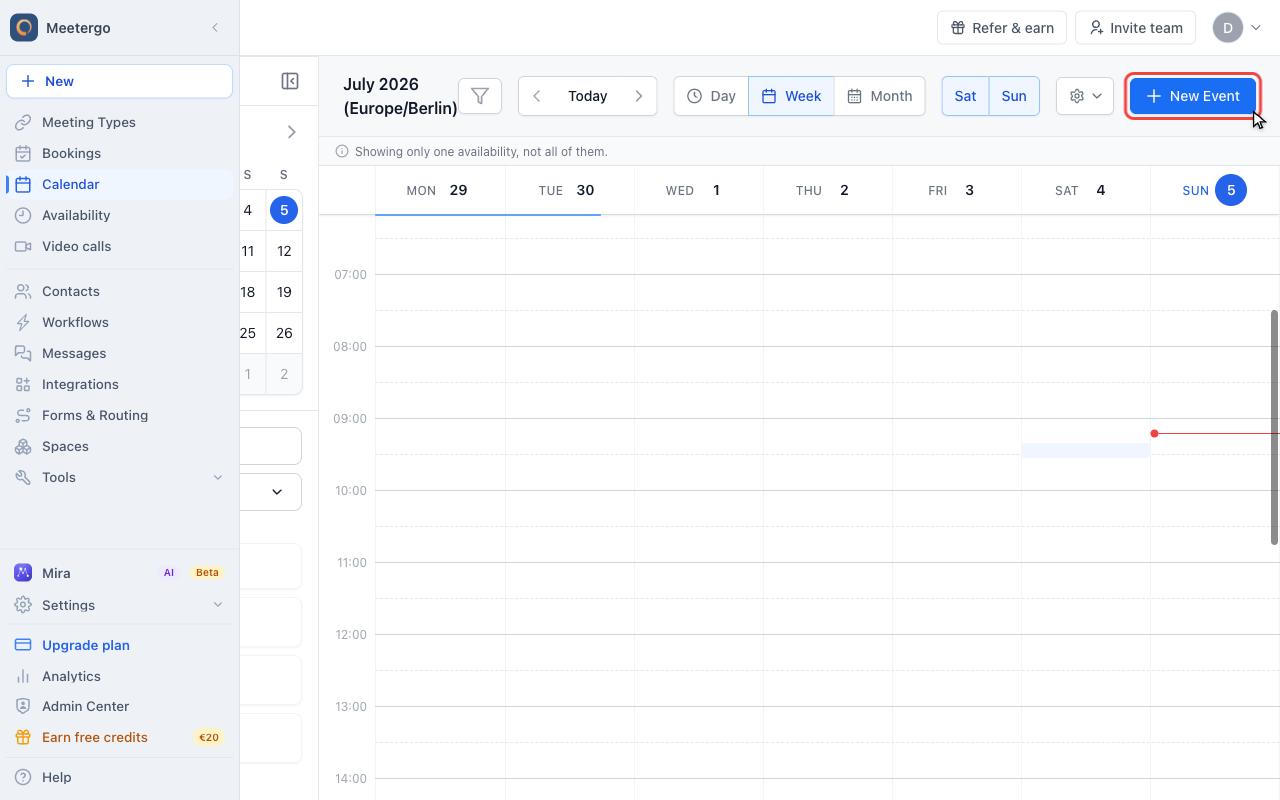
The one-off scheduler opens the calendar. Use the calendar controls to find the date and time you want to reserve.
Click New Event
New Event opens the booking drawer where you choose the meeting type and attendee details.
Prepare the booking
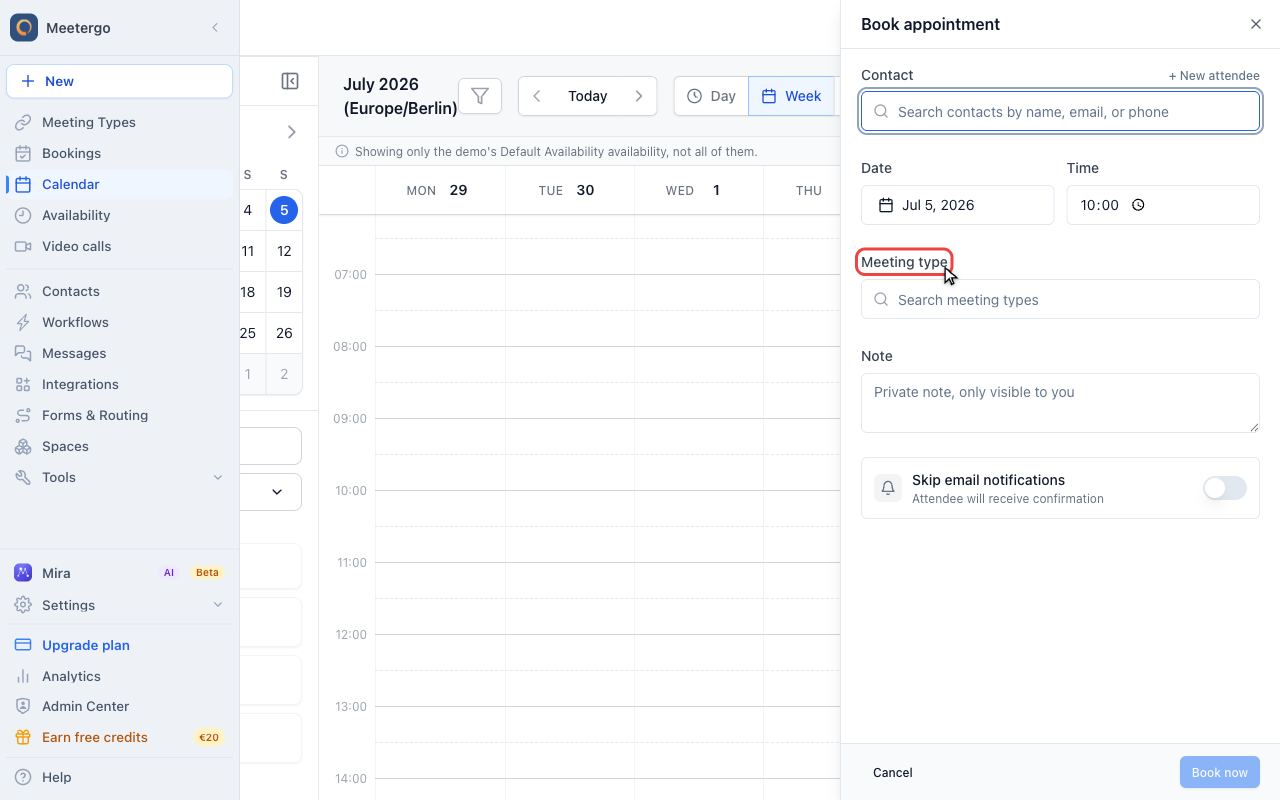
Choose a meeting type
Select an existing meeting type or Quick Meeting as the base for the one-off appointment.
For an in-person Quick Meeting, you can type an address or click Use team/company address. The field is optional.
Stop before booking
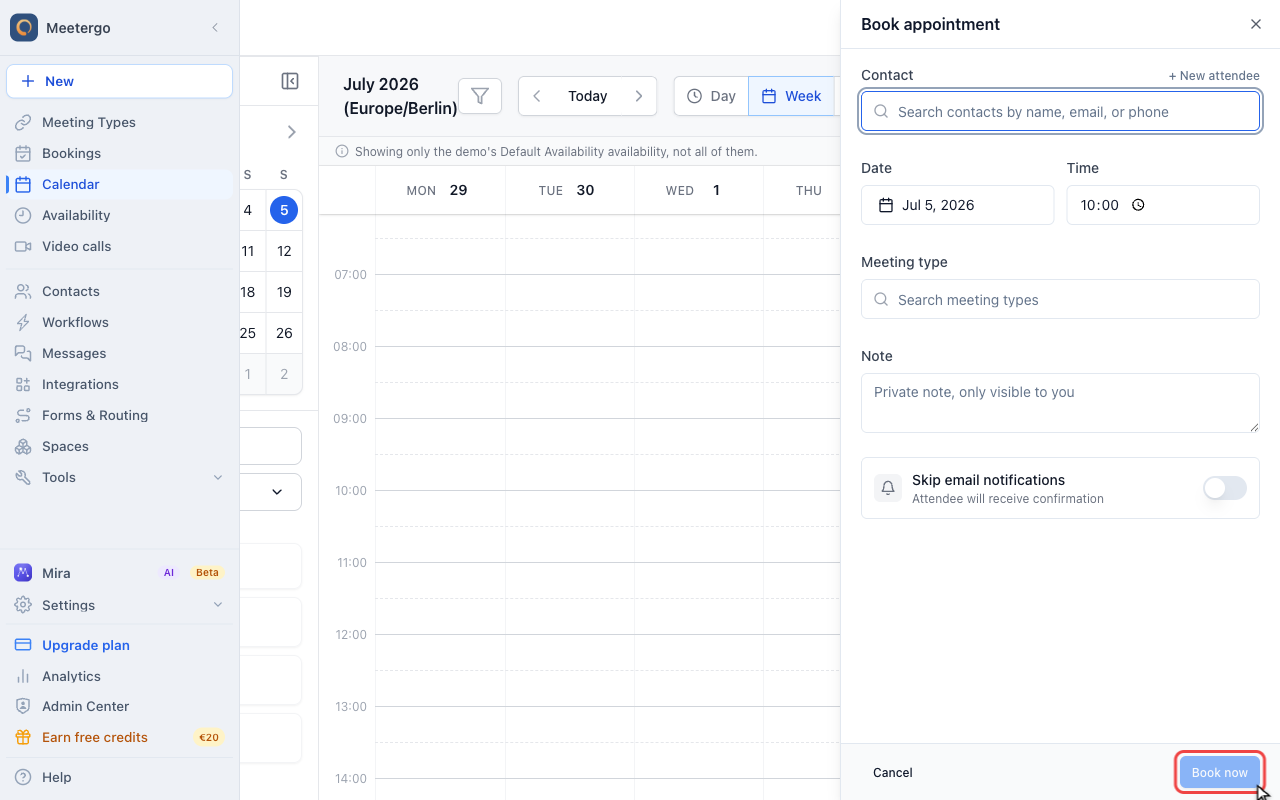
Fill attendee details when you are ready, then click Book now. The capture stops here so no appointment is created.
What You Can Do with One-off Meetings
One-off meetings are ideal when you need to:
- Schedule a special meeting with specific co-hosts or team members
- Offer appointment times outside your regular availability windows
- Create priority bookings that take precedence over your existing calendar events
Before You Get Started
- Connect your video conferencing platform through the Integrations & Apps section if you plan to use online meeting locations
- Remember that you can only offer time slots within a 3-month window from today
- Buffer times and meeting durations combine into single blocks. A 15-minute buffer plus 45-minute meeting will show as a 1-hour time slot to invitees
Share your one-off meeting
- Go to Bookings page
- Find and click on your one-off meeting from the list
- The booking details will appear on the right side - you can copy the meeting link from there
Managing Your One-off Meeting
Clear reserved times manually
If you need to remove placeholder appointments before anyone books:
- Go to Bookings page
- Find your one-off meeting and click the three-dot menu
- Select "Cancel"
- Click "Confirm cancellation" to complete the action
FAQ
The person is not in my contacts yet. Do I have to add them first?
No. Type their name, email or phone number in the contact search of the booking drawer and pick Create contact. The details you typed are filled in, and the contact is saved when you book.
Can someone book the same one-off meeting link multiple times?
No, one-off meeting links automatically expire after the first booking and become completely unusable. You'll need to create a new one-off meeting if you want to offer more appointments.
Do automation workflows work with one-off meetings?
Currently, automation workflows only function with your regular Meeting Types. One-off meetings don't trigger any automated email sequences or follow-up actions you may have configured.
Will reserved times block my regular Meeting Type bookings?
Yes, when you reserve times for a one-off meeting, those slots won't show as available on any of your standard booking pages. Use meetergo's troubleshooting tools to verify your availability if you're unsure.
Can I remove just some of my reserved time slots?
No, the clear reserved times action removes all placeholder appointments for that one-off meeting at once. You can't selectively clear individual time slots while keeping others reserved.
Quick appointments on mobile
In the mobile app, open + → Book meeting and select Quick appointment above the meeting types. You can also start from a CRM contact with Book meeting.
Enter a title, choose a duration and select In person, phone or a video service. You can enter a custom length under Duration (minutes). meetergo Connect and Jitsi Meet are available immediately. Connected services such as Microsoft Teams, Google Meet and Zoom appear automatically. Pick the date and enter the time, then select a contact or enter attendee details. For in-person appointments, you can enter any address, such as your office or a meeting point at the customer's premises. Phone appointments require the attendee's phone number. Review the details and tap Book now.
You do not need to create or select a meeting type. To use a configured meeting type instead, go back to the first step and select it.
For an existing meeting type, you can also change Duration (minutes) for this booking. Select a date and enable Manual time to book outside the displayed availability. Your booking page settings stay unchanged.
Was this article helpful?
Let us know if this article answered your questions.
Related articles
- Account Owner MatchingRoute round-robin bookings to the user who already owns the booker as a contact
- Allow or Disable Guest InvitationsControl whether attendees can add additional guests to their bookings
- Booking Confirmation: Why It Happens and How to Turn It OffFind out which setting makes attendees or hosts confirm a booking again, change the confirmation deadline, resend a confirmation email, and switch booking confirmation off for your whole company or a single meeting type.
- Booking questions and the booking button textAdd your own questions to the booking form, and change the booking button text: rename the Book now button, edit field labels, help text and placeholders, and find where the other text on your booking page comes from.