
How to Have a Single Booking Link for Your Team
Create a round-robin booking link that rotates appointments across your team and check the host assignment history.
For small businesses that need to let customers book appointments with different members of their team, you can create a single booking link that rotates between multiple hosts. Example use cases include:
- A customer support team where incoming requests get distributed evenly between reps
- A sales team that needs to share inbound lead assignments
- A panel of interviewers that take candidate calls in a rotating order
No matter the scenario, having a single booking link that automatically assigns the next available team member saves huge amounts of time and administrative overhead.
Want to create a meeting type for multiple hosts at the same time? Try creating a Co-Hosts Meeting Type.
 1 / 7
1 / 7Use Create to start a reusable meeting type.
Create the team link
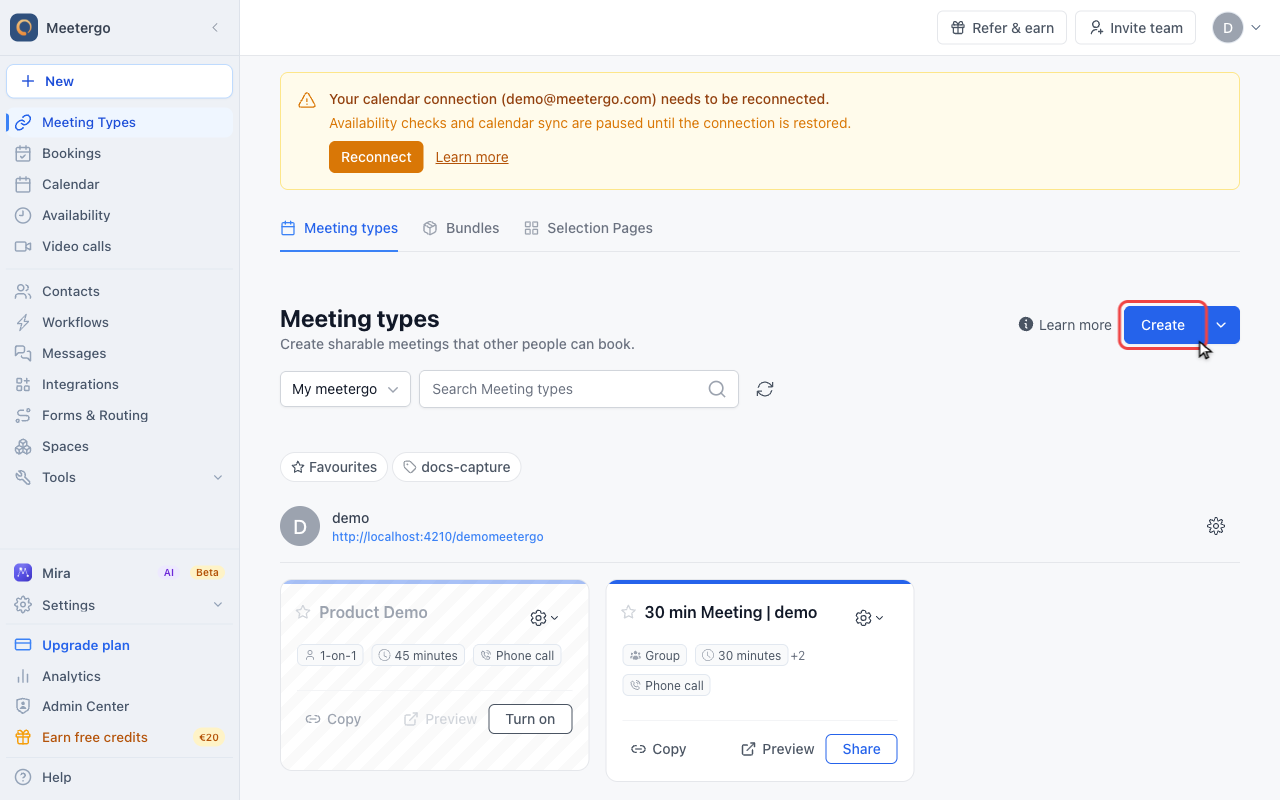
Click Create
Use Create to start a reusable meeting type.
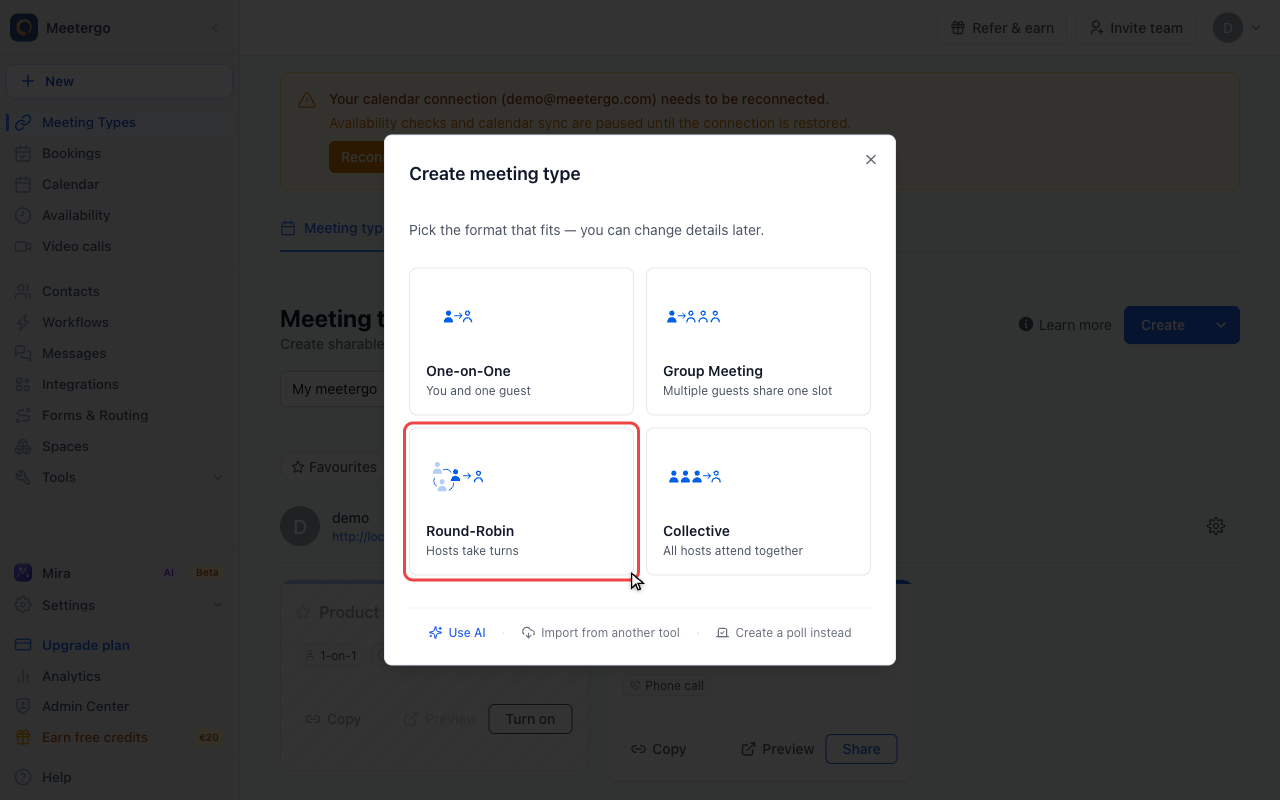
Select Round-Robin
Round-Robin creates one booking link that rotates assignments across eligible hosts.
Choose the company scope
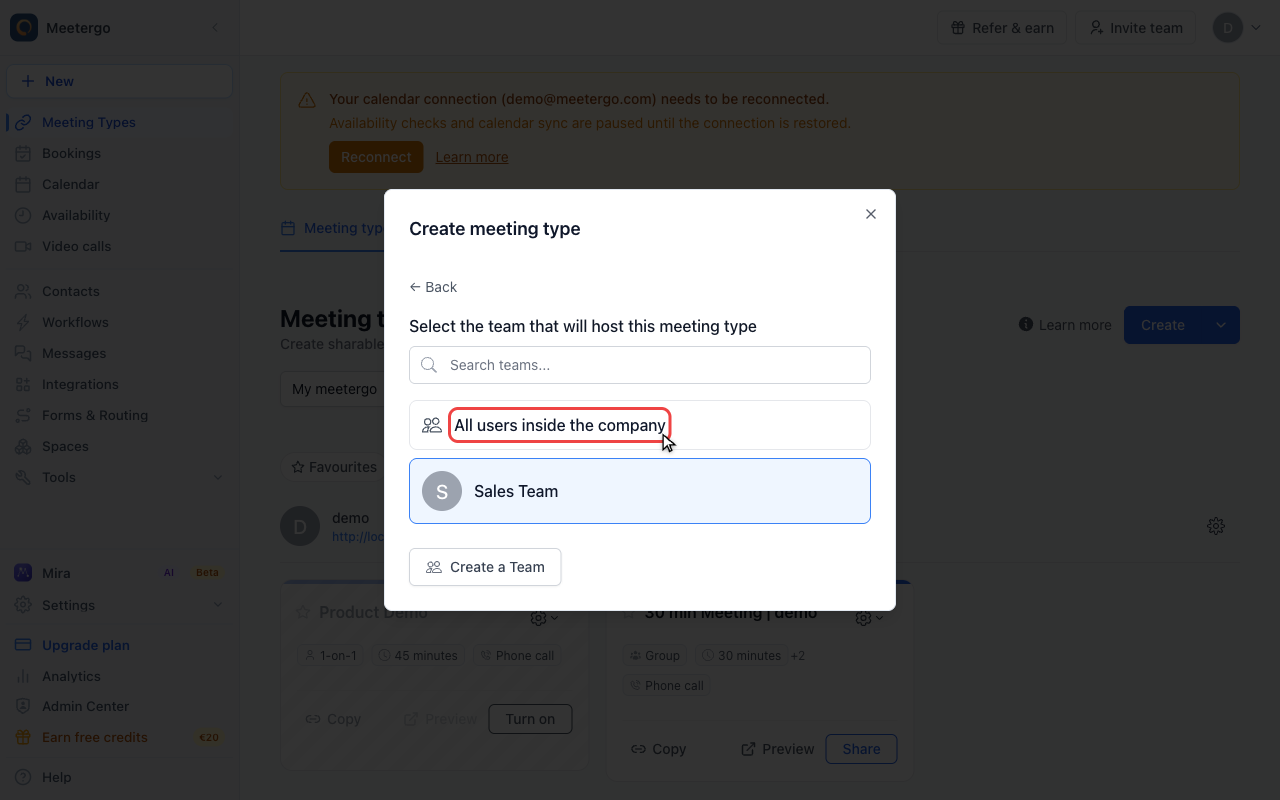
Choose All users inside the company, or select a team workspace if the link should belong to one team.
Build the rotation
Find the round-robin pool
The round-robin pool contains the team members who can receive appointments from this shared link.
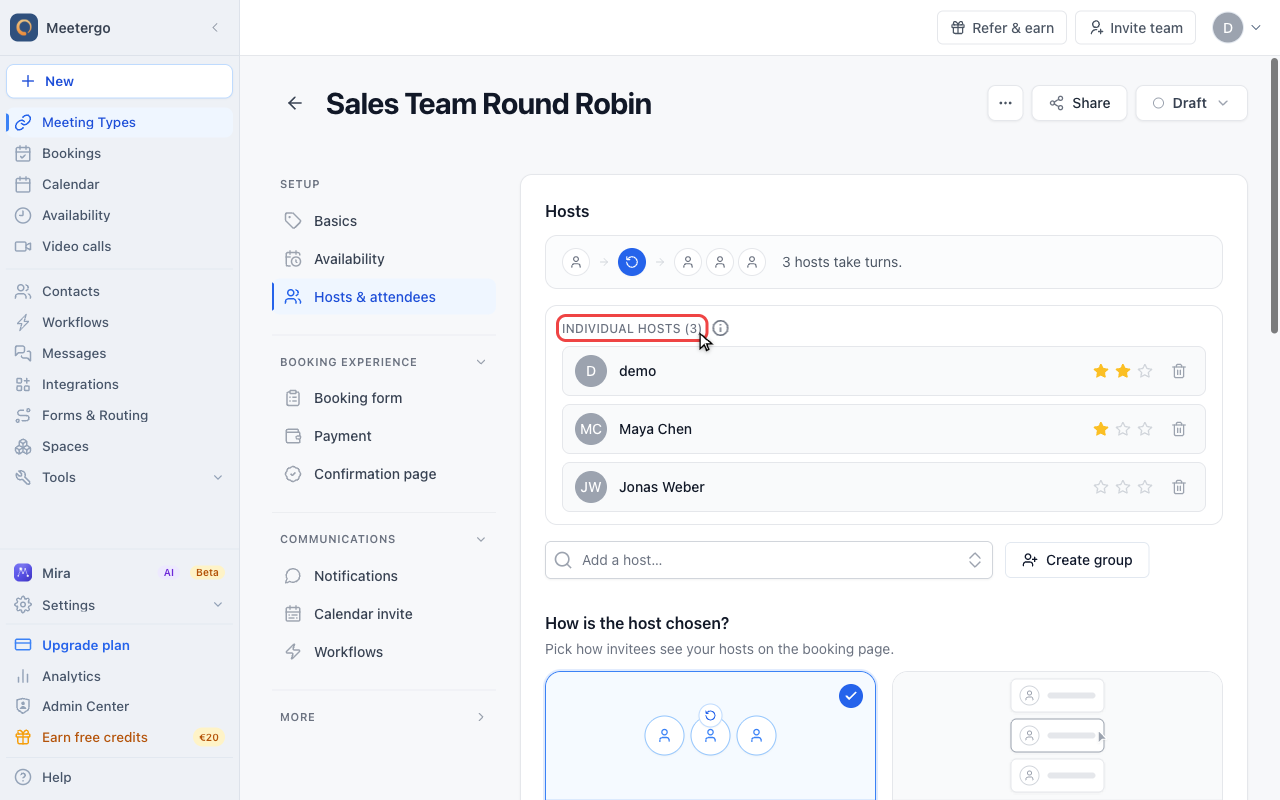
Review individual hosts
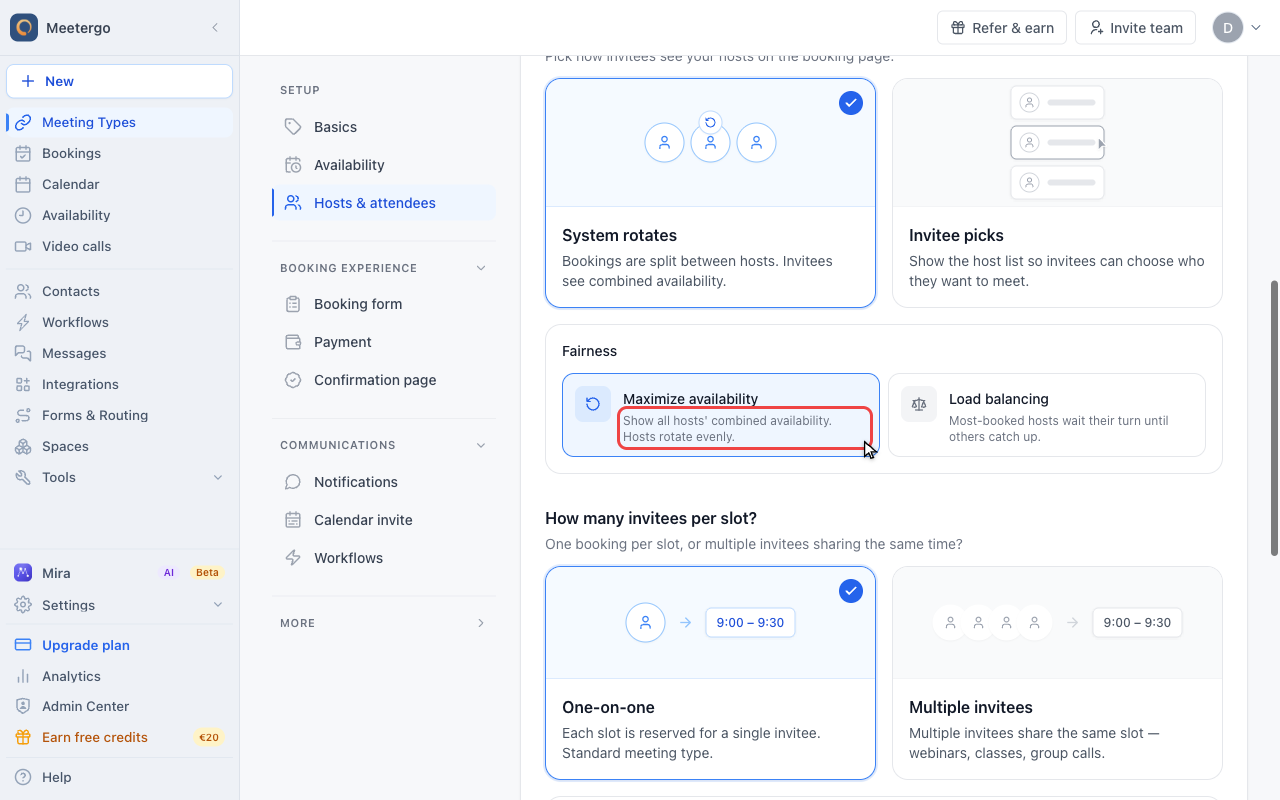
Review the individual hosts who rotate through bookings. The booking page shows their combined availability.
Share the booking link
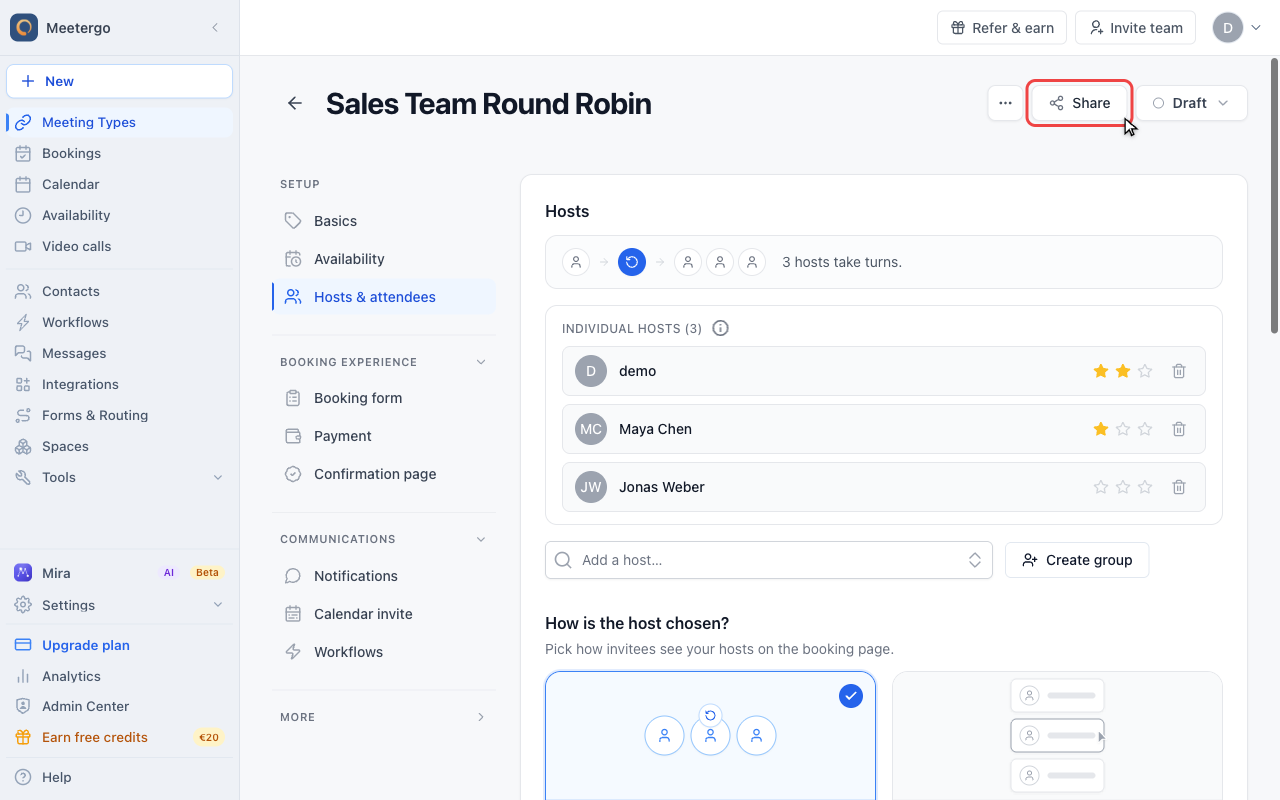
Open sharing options
Use Share to copy the booking link or embed it on your website after the host pool is ready.
Check assignment history
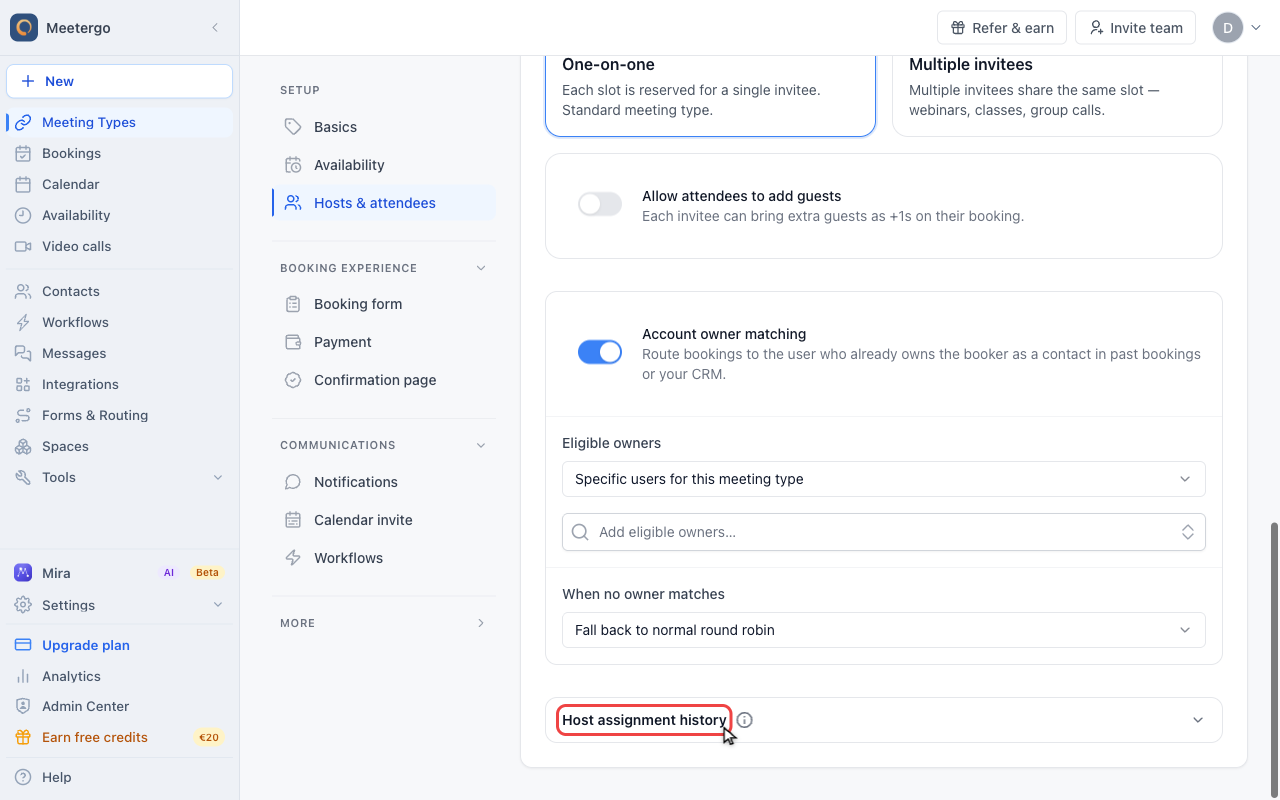
Review host assignment history
Host assignment history explains which host was selected and why. Use it when a booking did not go to the person you expected.
How Round Robin Rotation Works
When someone books through the shared link, they'll see the combined availability of all hosts in the pool. Once they pick a slot, the lead gets assigned to the next host in the rotation in a fair manner.
To better understand why appointments are assigned to different hosts, you can see the host selection history. Under the "Hosts & attendees" tab, there is a "Host Selection History" showing why a booking was assigned to a particular host.
The hosts will rotate in the same order as shown in the round robin pool. If the next host in the queue is not available, it skips the host and assigns to the next available host. In that case, the host selection history will show you that a host was chosen due to their availability.
Was this article helpful?
Let us know if this article answered your questions.
Related articles
- Account Owner MatchingRoute round-robin bookings to the user who already owns the booker as a contact
- Allow or Disable Guest InvitationsControl whether attendees can add additional guests to their bookings
- Booking Confirmation: Why It Happens and How to Turn It OffFind out which setting makes attendees or hosts confirm a booking again, change the confirmation deadline, resend a confirmation email, and switch booking confirmation off for your whole company or a single meeting type.
- Booking questions and the booking button textAdd your own questions to the booking form, and change the booking button text: rename the Book now button, edit field labels, help text and placeholders, and find where the other text on your booking page comes from.