
Lock Timezone on Booking Page
Open your booking page in one fixed time zone instead of the visitor's own
A booking page normally opens in the time zone of whoever is looking at it. Time zone display replaces that with one zone of your choosing, which is what you want when the meeting happens at a fixed place. You set it per meeting type in the editor under Availability, in the Booking Window card.
 1 / 10
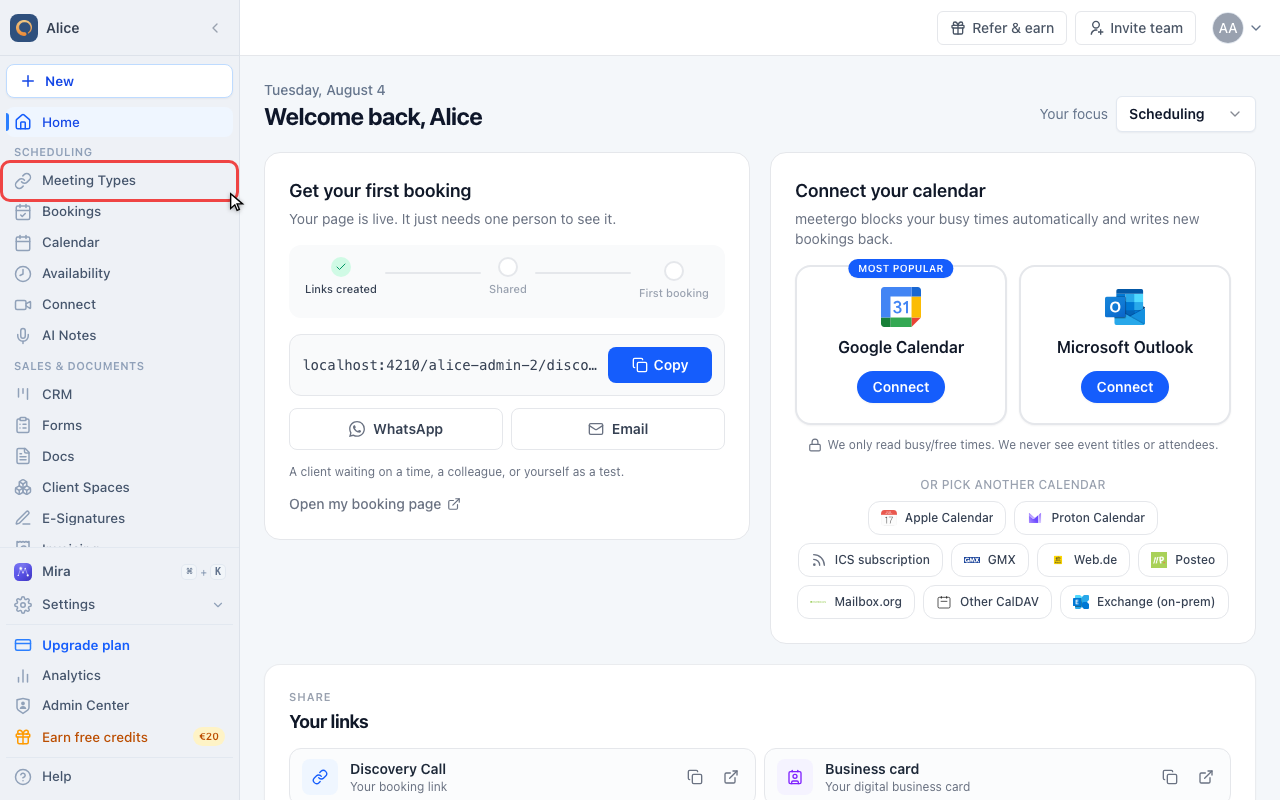
The time zone is set per meeting type, so start in Meeting Types in the sidebar. There is no account-wide setting for it.
Find the time zone setting
Open Meeting Types
The time zone is set per meeting type, so start in Meeting Types in the sidebar. There is no account-wide setting for it.
Open the meeting type
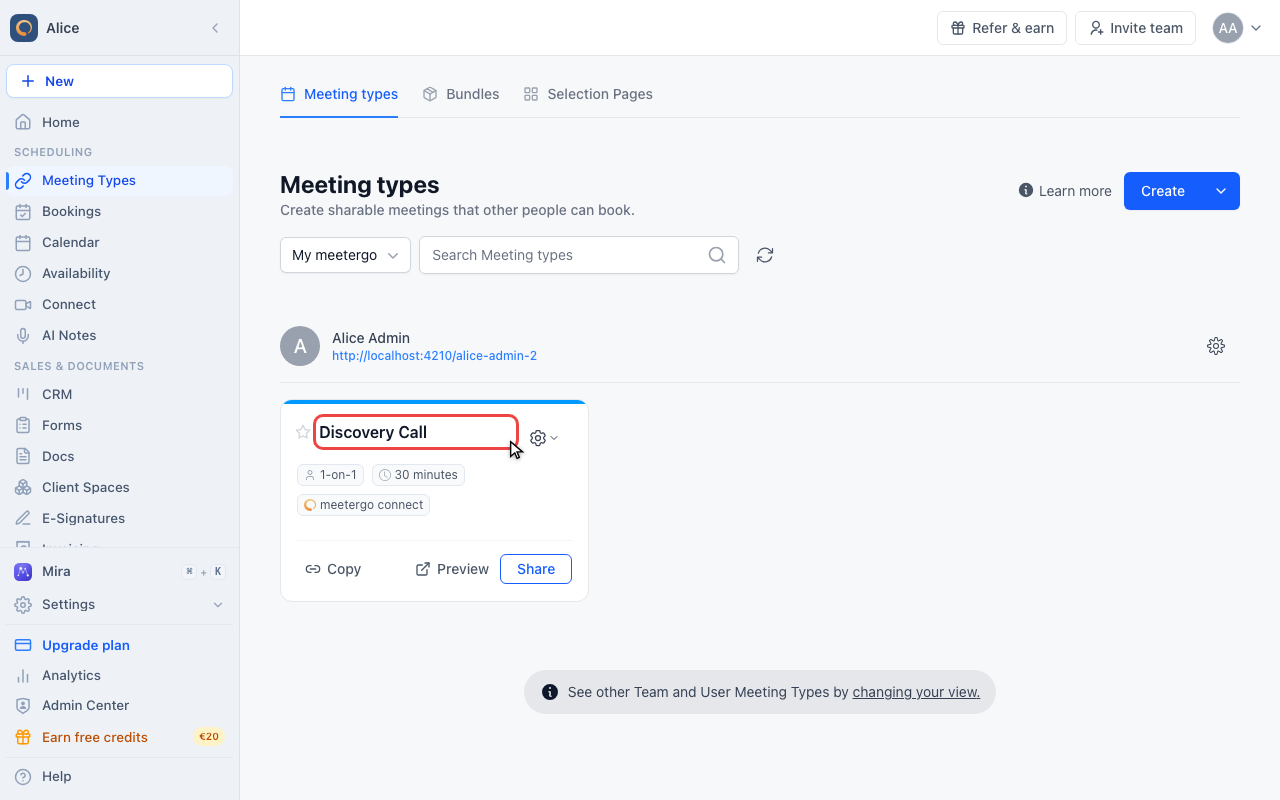
Click the name of the meeting type whose booking page you want to pin to one zone.
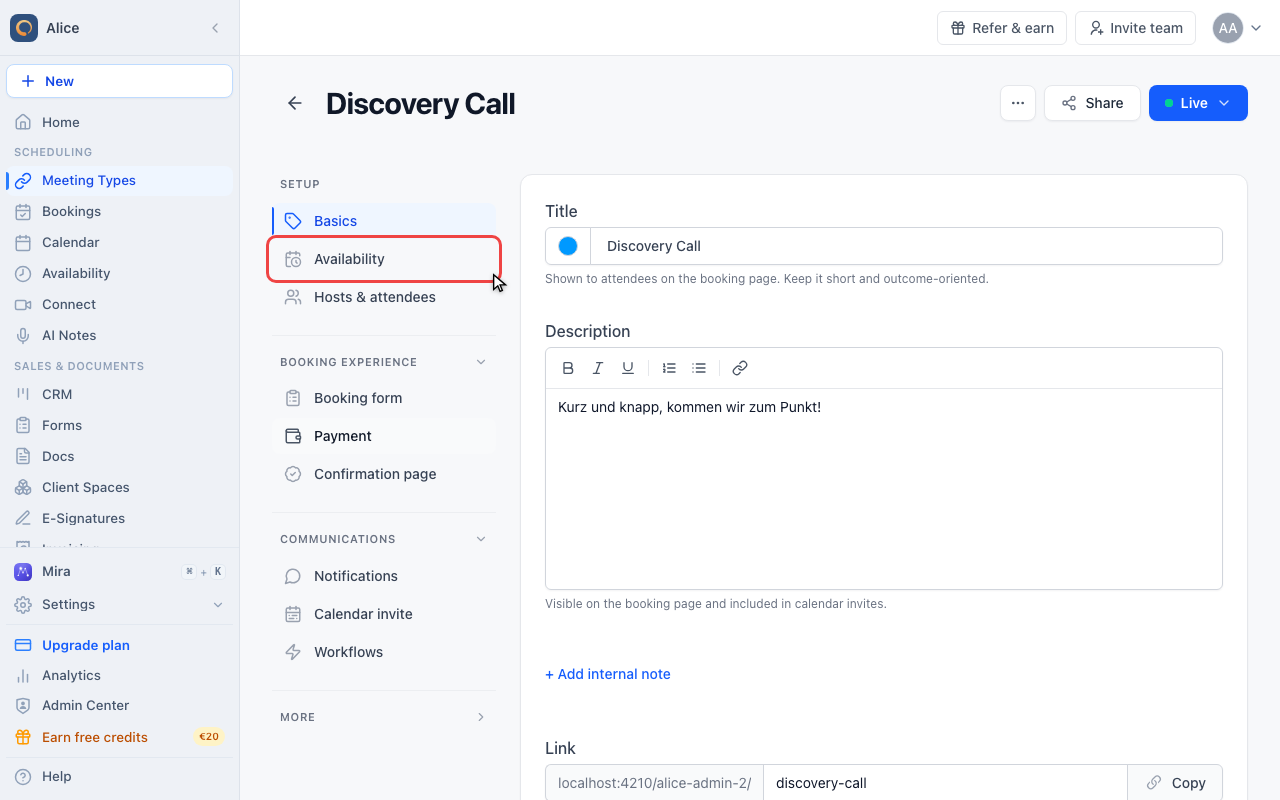
Click Availability
In the editor sidebar, Availability is the second entry under Setup. The time zone sits there rather than under Design, because it changes which times the booking page offers rather than how it looks.
Find Time zone display
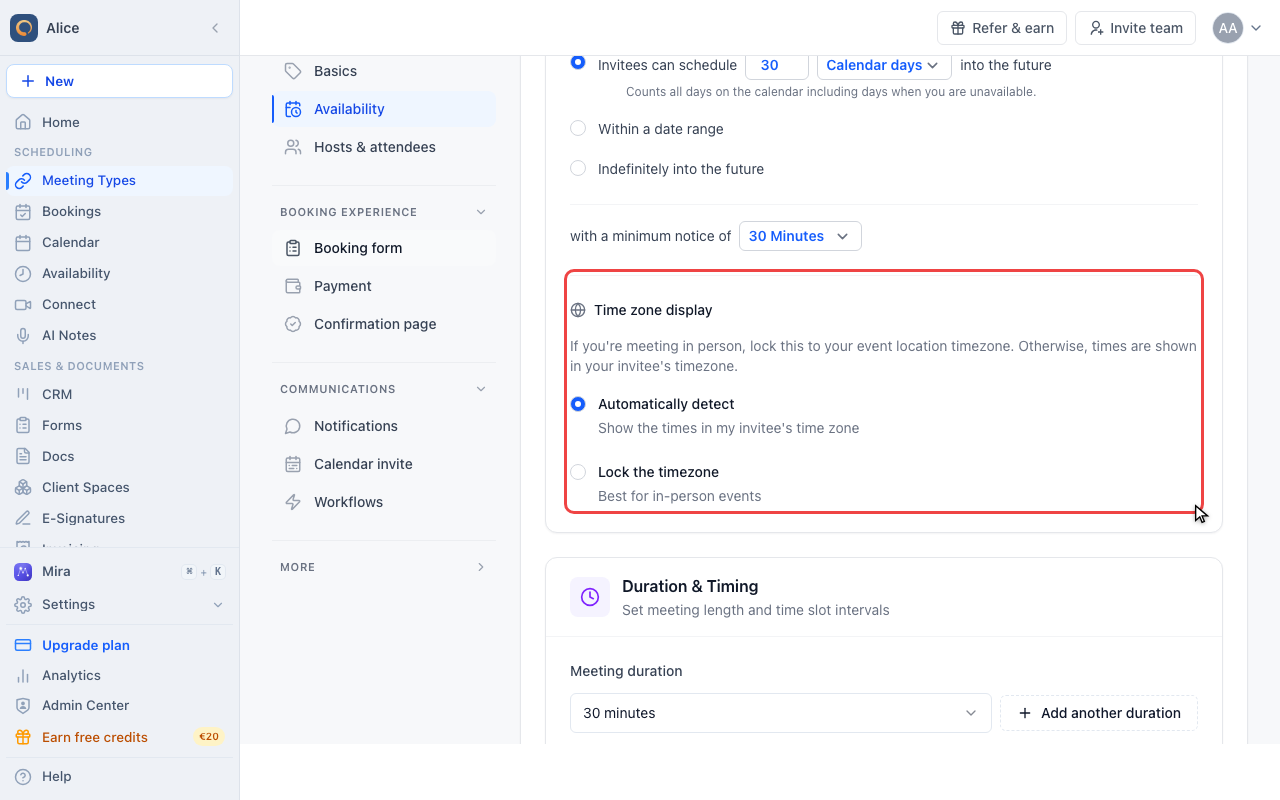
Time zone display is the lower half of the Booking Window card, right under the date range. Both settings shape the same booking page: the date range decides which days it offers, the time zone decides how the hours on those days are labelled.
Lock the time zone
Read the two options
There are exactly two choices and one is always active. Automatically detect is the default: every visitor sees the times in the zone their own device reports.
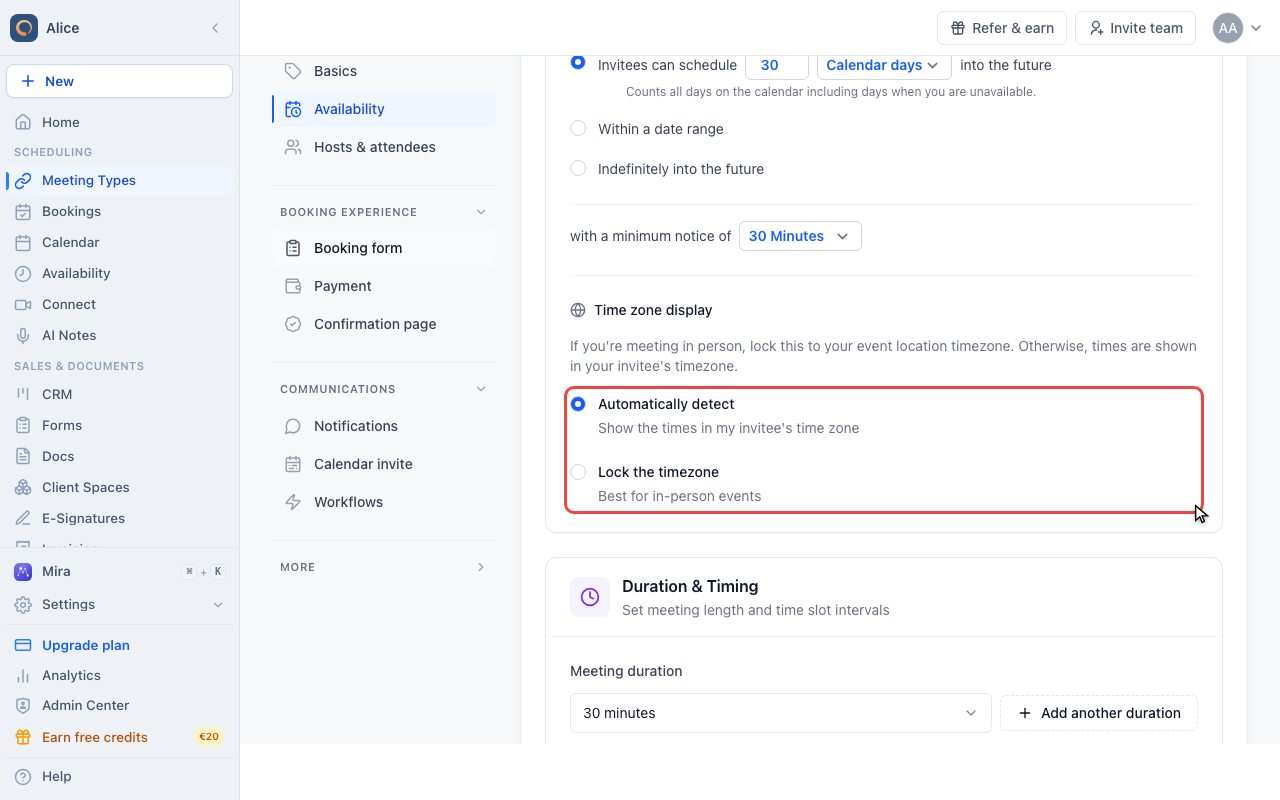
Choose Lock the timezone
Selecting the second option reveals a zone picker underneath, already filled with the time zone of the computer you are sitting at.
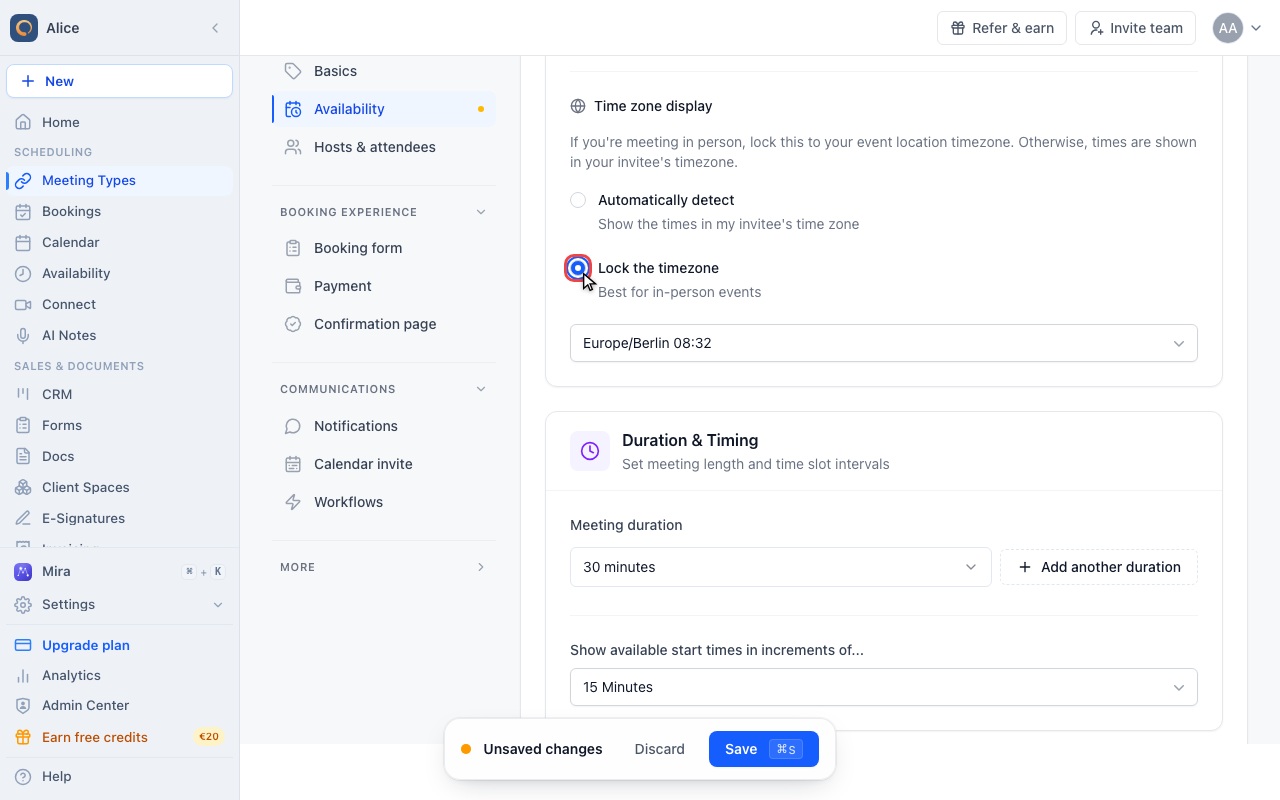
Open the zone picker
The list holds every IANA time zone, each shown with the clock reading in that zone at the moment the page loaded.
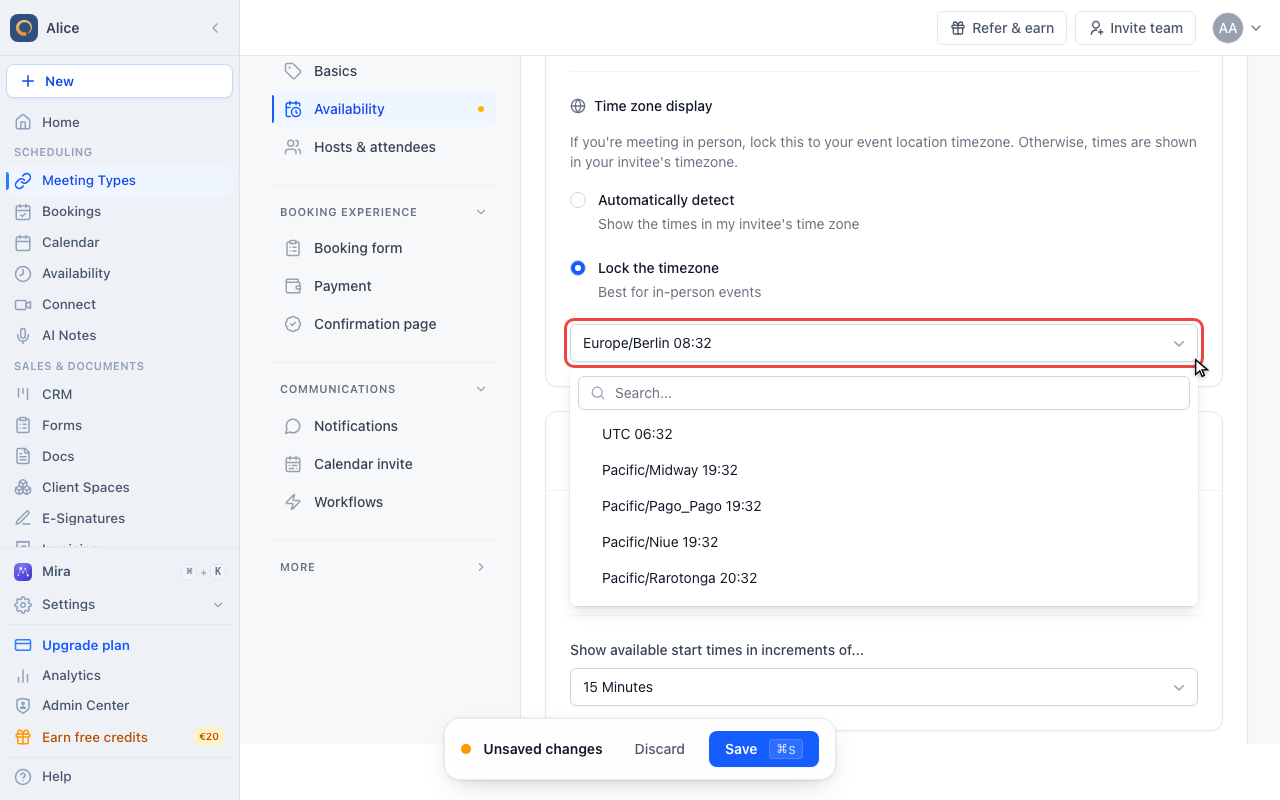
Pick the zone from the list
Pick the place the meeting actually happens. Zones are stored by name, so summer and winter time are handled for you and you never have to revisit this in spring.
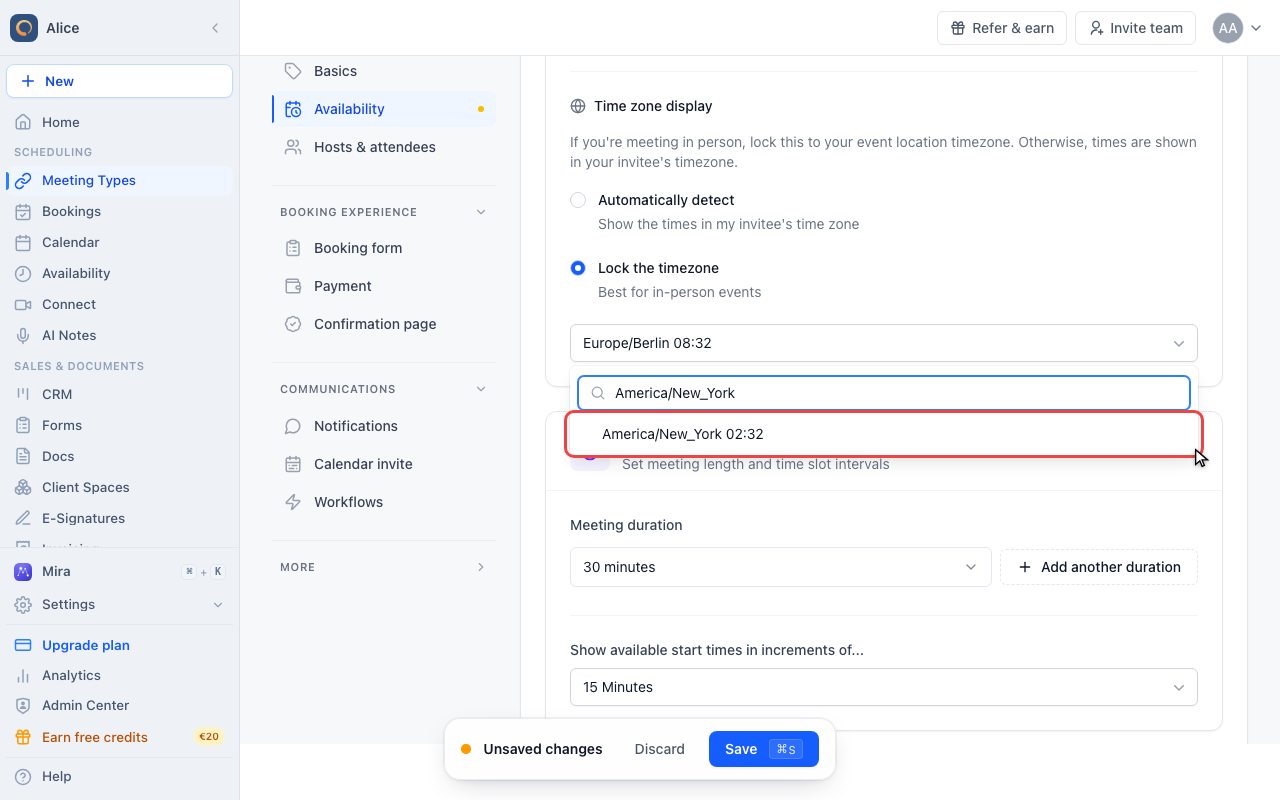
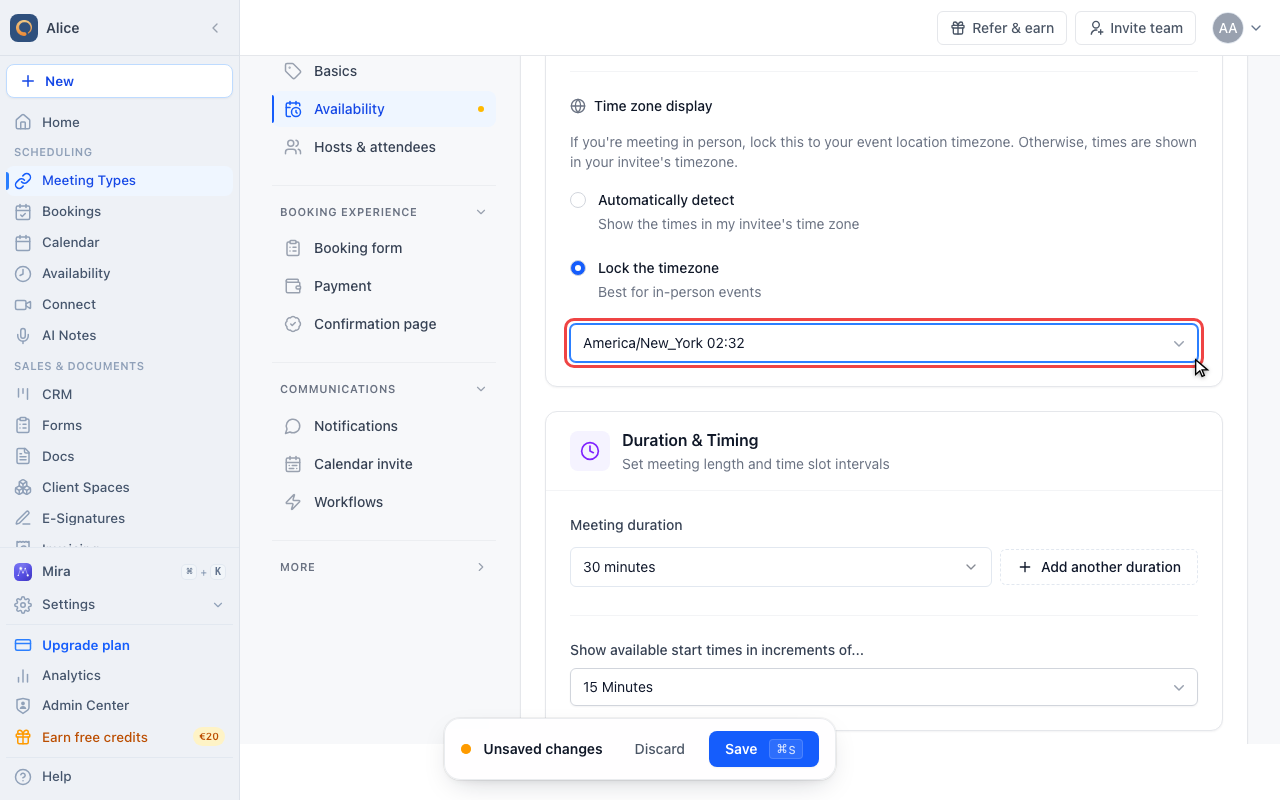
Confirm the chosen zone
The field now names the zone your booking page will open in. Every visitor lands on it, whatever their own device says.
Save the meeting type
Save the meeting type
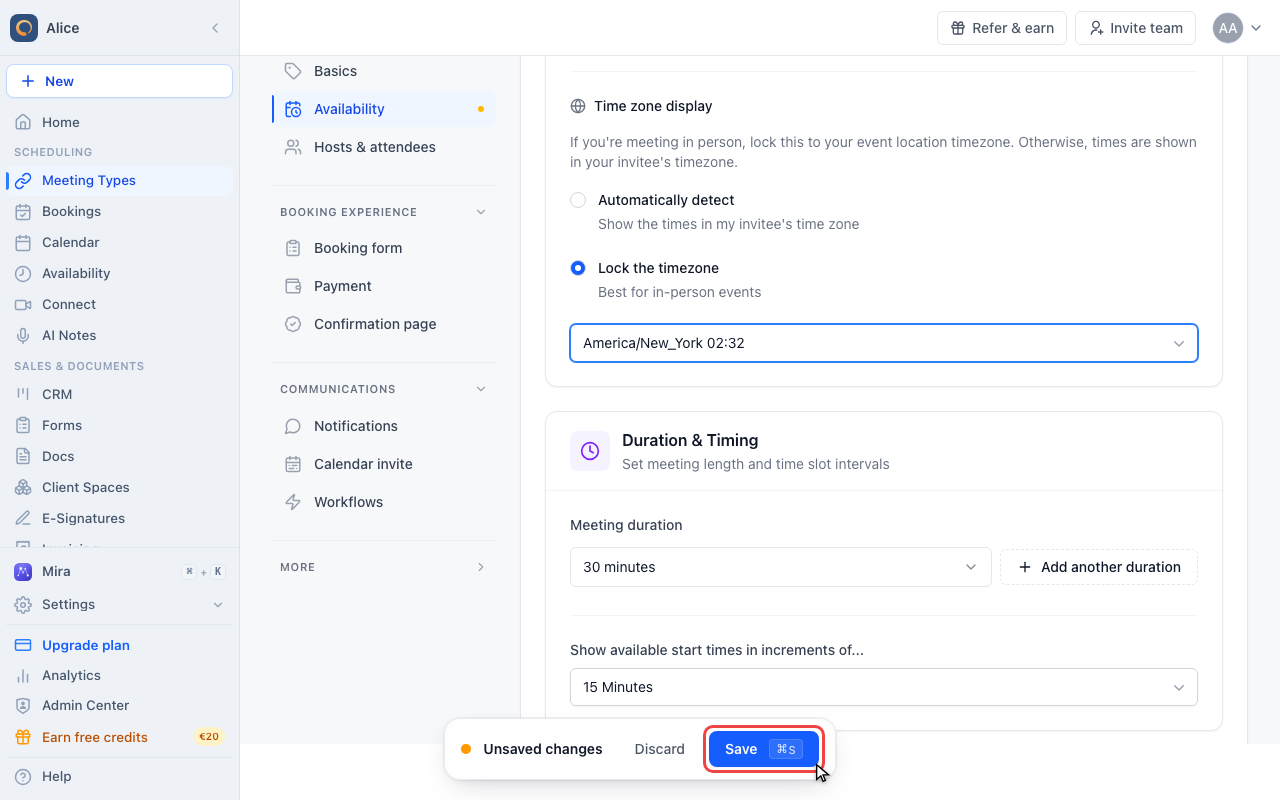
Nothing changes for your guests until you press Save. Leaving the editor first discards the zone you picked.
What the setting actually changes
Time zone display decides which time zone your booking page opens in. It does not restrict anything.
| Option | What a visitor gets |
|---|---|
| Automatically detect | The page opens in the time zone their own browser reports |
| Lock the timezone | The page opens in the zone you chose, whatever their browser reports |
Either way, the time zone picker stays on the booking page and the visitor can change it. Locking sets the starting point, so somebody who lands on a page pinned to America/New_York sees New York times unless they deliberately switch.
"Lock the timezone" does not hide or disable the picker on the booking page. If it matters that everyone reads the same clock, say so in the meeting type description as well.
What the zone picker holds
The picker lists every IANA time zone by name, plus a single UTC entry at the top. Each row shows the clock reading in that zone at the moment the editor page loaded, which makes it easy to confirm you picked the right one.
- The list is ordered by UTC offset, from the furthest behind to the furthest ahead, not alphabetically.
- The search box at the top of the list matches on the zone name. Type a city or a region, for example
Berlin,New_York, orEurope/. There are no entries for abbreviations such as CET, CEST, or EST. - Zones are stored by name, so summer and winter time are handled automatically.
America/New_Yorkshows EST in January and EDT in July with nothing to change.
Where the locked zone shows up
- The booking page for that meeting type: the calendar, the slot list, and the picker itself.
- The reschedule page the attendee reaches from their confirmation email or calendar entry.
- The attendee's confirmation and reminder emails, because the booking records whichever zone the page was on when it was submitted. If the attendee never touched the picker, that is the zone you locked.
It changes nothing about the meeting itself. The appointment is stored as a single moment in time, so your calendar entry, the attendee's calendar entry, and every reminder still fire at the same instant they always would.
What it does not affect
- Your availability. Your working hours stay defined in your own time zone. Locking the display does not move a single slot.
- Buffers, booking window, and minimum notice. All of them are evaluated against the meeting type's own settings, not the display zone.
- Your own view. The dashboard, the Bookings list, and the calendar keep showing times in your profile time zone.
- Other meeting types. The setting is per meeting type. A duplicate copies whatever the original had.
When to lock it
Lock the zone when the meeting is tied to a place or to a broadcast:
- In-person meetings, so an attendee books the time they should physically arrive.
- Trade fairs and events, where the whole schedule belongs to the venue's local clock.
- Webinars and briefings that go out at one fixed moment, so everyone reads the same start time and converts it themselves.
Leave it on Automatically detect for ordinary calls. For remote meetings, showing people their own clock is what prevents the mistakes.
If you lock a meeting type to a venue's zone, name the zone in the meeting type description too. Somebody skimming the page sees "9:00" long before they notice the picker underneath it.
Templates
Time zone display can be locked in a meeting type template. Once an organization admin locks the field, meeting types created from that template keep the zone and the field is read-only in their editor.
FAQ
Can attendees still change the time zone?
Yes. The picker on the booking page stays available and still works. Locking only decides which zone the page starts on.
Does this hide my real availability?
No. Your schedule is unchanged. The same slots are offered, labelled with a different clock.
Which time zone do the emails use?
The attendee's email uses the zone their booking was made in, which is the locked zone unless they switched the picker. Your own copy uses your profile time zone. Change it under Settings → Profile → Timezone.
Can I set one time zone for the whole account?
No. It is a per meeting type setting. Set it on each meeting type that needs it, or lock it in a meeting type template and create them from there.
Do I need to change anything when the clocks go forward?
No. Zones are stored by name, so daylight saving is applied for you.
Related Articles
Was this article helpful?
Let us know if this article answered your questions.