
Add availability from calendar events
Open up bookable slots by creating titled events in your connected calendar, and use the right event status so other events at the same time still block correctly
If your availability changes a lot week-to-week and you prefer to manage it directly in your calendar instead of in meetergo settings, you can open up bookable slots by creating calendar events with a fixed title. meetergo reads those events as positive availability windows.
 1 / 2
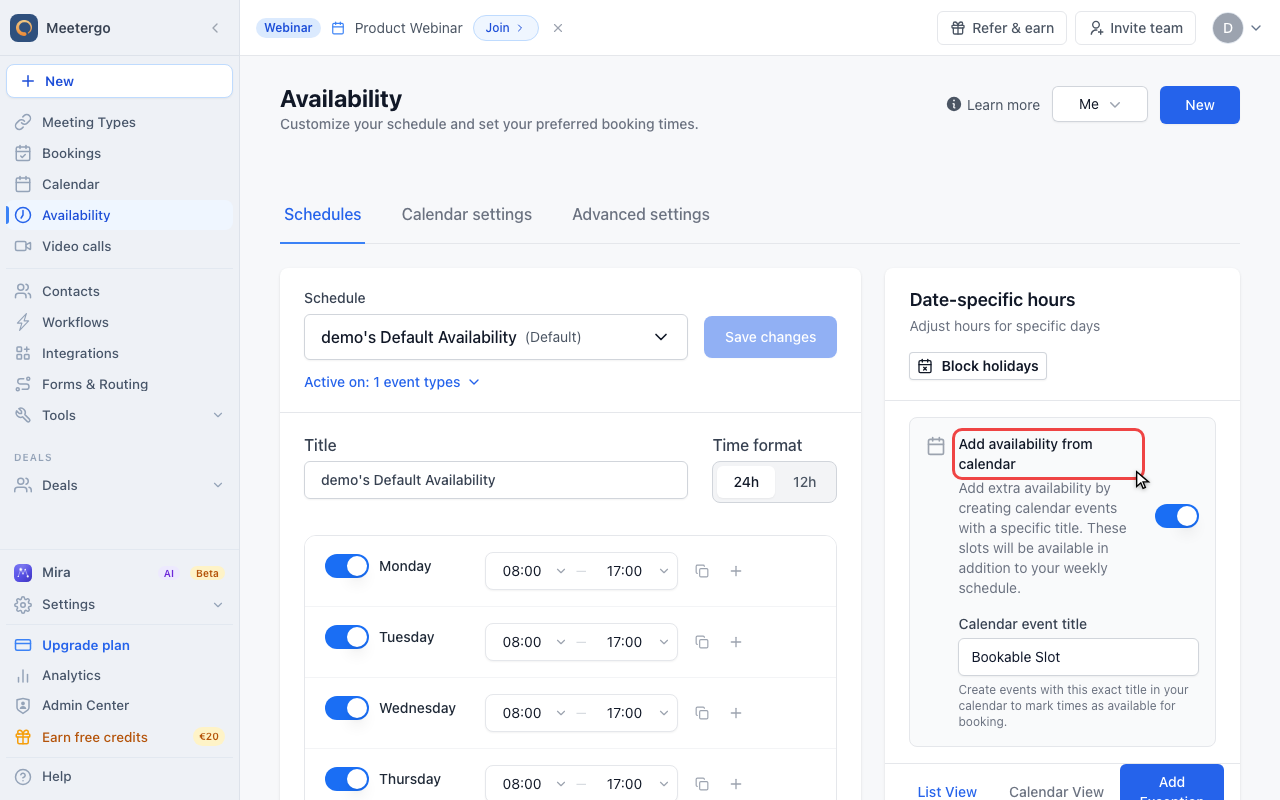
1 / 2The option appears once a supported calendar is connected. Turn it on to let titled calendar events add extra bookable windows.
Enable calendar availability
Find Add availability from calendar
The option appears once a supported calendar is connected. Turn it on to let titled calendar events add extra bookable windows.
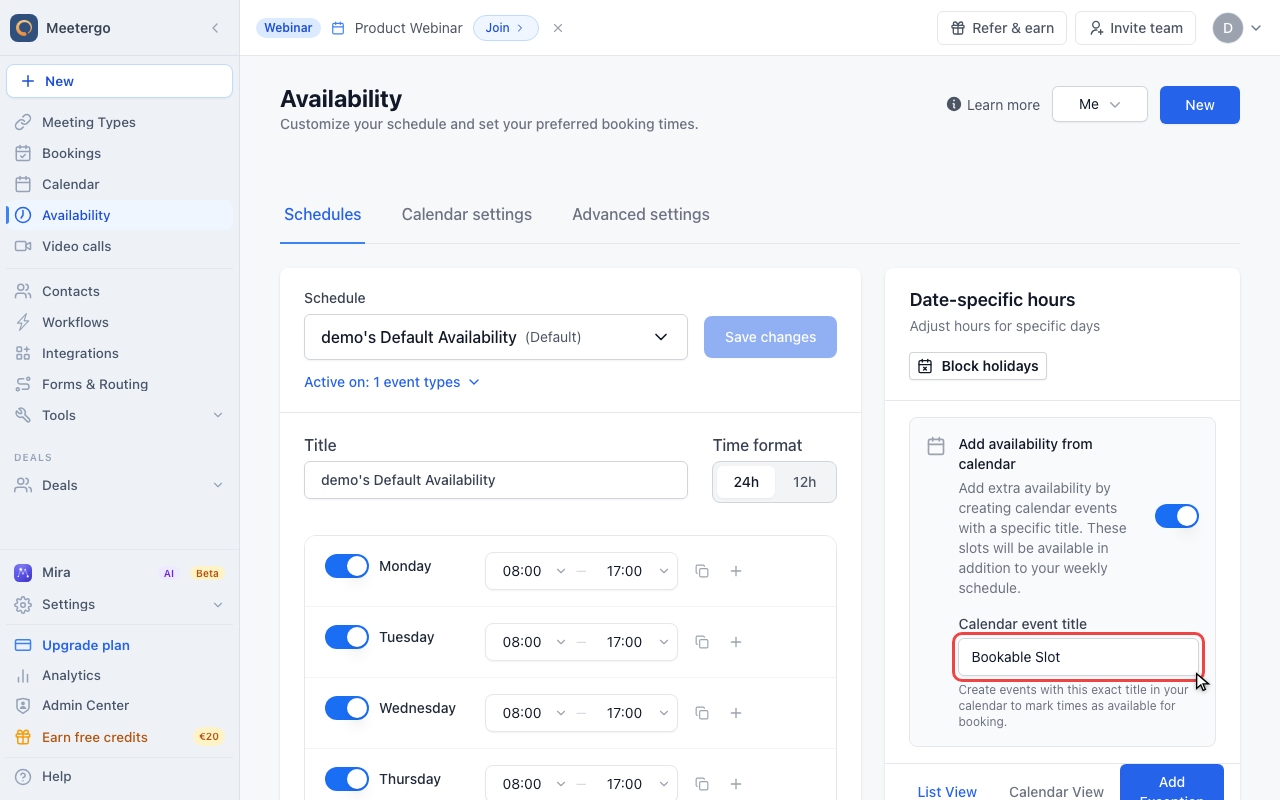
Check the calendar event title
Choose a unique title. meetergo only treats calendar events with this exact title as positive availability.
How to enable
Enable the option in Availability, then use the event title shown there when you create bookable calendar events. The title must match exactly; use something unique like Bookable Slot or meetergo1030.
Recommended for Google and Outlook: mark events as "Free"
If you're on Google Calendar or Outlook / Microsoft 365, set the status of your availability events to "Free" (not "Busy").
Why it matters: When an availability event is marked "Busy" and another event (a meetergo booking, or a manual "Busy" entry) sits at the same time, meetergo can't always tell them apart from the calendar's free/busy data. In some cases this means your slot stays offered as available even though the time is already taken.
Events marked "Free" don't block anything in the calendar's free/busy API. meetergo still recognises them as availability via the title — and can reliably treat any "Busy" events at the same time as blocking the slot.
Where to find the setting
- Google Calendar: open the event → right-side panel → Availability → Free
- Outlook / Microsoft 365: open the event → Show as → Free
iCloud, CalDAV and ICS feeds: keep your availability events as "Busy". These providers skip events marked "Free", so meetergo wouldn't recognise them as availability.
How conflicts behave
Google / Outlook with event set to "Free":
- ✅ Nothing else at that time → slot offered
- ✅ Parallel "Busy" event → slot correctly blocked
- ✅ Parallel meetergo booking → slot correctly blocked
Event set to "Busy" (or on iCloud/CalDAV/ICS):
- ✅ Parallel meetergo booking → slot correctly blocked
- ✅ Parallel event with a different duration than the slot → slot correctly blocked
- ⚠️ Parallel event with identical start and end → slot may incorrectly stay offered. On Google/Outlook: switch the event to "Free".
Related articles
- Availability exceptions — Alternative: define positive exceptions directly in meetergo
- Configure availability — Regular weekly availability
Was this article helpful?
Let us know if this article answered your questions.