
Meeting Type-Specific Availability (Restriction Schedules)
Assign custom availability schedules to specific meeting types to restrict when they can be booked
Restriction schedules let you assign different availability to different meeting types. Instead of using your default schedule for everything, you can create custom schedules that restrict specific meeting types to certain hours or days.
 1 / 6
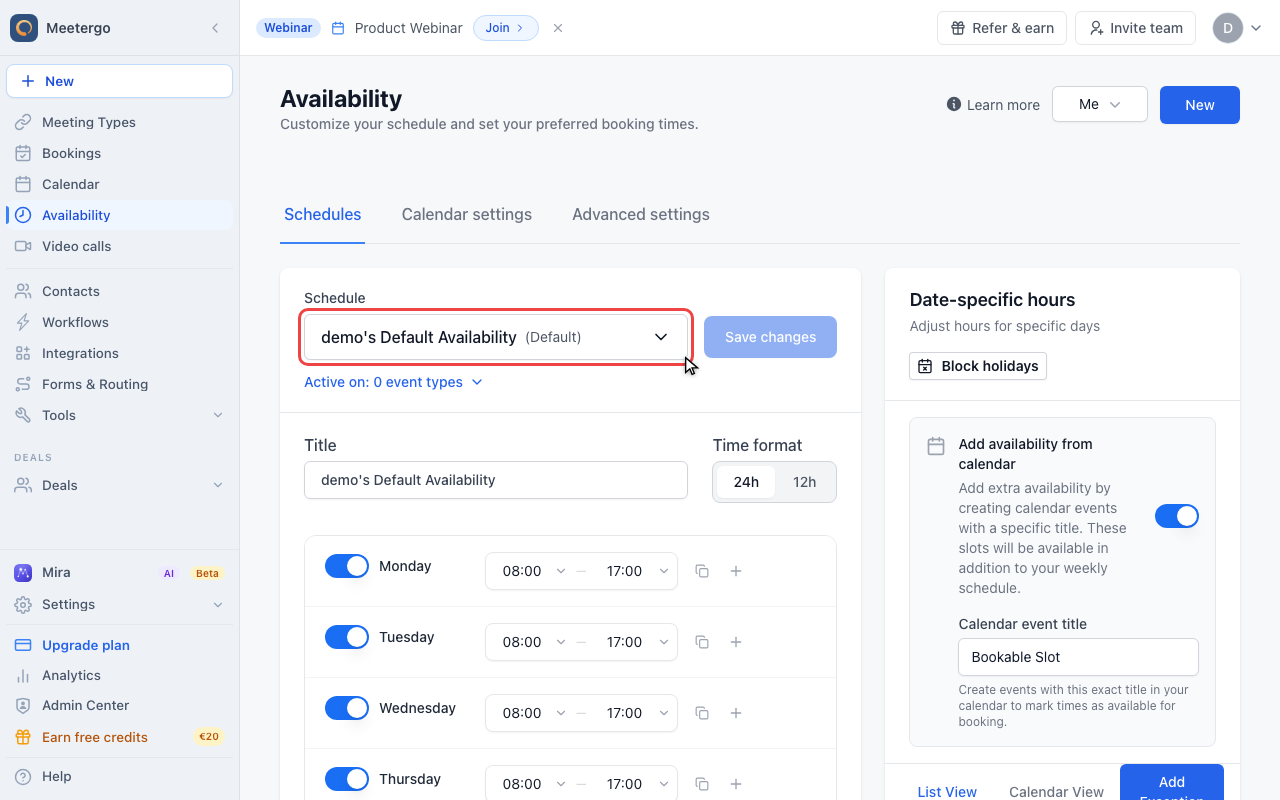
1 / 6The picker lists your default schedule and any custom schedules you can assign to meeting types.
Create a restriction schedule
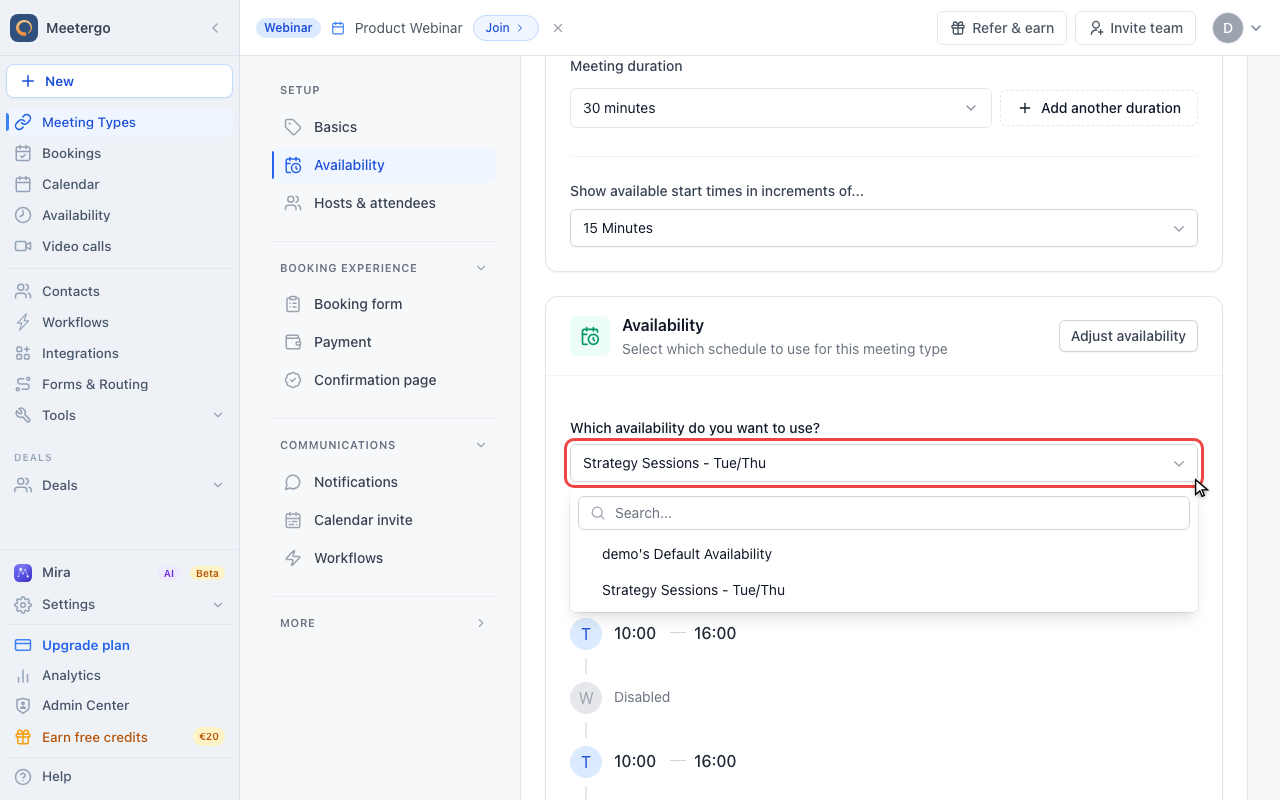
Open the schedule picker
The picker lists your default schedule and any custom schedules you can assign to meeting types.
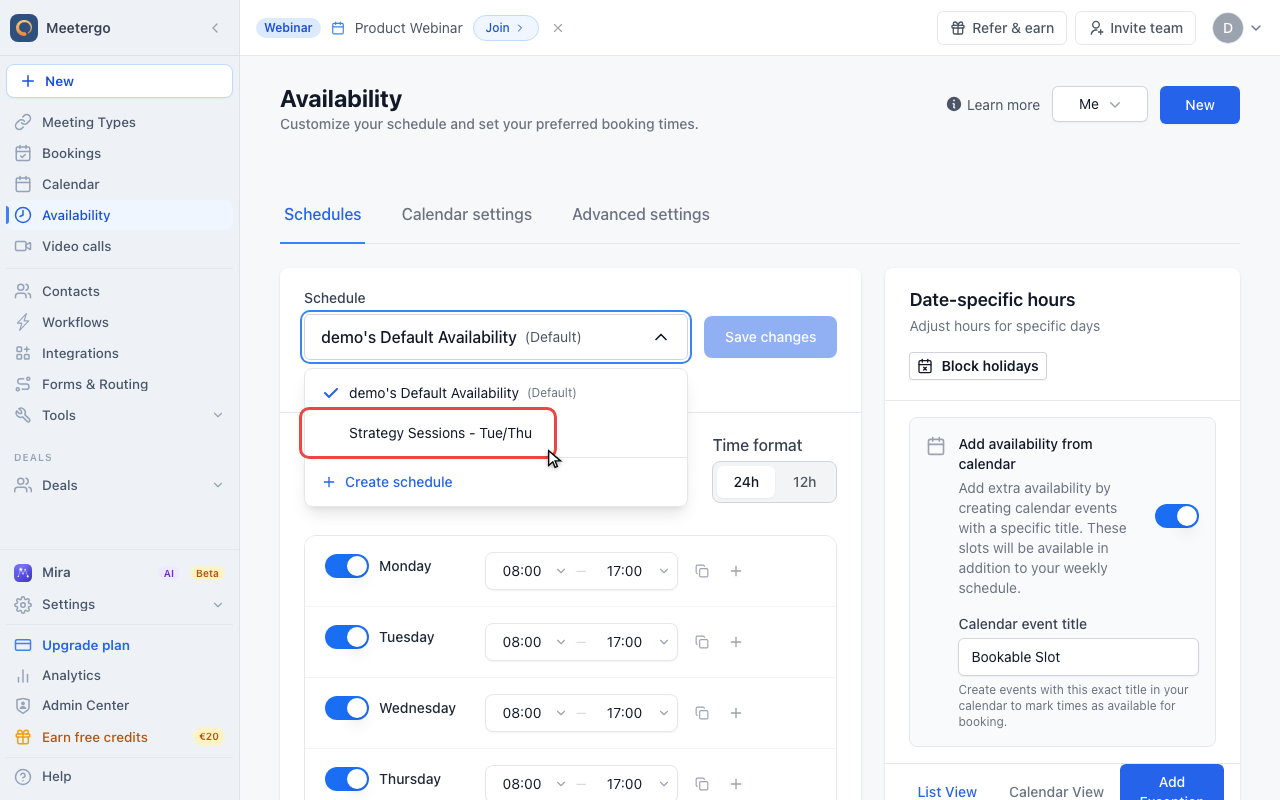
Choose the restriction schedule
Select the schedule that contains the restricted hours for this meeting type.
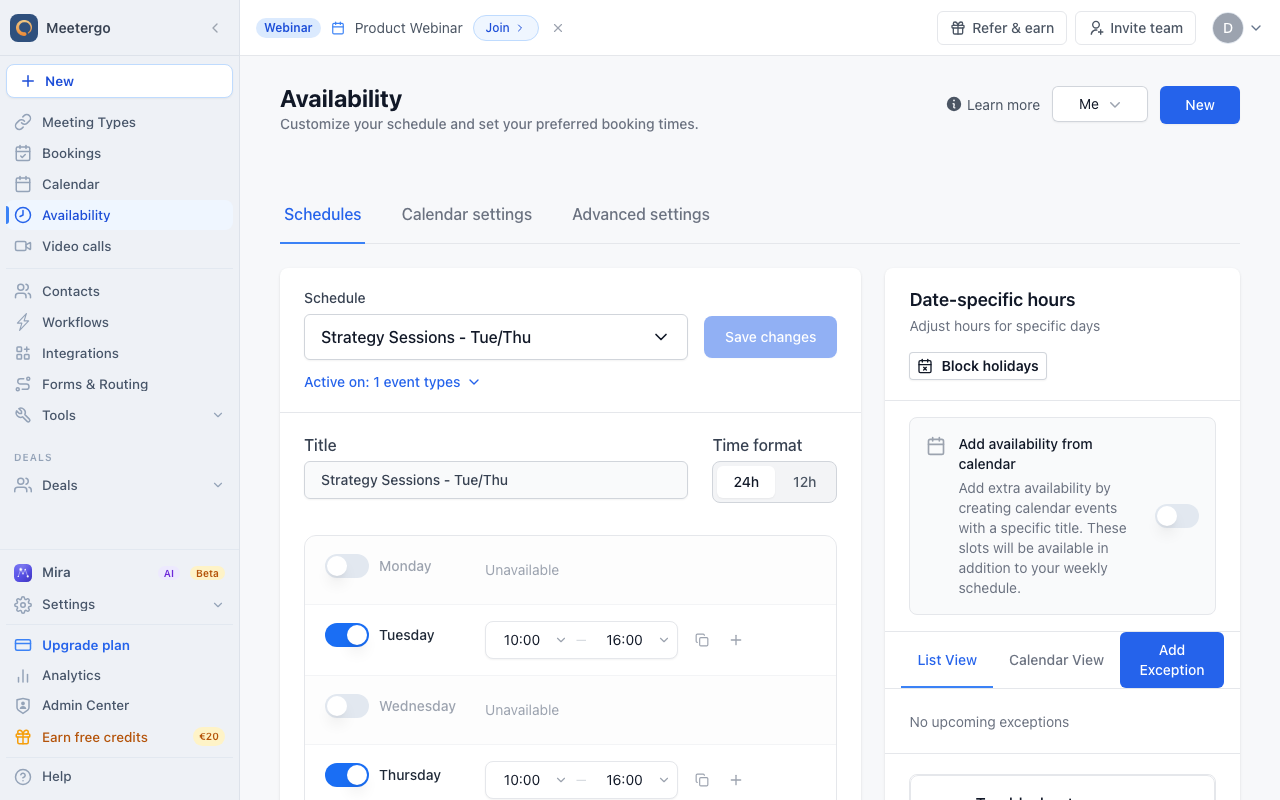
Review the restricted hours
This demo schedule only has Tuesday and Thursday enabled. Save schedule changes before assigning it in a real setup.
Assign the schedule
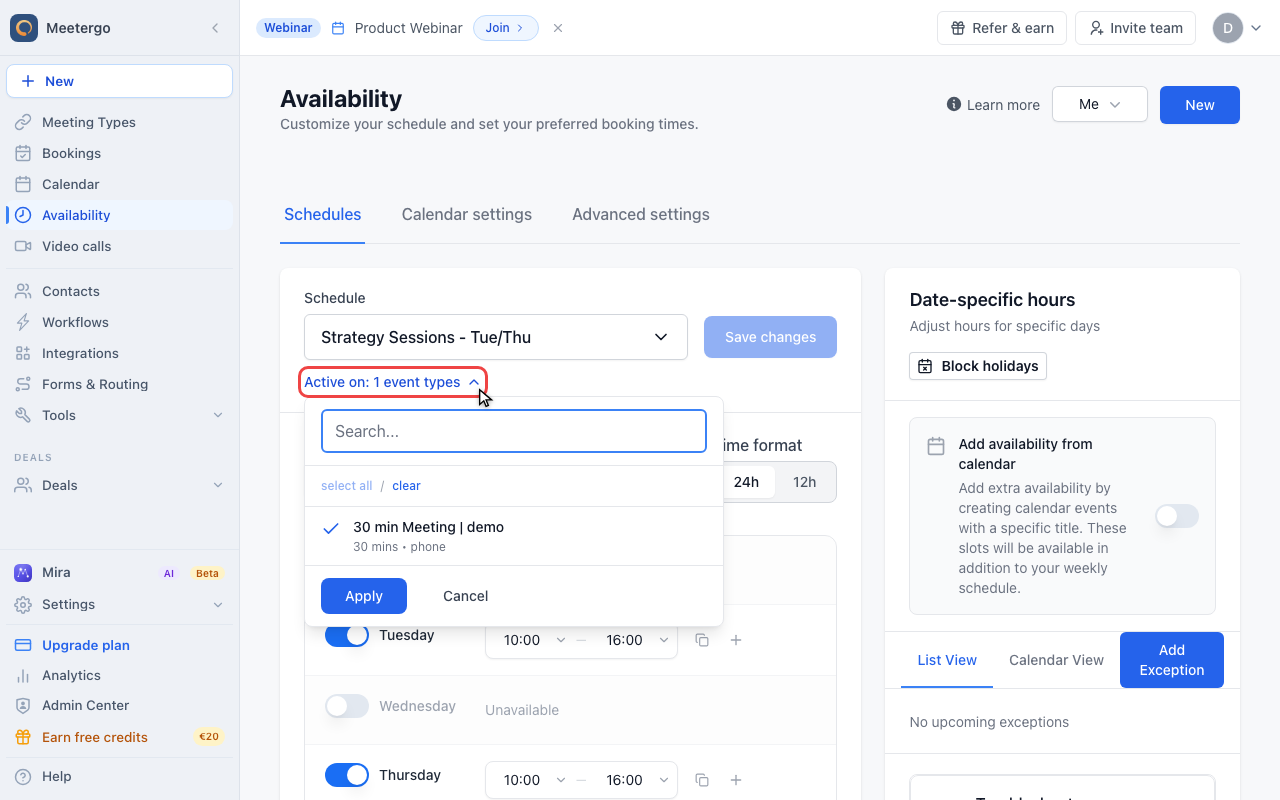
Check assigned meeting types
Open Active on to see which meeting types already use this schedule. Do not click Apply unless you changed assignments.
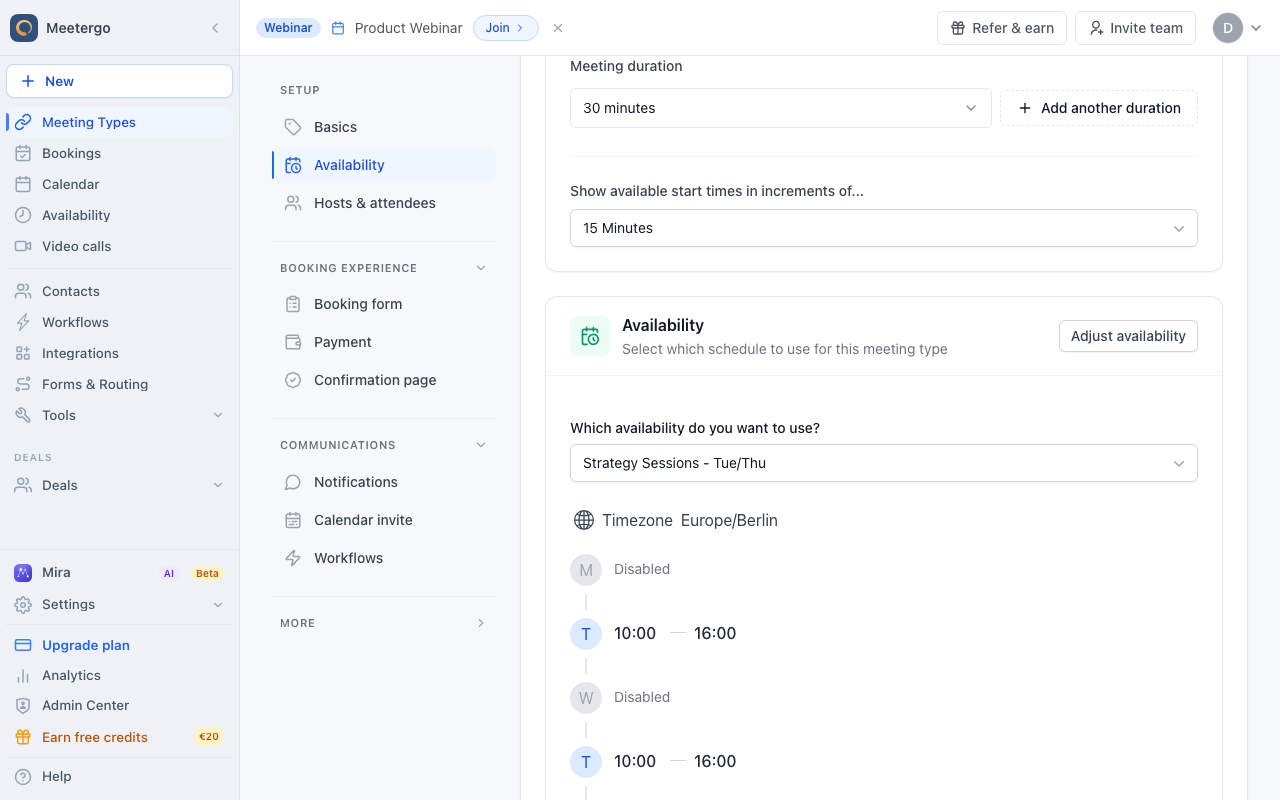
Find Availability
The Availability card controls which schedule this meeting type uses.
Open the availability dropdown
Use the dropdown to switch from the default schedule to the custom restriction schedule. This capture stops before changing anything.
What Are Restriction Schedules?
By default, all your meeting types use your primary availability schedule. Restriction schedules let you override this:
- Sales calls available Monday-Friday, 9 AM - 5 PM
- Strategy sessions available Tuesday and Thursday only
- Quick calls available all week, but only mornings
- VIP consultations available by appointment (limited slots)
Each meeting type can have its own schedule, giving you complete control over when each service is bookable.
Use Cases
Separate Internal vs. External Meetings
External client calls: Business hours, Monday-Friday
Internal team meetings: Extended hours including early morning or late afternoon
Premium vs. Standard Services
Standard consultations: Wide availability, many slots
Premium/VIP sessions: Limited availability, exclusive time slots
Different Meeting Lengths
15-minute quick calls: Available throughout the day
60-minute deep dives: Only available in dedicated afternoon blocks
In-Person vs. Virtual
Virtual meetings: Available all week
In-person meetings: Only days you're in the office
Training vs. Consulting
Training sessions: Group slots on specific days
1:1 consulting: Individual slots on other days
Multiple Schedules Per Meeting Type
For team meeting types or round-robin scheduling, each team member can have their own availability assigned:
- Edit the meeting type
- In the Availability section, you'll see each host listed
- Assign different schedules to different hosts
- Each host's slots will follow their assigned schedule
This is useful when:
- Team members work different hours
- Some hosts specialize in certain meeting types
- Different time zones require different availability
Combining with Exceptions
Restriction schedules work alongside availability exceptions:
- Schedule: Defines regular recurring availability
- Exceptions: Override specific dates (vacations, holidays, special hours)
For example:
- Restriction schedule: Tuesday & Thursday, 2-5 PM
- Exception: Block Thursday Dec 26 (holiday)
- Result: That week only shows Tuesday slots
Best Practices
Name Schedules Clearly
Use descriptive names that indicate the purpose:
- ✅ "Sales Calls - Business Hours"
- ✅ "Strategy Sessions - Tue/Thu Afternoons"
- ❌ "Schedule 2"
Don't Over-Complicate
Start simple:
- Use your default schedule for most meeting types
- Only create restriction schedules when needed
- Fewer schedules are easier to manage
Review Regularly
Check your schedules periodically:
- Remove unused schedules
- Update hours if your routine changes
- Ensure meeting types have the right schedule assigned
Test Your Setup
After configuring:
- View your booking page
- Check that the restricted meeting type shows correct slots
- Verify other meeting types aren't affected
Troubleshooting
Meeting Type Shows No Availability
- Check the assigned schedule has hours configured
- Verify the schedule isn't empty for the days you're checking
- Ensure there are no blocking exceptions
- Check minimum notice and future booking limits
Wrong Slots Appearing
- Confirm the correct schedule is assigned
- Check if the default schedule is accidentally still active
- Review calendar connections for conflicts
Schedule Changes Not Applying
- Ensure you saved changes to both the schedule and meeting type
- Refresh your booking page
- Clear browser cache if needed
FAQ
Can I use the same restriction schedule for multiple meeting types?
Yes, you can assign one schedule to multiple meeting types. Changes to the schedule affect all meeting types using it.
What happens to existing bookings if I change the schedule?
Existing bookings remain unaffected. Schedule changes only apply to future availability.
Can I have a meeting type with NO regular schedule?
Yes, if you only want specific dates available, create an empty schedule and use availability exceptions to open specific slots.
Do restriction schedules affect round-robin distribution?
The schedule determines when slots are shown. Round-robin logic then distributes among available hosts within those slots.
Can attendees see which schedule is being used?
No, attendees just see available time slots. The underlying schedule configuration is not visible to them.
Related Articles
Was this article helpful?
Let us know if this article answered your questions.