
Why are events in my calendar not blocking my availability?
Events in your connected calendar do not block bookings, or all day events show as free? Which event status blocks availability depends on the provider. Here is the rule for Google, Outlook, Exchange, Apple iCloud and CalDAV.
If you have connected your calendar with meetergo, you should be able to trust that your existing appointments will block your availability for bookings. Calendar events have the highest priority in meetergo's availability calculation — they always block bookings, even during times you've marked as available with an exception. If this isn't happening, don't worry! This article guides you through the necessary steps to ensure everything works smoothly.
Events in calendar must be set to 'Busy'
meetergo's availability check relies on the Show as status of each event in your calendar. An event set to Free is treated as if it were not there. Which of the other statuses block depends on the provider:
| Connected calendar | Blocks your availability | Does not block |
|---|---|---|
| Show as Busy | Show as Free | |
| Outlook / Microsoft 365 | Busy always, plus Tentative, Away / Out of Office and Working Elsewhere unless you switch them off in the connection settings | Free, Unknown, and any status you switched off |
| Exchange (on-premises) | Every status except Free, including Tentative and Out of Office | Free |
| Apple iCloud | Every event, including all-day events | Cancelled events, timed events set to Free, and all-day events if you switch on Ignore all day appointments |
| CalDAV, Nextcloud, ICS subscriptions | Every event, including all-day events | Events set to Free and cancelled events |
So a "Tentative" event does block on Outlook and Exchange, while the same event does not block on Google. Regularly check your calendar entries and adjust the status of appointments if needed.
On Outlook you can decide this yourself: Integrations & Apps → gear icon next to the Outlook connection → Consider me unavailable if outlook.com displays me as. Busy is always on; Tentative, Away / Out of Office and Working Elsewhere are on by default and can be switched off.
All-day events (Apple iCloud)
All-day events are the single most common cause in this area, and Apple behaves differently from every other provider.
Apple Calendar saves every all-day event as free and has no Busy option for it. meetergo therefore blocks all-day iCloud events, and one setting on the connection decides whether they count:
- Your all-day events should block, and they do not. Check that Ignore all day appointments is switched off on the connection (see below), and that the calendar holding them is ticked under Enabled Calendars.
- Your all-day events block and you do not want them to. You cannot fix this in Apple Calendar. Open Integrations & Apps → gear icon next to Apple Calendar → Show advanced settings → tick Ignore all day appointments. This applies to all all-day events on that connection, so holidays and reminders stop blocking too.
For Google, Outlook, Exchange, CalDAV and ICS calendars there is no such setting: an all-day event follows the same Free/Busy rule as any other event, so set it to Free in the source calendar if it should not block.
See Connecting Apple iCloud Calendar for the full list of advanced settings.
Verify Your Connected Calendar Account
If your availability isn't syncing correctly, first ensure you've connected the correct calendar account to meetergo. With multiple accounts, it's easy to accidentally connect the wrong one. To verify:
- Go to your profile settings
- Navigate to the Integrations & Apps section
- Check the email address associated with each connected calendar
If you notice an incorrect or unexpected email address, disconnect it and reconnect the proper account. This simple verification often resolves syncing issues immediately and ensures your availability reflects the right calendar.
Calendar Connection Expired or Disconnected
Especially with Apple iCloud, CalDAV calendars, and other third-party calendars, your login credentials may have become invalid. In this case, no events are synchronized, even if the calendar appears as "connected" in meetergo.
How to identify this issue:
- Your own events are not displayed in meetergo in the calendar view
- Bookings are possible at times that should be blocked according to your calendar
Solution: Reconnect your calendar:
- Go to your Profile settings
- Disconnect the existing calendar connection
- Reconnect the calendar with current login credentials
- For Apple iCloud: Create a new app-specific password if needed
For more information, see How do I reconnect my calendar after a lost connection?
Other Potential Issues
If despite these steps your appointments do not block your availability in meetergo as expected, there may be other issues to consider. Here are some possible causes:
- Timezone Differences: Ensure the timezones in your calendar and meetergo match exactly. Mismatched time zones can cause appointments to appear at different times, creating apparent sync issues.
- Sync Delays: Calendar synchronization can take a few minutes to process. Wait 5-10 minutes after making calendar changes before checking if appointments are properly blocking availability.
- Meeting Type Settings: Verify that your meeting types are configured to use the correct calendar for availability checking. Each Meeting Type can have its own calendar settings.
If you still encounter issues blocking your availability in meetergo, contact our support for personalized assistance.
Support
You have waited several hours and your availability is still not syncing? Then our support team can help you further! To ensure we can assist you as quickly as possible, please note the following:
Open the meetergo calendar view and compare it with your connected calendar. Generally, all appointments marked as "Busy" in your calendar should also be displayed in meetergo as private or calendar events.
Identify which appointments are missing in meetergo. Send support a screenshot of those appointments from your calendar. Personal information such as title or description is not relevant, but the appointment type is useful, for example recurring appointment or all-day appointment.
You can best reach support through the chat.
 1 / 3
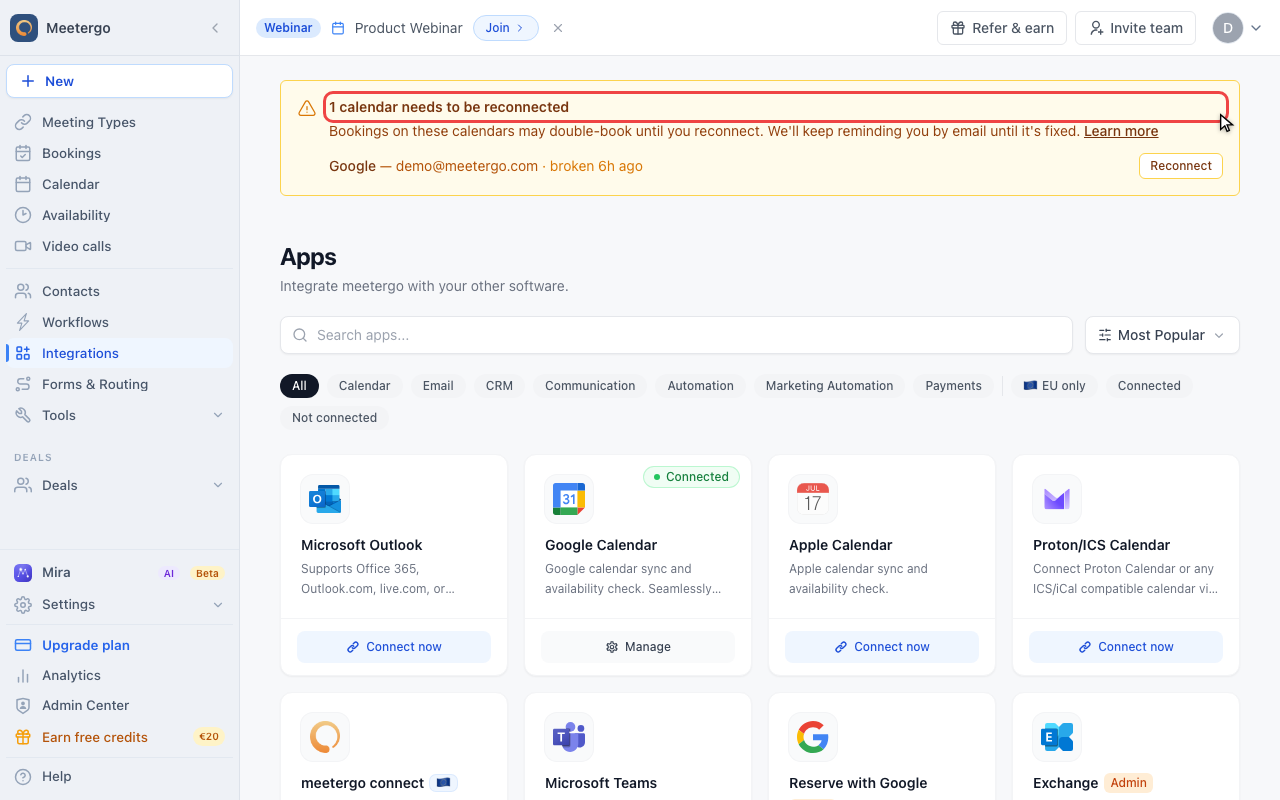
1 / 3If a calendar needs to be reconnected, bookings can ignore events from that calendar until the connection is restored.
Check the calendar connection
Check reconnect warnings
If a calendar needs to be reconnected, bookings can ignore events from that calendar until the connection is restored.
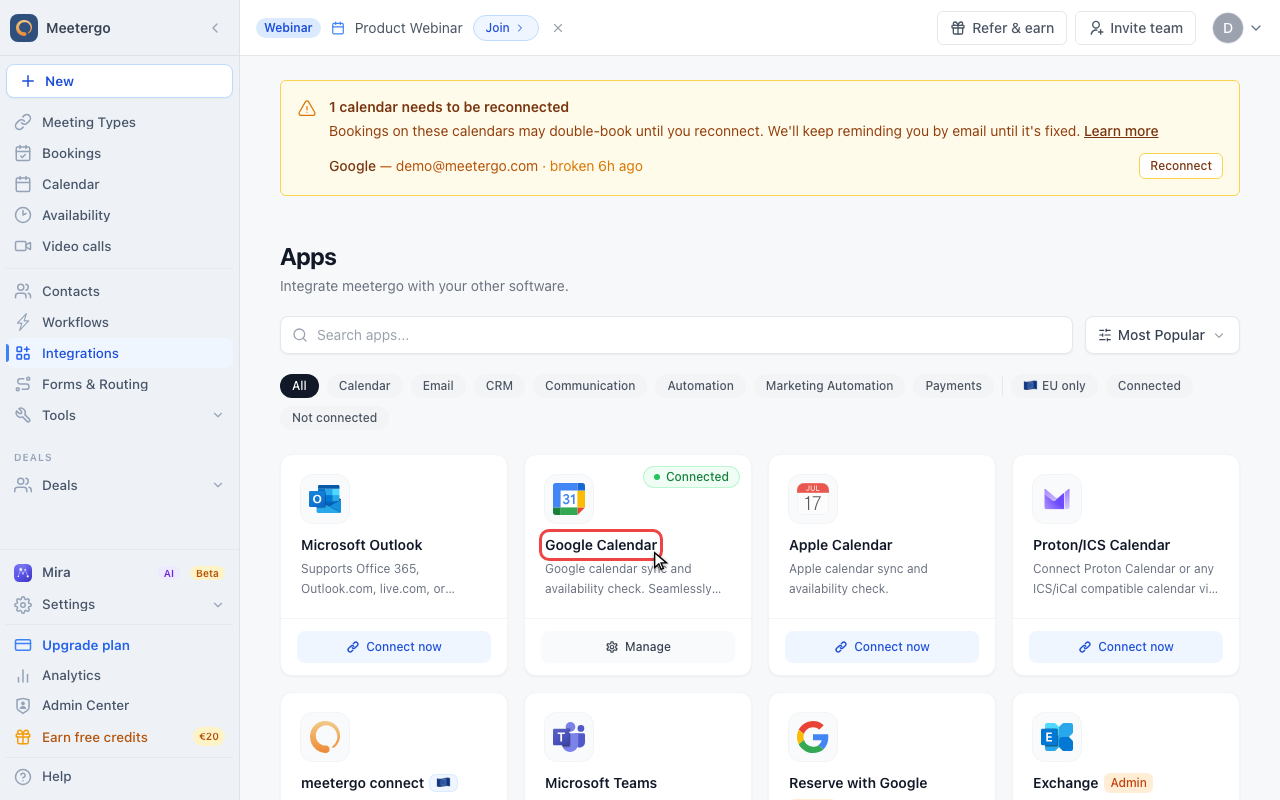
Verify the connected calendar account
Check that the connected calendar account is the one that contains the events you expect to block availability.
Compare recognized events
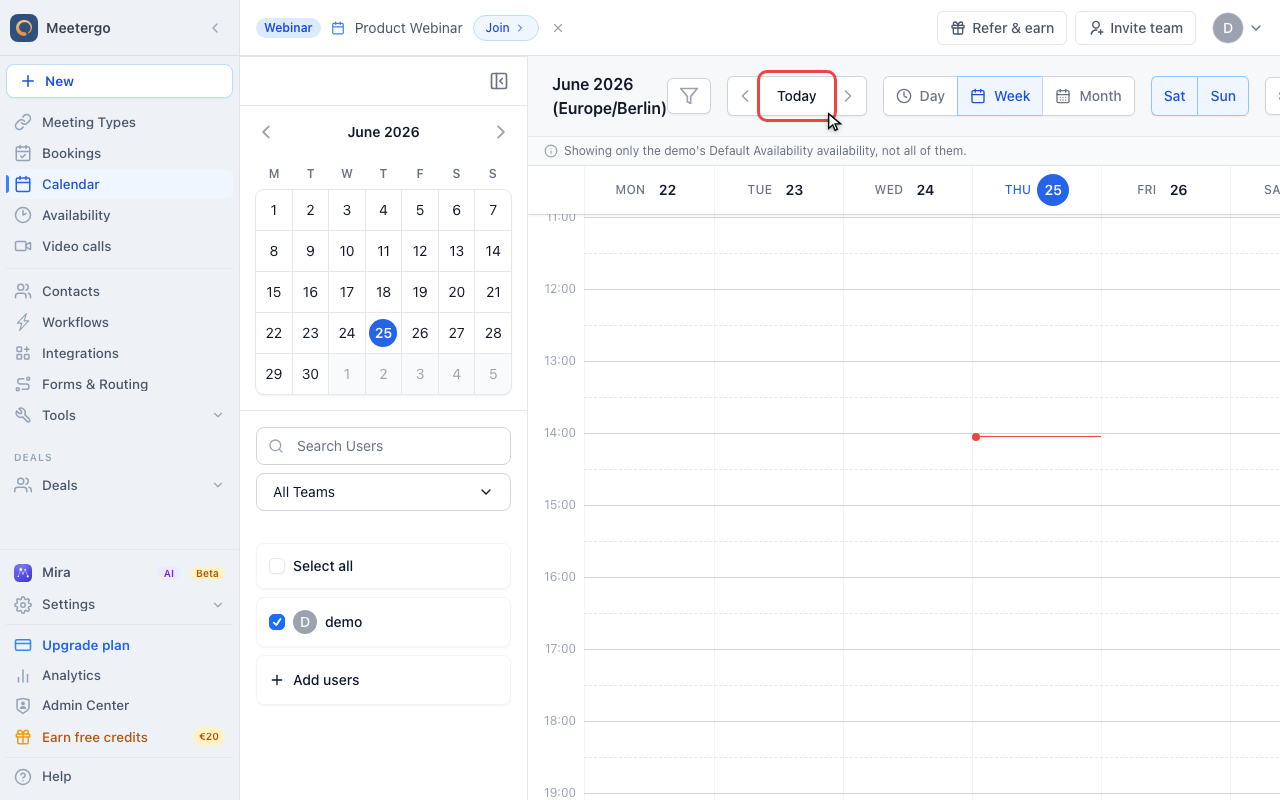
Compare recognized events
Busy events from connected calendars should appear in the calendar view. If an external event is missing here, check the connection, calendar account, event status, and sync delay.
FAQ
How long does it take for calendar changes to sync?
Calendar changes typically sync within 5-10 minutes. For immediate syncing needs, you can manually refresh your calendar connection in profile settings.
Can I connect multiple calendars to check availability?
Yes, you can connect multiple calendar accounts, and meetergo will check all of them for conflicts when determining your availability.
What appointment statuses block availability?
'Busy' always blocks and 'Free' never does. Everything in between depends on the provider — see the table above. 'Tentative' blocks on Outlook and Exchange but not on Google, and all-day events on Apple iCloud block unless you switch on Ignore all day appointments.
Do I have to give every all-day event a start and end time so it blocks?
No. All-day events from Apple iCloud block as they are. If yours do not, check that Ignore all day appointments is switched off on the Apple connection and that the right calendar is enabled.
Why do some recurring meetings not block my availability?
Check that recurring meetings are set to 'Busy' status and that they're in the calendar account connected to meetergo. Some calendar systems create recurring events with different default statuses.
Related articles
Was this article helpful?
Let us know if this article answered your questions.