
How to troubleshoot unavailable times that should be available
When your booking page shows fewer available times than expected, or when invitees report they can't find suitable booking slots, meetergo's Troubleshoot Tool reveals exactly what's blocking those time slots and provides clear solutions to resolve the conflicts.
 1 / 2
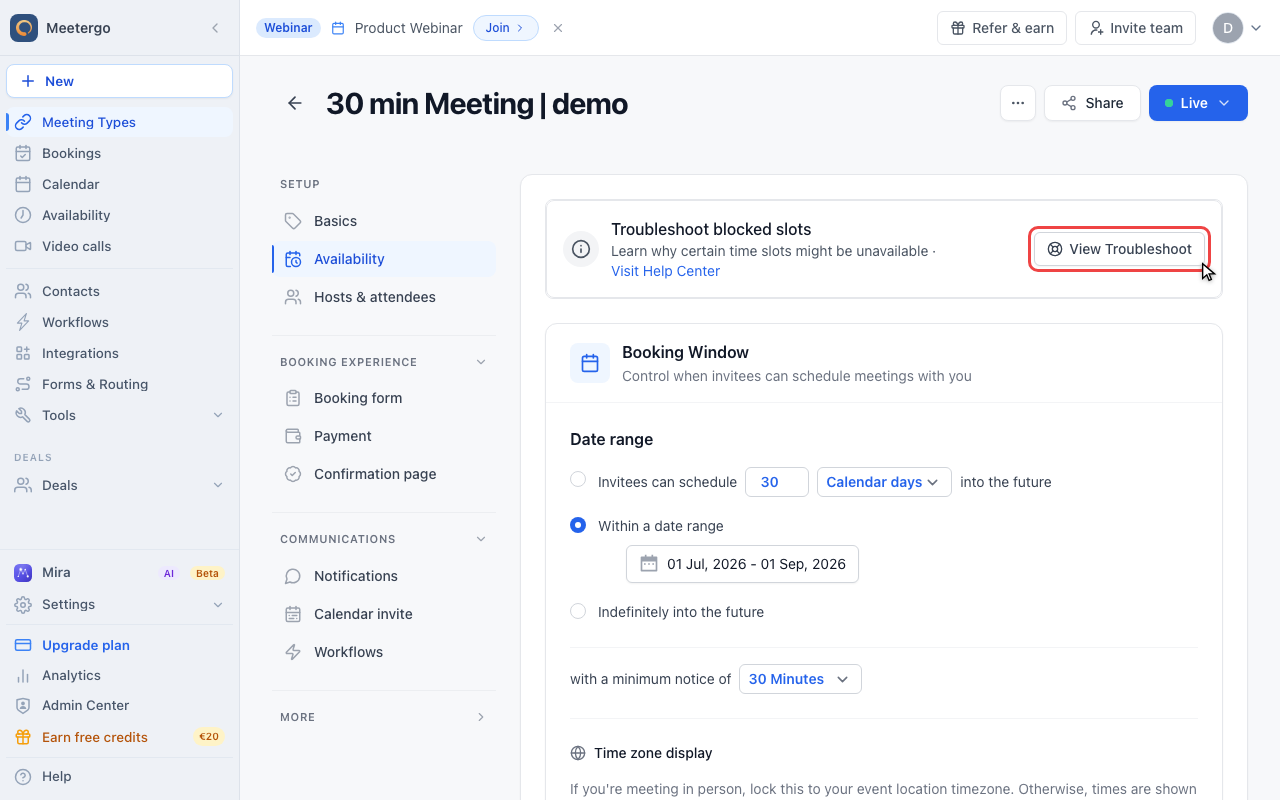
1 / 2Use View Troubleshoot to open the booking page in diagnostic mode. This view is only visible to hosts.
Open troubleshoot mode
Click View Troubleshoot
Use View Troubleshoot to open the booking page in diagnostic mode. This view is only visible to hosts.
Review blocked slots
Review the blocked slots
Each unavailable slot shows one or more diagnostic labels. Use those labels to decide whether to adjust availability, buffers, booking limits, or connected calendar events.
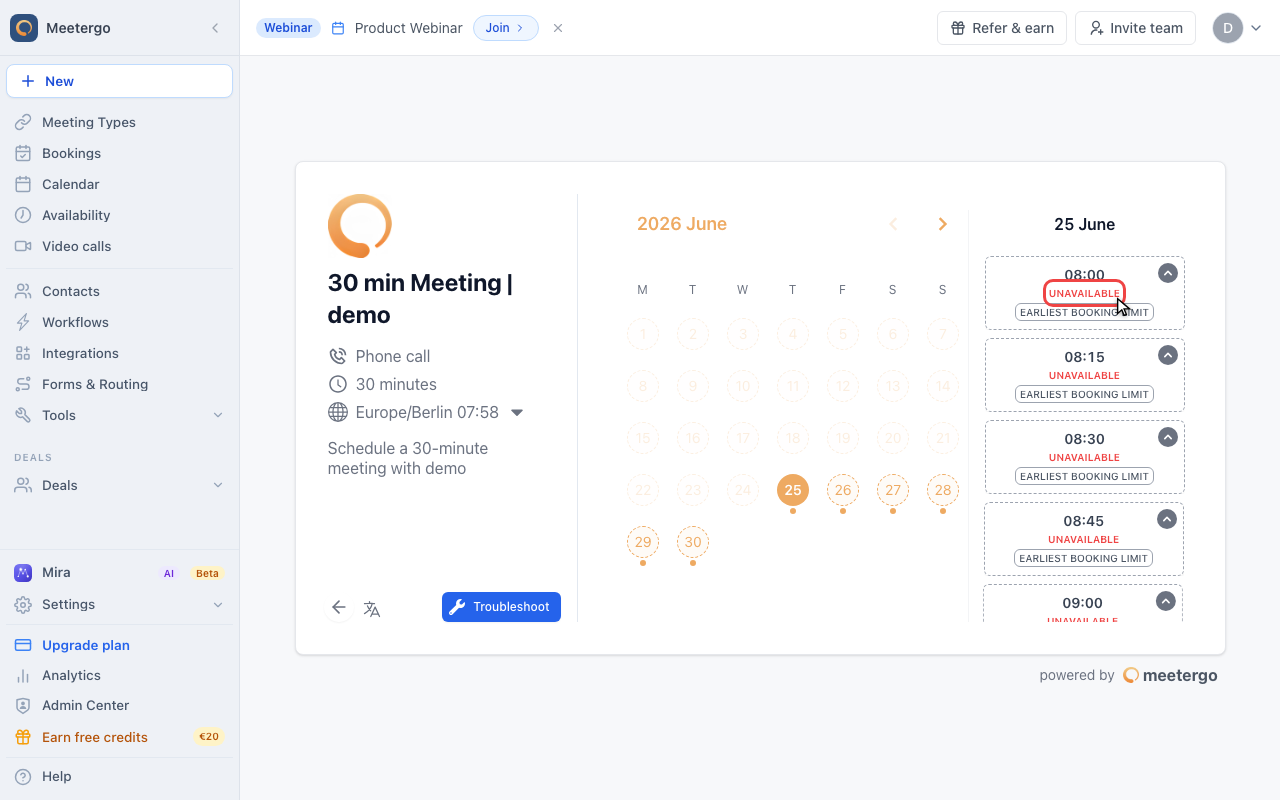
The Troubleshoot Tool analyzes your availability settings, connected calendars, and Meeting Type configuration. For an overview of how meetergo combines these layers, see Understanding rule precedence.
What the labels mean
| Label | What to check |
|---|---|
| EVENT | A meetergo meeting already exists for this time. Reschedule or cancel it from your Meetings page. |
| GOOGLE, OUTLOOK, EXCHANGE, TEAMS, ICLOUD, CALDAV, SMARTWE, ICS | A connected calendar blocks the slot. Open the source calendar and change the event to free or remove the conflict. |
| EXCEPTION | A date override blocks the time. Check Settings → Availability → Date Overrides. |
| OUTSIDE HOURS | The slot is outside your weekly availability. Check your weekly hours and timezone. |
| BUFFER BEFORE / AFTER | Buffer time around another meeting blocks the slot. Reduce the Meeting Type buffer if this time should be bookable. |
| BOOKING LIMIT | The slot is too soon, too far in the future, or outside another booking window. Check the Meeting Type advanced settings. |
| DAY LIMIT, WEEK LIMIT, MONTH LIMIT, YEAR LIMIT | A host booking limit has been reached. Check your host meeting limits. |
One time slot can have more than one blocking reason. Fix the calendar conflict, availability rule, or limit shown by the label, then reload the troubleshoot page.
Common fixes
If your calendar looks empty but slots are still blocked, check for all-day events marked as Busy. These often block the whole day and can be easy to miss.
If no dates appear at all, review the Meeting Type's availability, timezone, minimum booking notice, and booking window. The slot must pass all of those checks before it can appear as bookable.
If invitees cannot book a specific time, use troubleshoot mode on that exact date and adjust the setting named by the label instead of changing unrelated availability rules.
FAQ
Why doesn't changing a calendar event to "Free" make the time available?
If the event was created by meetergo, cancel or reschedule the meeting in meetergo. Calendar status changes do not remove the original booking block.
Can I override diagnostic labels to force availability?
Some labels can be resolved by changing Meeting Type settings, such as buffers, booking windows, or overlap rules. Calendar conflicts and existing bookings need to be changed at the source.
Why do I see different labels for the same time on different days?
Availability is calculated per date. The same clock time can be blocked by weekly hours on one day, a calendar event on another day, and a booking limit on a third day.
Was this article helpful?
Let us know if this article answered your questions.