
Booking Proposals (Suggest Time Slots)
Send an invitee a few concrete times by email and keep them reserved until they pick one
Booking proposals let you send a small set of exact time options instead of your full booking link. Choose the team or personal meeting type, select the slots you want to offer, and send them to the invitee by email. Every proposed time stays reserved for you until the invitee picks one, so nobody else can take it while they decide.
 1 / 7
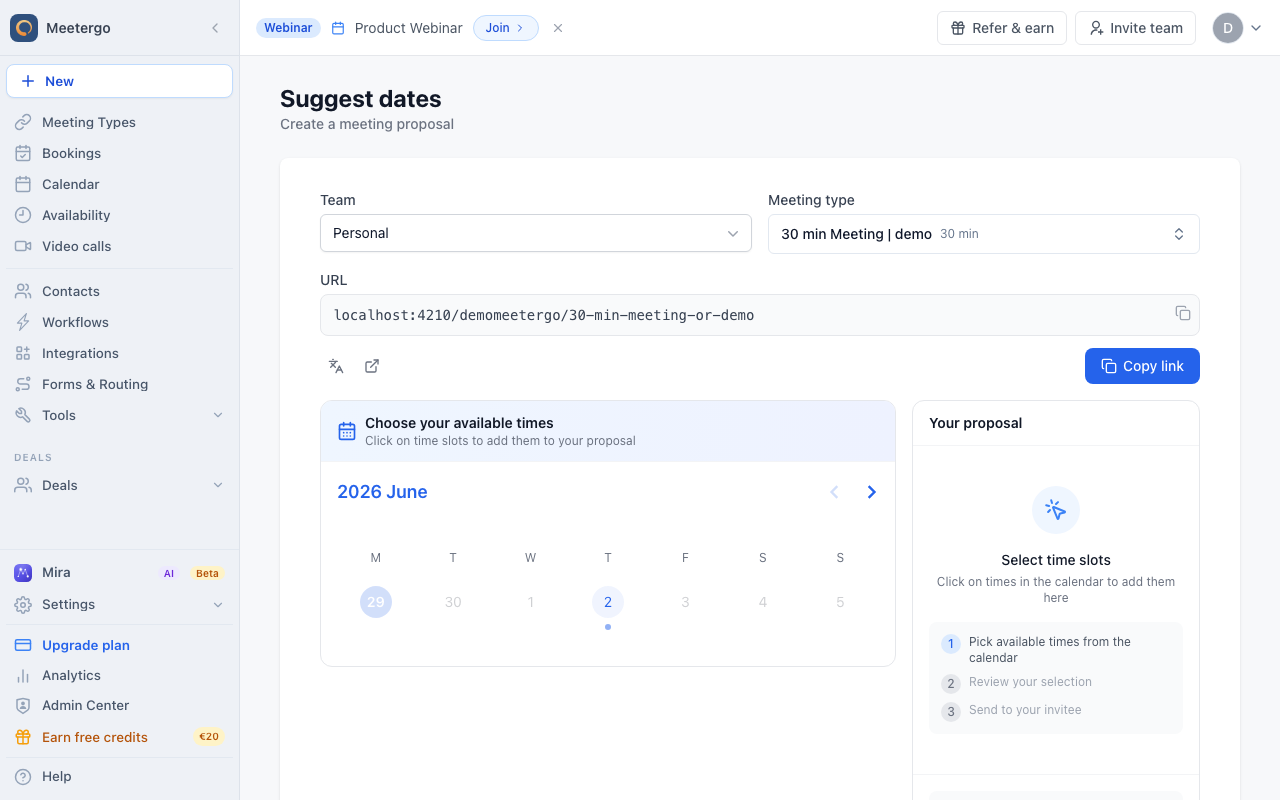
1 / 7Choose the team and meeting type for the proposal before selecting times.
Choose what to propose
Review the proposal tool
Choose the team and meeting type for the proposal before selecting times.
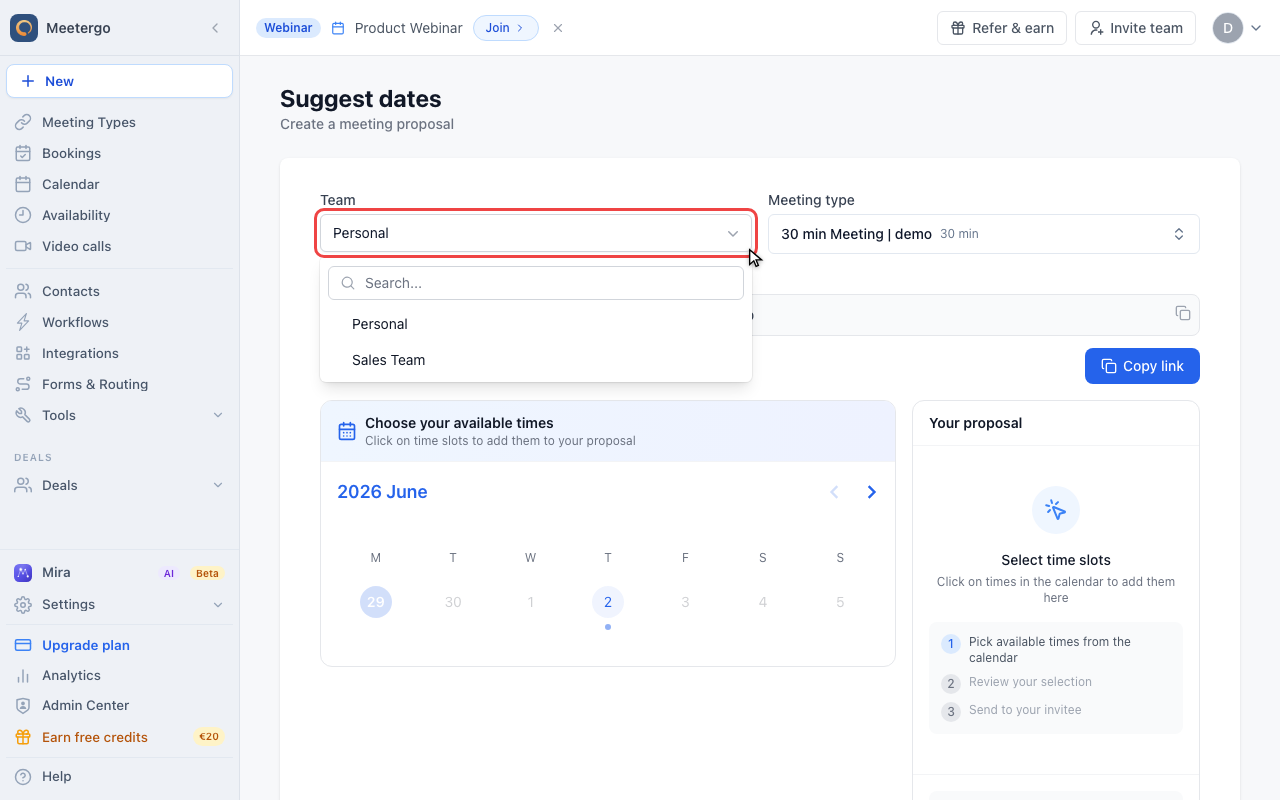
Open the team selector
Use the team selector when the proposal should use a workspace meeting type instead of your personal link.
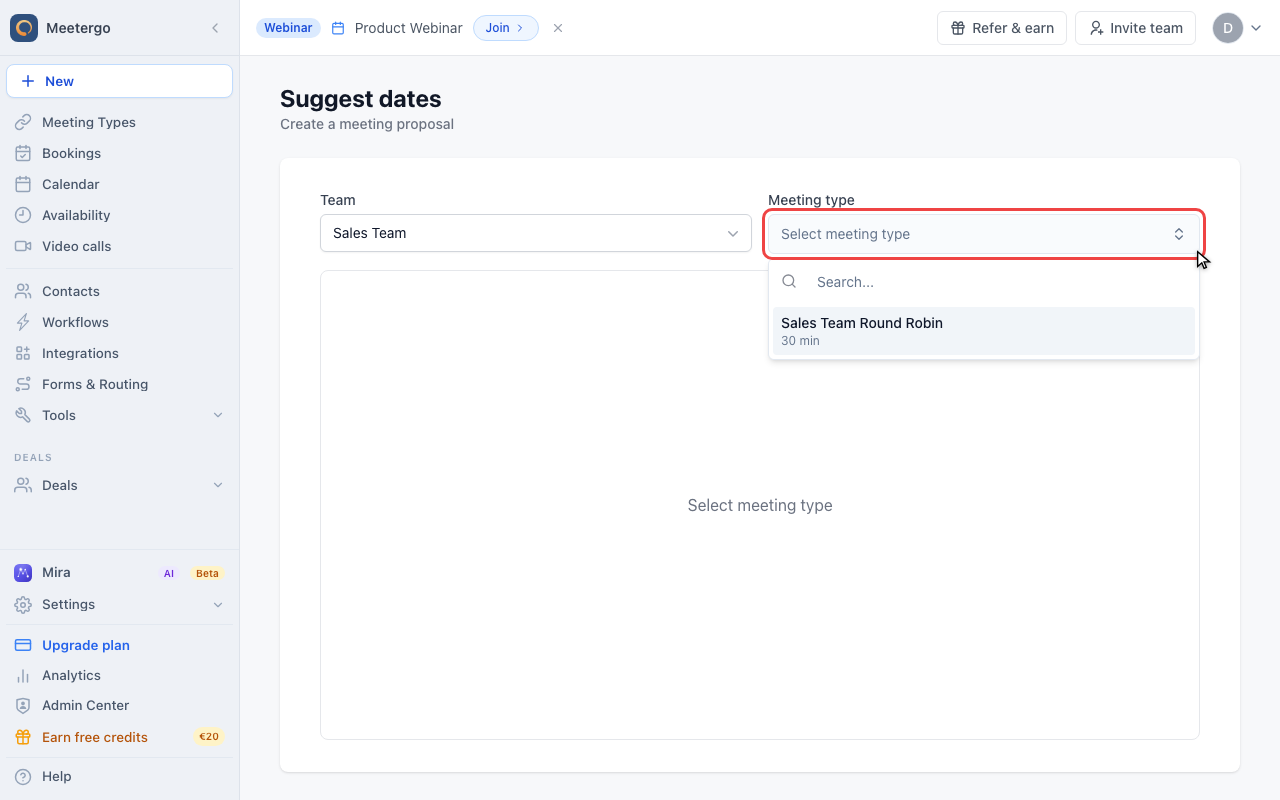
Open the meeting type selector
Open the meeting type selector and choose the link the invitee should book through.
Select time slots
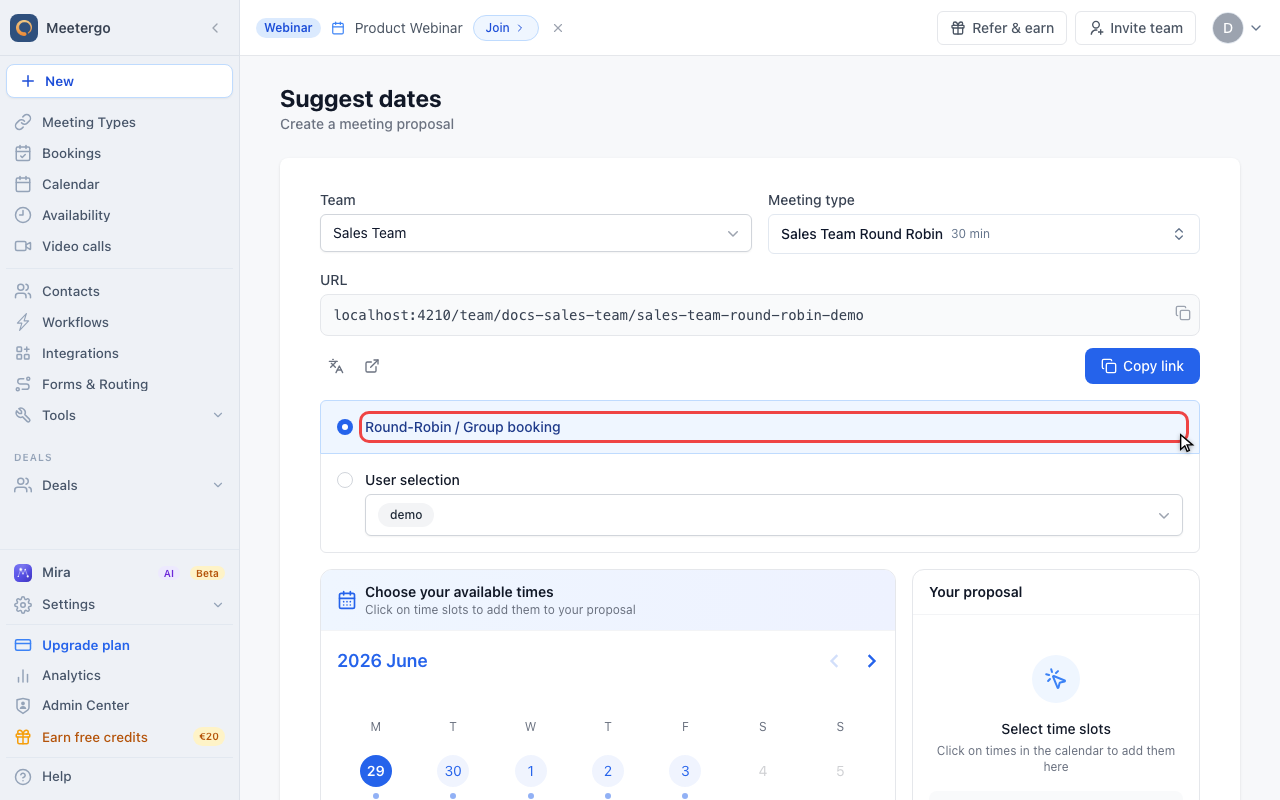
Check routing and available times
For queue meeting types, choose who the times are reserved for. If you are a host of the queue, only you are selected. Pick other hosts, or choose Any host in the queue to reserve the times for everyone.
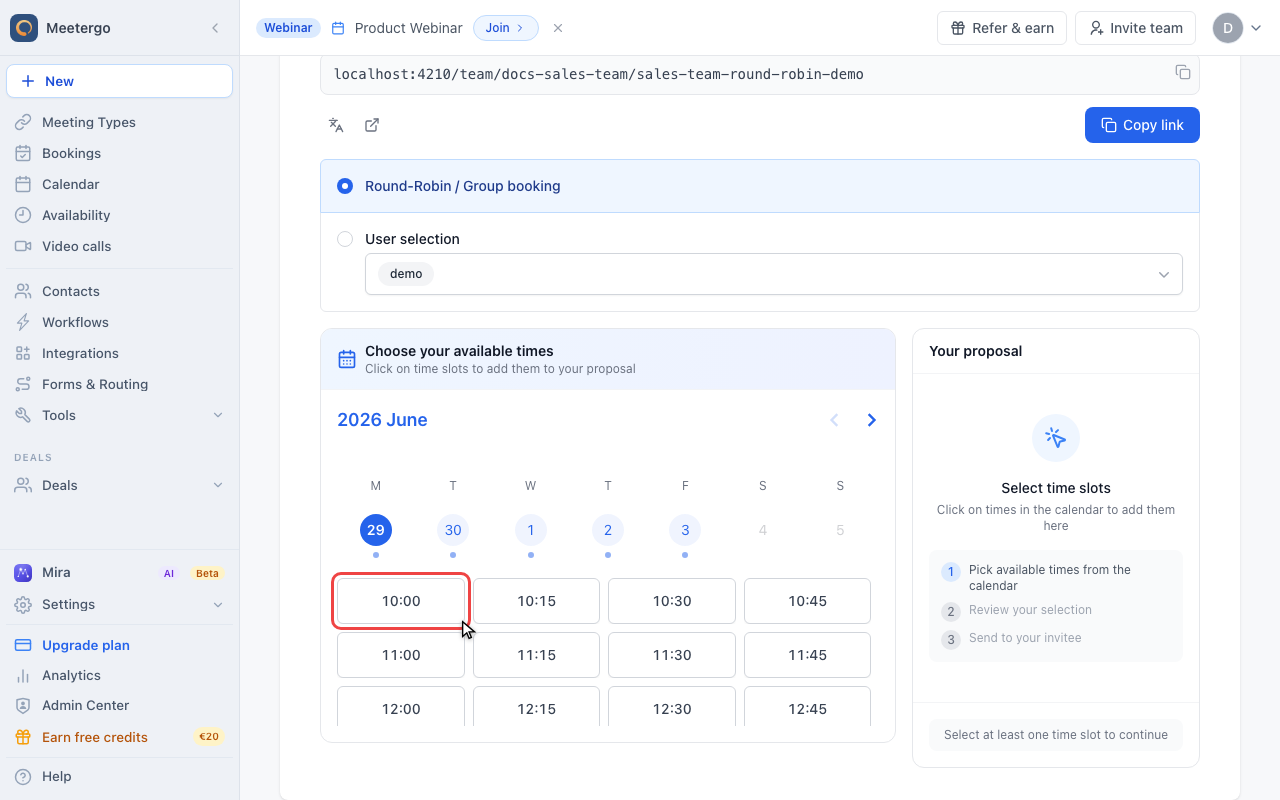
Click a time slot
Click each available time you want to include in the proposal.
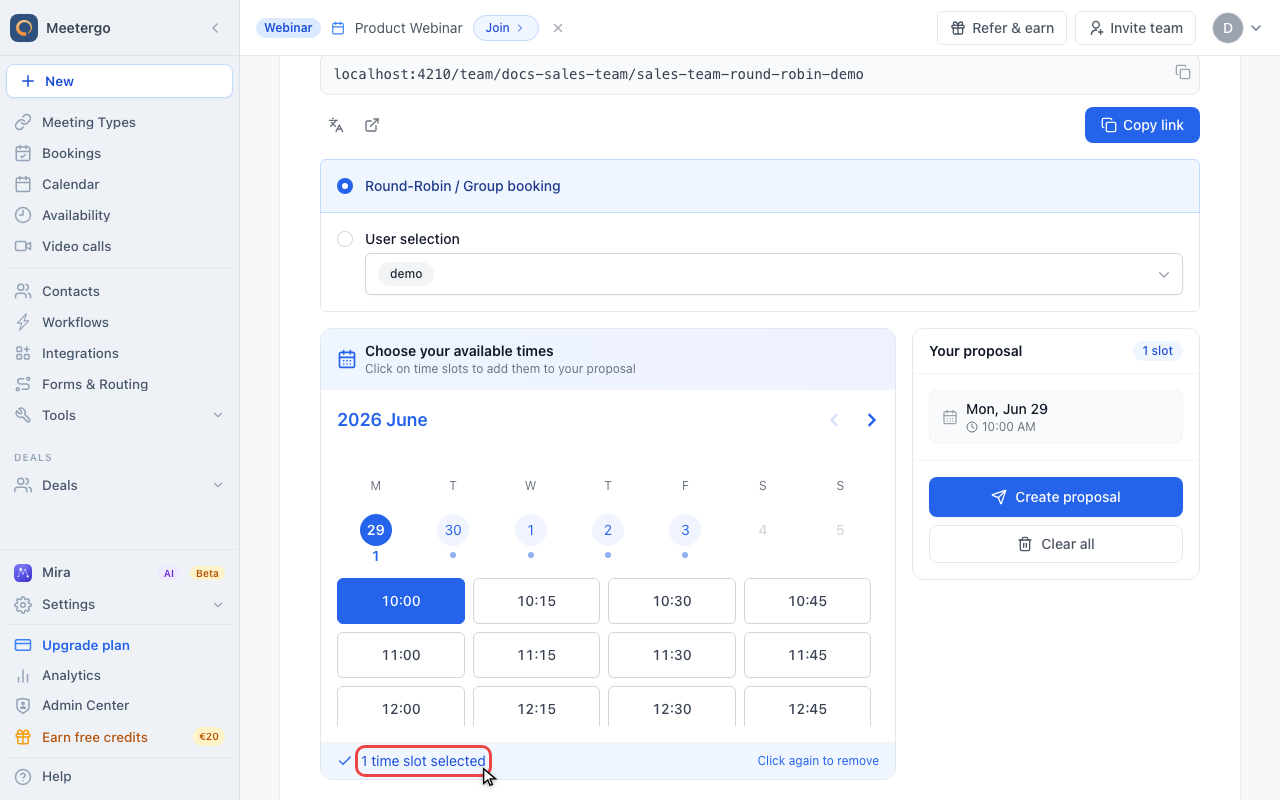
Review selected slots
Selected slots appear in the proposal panel. Use Clear all or click a selected slot again if you need to change the list.
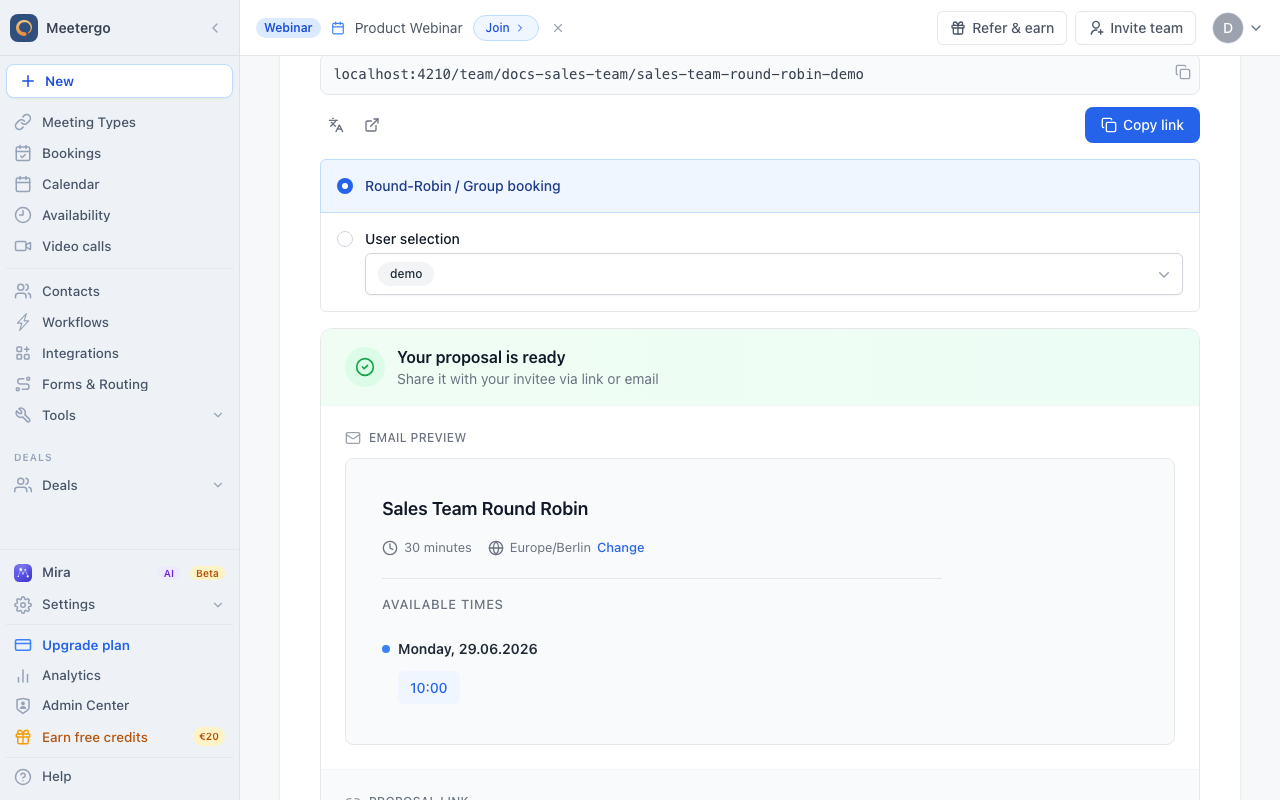
Share the proposal
Send the proposal
Enter the invitee's name and email, choose how long the times stay reserved, and send. The invitee gets one button per time. Writing the email yourself? Click Copy for email instead.
When to use booking proposals
Use a booking proposal when you want more control than a normal booking link:
- Personal outreach: Send a prospect or client a few concrete options.
- Team scheduling: Suggest slots from a round-robin or group meeting type.
- Executive scheduling: Offer only pre-approved times.
- Follow-ups: Replace back-and-forth scheduling with clickable options.
Use a normal booking link when invitees should browse all available times themselves.
Create a proposal
- Open Create a booking proposal in the dashboard.
- Choose the team or keep Personal.
- Select the meeting type the invitee should book.
- For queue meeting types, check Reserve for. If you are a host of the queue, you are selected. Otherwise pick Specific hosts or Any host in the queue.
- Click the available time slots you want to offer.
- Click Continue.
- Enter the invitee's name and email address.
- Choose how long the times stay reserved: 24 hours, 48 hours, 3 days or 7 days. The default is 48 hours. Or turn off Reserve times, see Offer times without reserving them.
- Click Send proposal.
meetergo sends the email in the meeting type's default language. It uses your company's email sender and design, and replies go to you. You also get a link to the proposal you can share yourself.
Write the email yourself
Prefer your own email? Click Copy for email instead of Send proposal. meetergo copies the proposed times as links and reserves them the same way. Paste them into your email. Name and email are optional in this case.
The meetergo Chrome extension does this from Gmail. Click the meetergo button in the compose window, pick the times, and click Copy for email. Then paste into your draft.
Suggest 3-5 time slots across different days when possible. A small set of options is easier to choose from than a long list.
Specific hosts vs. any host in the queue
Every host a proposal is reserved for is blocked at the proposed times until the invitee books or the proposal expires. So a queue proposal reserves only you by default.
| Option | What it does | Best for |
|---|---|---|
| Specific hosts | Reserves the times for the hosts you pick. You are preselected when you are a host of the queue. | Your own leads, specific account owners, interview panel members |
| Any host in the queue | Offers times where any host is free and reserves them for every host in the queue. | Small queues where whoever is free should take the meeting |
If you are not a host of the queue, for example as an admin, pick at least one host or choose Any host in the queue before you continue.
What invitees receive
The email lists the proposed times with one button each. When the invitee clicks a time, meetergo opens the booking page for that meeting type with the time preselected. The invitee completes the normal booking form, and both sides receive the usual confirmation.
Reserved times
While a proposal is waiting for an answer, every proposed time is reserved on the hosts' calendars. Other invitees do not see those times on any of the hosts' meeting types.
- For a personal meeting type, the times are reserved for you.
- For a team meeting type with Specific hosts, the times are reserved for the selected hosts.
- For a team meeting type with Any host in the queue, the times are reserved for every host in the queue.
The reservation ends when the invitee books one of the times, when you cancel the proposal, or when the reservation period runs out. The other proposed times become available again at that moment.
A connected calendar can still block a proposed time. In that case the invitee sees the remaining proposed times and can pick another one.
Offer times without reserving them
Turn off Reserve times when you want to offer the same times to several people. Whoever books first gets the time.
- The times stay bookable for everyone and block nobody.
- The proposal stays open until the last proposed time.
- Use Copy for email to send the same proposal to several people.
- Once someone books, the proposal is used up. Everyone else then sees a notice and can book any free time.
Track and cancel proposals
Sent proposals are listed under the proposal tool with their status:
| Status | Meaning |
|---|---|
| Waiting | The invitee has not chosen yet. The times are reserved. |
| Booked | The invitee booked one of the times. |
| Expired | The reservation period ran out before the invitee chose. |
| Cancelled | You cancelled the proposal. |
Click Cancel on a waiting proposal to release the reserved times. The times in the email are no longer reserved. The invitee sees a note that the proposal was cancelled and can book any free time instead.
Best practices
- Offer a short list of strong options instead of every available slot.
- Keep proposals near-term so the times are less likely to change.
- Use team meeting types when any qualified teammate can take the meeting.
- Choose Any host in the queue only for small queues. It blocks the times for everyone in the queue.
- Send a fresh proposal if the original times pass or become unavailable.
FAQ
Can I propose times for someone else on my team?
Yes, if you are a host of that meeting type or an admin of its team or company. Use a team meeting type. For queue meeting types, pick the hosts under Specific hosts, or choose Any host in the queue to reserve the times for everyone.
Do proposals expire?
Yes. You choose the reservation period when you send the proposal (24 hours to 7 days). When it runs out, the proposal expires and the times are released. The invitee can still open the link and book any free time.
Can I edit a proposal after sending?
You cannot edit a sent proposal. Cancel it and send a new one with updated times.
What happens when the invitee books one of the times?
The proposal switches to Booked, the appointment is created as usual, and the other proposed times are released immediately.
What is the difference from a one-time booking link?
A booking proposal suggests specific available times for an existing meeting type. A one-time booking link is a separate single-use link.
What is the difference from a meeting poll?
A booking proposal is for one invitee who picks a slot and books it immediately. A meeting poll is for a group: everyone votes on the proposed times and you book the winning slot afterwards.
Related Articles
Was this article helpful?
Let us know if this article answered your questions.