
Calendar View: Managing Appointments and Availability
Navigate the calendar, compare team schedules, create blockers, choose which event types and card rows are shown, colour appointments by meeting type, and show event titles from connected calendars instead of Private Event.
The Calendar View is your central hub for managing appointments and availability. Here you can view and manage upcoming appointments, set your availability, and if you're part of a team, get a comprehensive overview of multiple team members' schedules.
 1 / 9
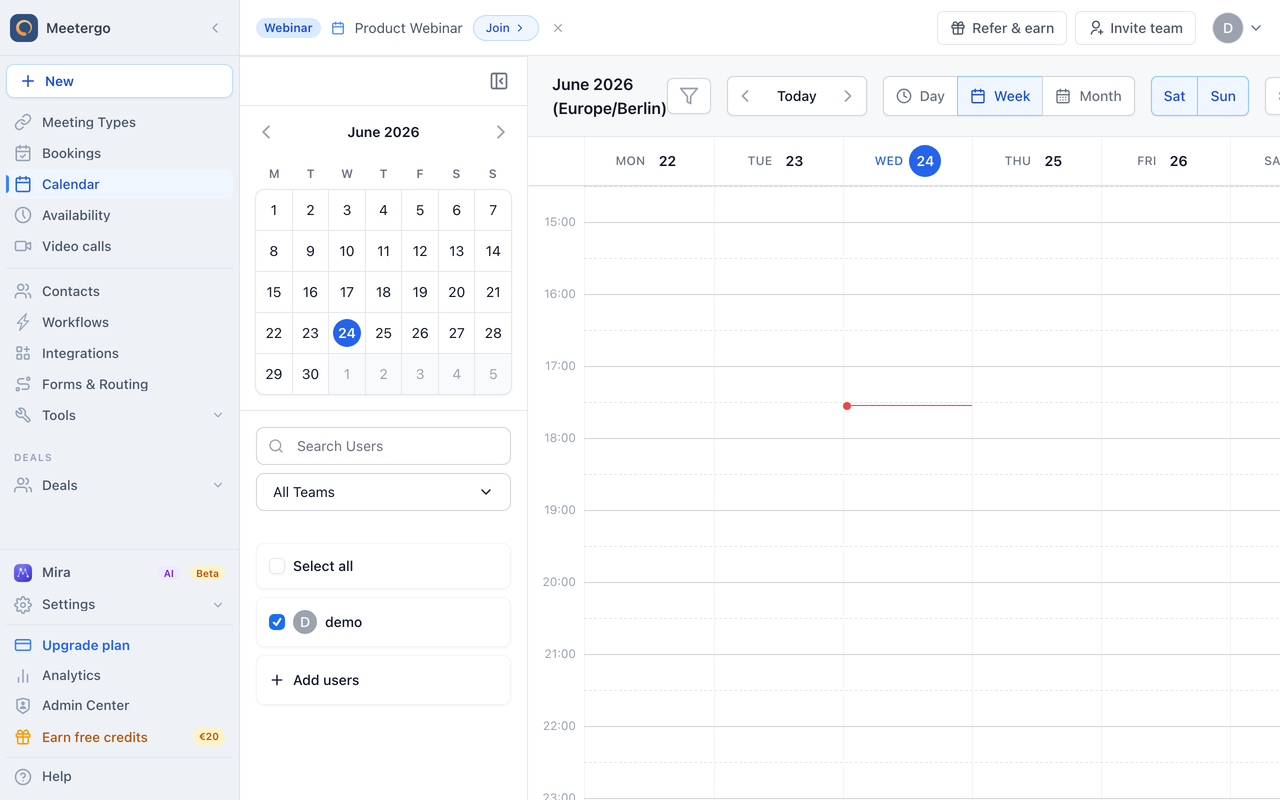
1 / 9Go to the Calendar view from the main navigation. The calendar opens on the current week and scrolls to the current time automatically.
Navigate the calendar
Open the Calendar
Go to the Calendar view from the main navigation. The calendar opens on the current week and scrolls to the current time automatically.
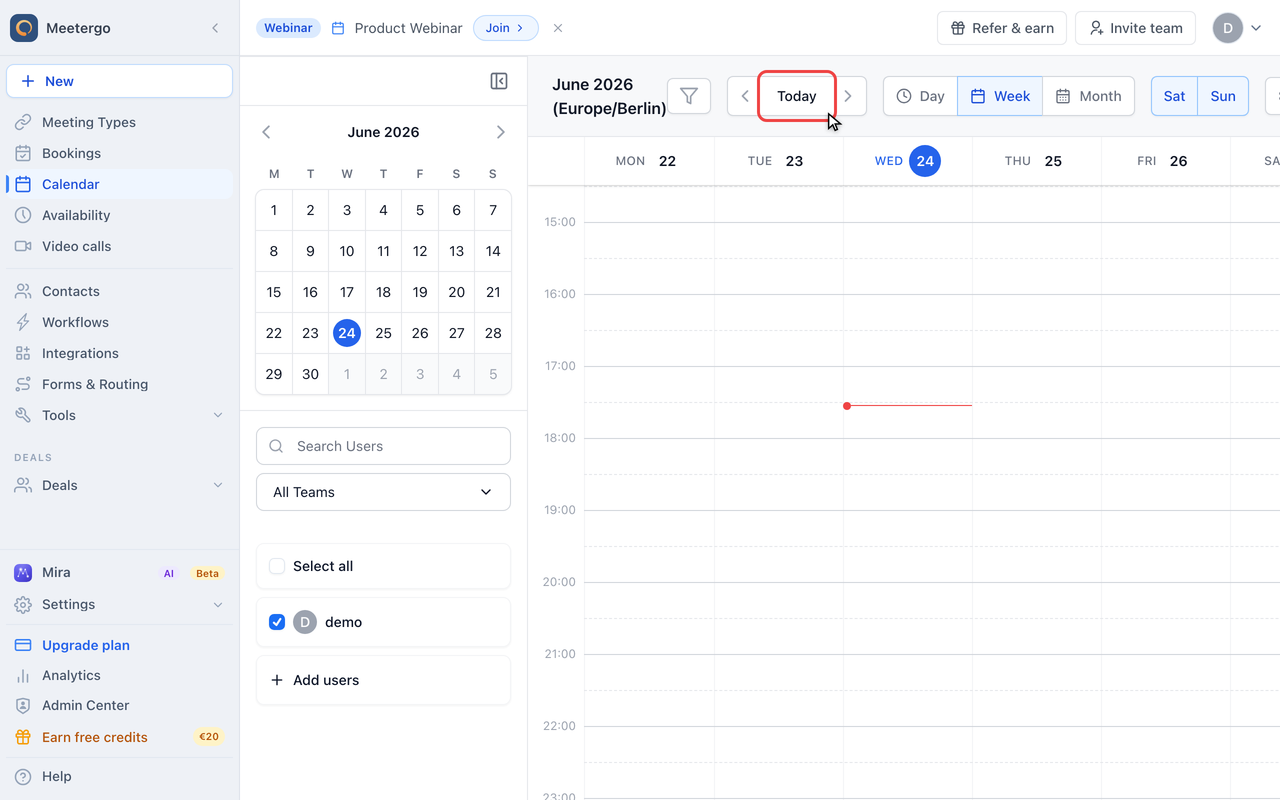
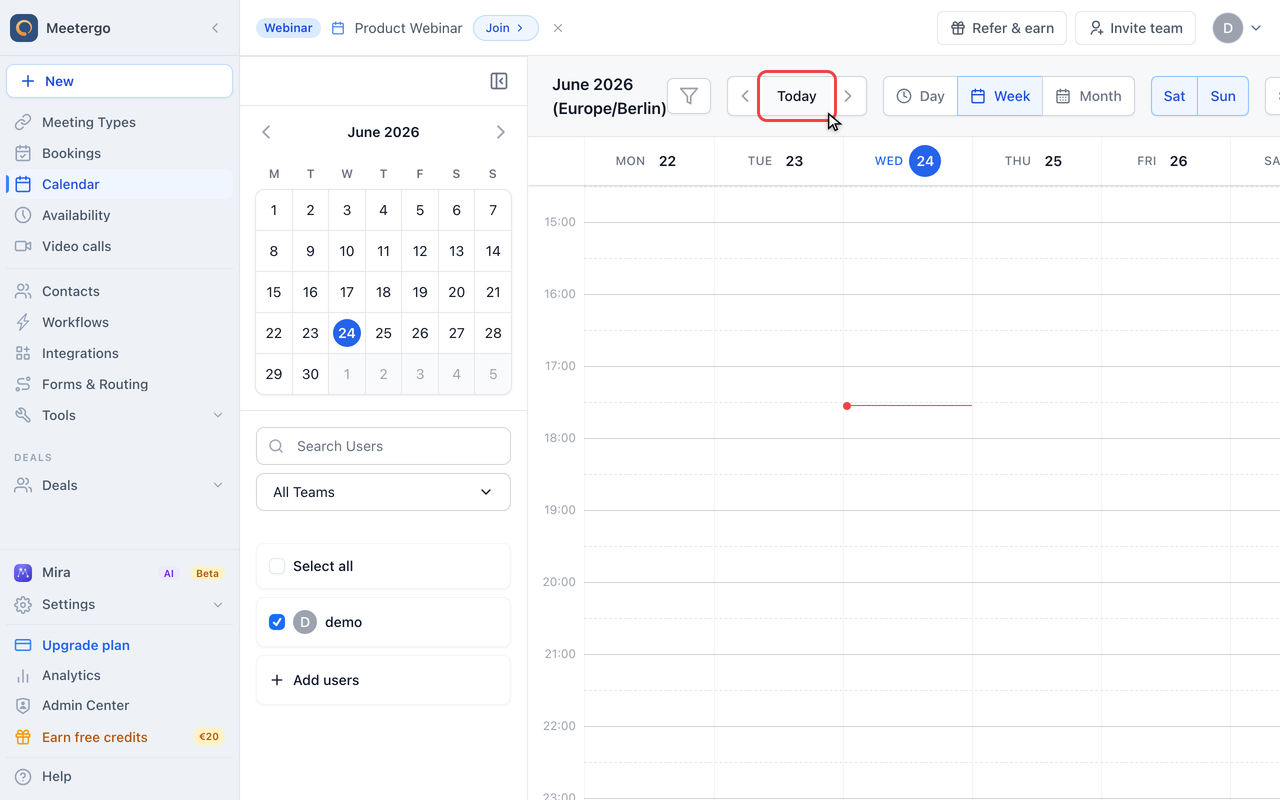
Jump to Today
Click the "Today" button to jump back to the current date at any time.
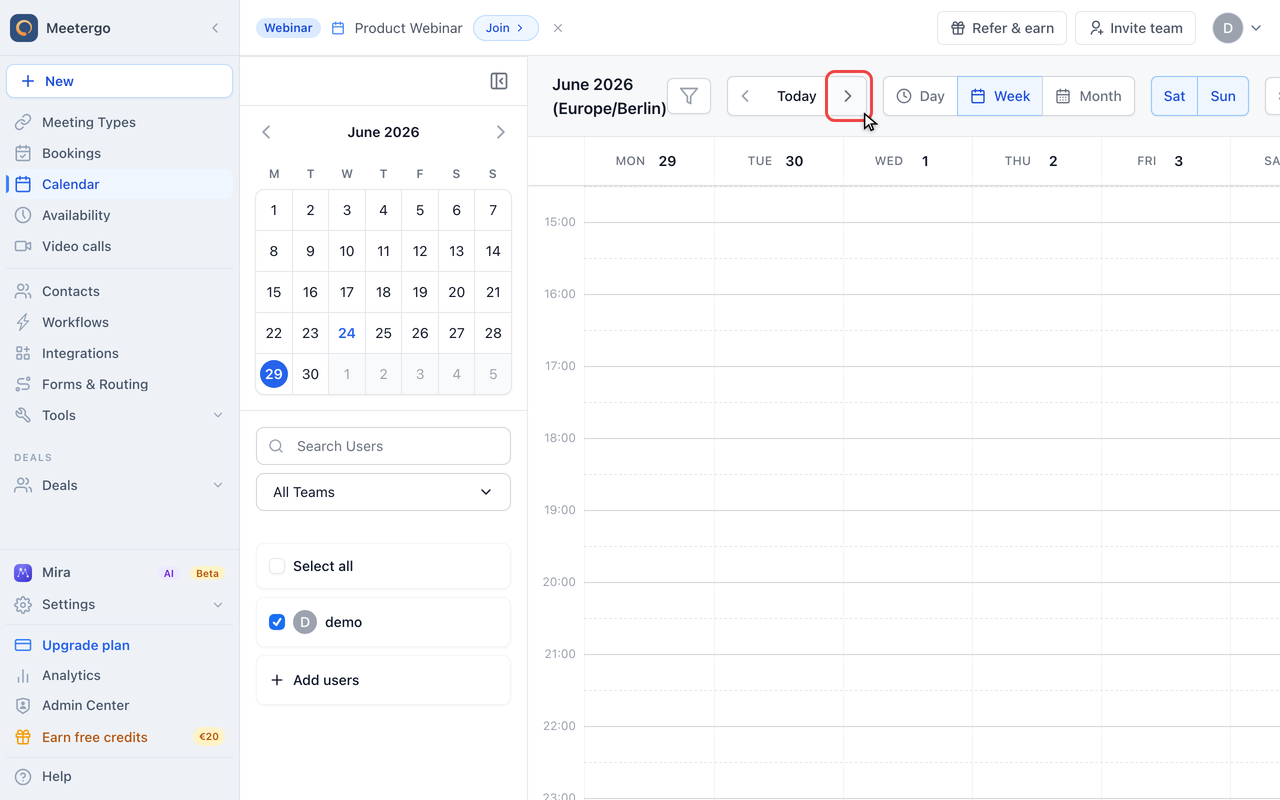
Go to the next week
Click the right arrow to advance one week (or one day in day view).
Switch view modes
Switch to Day view
Click "Day" in the view toggle to zoom into a single day. The calendar redraws to show hourly slots for just that day.
Switch to Week view
Click "Week" to return to the weekly grid. This is the default view and gives the best overview of your schedule.
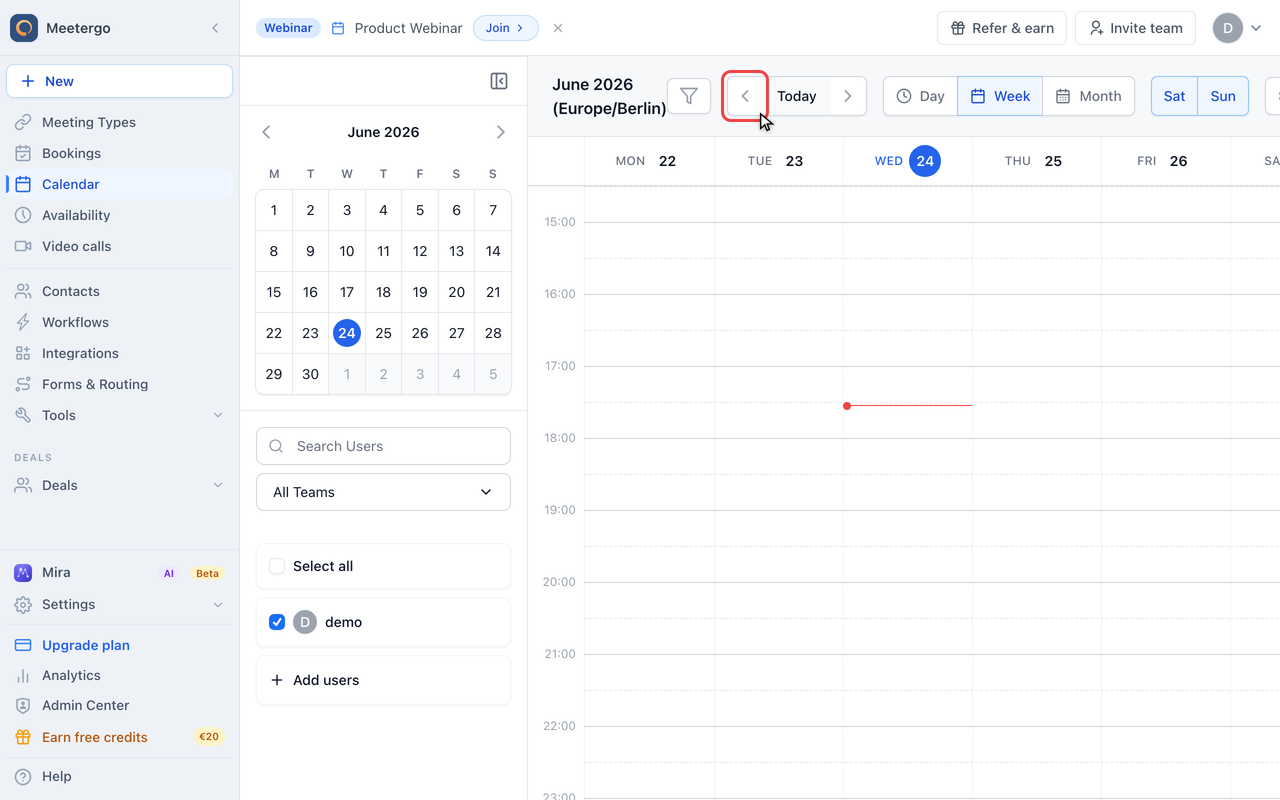
Switch to Month view
Click "Month" to see the whole month at a glance. Appointments appear as compact chips on each day.
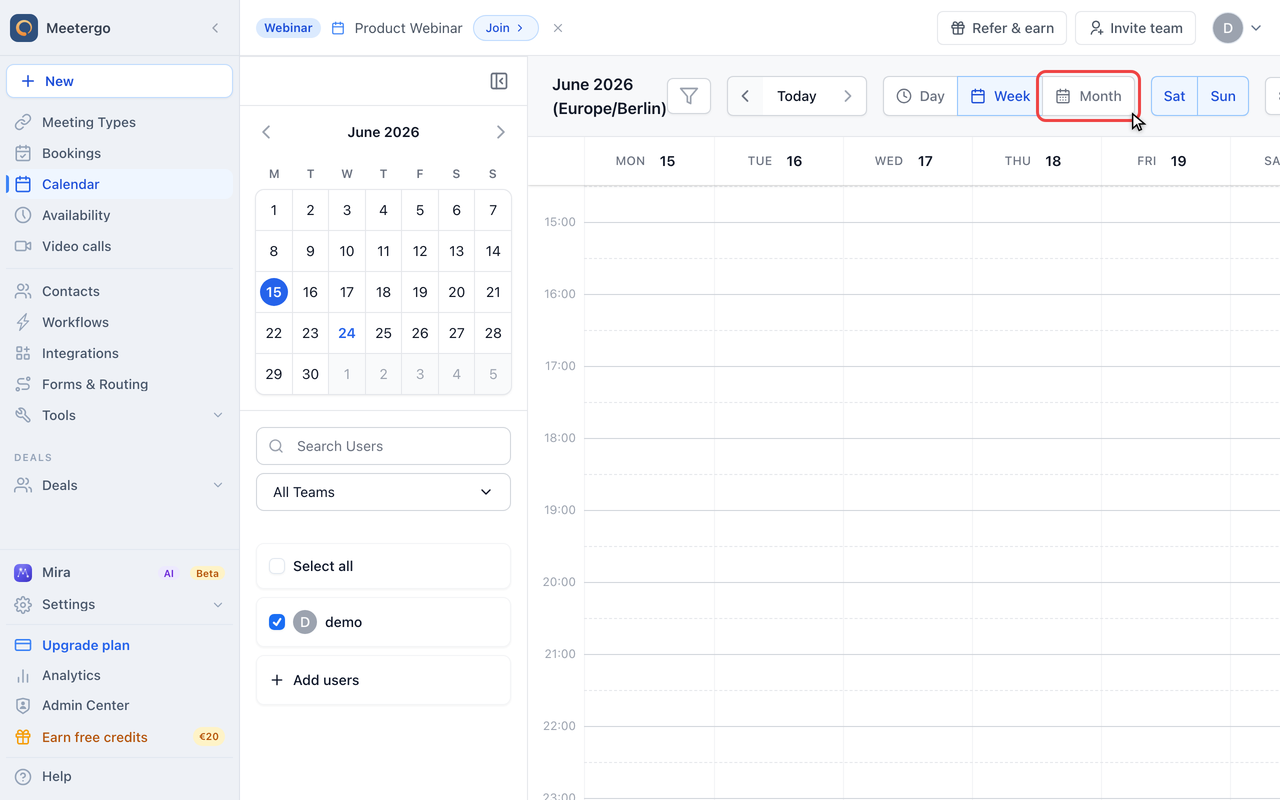
Calendar settings
Open the calendar settings
Click the gear icon in the top-right of the calendar header. The panel is grouped into event types, event card and general settings.
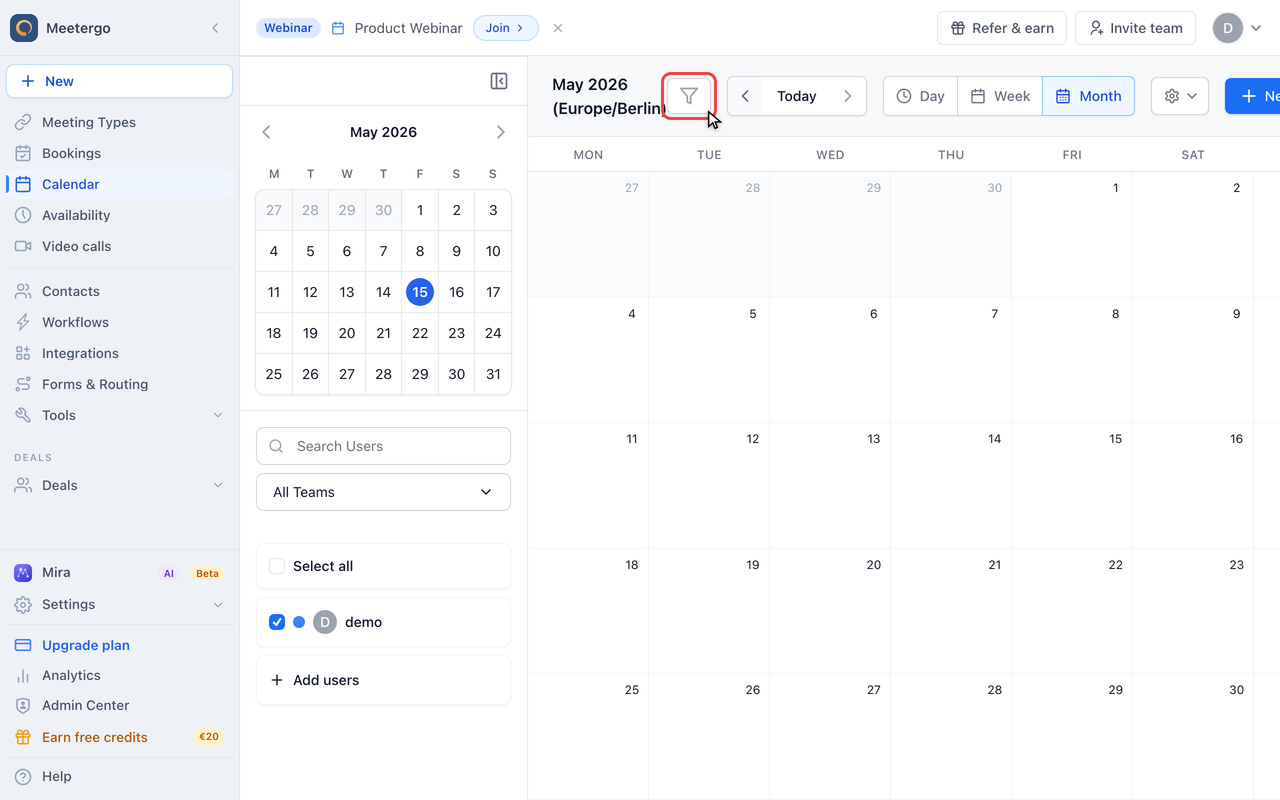
Choose which event types are shown
Under "Event types", switch meetergo appointments, events from connected calendars and blockers on or off. Hiding a type only changes your view — hidden entries keep blocking your availability.
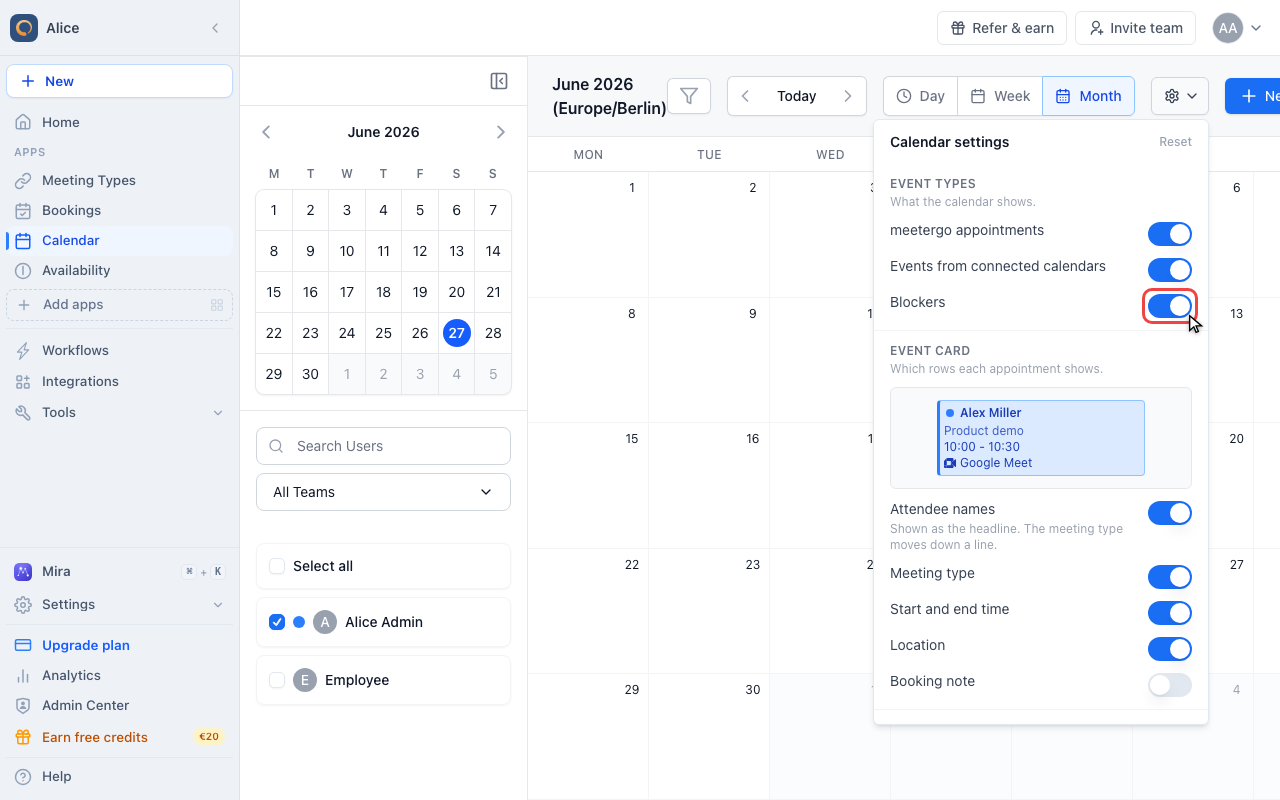
Choose what each appointment shows
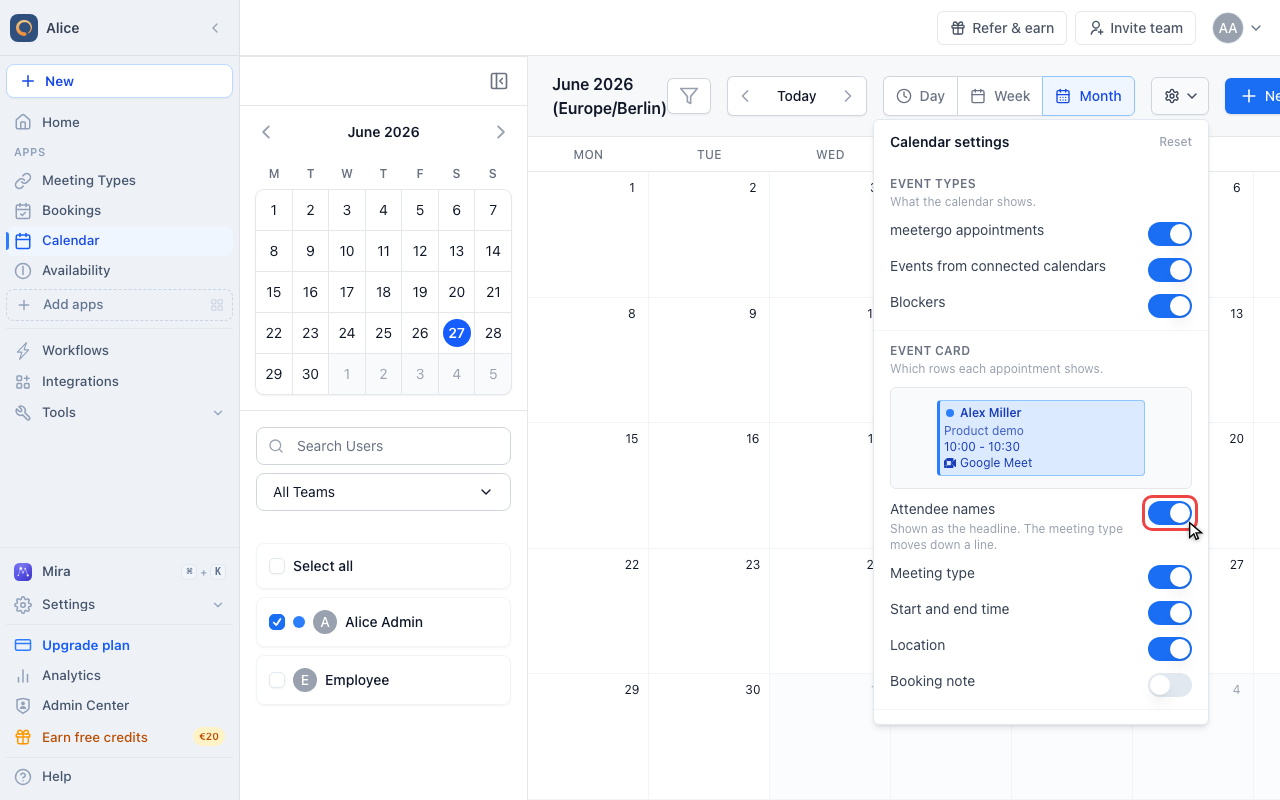
Under "Event card", pick the rows an appointment shows: attendee names, meeting type, time, location and booking note. The preview above the switches updates as you go.
View Modes
Side-by-Side View
When multiple team members are selected, their schedules appear in separate columns next to each other. This makes it easy to compare availability and identify common free slots.
Stacked View
Toggle the stacked view using the layers icon in the top toolbar. In stacked view, all selected team members' events are overlaid on a single calendar. Each team member is assigned a unique color, and events cascade with a slight indent so overlapping events remain visible.
You can select up to 20 team members at once. The left sidebar is scrollable if your team is larger than the screen.
Understanding Event Types
The calendar uses visual cues to distinguish different event types at a glance:
- meetergo appointments: Displayed with a thick left border stripe. The customer's name leads the card, the host's name sits below it. Click to view appointment details.
- Private calendar events: Plain cards without a left stripe, drawn behind your appointments. These come from connected calendars (Google, Outlook, iCloud, etc.) and block availability. They never take width away from appointments, so overlapping appointments stay easy to read and click.
- Blockers: Cards with a diagonal stripe pattern, also drawn behind your appointments. These are manually set time blocks that prevent bookings during that period. Click a blocker to edit it.
- Buffers: The time kept free before and after an appointment. Shown as a thin striped band attached to the top or bottom of the appointment, labelled with its length.
- Full-day blockers: Holidays and all-day blocks appear in the grey All day row at the top of the calendar, keeping the time grid clean.
In stacked view, each team member's events are color-coded with a small dot indicating who the event belongs to.
You can switch any of these three types off. See Choose what the calendar shows.
Colour appointments by meeting type
If a meeting type has a colour, its appointments carry that colour on their left stripe in the calendar. Set it on the meeting type itself: open Meeting Types, pick the meeting type, and use the colour swatch to the left of the title field. Every booking of that type picks it up.
The stripe is the only thing the colour touches. The card body stays the same, which keeps the text readable whichever colour you pick, and in team views leaves the card free to show whose appointment it is.
Give your busiest meeting types clearly different colours — a discovery call and an internal sync become distinguishable without reading a single word.
Meeting types without a colour look exactly as they always have. Private calendar events never carry one: they have no meeting type.
Creating New Items
To add appointments or modify availability:
- Click anywhere in a future time slot (past time slots cannot be modified)
- A menu will appear with the following options:
- Create Appointment
- Add Availability
- Add Blocker
- Add Day Blocker
Select the desired option and follow the prompts to customize your entry.
Calendar Settings
Click the settings icon in the top right to open the calendar settings. They are grouped into three sections, and Reset in the panel header puts everything back to the defaults.
Choose what the calendar shows
Under Event types, switch each kind of entry on or off:
- meetergo appointments: bookings made through meetergo, plus any buffer blocks that belong to them
- Events from connected calendars: everything pulled in from Google, Outlook, iCloud and the like
- Blockers: the time blocks you set yourself
Hiding a type only changes what you see. Hidden events still block your availability, so nobody can book over them.
Choose what each appointment shows
Under Event card, decide which rows appear on an appointment. A preview at the top of the section updates as you switch rows, so you can see the result before closing the panel.
- Attendee names: shown as the headline, which moves the meeting type down a line
- Meeting type: the name of the meeting type
- Start and end time
- Location: the address, or the video tool for online meetings
- Booking note
Switch off what you don't need and short appointments stay readable. The card always keeps a headline: with attendee names off, the meeting type takes that spot.
General
- Timezone: switch the display timezone
The weekend columns (Sat / Sun) and the side-by-side / stacked toggle sit directly in the calendar header, next to the day/week/month switch.
Your view preferences (selected users, view mode, sidebar state, and settings) are saved automatically and persist across sessions.
Events from my calendar show up as "Private Event"
Events pulled from a connected calendar are hidden behind the label Private Event by default. The time is blocked correctly, you just cannot see what the event is. This is a meetergo privacy default, not a setting in your own calendar.
To see your own titles, open the settings icon in the top right and turn on Real event titles, under the Connected calendars toggle. It can take up to a minute for existing entries to update, because availability is cached briefly.
Two limits apply:
- You only ever see titles of your own events. A teammate's external events always read "Private Event", and only that teammate can change it for their own view.
- The toggle only appears if you have an Outlook/Microsoft 365, iCloud, or CalDAV connection. Google, Exchange, SmartWe, ICS subscriptions, and Salesforce hand meetergo busy times without titles, so their events keep the "Private Event" label even with the toggle on.
Loading and Refresh
The calendar loads the entire month's data at once, so navigating between weeks within a month is instant. A thin blue loading bar appears under the header when data is being fetched or refreshed.
Data is automatically refreshed in the background when you return to the browser tab, so your calendar stays up to date without manual refreshing.
FAQ
Why can't I click on past dates?
Past dates are read-only since you cannot modify events that have already occurred.
What's the difference between a blocker and a day blocker?
A blocker is for specific time slots within a day, while a day blocker marks the entire day as unavailable. Day blockers appear in the all-day row at the top of the calendar.
How many team members can I view at once?
You can view up to 20 team members at once. In side-by-side mode, you can scroll horizontally through their columns. In stacked mode, all events are overlaid with color coding.
What do the different visual styles mean?
- Thick left border = meetergo appointment, in the meeting type's colour if it has one
- Diagonal stripes = blocker, or a buffer when attached to an appointment
- Plain card = private calendar event (Google, Outlook, etc.)
- Color dot = which team member the event belongs to (in stacked view)
Why do some events have different colors?
Two things colour the calendar, and they don't get in each other's way. The left stripe is the meeting type's colour, so you can tell a discovery call from an internal sync. The card itself is coloured per team member in stacked view, so you can tell whose appointment it is. Those team colours are consistent across the calendar and the user list in the sidebar.
I hid an event type. Can people still book over it?
No. Hiding a type is a display setting for your calendar only. Hidden appointments, calendar events and blockers keep blocking your availability exactly as before.
My appointments look empty / too crowded
Open the settings icon and check Event card. That's where you choose which rows an appointment shows — attendee names, meeting type, time, location and booking note — with a live preview as you switch them.
Was this article helpful?
Let us know if this article answered your questions.
Related articles
- Canceling a meetergo meeting as an attendeeCancel a booked meetergo appointment as an attendee using the cancellation link from your email, no login required.
- Export bookings and attendee lists as CSV (Excel)Download your bookings, seminar registrations and the answers from your booking form as a CSV file for Excel or Google Sheets, and see what else in meetergo can be exported.
- Host ApprovalRequire hosts to confirm bookings before they're finalized, set the approval expiry window, and approve or decline requests.
- How to Show Cancellation Reason in EmailsLearn how to display the cancellation reason in your email notifications when a meeting is cancelled.