
Booking questions and the booking button text
Add your own questions to the booking form, and change the booking button text: rename the Book now button, edit field labels, help text and placeholders, and find where the other text on your booking page comes from.
Booking questions let you collect information from attendees when they book a meeting. Add custom fields to gather details like company name, project description, or specific requirements before the meeting.
 1 / 6
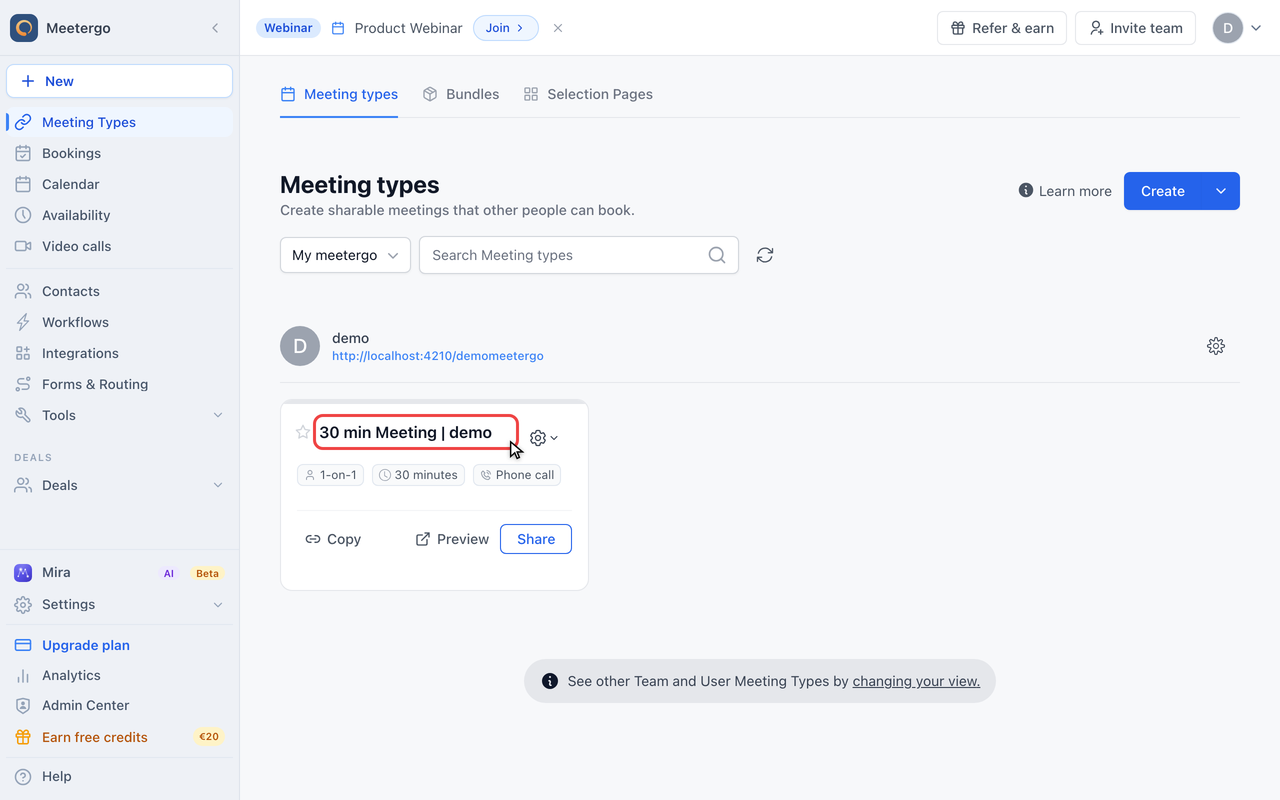
1 / 6Click a meeting type name to open its editor. Any meeting type works.
Open the meeting type
Open a meeting type to edit
Click a meeting type name to open its editor. Any meeting type works.
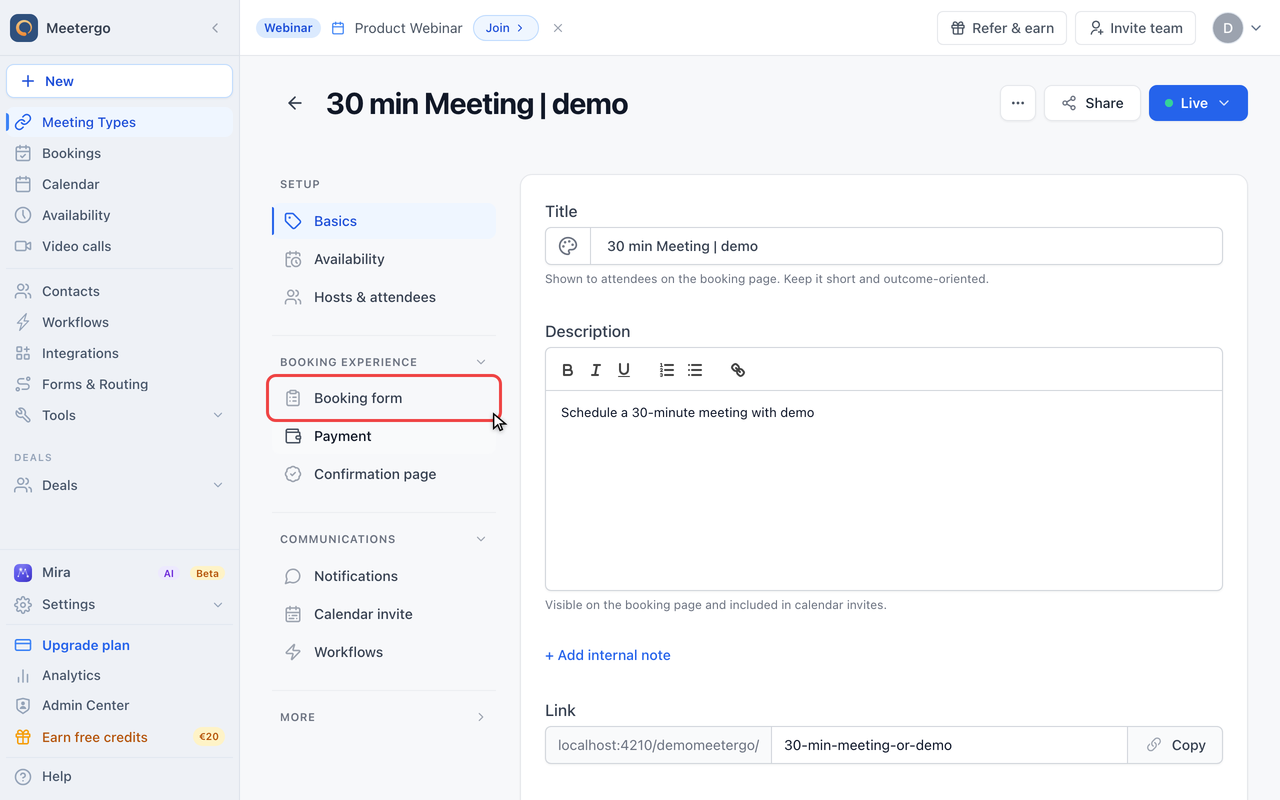
Open Booking form
Click Booking form
In the editor sidebar, click "Booking form" under Booking experience.
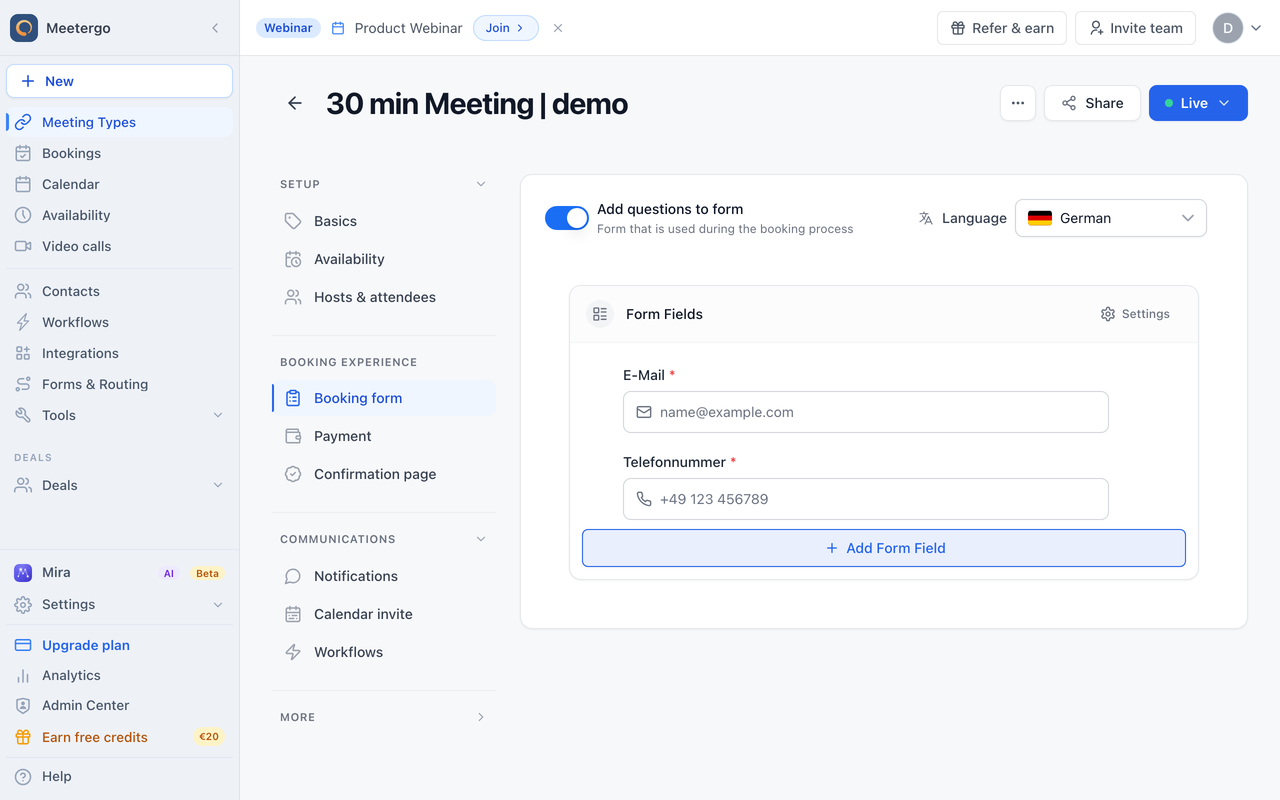
Enable Add questions to form
Toggle "Add questions to form" to enable the custom booking form for this meeting type.
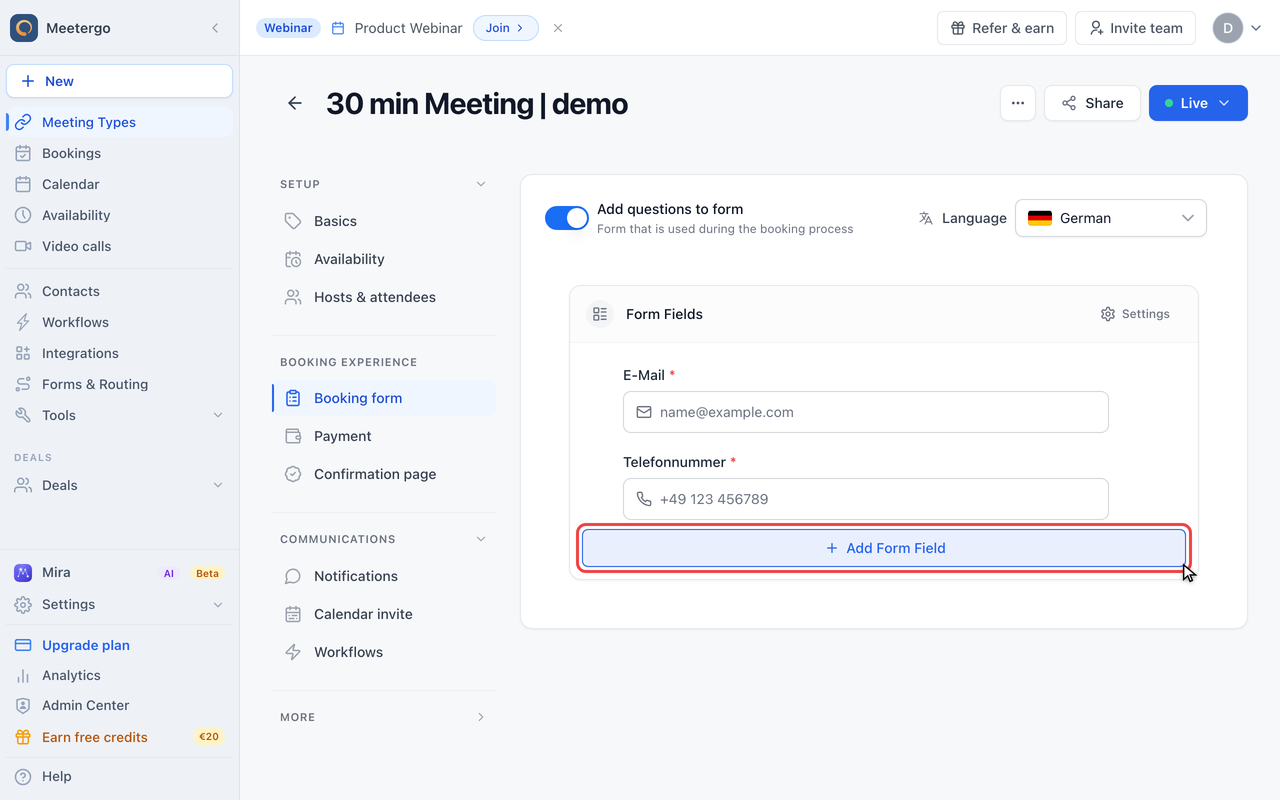
Add a custom field
Click Add Form Field
Once the form is enabled, scroll down to see the existing default fields. Click "Add Form Field" to open the field picker.
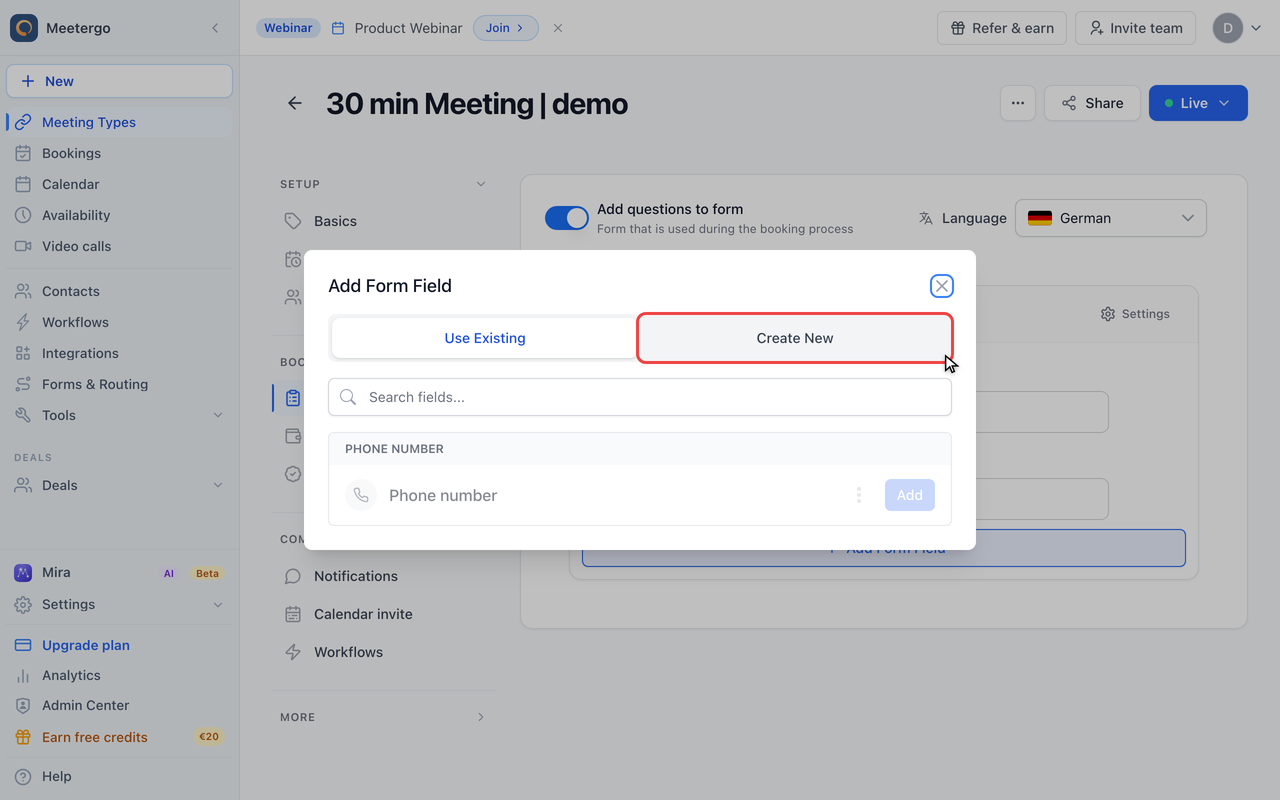
Switch to Create New
The dialog shows two tabs: "Use Existing" (reuse a saved field) and "Create New" (build a fresh one). Click "Create New".
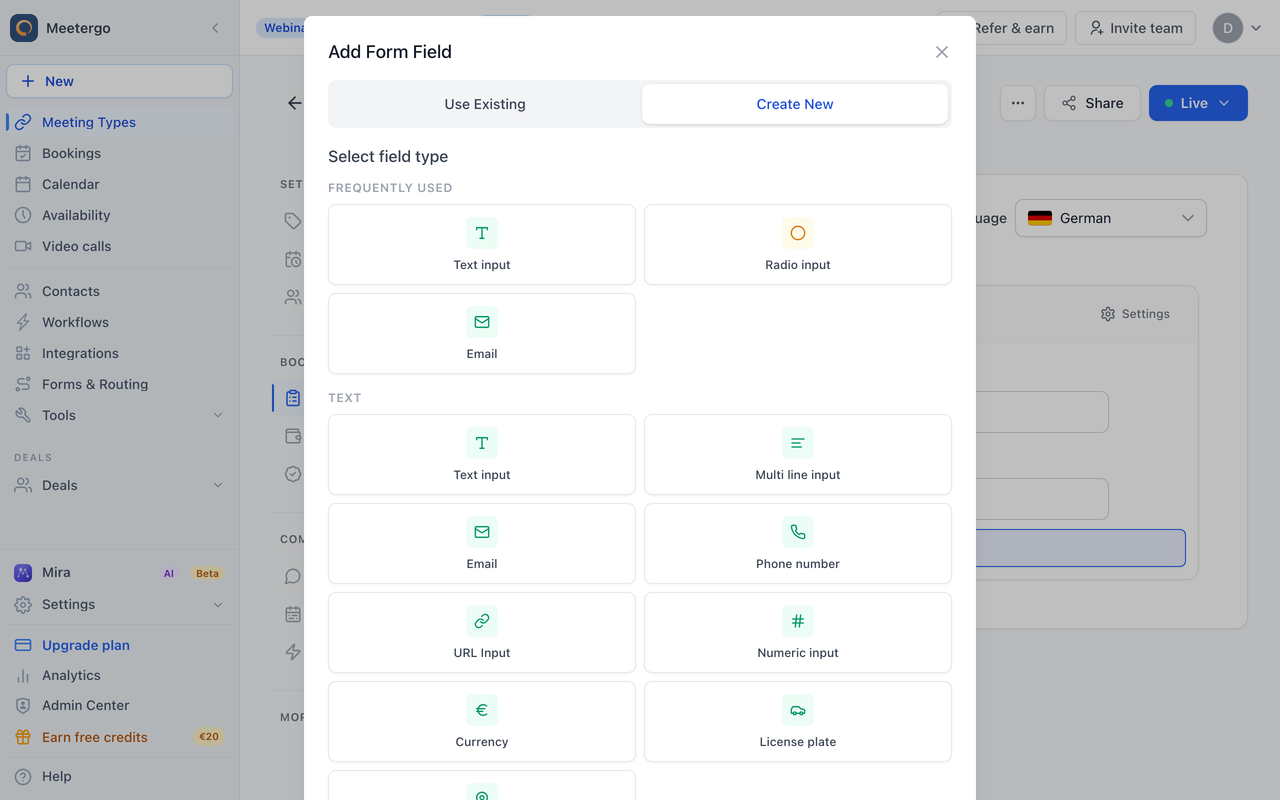
Choose a field type
Pick a field type from the grid. Text (single line) is the most common choice for short answers.
Default Fields
Every booking form includes standard contact fields:
| Field | Type | Required |
|---|---|---|
| Email input | Yes | |
| Name | Text input | Yes |
| Phone | Phone input | Optional |
These fields identify the attendee and enable booking confirmations.
Field Types
meetergo supports various field types:
| Type | Description | Use Case |
|---|---|---|
| Text (Single Line) | Short text input | Company name, job title |
| Text (Multi Line) | Longer text area | Meeting agenda, questions |
| Email validation | Secondary email | |
| Phone | Phone number input | Contact number |
| Number | Numeric input | Budget, team size |
| Select (Dropdown) | Single choice from options | Department, product interest |
| Radio | Single choice as buttons | Yes/No questions |
| Checkbox (Single) | Yes/no toggle | Terms acceptance |
| Checkbox (Multi) | Multiple selections | Topics of interest |
| URL | Website link | Company website, LinkedIn |
| Slide | Visual selection cards | Choose a plan, select service |
Field Configuration
Each field can be customized:
| Setting | Description |
|---|---|
| Label | The question text shown to attendees |
| Placeholder | Hint text inside the input |
| Help Text | Small hint shown below the field |
| Required | Whether the field must be filled |
| Hidden | Collect without showing (for tracking) |
| Default Value | Pre-filled value |
| Options | Choices for select/radio/checkbox fields |
| Format | For short text fields: the shape an answer must have (see below) |
The phone field shows an automatic hint like Example: +49 30 123456 under the input. It is generated from the selected country and cannot be edited, but it disappears as soon as you give that field your own Help Text or Placeholder.
Format for short text fields
A short text field can require a specific shape, for example a customer number, a postcode or a tax ID. Open the field and pick a Format:
| Format | What it does |
|---|---|
| Character count | Minimum and maximum number of characters |
| Digits only | Exactly N digits, for example a 6-digit date of birth |
| Country formats | Ready-made rules: Swedish organisation number, German, Austrian and Swiss postcodes, German tax ID, Polish NIP |
| Custom pattern | Your own pattern. # is a digit, A is a letter, * is a letter or digit. Any other character is inserted automatically |
Example: the pattern ######-#### accepts 556677-1234. While the attendee types 5566771234, the dash appears on its own. A wrong answer is rejected with a message such as Please use the format 123456-7890. Enter your own Error message if you prefer different wording.
Attendees see the expected format as a hint under the field, so you do not need to explain it in the help text. Fields without a format keep working exactly as before.
Change the text on the booking button
The button under the booking form reads Book now by default, or Pay & Book now when the meeting type collects payment. You can replace it with your own wording — "Request an appointment", "Sign up now", "Book a free consultation":
- Open the meeting type and go to Booking form
- Turn on Add questions to form if it is not on yet
- In the Language dropdown at the top right, pick the language you are writing for
- Click Settings in the header of the Form Fields card
- Type your wording into Submit Button Text and close the dialog
What to know before you write it:
- The text is stored per language. The booking page shows the wording for the language the visitor sees. Any language you leave empty keeps the standard button, so fill in every language your booking page offers.
- Empty means default. Clearing the field brings Book now back.
- It also replaces "Pay & Book now" on meeting types with payment.
- It needs the booking form. The wording lives on the form, so Add questions to form has to be on. This works on every plan, including Free.
- Embeds use the same text, because an embedded booking page is the same page.
If the button you want to rename sits on your own website and opens meetergo in a pop-up, it is not this setting. That button is HTML in your embed code — change the text between <button ...> and </button> there. See Embedding Overview.
Other text on the booking page
Wording on the booking page comes from settings, not from CSS. Where each piece lives:
| What you want to change | Where |
|---|---|
| A question, its hint or its placeholder | The field editor: Label, Help Text, Placeholder |
| The "Book now" button | Booking form → Settings → Submit Button Text (above) |
| The line above the channel picker ("Select channel") | Meeting type → More → Advanced → Customize channel selection text (Light) |
| The privacy note and consent checkbox under the form | How to customize the privacy text on booking forms |
| Title and description at the top of the page | The meeting type's Basics tab |
| The "created with meetergo" mark | Customize Branding |
A long meeting type description is shortened to four lines with a Show more link. There is no setting for that, and the link takes your brand color when Use brand color in Booking is on.
Common Use Cases
Sales Discovery Calls
Collect qualification information:
- Company Name (text)
- Company Size (select: 1-10, 11-50, 51-200, 200+)
- Budget Range (select)
- Main Challenge (text-multi)
Support Consultations
Gather issue details:
- Product/Service (select)
- Issue Description (text-multi)
- Priority (radio: Low, Medium, High)
- Previous Ticket Number (text, optional)
Interviews
Get candidate information:
- Portfolio URL (url)
- Years of Experience (number)
- Desired Salary Range (text)
- Available Start Date (text)
Coaching Sessions
Understand client needs:
- Current Role (text)
- Goal for Session (text-multi)
- Areas to Focus (checkbox-multi)
Field Targets
Map fields to standard data points for CRM integration:
| Target | Description |
|---|---|
| Maps to attendee email | |
| First Name | Maps to first name |
| Last Name | Maps to last name |
| Full Name | Maps to combined name |
| Phone | Maps to phone number |
| Other | Custom field (no standard mapping) |
When a field has a target, its value can be used in:
- CRM integrations (HubSpot, Salesforce, Pipedrive)
- Email personalization
- Calendar event details
Options for Selection Fields
For Select, Radio, Checkbox Multi, and Slide fields, define options:
- Add the field to your form
- Click Add Option
- Enter the option label and value
- Repeat for each choice
- Optionally add images or icons (for Slide type)
Example: Select Field
Label: "What's your primary interest?"
Options:
- Product Demo | demo
- Technical Support | support
- Partnership Inquiry | partnership
- General Questions | general
Slide Field Options
Slide fields display visual selection cards:
- Can include images or icons
- Great for choosing products, services, or plans
- Support single or multi-select mode
- Optional description text per option
Multi-Language Support
There is no translation field inside a single question. Everything on the booking form is stored per language and you switch languages with the Language dropdown at the top right of the form editor:
- Make sure the language is active for the account (Settings → Company → Languages) or for this meeting type (More → Advanced → Localization & text). The dropdown only lists active languages, so with a single language there is nothing to switch to.
- Pick the language in the dropdown
- Write the Label, Help Text, Placeholder and Submit Button Text for that language
- Repeat for every language your booking page offers
Fields you leave empty fall back to the default-language text, so a half-translated form shows a mix of both languages. The correct language is chosen from the attendee's browser, or from a ?lang= parameter on the link.
See Language settings: change the language and translate forms and emails for the full list of supported languages and what else needs translating.
CRM Field Mapping
Connect form fields to your CRM:
| CRM | How to Map |
|---|---|
| HubSpot | Set hubspotContactField or hubspotCompanyField |
| Salesforce | Set salesforceContactField |
| Pipedrive | Set pipedriveContactField |
When configured, form responses automatically sync to the mapped CRM fields.
See your specific CRM integration guide for setup details.
Hidden Fields
Use hidden fields to capture data without displaying to attendees:
- Create the field
- Enable Hidden
- Set a default value or capture from URL parameters
Use cases:
- UTM tracking parameters
- Marketing campaign IDs
- Internal reference codes
- A/B test variants
Conditional Display
Some field behaviors:
- Hide Until Change: Field appears only after another field is modified
- Required: Booking can't proceed without filling the field
- Default Value: Pre-populate with a specific value
Form Order
Arrange fields in the order you want them displayed:
- Go to your booking questions
- Drag and drop fields to reorder
- Save changes
Group related questions together for better user experience.
Best Practices
Keep It Short
- Only ask what you truly need
- Long forms reduce booking completion
- Consider required vs optional carefully
Be Clear
- Use plain language in labels
- Provide helpful placeholder text
- Explain why information is needed if not obvious
Match Your Purpose
| Meeting Type | Suggested Questions |
|---|---|
| Quick call | Minimal - name, email only |
| Sales demo | Qualification questions |
| Support | Issue details |
| Consultation | Background info |
Test Your Form
- Preview your booking page
- Fill out the form as an attendee would
- Check the experience is smooth
- Verify data captures correctly
Viewing Responses
Form responses appear in:
- Booking details in meetergo
- Connected CRM (if mapped)
- Confirmation emails (if included)
- Calendar event description
FAQ
Can I make all fields required?
Yes, but too many required fields may reduce bookings. Balance information needs with user experience.
Do responses show in calendar invites?
Yes, form responses are included in the calendar event description by default.
Can I change questions after bookings exist?
Yes, but changes only affect new bookings. Existing bookings retain their original responses.
Are there limits on custom fields?
Practical limits exist based on form length and user experience. There's no hard technical limit.
Can attendees edit their responses?
Not directly. They would need to cancel and rebook, or contact you to update details.
Do hidden fields work with UTM parameters?
Yes, you can capture URL parameters in hidden fields for marketing attribution.
Can I rename the "Book now" button with CSS?
No. CSS changes how the button looks, not what it says. The wording is a setting: Booking form → Settings → Submit Button Text, described above.
I changed the button text but the booking page still says "Book now"
Two usual reasons: the text was saved for a different language than the one the visitor sees, or Add questions to form is off for that meeting type.
Related Articles
Was this article helpful?
Let us know if this article answered your questions.