
How to Create Meeting Type Bundles
Combine multiple meeting types into packages that clients can book together with optional discounts
Bundles let you combine multiple meeting types into a single bookable package. This is perfect for offering service packages, consultation series, or any combination of services that clients typically book together.
With bundles, clients can select multiple services from your catalog, see the total duration and price, and book everything in one go. You can even offer discounts to incentivize package bookings.
Want to sell sessions in advance that your client books one by one later, like a 10 session card? Use session cards.
 1 / 5
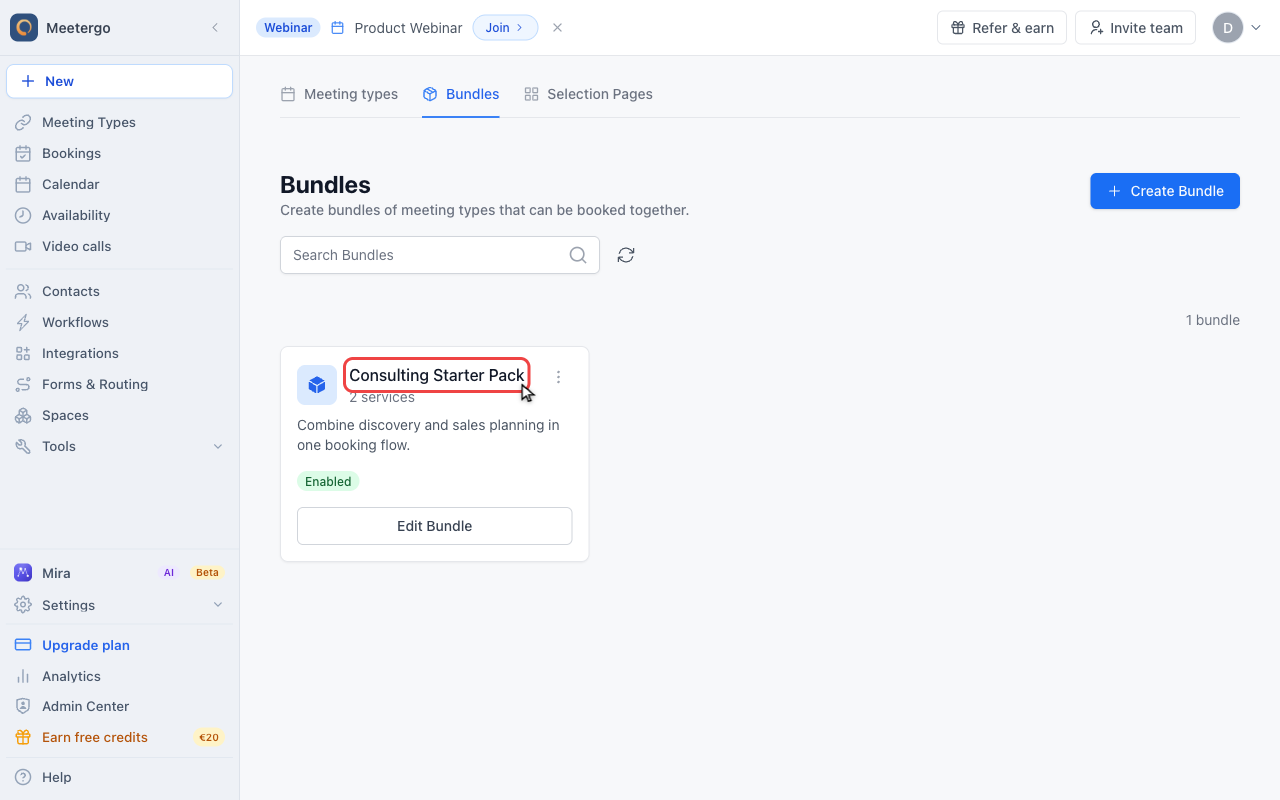
1 / 5Use the bundle overview to find an existing package or start a new one.
Open Bundles
Review existing bundles
Use the bundle overview to find an existing package or start a new one.
Create the bundle
Click Create Bundle
Click Create Bundle when you want to add a new package.
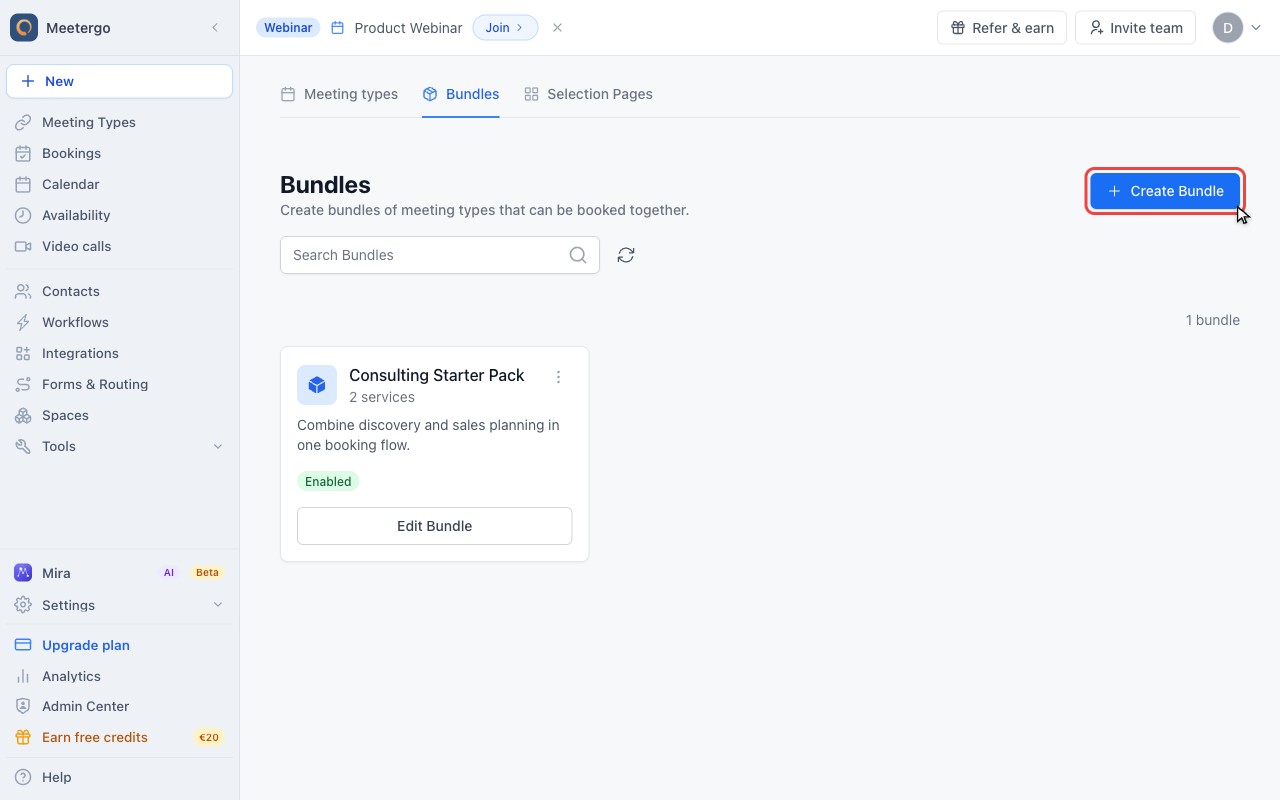
Add name and link
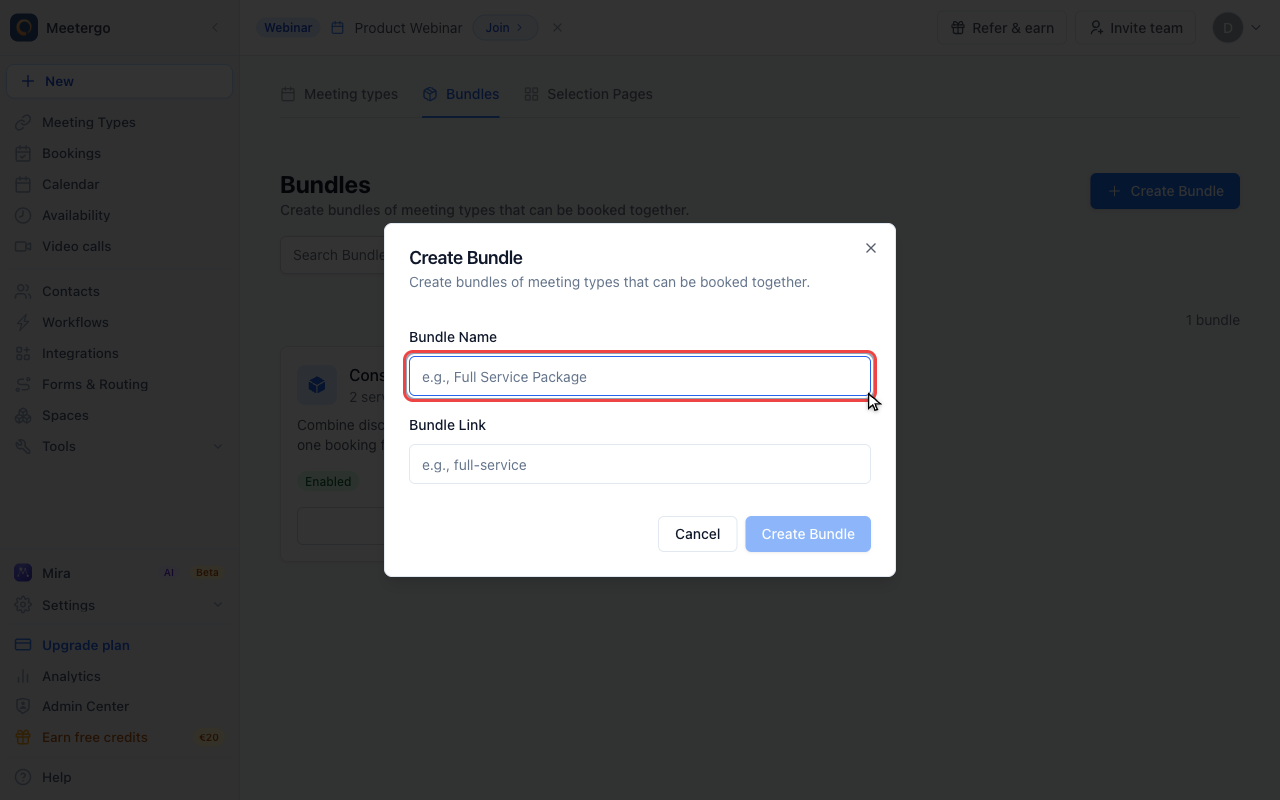
The create dialog asks for the bundle name and URL slug. After creation, the detailed editor opens.
Configure the bundle
Edit name, link, and description
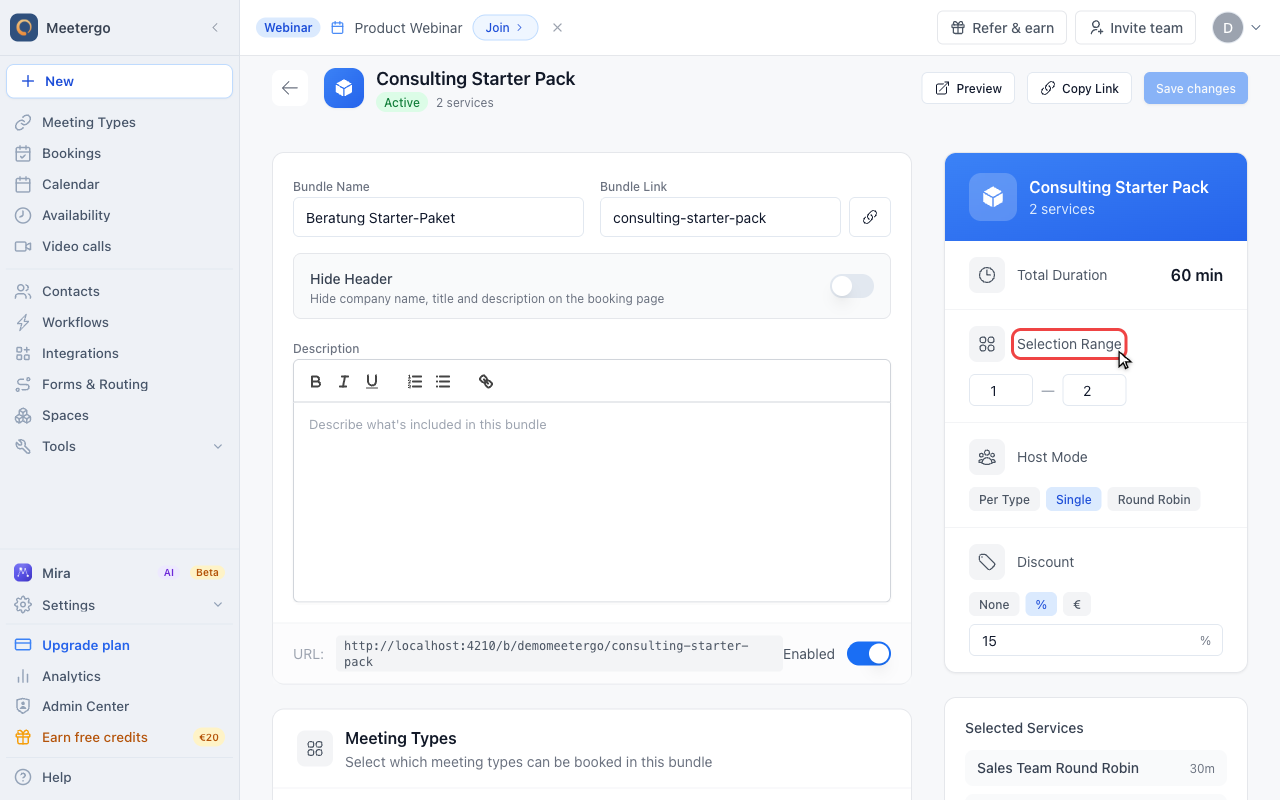
Use the top editor card for the bundle name, slug, public URL, header visibility, description, and enabled status.
Set booking rules
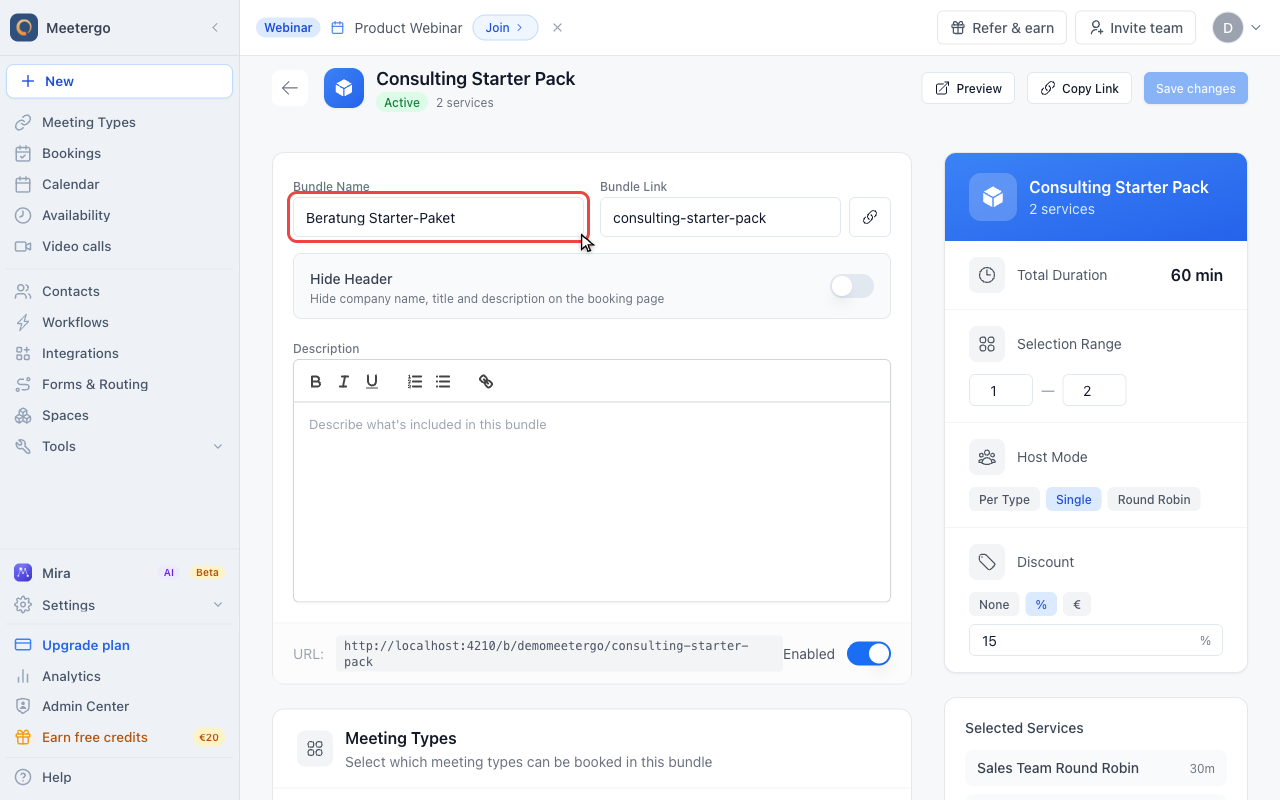
Review selection and discount settings
The sidebar summarizes total duration, selection range, host mode, discount, and selected services before you save changes.
Creating a Bundle
Open Bundles from the meeting types area and click Create Bundle. The first dialog asks for the package name and URL slug. After the bundle is created, the editor lets you add the description, select meeting types, set selection limits, choose the host mode, add a discount, and enable the public booking link.
Bundle Settings
Selection Limits
Control how many services clients can select:
| Setting | Description |
|---|---|
| Minimum Selections | The minimum number of services the client must select (default: 1) |
| Maximum Selections | The maximum number of services the client can select (leave empty for unlimited) |
Host Selection Mode
Choose how hosts are assigned when clients book:
| Mode | Description |
|---|---|
| Per Meeting Type | Client selects a host for each service individually |
| Single Host | One host is selected for all services in the bundle |
| Round Robin | Hosts are automatically assigned via round robin distribution |
Discounts
Encourage package bookings with discounts:
| Discount Type | Description |
|---|---|
| No Discount | No discount applied |
| Percentage | Discount as a percentage (e.g., 10% off total) |
| Fixed Amount | Fixed amount off the total price |
Display Options
| Setting | Description |
|---|---|
| Hide Header | Hide the company name, bundle title, and description on the booking page for a cleaner look |
| Enabled | Toggle to enable or disable the bundle for booking |
Organizing with Categories
For bundles with many meeting types, you can organize them into categories:
- In the bundle editor, go to the Categories section
- Assign a category to each meeting type (e.g., "Consultation", "Treatment", "Follow-up")
- Set the category order to control how they appear on the booking page
- Meeting types with the same category are grouped together
Categories help clients navigate larger bundles by grouping related services together.
How It Works for Bookers
When a client visits your bundle booking page:
- They see all available services organized by category (if configured)
- They select the services they want (respecting min/max limits)
- For each selected service, they may choose duration options and hosts (based on your settings)
- The booking page shows the total duration and price with any discounts applied
- They select an available time slot that works for all selected services
- They complete the booking form and confirm
Example Use Cases
Spa Package
- Include: Consultation (30 min), Treatment (60 min), Follow-up (15 min)
- Set minimum selections to 2, maximum to 3
- Offer 15% discount for booking the full package
Business Consulting
- Include: Discovery Call, Strategy Session, Implementation Review
- Use "Single Host" mode so clients work with one consultant
- Set minimum to 1 for flexibility
Photography Services
- Include: Portrait Session, Product Shots, Editing Consultation
- Organize into categories: "Shooting", "Post-Production"
- Offer fixed discount for booking multiple services
Health & Wellness
- Include: Initial Assessment, Treatment Sessions, Progress Review
- Use categories: "Assessment", "Treatment", "Review"
- Set minimum selections to 2 to ensure complete care
Sharing Your Bundle
Your bundle has its own booking link at:
https://meet.meetergo.com/b/your-company/your-bundle-slug
Share this link directly with clients or embed it on your website to drive package bookings.
FAQ
Can I include the same meeting type in multiple bundles?
Yes, a meeting type can be part of multiple bundles. Each bundle can have different settings and discounts.
How is the total duration calculated?
The total duration is the sum of all selected meeting types' durations. If a meeting type offers flexible durations, the client's selected duration is used.
Do discounts apply to all meeting types?
Yes, discounts apply to the total price of all selected services in the bundle.
Can clients book a bundle without selecting all services?
Yes, as long as they meet the minimum selection requirement. They can select any combination of services within the min/max limits.
What happens if one service in my bundle is disabled?
Disabled meeting types won't appear in the bundle. Make sure all meeting types you want to offer are enabled.
Was this article helpful?
Let us know if this article answered your questions.
Related articles
- Account Owner MatchingRoute round-robin bookings to the user who already owns the booker as a contact
- Allow or Disable Guest InvitationsControl whether attendees can add additional guests to their bookings
- Booking Confirmation: Why It Happens and How to Turn It OffFind out which setting makes attendees or hosts confirm a booking again, change the confirmation deadline, resend a confirmation email, and switch booking confirmation off for your whole company or a single meeting type.
- Booking questions and the booking button textAdd your own questions to the booking form, and change the booking button text: rename the Book now button, edit field labels, help text and placeholders, and find where the other text on your booking page comes from.