
Create a Phone Meeting Type
Set a meeting type's venue to a phone call, either direction, and take bookings from callers who leave no email address
Not every meeting needs video. A phone call is a venue like any other, set on the Basics tab of the meeting type editor. Two of the venues are phone calls, and the only thing that separates them is who dials.
 1 / 17
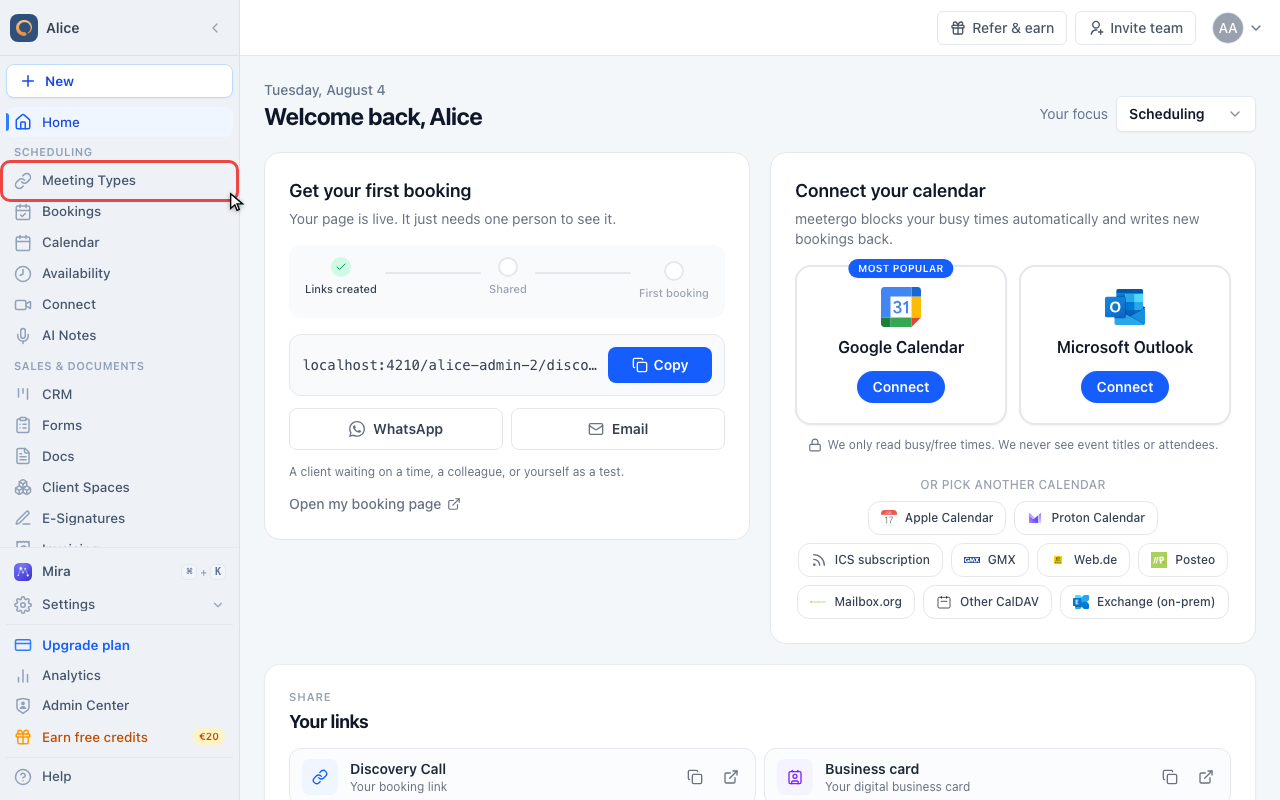
The venue belongs to a single meeting type, so start in Meeting types in the sidebar.
Open the venue settings
Open Meeting types
The venue belongs to a single meeting type, so start in Meeting types in the sidebar.
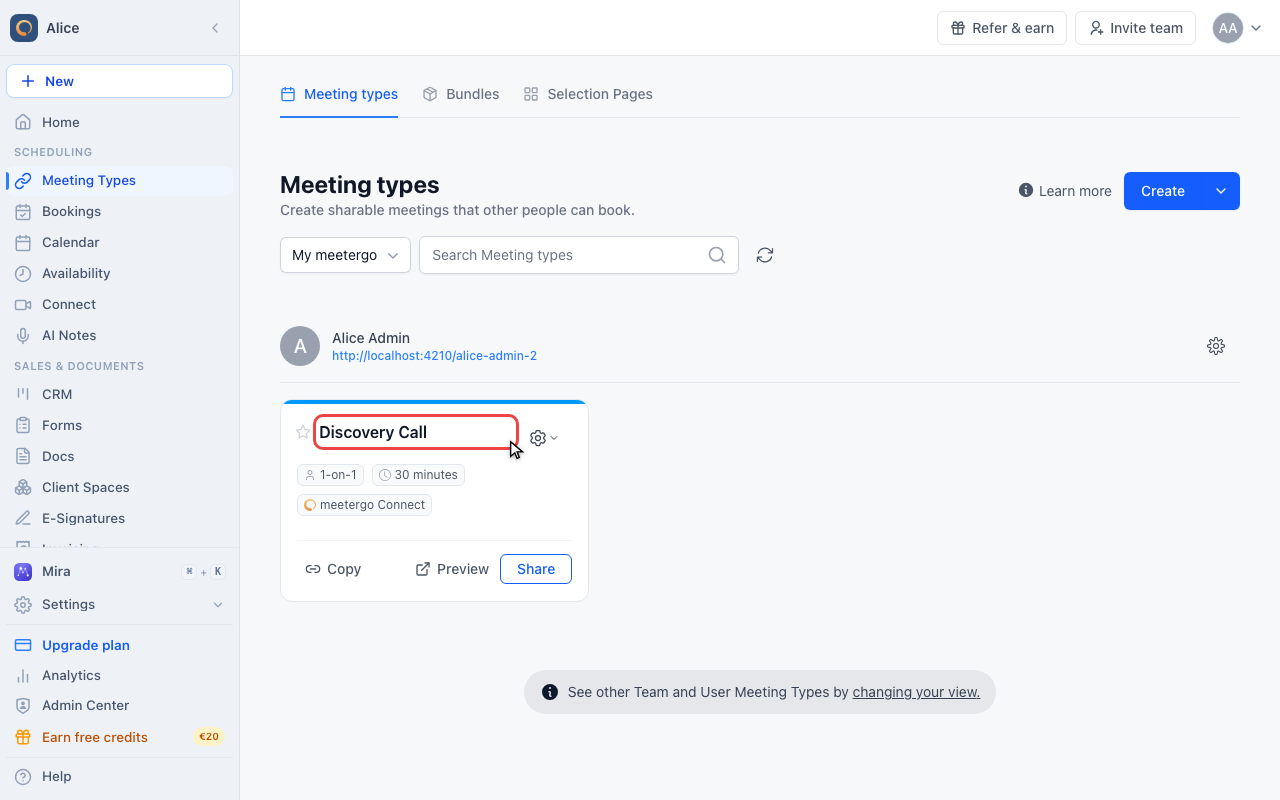
Open the meeting type
Click the name of the meeting type you want to hold on the phone. There is no separate phone meeting type to create: every meeting type carries its own venue.
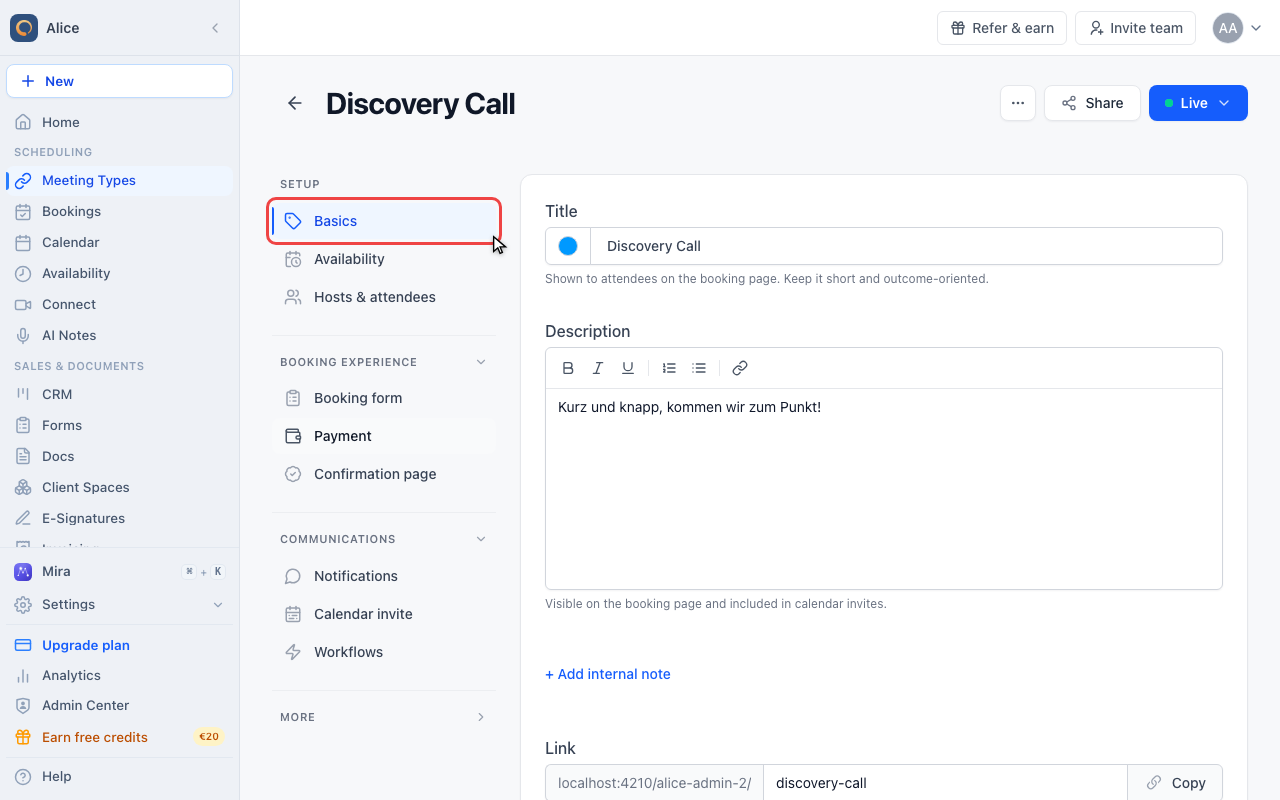
The editor opens on Basics
Basics is the first entry under Setup and the tab the editor lands on, so no click is needed to get here.
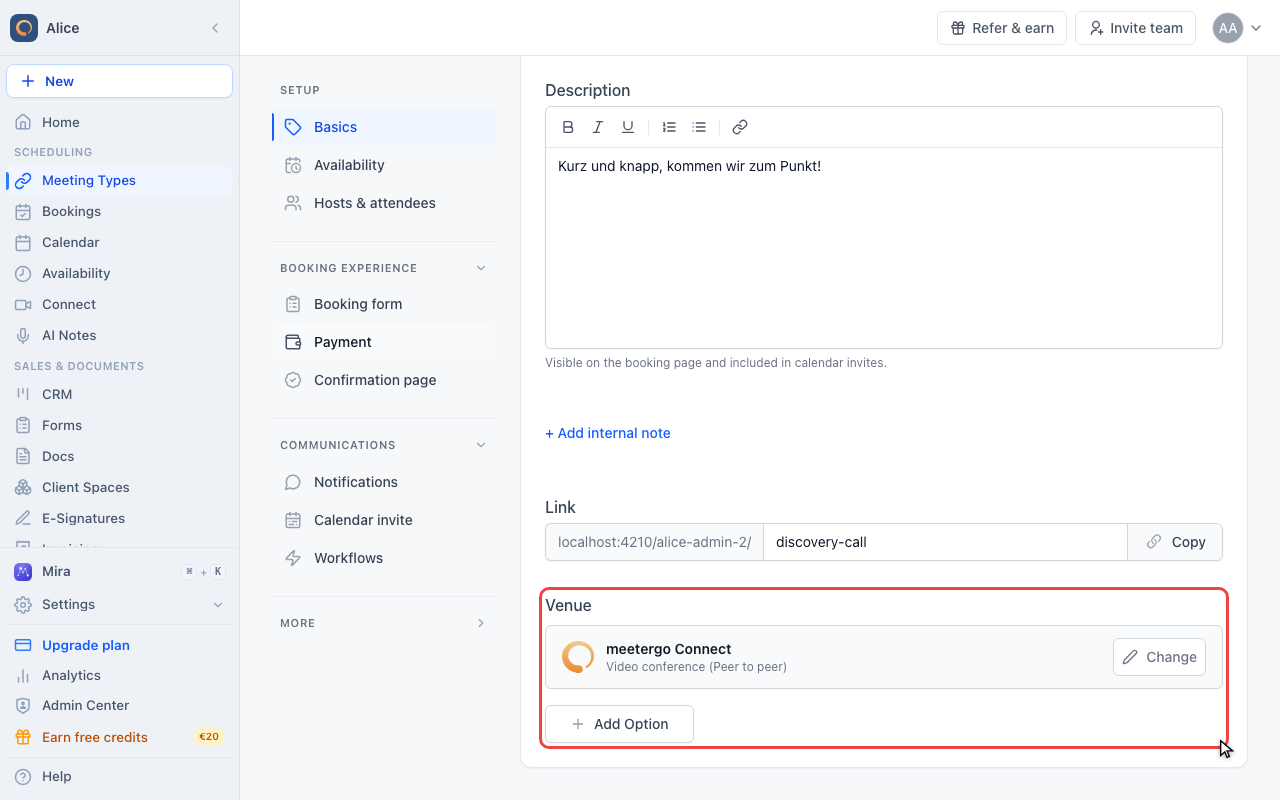
Find the Venue field
Venue is the last field on the tab, under the booking link. It lists every venue this meeting type currently offers, one row each.
Call the attendee yourself
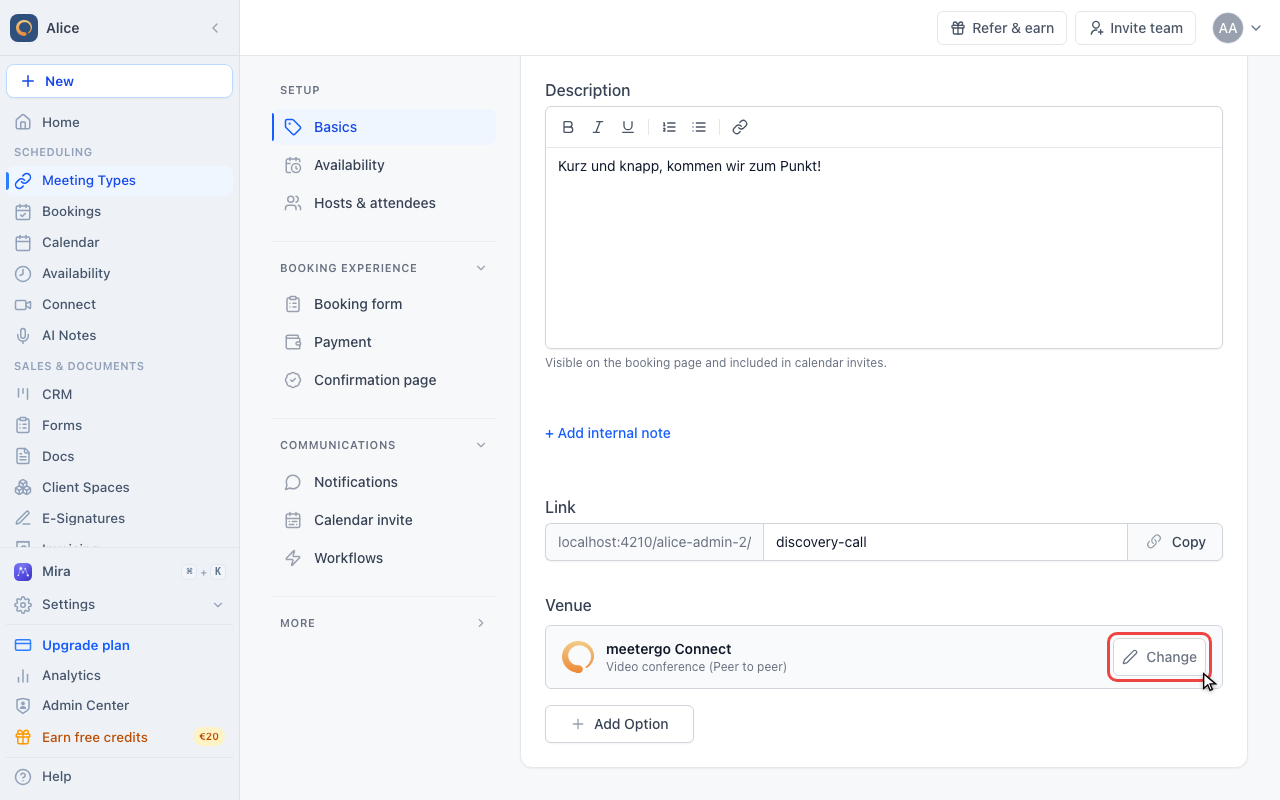
Click Change
With a single venue in the list, Change swaps it for another one. It replaces the venue rather than adding to it.
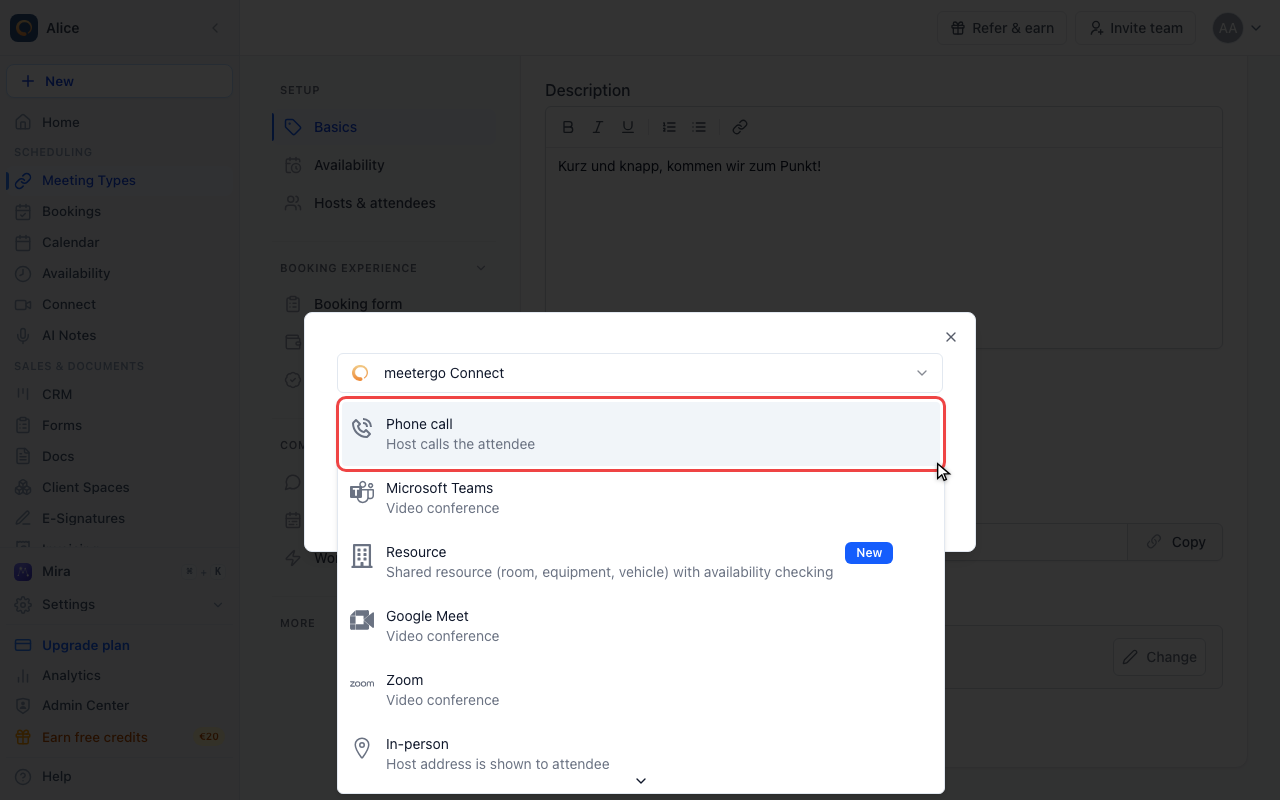
Choose Phone call
Both phone venues sit in the same list as the video platforms. Phone call is the outgoing one, and its subtitle states the rule: the host calls the attendee.
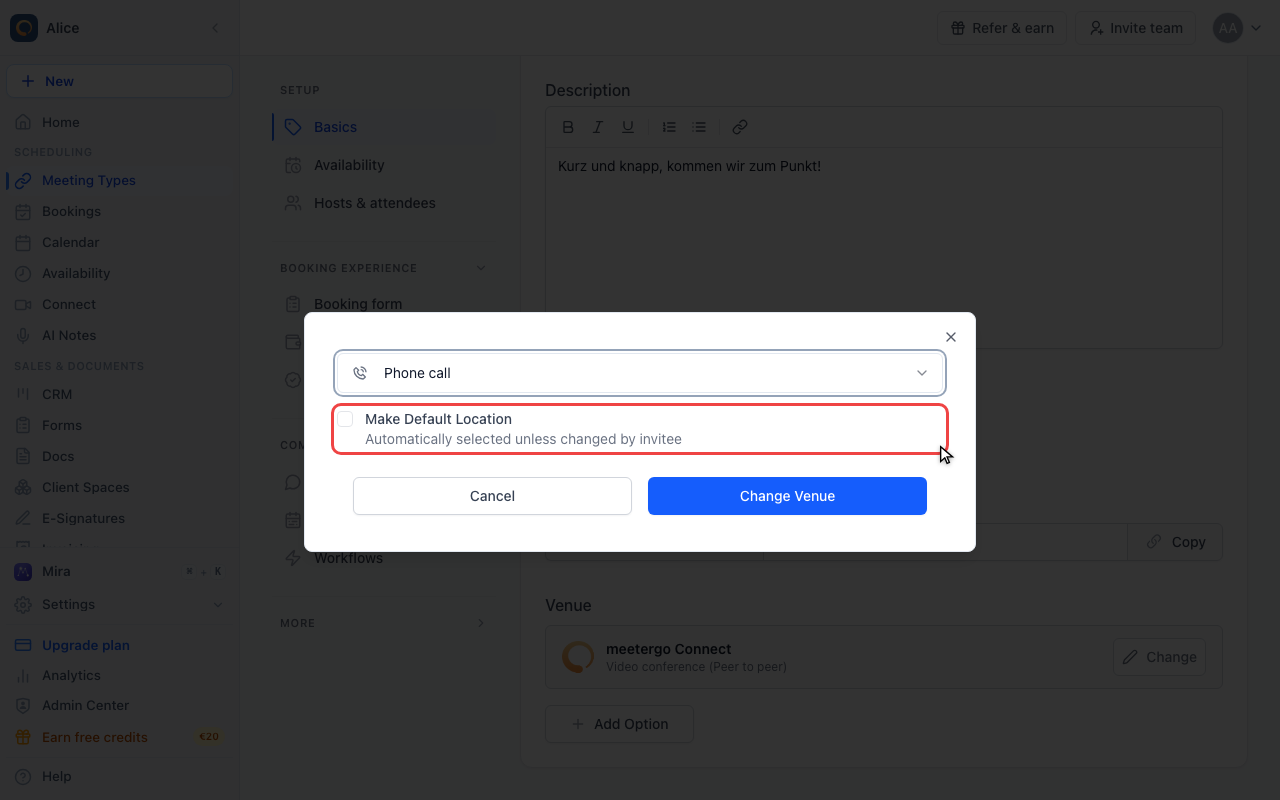
There is no number to enter
Unlike the in-person venues, a phone venue has no field of its own. The dialog shows only the default checkbox, because the number is not stored on the meeting type: for an outgoing call it comes from the attendee, who is asked for it while booking.
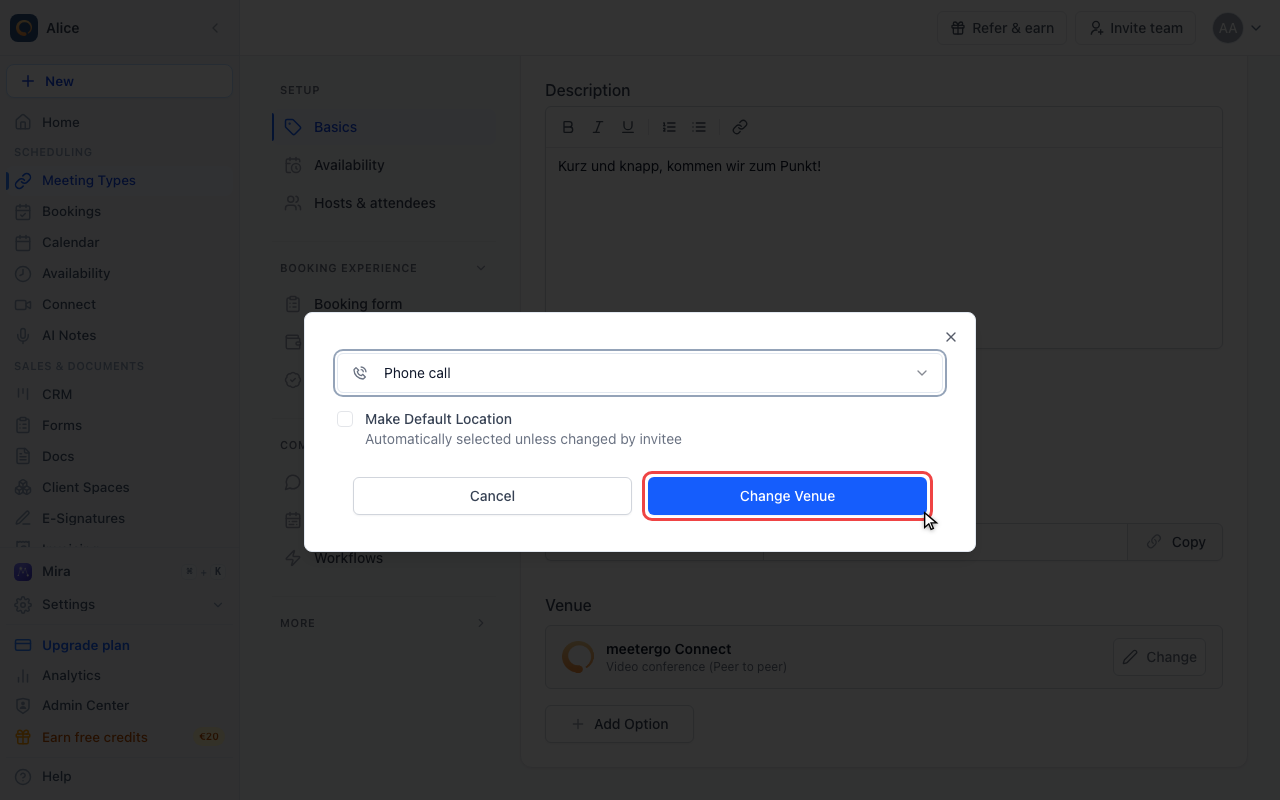
Apply the venue
Change Venue closes the dialog and writes the venue into the field. Cancel throws it away.
Check the venue row
The row now reads Phone call, with "Host calls the attendee" under it. That subtitle is the only place the direction is written down, because both phone venues are simply called "Phone Call" in emails and calendar entries.
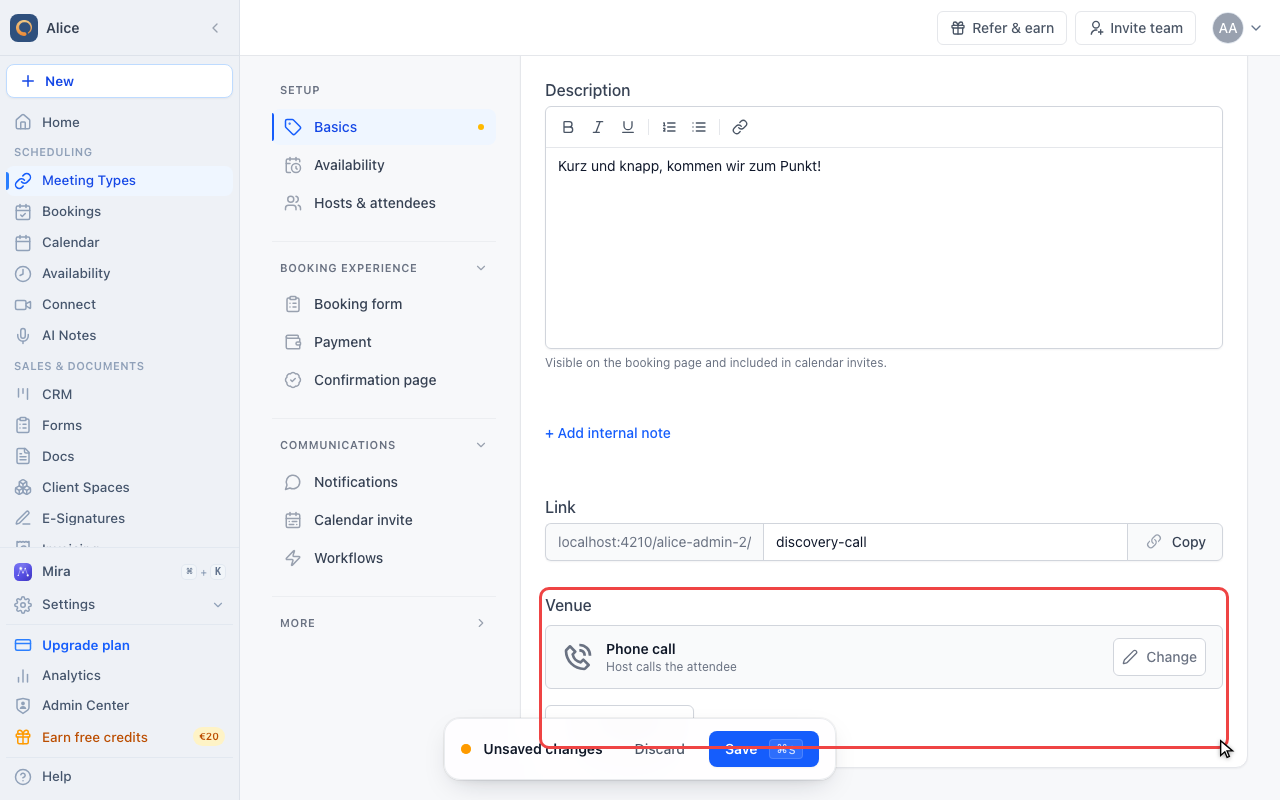
Let the attendee call you
Click Add Option
Add Option keeps the venue you already have and offers a second one next to it. The attendee then chooses between them while booking.
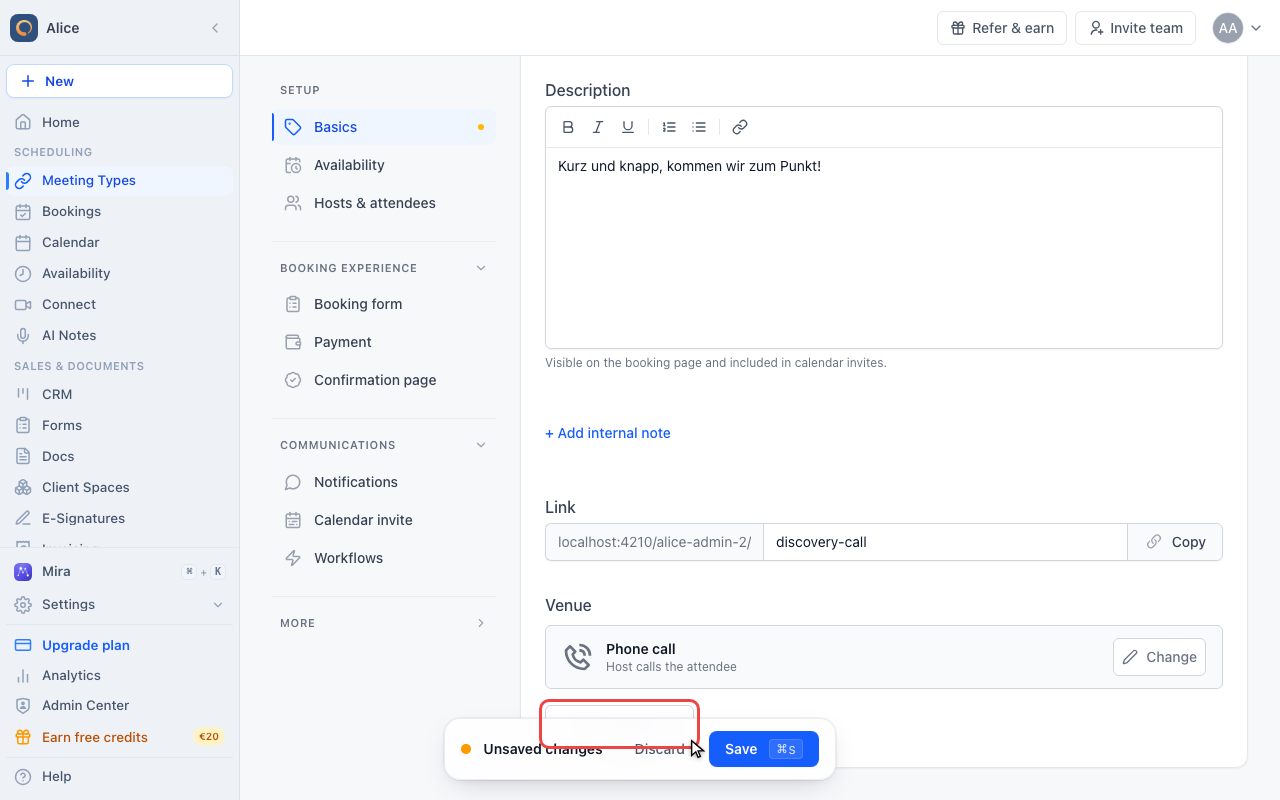
Choose Incoming Phone call
This is the mirror image: the attendee dials, so the number that has to be published is yours. It is read from the phone number on your business card, and there is nowhere on the meeting type to type a different one.
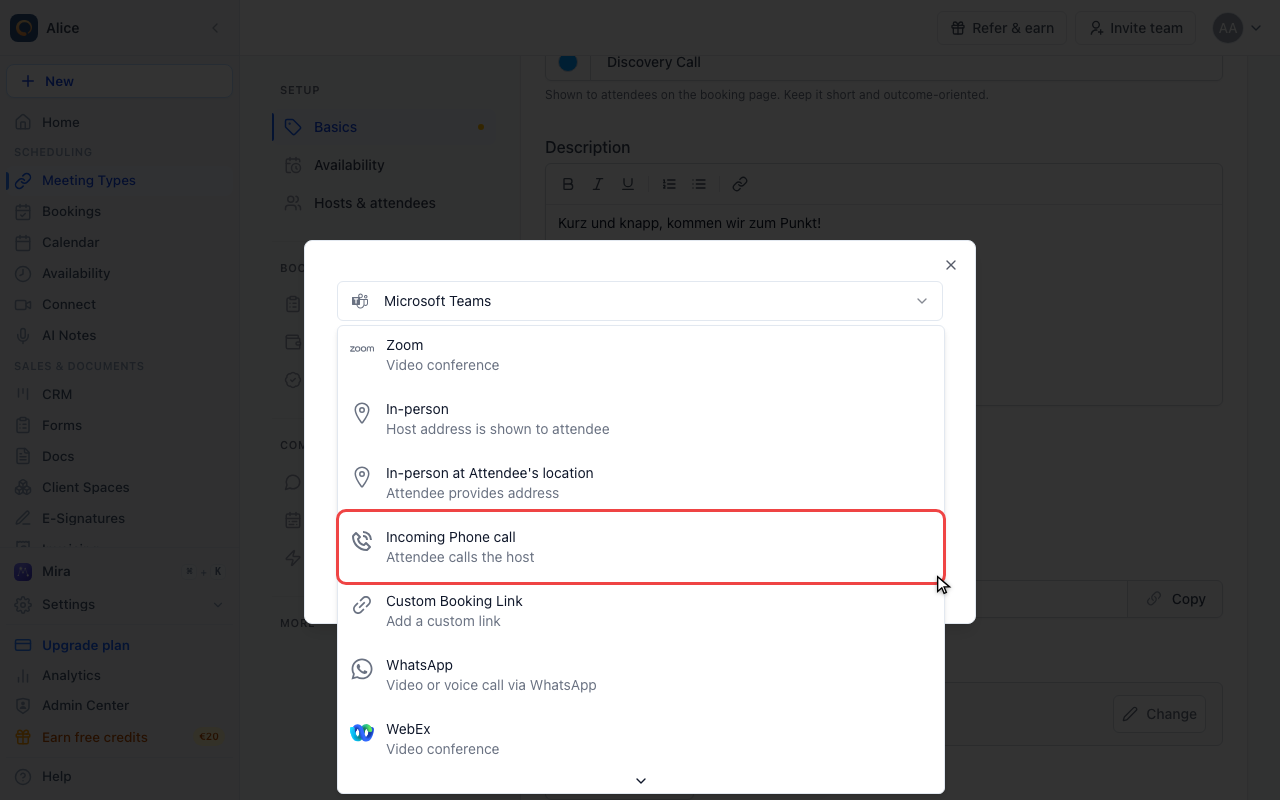
Add the second venue
Make Default Location decides which of the two the booking page preselects. Leave it off and the venue you set first stays the default.
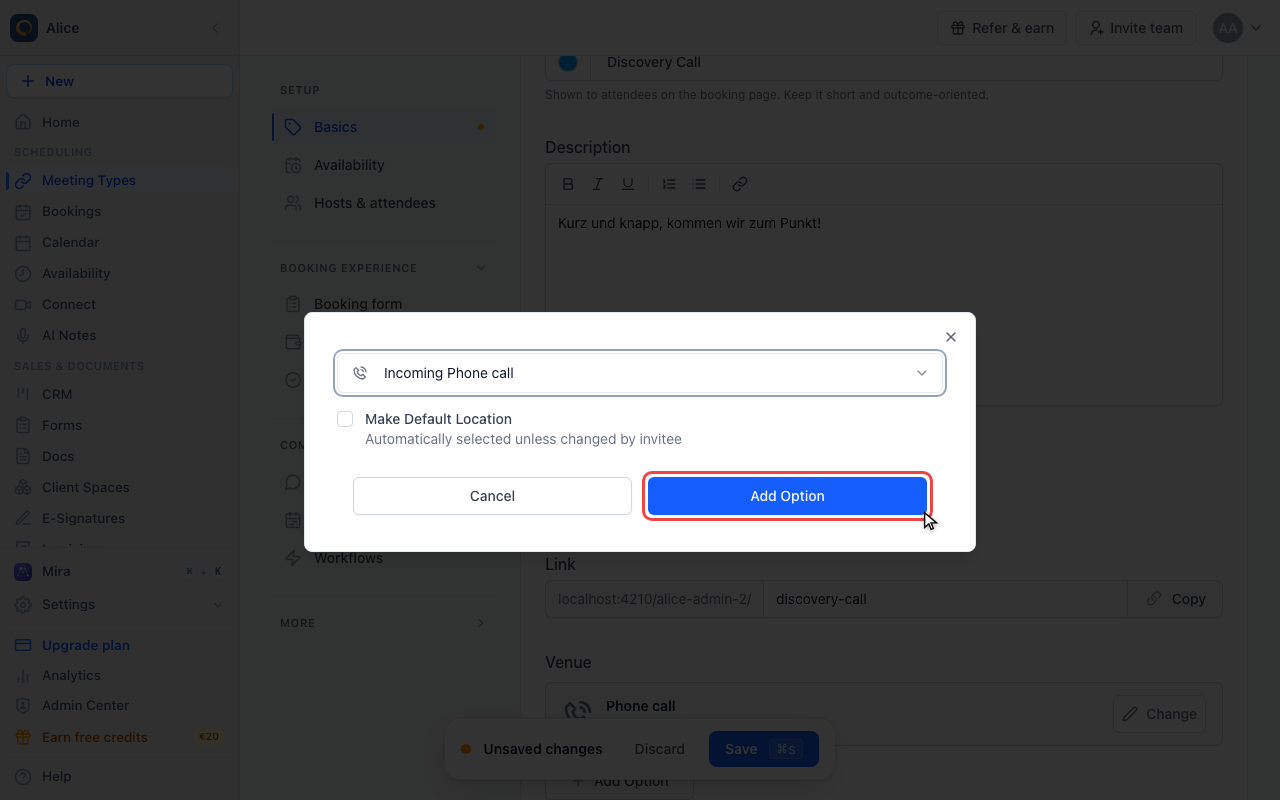
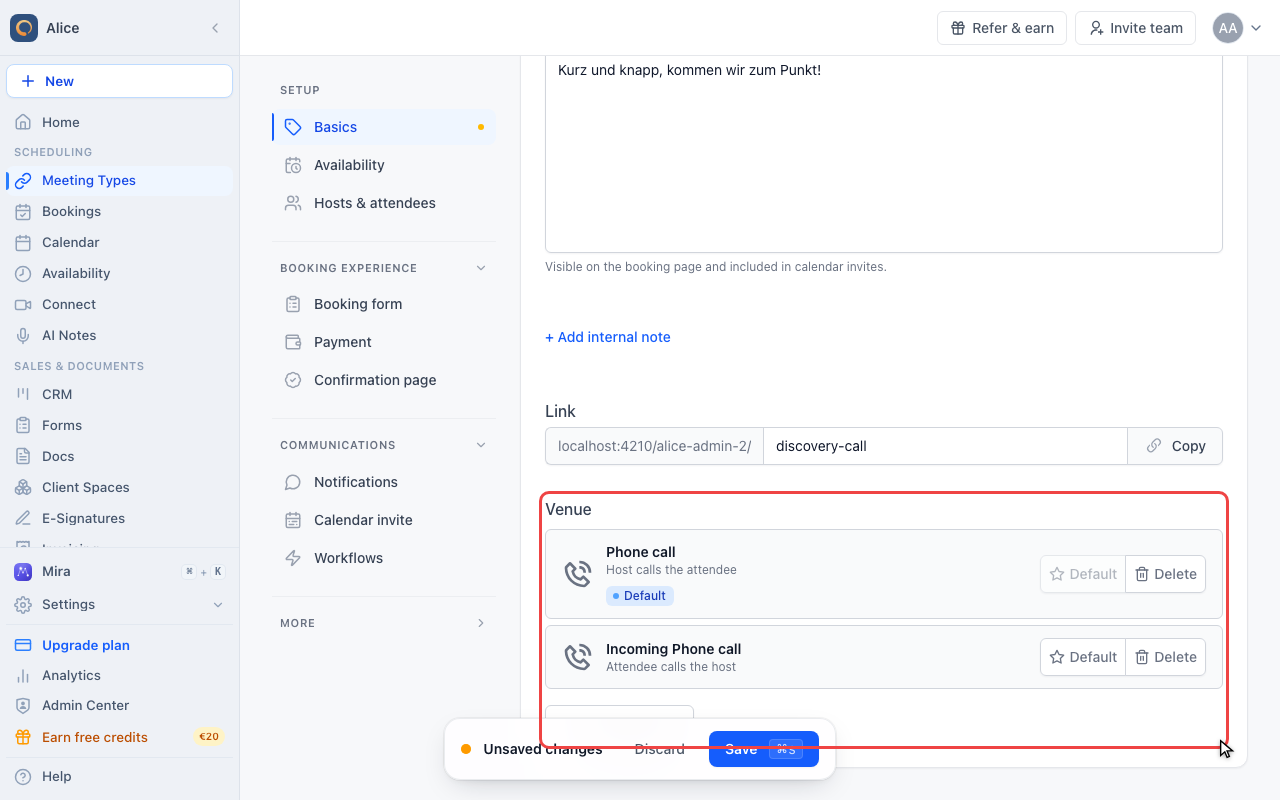
Two venues, one marked Default
With more than one venue each row grows a Default and a Delete button, and the preselected one carries a Default badge. Default is greyed out on the row that already is the default, and Delete on the last remaining venue.
Accept bookings without an email address
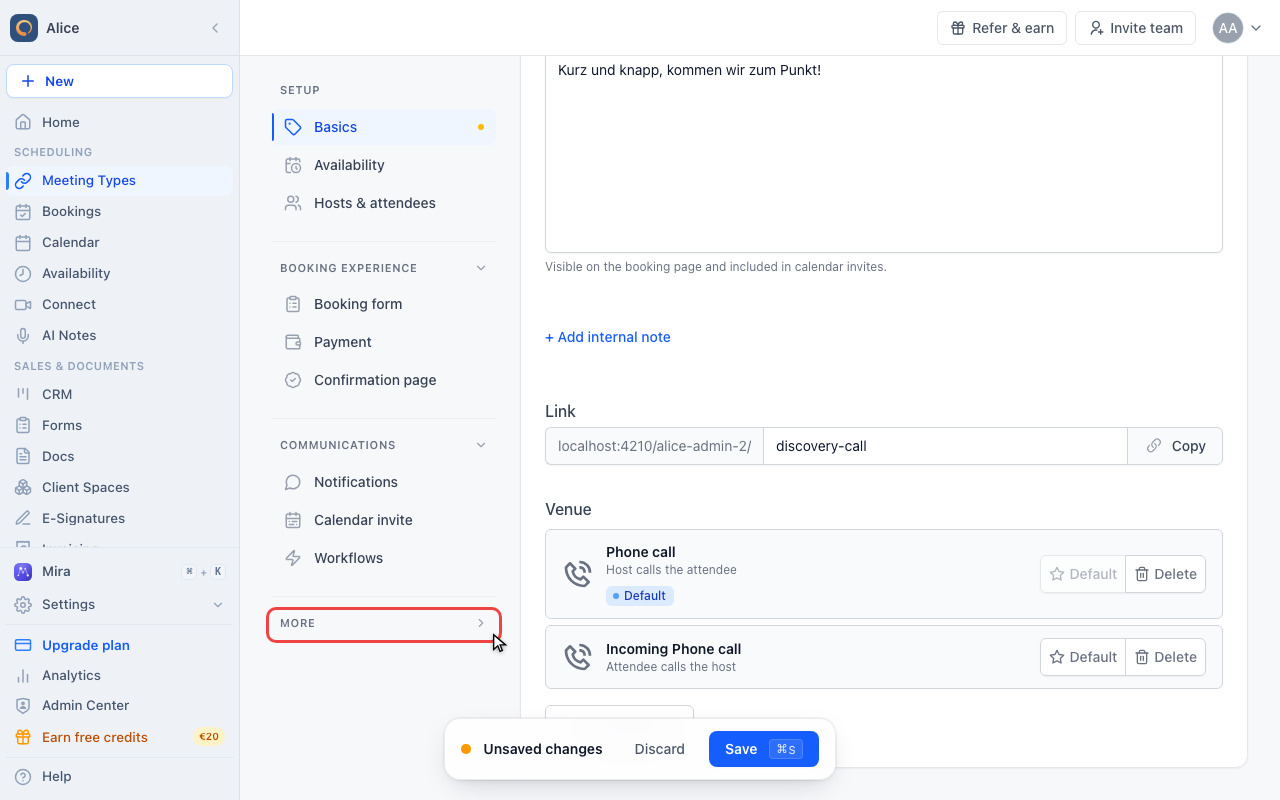
Expand More
One more setting belongs to phone meetings, and it lives on another tab. In the editor sidebar, open the More group.
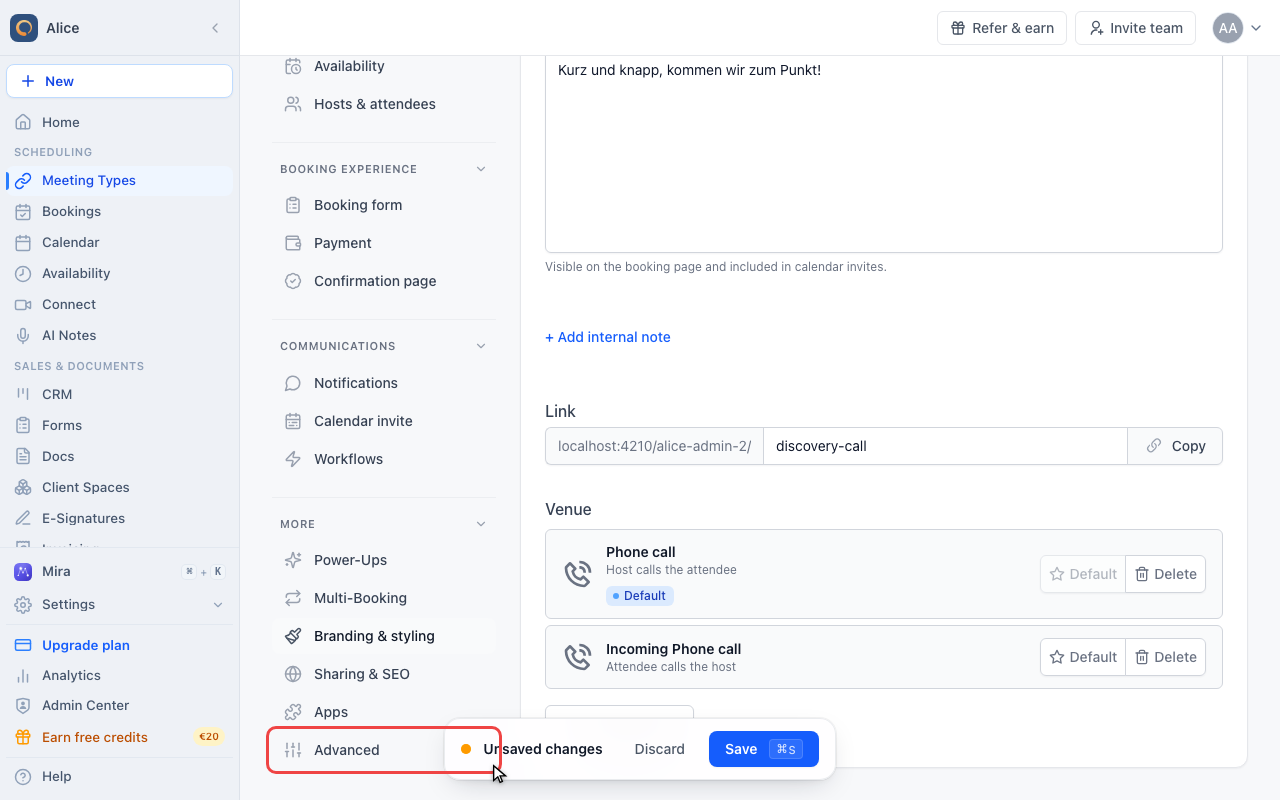
Click Advanced
Advanced is the last entry in the group. It holds the settings that change who may book and how the booking page behaves.
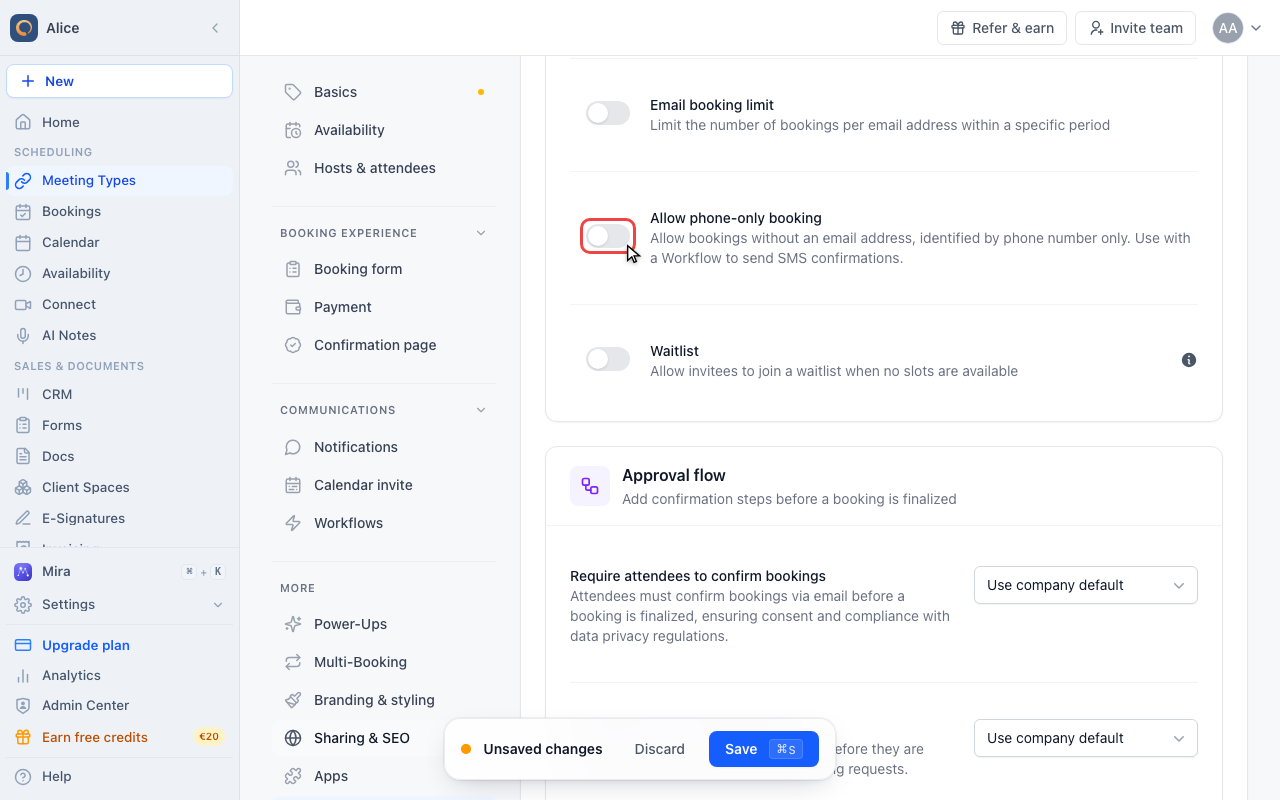
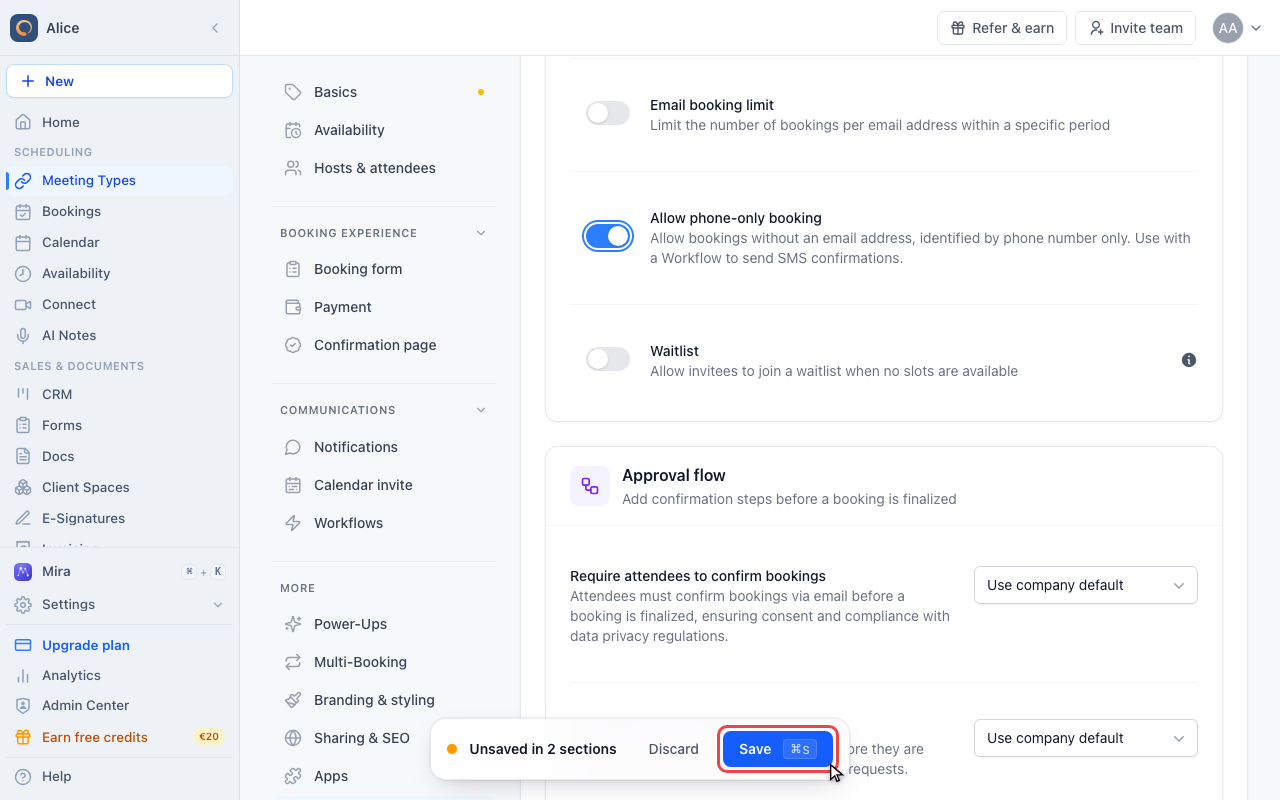
Turn on Allow phone-only booking
In Booking access & limits, Allow phone-only booking makes the email field optional on the booking page, so a caller who only leaves a number can still book. It has no effect on any other venue: the booking page only drops the email requirement when the venue is one of the two phone calls.
Save the meeting type
Nothing reaches your booking page until you press Save. Saving with phone-only booking newly switched on also creates an SMS confirmation workflow for this meeting type, since there is no email address to write to.
The two phone venues
| Venue in the editor | Who dials | Which number is used | Where that number comes from |
|---|---|---|---|
| Phone call (Host calls the attendee) | You | The attendee's | The phone field on the booking page, which meetergo adds and requires by itself |
| Incoming Phone call (Attendee calls the host) | The attendee | Yours | The phone number on your business card |
The subtitle under each row is where the direction is written down. Attendees see the two venues under slightly different names: on the booking page an outgoing call reads Phone call and an incoming one reads Phone call (You call), both written from the caller's point of view.
You do not add the phone field yourself
Whenever the venue is one of the two phone calls, the booking page inserts a Phone Number field directly under the email field and marks it required. There is nothing to configure on the booking form, and no way to make it optional.
- The field is an international phone input with a country picker, so attendees do not have to type a country code by hand.
- If your booking form already has a phone field of its own, that one is used instead and keeps its own required setting.
- The field is added for incoming calls too, even though the attendee's number is not the meeting location there. Treat it as a way to reach them if the call does not come.
There is no phone number field on the meeting type. For an incoming call, the number attendees are told to dial is the one saved on your business card (personal page). If none is saved there, the venue resolves to nothing and confirmation emails and calendar entries show a blank location. See Venue: show the meeting location, link, or phone number in emails.
Offer a phone call alongside something else
Add Option in the Venue field keeps the venue you already have and offers a second one next to it, so you can pair an outgoing call with a video platform, or offer both phone directions at once. Attendees choose while booking.
- The row marked Default is the one the booking page preselects. Default on any other row makes that one the default instead.
- Delete is greyed out on the last remaining venue: a meeting type always has exactly one venue or more.
- There is no separate "multiple locations" switch to turn on. Adding a second venue is what enables the choice.
What ends up in emails and the calendar
The venue tag {!M.Meeting.Venue} resolves to a phone number: the attendee's for an outgoing call, yours for an incoming one. That is what fills the location of the calendar entry and the location line of the confirmation and reminder emails.
Phone meetings have no join link, so there is no visual cue in the calendar that a call is due. Make sure your meeting type description says who is calling whom and what to do if the call does not connect.
Accept bookings without an email address
For voice bots, IVR systems and callers who only leave a number, a phone meeting type can drop the email requirement entirely.
- In the meeting type editor, open More and then Advanced
- In Booking access & limits, turn on Allow phone-only booking
- Save
The setting only does anything on a phone venue. The booking page drops the email requirement solely when the venue is Phone call or Incoming Phone call; on any other venue the toggle is on and changes nothing.
An SMS confirmation workflow is created for you
There is no email address to write to, so saving with Allow phone-only booking newly switched on creates a workflow named Phone-only booking SMS confirmation on that meeting type. It triggers on booking confirmation, sends an SMS to the guest, and arrives pre-filled with a short message in every language your company has enabled.
- Nothing is created if the meeting type already has a booking-confirmation workflow that sends an SMS to the guest, so a workflow you set up yourself is respected.
- To change the wording, open Workflows in the meeting type editor, open the workflow and edit the message per language. Dynamic tags such as
{!M.Guest.Firstname}and{!M.Meeting.Start}work as everywhere else.
What a phone-only booking skips
| Booking with an email address | Booking with a phone number only | |
|---|---|---|
| Confirmation email | ✅ | ❌ |
| Calendar invite for the attendee | ✅ | ❌ |
| SMS or WhatsApp from a workflow | ✅ (if set up) | ✅ |
| Reminders to the host | ✅ | ✅ |
The same meeting type still takes ordinary bookings: anyone who does fill in an email gets the usual confirmation and calendar invite.
FAQ
Can I offer phone and video on the same meeting type?
Yes. Use Add Option in the Venue field to add a second venue, and the attendee picks one while booking.
Does meetergo place the call for me?
No. You dial at the scheduled time. meetergo has no calling function of its own.
Can I use a virtual phone number?
Yes. Landline, mobile and VoIP numbers all work. For incoming calls it is whatever number is on your business card.
Can I publish a different number for one meeting type?
No. Incoming calls always use the number on your business card, so every meeting type of that host publishes the same one.
Can somebody book a phone-only meeting from the ordinary booking page?
Yes. With Allow phone-only booking on and a phone venue set, the email field on the booking page becomes optional and a booking made with a number alone goes through. The same rule applies to bookings created through the API.
What if the attendee does not answer?
Follow your usual no-show policy. A workflow that sends an SMS shortly before the call cuts the number of missed ones.
Related Articles
Was this article helpful?
Let us know if this article answered your questions.