
Create a meeting type
Create a bookable meeting type: pick a format, choose the host, and set the title, link, duration and venue before you publish it.
A meeting type is one bookable offering: a 30 minute intro call, a product demo, an onboarding session. Creating one takes three decisions (format, host, venue) and three fields (title, link, duration). Everything else, from availability to reminder emails, is set afterwards in the editor.
 1 / 15
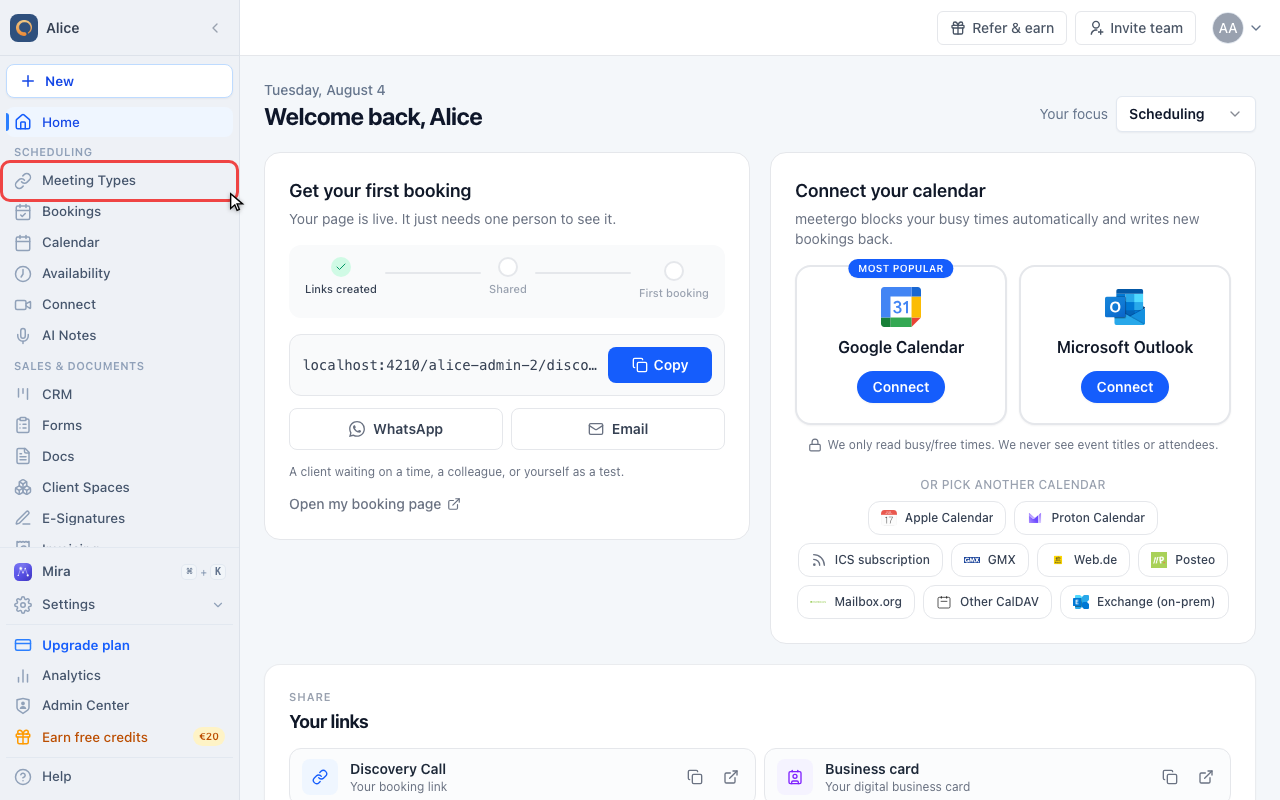
Meeting Types in the sidebar lists every bookable link you already have. New ones are created from here.
Open the create menu
Open Meeting Types
Meeting Types in the sidebar lists every bookable link you already have. New ones are created from here.
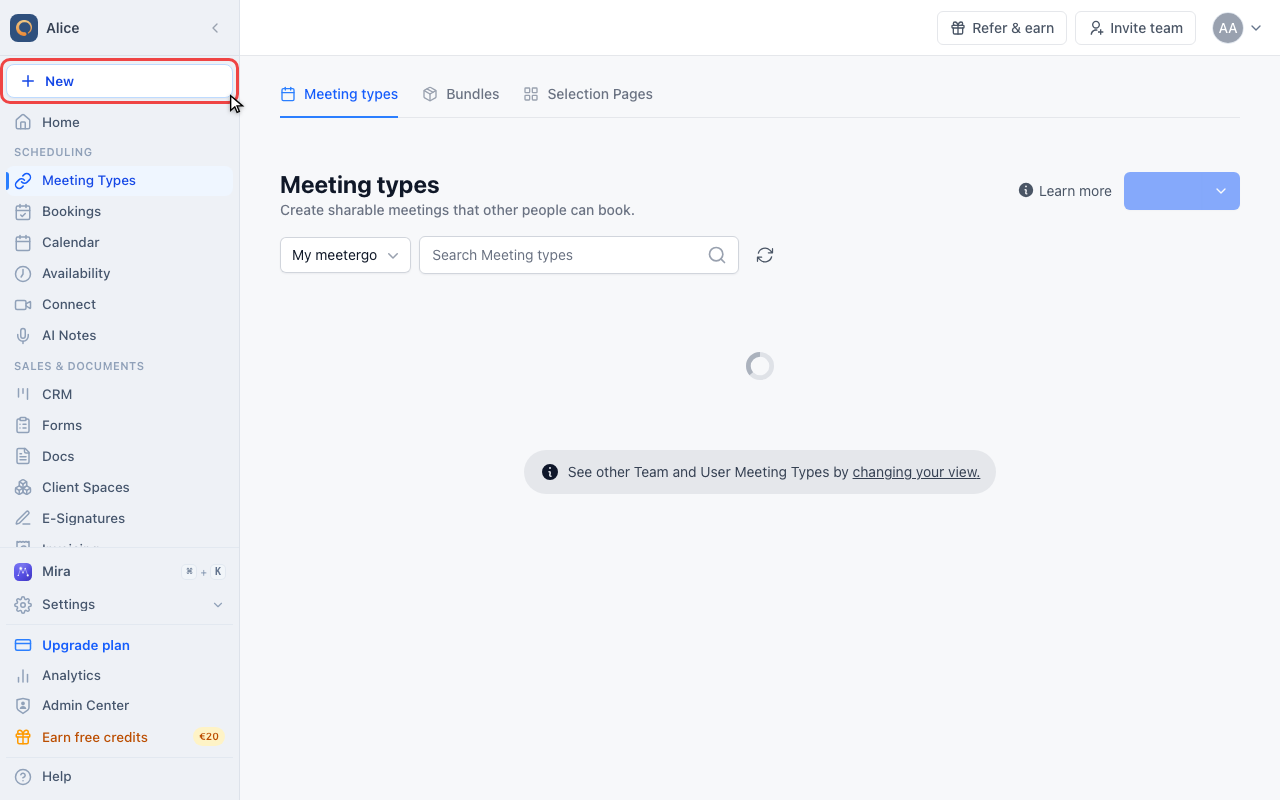
Click New
New sits at the top of the sidebar and is available on every page, not just this one.
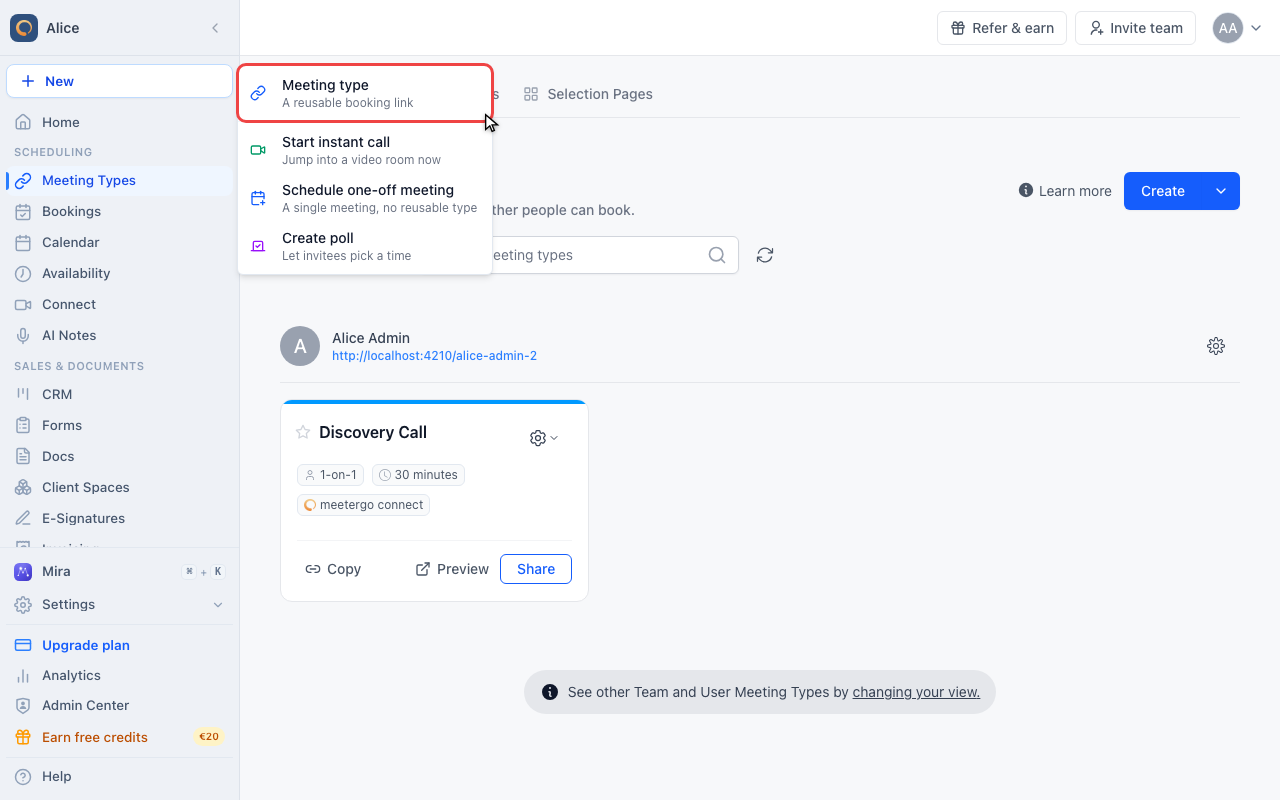
Choose Meeting type
The menu offers four things. Meeting type is the reusable booking link. Start instant call opens a video room right now, Schedule one-off meeting books a single appointment without leaving a link behind, and Create poll lets invitees vote on a time.
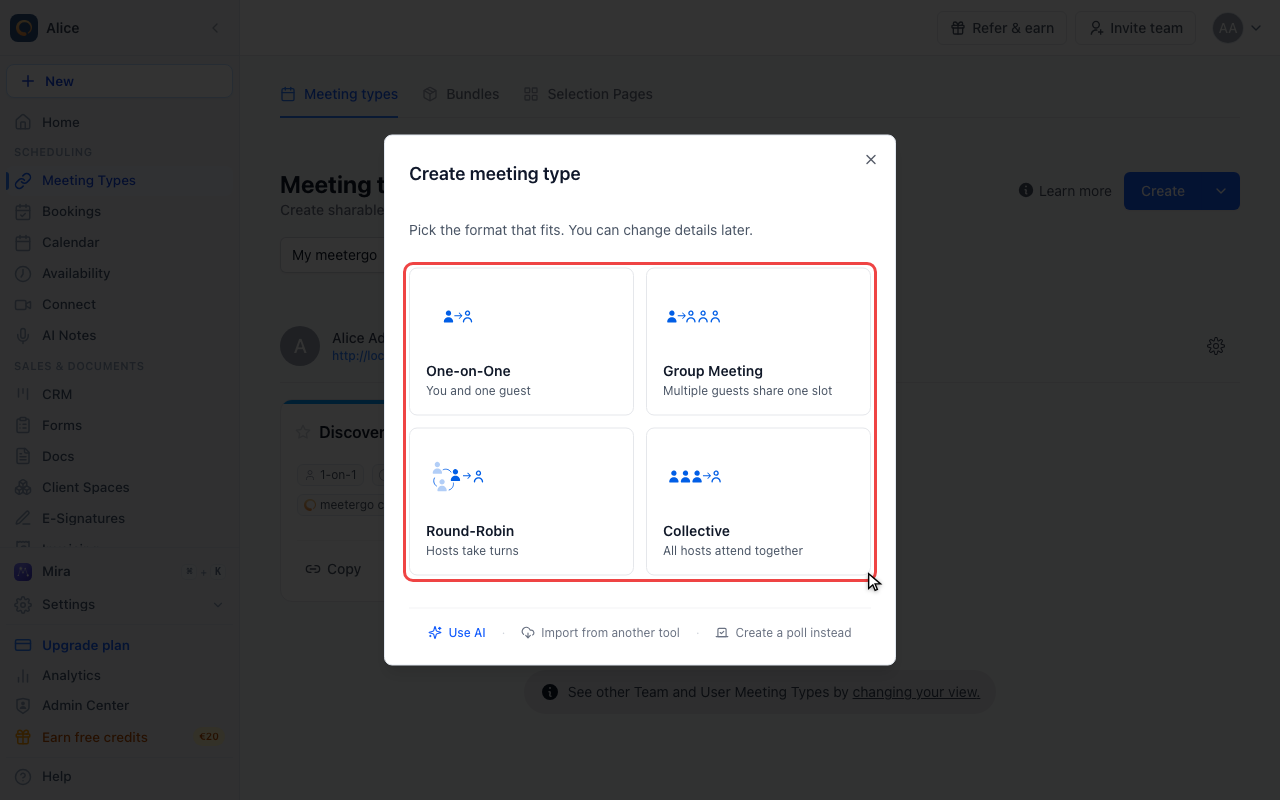
Choose a format
Compare the four formats
One-on-One is you and one guest. Group Meeting puts several guests in the same slot. Round-Robin rotates through a queue of hosts, and Collective books a slot every host is free for. The last three are paid features and show a Pro badge until your plan includes them.
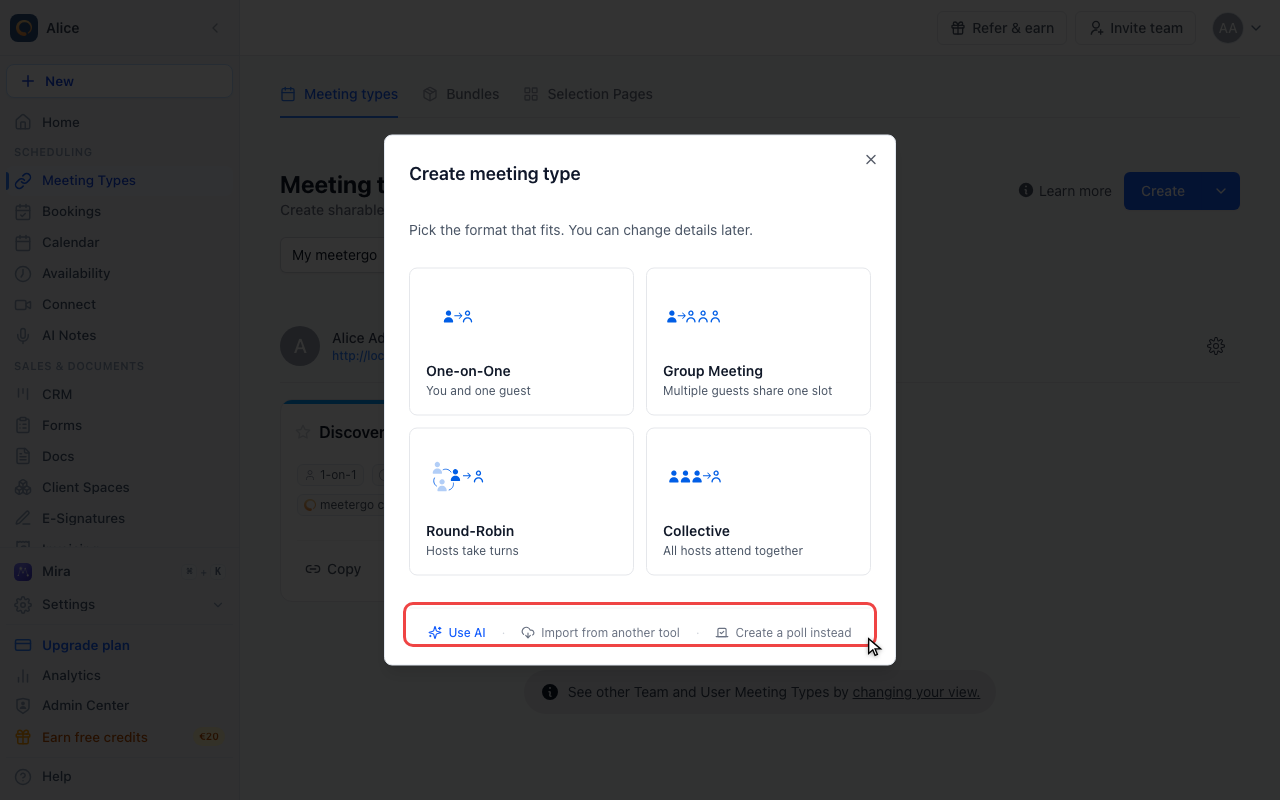
Other ways to start
Under the grid: Use AI opens Mira and builds the meeting type from a description, Import from another tool pulls your existing links across, and Create a poll instead switches to a poll.
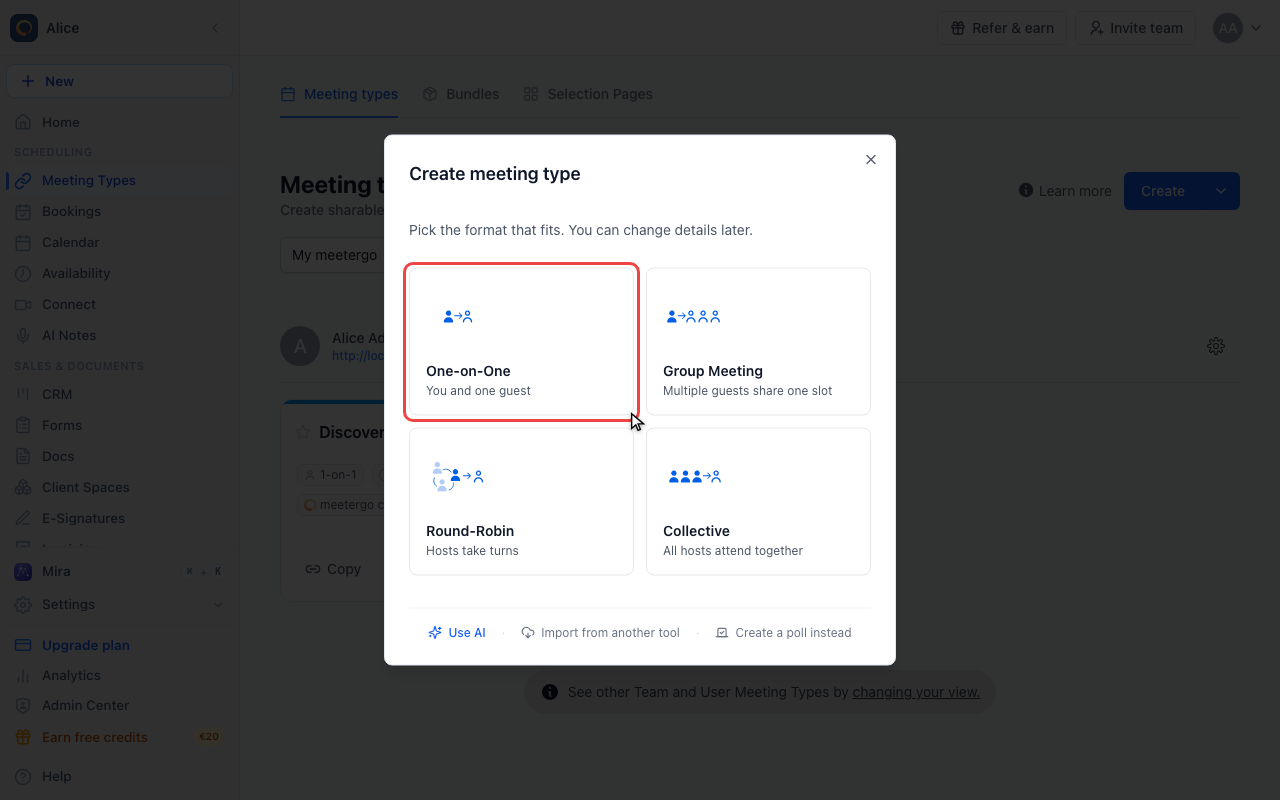
Pick One-on-One
One-on-One is the usual choice. The format decides how hosts and guests are matched and cannot be switched afterwards, so a different format means a new meeting type.
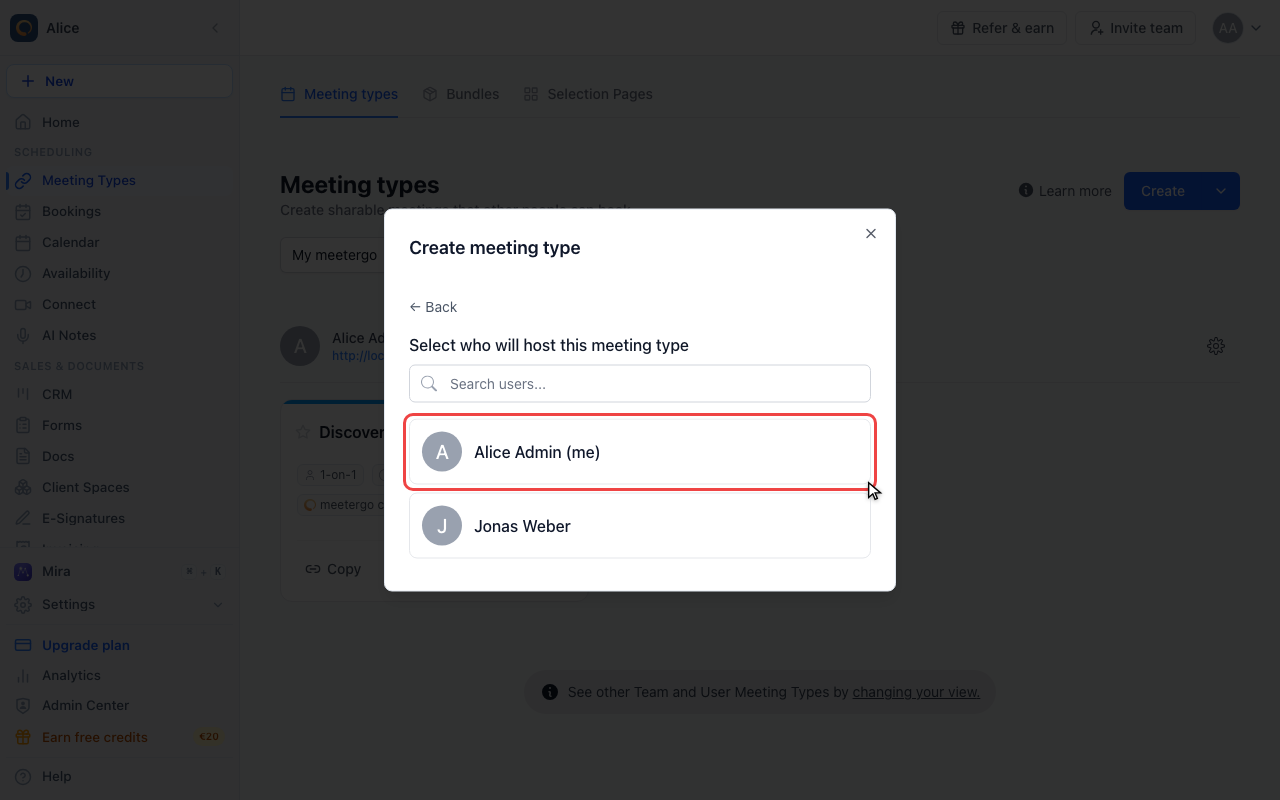
Choose the host
Pick the host
Choose whose calendar the bookings land in. Yourself is first in the list, colleagues follow, and the search box filters longer teams. If you are the only person in the company this step is skipped.
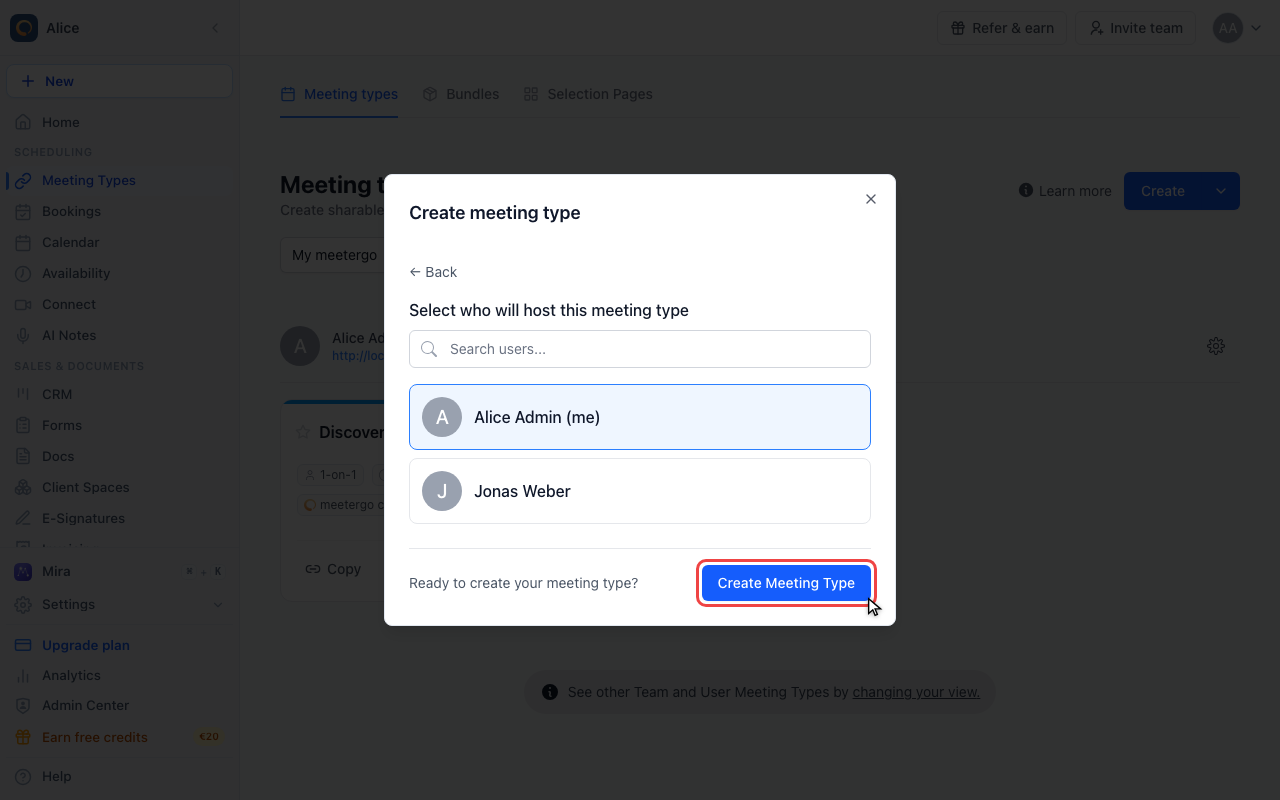
Click Create Meeting Type
The selected host is outlined in blue and the button appears at the bottom. Nothing is created yet, it only opens the details.
Fill in the details
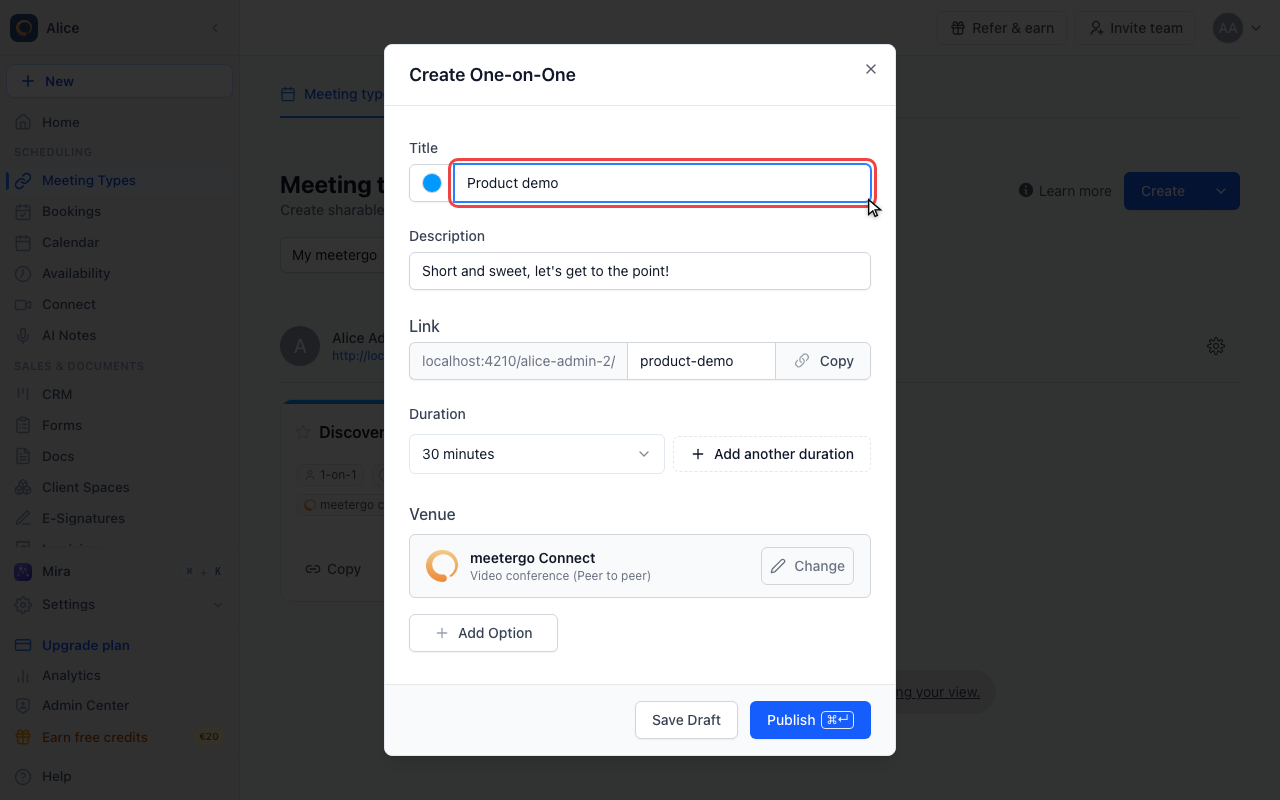
Name it
The title is what attendees read on the booking page. It arrives prefilled as "30 Min Meeting with" plus your first name, so replace it with what you actually offer. The swatch to its left sets the colour the meeting type gets in your lists and calendar.
Describe it
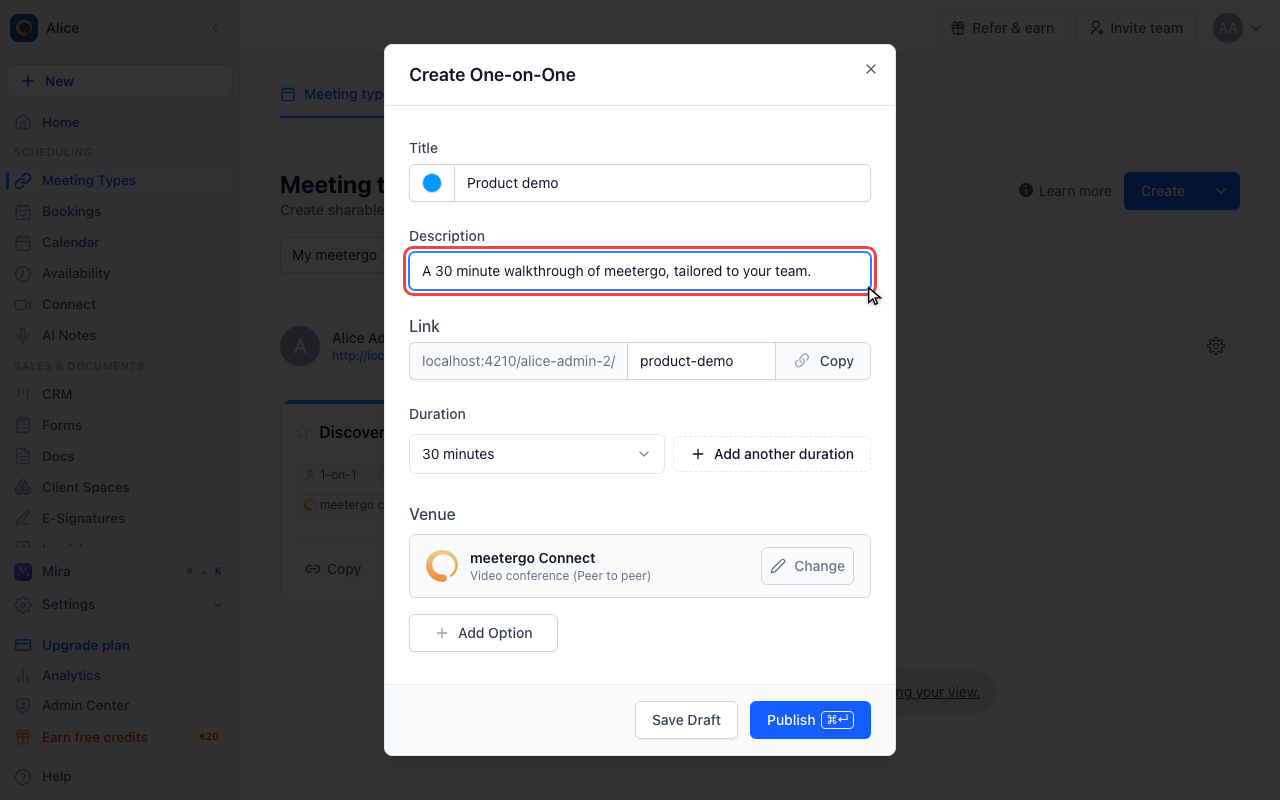
The description sits under the title on the booking page and goes into the calendar invite. It is prefilled too and can be left as is.
Check the booking link
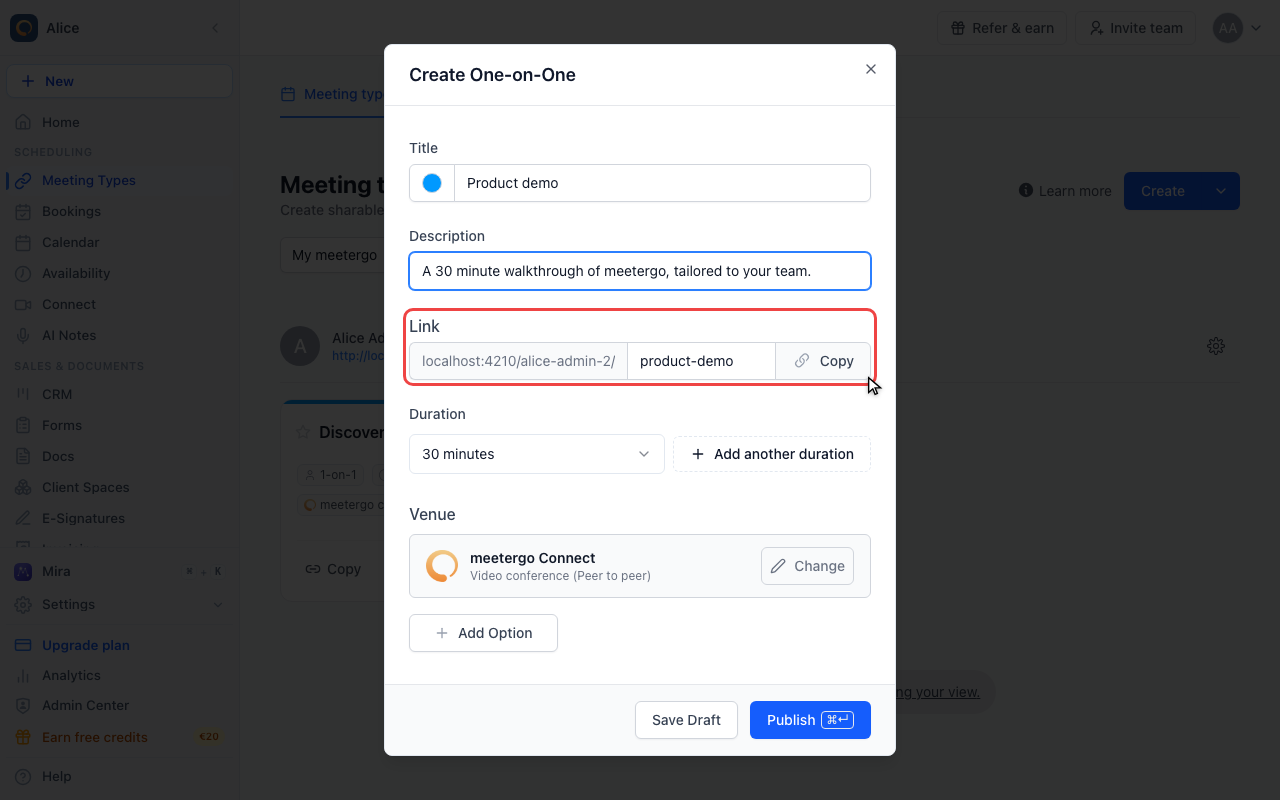
The link is generated from the title as you type, and the field stays editable if you want something shorter. Everything before it is fixed: your own username, or the team path when a team hosts.
Set the duration
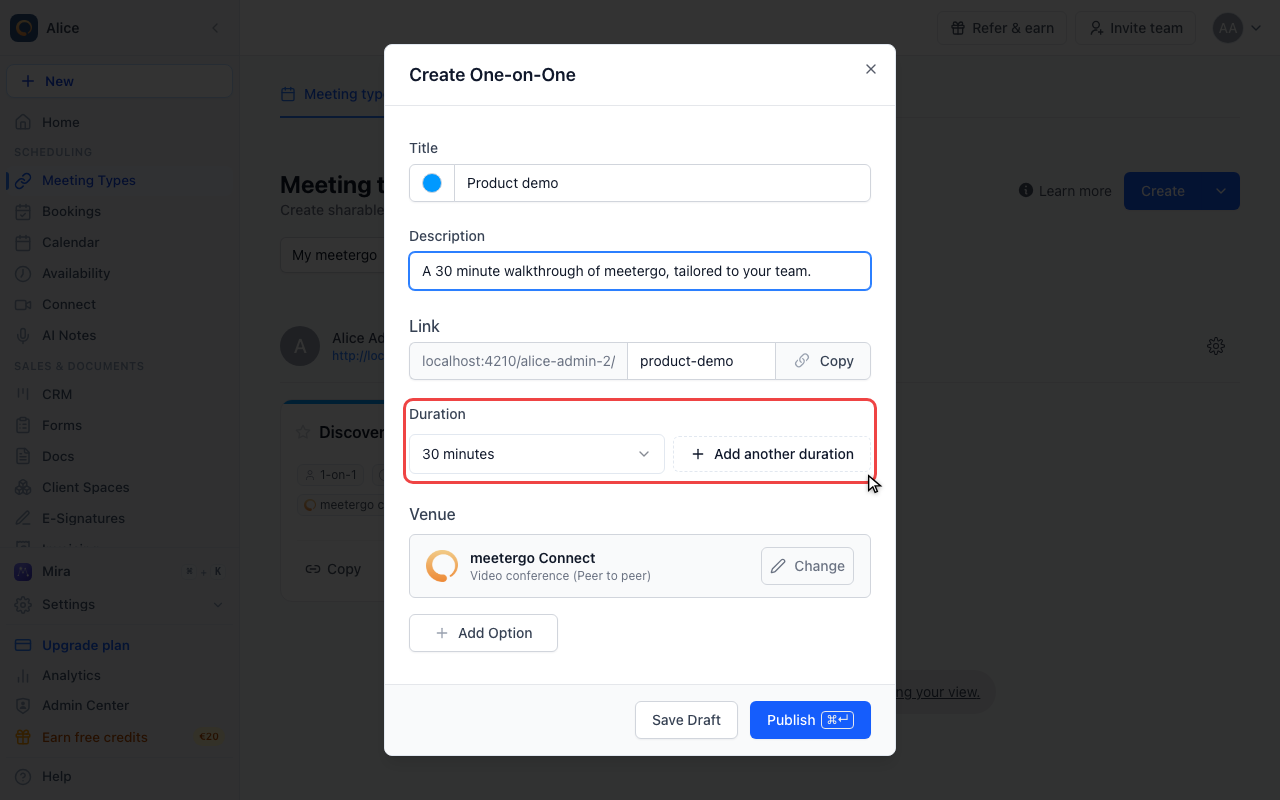
Thirty minutes is the default. Add another duration turns this into a menu the attendee chooses from, with the first entry as the default.
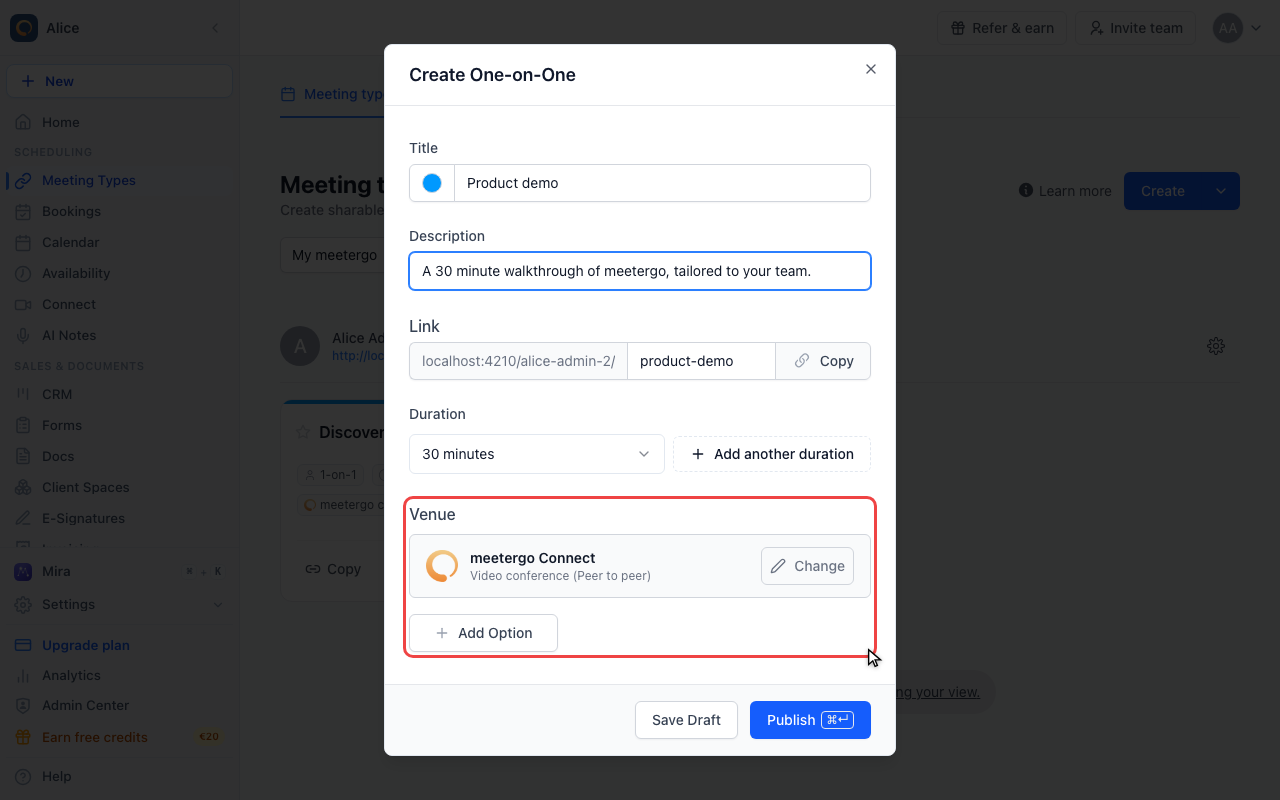
Pick the venue
New meeting types start on meetergo Connect, the built-in video room. Change swaps it for Zoom, Teams, Google Meet, a phone call, an in-person address or a link of your own. Add Option lets the attendee choose between several.
Save it or publish it
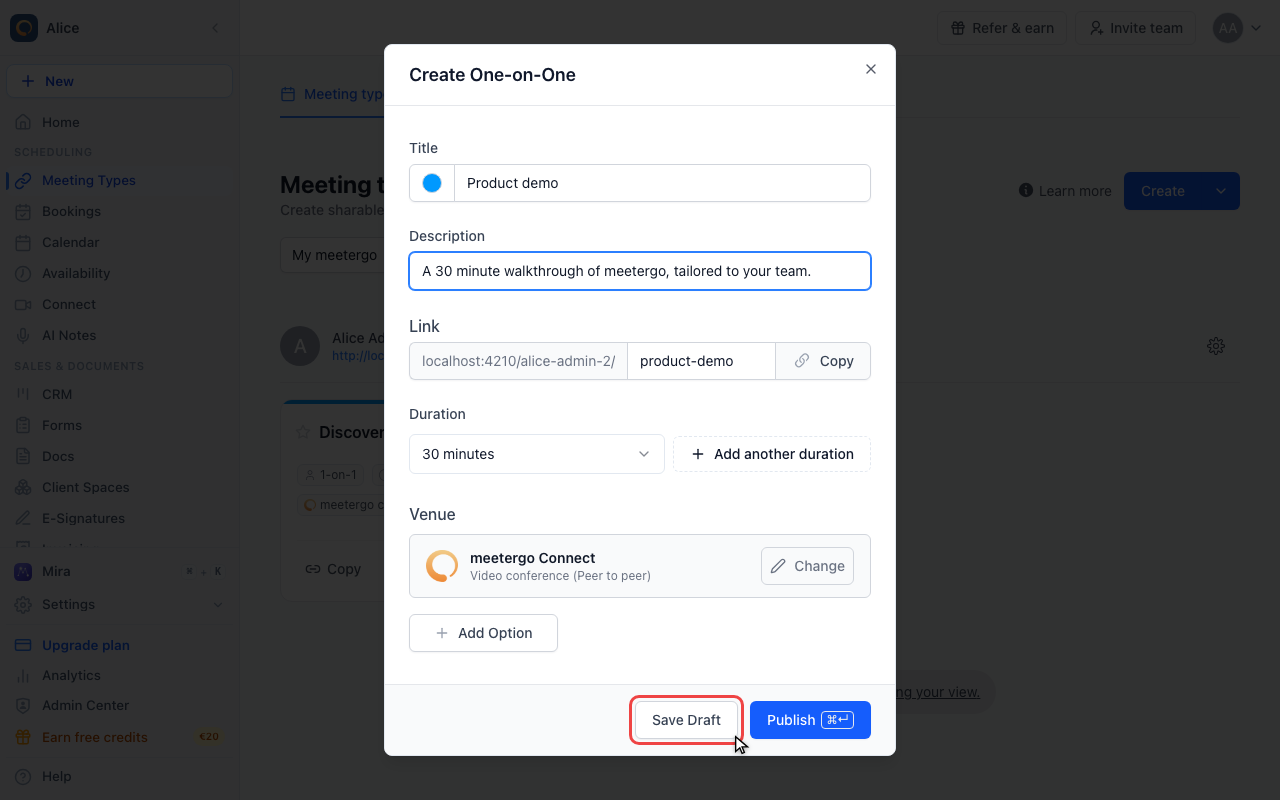
Save Draft keeps it private
Save Draft creates the meeting type switched off. Its card is greyed out in the list with Copy and Preview disabled, and the link is not bookable until you enable it.
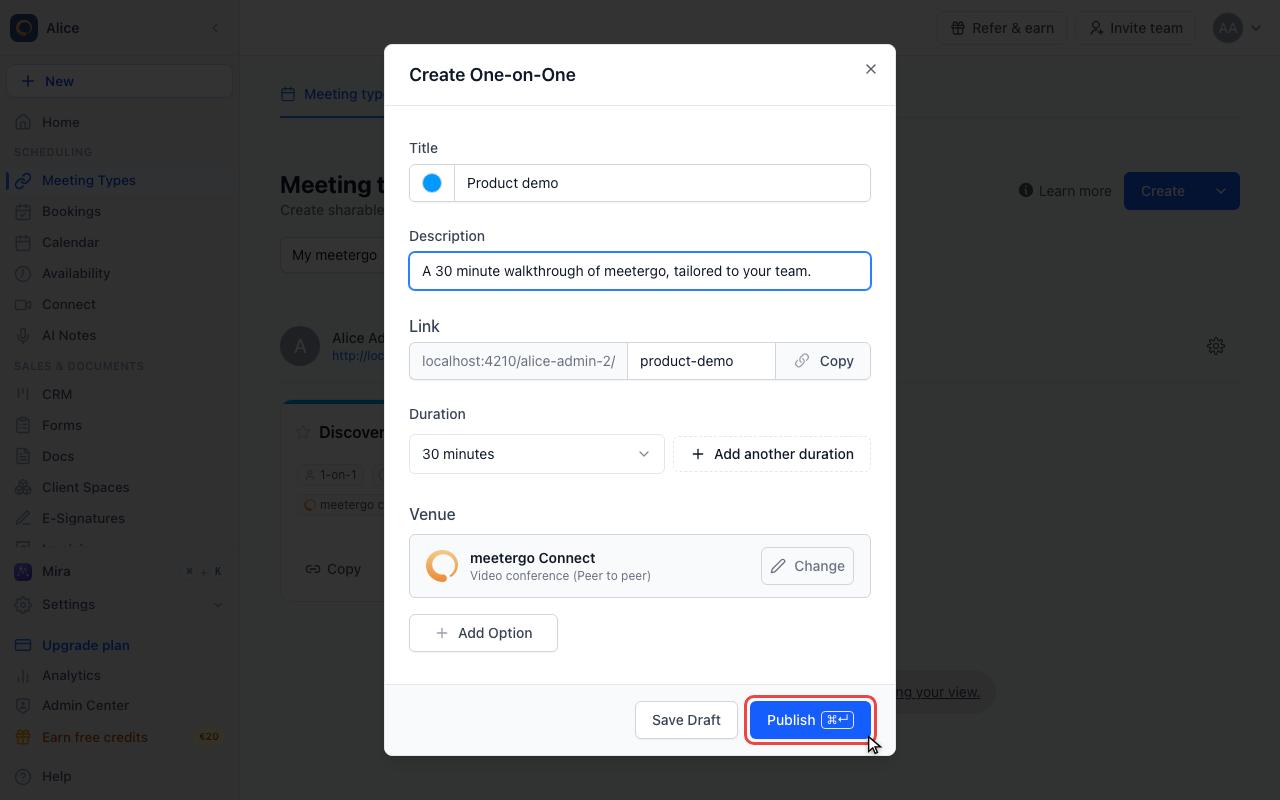
Publish makes it bookable
Publish creates the meeting type live and drops you straight into its editor, where availability, booking form, notifications and everything else live. Cmd/Ctrl + Enter does the same.
Two ways into the same dialog
| Where | What it does |
|---|---|
| New at the top of the sidebar | Opens the create menu first, then Create meeting type. Available on every page. |
| Create on the Meeting Types page | Opens Create meeting type straight away. The arrow next to it holds the same alternatives the sidebar menu offers. |
If the scope picker above the list is set to a specific person or team instead of My meetergo, Create builds the meeting type for them and the host step is skipped.
The four formats
The format decides how hosts and guests are matched. It is fixed once the meeting type exists, so a different format means creating a new one.
| Format | Hosts | Guests | Notes |
|---|---|---|---|
| One-on-One | One | One per slot | The default choice. |
| Group Meeting | One | Several per slot | You set the number of spots while creating it. |
| Round-Robin | A queue | One per slot | Bookings rotate through the queue, skipping anyone who is busy. |
| Collective | Several | One per slot | Only slots every host is free for are offered. |
Group Meeting, Round-Robin and Collective are paid features. If your plan does not include one, its tile shows a Pro badge and clicking it opens the upgrade screen instead.
Round-Robin and Collective are hosted by a team, so their host step lists teams rather than people, with "All users inside the company" as the first entry. Creating them also needs the permission to create team meeting types. If your company restricts that, the two tiles are greyed out with "Admin permission required".
Group Meeting is a different thing from letting one guest bring colleagues. If you only want the person booking to add other people to the invite, keep One-on-One and turn on guests instead. See Allow or disable guests.
The five fields
| Field | Prefilled with | What it affects |
|---|---|---|
| Title | "30 Min Meeting with <your first name>" | The heading on the booking page and in calendar invites. The swatch next to it sets the colour used in your lists and calendar. |
| Description | "Short and sweet, let's get to the point!" | Shown under the title on the booking page and copied into the calendar invite. |
| Link | Generated from the title as you type | The bookable URL. The part before it is fixed: your username, or the team path when a team hosts. |
| Duration | 30 minutes | The length of the meeting. Add another duration turns it into a choice for the attendee, with the first entry as the default. |
| Venue | meetergo Connect | Where the meeting happens. Change replaces it, Add Option offers the attendee a choice. |
Only the title is required. Publish stays disabled while it is empty.
Save Draft or Publish
Both buttons create the meeting type and open its editor. The difference is whether the link works right away:
- Publish creates it switched on. The link is bookable immediately.
- Save Draft creates it switched off. The card is greyed out in your list with Copy and Preview disabled, and the link stays unbookable until you switch it on.
Cmd + Enter (Ctrl + Enter on Windows) does the same as Publish.
On the Free plan only three meeting types can be active at once. Publishing a fourth one still creates it, but it arrives switched off and no message says so. Switch off one of the other three, or upgrade, and then enable it from the list.
What comes next
Publishing drops you into the meeting type editor, which is where the rest of the setup lives:
- Availability — which schedule applies, how far ahead people can book, buffers and minimum notice. See Meeting type specific availability and Limit future bookings.
- Booking form — the questions attendees answer. See Booking questions.
- Notifications — confirmation mails, reminders and follow-ups. See Disable email notifications.
- Branding & styling, Workflows, Payment, Advanced and the rest are covered in the Meeting Types overview.
Other ways to create one
- Use AI opens Mira and builds the meeting type from a plain description.
- Import from another tool brings booking links across from another scheduling tool.
- Schedule one-off meeting books a single appointment without leaving a reusable link behind. See How to create a one-off meeting.
- Create poll asks invitees to vote on a time instead of picking a slot. See Setting up a meeting poll.
- Meeting type templates let you create new meeting types from a preset your company maintains. See Meeting type templates.
FAQ
Can I change the format later?
No. The format is set when the meeting type is created. To switch from One-on-One to Round-Robin, create a new meeting type and share its link instead.
Can I change the link after publishing?
Yes. The link lives on the Basics tab of the editor. Changing it breaks any copy of the old URL that is already out there.
How many meeting types can I create?
There is no cap on how many you create. What is capped is how many are active at the same time: three on the Free plan, unlimited on paid plans.
Do drafts show up on my booking page?
No. A draft is a switched-off meeting type: it is not offered on your public page and its own link is not bookable. See What to do when meeting types are paused.
Related articles
Was this article helpful?
Let us know if this article answered your questions.