
Setting Up In-Person Meetings
Meet face to face at your own address or at the attendee's, and let people pick between several locations.
A meeting type carries its venue on the Basics tab of the editor, in the Venue field. Two of the venues on offer are in-person: In-person puts your address on the booking page, and In-person at Attendee's location asks the attendee for theirs. The walkthrough below sets up both on the same meeting type.
 1 / 18
The venue belongs to a single meeting type, so start in Meeting types in the sidebar.
Open the venue settings
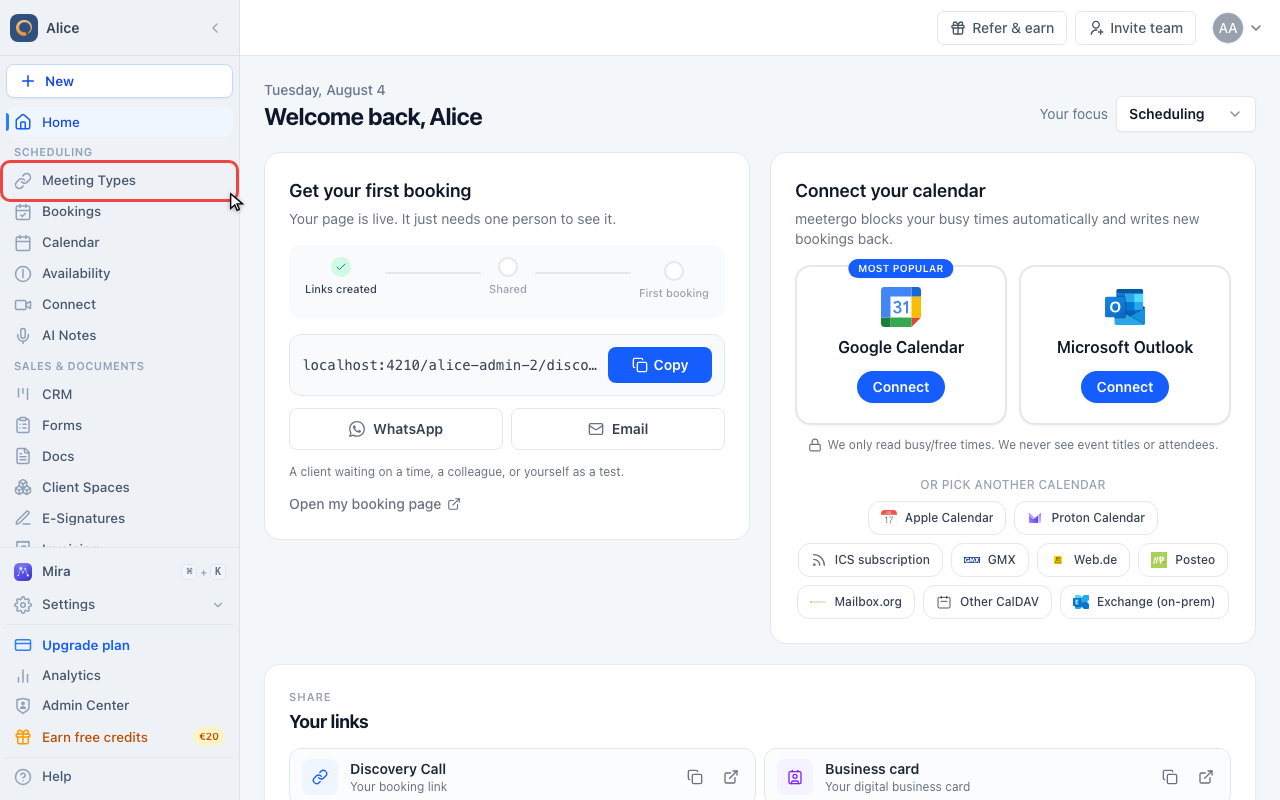
Open Meeting types
The venue belongs to a single meeting type, so start in Meeting types in the sidebar.
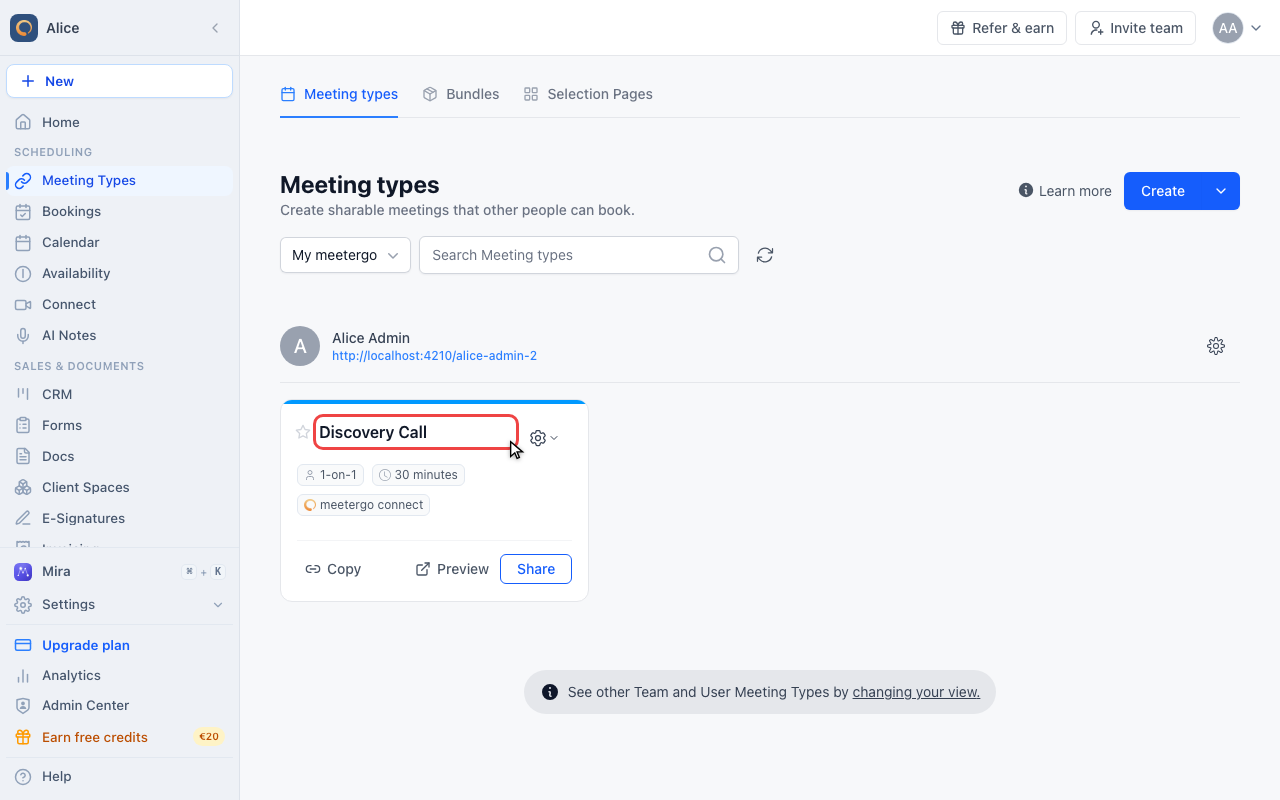
Open the meeting type
Click the name of the meeting type you want to hold in person. Every meeting type carries its own venue, so this is never a company-wide setting.
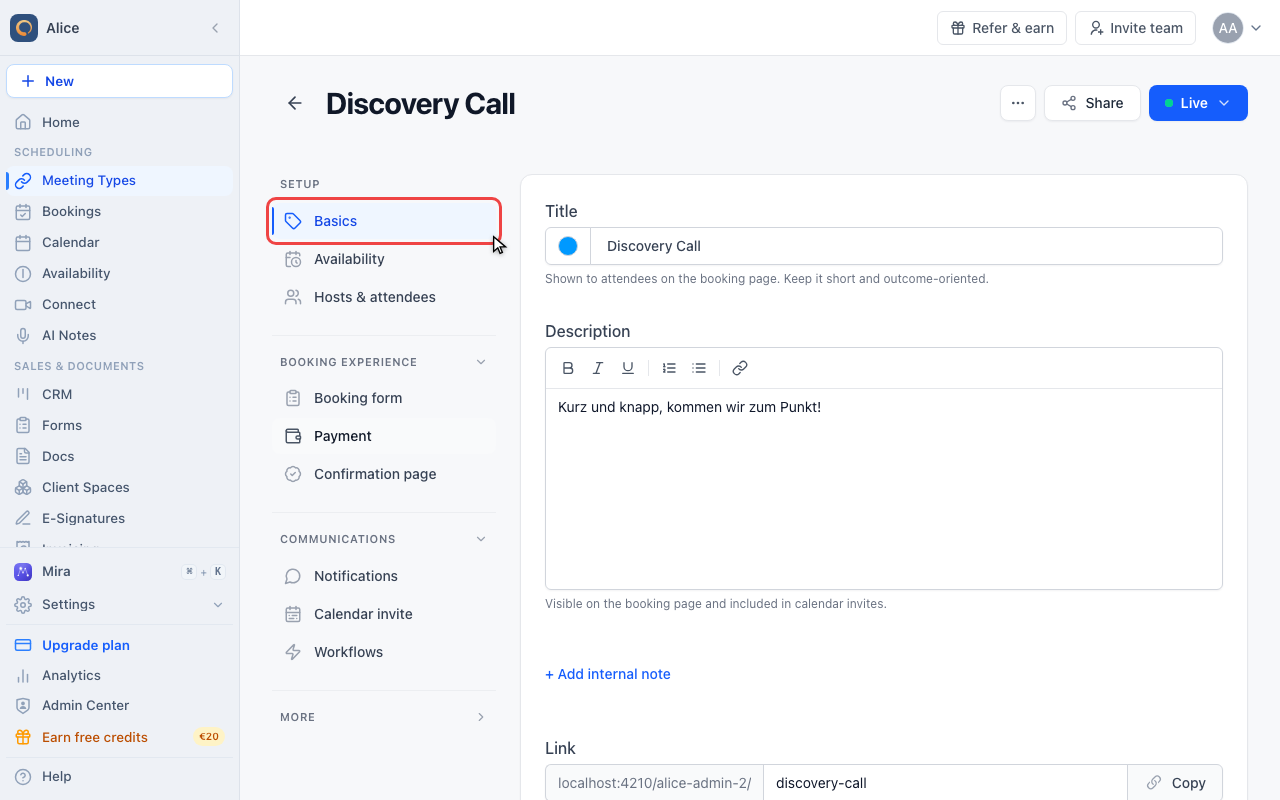
The editor opens on Basics
Basics is the first entry under Setup and the tab the editor lands on. It holds the title, the description and the venue.
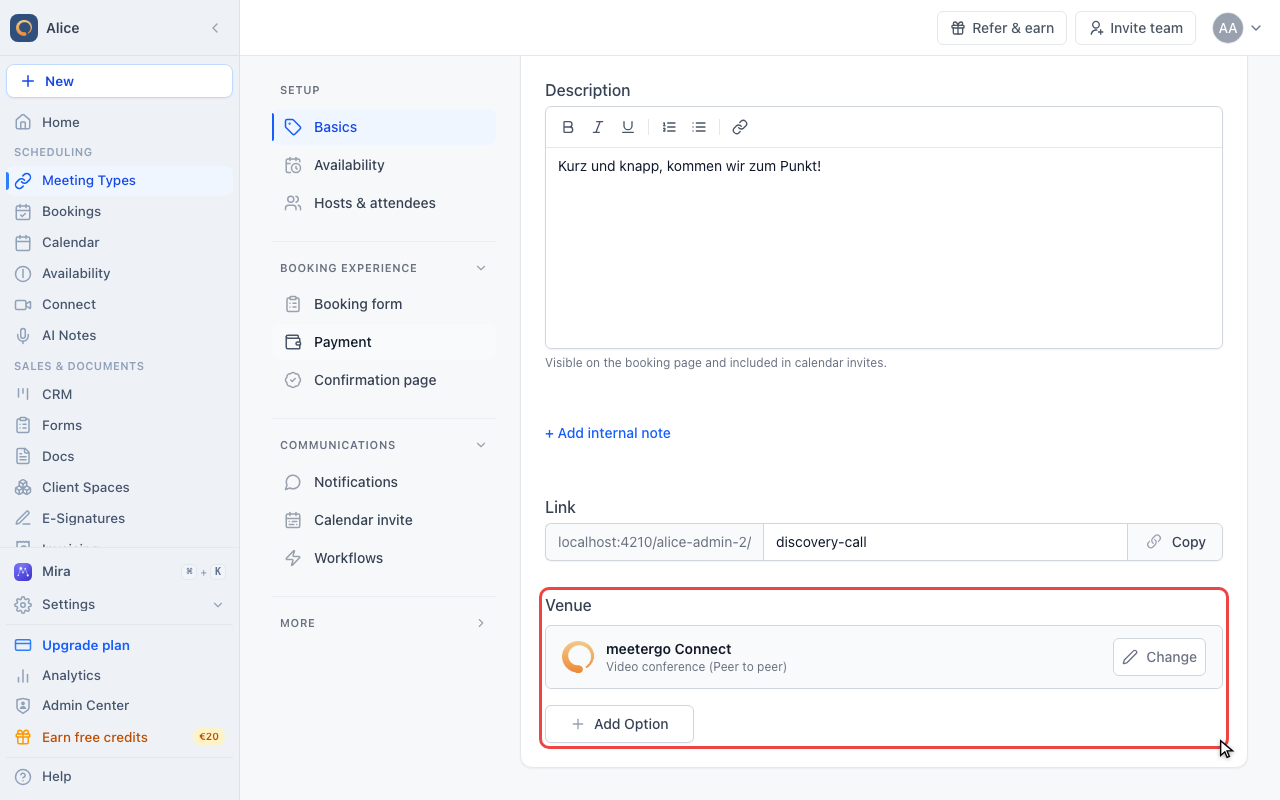
Find the Venue field
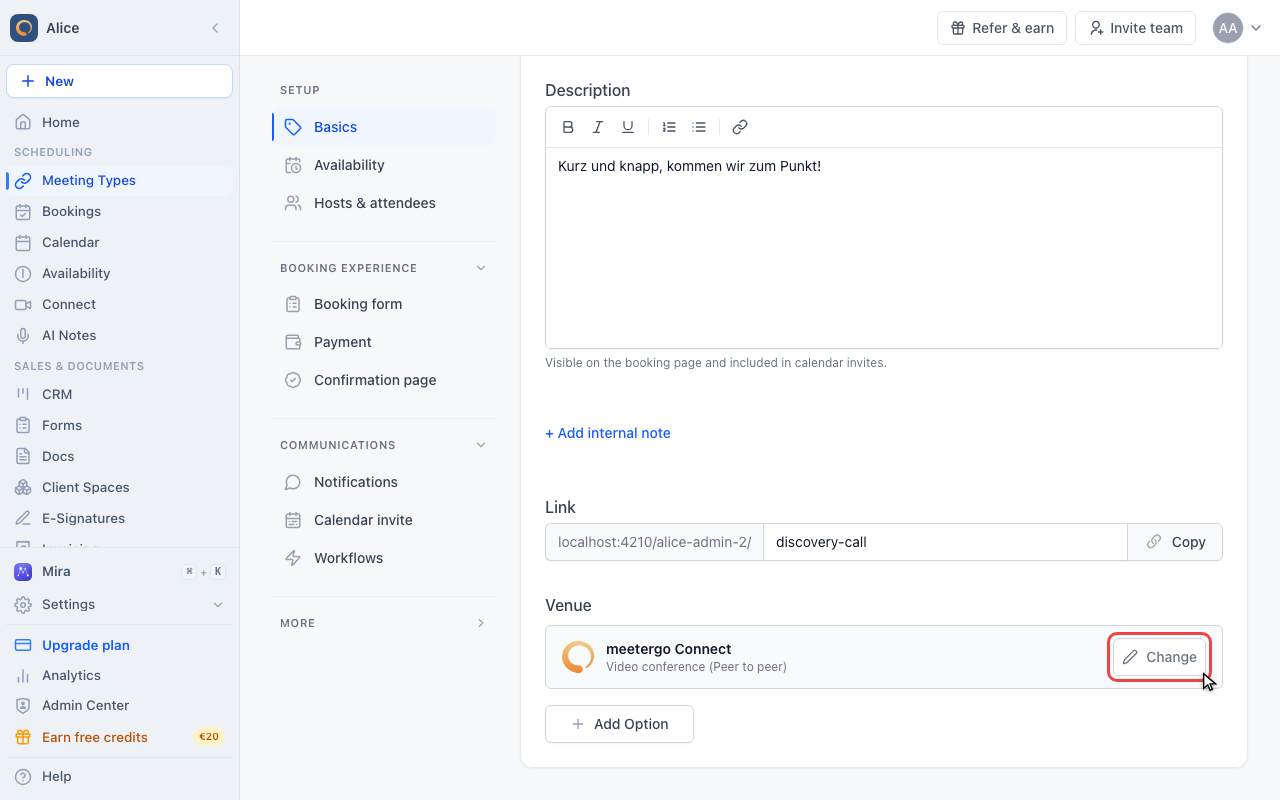
Venue is the last field on the tab, under the booking link. It lists every venue this meeting type currently offers, one row each.
Meet at your own address
Click Change
With a single venue in the list, Change swaps it for another one. It replaces the venue rather than adding to it.
Open the venue list
The dialog opens on the venue you have now. The dropdown holds every venue your account can use, video platforms and phone included.
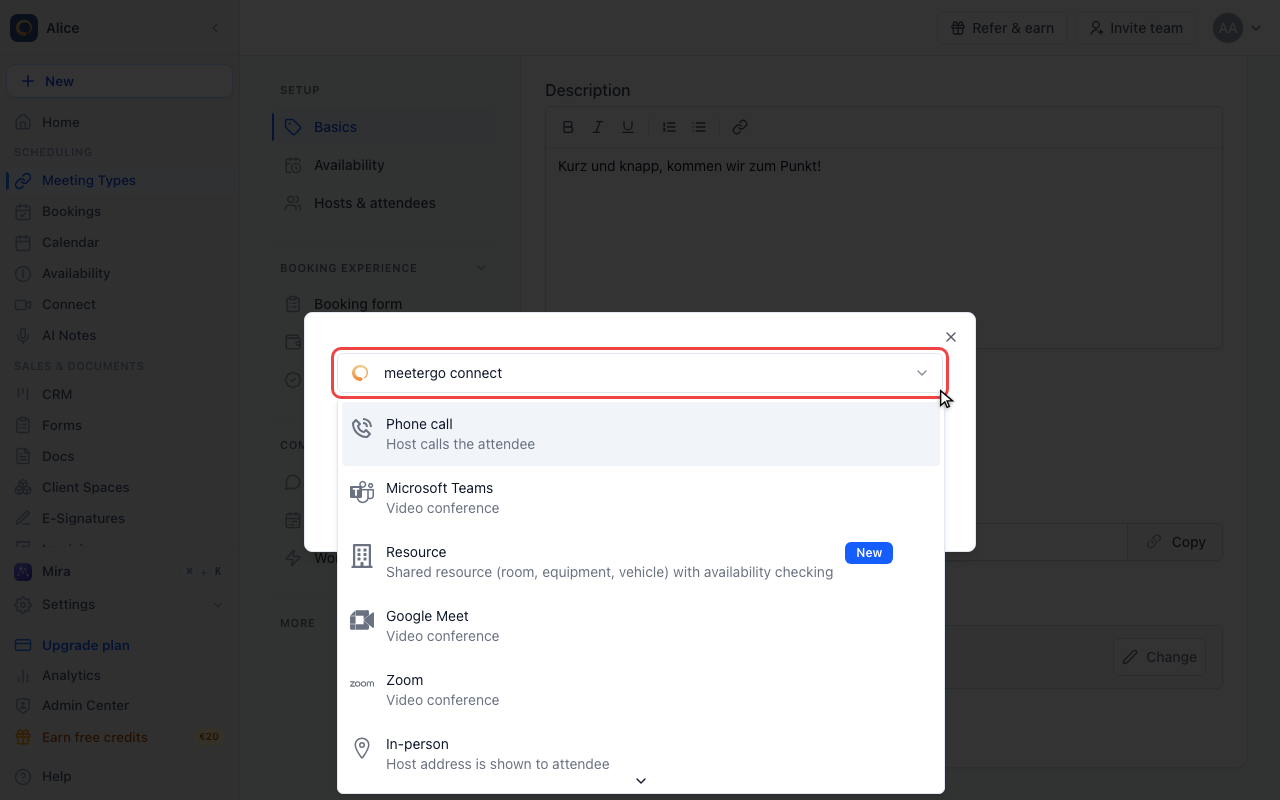
Choose In-person
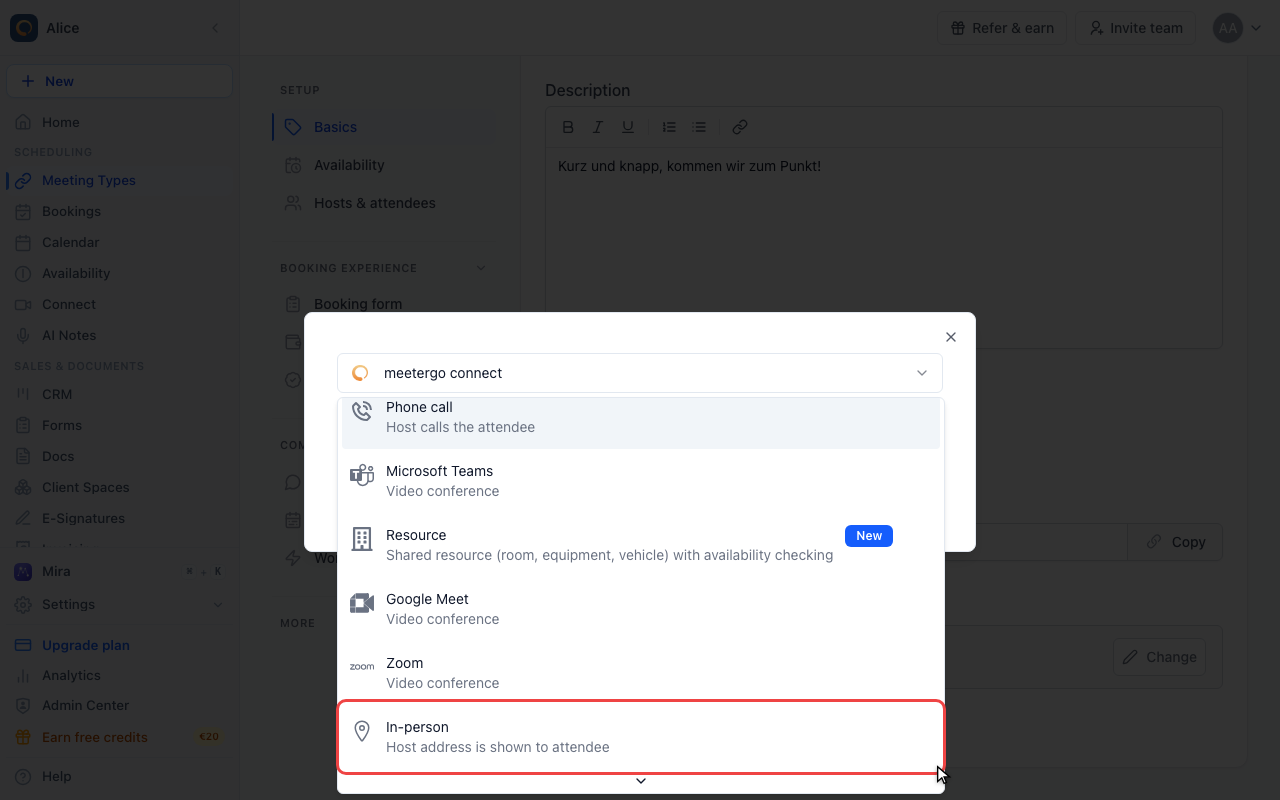
In-person is the one where you name the address. Its subtitle says so: the host address is shown to the attendee.
Type the address
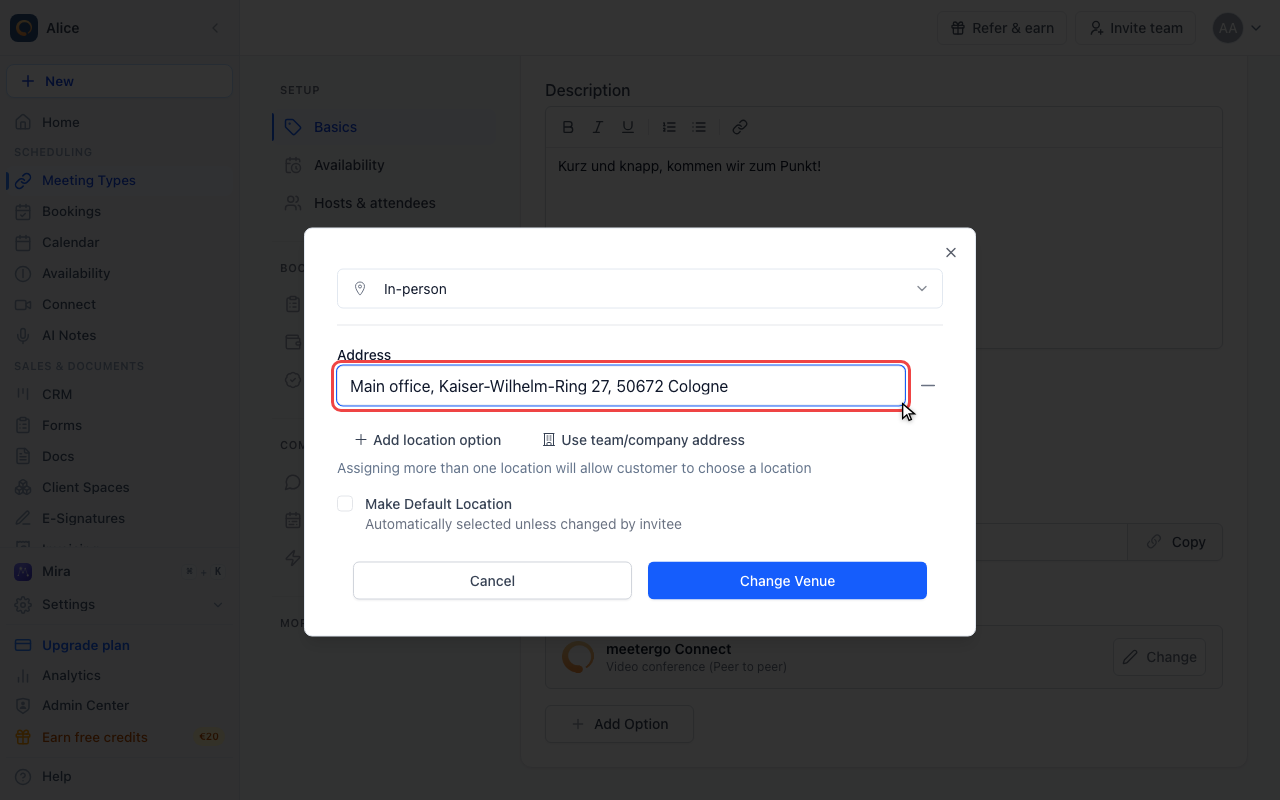
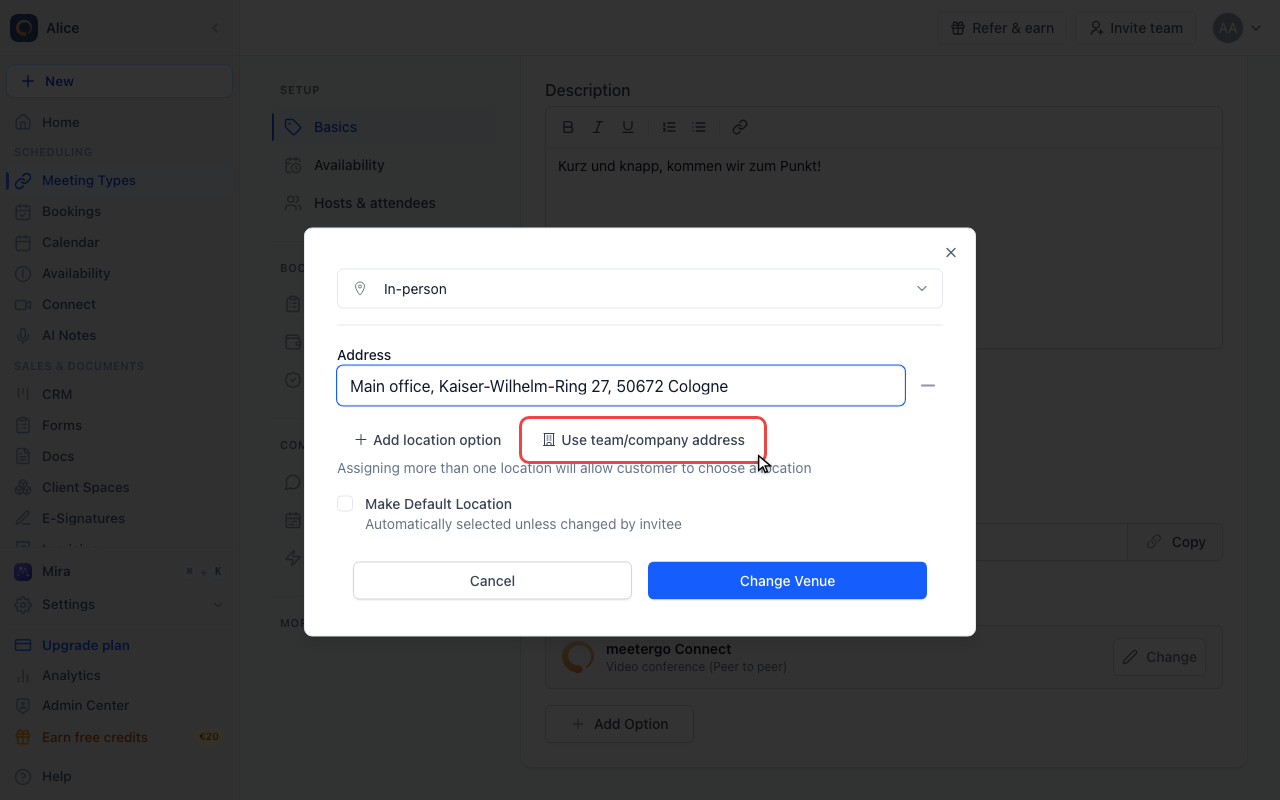
An Address list appears under the picker. Whatever you write here is what attendees read on the booking page, so write the full address, not a nickname.
Reuse the team address instead of typing one
Use team/company address inserts a placeholder rather than text, so the address follows your team settings whenever they change. Next to it, Add location option gives you a second address row, and the note under both buttons says what that does: with more than one address the attendee picks which one.
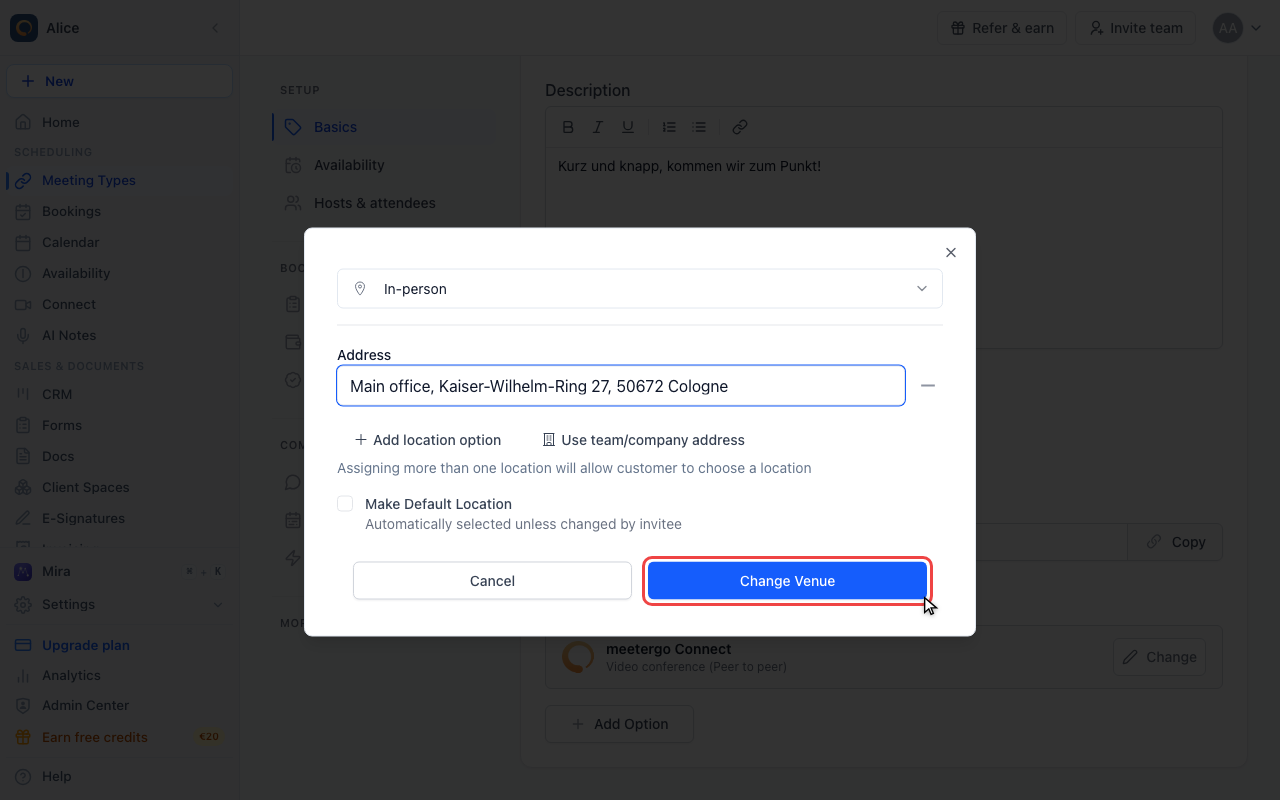
Apply the venue
Change Venue closes the dialog and writes the venue and the addresses into the field. Cancel throws both away.
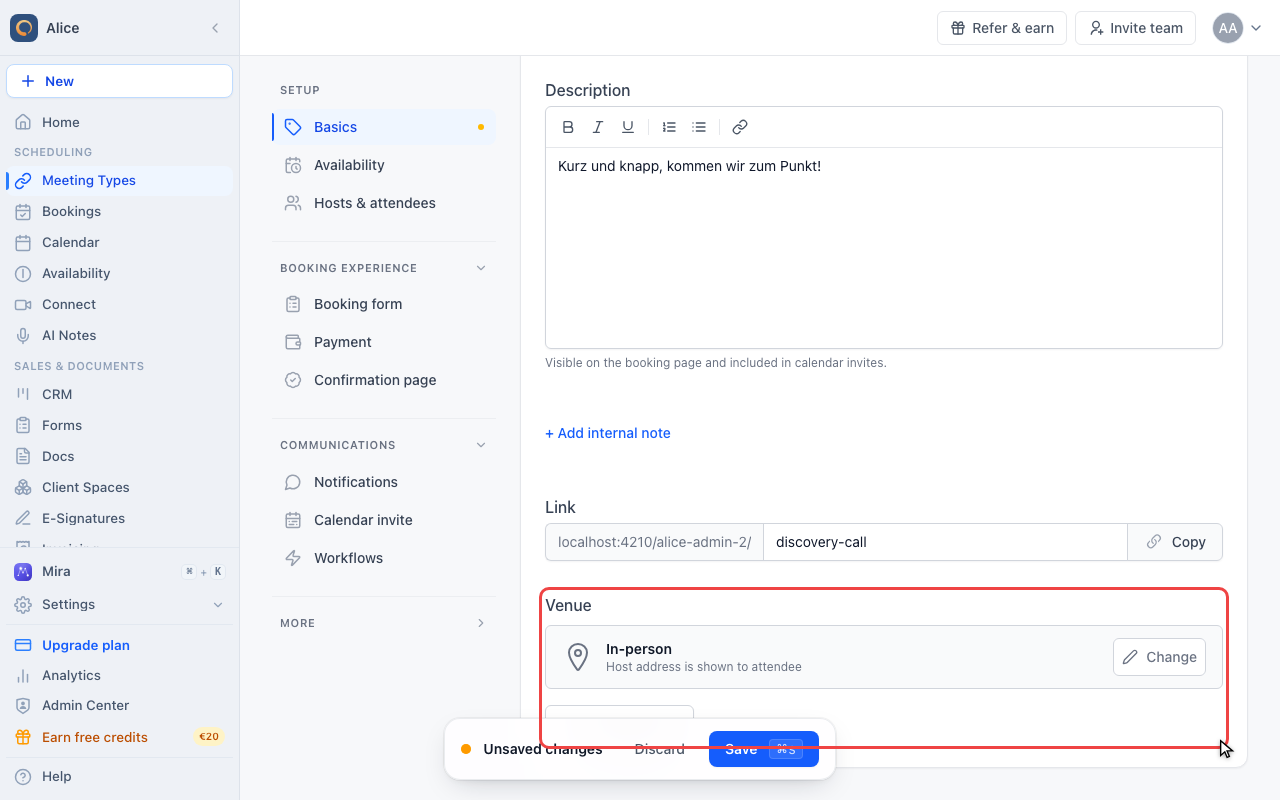
Check the venue row
The row now reads In-person. The addresses themselves are not shown here, so open Change again whenever you need to correct one.
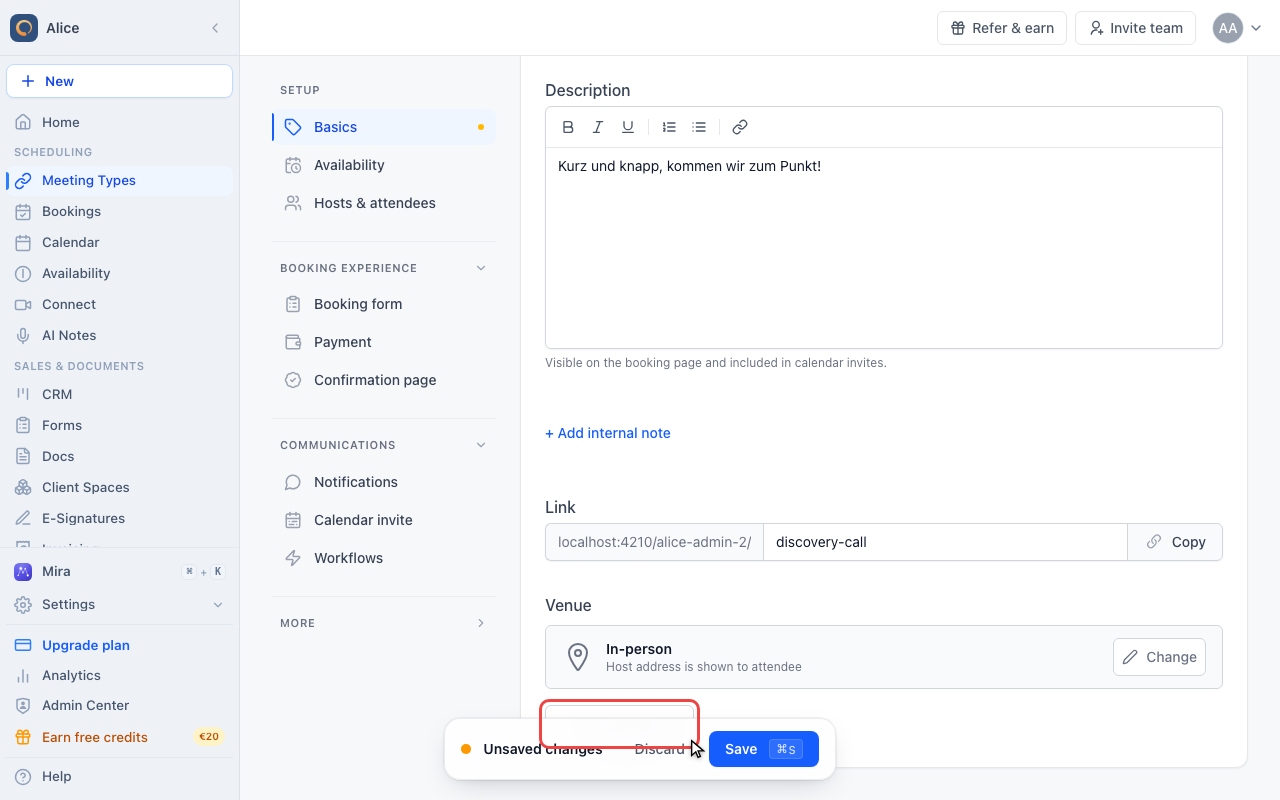
Meet at the attendee's address
Click Add Option
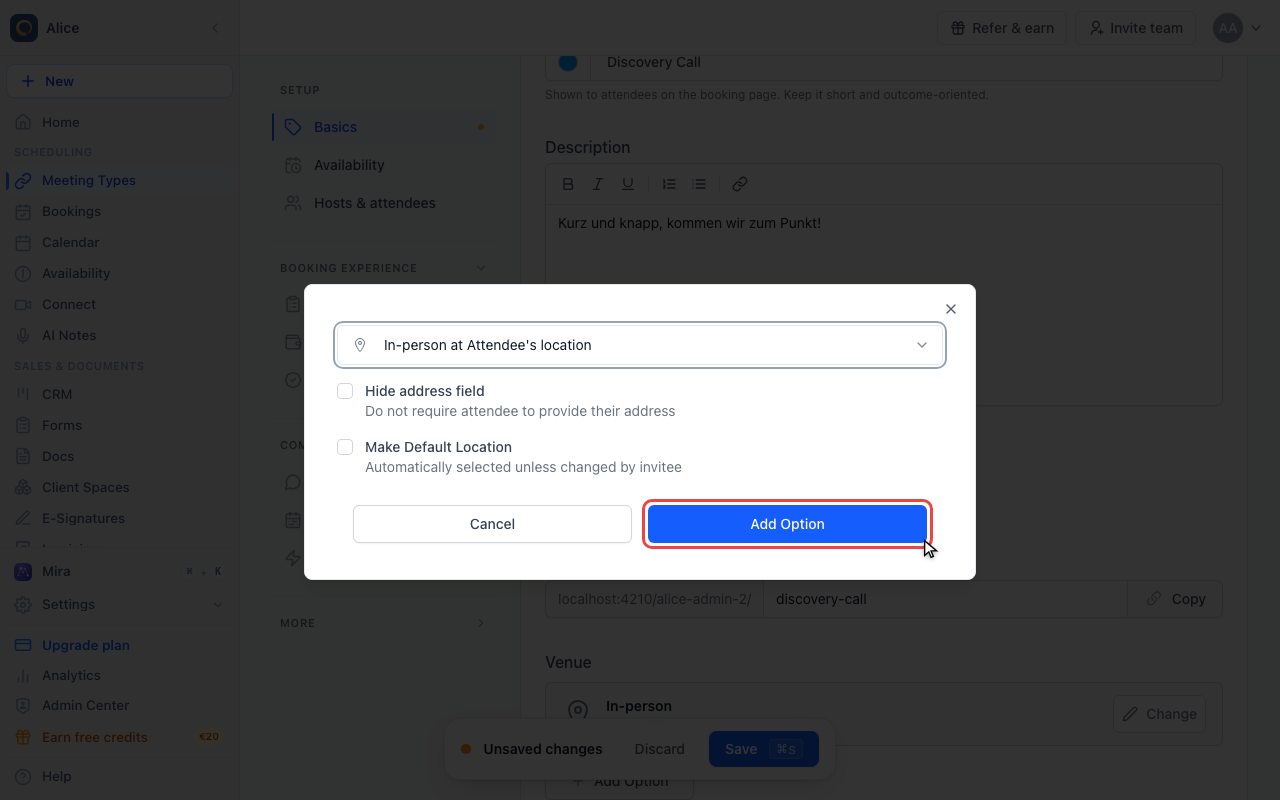
Add Option keeps the venue you already have and offers a second one next to it. The attendee then chooses between them while booking.
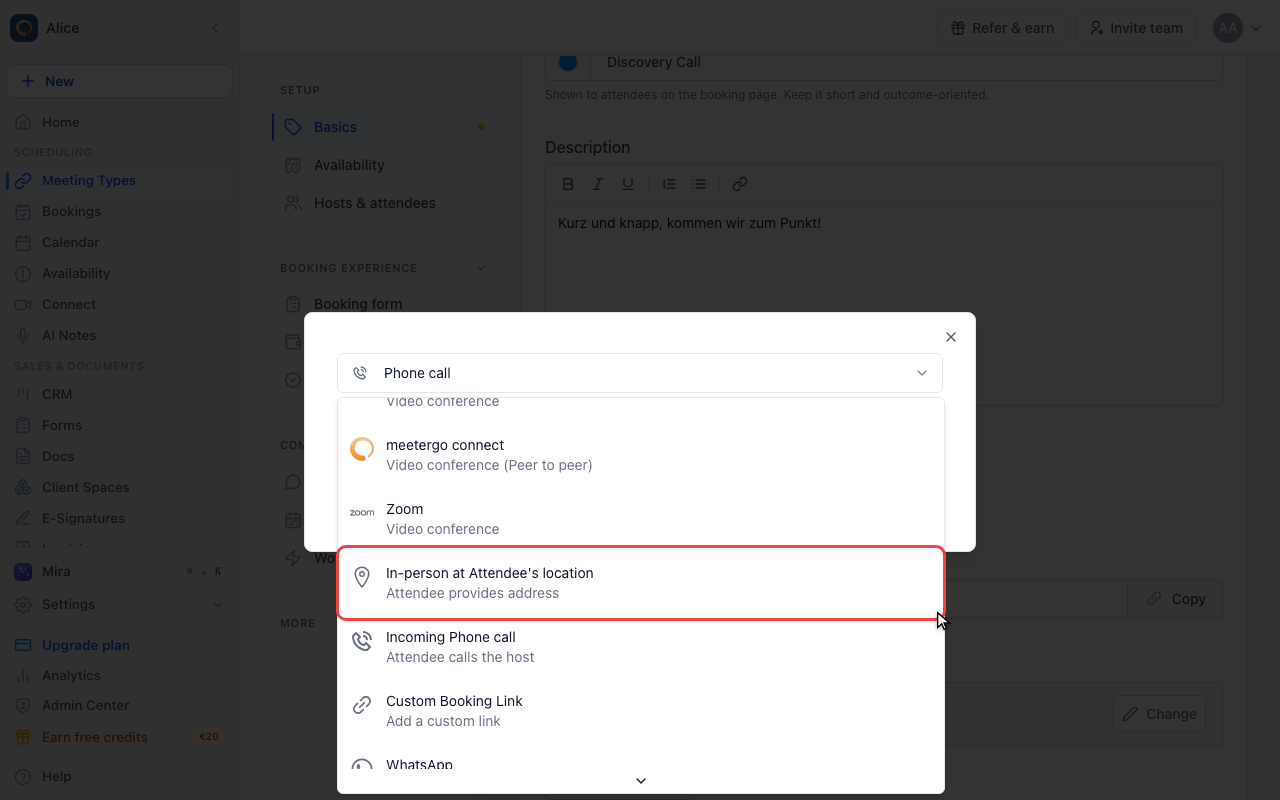
Choose In-person at Attendee's location
This is the mirror image of the previous one: you travel, so the attendee provides the address.
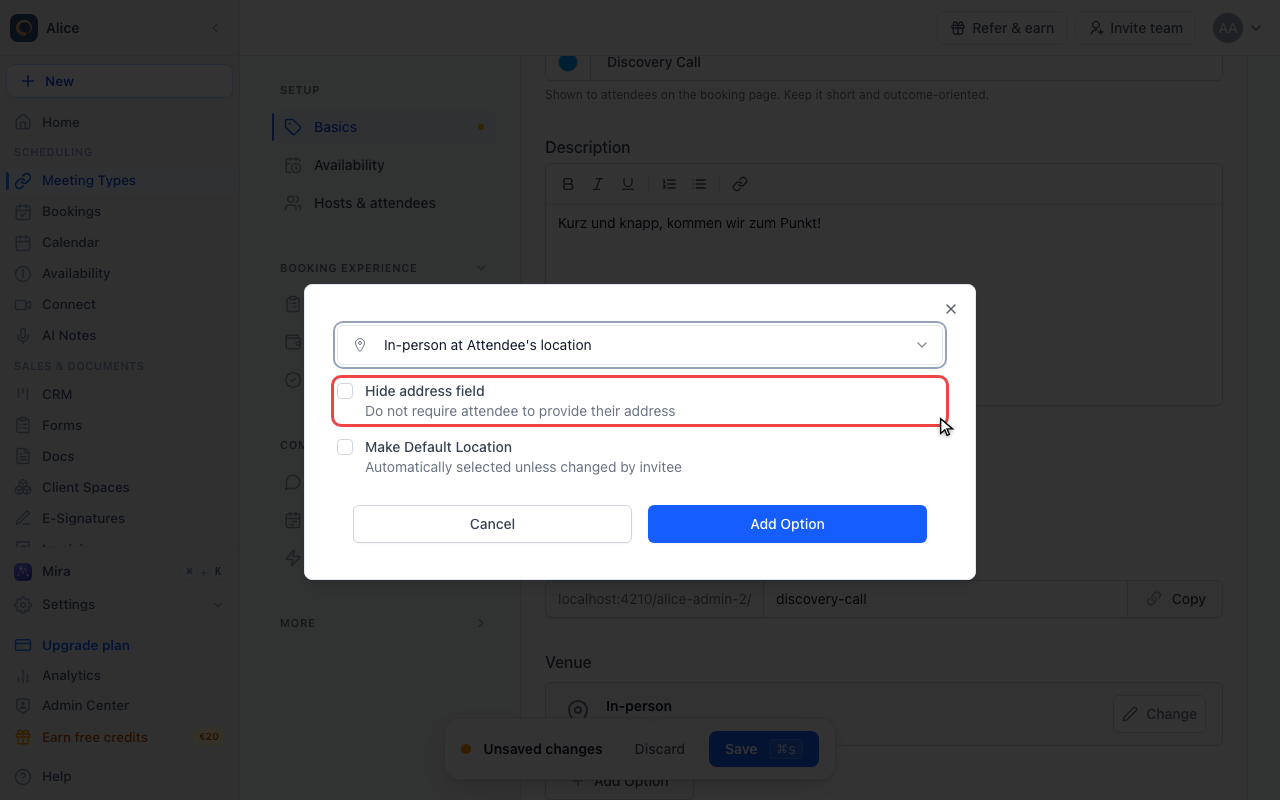
Decide whether to ask for the address
Leave Hide address field off and meetergo adds a required address field to the booking form by itself, right under the email. Tick it only when you collect the address some other way.
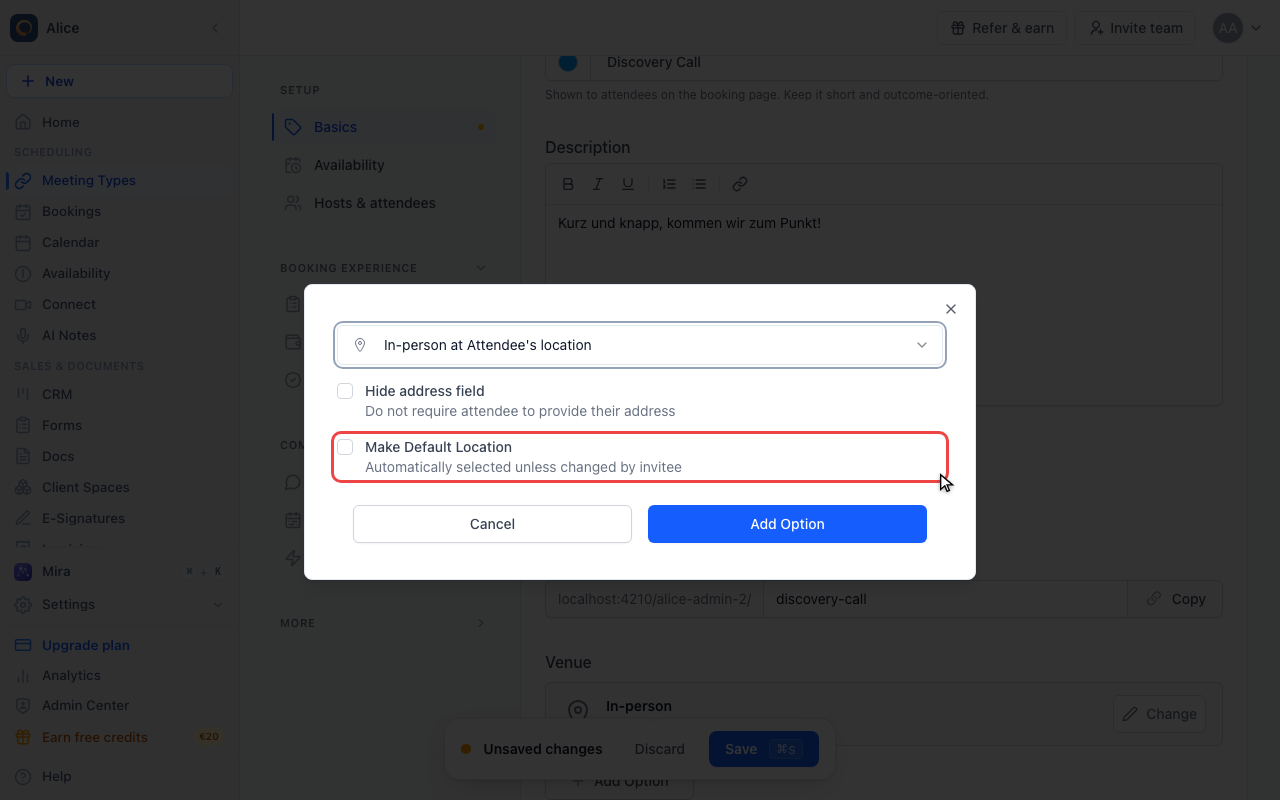
Pick which venue is preselected
Make Default Location decides which of the two the booking page offers first. Leave it off here and your own address stays the default.
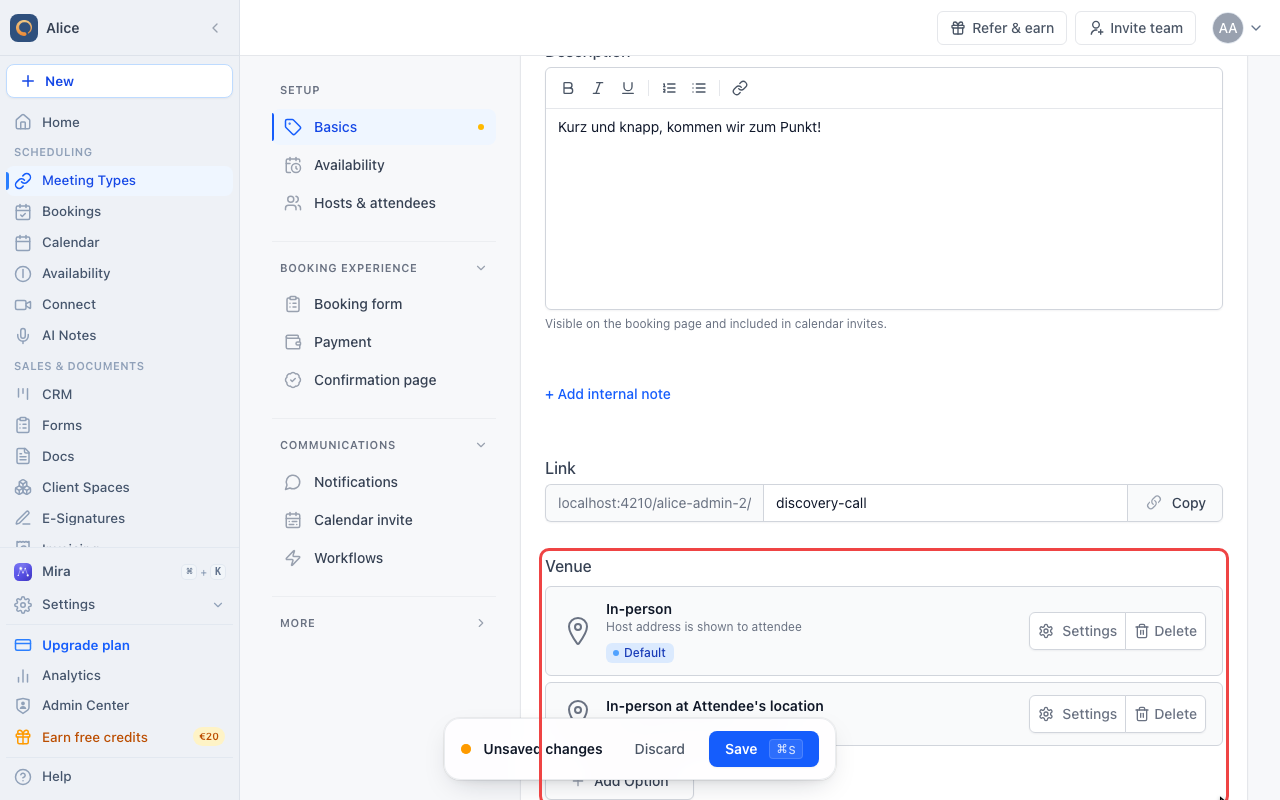
Add the second venue
Two venues, one marked Default
With more than one venue each row grows a Settings and a Delete button, and the preselected one carries a Default badge. Delete is greyed out on the last remaining venue.
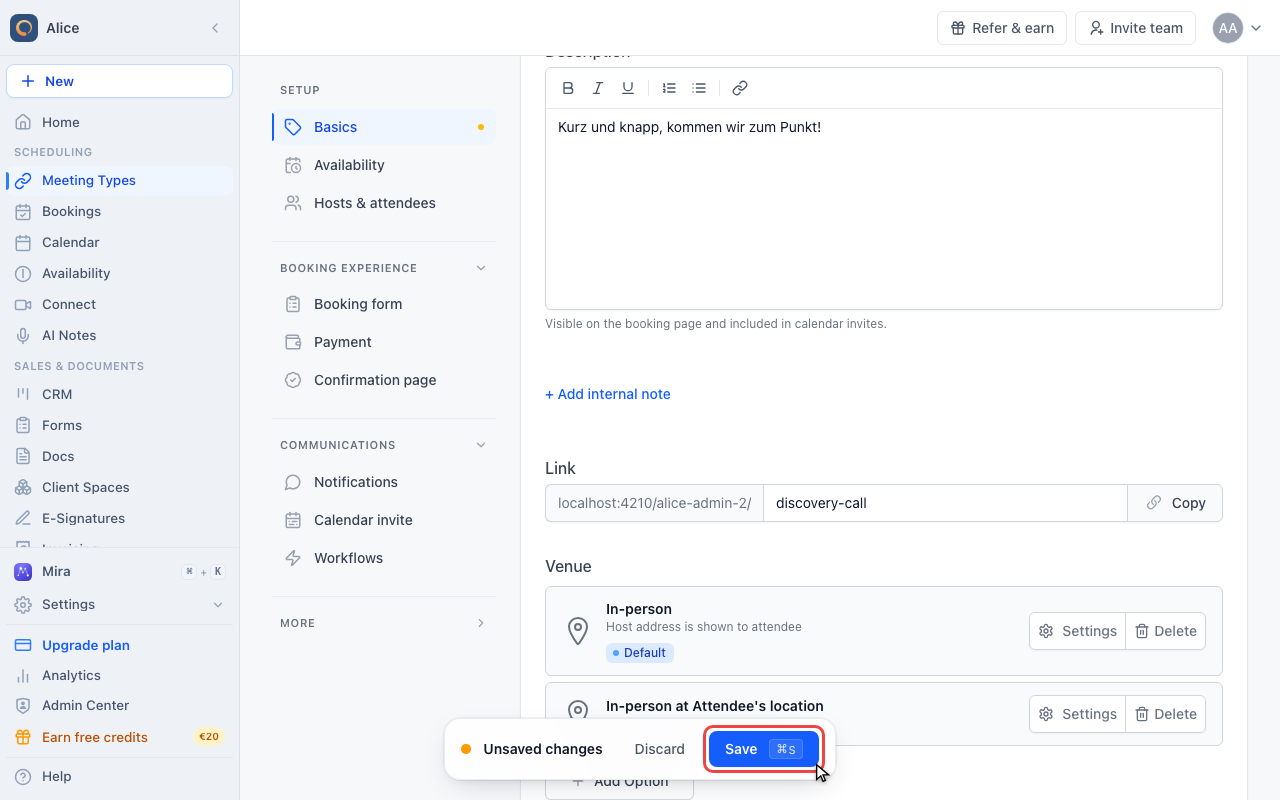
Save the meeting type
Save the meeting type
Nothing reaches your booking page until you press Save. Leaving the editor first discards the venue and the addresses together.
Which of the two to pick
| Venue | Who supplies the address | Where it comes from |
|---|---|---|
| In-person | You do, once, in the venue dialog | The Address list you type into |
| In-person at Attendee's location | The attendee does, on every booking | The address field on the booking form |
Confirmation emails and calendar entries call both of them "In-person Meeting", so the subtitle in the venue picker is the only place the two are told apart while you set them up.
Several addresses on one meeting type
Add location option adds another address row inside the venue dialog. There is no separate name field: whatever you type is exactly what the attendee reads, so write the full address rather than a nickname.
- With one address, the booking page uses it without asking.
- With two or more, the attendee picks one before booking, and the address they picked is the one stored on the booking.
Use team/company address inserts a placeholder instead of text. meetergo replaces it when someone books, with your team's address or, if the team has none, with the company address.
Use the placeholder for your own offices. Change the address in your team or company settings and every meeting type that uses the placeholder follows, with nothing to edit per meeting type.
If neither a team address nor a company address is set, the placeholder resolves to nothing and that option simply disappears from the booking page. Fill the address in first.
Asking the attendee for their address
With In-person at Attendee's location, meetergo adds a required address field to the booking form by itself, right under the email field. You do not need to build a data field for it.
Whatever the attendee types becomes the location of the booking, so it fills the {!M.Meeting.Location} tag in your notifications and the location of the calendar entry without any extra setup.
Hide address field switches that off. Use it only when you already know where you are going: with the field hidden the booking carries no address at all, and the location tag stays empty.
Offering both
Change replaces the venue you have. Add Option keeps it and puts a second one beside it, and the attendee then chooses while booking.
From two venues on, each row grows a Settings and a Delete button, and the preselected one carries a Default badge. Change the preselection with Make Default Location in the venue dialog. Delete is greyed out on the last remaining venue, because a meeting type always needs one.
Nothing reaches your booking page until you press Save.
FAQ
Can one meeting type offer several addresses?
Yes. Add location option adds a row per address, and the attendee picks one while booking. All of them belong to the same In-person venue, so they share the meeting type's duration and availability.
How do attendees see the address?
For In-person, the address you typed is on the booking page itself and is repeated in the confirmation email and the calendar entry. There is no "name now, address later" split.
Do I need an address field for meetings at the attendee's location?
No. The field is added to the booking form for you and is required, unless you tick Hide address field.
Can I change the address after somebody has booked?
Yes, for that one booking. Open it in Bookings and use Edit next to Location. meetergo updates the calendar entry and reschedules the reminders, but it does not email the attendee about the change, so tell them yourself. Past and cancelled bookings cannot be edited.
Can I use an in-person venue together with a video call?
Yes. Add Option takes any venue, so the same meeting type can offer In-person and a video platform side by side, and the attendee chooses one.
Was this article helpful?
Let us know if this article answered your questions.
Related articles
- Account Owner MatchingRoute round-robin bookings to the user who already owns the booker as a contact
- Allow or Disable Guest InvitationsControl whether attendees can add additional guests to their bookings
- Booking Confirmation: Why It Happens and How to Turn It OffFind out which setting makes attendees or hosts confirm a booking again, change the confirmation deadline, resend a confirmation email, and switch booking confirmation off for your whole company or a single meeting type.
- Booking questions and the booking button textAdd your own questions to the booking form, and change the booking button text: rename the Book now button, edit field labels, help text and placeholders, and find where the other text on your booking page comes from.