
Communications Log
Record the calls, emails and messages behind a deal or a contact
A deal moves because somebody picked up the phone. The Communications card is where that lands: one line per call, email, SMS or WhatsApp message, with who started it, how it went and how long it took. This guide shows you where the card sits, what the log dialog asks for, and what you can still change afterwards.
 1 / 17
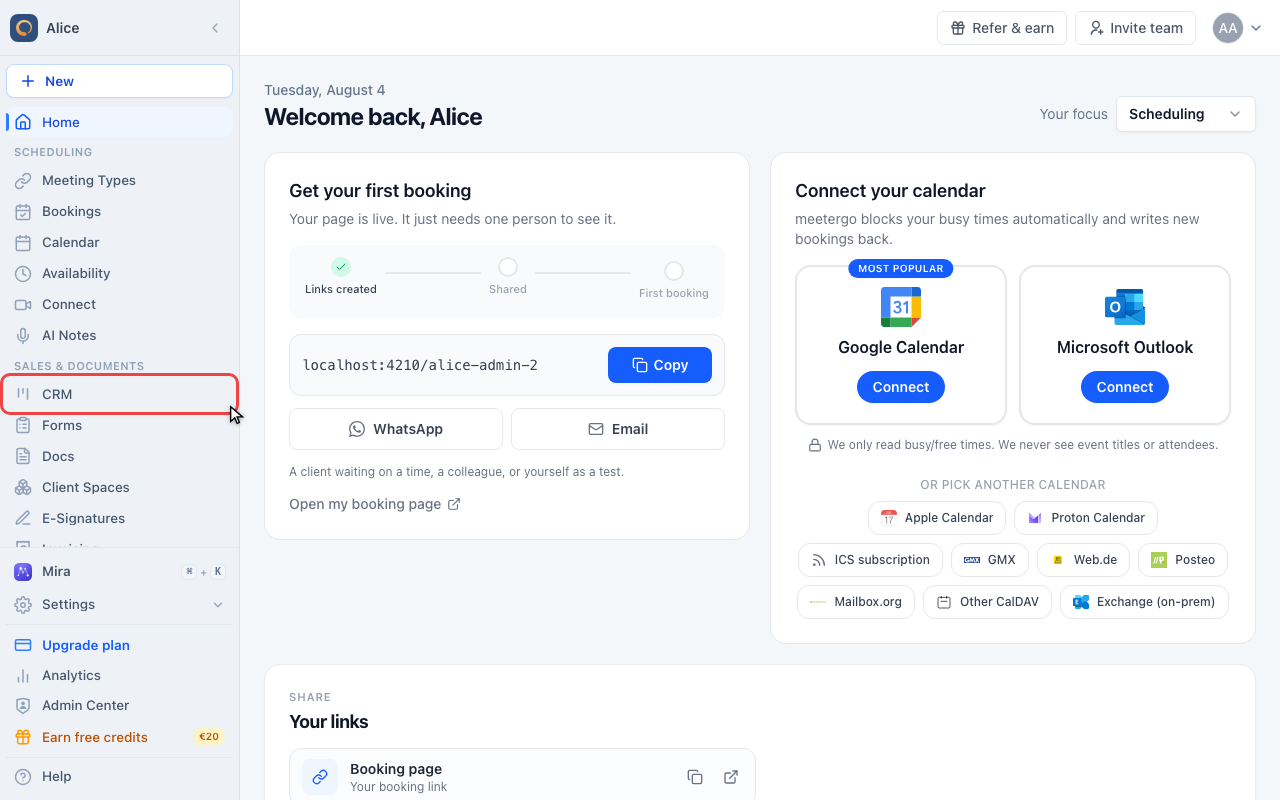
Click CRM in the sidebar. CRM opens on the Deals tab.
Log a communication
Open CRM
Click CRM in the sidebar. CRM opens on the Deals tab.
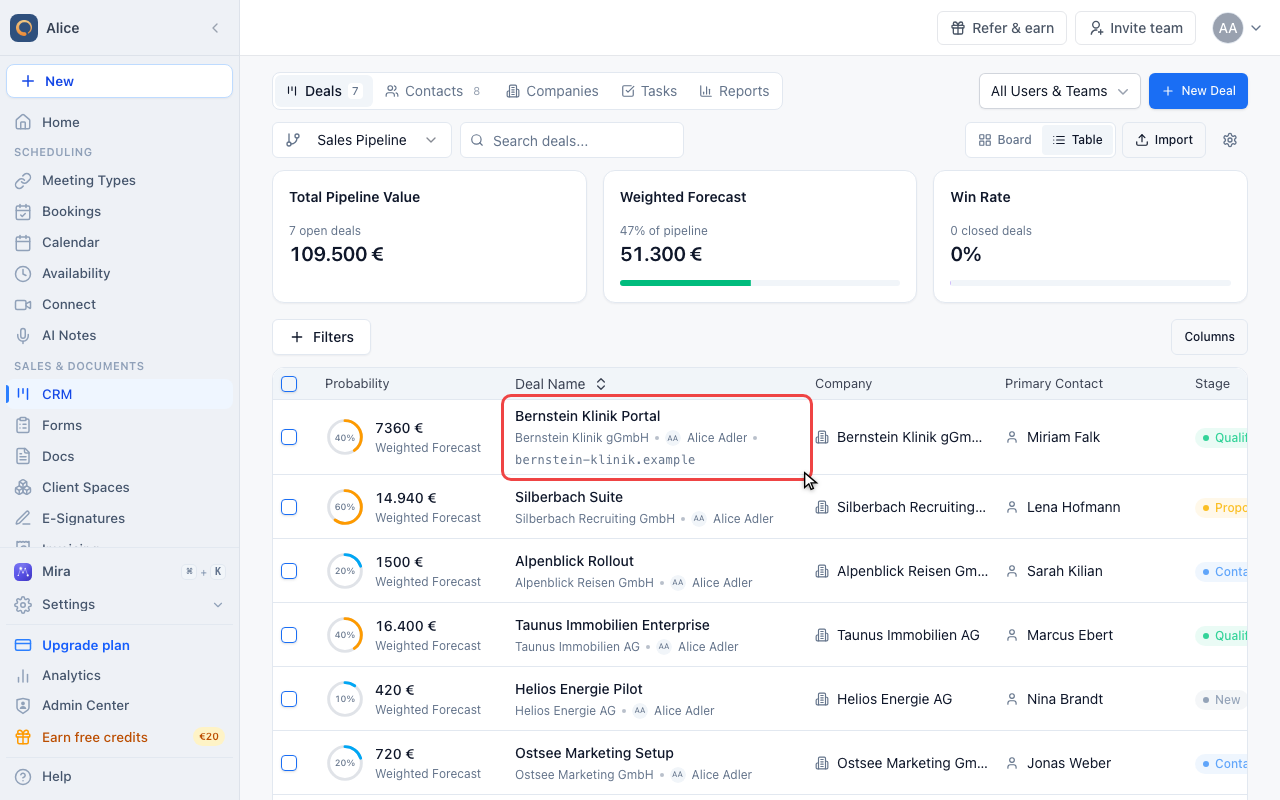
Open a deal
A communication always belongs to one record, so open the deal or contact it was about.
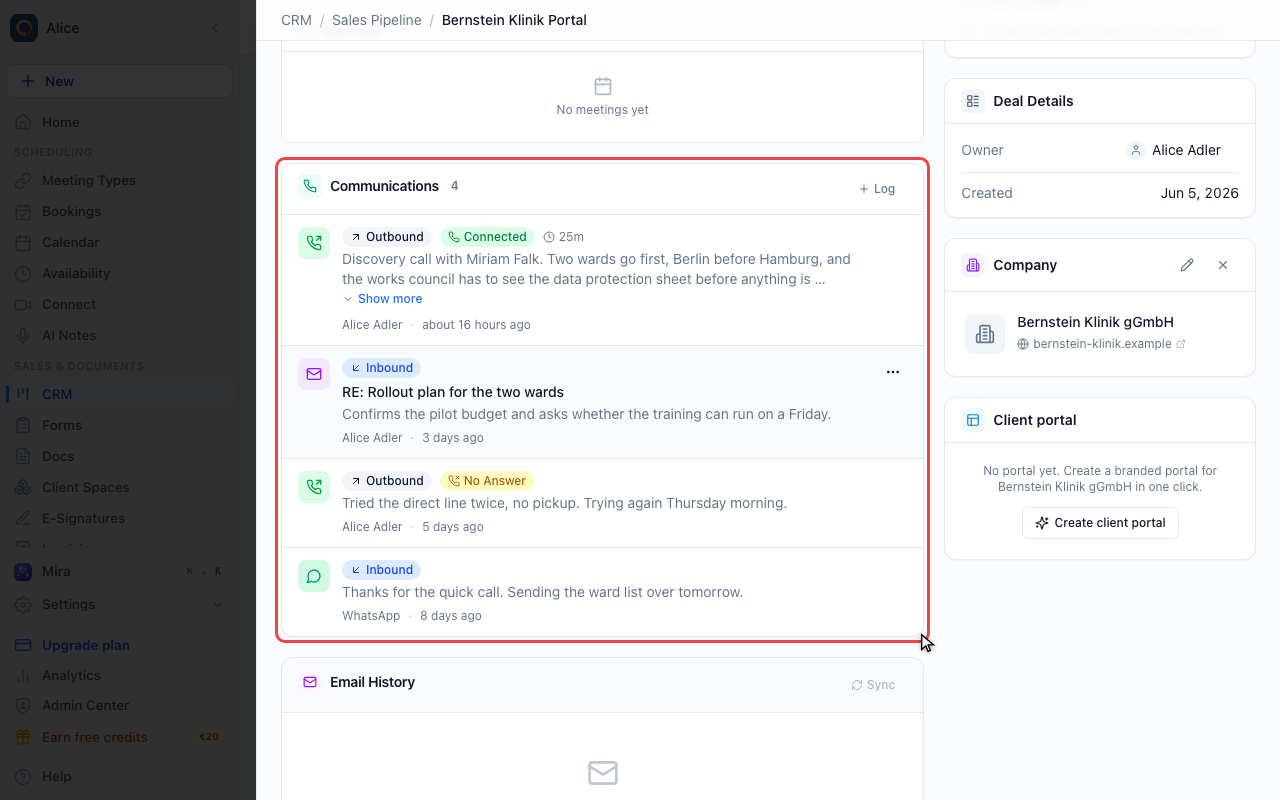
Find the Communications card
On a deal the card sits in the Overview tab, between the appointments and the synced mailbox. The number beside the heading is how many entries the deal carries.
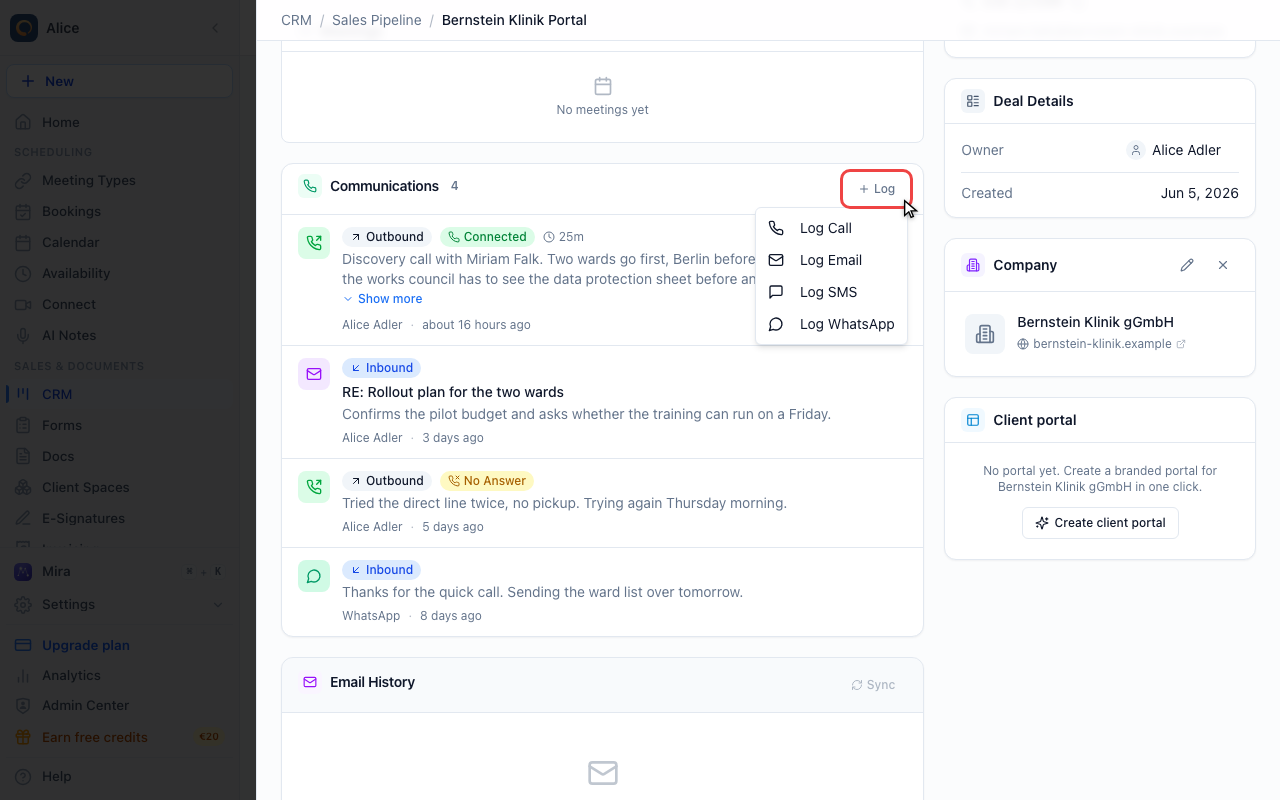
Choose what to log
Log in the card header opens a short menu: Log Call, Log Email, Log SMS and Log WhatsApp. Your choice only preselects the type, you can still change it in the dialog.
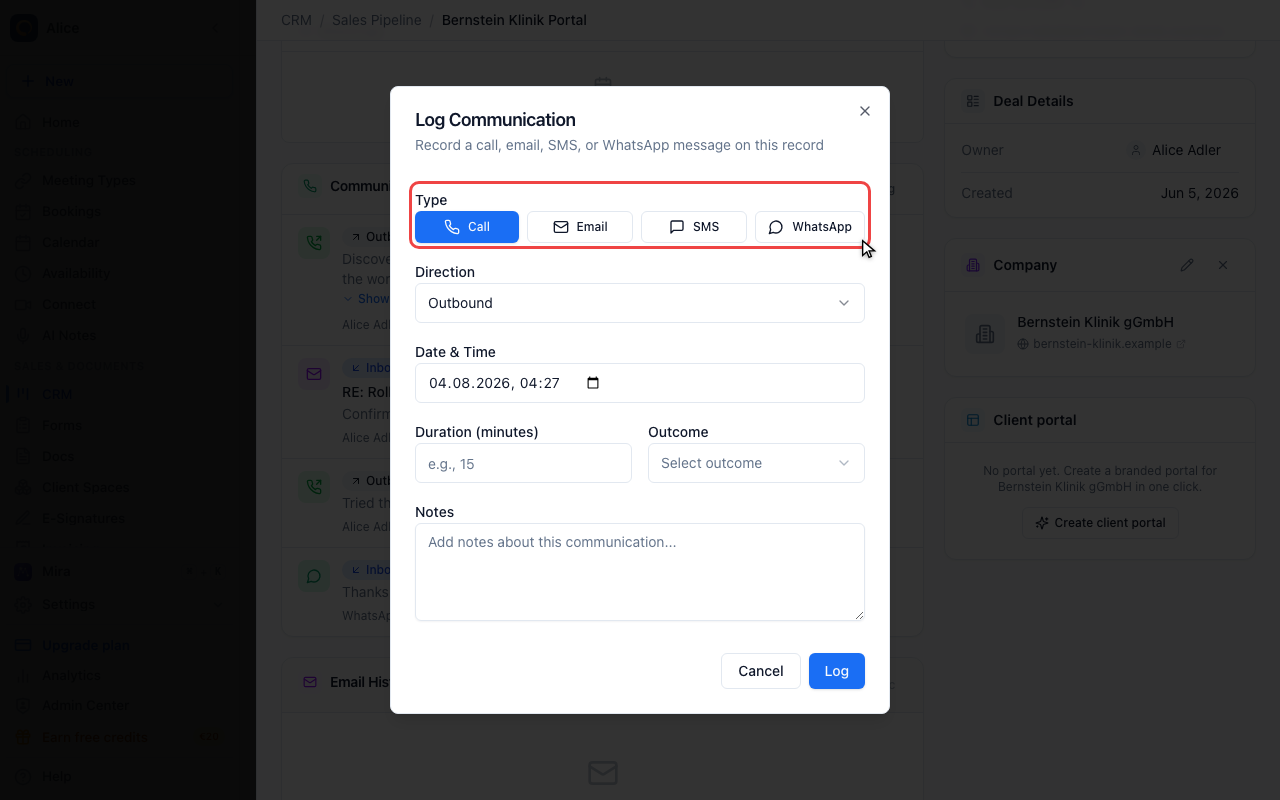
Set the type
The four types sit as buttons at the top of the dialog. Which fields you get below depends on this choice.
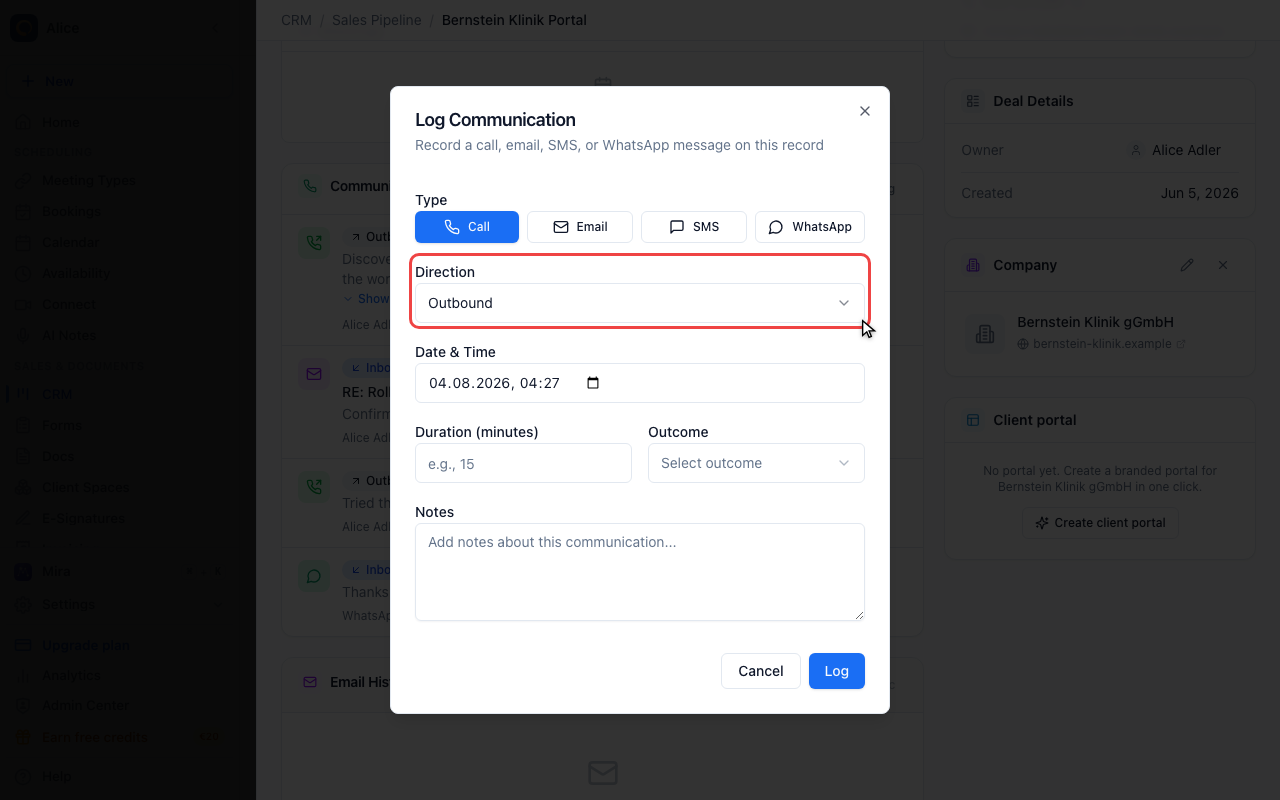
Say which way it went
Outbound is you reaching out, Inbound is the other side getting in touch. The dialog starts on Outbound.
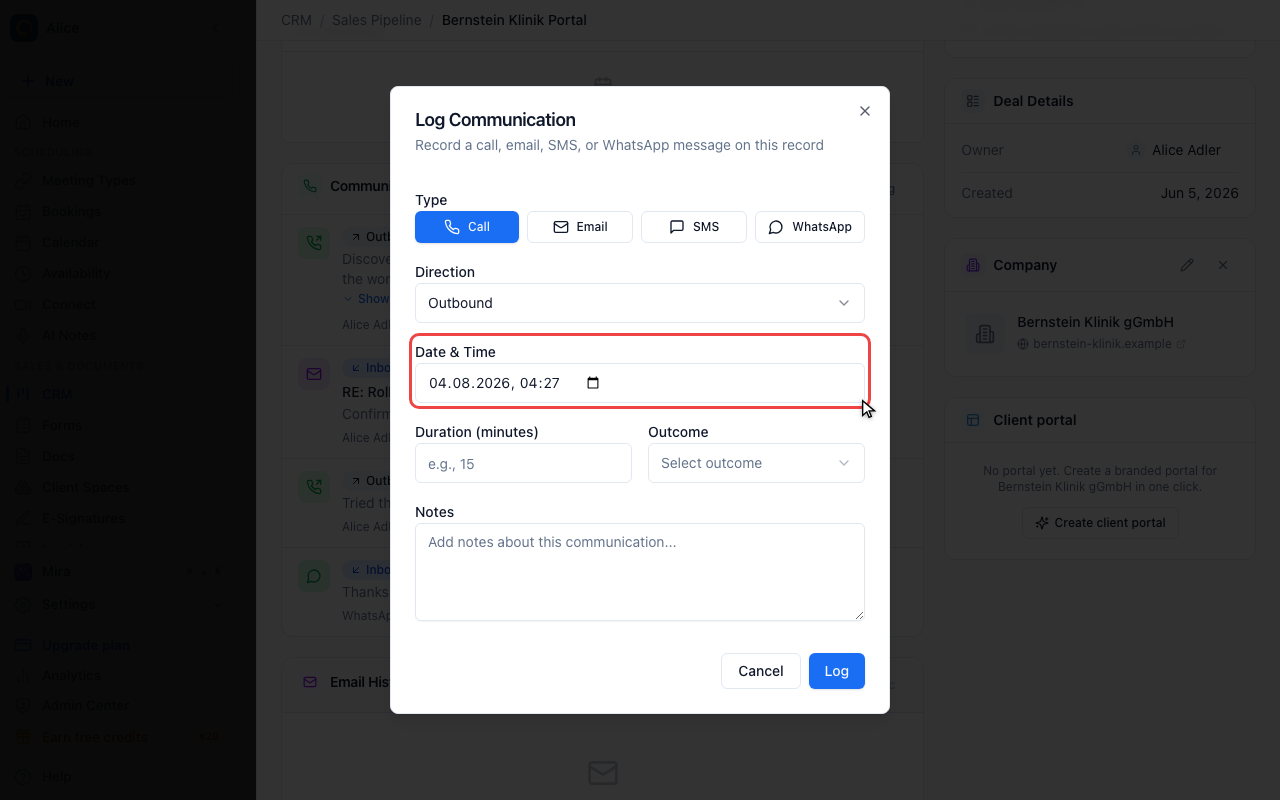
Correct the time
Date & Time is prefilled with right now, which is what you want when you log straight after the call. Change it to log something from yesterday, and the entry sorts into the list by this value.
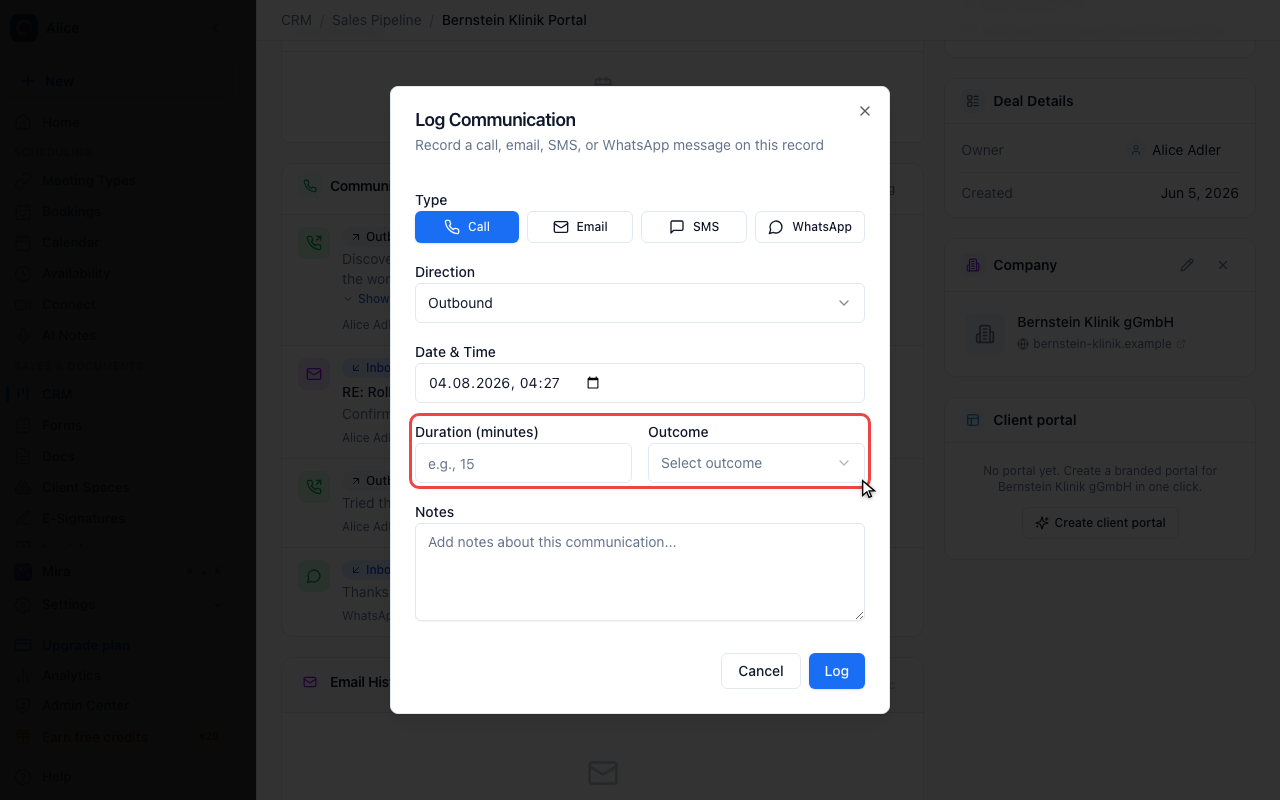
Add duration and outcome
These two only appear for a call. Duration is in minutes and takes halves, Outcome is Connected, Voicemail, No Answer or Busy. Both are optional.
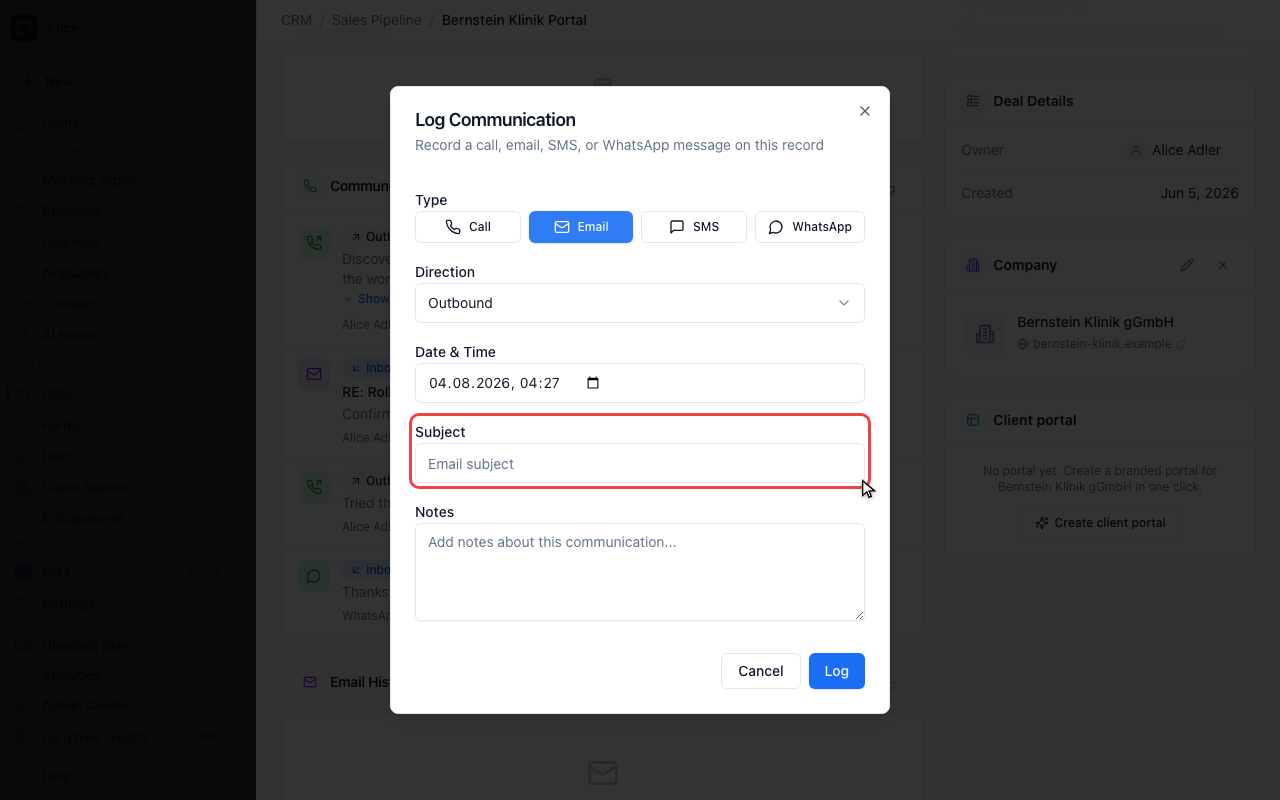
Email asks for a subject
Pick Email and the duration and outcome fields are replaced by a Subject line. SMS and WhatsApp ask for neither and go straight to the notes.
Write down what happened
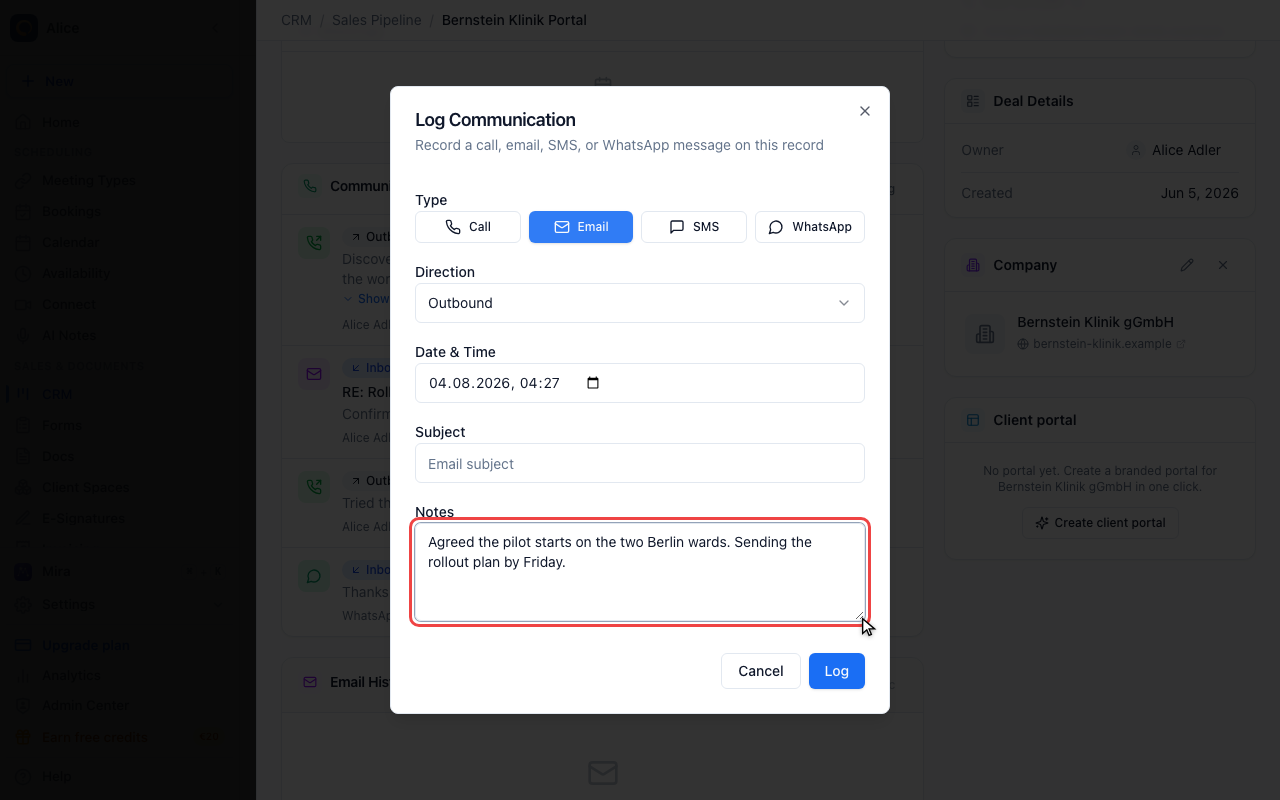
Notes is the part your colleagues will actually read. Plain text, no formatting, as long as you like.
Save the entry
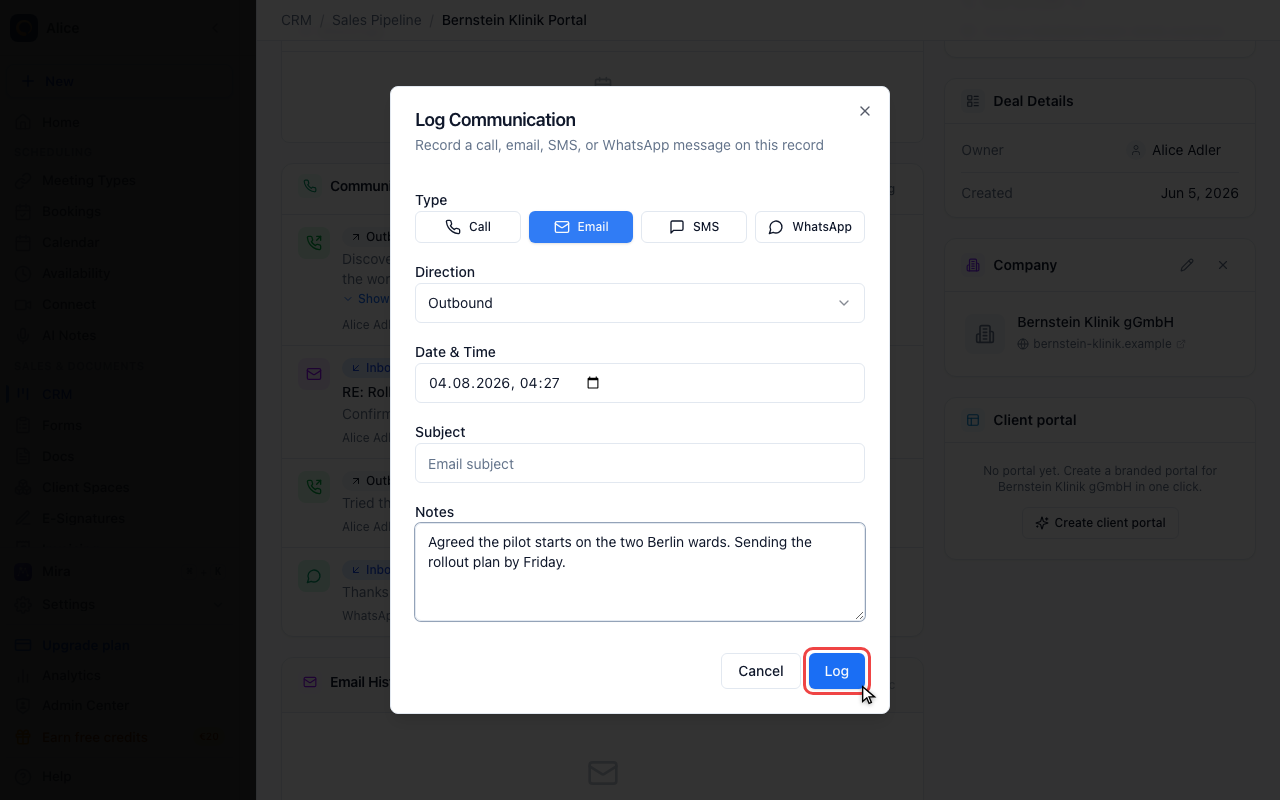
Log writes it to the record and it appears at the top of the card. Nothing here is required except the type and the direction, both of which are already set.
Read the log
Read an entry
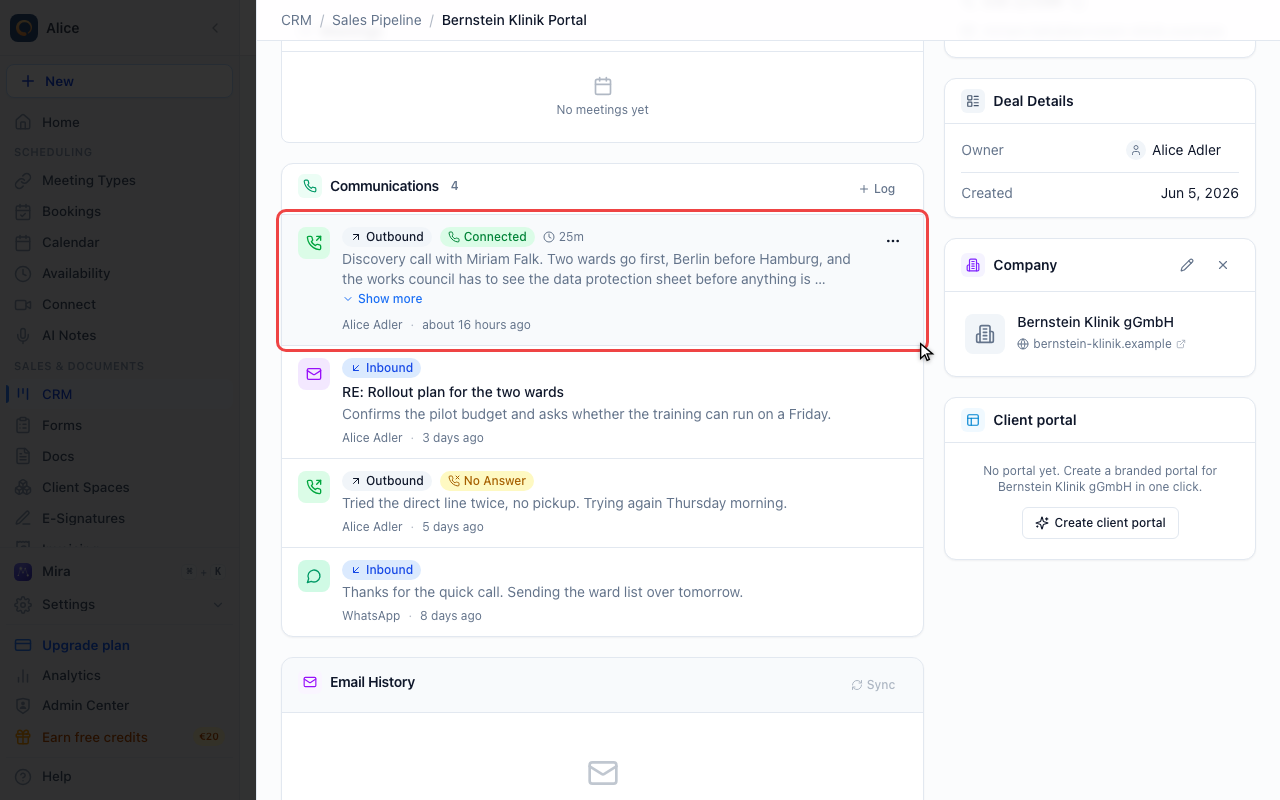
Newest first. Each row has a coloured icon for the type, a badge for the direction, and for calls the outcome and how long it lasted. Underneath sit the notes, then who logged it and how long ago.
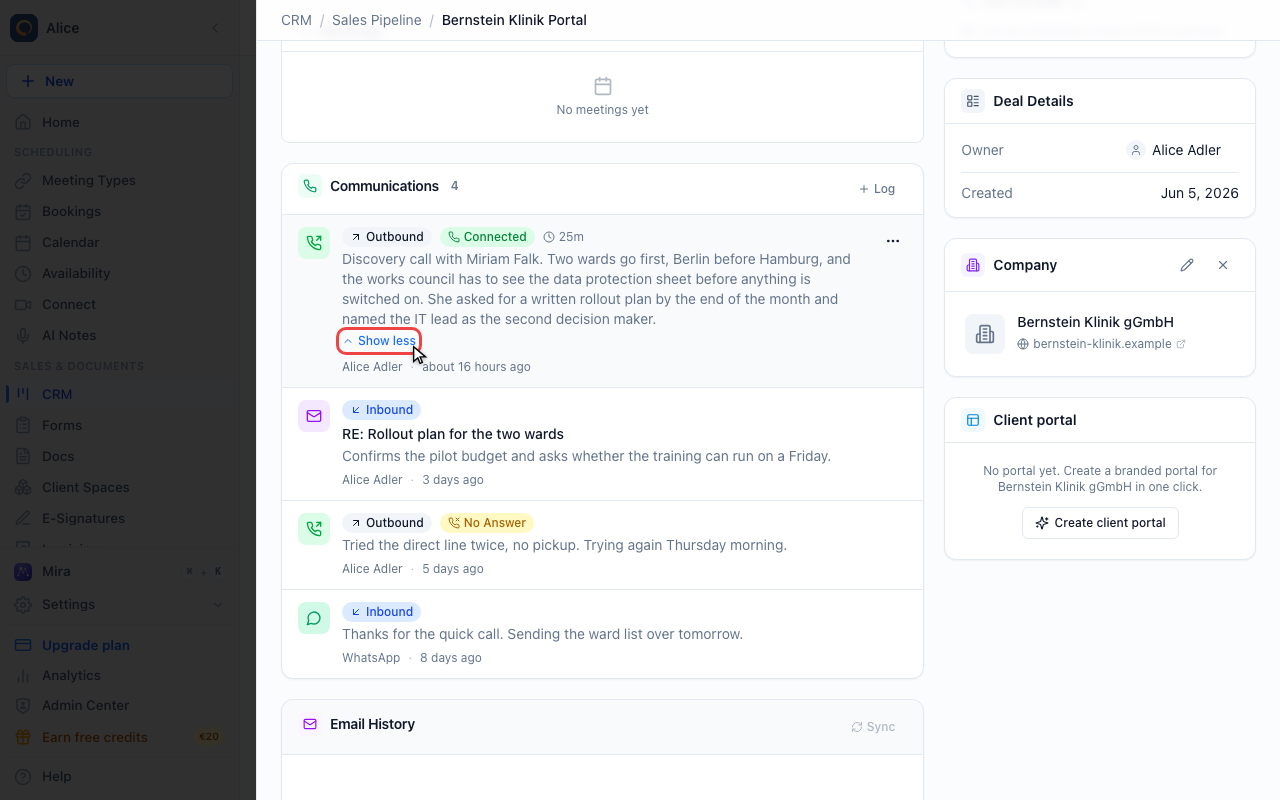
Open up a long note
The list clips notes at two lines. Show more opens the entry in place, Show less folds it back.
Remove an entry
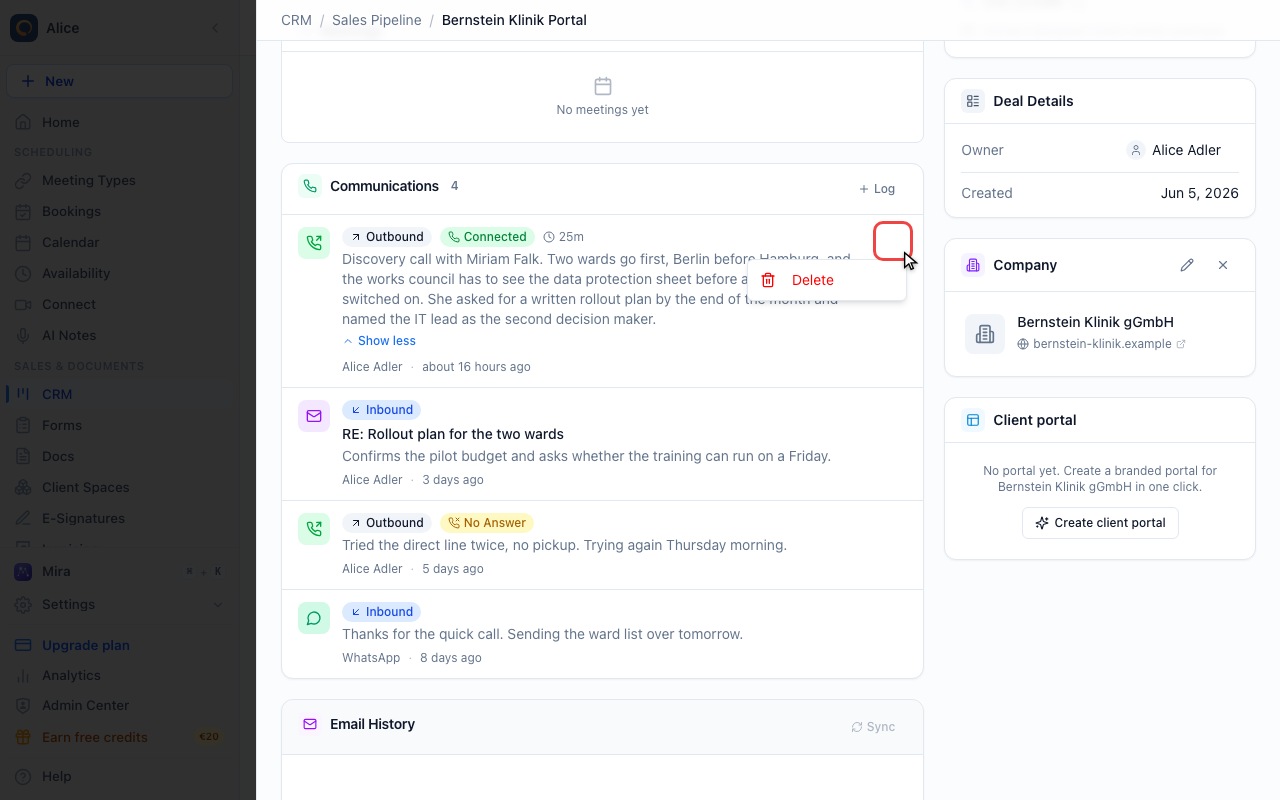
Hover a row and a menu appears on the right. Delete is the only thing in it, and it takes the entry away straight away without asking. You can only delete entries you logged yourself.
The same card on a contact
Open a contact
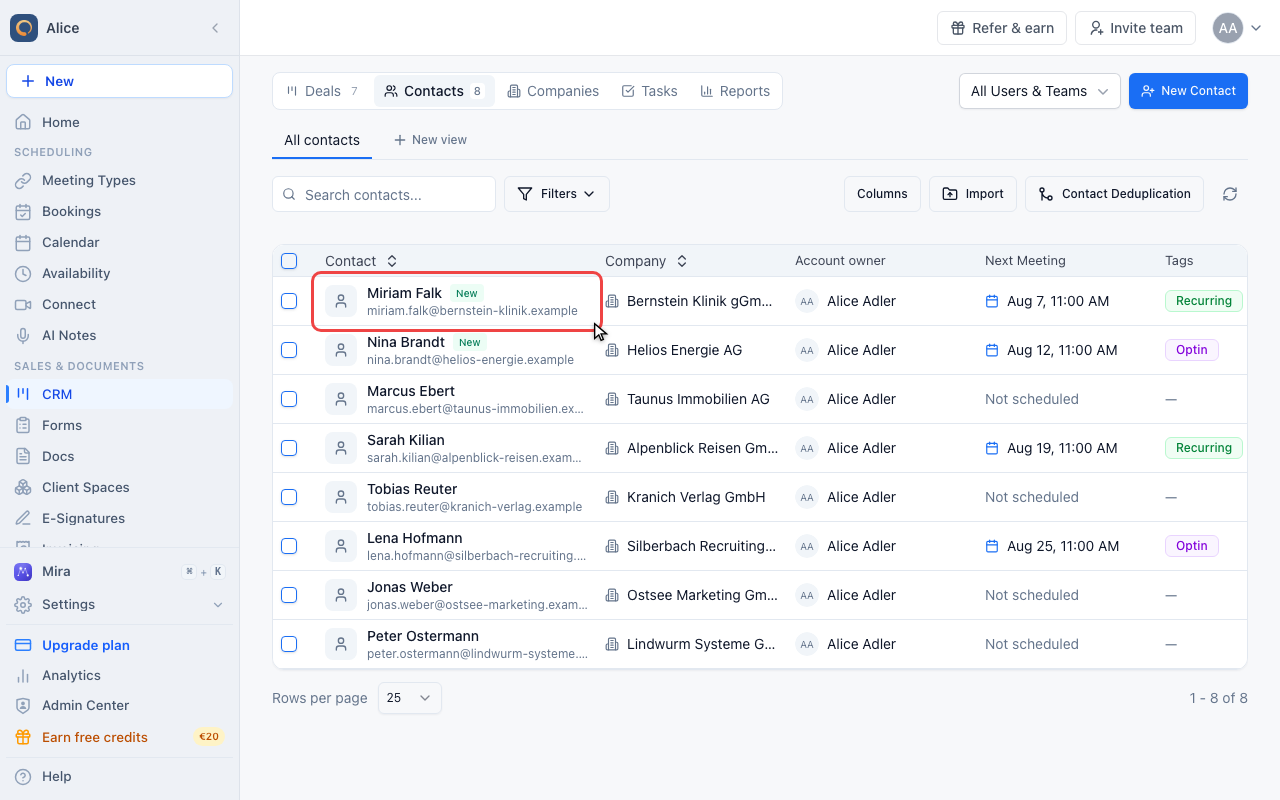
Click a contact to open their record.
Switch to Activity
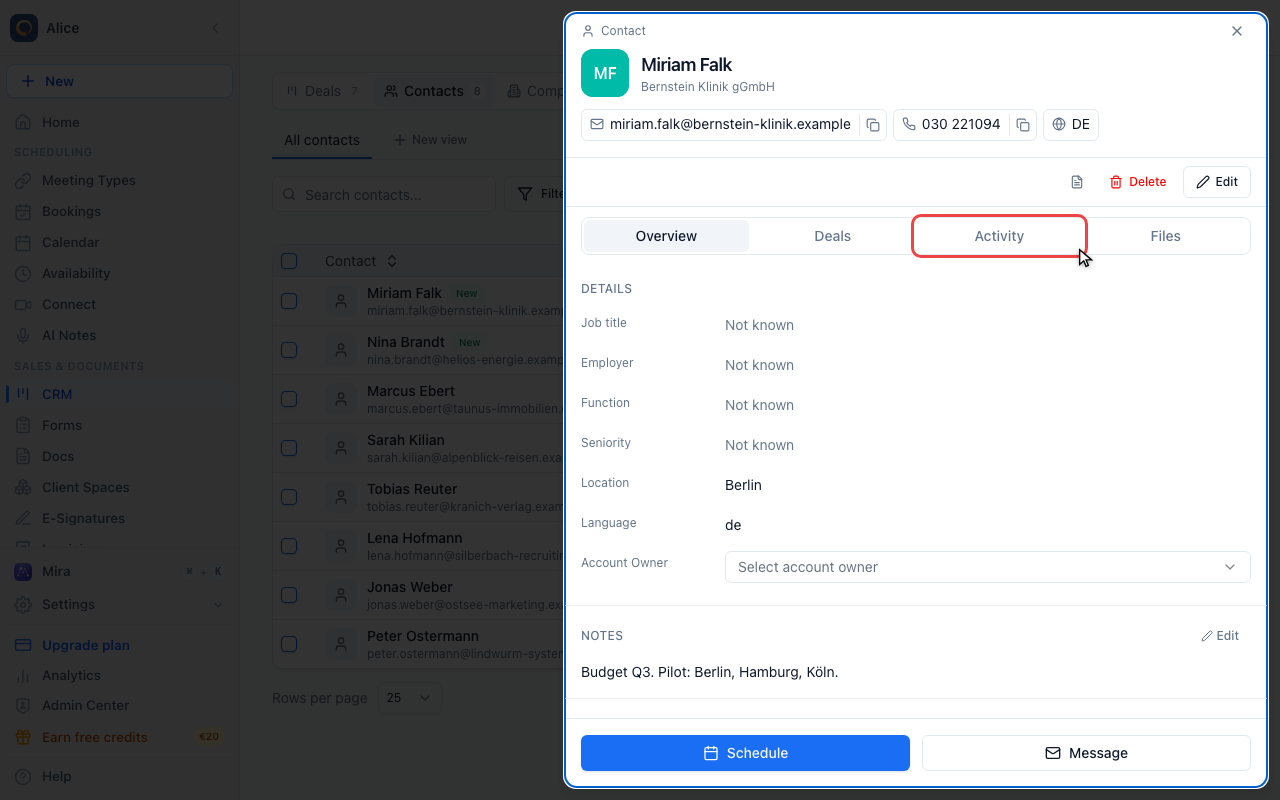
On a contact the card sits behind the Activity tab, under the appointments.
A separate log per record
It behaves exactly as it does on a deal, but it is its own list. An entry logged on the deal does not show up on the contact, so log it where you will go looking for it.
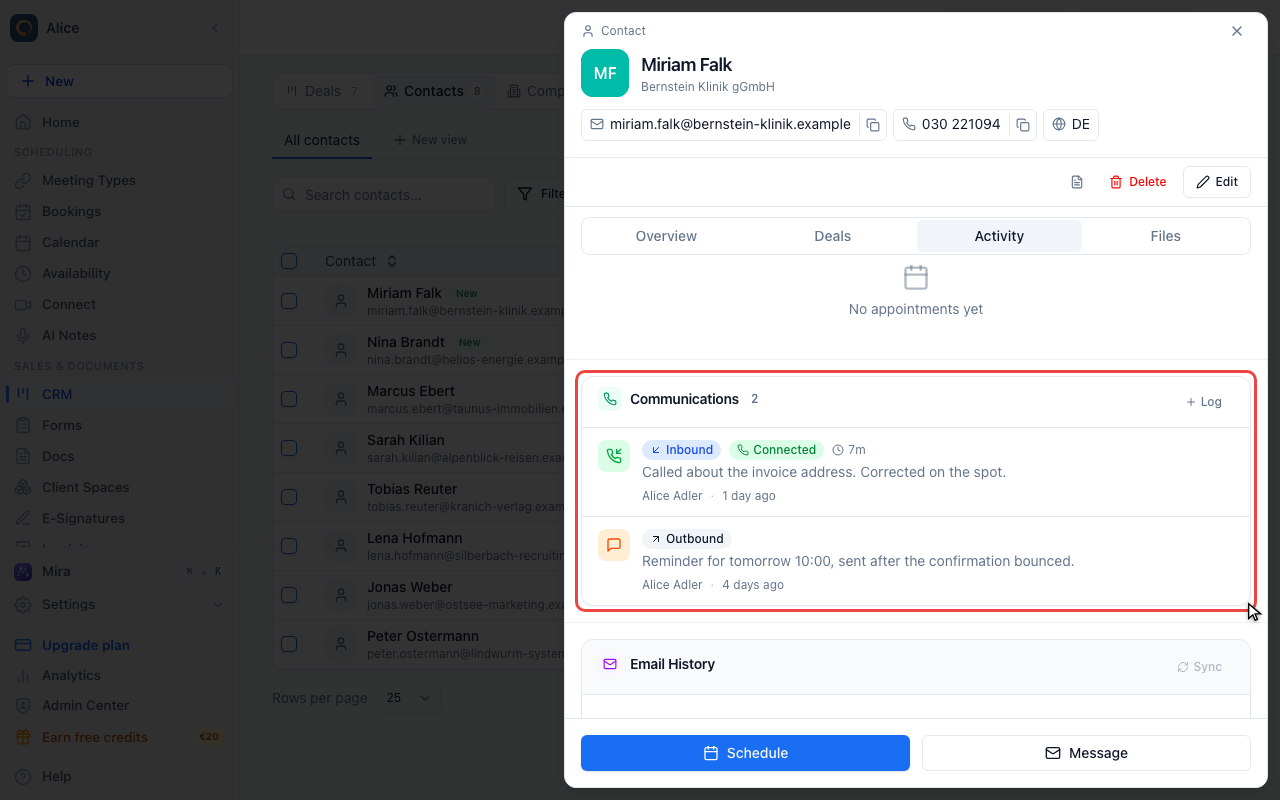
What lands in the log
The Communications card is a hand-written record of the conversations behind a deal or a contact. It holds four kinds of entry:
| Type | Use for |
|---|---|
| Call | Phone conversations, including video calls |
| An exchange worth pinning to the record | |
| SMS | Text messages |
| WhatsApp messages |
Every entry also says whether it was Outbound (you got in touch) or Inbound (they did).
Where the card is
| Record | Where |
|---|---|
| Deal | Overview tab, between the meetings and the Email History card |
| Contact | Activity tab, under the appointments |
| WhatsApp conversation | The contact panel beside the conversation in the WhatsApp inbox |
Each record keeps its own list. An entry logged on a deal does not appear on the contact attached to it, and the other way round, so log it where you will go looking for it later.
Company records do not have a Communications card. Log company-wide conversations on the contact you spoke to, or on the open deal.
What the dialog asks for
Open it with Log in the card header and pick a kind. That only preselects the type, you can change it in the dialog.
| Field | Description | Required |
|---|---|---|
| Type | Call, Email, SMS or WhatsApp | Yes, preselected |
| Direction | Outbound or Inbound | Yes, starts on Outbound |
| Date & Time | When it happened. Prefilled with right now | No |
| Duration (minutes) | Calls only. Takes halves, so 2.5 is two and a half minutes | No |
| Outcome | Calls only: Connected, Voicemail, No Answer or Busy | No |
| Subject | Emails only | No |
| Notes | Plain text, no formatting, any length | No |
Log saves it. Nothing but the type and the direction has to be filled in, and both are already set when the dialog opens, so an entry can be one click.
Date & Time is what the list sorts on, not when you typed it in. Set it back to log Monday's call on Wednesday and it still lands in the right place.
Reading the list
Newest first, by the date and time on the entry. A row shows:
| Element | Notes |
|---|---|
| Type icon | A phone for calls, with the handset pointing the way the call went. An envelope for emails, a square bubble for SMS, a round one for WhatsApp |
| Direction badge | Inbound in blue, Outbound in grey |
| Outcome badge | Calls only, and only if an outcome was picked |
| Duration | Calls only, e.g. 25m or 45s |
| Subject | Emails, if one was given |
| Notes | Clipped at two lines. Show more opens the entry in place |
| Footer | Who logged it, then how long ago it happened |
Everyone who can open the record sees every entry on it, whoever logged it. The card lists the 100 most recent entries.
Changing or removing an entry
Hover a row and a menu appears on its right. Delete is the only thing in it. It removes the entry immediately, with no confirmation step and no undo.
You can only delete entries you logged yourself. The menu appears on every row, but deleting somebody else's entry fails with an error.
There is no way to edit an entry after saving it. If you typed the wrong duration or the wrong direction, delete it and log it again.
What gets logged automatically
Two things write into the log without you:
- WhatsApp messages you send from the meetergo inbox are logged on the linked contact as they go out.
- Linking a WhatsApp conversation to a contact copies that conversation's history across, up to the 200 most recent messages.
Auto-logged entries look like any other, except the footer says WhatsApp instead of a colleague's name. Messages that arrive while a conversation is unlinked are not logged; link the contact and the sync picks them up.
Everything else is manual. Emails from a connected mailbox are not logged here either, they land on the separate Email History card described below.
Communications, notes and email history
Three cards on the same record, three different jobs:
| Card | Holds | Written by |
|---|---|---|
| Communications | Calls, emails, SMS and WhatsApp you had with the other side | You, by hand |
| Notes | What you want to remember: prep, research, internal decisions | You, by hand |
| Email History | Messages from a connected mailbox, threaded | CRM Email Sync, automatically |
Use Communications for the conversation, notes for the thinking around it.
Best practices
Log the meaningful ones. Discovery calls, objections, commitments, anything that changes what happens next. Skip routine scheduling emails, your mailbox already has them.
Write notes somebody else could act on. "Spoke with John. Evaluating three vendors, worried about the implementation timeline and the support SLA. Asked for case studies from similar hospitals. Budget approved for Q2." beats "Called John."
Log failed attempts too. No Answer and Voicemail entries show what you have already tried and stop a colleague repeating it an hour later.
Log it while it is fresh. The dialog defaults to right now for a reason.
FAQ
Do emails sync automatically?
Not into this card. The Communications log is manual. From Suite, CRM Email Sync pulls conversations from Gmail and Outlook into the separate Email History card on the same record.
Can I edit an entry?
No. Delete it and log it again.
Can I filter the list by type?
No. The card shows every entry on the record in date order.
Do communications show up in the deal's activity log?
No. The activity log records stage moves, field changes and merges. Communications live only on their own card.
Is there a report on call outcomes?
No. CRM Reports covers pipeline value, win rate, relationships and tasks, and has no communication metrics.
Can I log the same conversation on two records?
Not as one entry. Log it where you will look for it first, and mention the other record in the notes.
How do I record a meeting?
Book it through your normal scheduling link so it lands in the calendar, then log the outcome here as a Call.
Can team members see all communications?
Yes. Anyone who can open the record sees every entry on it. Only the person who logged an entry can delete it.
Related Articles
Was this article helpful?
Let us know if this article answered your questions.