
CRM Overview
Manage your sales pipeline and customer relationships with meetergo's built-in CRM
The meetergo CRM turns the people you meet into a sales process: deals with stages and values, the contacts and companies behind them, the follow-up work, and the numbers over all of it. It is one page with five tabs, and the tour below opens it and shows what each tab is for.
 1 / 13
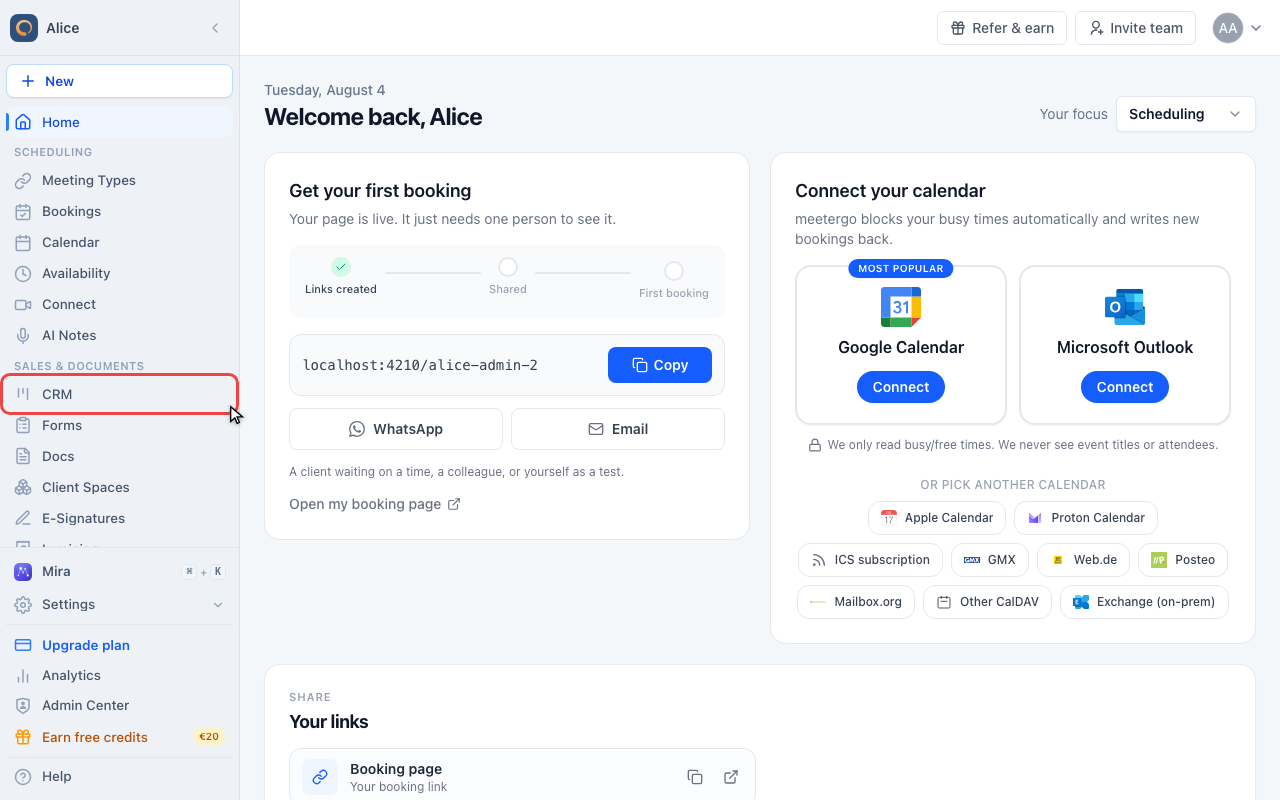
Click CRM in the sidebar. The CRM is a single page: everything below happens on it, and the tab you last used is not remembered, so it always opens on Deals.
Open the CRM
Open CRM
Click CRM in the sidebar. The CRM is a single page: everything below happens on it, and the tab you last used is not remembered, so it always opens on Deals.
Read the tab rail
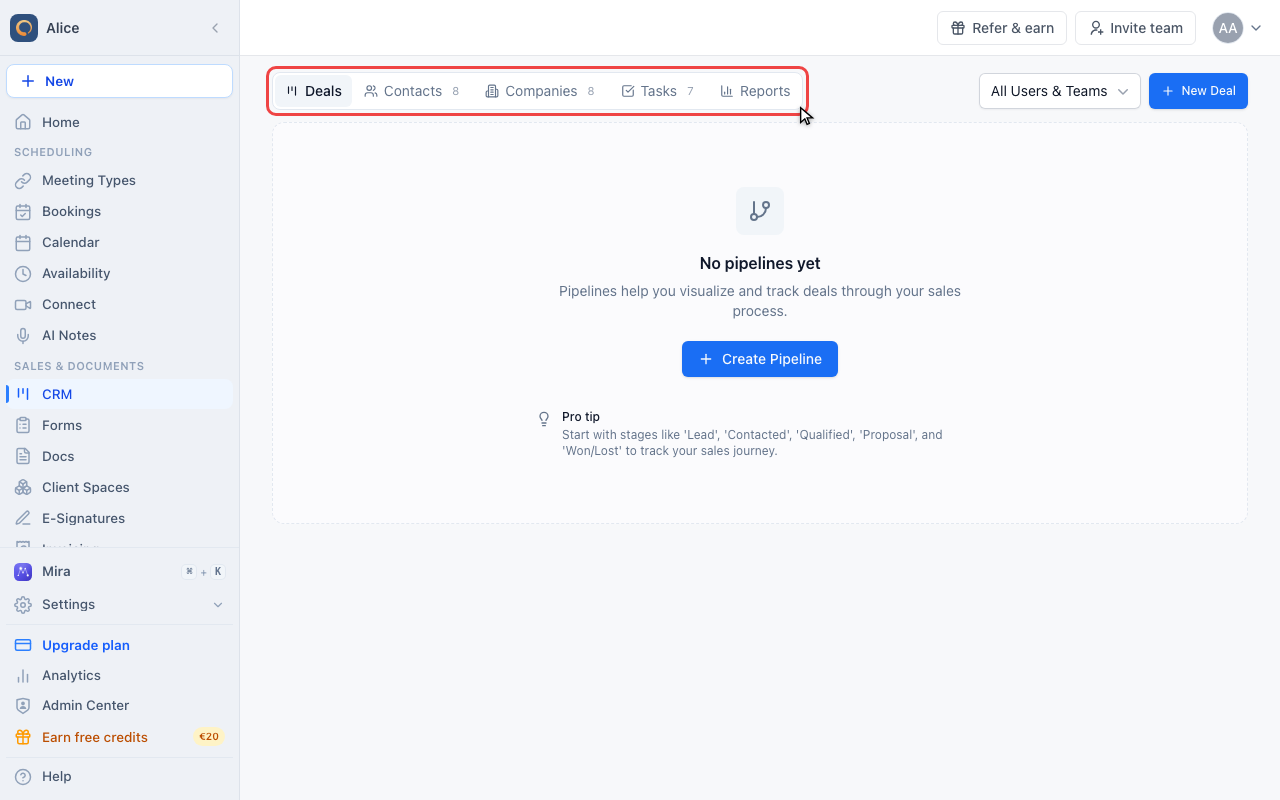
Deals, Contacts, Companies, Tasks and Reports. The number beside a tab counts what is still open in it: open deals, contacts, companies, and tasks that are not ticked off. Reports has no number because it counts nothing of its own.
Set whose records you see
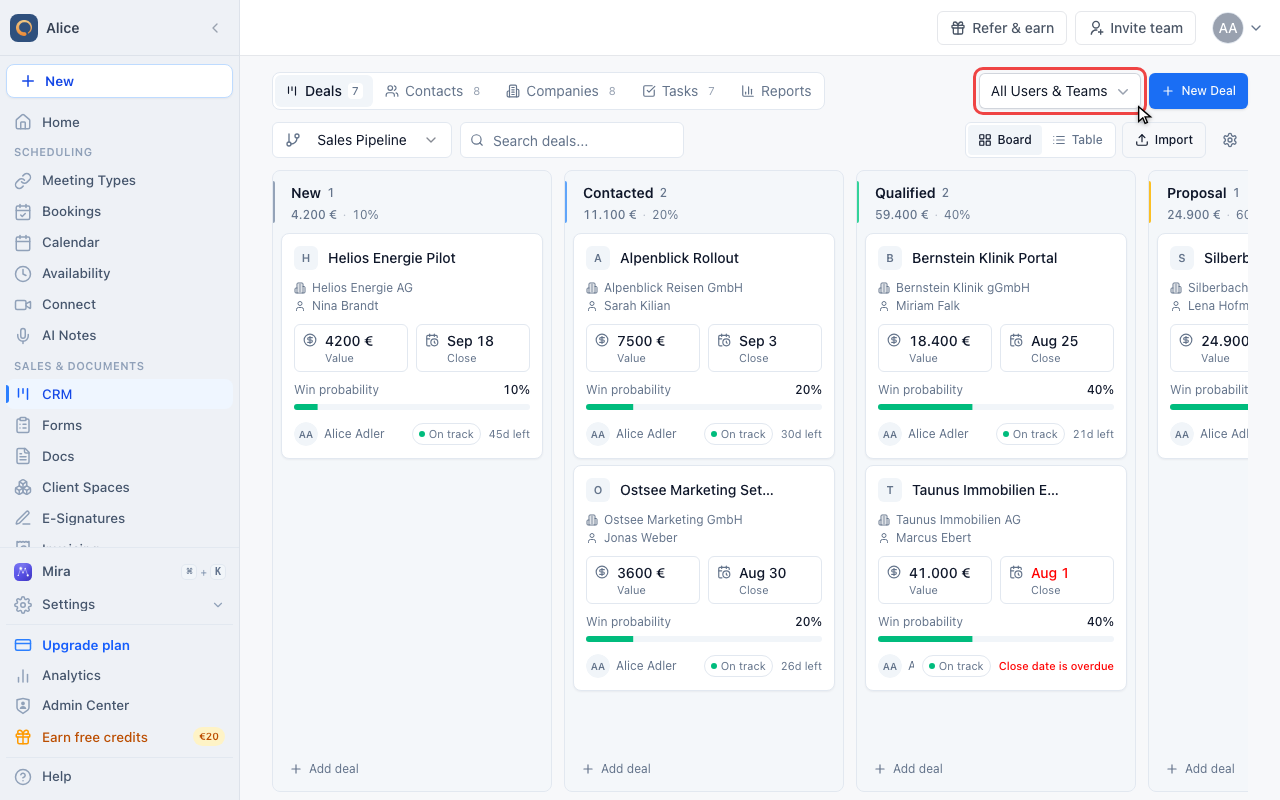
The scope picker sits to the right of the tabs and applies to every tab: deals and companies by owner, tasks by assignee. Admins start on All Users & Teams; everyone else starts on their own records.
Find the create button
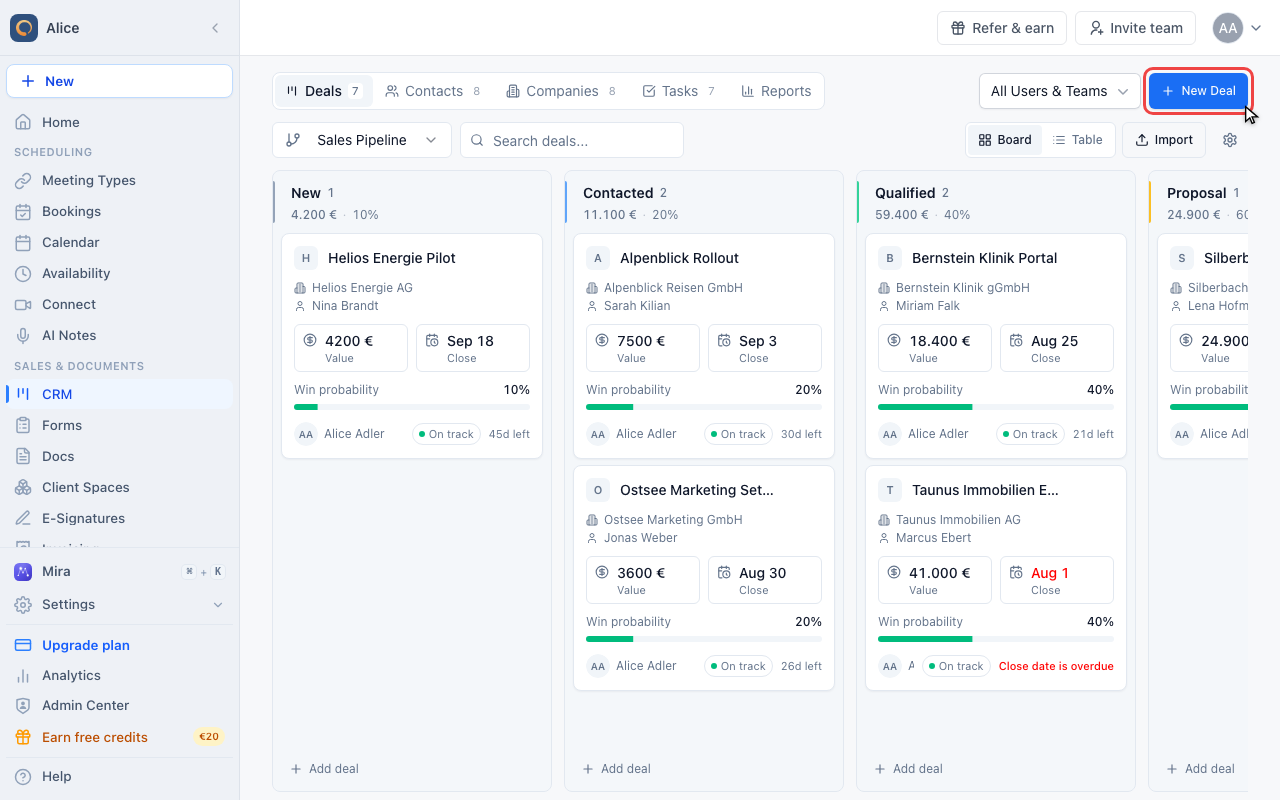
There is one create button, in the top right corner, and it follows the open tab: New Deal, New Contact, Create Company, Create Task. Reports has none, because nothing is created there.
See your deals two ways
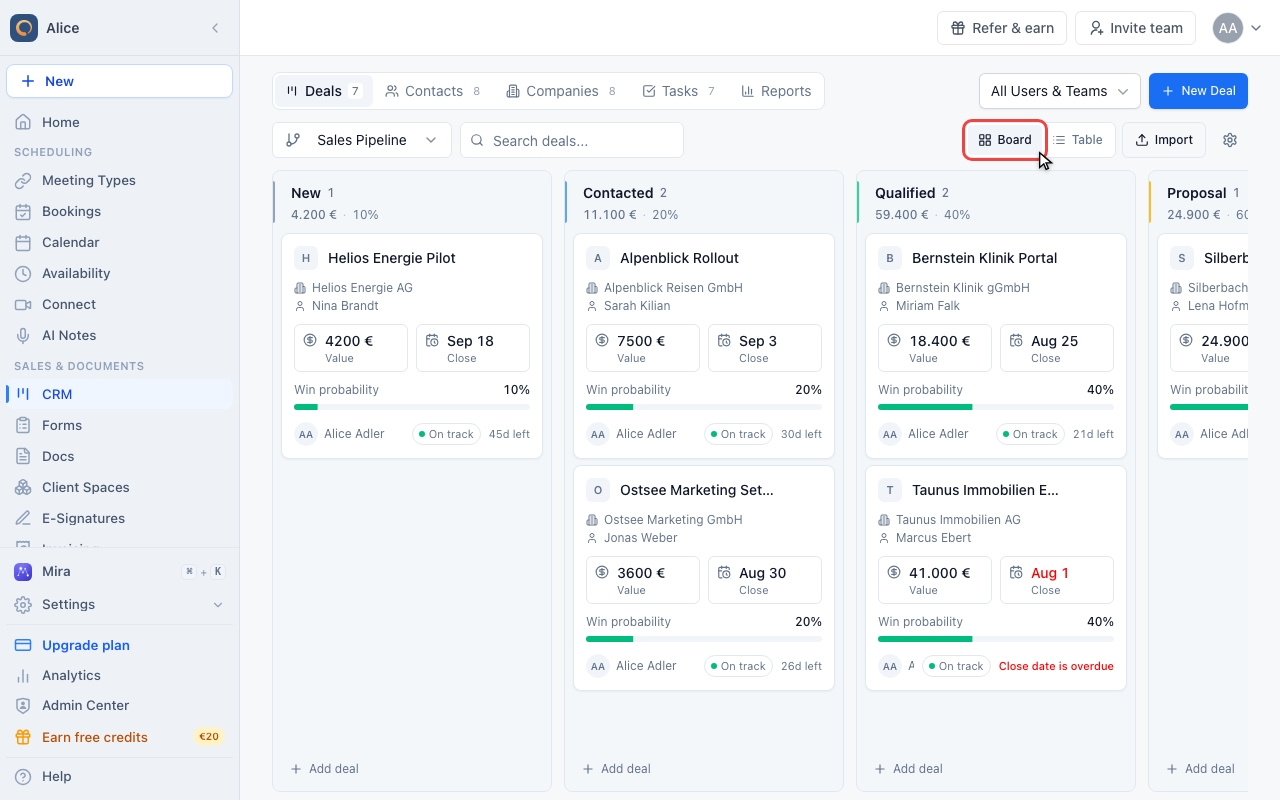
Read the board
Deals opens as a board: one column per stage of the selected pipeline, one card per deal, and drag and drop to move a deal forward. Each column header carries the number of deals in it, their total value and the stage win probability.
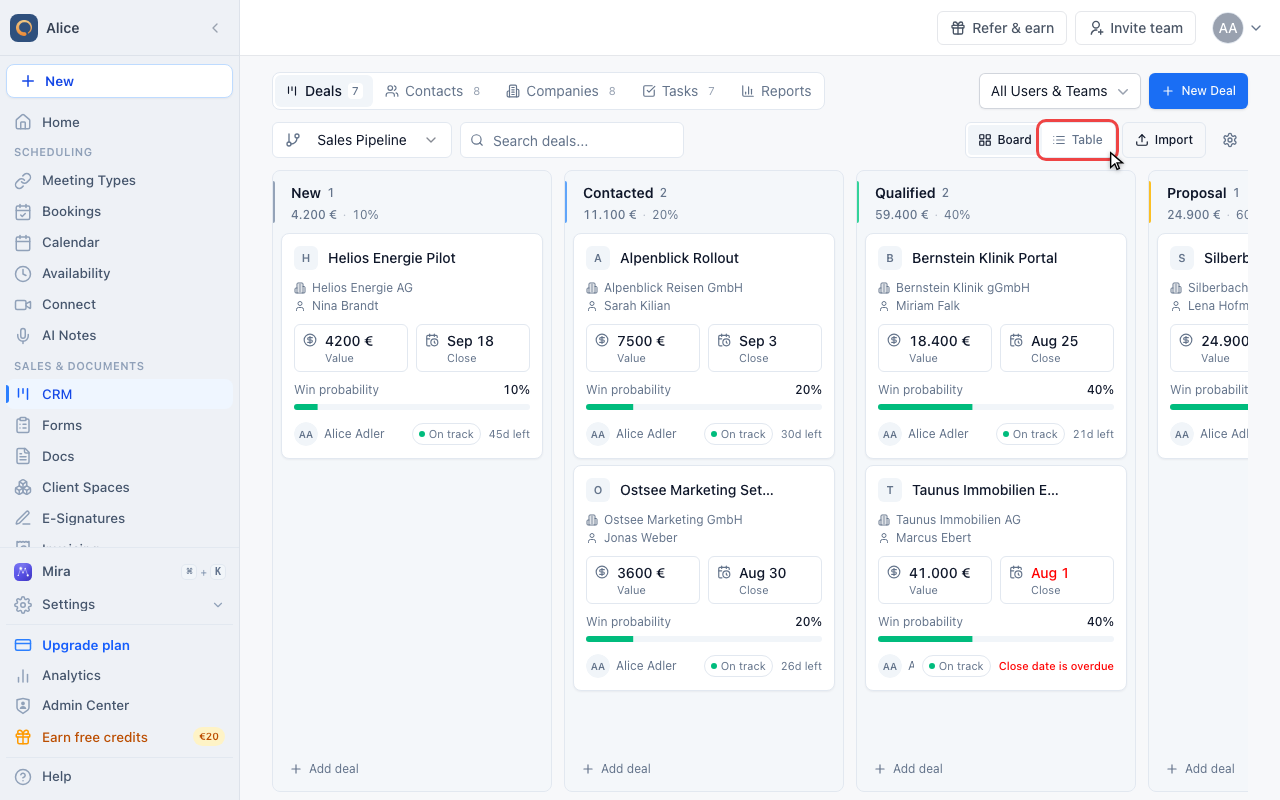
Switch to the table
The same deals as sortable rows, with the columns the board cannot show. The choice is remembered in this browser, so the CRM reopens on whichever of the two you used last.
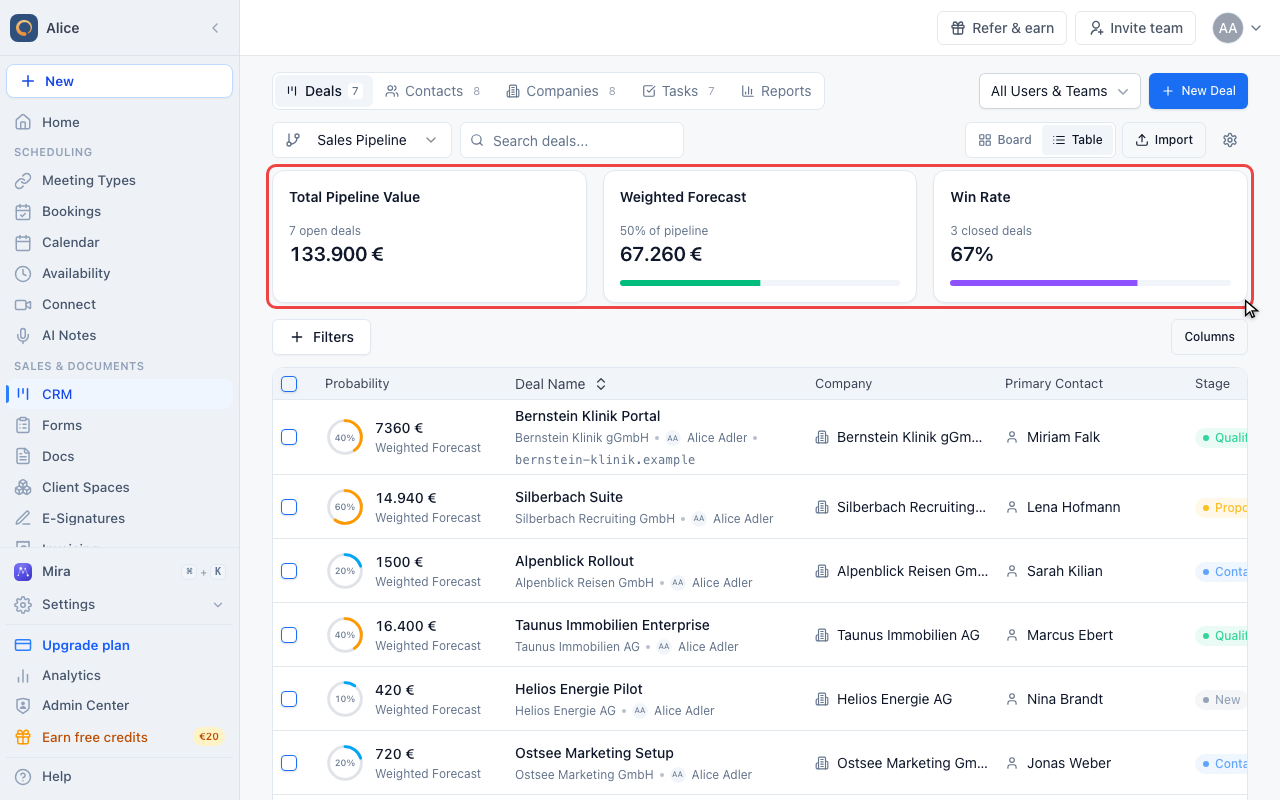
Read the three cards
Above the table sit the pipeline value, the weighted forecast (each deal value times its stage win probability) and the win rate. They cover the selected pipeline only. The CRM has no summary row of its own above the tabs.
Walk through the other tabs
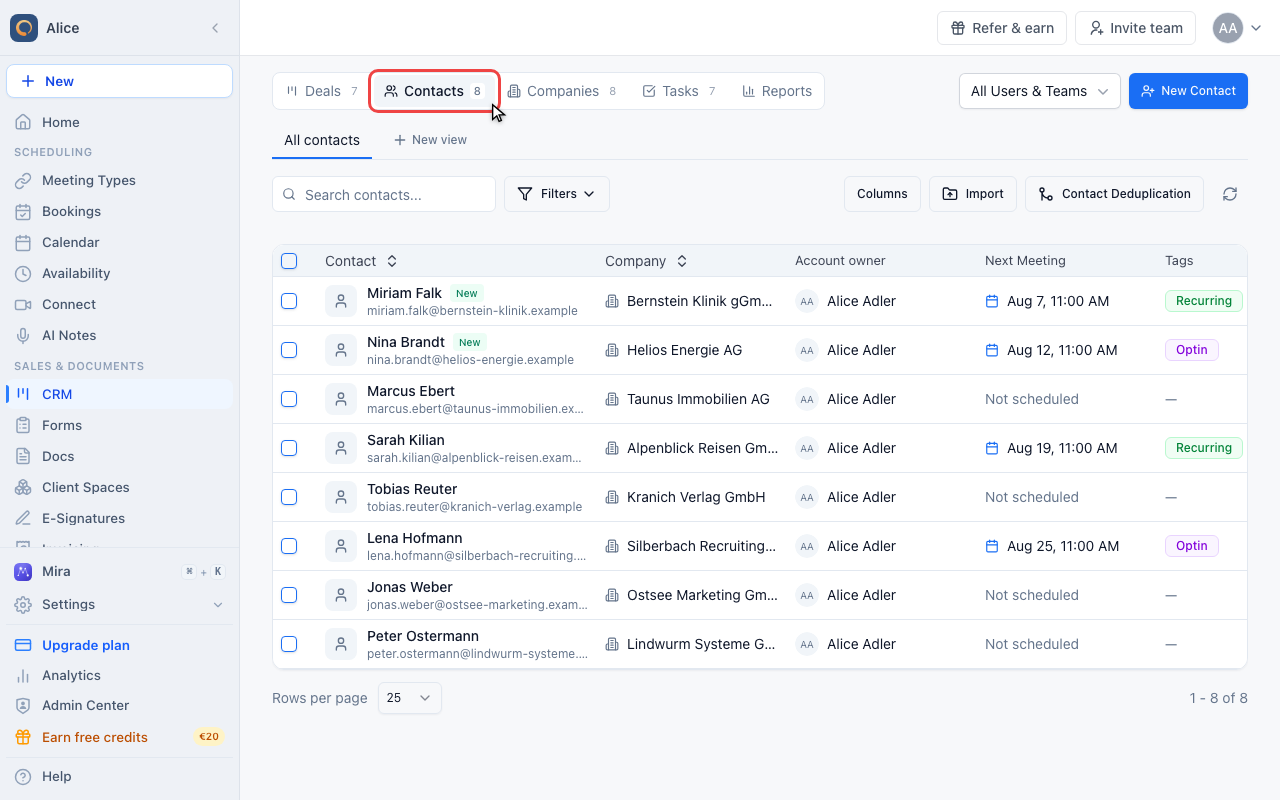
Open Contacts
Every person you have booked with is here: bookings create and update contacts by themselves. Search, filter into saved views, import a CSV, or merge duplicates.
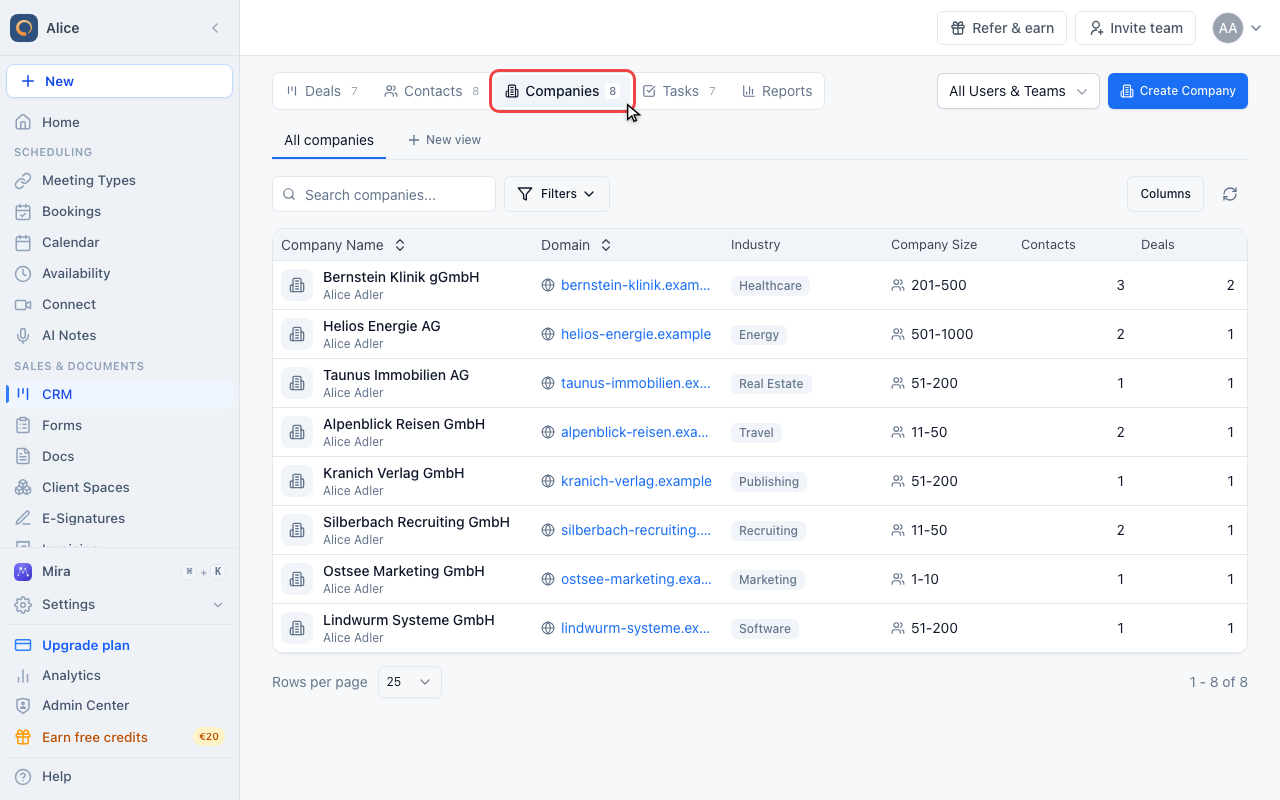
Open Companies
The organisations behind those contacts. A company record collects its contacts, its deals, its notes and its files, and the totals in the header add up the deals attached to it.
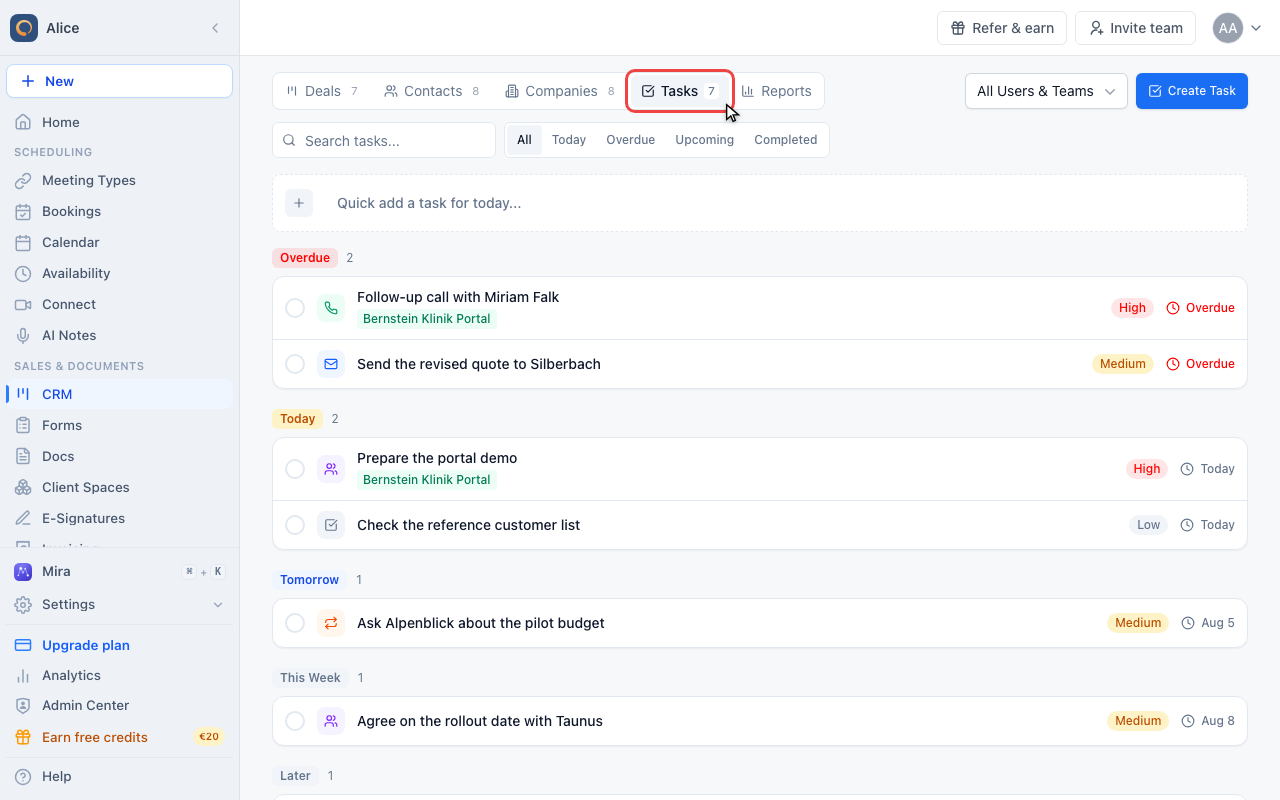
Open Tasks
Your follow-up work, grouped by when it is due. Tasks can be created here or from a deal, and the quick-add bar at the top parses a due date, a priority and a type out of one line of text.
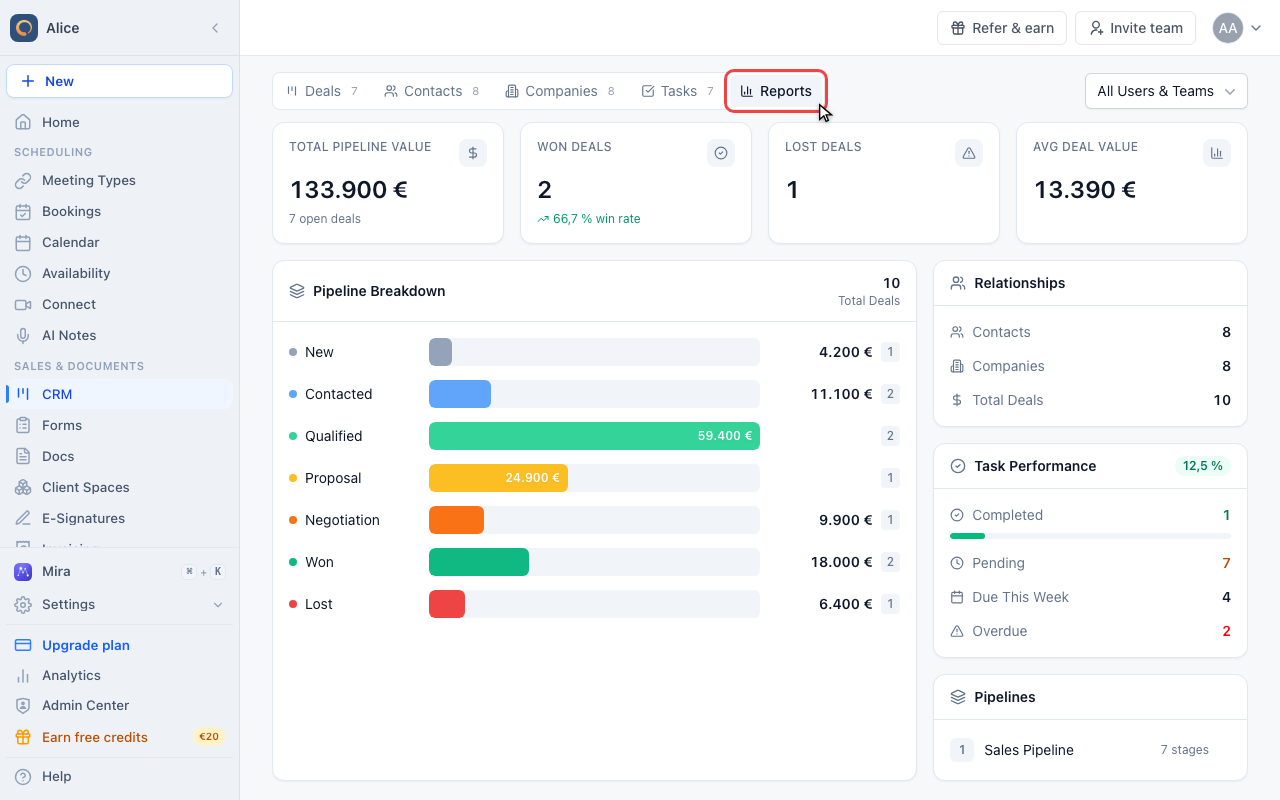
Open Reports
A read-only dashboard over everything above: pipeline value, won and lost deals, the value sitting in each stage, and how the task work is going. The scope picker is its only filter.
Jump straight to a record
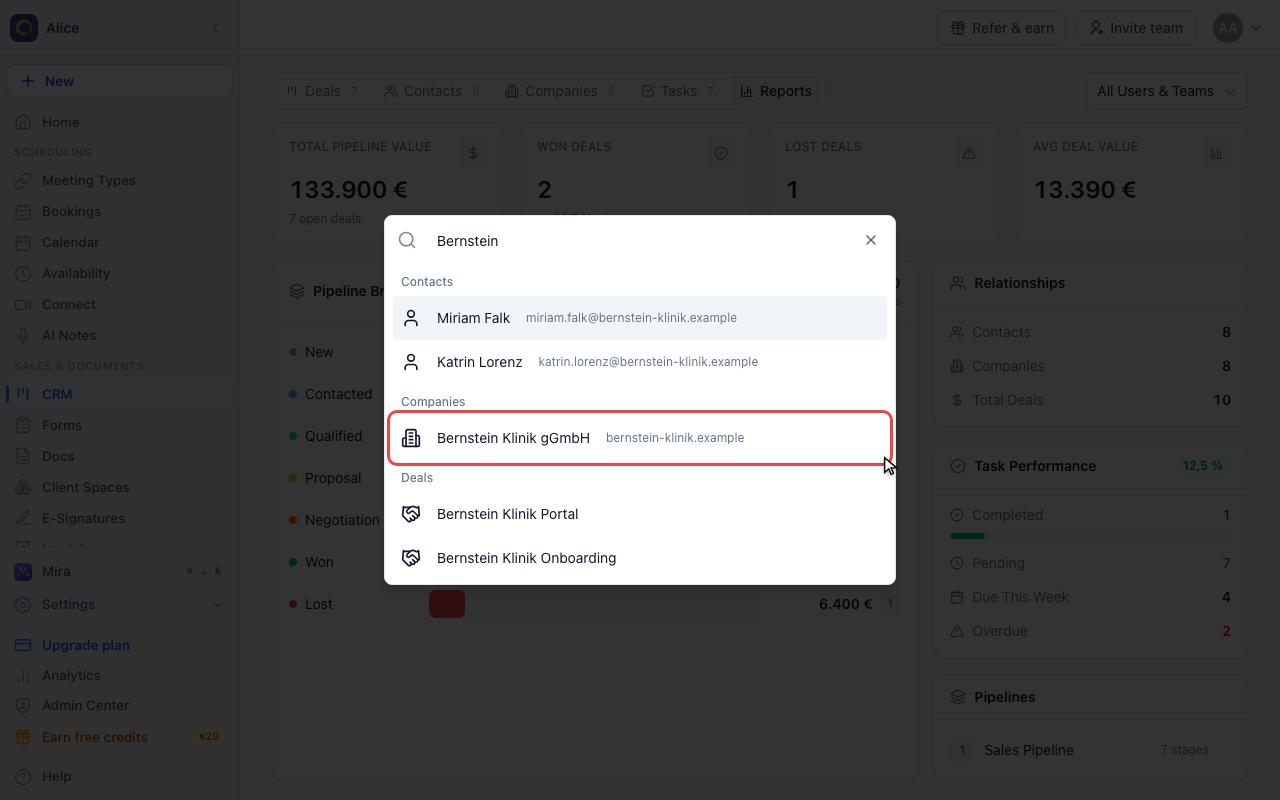
Press Cmd + /
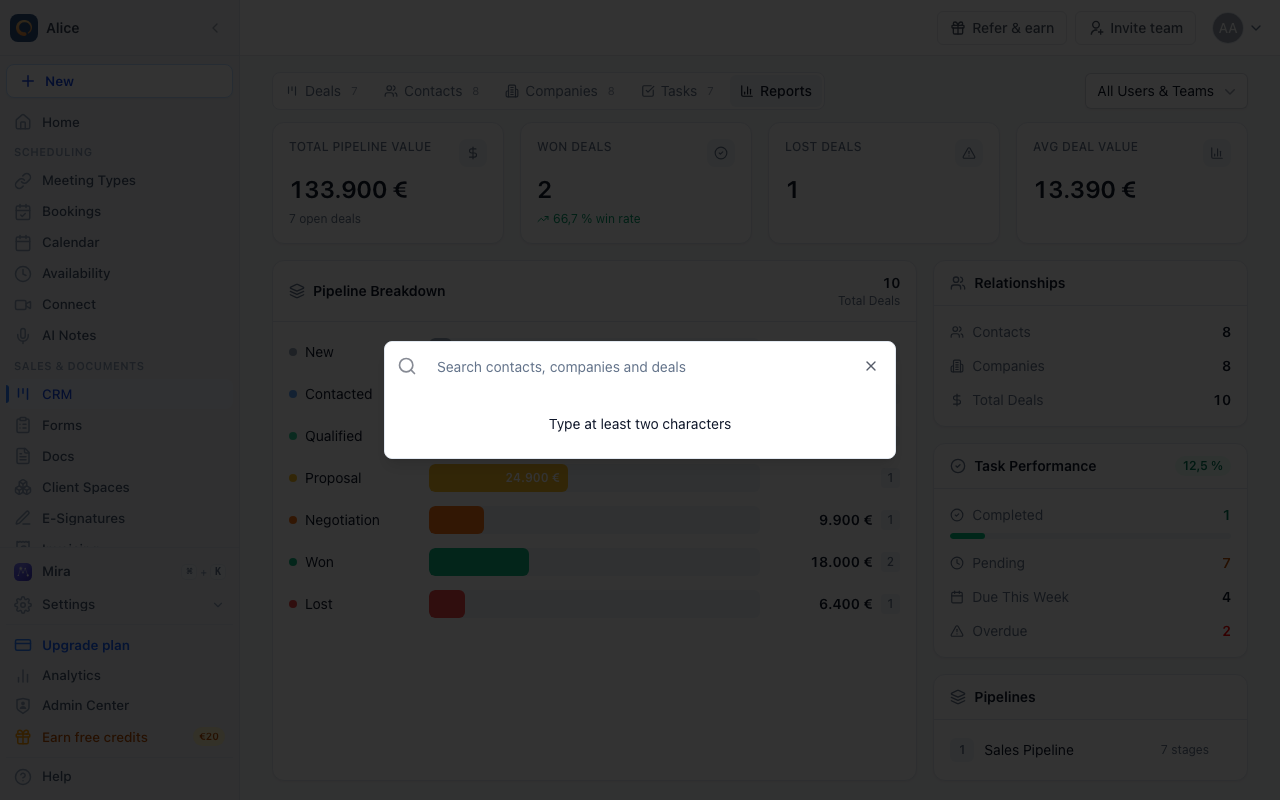
From anywhere in the CRM, Cmd + / (Ctrl + / on Windows) opens the quick switcher. Cmd + K is taken: that opens Mira, the assistant, product wide.
Pick a result
From two characters on, the switcher searches contacts, companies and deals at once and groups the matches by kind. Picking one opens that record over the tab you were on, whichever tab that was.
What the CRM is
The CRM sits on top of the scheduling data you already have. Every booking creates or updates a contact, so the contact list fills itself; deals, companies, tasks and reports are what you add on top to turn those contacts into a sales process.
It is one page with five tabs and no separate settings screen. Everything that configures the CRM — pipelines, stages, custom fields, loss reasons — lives behind the gear icon on the Deals tab.
What each tab holds
| Tab | What it holds | Guide |
|---|---|---|
| Deals | Opportunities in a pipeline, as a board or a table | Creating and Managing Deals |
| Contacts | Every person you have booked with or imported | Managing CRM Contacts |
| Companies | The organisations behind those contacts | Working with Companies |
| Tasks | Follow-up work, grouped by when it is due | Task Management |
| Reports | Read-only totals over all of the above | CRM Reports |
Accounts with Mira's pipeline autopilot see a sixth tab, Mira, which holds the suggestions the assistant has prepared for your deals.
What a deal record contains
Opening a deal from the board or the table gives you one page per opportunity:
- Name, value and currency, expected close date, owner and stage
- The company and the contacts attached to it, each with a role (primary, decision maker, influencer, user, other)
- Custom fields your account has defined
- Notes and attachments
- A communications log of calls, emails, meetings and WhatsApp messages
- Tasks, meetings booked with its contacts, and an activity log of stage moves and edits
Who can use it
The CRM is licensed per user. If your account has CRM licenses and yours is not one of them, the CRM opens on Contacts with a "CRM license required" banner, and the other four tabs are hidden until an admin assigns you a license.
Without a CRM license or a Suite plan, an account can hold 10 deals. Reaching the limit does not delete anything: the New Deal button opens an upgrade prompt instead of the create form. Contacts, companies and tasks are not capped.
How the CRM connects to scheduling
- Every booking creates or updates the attendee as a contact, including where they came from (source, UTM parameters, referrer).
- The contact list has a Next Meeting column, so you can see who is already booked in.
- A deal record lists the meetings booked with its contacts, upcoming, completed and cancelled.
- Meetings scheduled, rescheduled or cancelled are written to the deal's activity log.
Tasks do not send anything. A task's reminder field is stored on the task, but no email or notification is sent from it. Use a workflow if you need the attendee to hear from you.
Getting your data in
- Contacts: the Import button on the Contacts tab takes a CSV.
- Deals: the Import button on the Deals tab takes the same CSV and creates one deal per row in the selected pipeline, plus the contact and the company behind it.
- Bookings: nothing to do. Contacts appear as people book.
Next steps
- Creating and Managing Deals — work an opportunity from first contact to close
- Pipeline Configuration — set up your stages, win probabilities and loss reasons
- Using the Kanban Board — move deals through the board
- Managing CRM Contacts — search, filter and deduplicate your contacts
- Working with Companies — build company records
- Task Management — keep the follow-up work moving
- CRM Reports — read the numbers correctly
- CRM Email Sync — bring your mailbox into the CRM
FAQ
Is the CRM included in all plans?
Suite plans include it for everyone. Below that it is a per-user add-on, and users without a license see only the Contacts tab. Any account can try it with up to 10 deals.
Where do I change pipelines, stages or custom fields?
On the Deals tab, through the gear icon next to the Board/Table switch. There is no CRM section in Settings. See Pipeline Configuration.
Can I import existing deals and contacts?
Yes. Both tabs have an Import button that takes a CSV. The Deals import creates a deal, a contact and a company from each row.
Does the CRM sync with other CRM tools?
meetergo CRM is a standalone system. Booking data can be pushed to HubSpot, Salesforce, Pipedrive and others through integrations, but those systems do not write back into these tabs.
Can I customize the pipeline stages?
Yes — your own pipelines with their own stages, colours, win probabilities and rotting thresholds. See Pipeline Configuration.
How do I find one record quickly?
Press Cmd + / (Ctrl + / on Windows) anywhere in the CRM and type at least two characters. The switcher searches contacts, companies and deals together and opens whichever you pick.
Was this article helpful?
Let us know if this article answered your questions.
Related articles
- Communications LogRecord the calls, emails and messages behind a deal or a contact
- Creating and Managing DealsTrack opportunities through your sales pipeline from first contact to close
- Custom FieldsAdd custom data fields to deals and configure required fields per pipeline stage
- Managing CRM ContactsOrganize contacts, link them to deals with roles, and maintain your contact database