
Working with Companies
Organize your CRM around company profiles with linked contacts and deals
Companies in meetergo CRM help you organize contacts and deals around business accounts. Track all interactions with a company, see associated deals, and maintain comprehensive company profiles.
 1 / 16
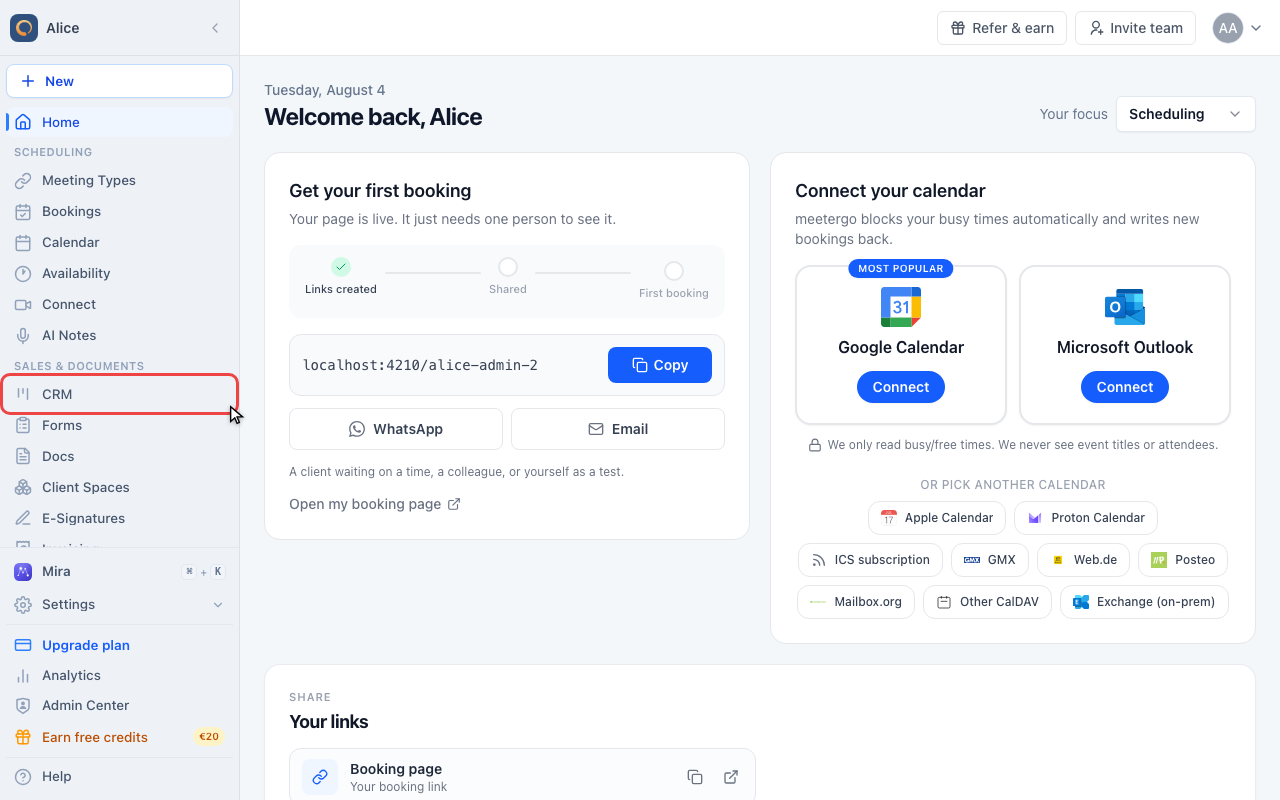
Click CRM in the sidebar.
Open your companies
Open CRM
Click CRM in the sidebar.
Switch to Companies
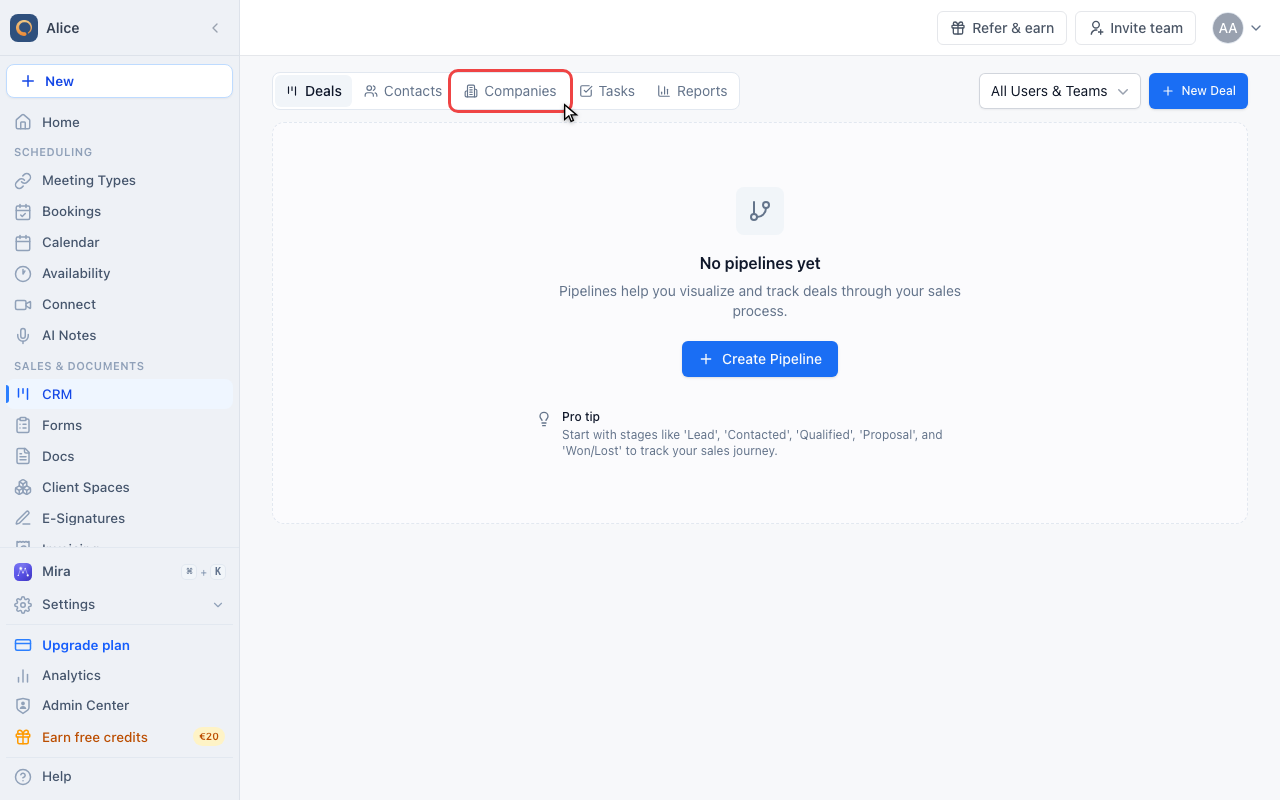
CRM opens on Deals. Click the Companies tab. The number beside the tab is how many companies you have.
Read the company list
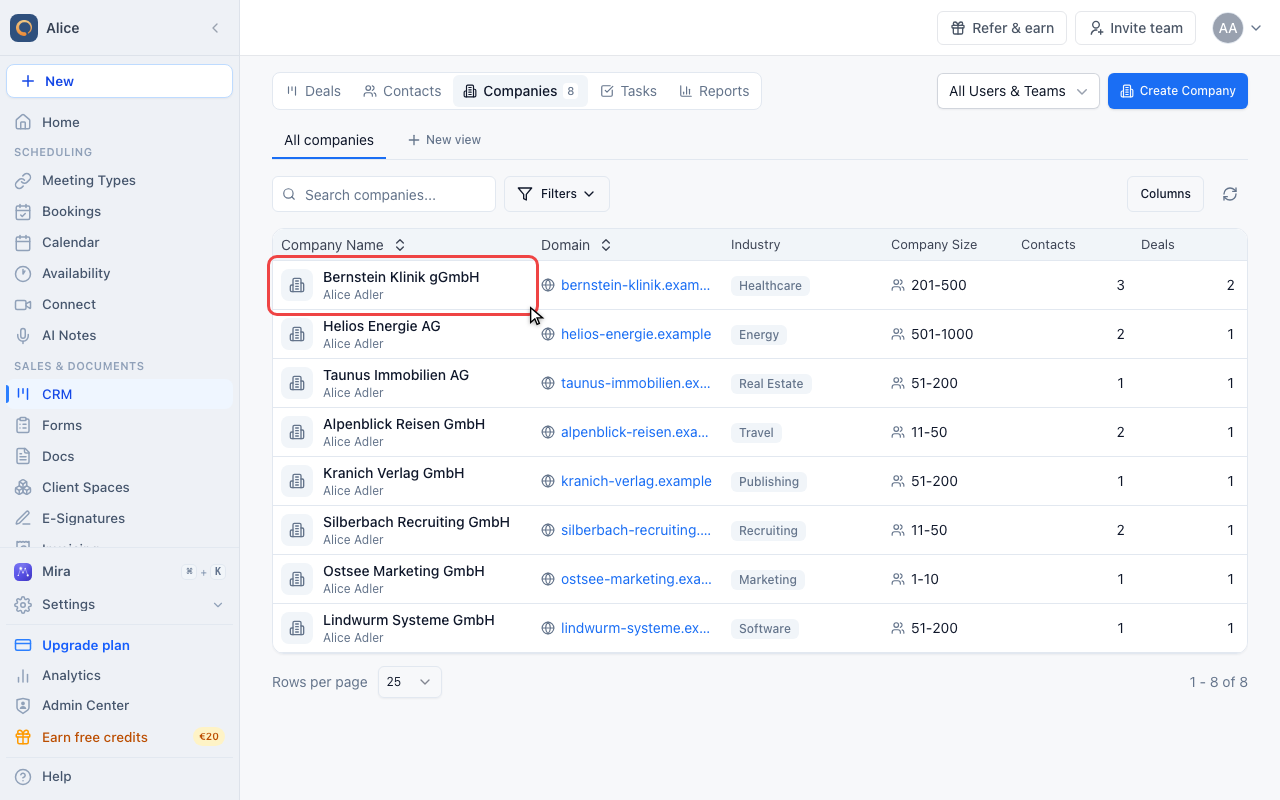
Read a company row
Each row leads with the company name and its owner, then Domain, Industry and Company Size. Further right sit Contacts, Deals and Total Value, counted from the records linked to the company. Use Columns to hide the ones you do not need, and click Company Name, Domain or the created date to sort.
Search the list
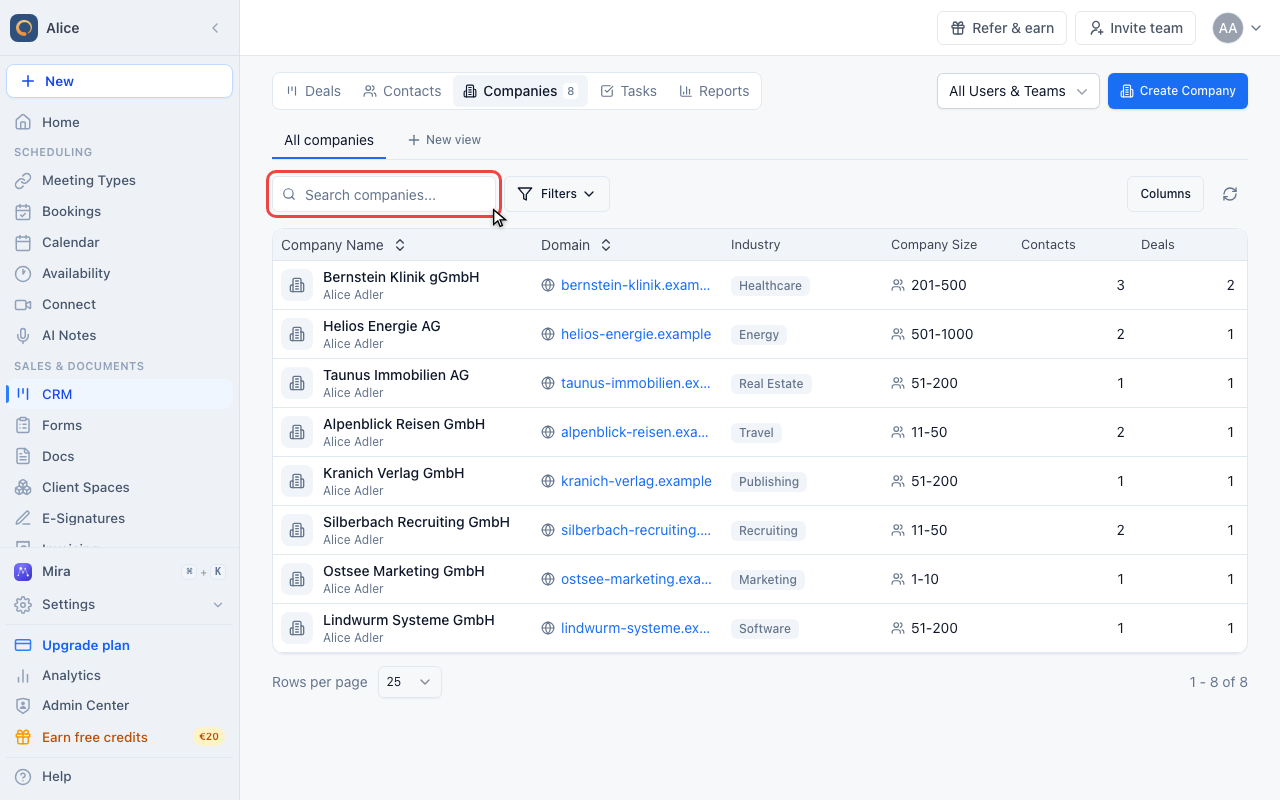
Type a company name or a domain to narrow the list. The search is case-insensitive and matches partial words.
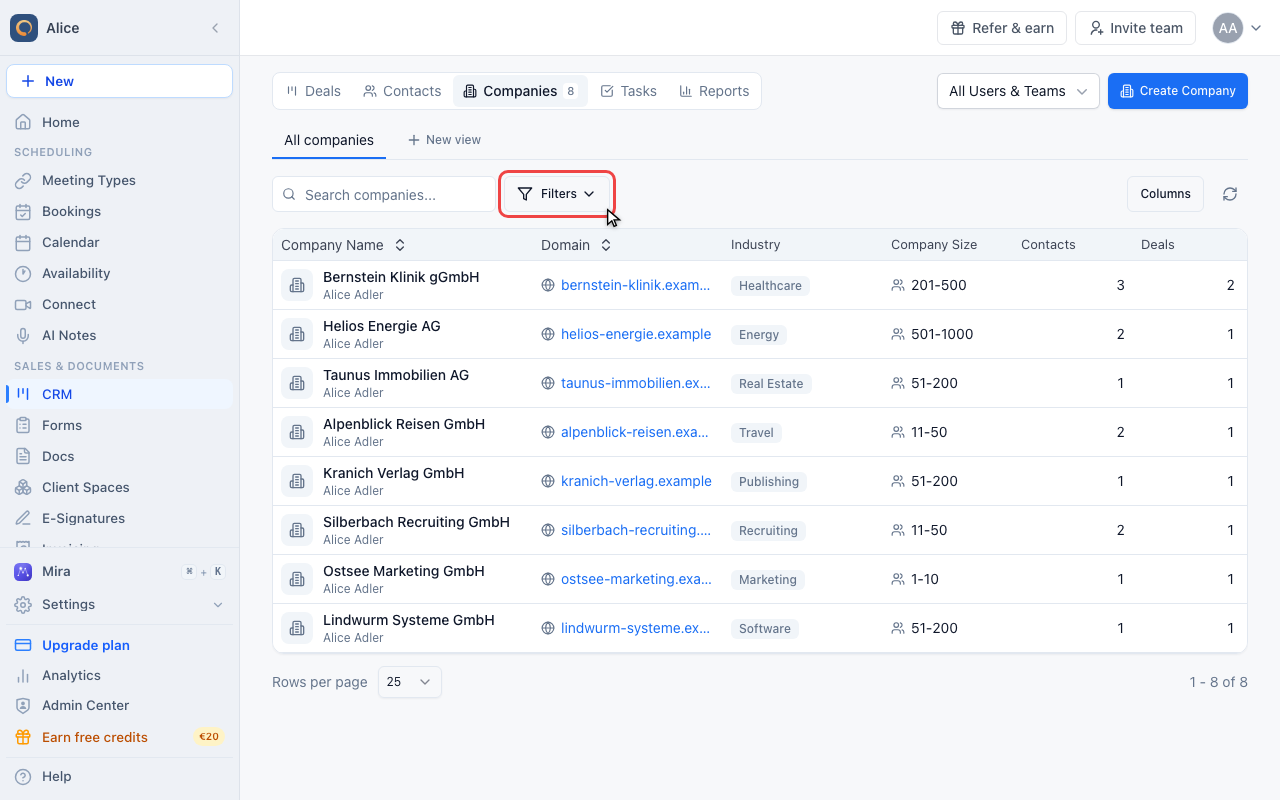
Build a filter
Filters build a condition on any company field. Save a filter you keep reusing as a view, and it appears as a tab above the list.
Open a company record
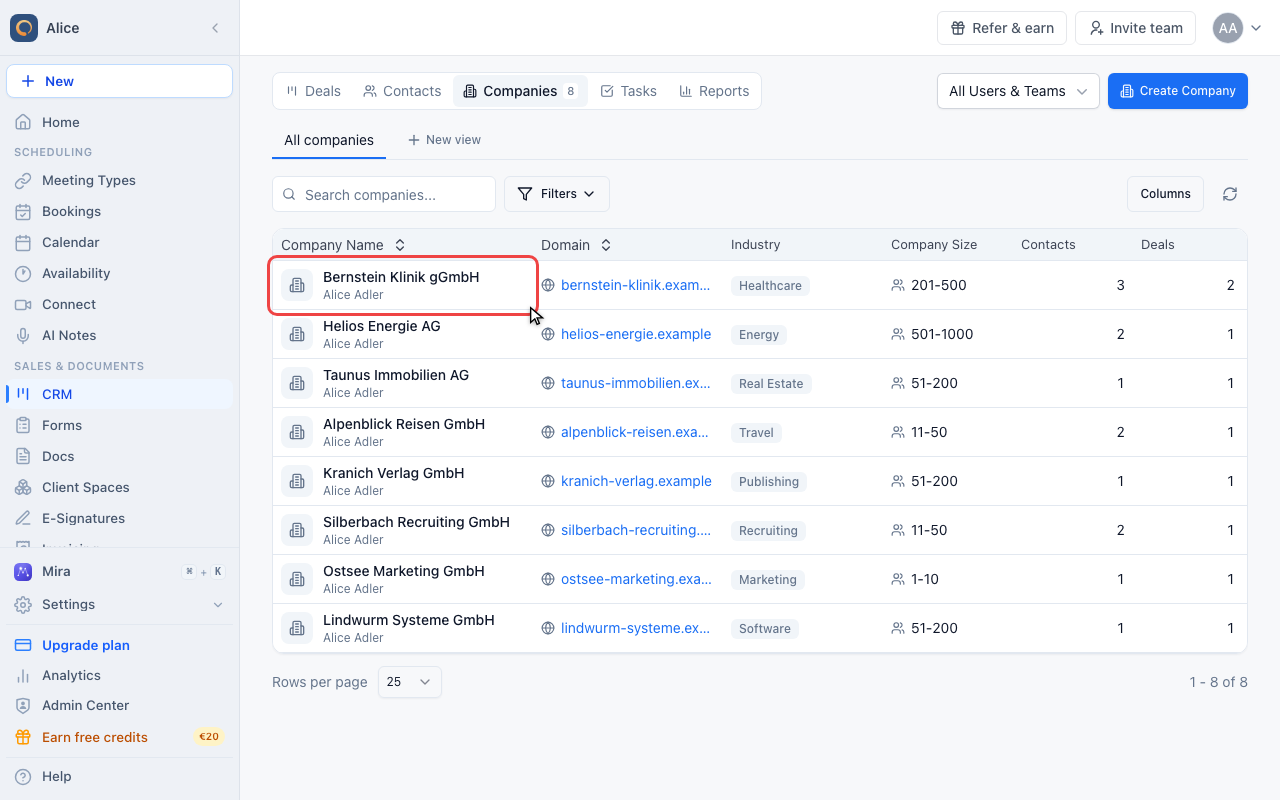
Open a company
Click a row to open the company record beside the list.
Read the header
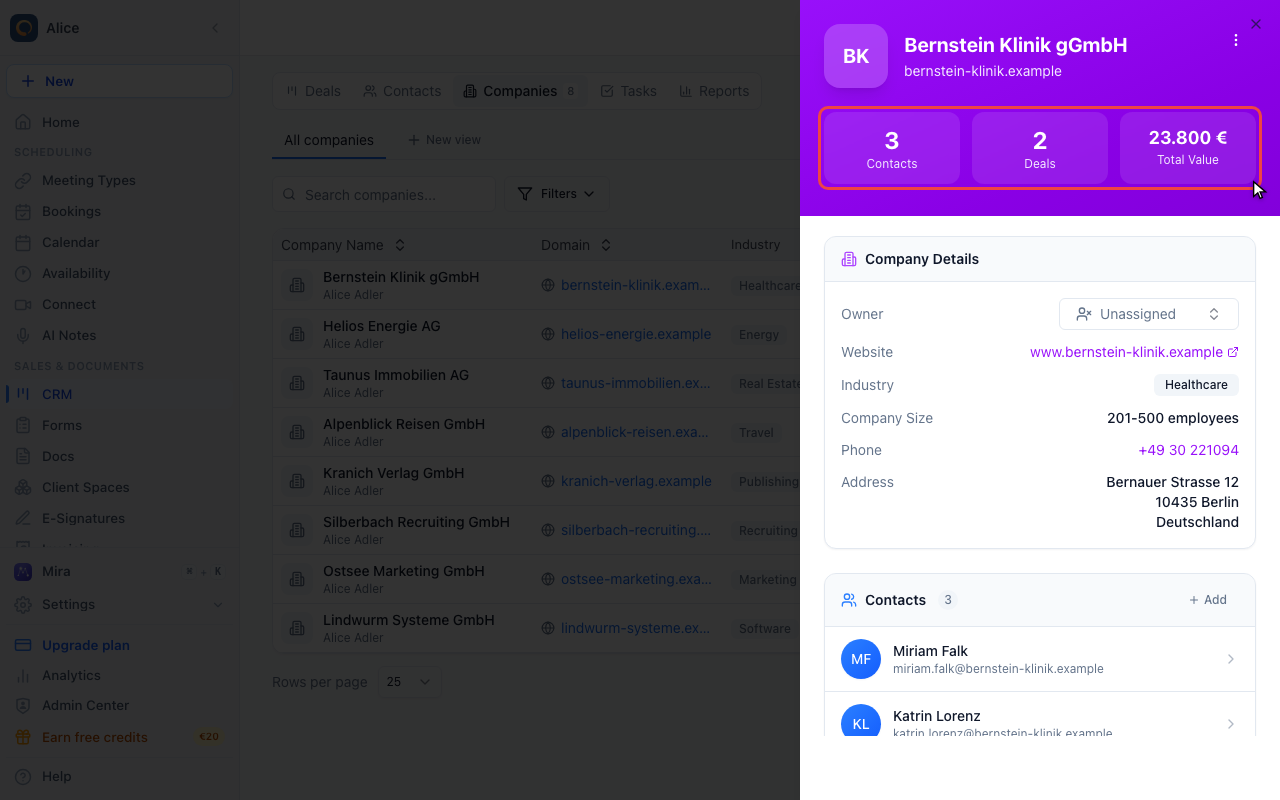
The header carries the company name, its domain and three totals: how many contacts and deals are linked, and what those deals are worth together.
Check the details
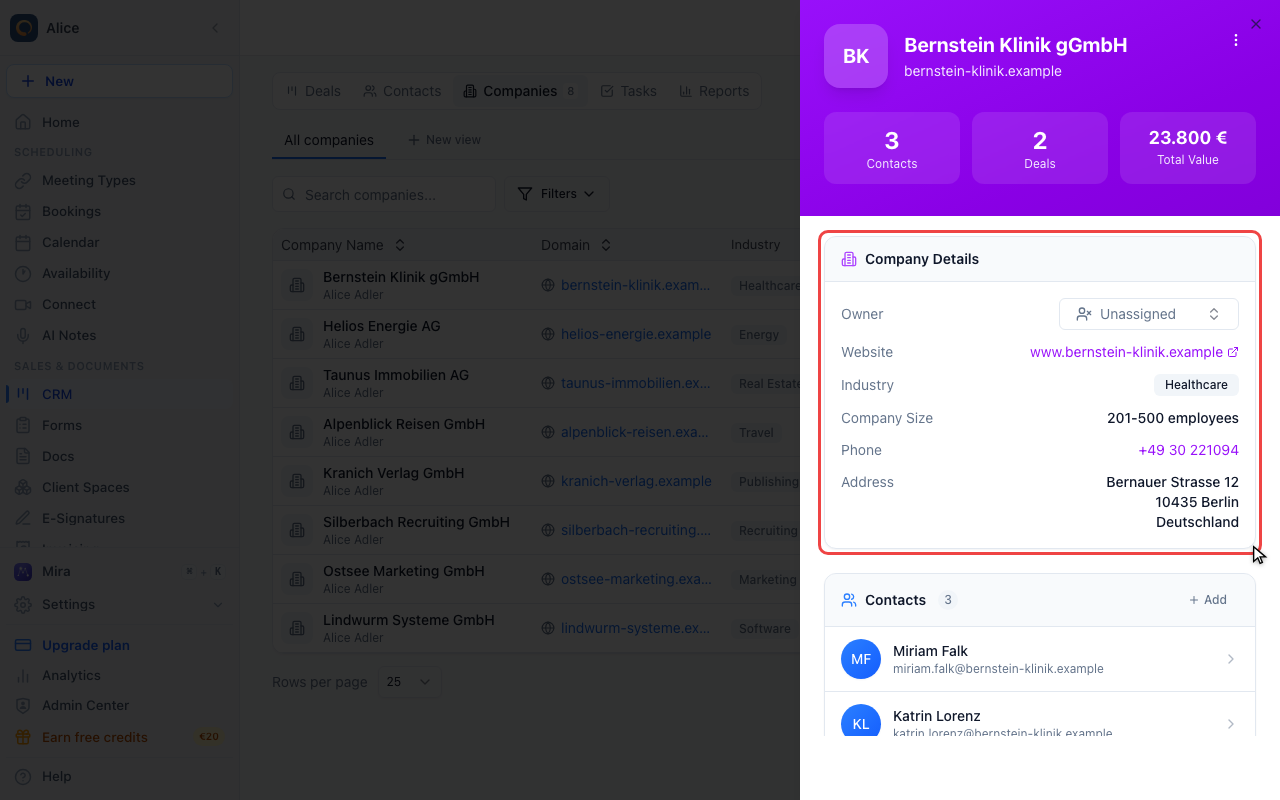
Company Details holds the owner, website, industry, size, phone number and postal address. Only the owner is editable here. Everything else is changed through the edit form.
See who works there
Contacts lists the people linked to this company. Click one to open their record.
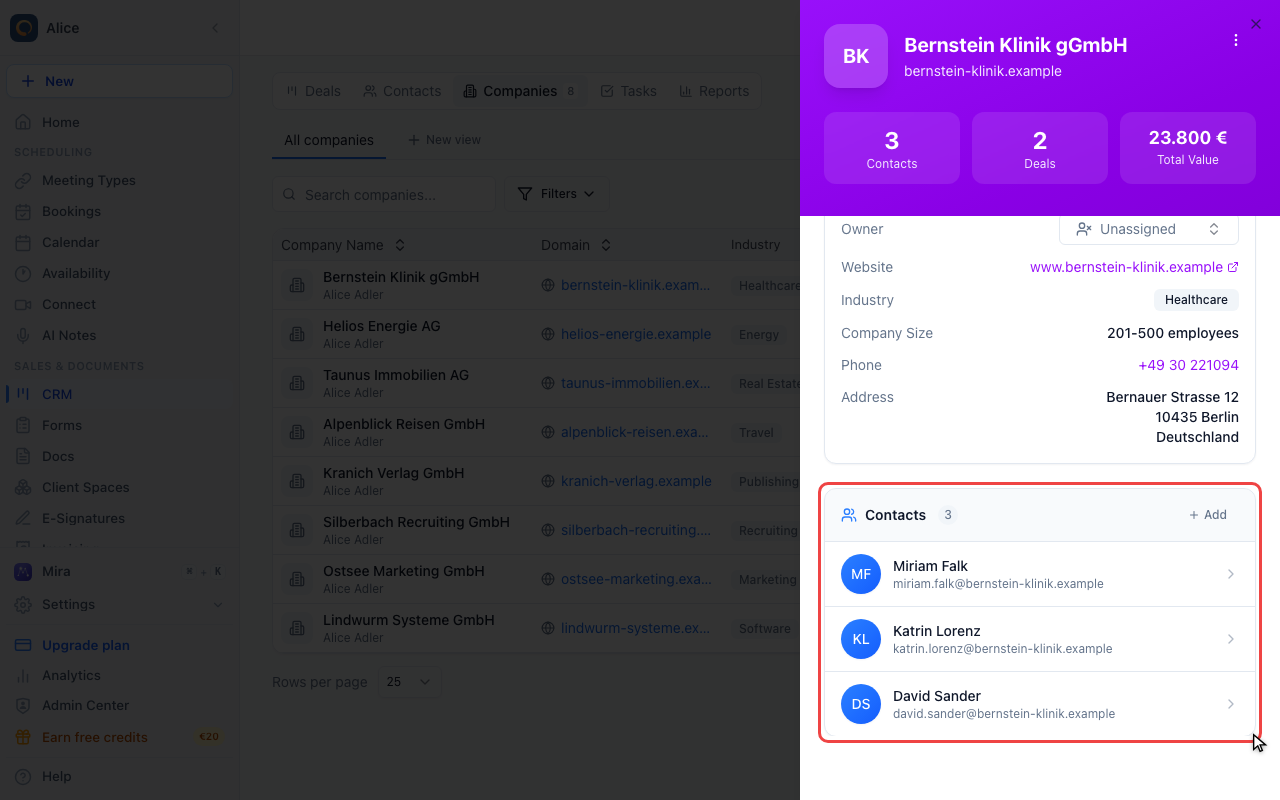
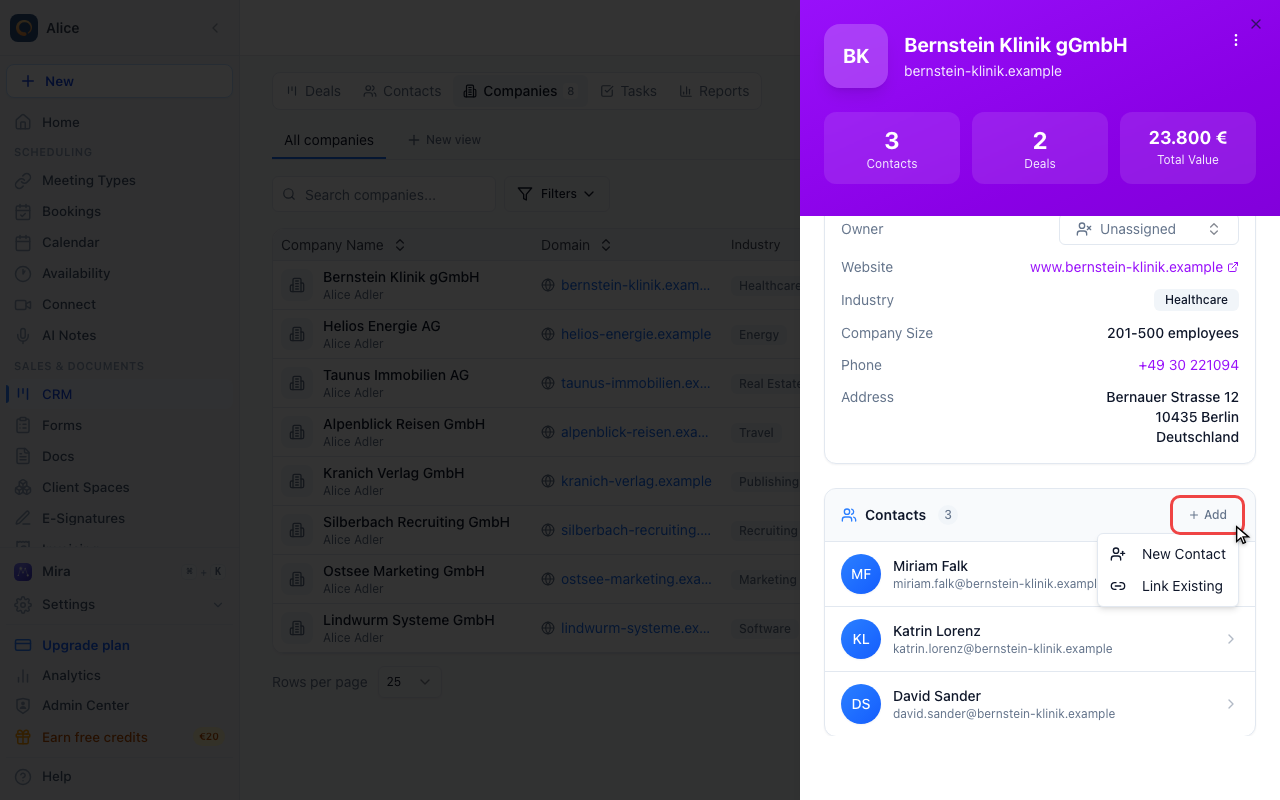
Link a contact
Add gives you two ways in: New Contact creates a person already attached to this company, Link Existing attaches somebody who is already in your CRM.
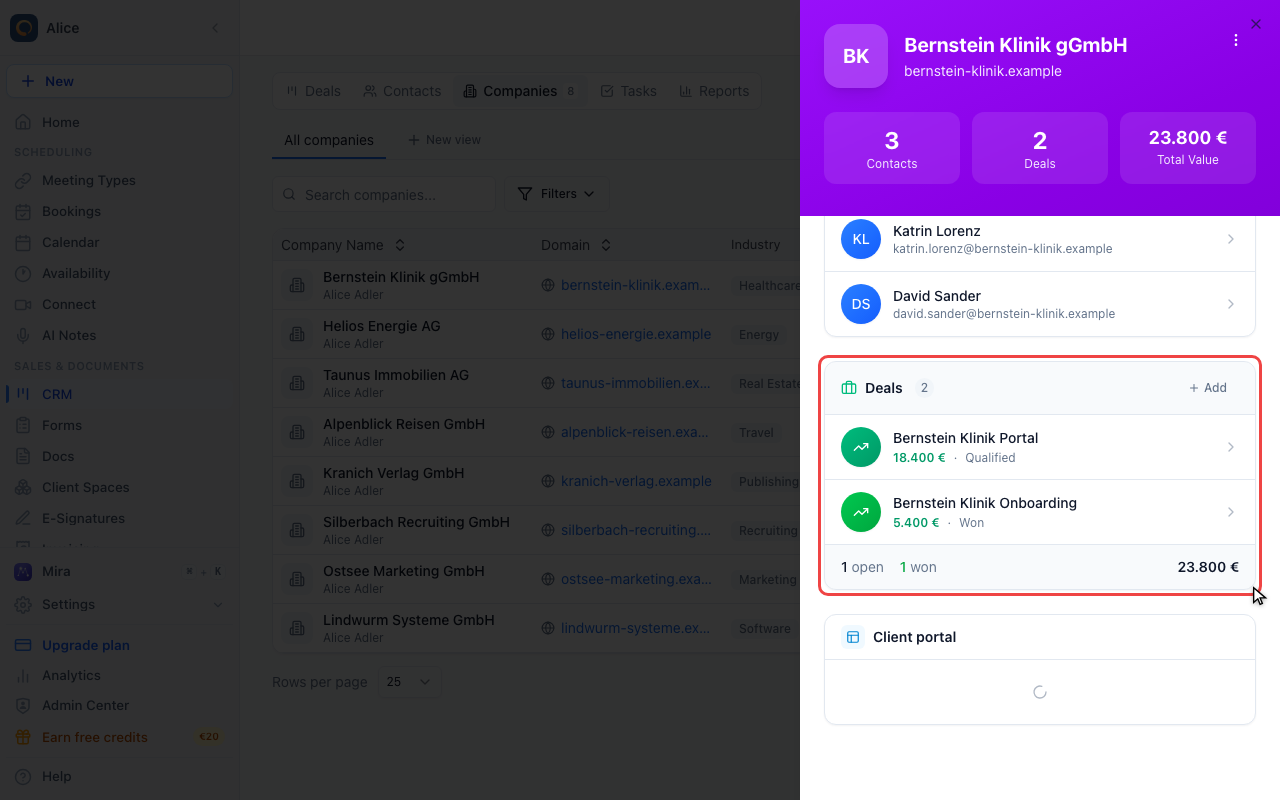
Review the deals
Deals lists every deal on this company with its value and current stage, and the footer totals how many are open, how many were won and what the company is worth. Add works the same way as it does for contacts. Hover a row and the unlink button appears, which detaches the deal without deleting it.
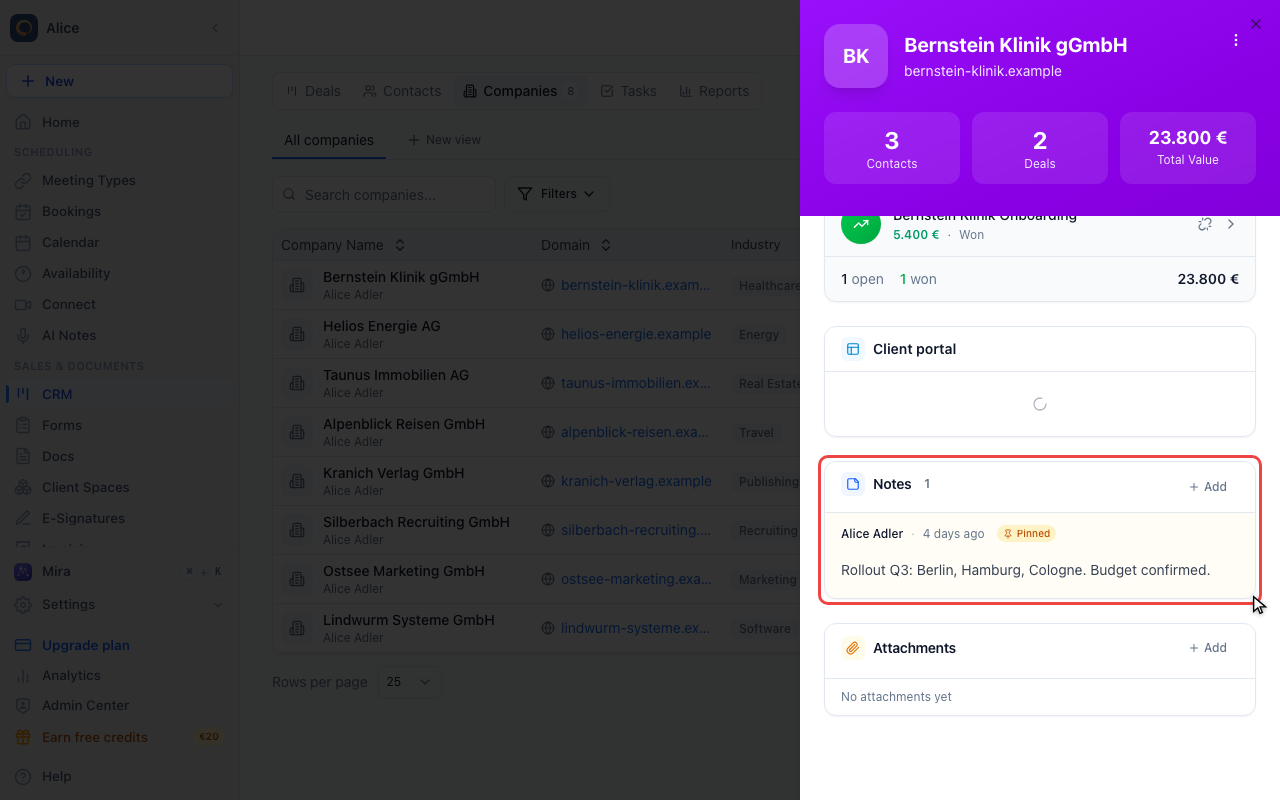
Keep notes and files
Notes take rich text and stay with the company. Pin the ones that matter and they stick to the top. Attachments, just below, holds the files. Above both, Client portal turns this company into a shared space in one click.
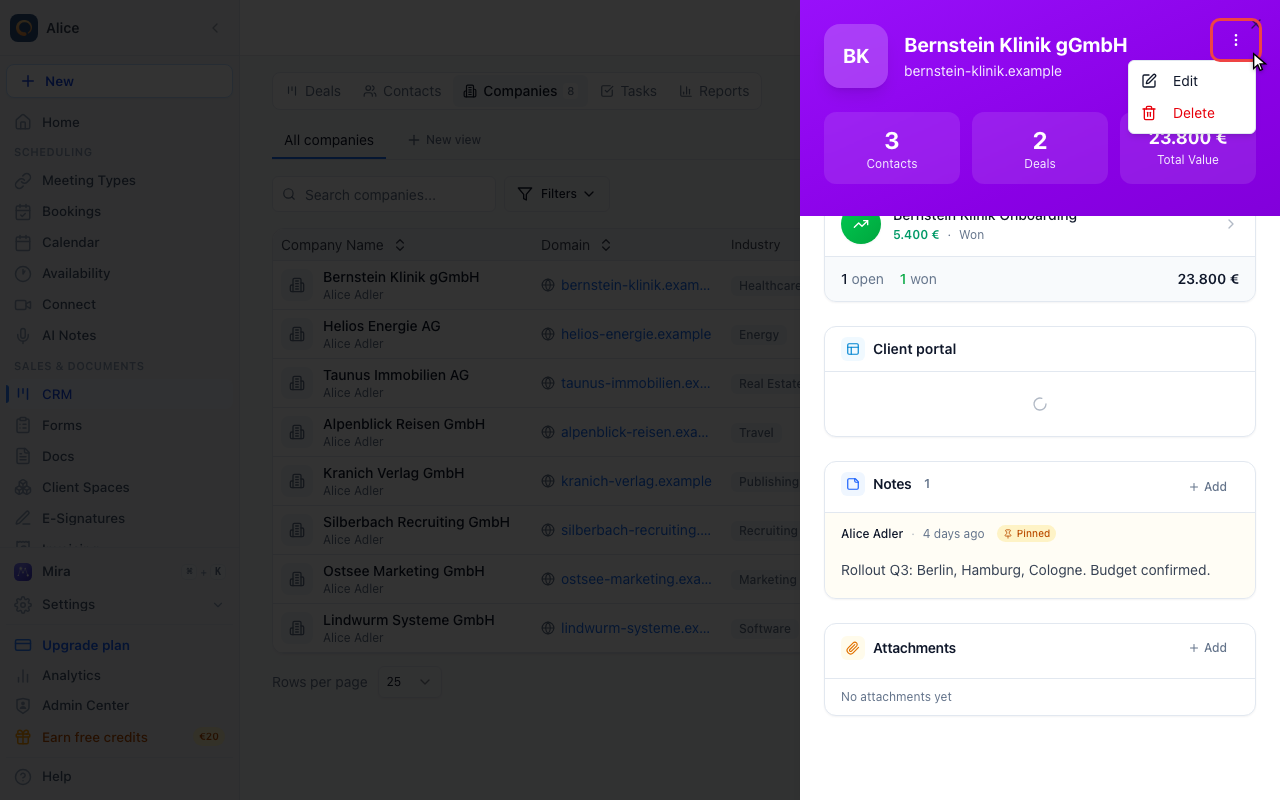
Edit or delete
The menu in the header holds Edit, which reopens the full form, and Delete. Deleting removes the company and unlinks its contacts and deals. Neither is deleted with it.
Create a company
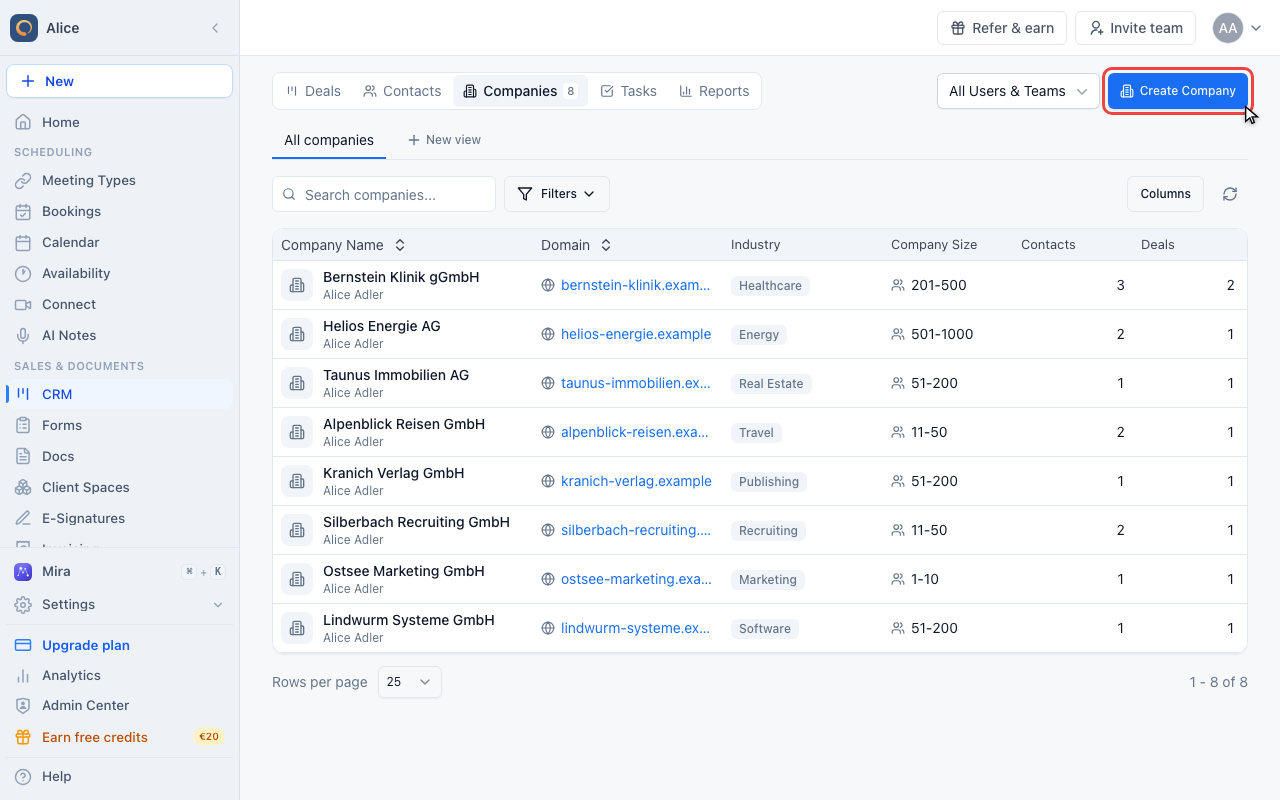
Start a new company
Create Company is the primary action above the list.
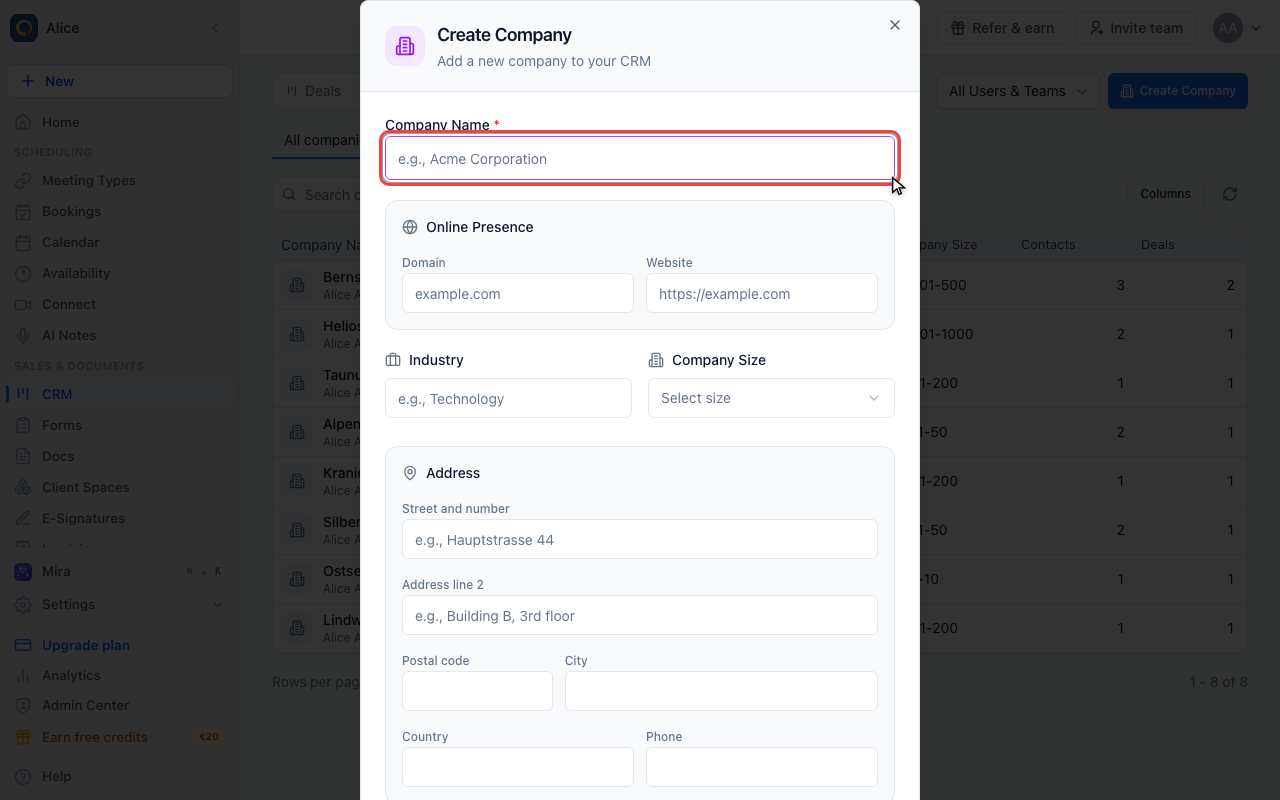
Name the company
Company Name is the only required field. Online Presence takes the domain and the website, and below them sit Industry and Company Size.
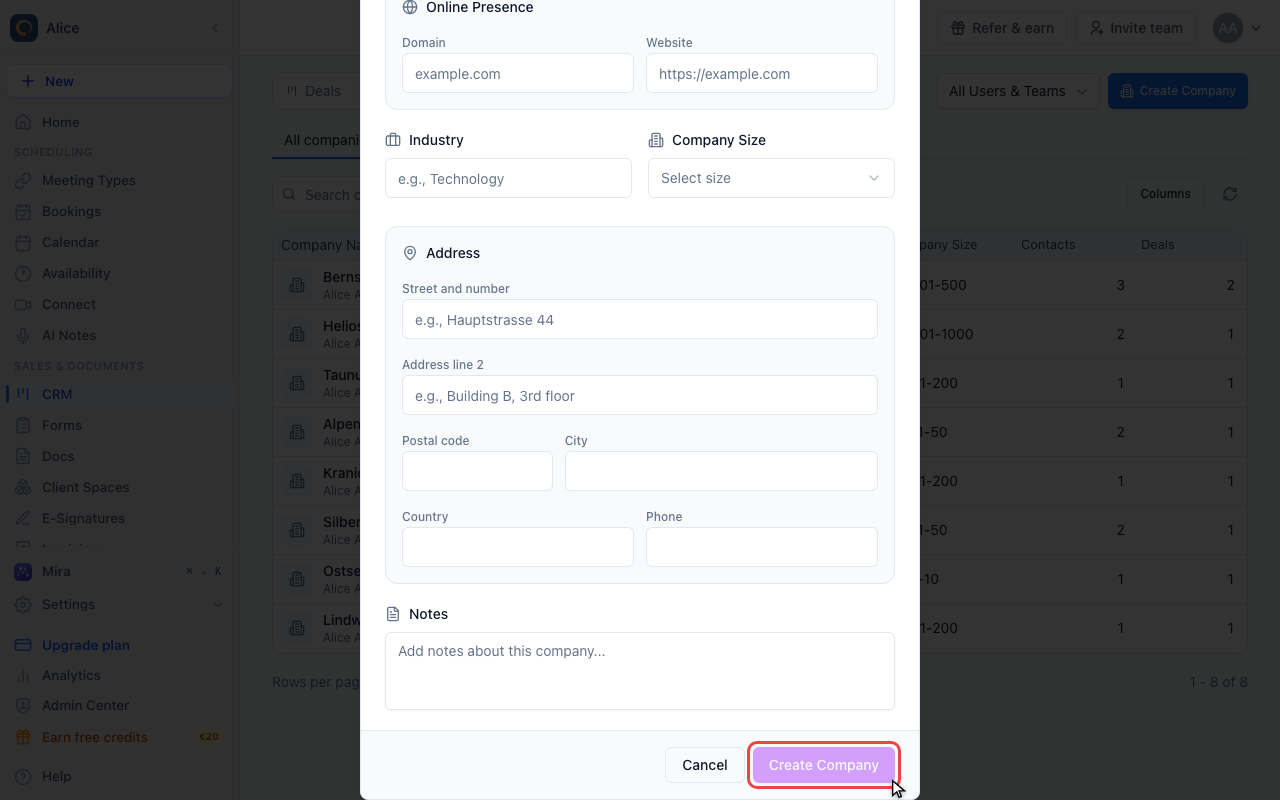
Save the company
The rest of the form is the postal address, a phone number and free-text notes. All of it is optional and can follow later. Create Company saves the record and it appears at the top of the list.
The company record
Clicking a row opens the record beside the list. It is made of cards, top to bottom:
| Card | What it holds |
|---|---|
| Header | Company name, domain, and totals for linked contacts, linked deals and their combined value |
| Company Details | Owner, website, industry, company size, phone number and postal address |
| Contacts | The people linked to this company, newest first, with an Add menu |
| Deals | The deals linked to this company with value and stage, plus a footer counting open and won deals |
| Client portal | Creates a branded client space for this company, or lists the ones that exist |
| Notes | Rich-text notes, pinned ones first |
| Attachments | Files stored with the company |
The owner is the only field you can change directly on the record. Everything else goes through the edit form.
Company fields
Both the create and the edit form use the same fields:
| Field | Description | Required |
|---|---|---|
| Company Name | The company name | Yes |
| Domain | Bare domain, e.g. acme.com | No |
| Website | Full URL, e.g. https://acme.com | No |
| Industry | Free text, e.g. Technology | No |
| Company Size | Employee range, picked from a list | No |
| Address | Street and number, address line 2, postal code, city, country | No |
| Phone | Contact number for the company | No |
| Notes | Freeform text saved with the company | No |
Linking companies to deals
From the deal form. Creating or editing a deal, pick the company in the Company field. The picker only offers companies that already exist.
From an open deal. The Company card carries the link. With nothing linked yet, click Add Company, then search and select. If the company is not in your CRM yet, Quick create company takes a name and creates and links it without leaving the deal.
Unlinking. On the deal's Company card, click the unlink button. The company stays in your CRM and only the link to that deal is removed.
Linking contacts to companies
From the contact form. Creating or editing a contact, pick the company in the Company field.
From the company record. In the Contacts card, Add offers New Contact, which creates a person already attached to this company, and Link Existing, which attaches somebody already in your CRM.
Unlinking. Hover a contact in the Contacts card and click the unlink button. The contact stays in your CRM without a company.
Notes and attachments
Notes. Click Add in the Notes card, write the note in the rich text editor and save it. Notes can be pinned so they stay at the top, edited later, or deleted.
Attachments. Click Add in the Attachments card to pick a file, or drag files onto the card. PDF, Word, Excel, JPG, PNG, GIF, TXT and CSV files are accepted.
See Notes and Attachments for the full behaviour.
Searching and filtering
Search. The search box matches the company name and the domain. It ignores case and finds partial words.
Filters. Filters build a condition on any company field, combined with and/or. Save a set you keep reusing and it becomes a tab above the list, next to All companies.
Who you see. The scope picker beside the tabs switches between everybody's companies, your own and a single team member's.
Importing companies
There is no separate company importer. The contact CSV import takes a company column: each value is matched against your existing company names, and a company is created for every name that does not match one yet.
Deleting a company
Open the company, use the menu in the header and choose Delete. Your browser asks you to confirm.
Deleting a company:
Good habits
Complete profiles. A full legal name, the correct domain, and an accurate industry and size make the list easier to scan and to filter.
Consistent naming. Pick one spelling and stay with it. "Acme Corporation" entered three ways becomes three companies, and the CSV import matches on the name.
One company per domain. The domain is the most reliable way to spot a company you already have before you create a second one.
FAQ
Can a contact belong to multiple companies?
No, a contact is linked to one company at a time. If somebody changes employer, update the Company field on their contact.
What happens to contacts when I delete a company?
They are unlinked but not deleted. They stay in your CRM without a company until you assign a new one.
Can I merge duplicate companies?
Not automatically. Deduplication covers contacts only. Move the contacts and deals over to the company you want to keep, then delete the duplicate.
Do company logos appear automatically?
Not in the CRM. Company rows and the record header show a placeholder mark built from the name, so the domain is worth filling in for the link and the matching, not for a logo.
Can I import companies from a CSV?
Indirectly. Map a column of your contact import to the company field and any name that does not exist yet is created as a company.
Are companies shared across the team?
Yes. Every user with CRM access sees the same companies. The scope picker changes what the list shows, not what you are allowed to open.
Related Articles
Was this article helpful?
Let us know if this article answered your questions.