
Custom Fields
Add custom data fields to deals and companies, and configure required fields per pipeline stage
Custom fields let you capture information beyond the standard fields, on deals and on companies. Create fields for budgets, decision dates, VAT IDs, trade register numbers, or any data your business needs. You can also require certain fields before deals can advance to specific stages.
The walkthrough below covers deal fields. Company fields work the same way and are set up further down.
 1 / 23
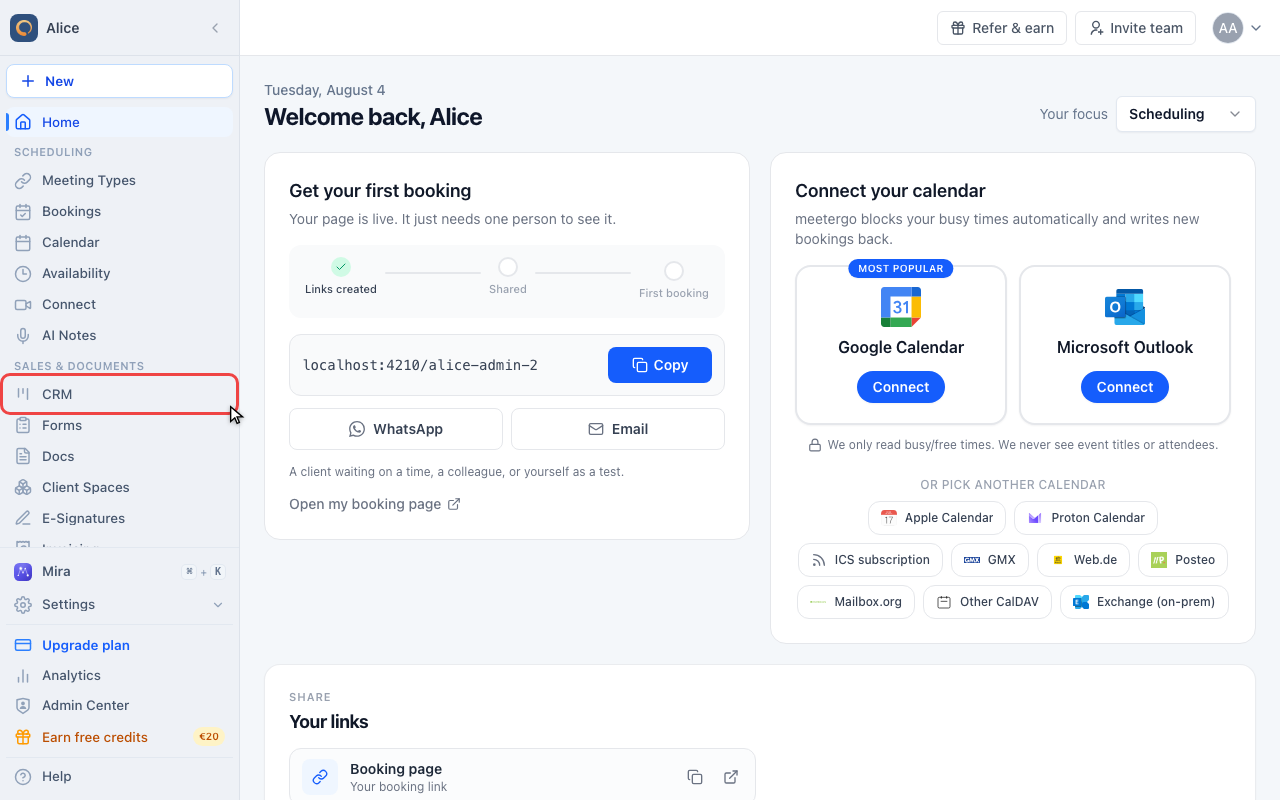
Click CRM in the sidebar.
Define a field
Open CRM
Click CRM in the sidebar.
Stay on Deals
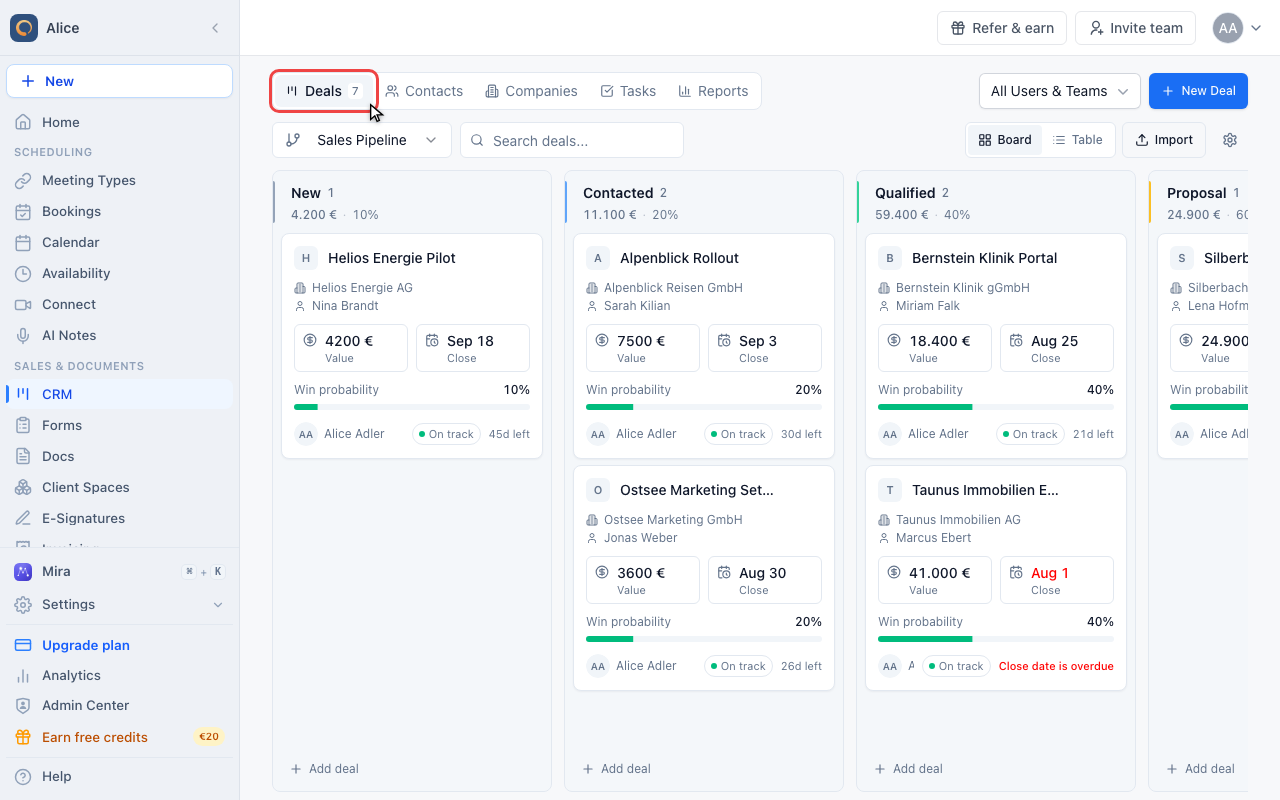
Custom fields are a deal setting, so they are configured from the Deals tab. There is no CRM settings page of its own.
Open pipeline settings
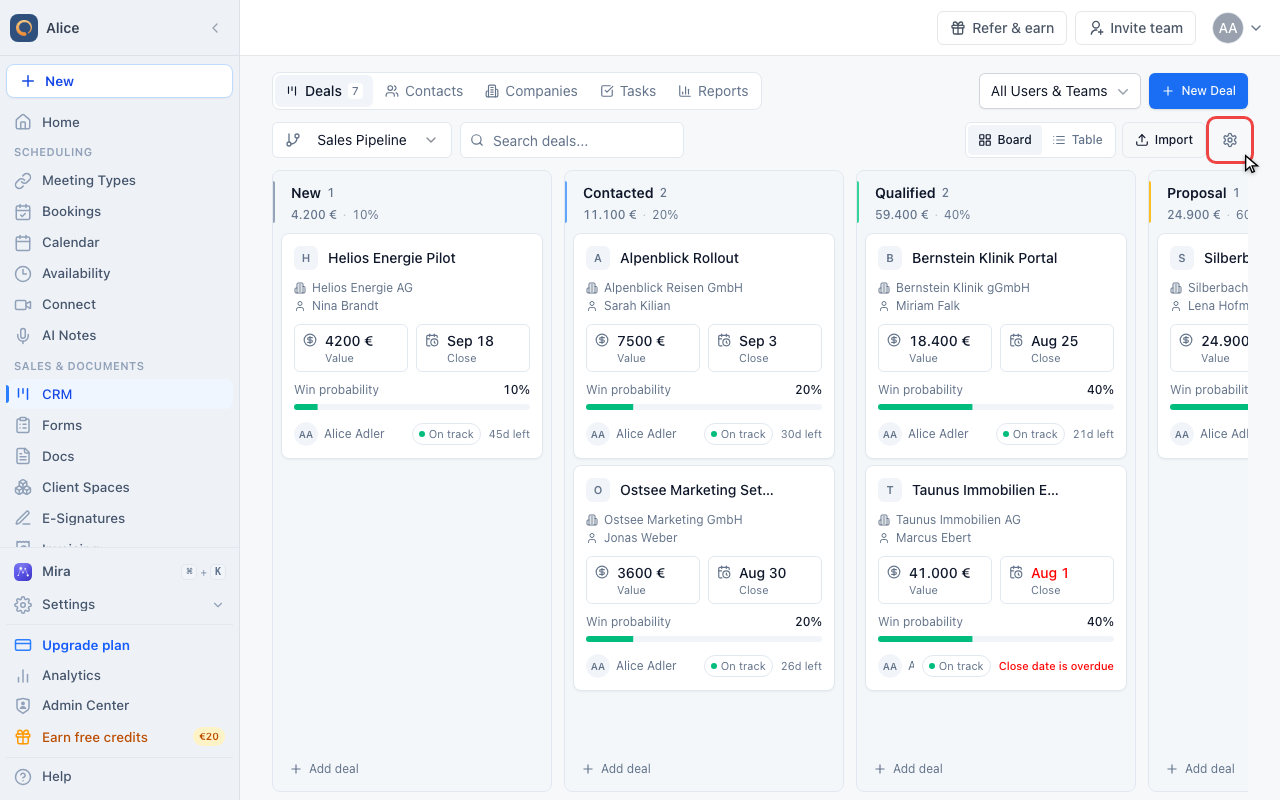
The gear on the right of the toolbar opens Pipeline Settings.
Open Deal Custom Fields
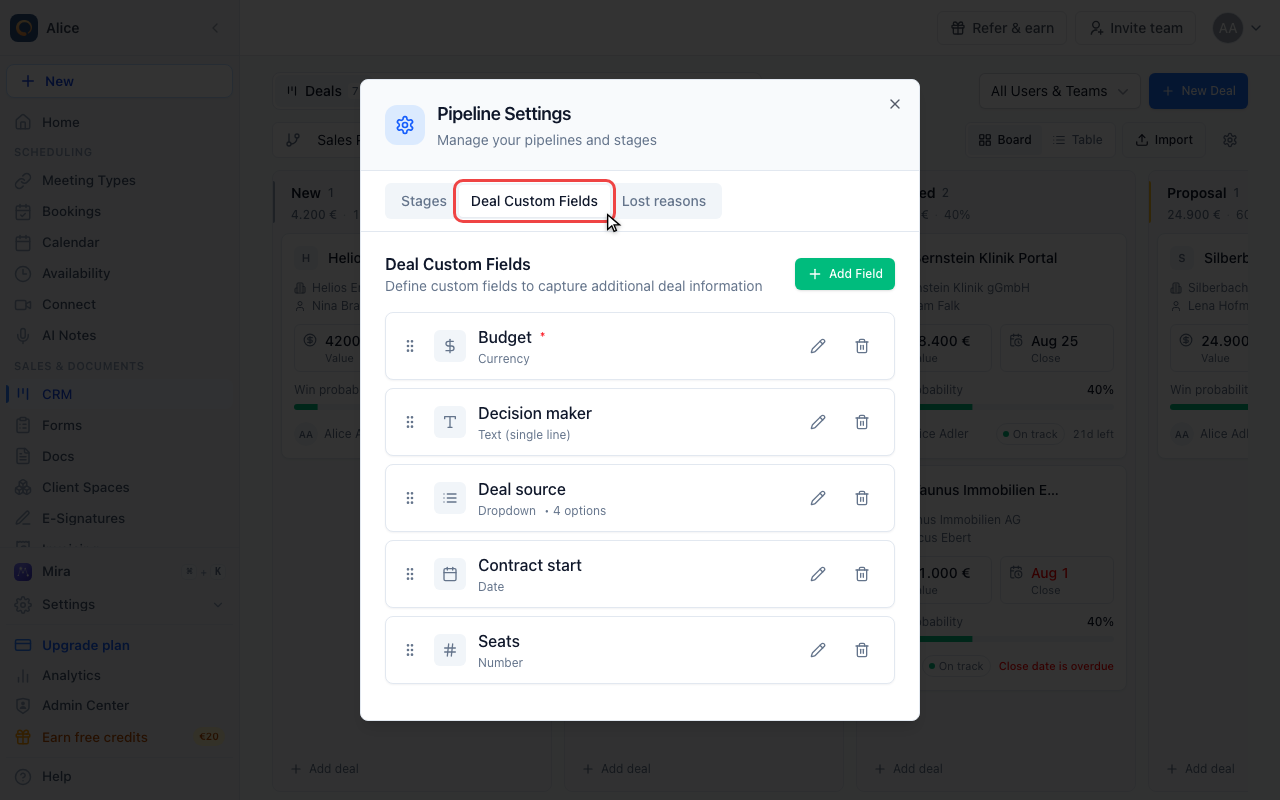
The second tab holds the fields. They belong to the account, not to the pipeline you opened the settings from, so every pipeline offers the same set.
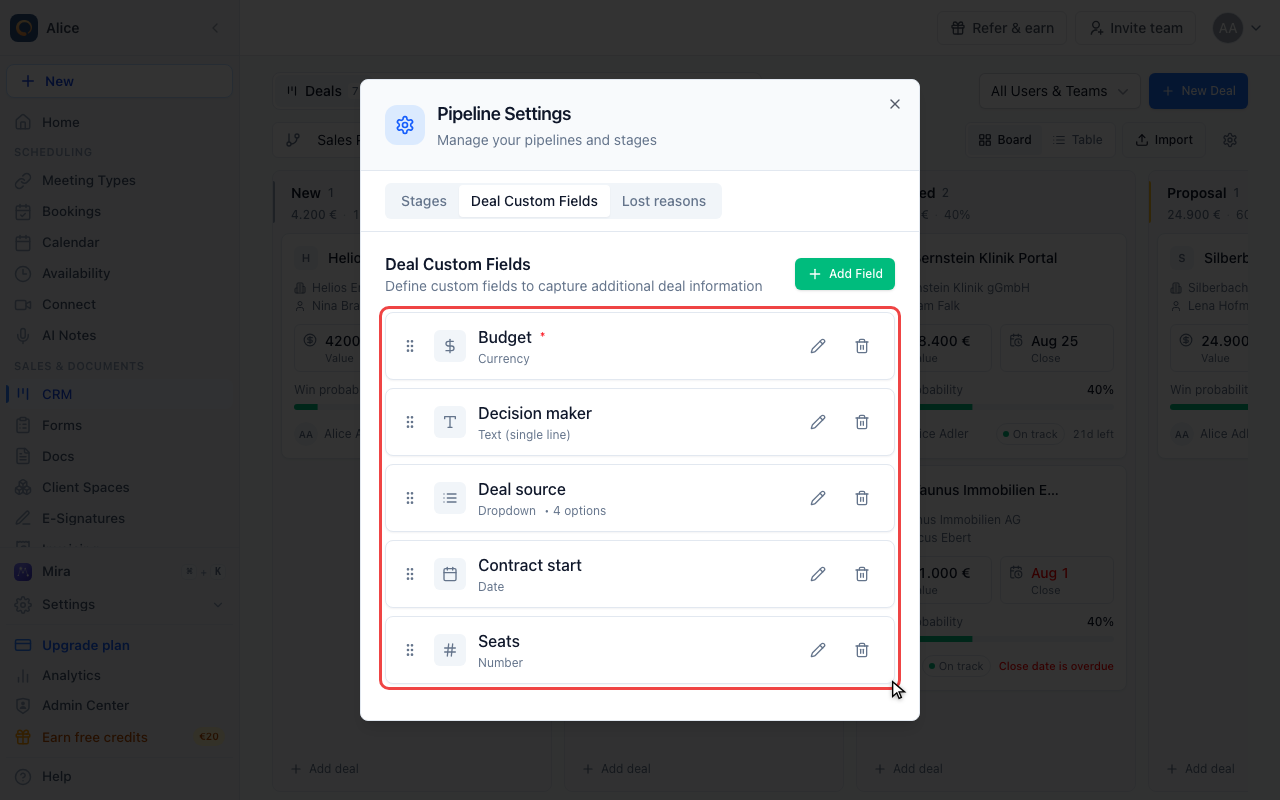
Read the list
Each row shows an icon for the field type, the label your team sees, the type spelled out, and how many choices a dropdown offers. A red asterisk marks a field that is required on every new deal.
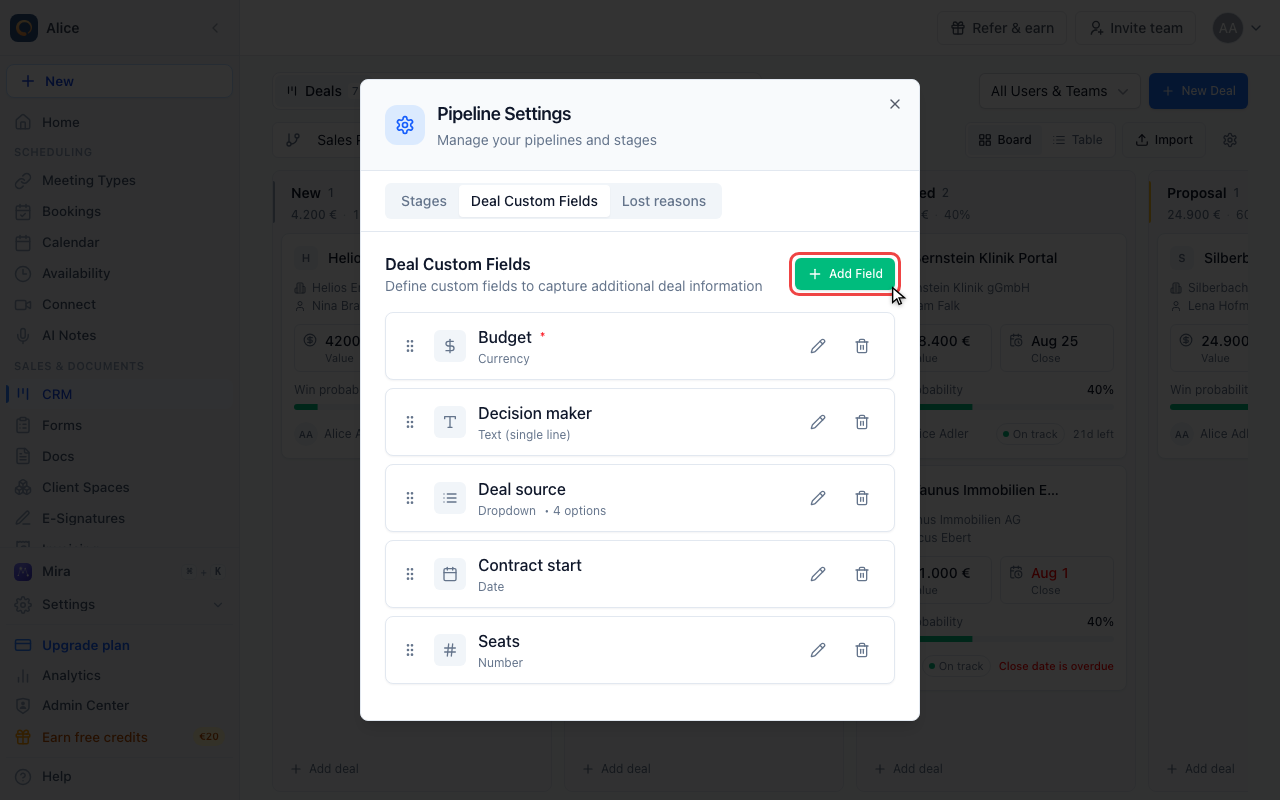
Click Add Field
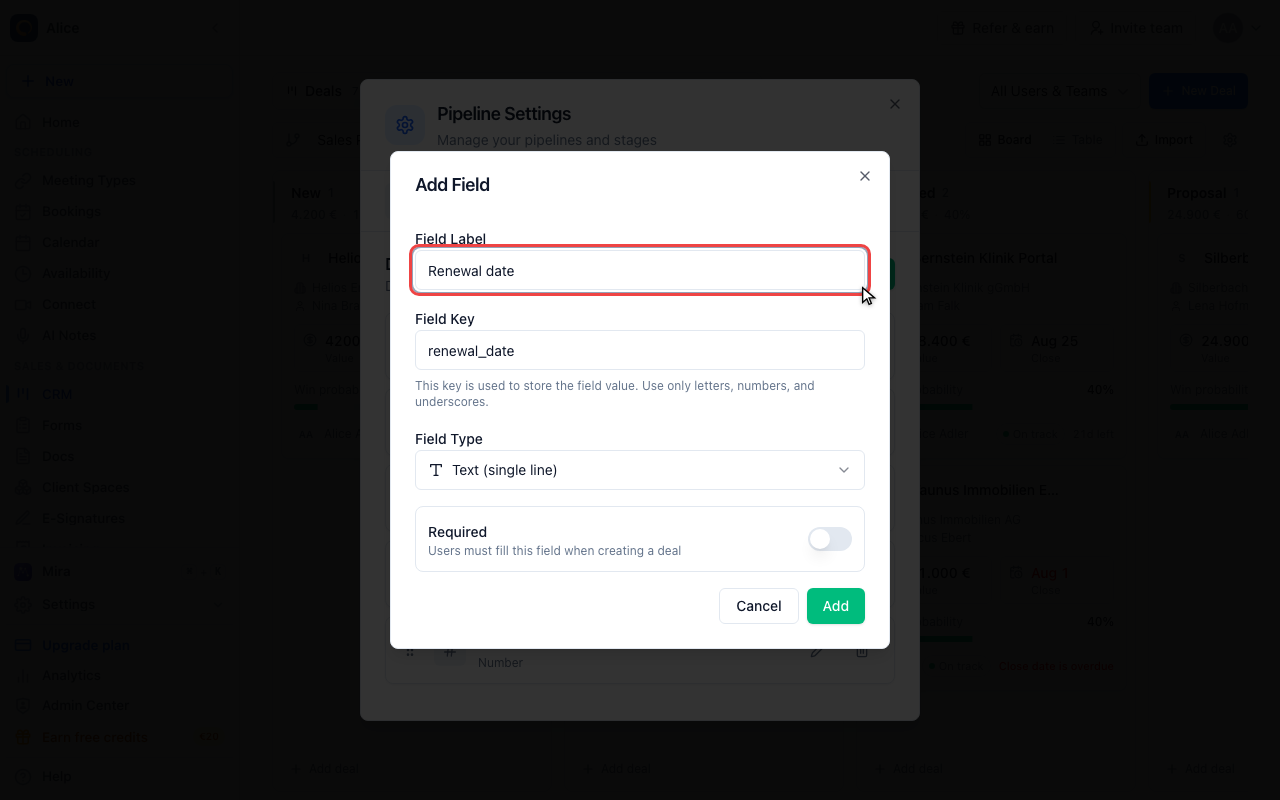
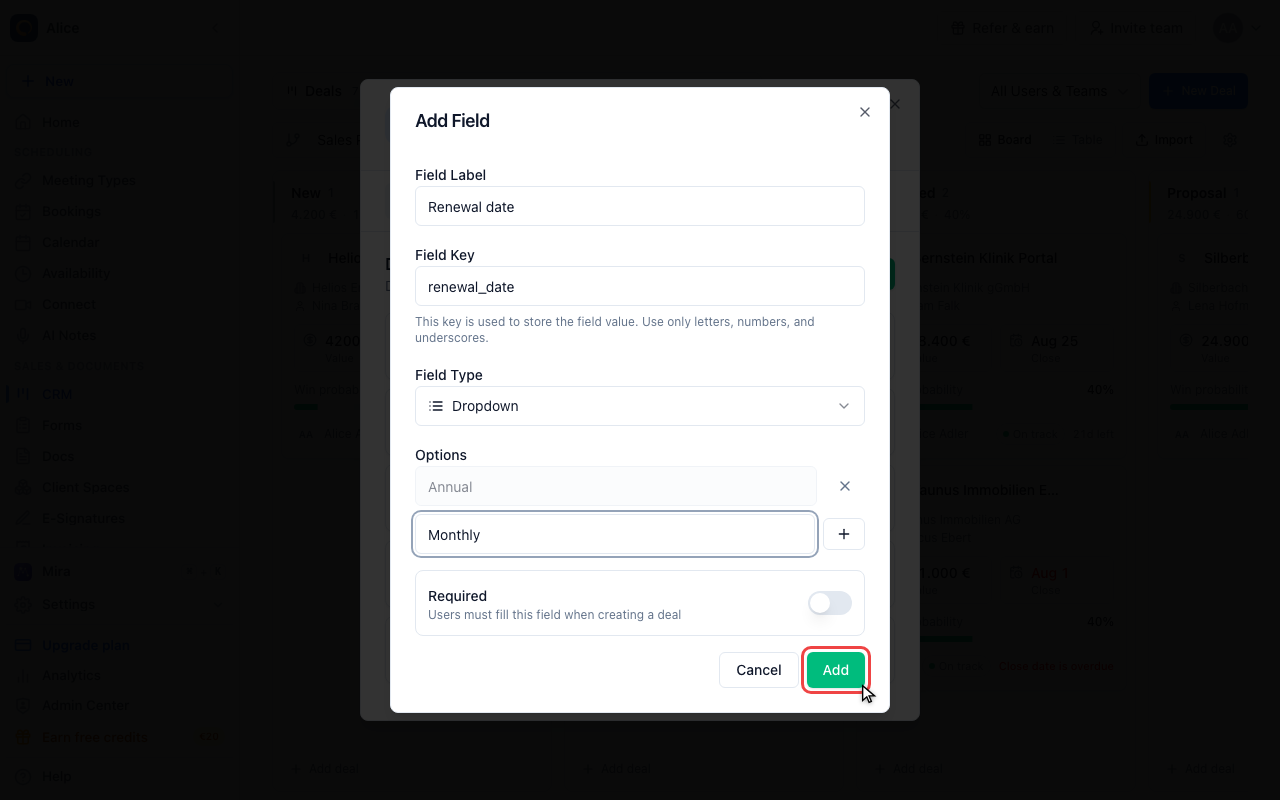
Name the field
The label is what everyone reads on the deal. Keep it short and unambiguous.
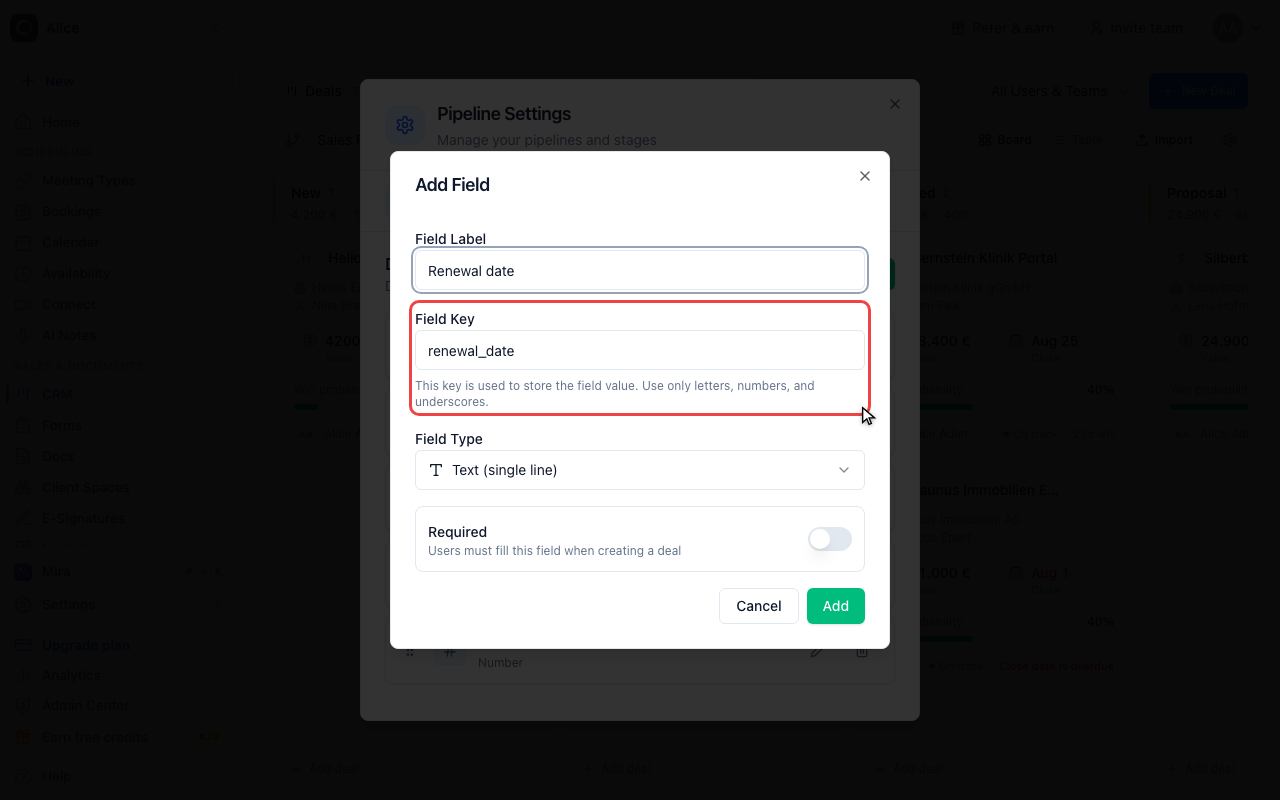
Check the field key
The key is generated from the label and is what the value is stored under. Letters, numbers and underscores only, and it has to be unique. You can edit it while you are creating the field; changing it afterwards leaves the values already saved under the old key behind.
Pick the field type
Eight types are available: single-line and multi-line text, number, currency, date, dropdown, multi-select and checkbox. Pick the one that matches the data, not the one that is easiest to type into: a date field sorts and formats, a text field holding a date does neither.
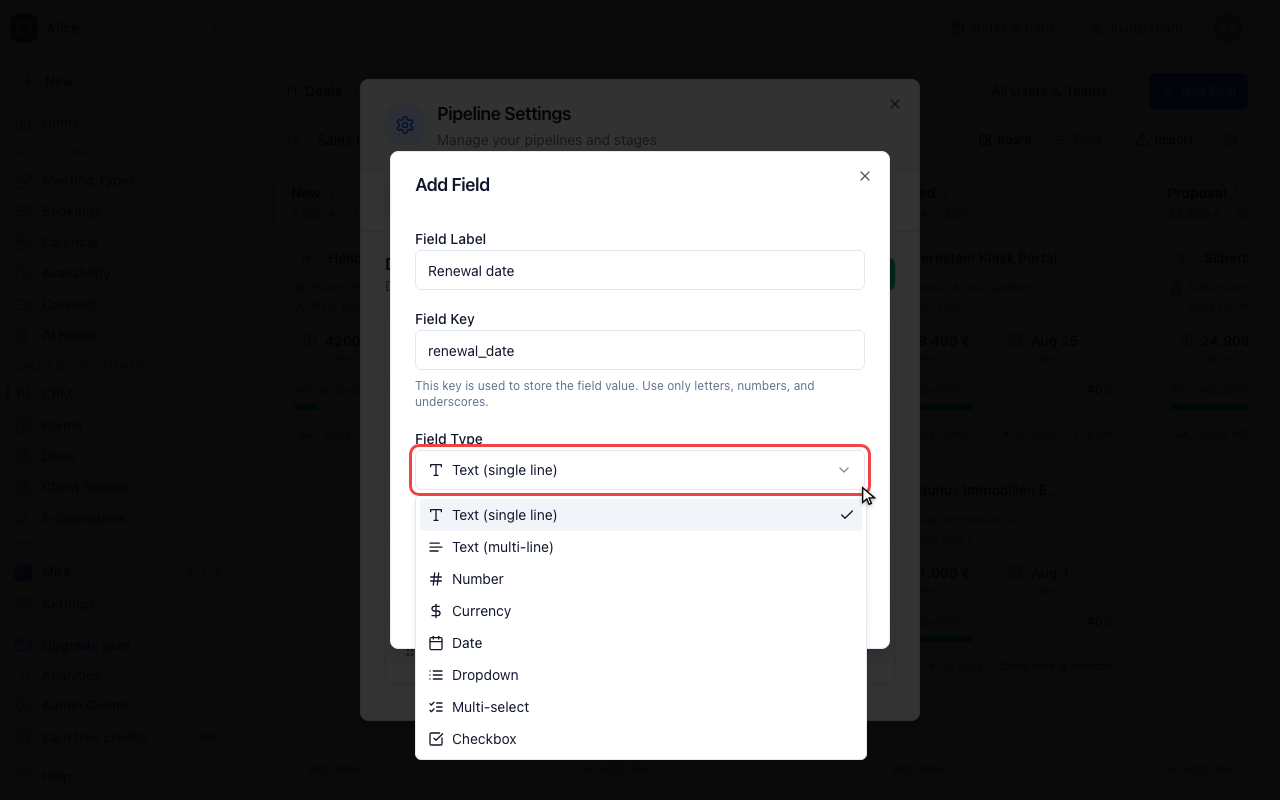
Choose Dropdown
Dropdown and Multi-select are the two types that need a list of choices.
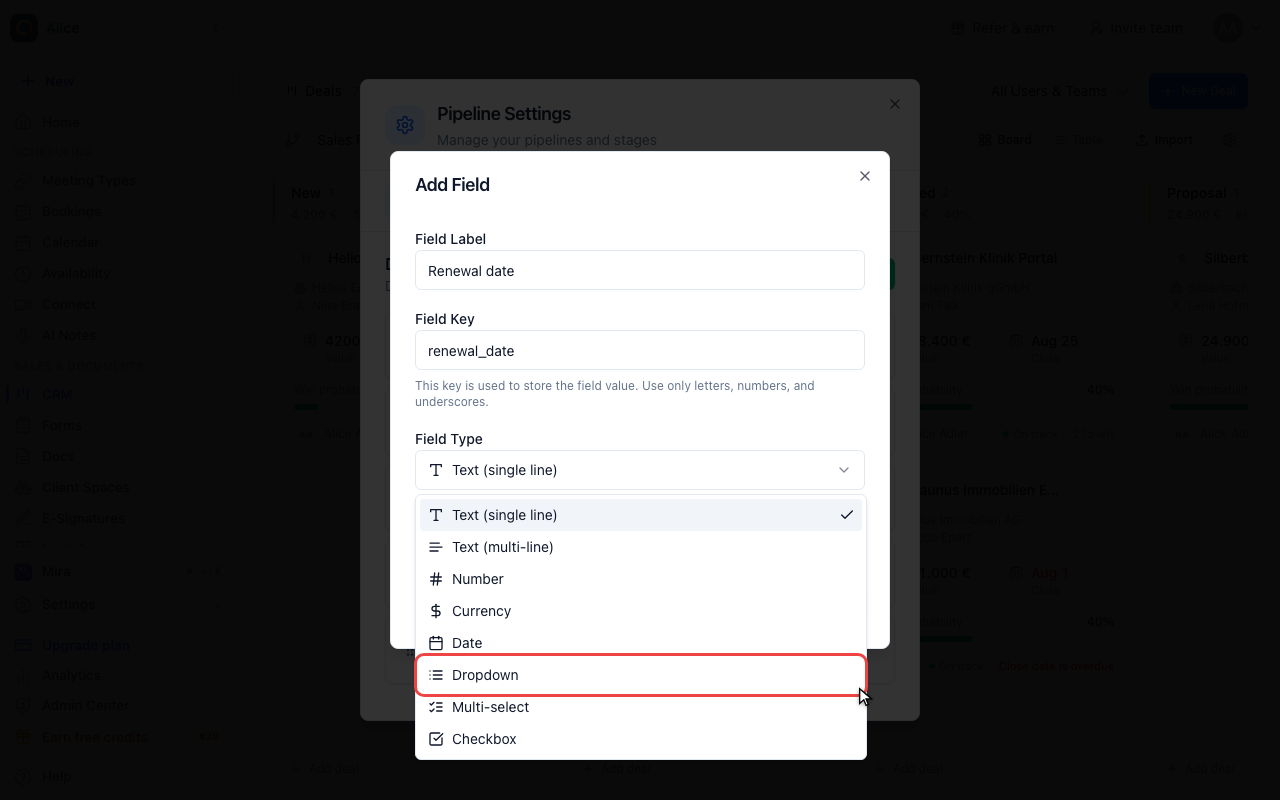
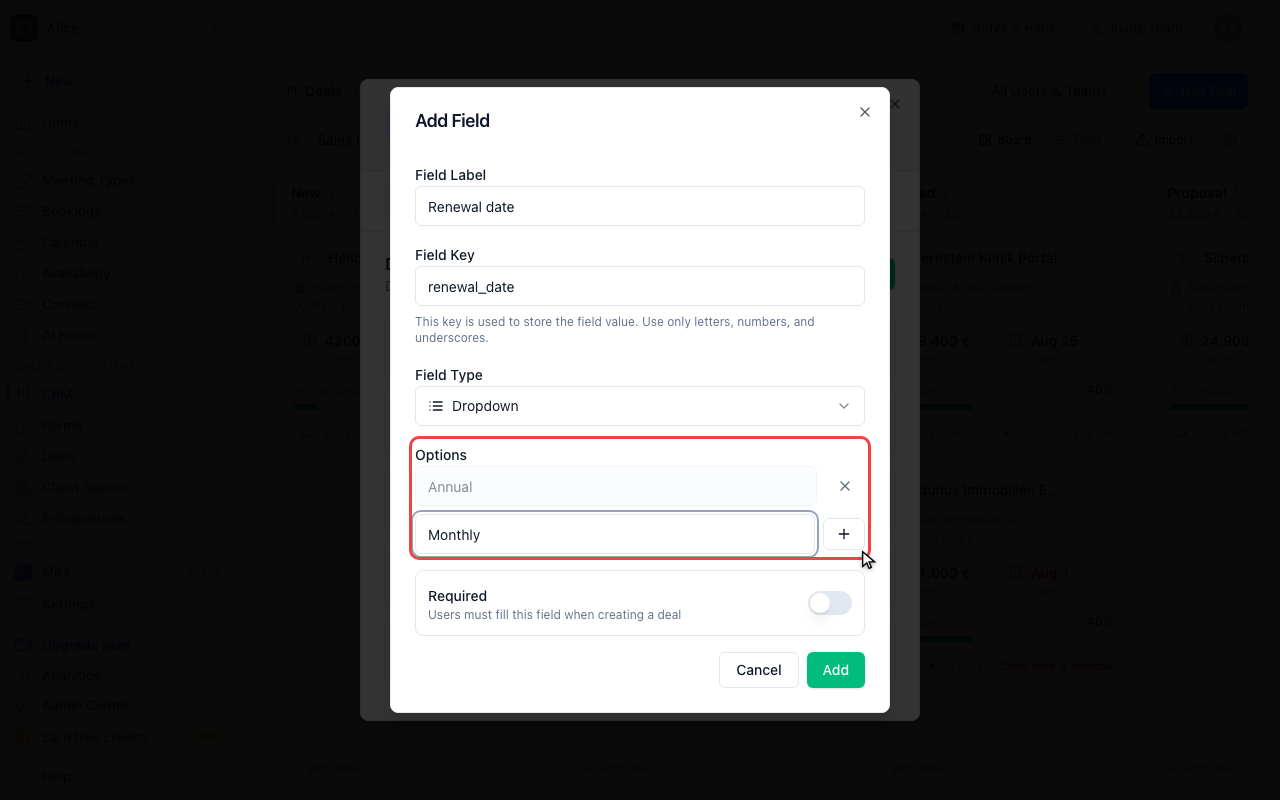
Add the choices
Type a choice and confirm it with the plus. Added choices are listed above the input; the cross beside one removes it. Choices are free text, so spell them the way you want them to read on the deal.
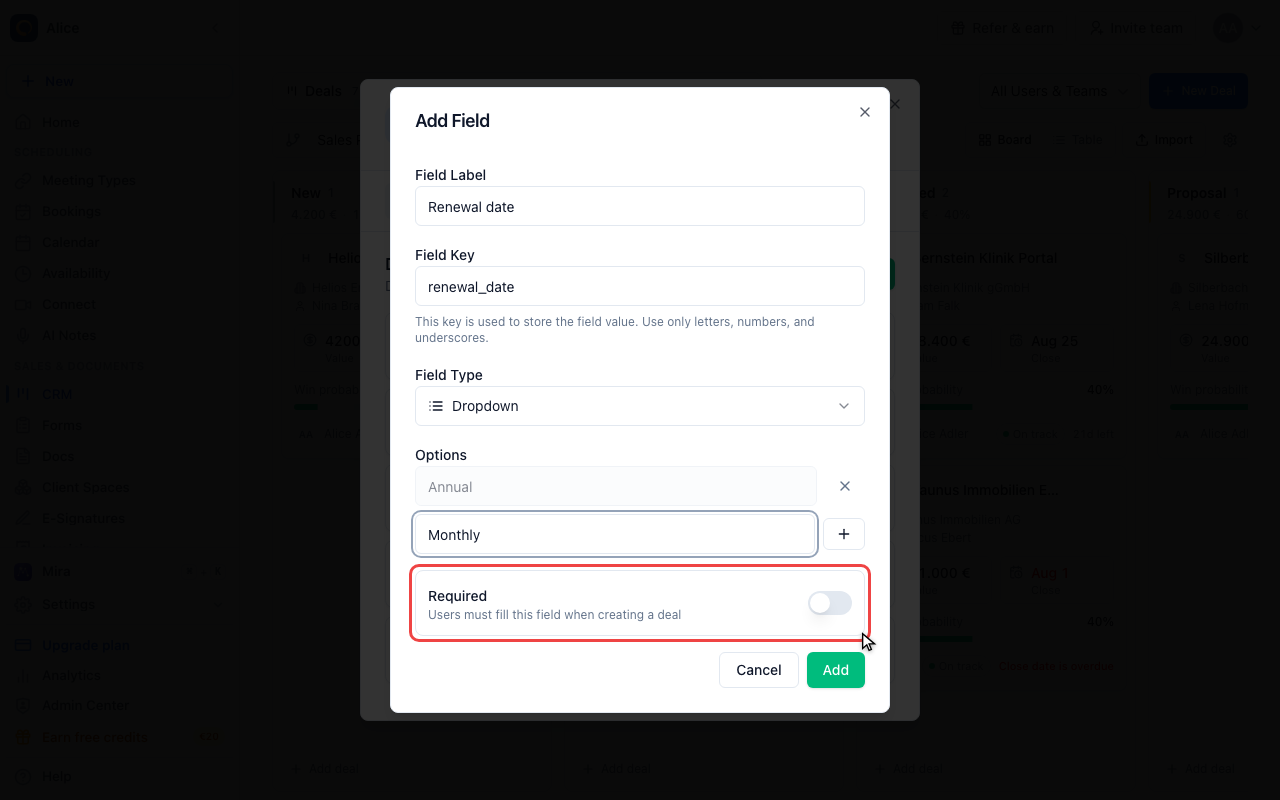
Decide whether it is required
Required marks the field with an asterisk in the New Deal dialog. It is a prompt, not a barrier: the deal still saves without it. The rule that actually blocks a deal is the per-stage requirement further down this guide.
Add the field
Add saves the field straight away. It appears on every deal in the account, empty, from that moment on.
Manage the fields
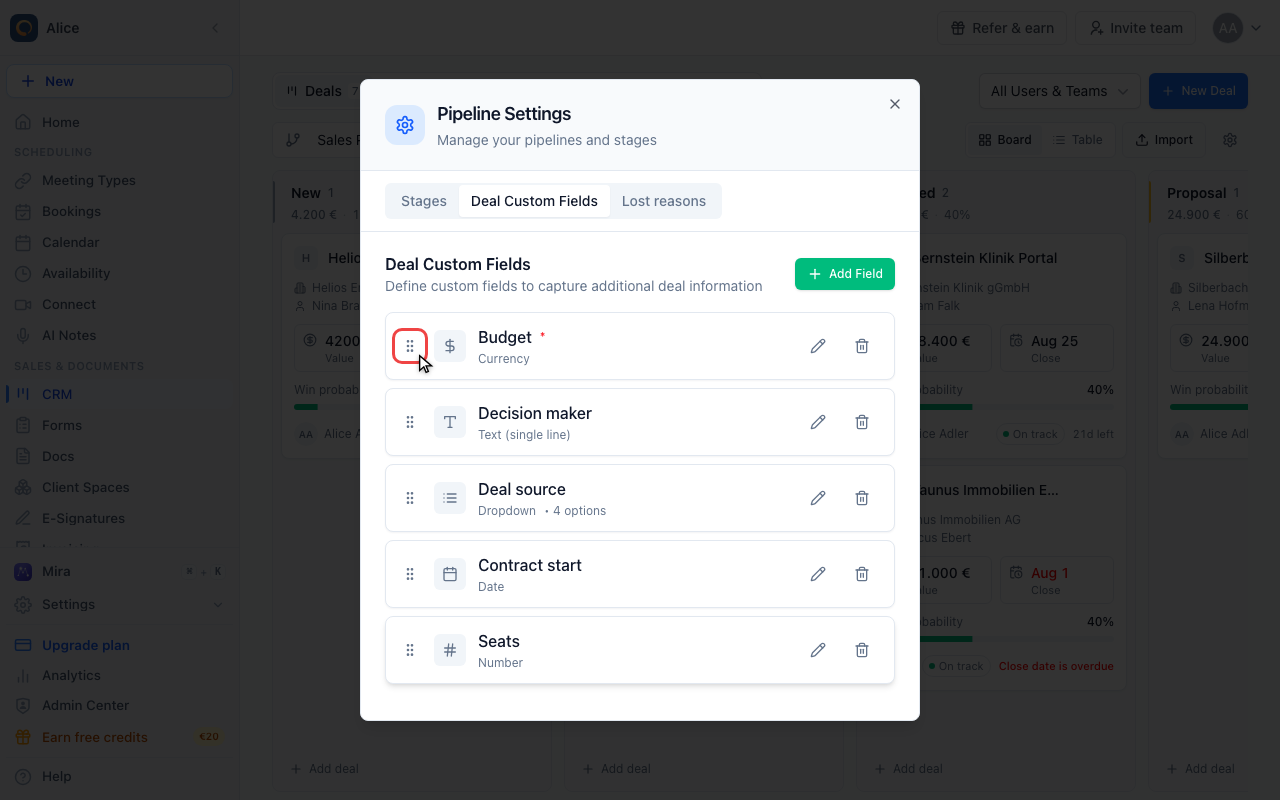
Reorder the fields
Drag a field by its grip. The order here is the order the fields appear in on the deal and in the New Deal dialog, and it saves as soon as you drop.
Edit or delete a field
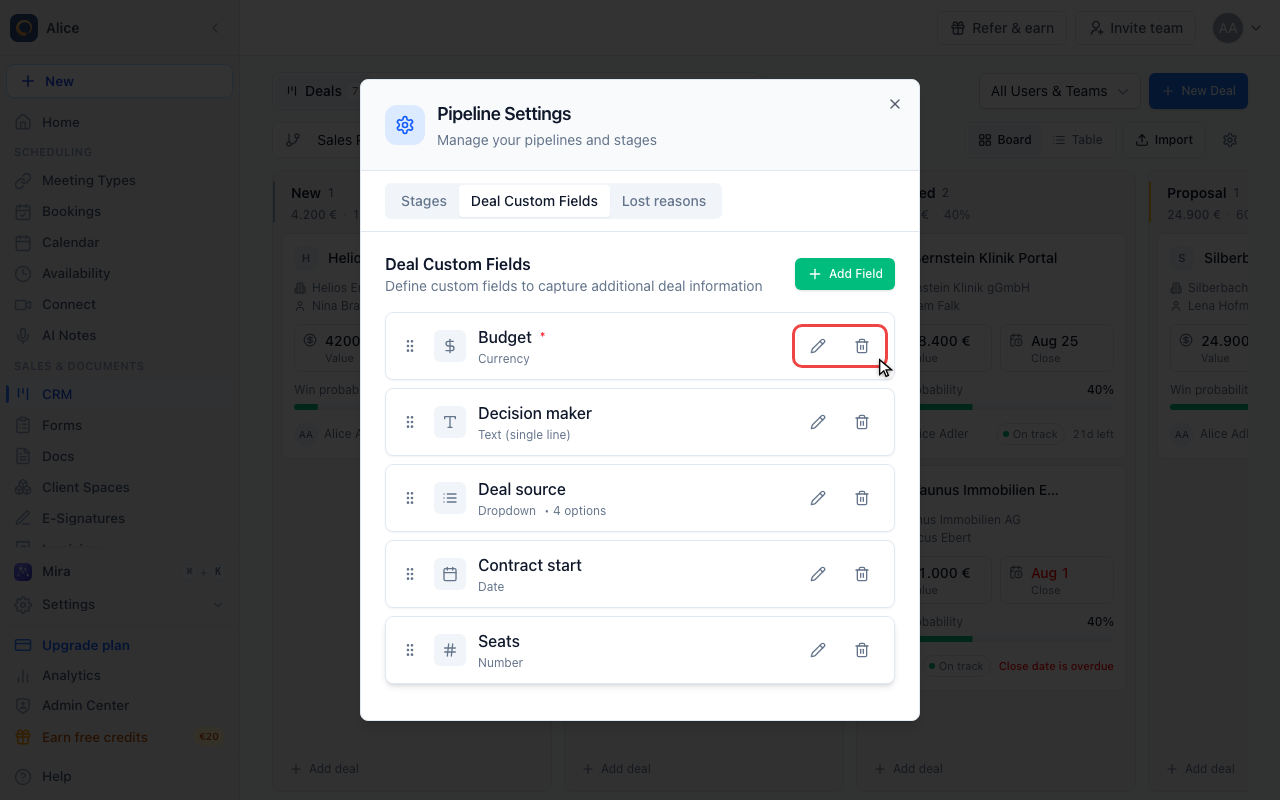
The pencil reopens the same form, so a label or a set of choices can be corrected at any time. The bin asks for confirmation and then removes the field from every deal along with the values stored in it, which cannot be undone.
Require a field for a stage
Edit the stage
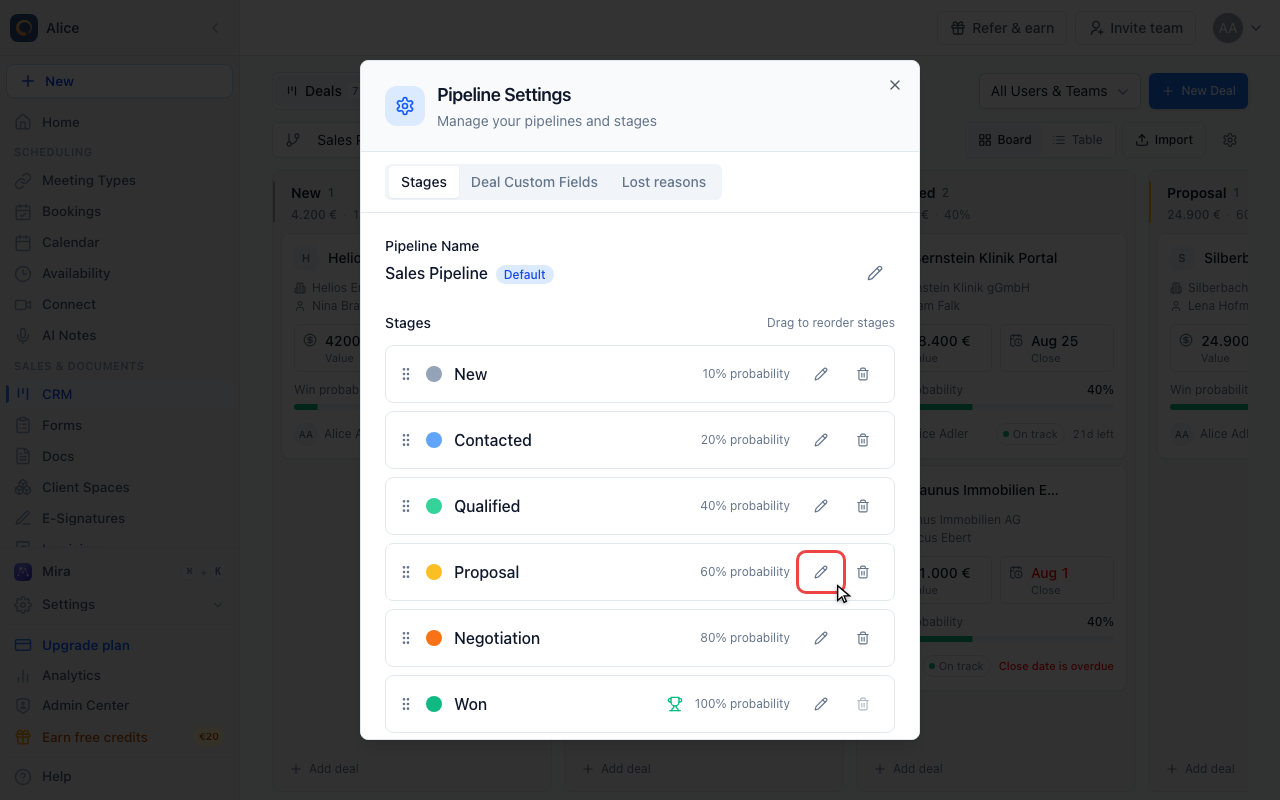
Requirements are set per stage, so open the stage that should insist on the data. Hover the row and click the pencil.
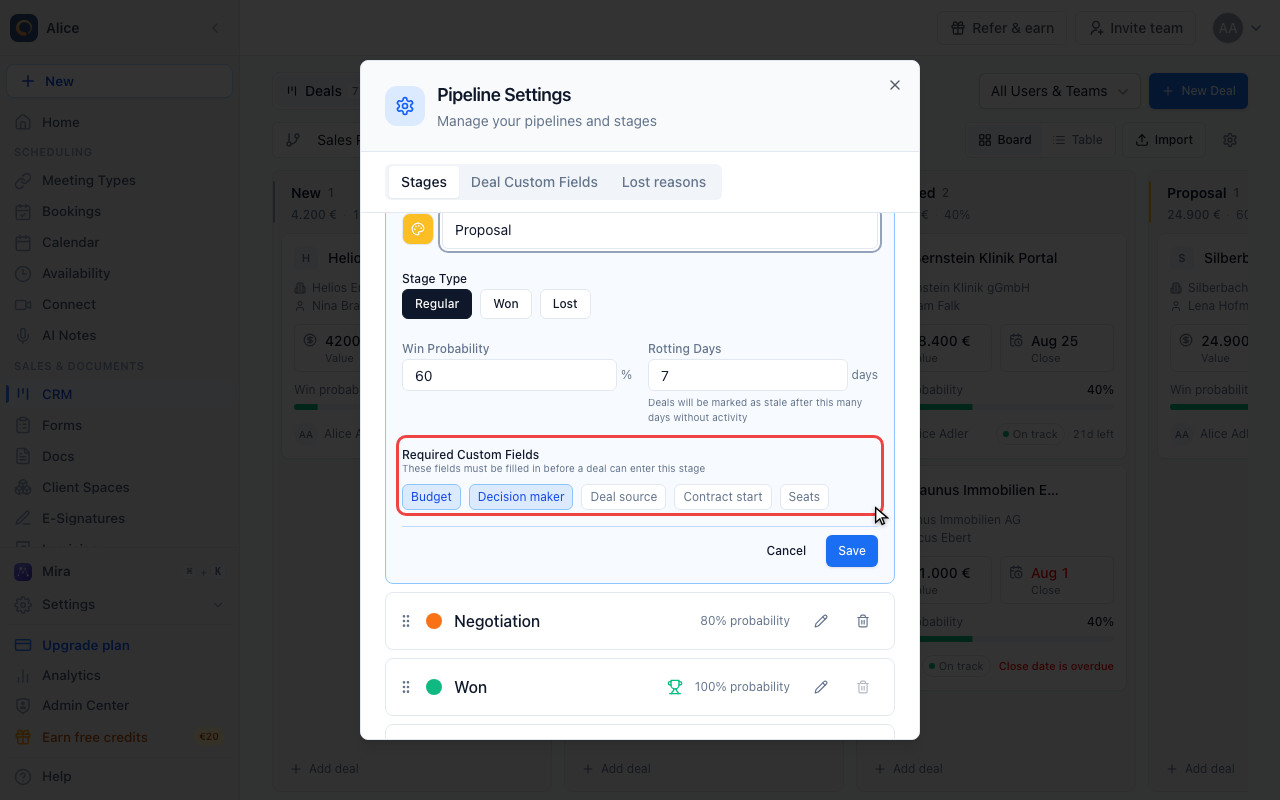
Pick the required fields
Every custom field is offered as a chip. Click the ones a deal must carry before it may enter this stage, then Save. Chips only appear once the account has at least one custom field.
Fill the fields on a deal
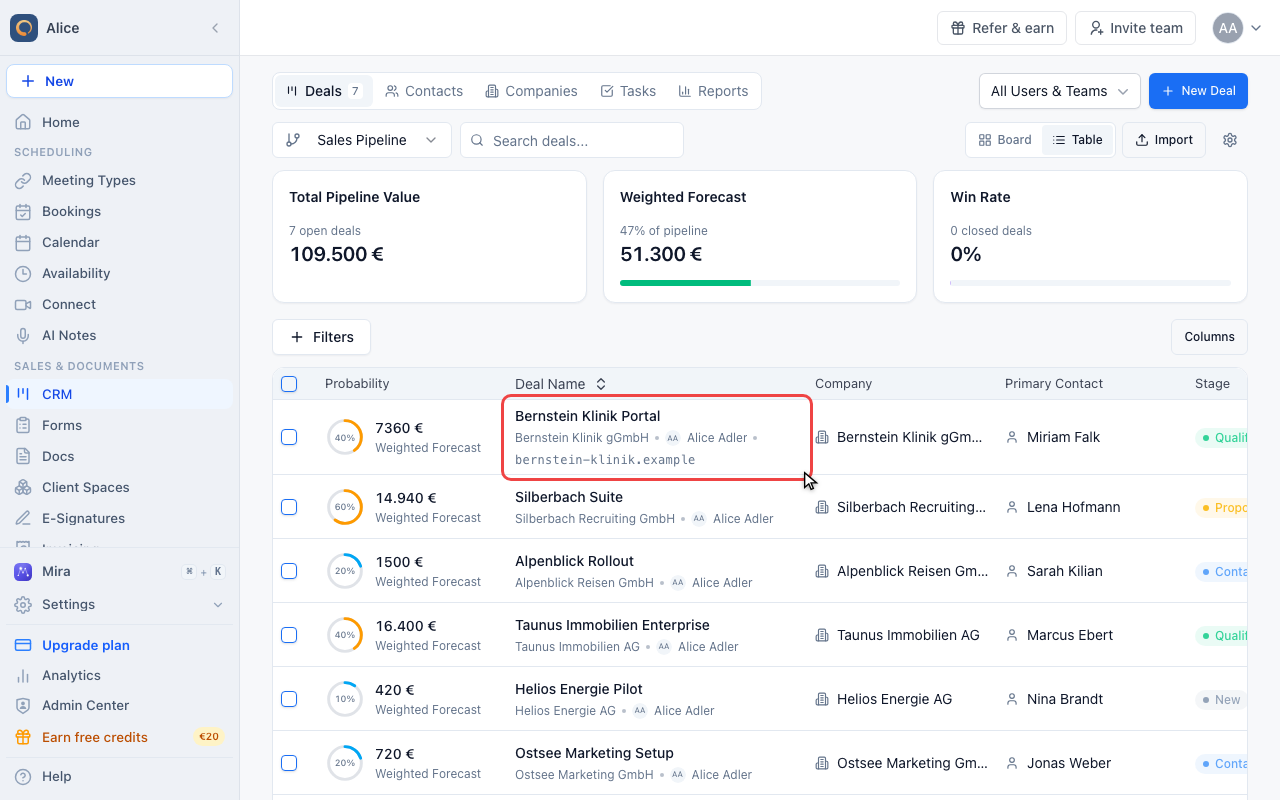
Open a deal
Custom field values live on the deal itself, so open one.
Find the fields on the deal
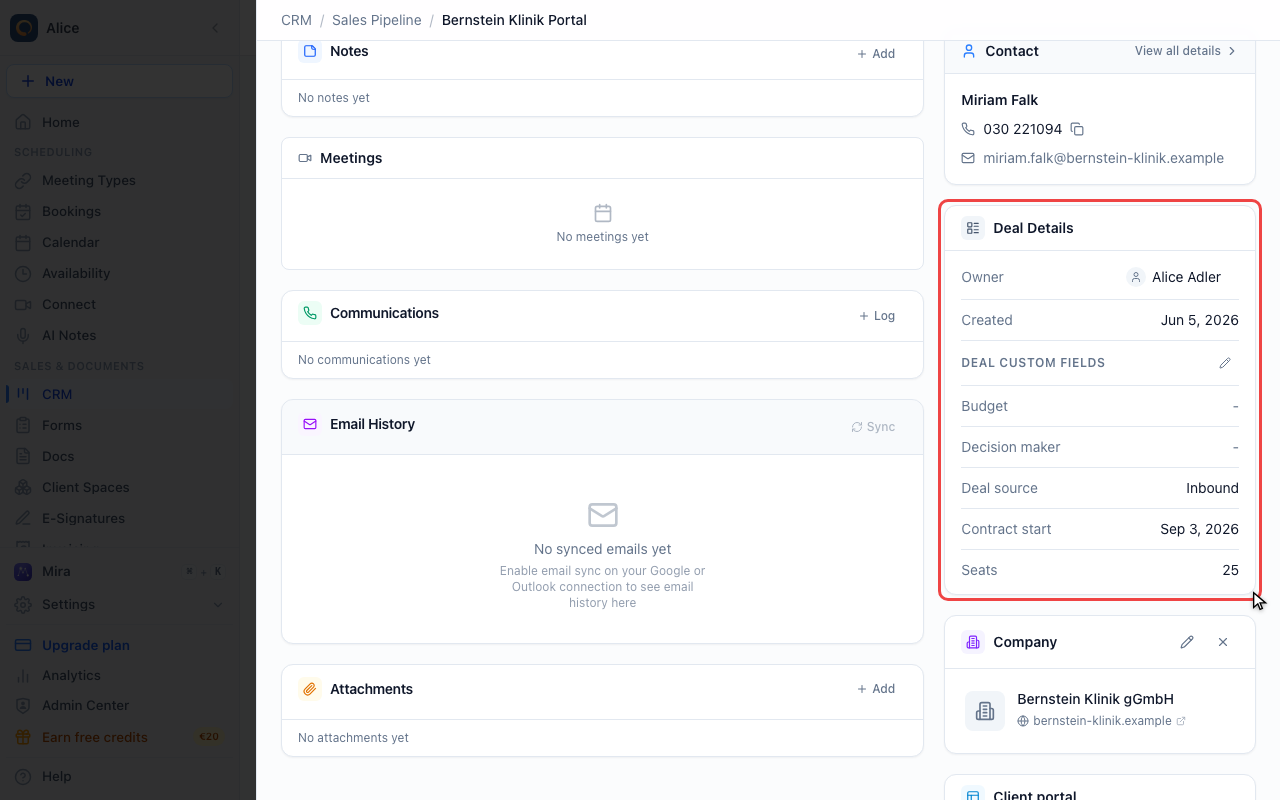
The Deal Details card in the Overview sidebar lists the owner, the creation date and then every custom field with its value. A field nobody has filled in shows a dash.
Edit the values
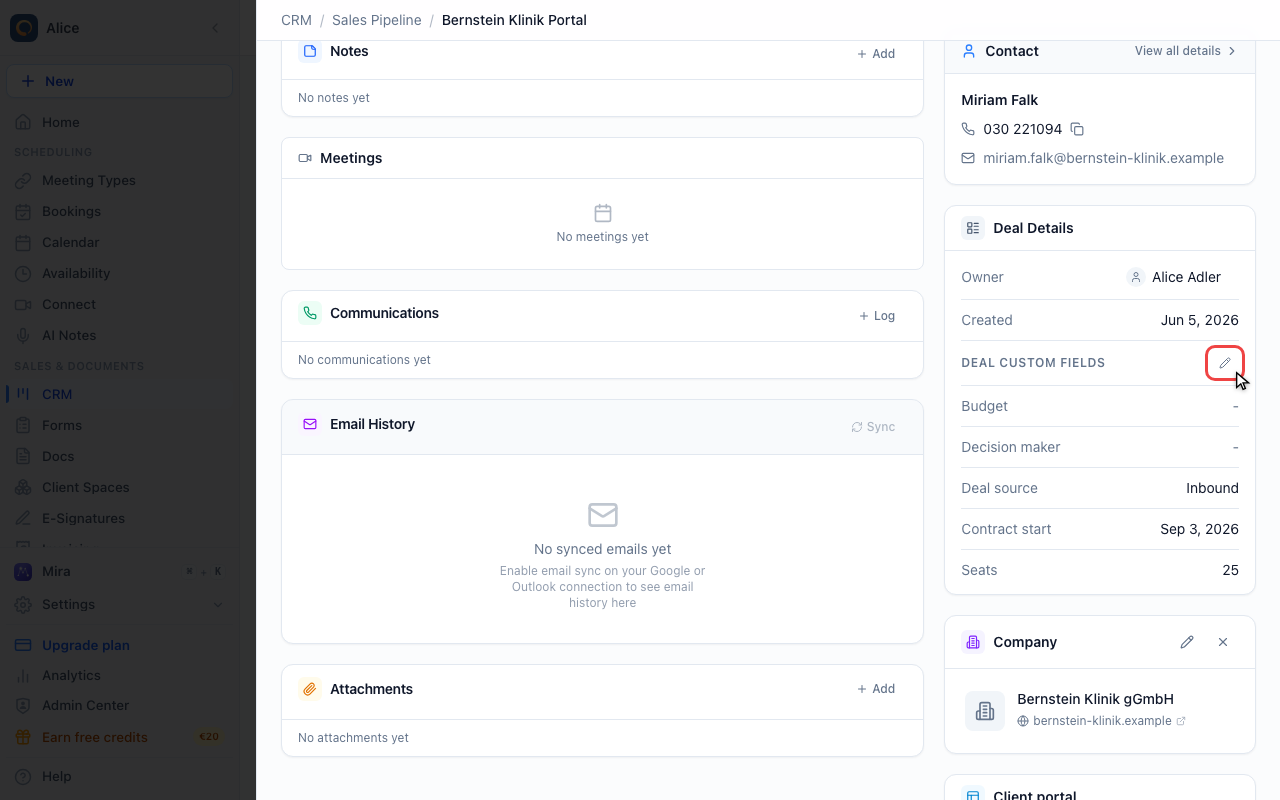
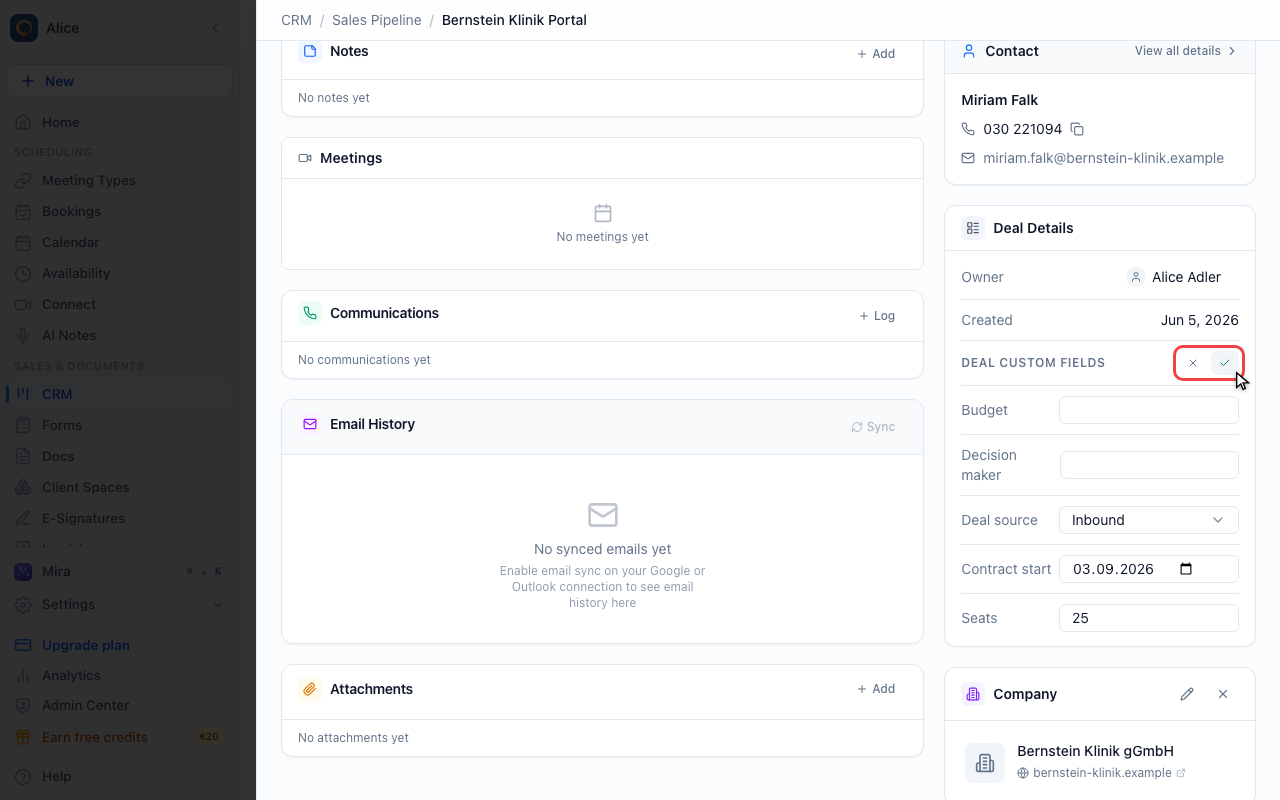
The pencil beside the Deal Custom Fields heading turns the whole block into inputs.
Save the values
Every field is edited at once, and the tick writes them all. The cross discards the lot. There is no per-field save.
Move the deal onwards
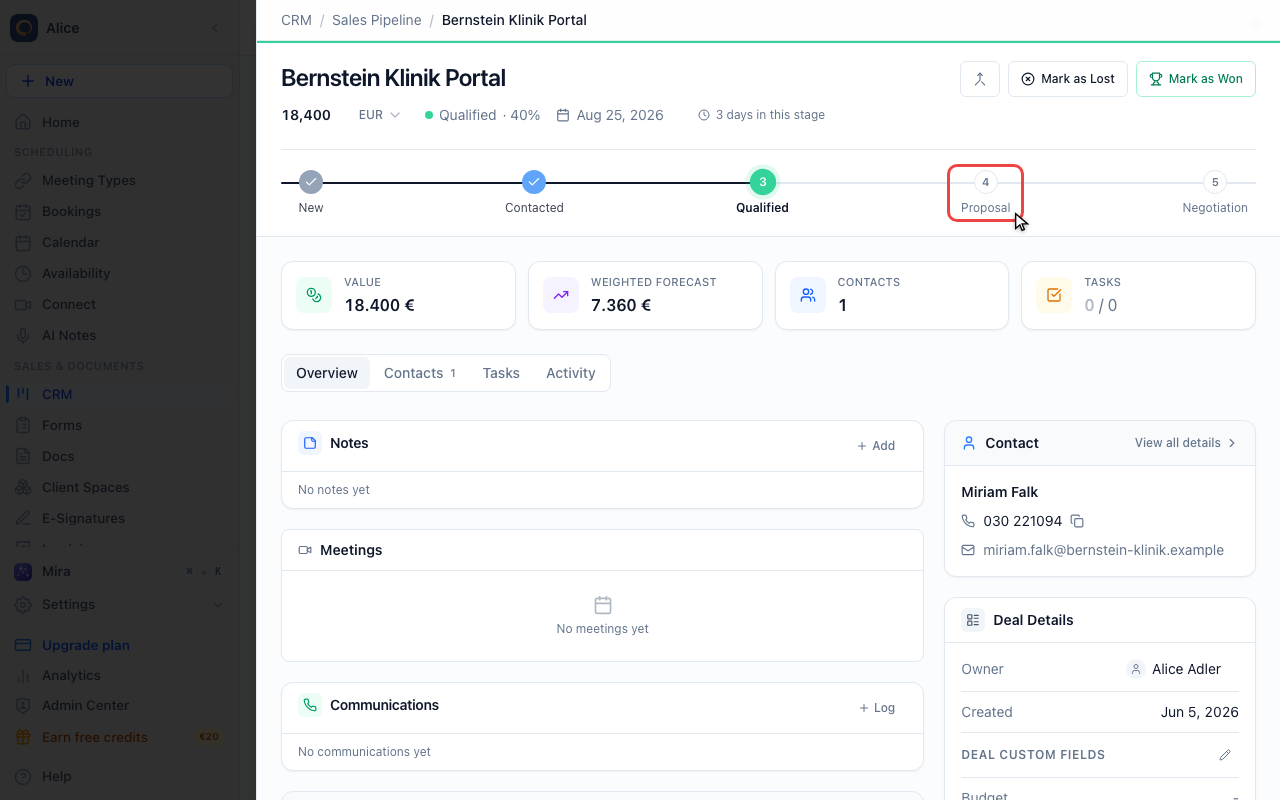
Now move the deal into the stage you gave requirements to, either from the stage bar here or by dragging its card on the board.
Fill in what is missing
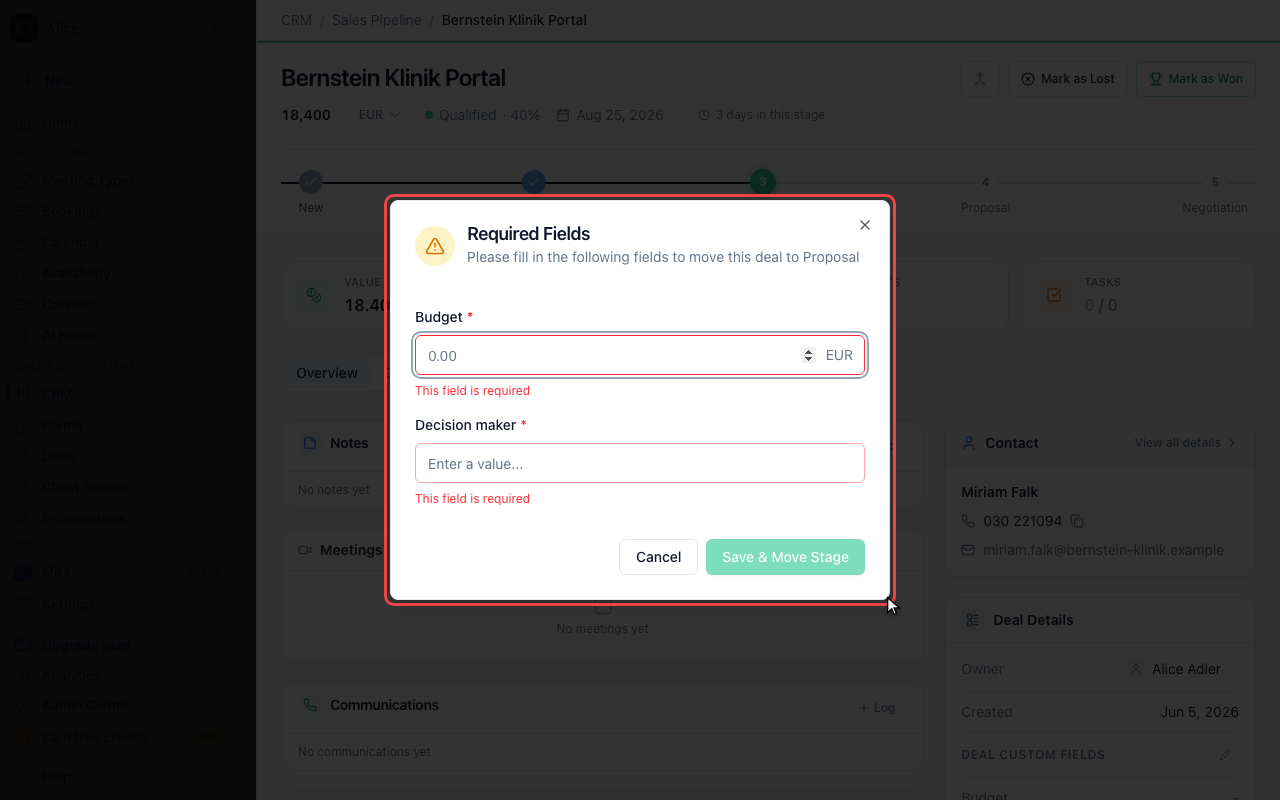
The move stops and asks for the fields the target stage requires and the deal does not have yet. Save & Move Stage stays disabled until all of them are filled, and Cancel leaves the deal where it was. Fields that were already filled in are not asked for again.
What a custom field is
A custom field is an extra piece of data every deal can carry. You define the field once for the whole account, and it then appears on every deal in every pipeline, empty until somebody fills it in.
Custom fields live on deals only. Contacts carry their own additional data, which comes from your booking questions rather than from here.
Field types
The type decides what the value looks like and which control you get when you fill it in.
| Type in the picker | Value | Good for |
|---|---|---|
| Text (single line) | Free text on one line | Reference number, next step |
| Text (multi-line) | Free text over several lines | Requirements, notes on the setup |
| Number | A plain number | Seats, headcount, score |
| Currency | An amount, displayed in the deal's currency | Budget, one-off fees |
| Date | A date picker | Contract start, decision date |
| Dropdown | One choice from a list you define | Source, competitor, tier |
| Multi-select | Any number of choices from that list | Modules needed, departments involved |
| Checkbox | Yes or no | Legal approved, references checked |
Pick the type that matches the data rather than the one that is quickest to type into. A date field formats and reads back as a date; a text field holding a date does neither.
What you set on a field
| Setting | What it does |
|---|---|
| Field Label | The name your team reads on the deal |
| Field Key | The name the value is stored under. Generated from the label, editable while you create the field, letters, numbers and underscores only, and unique per account |
| Field Type | One of the eight types above |
| Options | The choices offered. Dropdown and Multi-select only |
| Required | Marks the field with an asterisk in the New Deal dialog |
There is no default value. A new field starts empty on every deal.
Changing the field key after values have been saved leaves those values behind. The deal still holds them under the old key, but the field reads empty. Get the key right while you create the field, and change the label afterwards instead.
Required on the field is not the same as required for a stage
These are two different rules and only one of them stops anybody:
- Required on the field puts a red asterisk next to it in the New Deal dialog. It is a prompt. The deal still saves without a value.
- Required for a stage is the rule that bites. A deal cannot enter that stage until the fields the stage names have values, whether you move it from the stage bar, from the board or through the API.
Use the field flag for the things you would like every deal to carry, and the stage requirement for the things a deal genuinely must have before it goes further.
Requiring fields for a stage
Requirements are set on the stage, in Pipeline Settings, so they belong to one pipeline. The same field can be required in the Proposal stage of one pipeline and optional everywhere else.
When somebody moves a deal into that stage, the move stops and asks for whatever is still missing. Values already filled in are not asked for again. Save & Move Stage stays disabled until all of them are filled, and Cancel leaves the deal in its current stage.
The chips in the stage editor only appear once the account has at least one custom field. If the section is missing, create a field first.
Filling values
There are two places a value gets entered, plus the dialog above:
- The Deal Details card, in the sidebar of a deal's Overview tab. The pencil next to the Deal Custom Fields heading turns the whole block into inputs; the tick saves all of them at once and the cross discards the lot. There is no per-field save and no autosave.
- The New Deal dialog, under More options. Fields a stage requires are marked there and the section opens by itself when the selected stage has any.
Deal CSV import does not carry custom fields. Imported deals arrive with them empty.
Changing and removing fields
- Rename a field at any time. The label is display only, so nothing stored changes.
- Change the type and the stored values stay as they are. Nothing is converted and nothing is deleted, so a value that no longer fits the new type is simply shown by the new control as best it can.
- Remove a choice from a dropdown and deals that already hold it keep showing it. The choice is just no longer offered to anyone else.
- Reorder by dragging a field's grip. The order is the order the fields appear in on the deal and in the New Deal dialog, and it saves on drop.
- Delete a field and it disappears from every deal along with the stage requirements that named it. The confirmation is a browser dialog.
Deleting a field hides its values, it does not erase them. They stay on each deal under the field key, so creating a new field with the same key brings them back into view.
Limits
A single deal stores at most 50 custom field values and 10 KB of them in total, which is far more than a readable deal record needs.
Where custom fields do not appear
Worth knowing before you design around them. Custom fields are not part of:
- Filters. The deal table filters by stage and status only.
- Search. Deal search covers the deal name, its company and its contacts.
- Reports. CRM Reports counts deals, values and stages, not field values.
- The activity log. Stage moves and value changes are recorded; a custom field being filled in is not.
- Permissions. Every field is visible to everyone with CRM access.
Best practices
Keep the set small. Every field is a question the whole team has to answer on every deal. Delete the ones nobody fills in.
Name for the reader. A label is read far more often than it is written, so spell it out rather than abbreviating it.
Require sparingly. A stage that demands five fields is a stage people route around. Two or three that genuinely change the next step work better.
Match your process. Qualification data on the early stages, commercial detail once you are quoting, decision maker and competition before you negotiate.
| Field | Type | Usually required at |
|---|---|---|
| Budget | Currency | Proposal |
| Decision maker | Text (single line) | Proposal |
| Decision date | Date | Negotiation |
| Deal source | Dropdown | Nowhere, but filled early |
| Competitor | Dropdown | Nowhere |
| Seats | Number | Proposal |
FAQ
Where are custom fields configured?
On the Deals tab, through the gear beside the Board and Table switch. The second tab of Pipeline Settings is Deal Custom Fields. There is no separate CRM settings page.
Do custom fields apply to one pipeline or all of them?
The fields themselves are account-wide, so every pipeline offers the same set. Only the per-stage requirements belong to a single pipeline.
Can I reorder custom fields?
Yes. Drag a field by its grip in the list; the new order saves as soon as you drop it and is used everywhere the fields are shown.
Can I filter or search deals by a custom field value?
Not today. Deal filters cover stage and status, and search covers the deal name, company and contacts.
What happens to the data if I change a field's type?
Nothing is converted and nothing is lost. The stored value stays exactly as it was and the new control displays it as best it can.
What happens if I delete a field?
It disappears from every deal and from any stage that required it. The values are not erased, so a new field with the same key shows them again.
Can I import custom field data?
No. The deal CSV import maps the standard deal fields only.
Can a field appear only when another field has a certain value?
No. Every custom field is shown on every deal.
Custom fields on companies
Companies have their own set of custom fields, separate from the deal set. Use them for data that belongs to the business rather than to one opportunity: VAT ID, trade register number, share capital, industry code.
The two sets are independent. A field defined for companies does not appear on deals, and the same key can exist on both.
Open a company
Go to CRM, open the Companies tab and click a company. Its record opens on the right.
Find the Custom fields section
It sits under About, below the industry, size and address we ship. Every field your account has defined is listed, filled or not.
Set a value
Click the value and change it. Text saves on Enter or when you click away, and the other types write as soon as you pick. There is no edit mode and no save button.
Add a field
Manage fields opens the same editor the deal fields use. A field you add here appears on every company in the account, empty, from that moment on.
Reading and writing company fields through the API
Company values live in customFields on the company, keyed by field key.
GET /crm/settings/custom-fields?recordType=companylists the definitions.GET /crm/companies/{id}returns the values.PATCH /crm/companies/{id}writes them. The body is a patch: keys you do not send are left alone, and a key sent asnullis removed.
PATCH /crm/companies/{id}
{ "customFields": { "ust_id": "DE123456789", "stammkapital": 25000 } }
Pass recordType=deal, or leave it off, for the deal definitions.
Related Articles
Was this article helpful?
Let us know if this article answered your questions.