
Creating and Managing Deals
Track opportunities through your sales pipeline from first contact to close
Deals are the core of meetergo CRM. Each deal represents a potential sale or opportunity that you want to track through your sales process. This guide covers everything you need to know about creating, editing, and managing deals.
 1 / 17
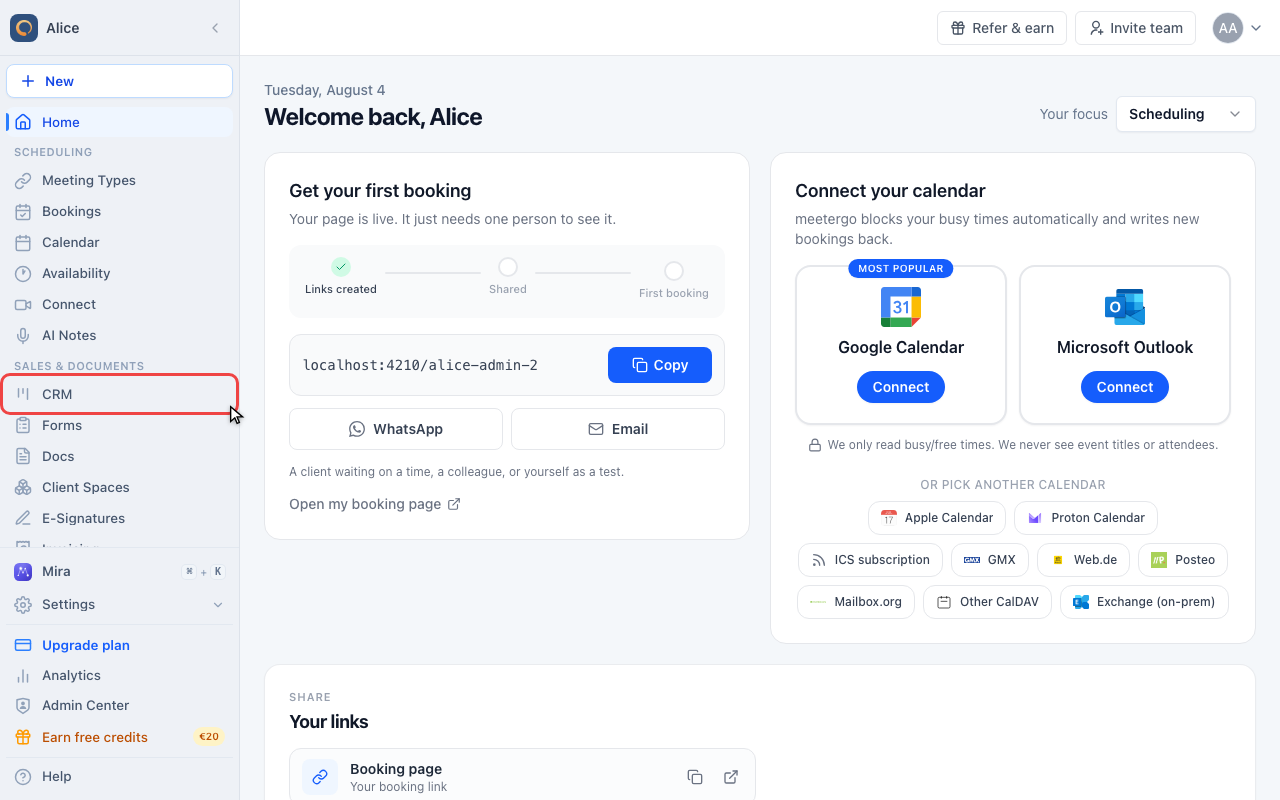
Click CRM in the sidebar.
Double-click the deal panel's header to expand it, and double-click again to collapse it. You can also use the expand/collapse button beside the three-dot menu, including on mobile. Your current tab and unsaved inputs stay in place.
Find your deals
Open CRM
Click CRM in the sidebar.
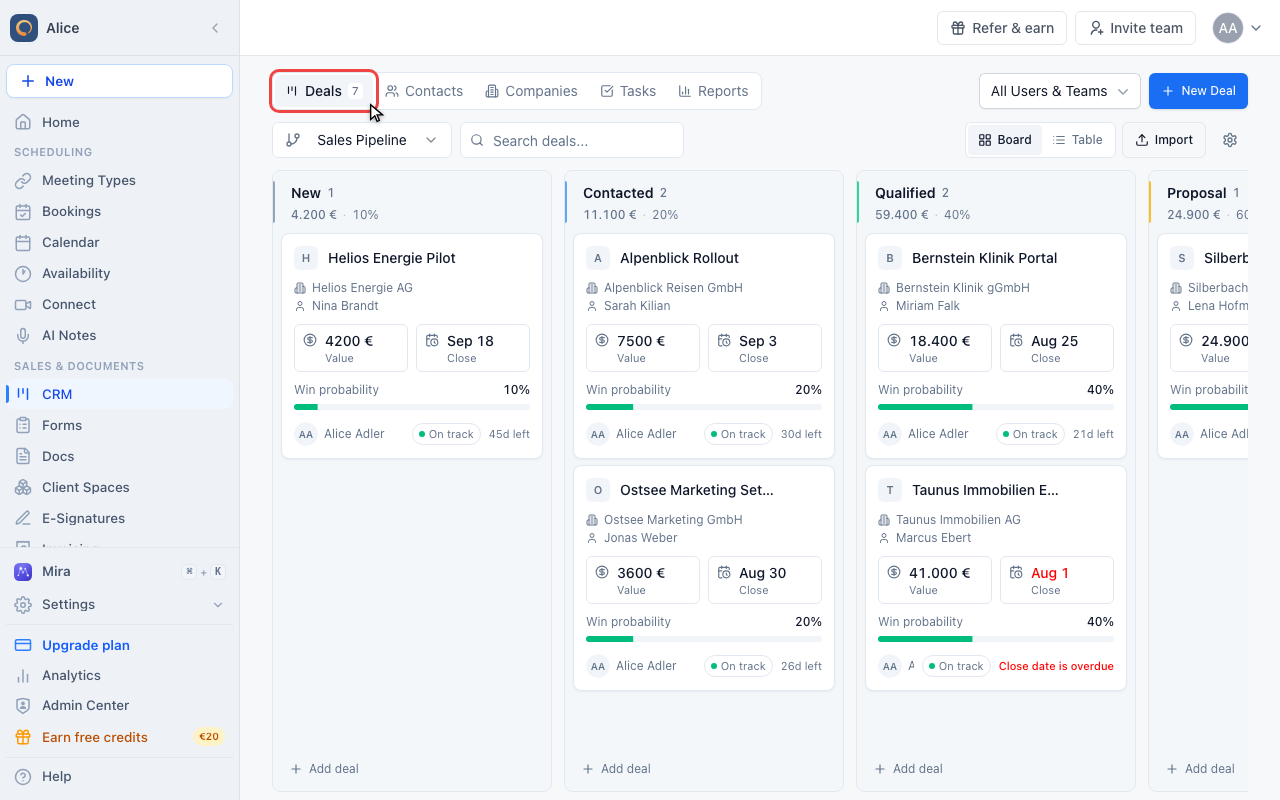
Stay on Deals
CRM opens on the Deals tab, which is where every deal lives.
Create a deal
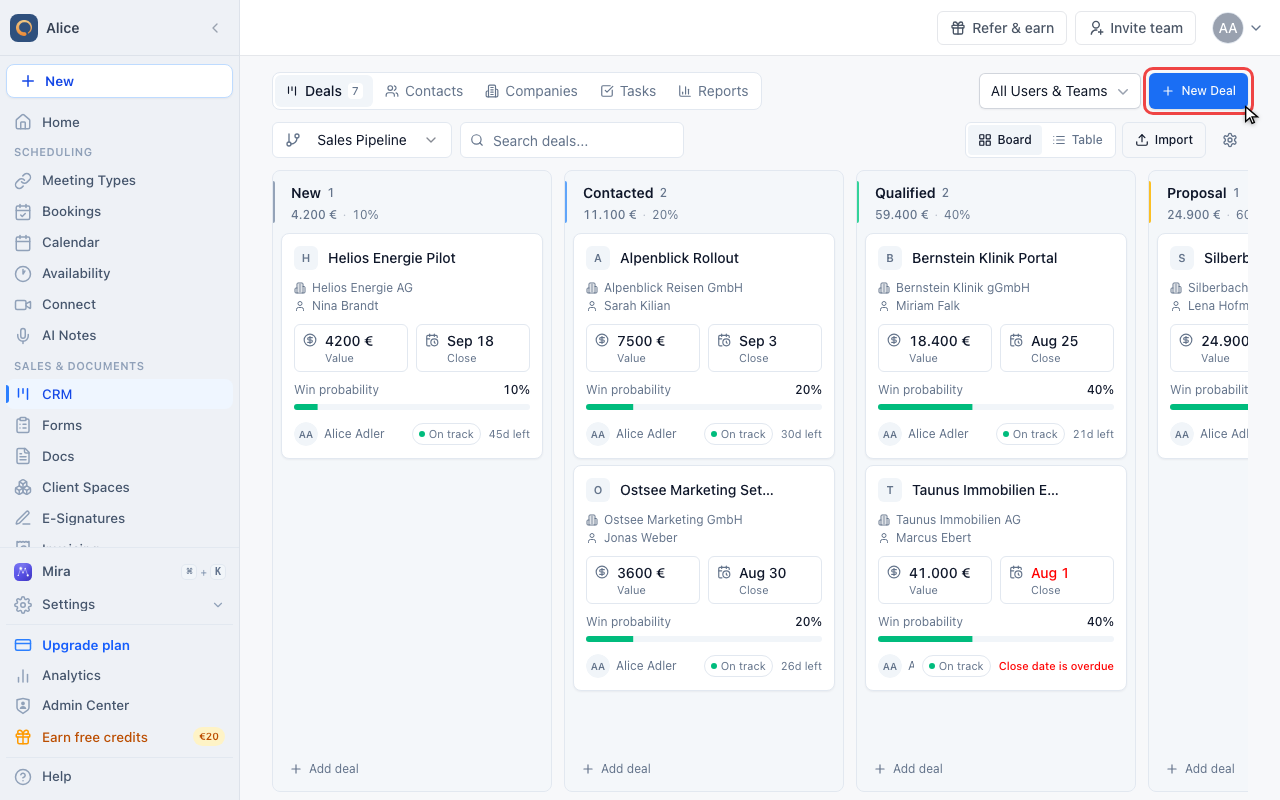
Click New Deal
New Deal sits in the top right of the CRM page and always creates into the pipeline you are looking at.
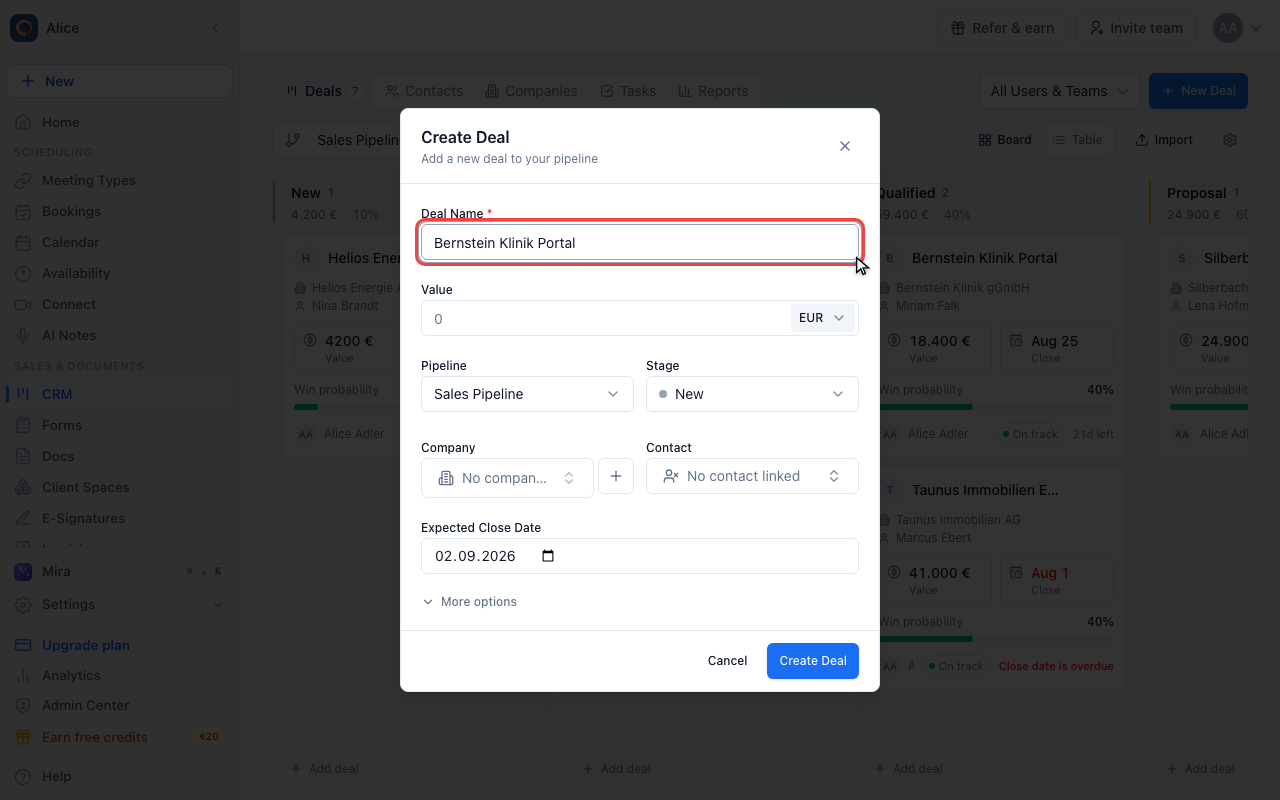
Name the deal
The deal name is the only required field. Pipeline and stage are already filled with your default pipeline and its first stage, and value, currency, company, contact and expected close date are all optional.
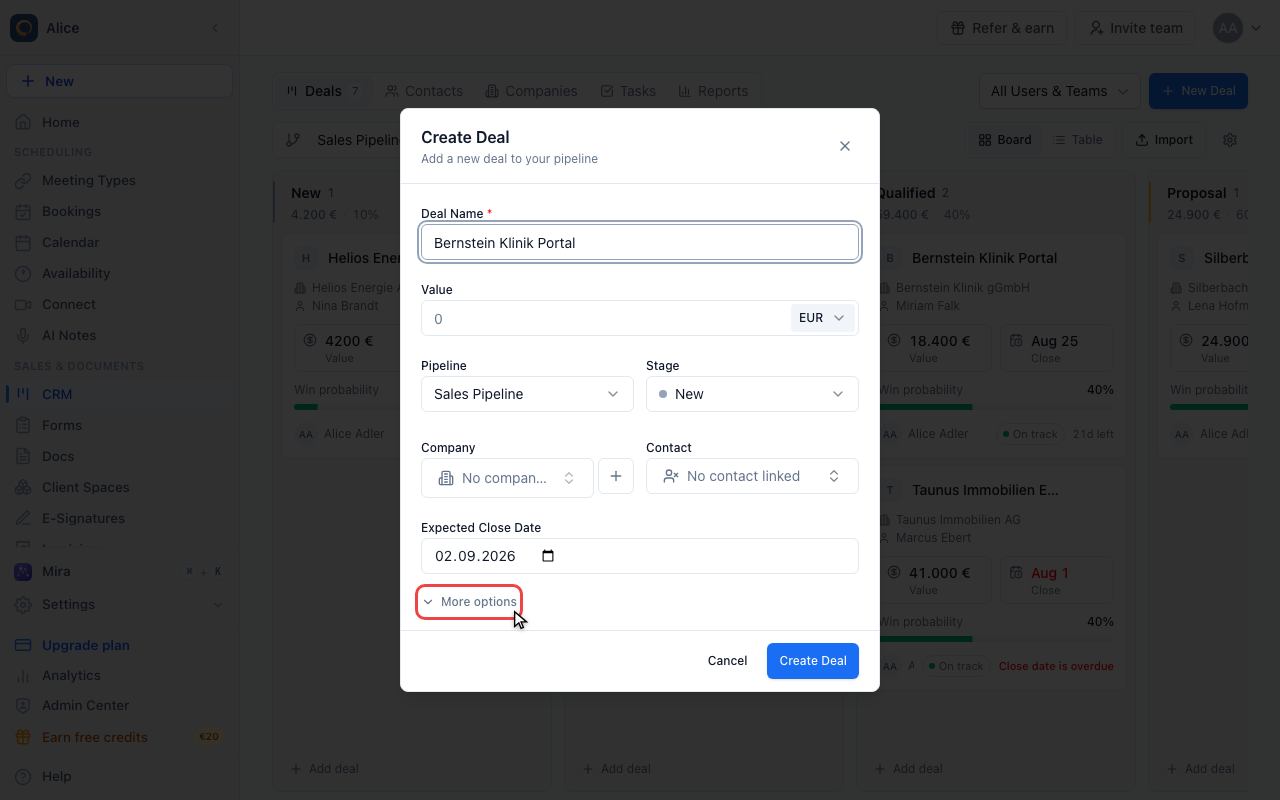
Open More options
More options adds the deal owner, any custom fields your pipeline requires, and a first note.
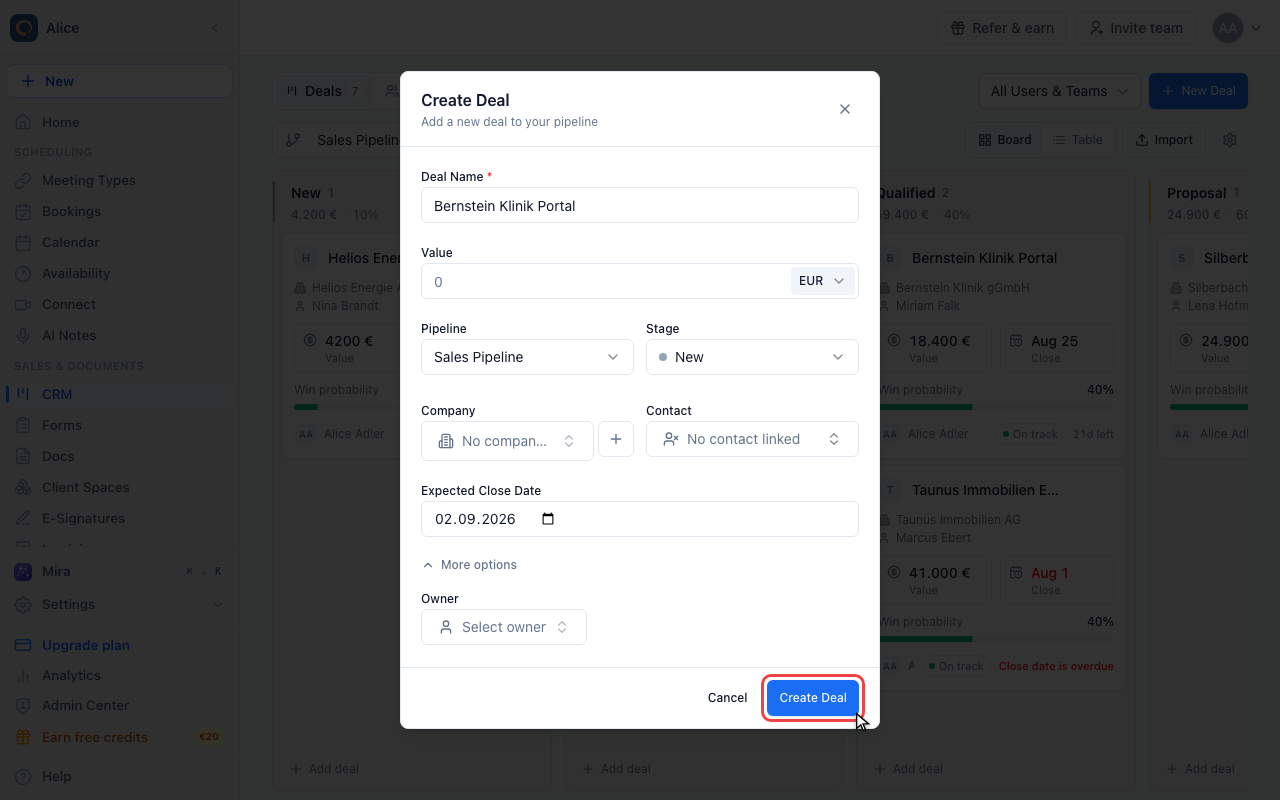
Create the deal
Create Deal adds it to the pipeline and closes the dialog. The new deal appears in the stage you picked.
Work the list
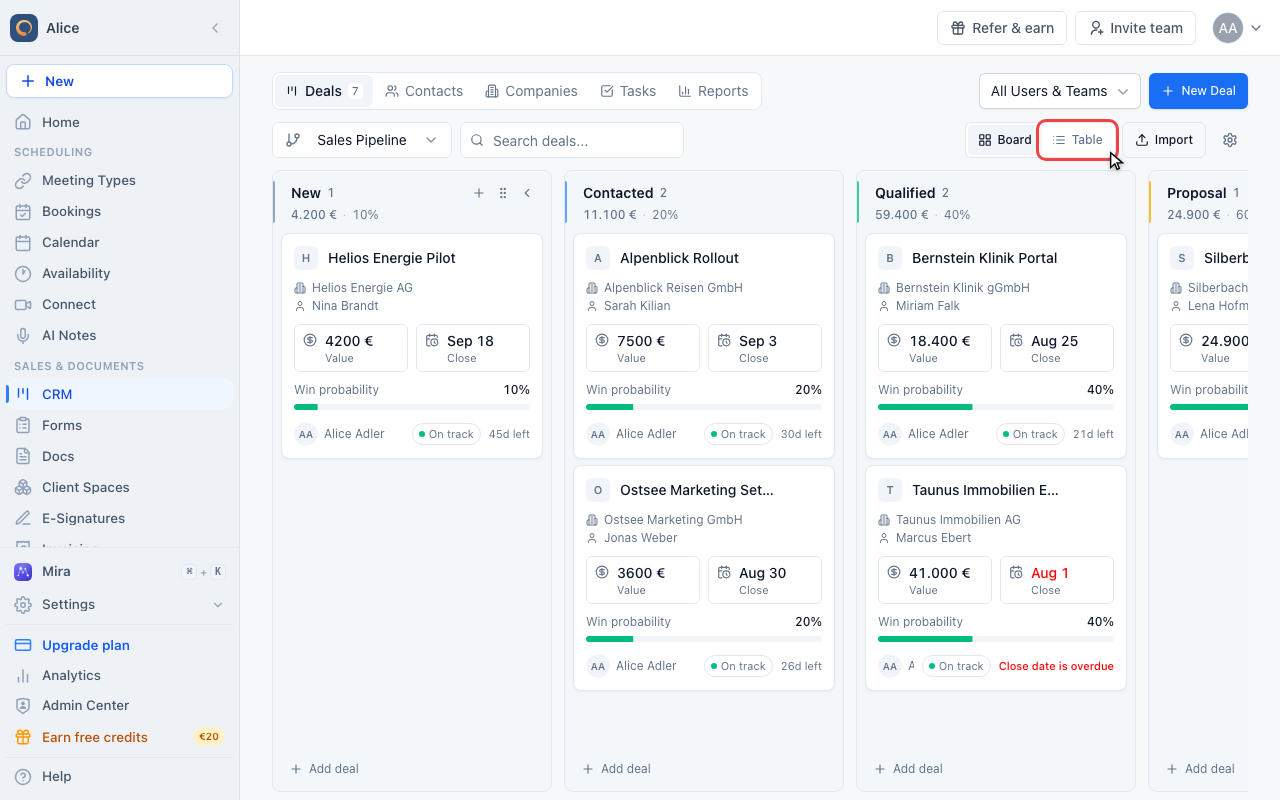
Switch to Table
Board and Table show the same deals. Table is the one to use when you want to sort, filter or act on several deals at once.
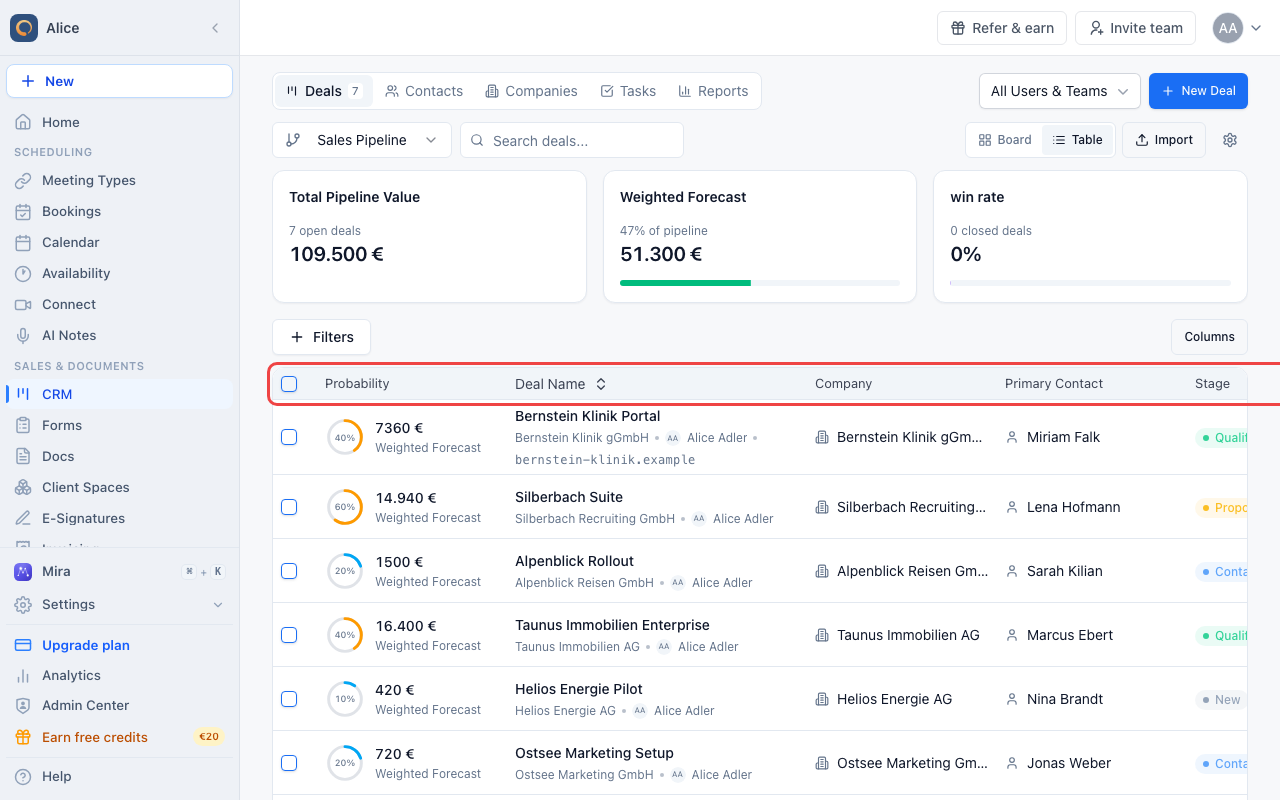
Read a row
A row starts with the win probability and the weighted forecast, then the deal name, its company and primary contact, the stage, the value and the expected close date. Deal name, value and expected close date sort on click; Columns hides the ones you never look at. The stats above the table always cover the whole pipeline, not just the page you are on.
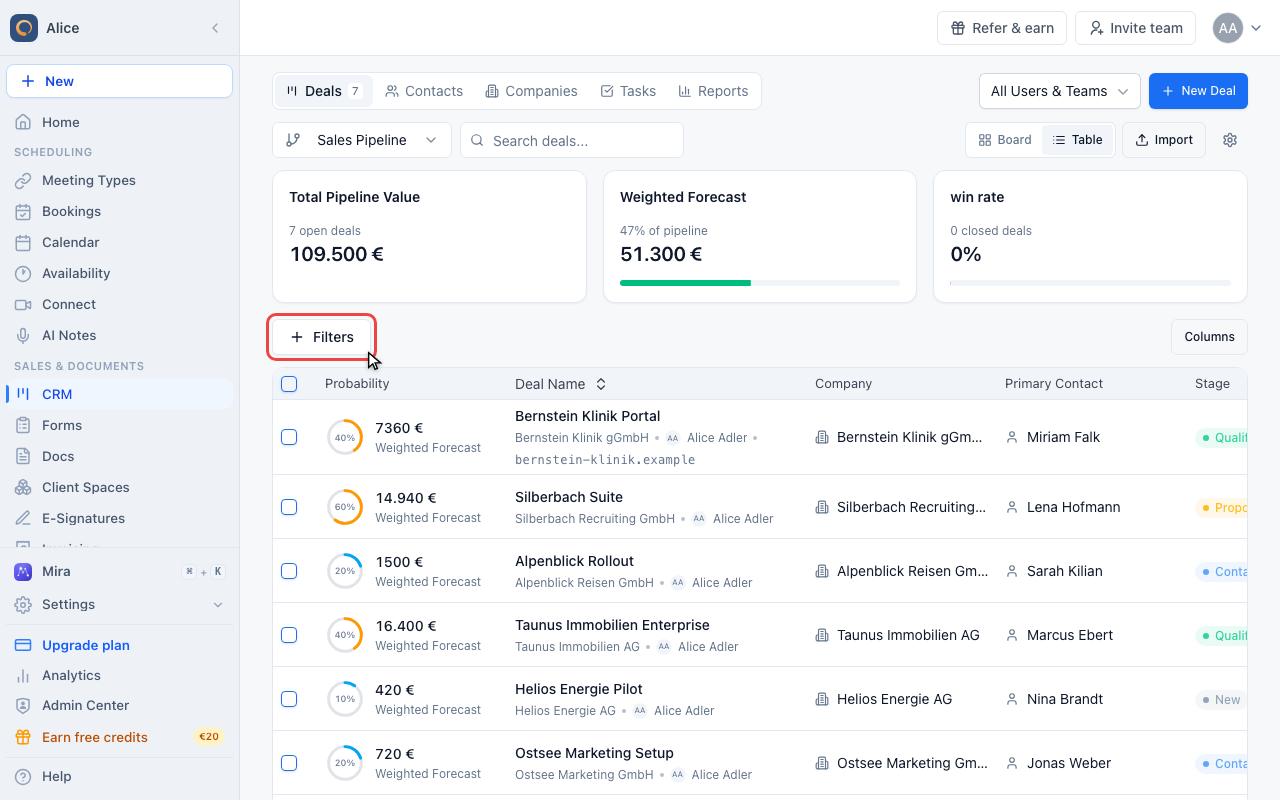
Filter the table
Filter narrows the table by stage and by status (open, won or lost). The pipeline picker and the scope picker above it handle pipeline and owner.
Open a deal
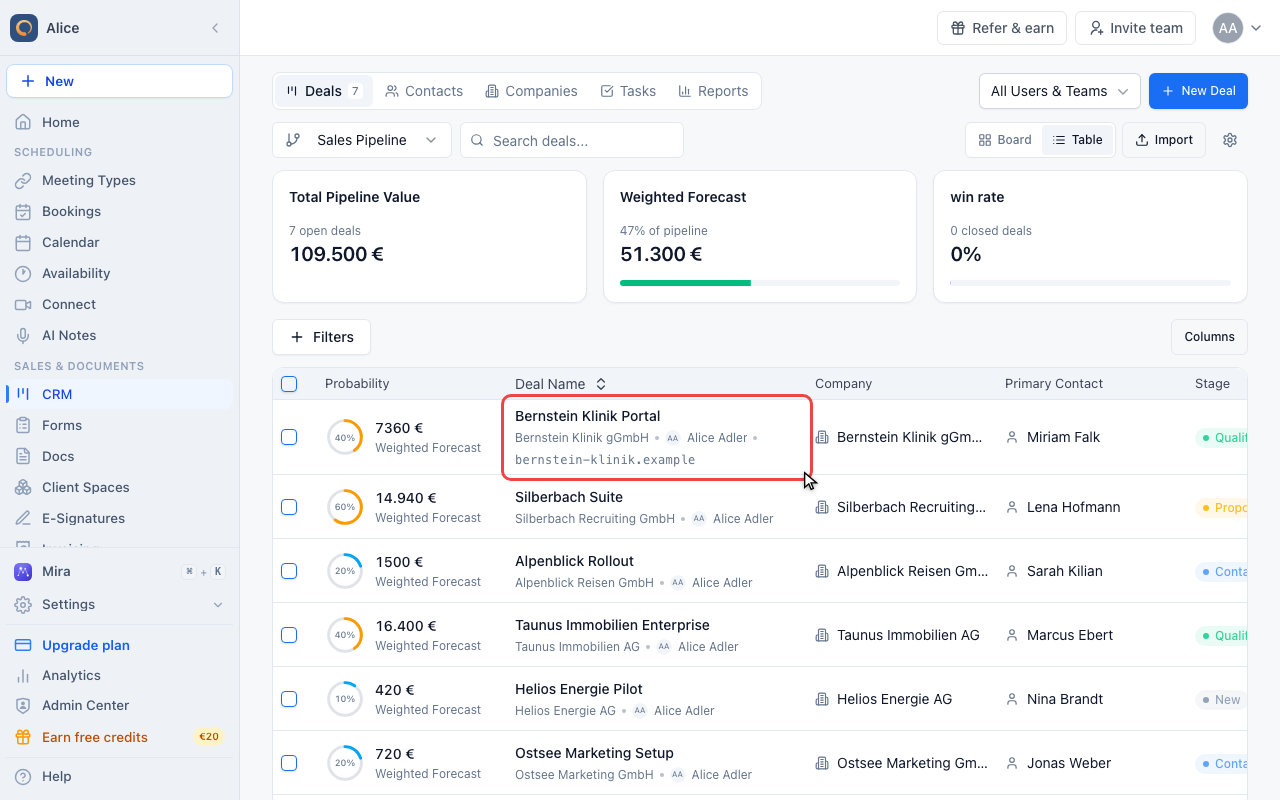
Open a deal
Click any row to open the deal record beside the table. Closing it puts you back on the list exactly where you were.
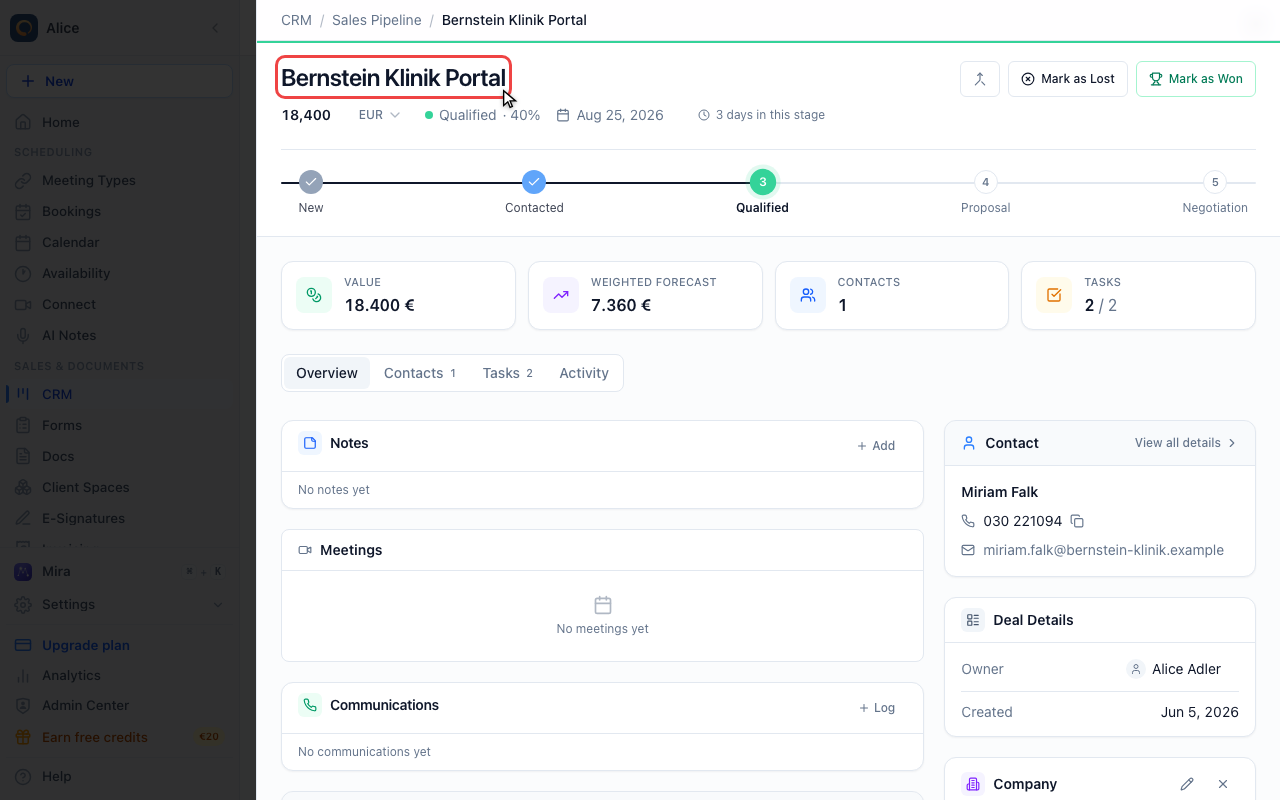
Edit the header inline
Name, value, currency and expected close date are all click-to-edit and save as soon as you leave the field. An overdue close date turns red. The percentage beside the stage name is the win probability; click it to set one for this deal only.
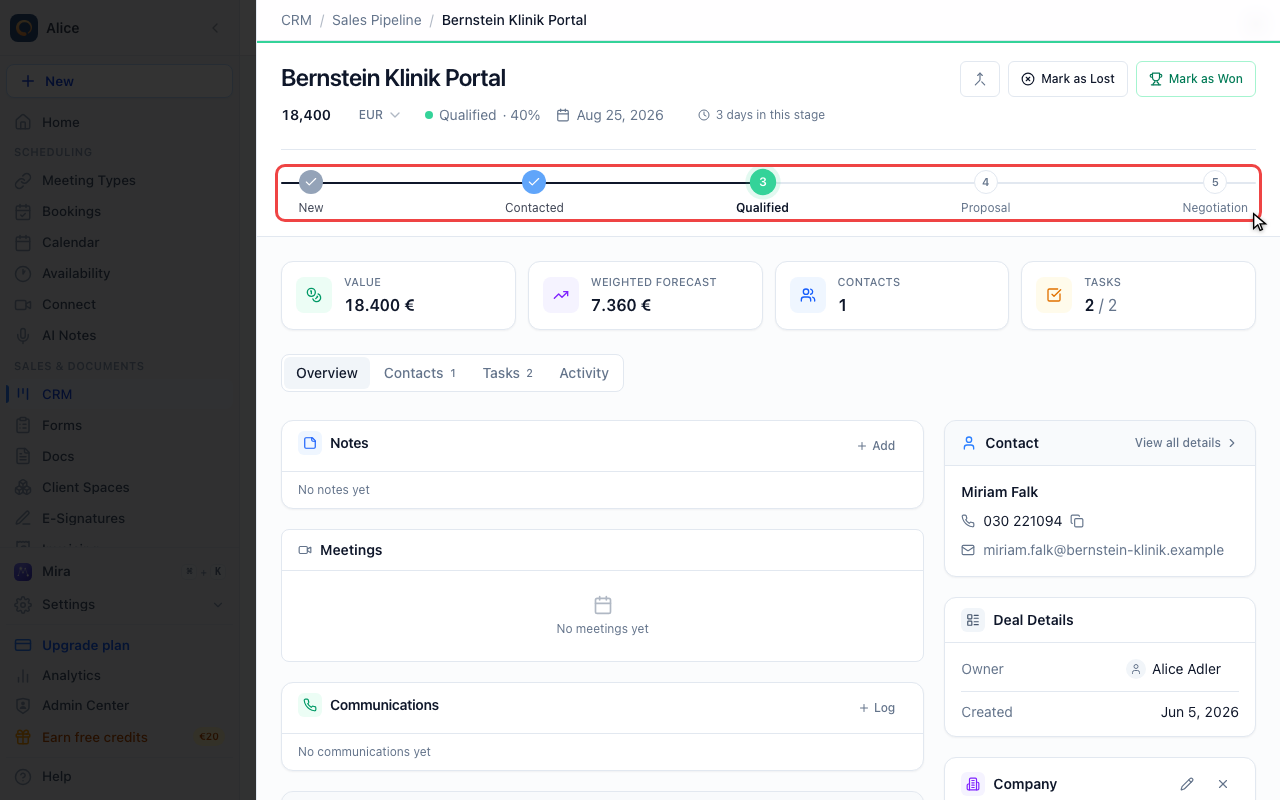
Move the deal a stage
The stage bar lists every progression stage of the pipeline. Click a step to move the deal there; hovering one shows its win probability. Won and Lost are outcomes, so they are not on the bar.
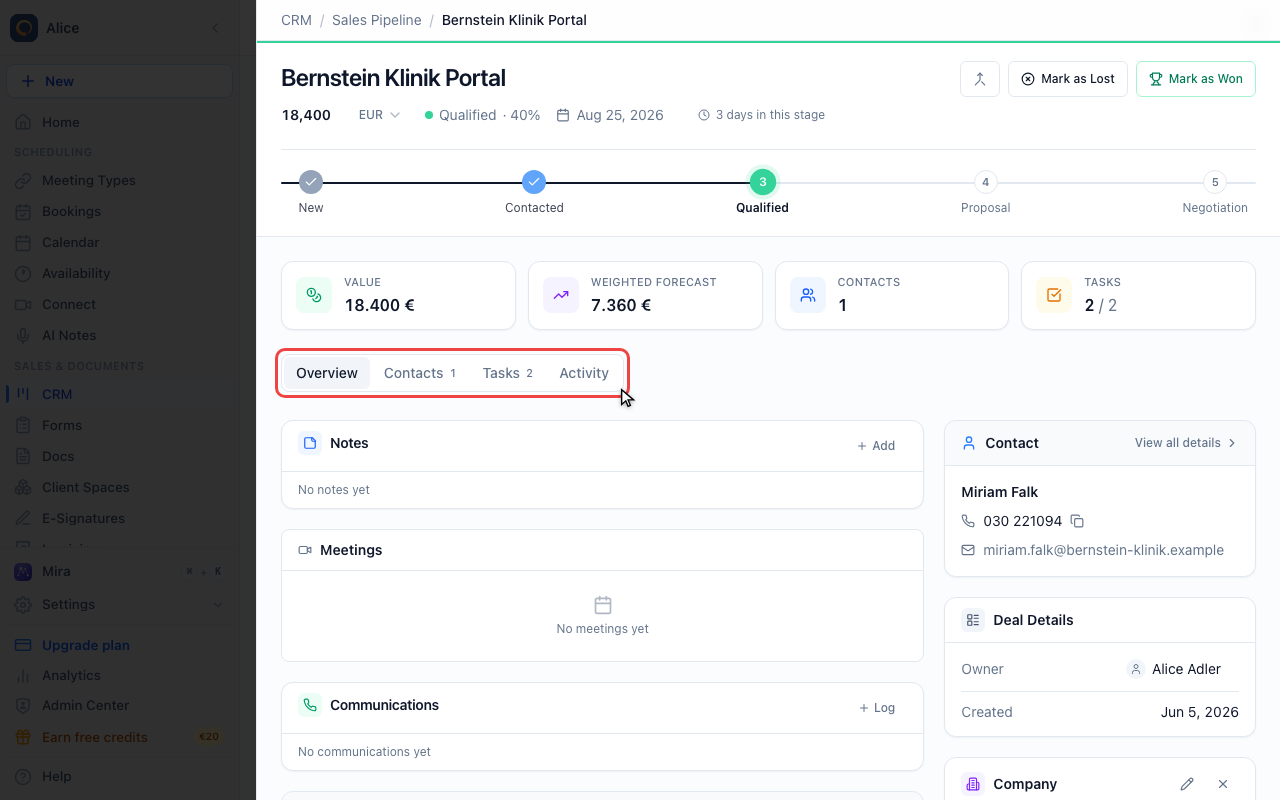
Check the tabs
Above the tabs sit four figures: value, weighted forecast, linked contacts and open tasks. Overview holds notes, meetings, emails, files and the deal properties, and Contacts, Tasks and Activity each open their own list.
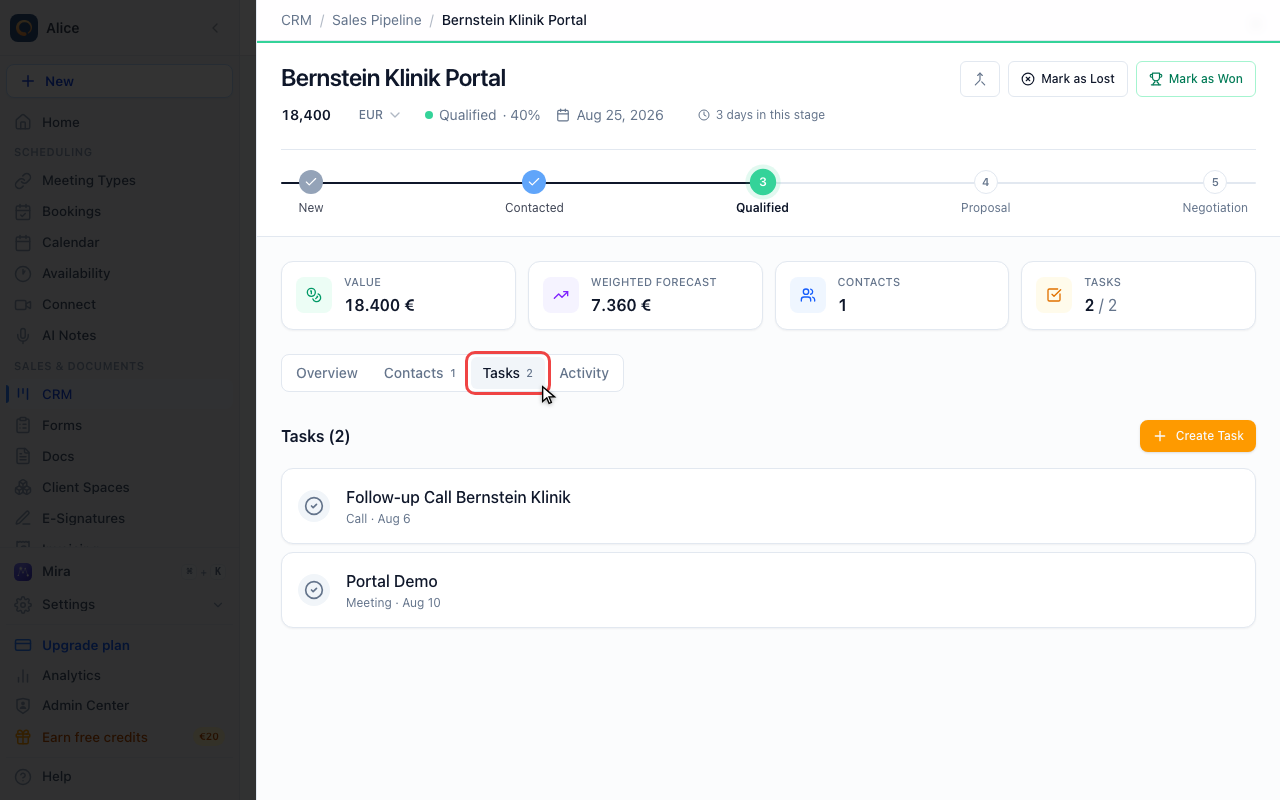
Add a task
The Tasks tab creates follow-ups against this deal. They also show up in the CRM Tasks view with everything else you owe.
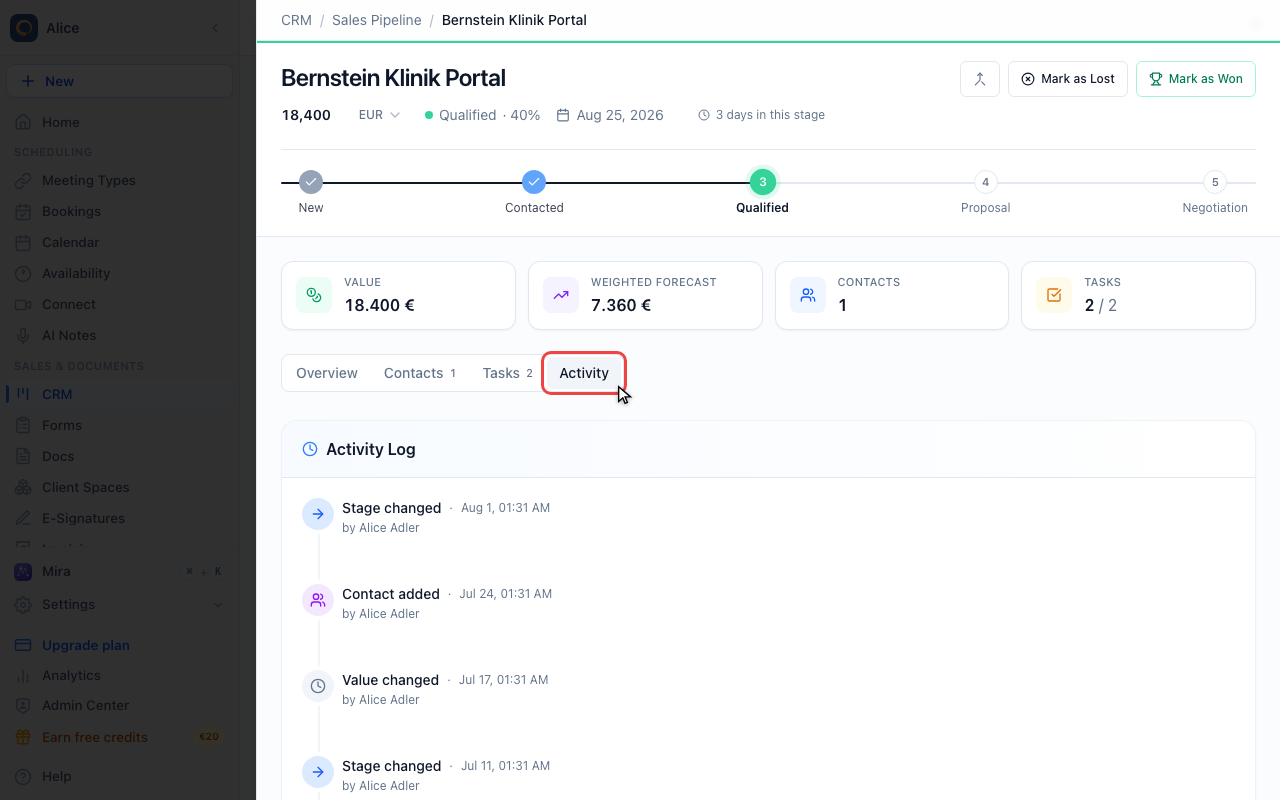
Read the history
Activity is the audit trail: stage moves, value changes, contacts linked and removed, and the win or loss, each with who did it and when.
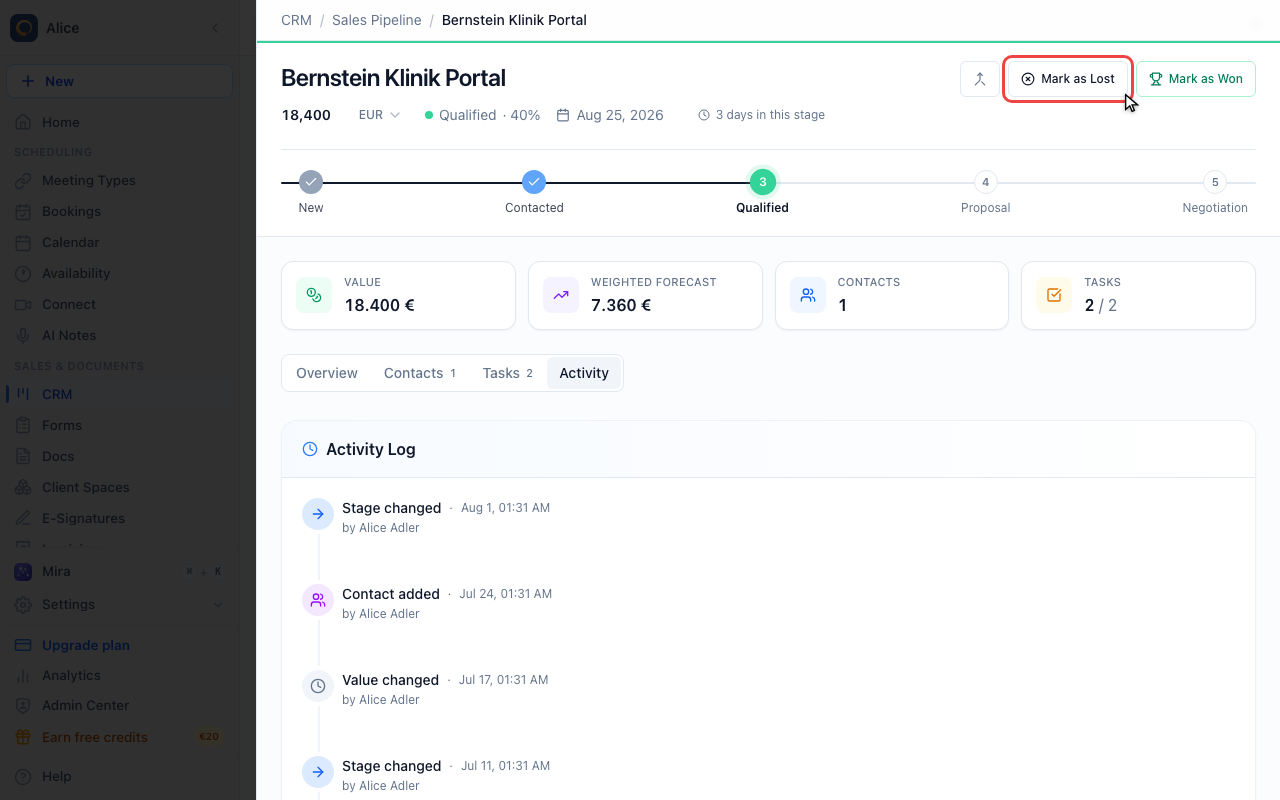
Close a deal
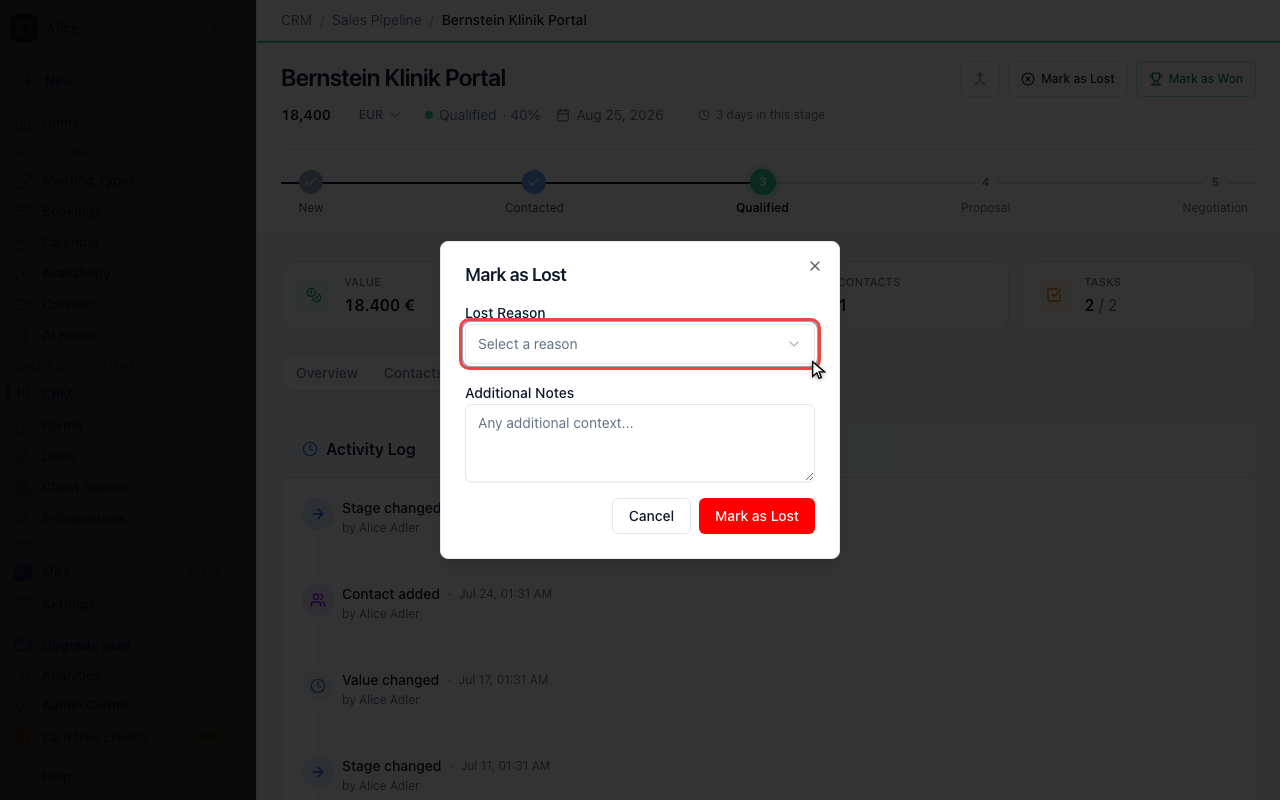
Mark the deal lost
Mark as Won closes the deal straight away. Mark as Lost asks first, so you can record why.
Pick a loss reason
The reasons are the ones your company configured, plus an optional note. A closed deal keeps its tasks and history, and Reopen in the status strip puts it back in its old stage.
Deal fields
Only the deal name is required. Everything else can be filled in now or later from the deal record.
| Field | Description |
|---|---|
| Deal Name | Descriptive identifier, e.g. "Acme Corp - Enterprise Plan" |
| Value + Currency | Amount and one of EUR, USD, GBP, CHF or NOK |
| Pipeline | Prefilled with your default pipeline |
| Stage | Prefilled with the pipeline's first stage |
| Company | Pick an existing company, or use the + button to create one on the spot |
| Contact | The person this deal is about. Pick an existing contact, or use the + button to create one. A name is enough; email and phone are optional. If a company is selected, the new contact is linked to it |
| Expected Close Date | Prefilled 30 days out |
| Owner | Under More options. Defaults to you |
| Custom fields | Under More options. Fields your pipeline's stages require |
| Notes | Under More options. A first note on the deal |
The pipeline is fixed once the deal exists. If a deal belongs in another pipeline, create it there instead.
Set a realistic expected close date. Overdue deals turn red on the Kanban board and in the deal header.
Editing a deal
There is no separate edit form. Open the deal and click the value you want to change:
| What | Where |
|---|---|
| Deal name, value, currency, expected close date | The deal header |
| Owner, custom fields | The Deal Details card on the Overview tab |
| Company | The Company card on the Overview tab |
| Notes | The Notes card on the Overview tab |
Changes save as soon as you leave the field.
Moving a deal through stages
From the deal record
Click any step on the stage bar. The bar shows the pipeline's progression stages only, because Won and Lost are outcomes rather than stages you work through.
From the Kanban board
Drag the card into another column, or open the card's menu and use Move to stage. Both save immediately.
A stage can require certain custom fields. If any are missing, a dialog asks you to fill them in before the deal moves.
The row menu in the table view cannot change a stage. It offers Edit, Mark as Won, Mark as Lost and Delete.
Closing a deal
Won
Mark as Won in the deal header closes the deal straight away. It moves to the pipeline's Won stage and the win date is recorded.
Lost
Mark as Lost opens a dialog first. Pick a reason, add an optional note, and confirm with Mark as Lost. The reasons offered are the ones your company configured, and whether picking one is mandatory is a company setting too. Both are managed in the pipeline settings.
Reopening
A won or lost deal shows a status strip at the top of the record with a Reopen button. Reopening puts the deal back in the stage it was in and clears the win or loss date. Tasks and history are kept either way.
Linking Contacts
A deal can have any number of contacts attached, each with a role such as Primary, Decision Maker or Influencer, so everyone on the team can see who is who. You add them from the deal's Contacts tab, where you can also create a contact that doesn't exist yet. The roles and the full linking flow are described in Contact Roles.
Linking a Company
Each deal can be associated with one company. Pick an existing company in the deal's Company field, or type a new name and use Quick create company to create and attach it in one step. See Linking Companies to Deals for the details, including how to unlink a company again.
Deal Tasks
Open the deal, go to the Tasks tab and click Create Task. Give the task a title, due date, type and priority. Tasks created here appear both on the deal and in the CRM Tasks view alongside everything else you owe.
Activity Log
The Activity tab is the deal's audit trail. Each entry carries the timestamp and the person who made the change.
| Event | What's recorded |
|---|---|
| Created | The deal was added |
| Stage changed | Previous stage → new stage |
| Value changed | Old value → new value |
| Contact added | Contact name and role |
| Contact removed | Contact name |
| Won | Win date |
| Lost | Loss reason and note |
| Reopened | Previous status |
| Meeting scheduled, rescheduled or cancelled | The appointment |
| Merged | The duplicate deals folded into this one |
Notes and attachments are not recorded here. They live on their own cards in the Overview tab, and adding one leaves no trace in this list.
Working with several deals at once
In the table view, tick the checkbox on each row you want. A bar appears above the table with three actions:
- Mark as Won: closes all selected deals as won
- Mark as Lost: closes all selected deals as lost
- Delete: removes the selected deals
Bulk actions skip the usual dialogs. Bulk Mark as Lost records the reason as Other for every deal, and bulk Delete is permanent. You are asked to confirm before deals are removed.
Finding a deal
Search
The search box above the table matches on deal name, company name and contact name. It filters the board and the table alike.
Filters
Filters narrows the list by:
- Stage: deals in one stage of the current pipeline
- Status: open, won or lost
Pipeline and owner are not filters. The pipeline picker on the left of the toolbar switches pipelines, and the scope picker in the page header switches between your own deals and the rest of the team.
Sorting and columns
In the table view, click a column header to sort by deal name, value or expected close date. Columns hides the columns you never look at.
Best Practices
Naming Deals
Use a consistent naming convention:
Company Name - Product/ServiceCompany Name - Deal Size- Include key identifiers for quick scanning
Setting Values
- Enter realistic deal values for accurate forecasting
- Update values as deal scope changes
- Use the correct currency for international deals
Expected Close Dates
- Set realistic dates based on your sales cycle
- Update as the deal progresses
- Review overdue deals regularly
Regular Maintenance
- Move deals through stages promptly
- Close lost deals instead of leaving them stale
- Keep notes and activity updated
FAQ
Can I create deals without a company?
Yes, the company field is optional. You can add a company later from the deal's Company card.
How do I change a deal's pipeline?
You can't. A deal stays in the pipeline it was created in, because stages belong to a pipeline. Create the deal again in the right pipeline and delete the old one.
Can I duplicate a deal?
No. Deals are created one at a time. Duplicates that already exist can be merged from the deal header instead.
What happens to tasks when a deal is marked as won/lost?
Tasks remain associated with the deal and can still be viewed and completed.
Can I restore a deleted deal?
No, deleted deals cannot be restored. Use "Mark as Lost" instead if you might want to reference the deal later.
How is the weighted forecast calculated?
Weighted forecast = deal value × the win probability of its current stage. A 10,000 € deal in a 30% stage shows a 3,000 € weighted forecast.
Can I set a probability for a single deal?
Yes. Click the percentage next to the stage name in the deal header, enter a value from 0 to 100 and save. The deal keeps that value until you move it to another stage, which puts it back on the stage's probability. Use stage value in the same popover does that without a move. The weighted forecast and the table use the deal's own value while it is set.
Related Articles
- Pipeline Configuration
- Using the Kanban Board
- Managing CRM Contacts
- Working with Companies
- Custom Fields
Move a deal to another pipeline
Open the deal and choose Move to pipeline from its actions menu. On the full deal page, use the Move to pipeline button. Select the destination pipeline and stage, then confirm.
The deal keeps its contacts, notes, tasks, history and open, won or lost status. Only stages matching that status are offered. Fill any required fields for the destination stage before moving. You can use the same action to move it back.
Was this article helpful?
Let us know if this article answered your questions.