
CRM Email Sync
Read and answer the email between you and your CRM contacts without leaving meetergo
Email Sync reads the messages between you and your CRM contacts and files each one on the contact it belongs to, and on that contact’s deal. You get the whole history on the record, you can answer from it, and nothing has to be copied in by hand.
| Feature | Details |
|---|---|
| Supported mailboxes | Gmail, Outlook (Microsoft 365), Exchange, any IMAP mailbox |
| Plan required | Suite, or a Sales CRM license on any plan |
| Set up | Per person, under Integrations |
| Data stored | Subject, sender, recipients, direction, time and a short preview |
| Email bodies | Fetched from your provider when you open a message, never stored |
| Sync frequency | Every 30 minutes in the background, plus a Sync button |
 1 / 21
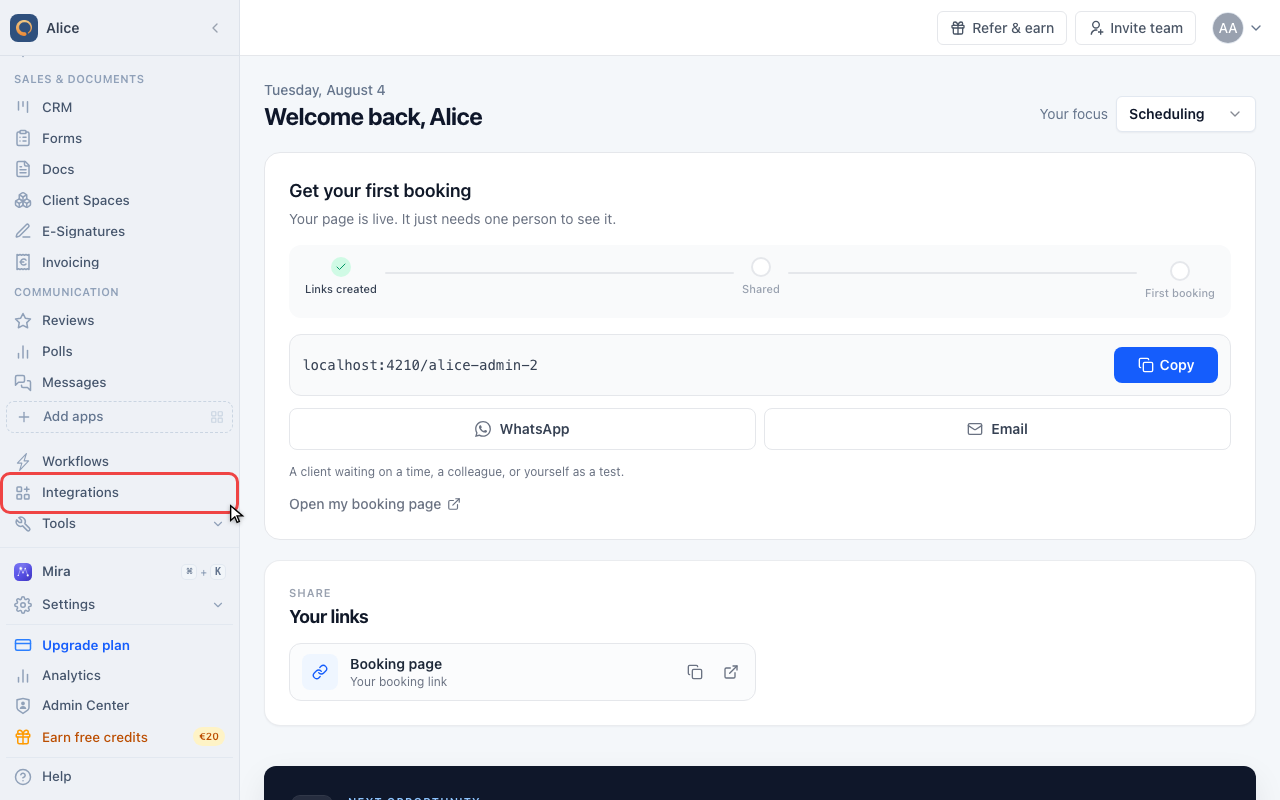
Email sync is set up per person, not per company, so it lives with your own connections. Click Integrations in the sidebar.
Connect a mailbox
Open Integrations
Email sync is set up per person, not per company, so it lives with your own connections. Click Integrations in the sidebar.
Search for email sync
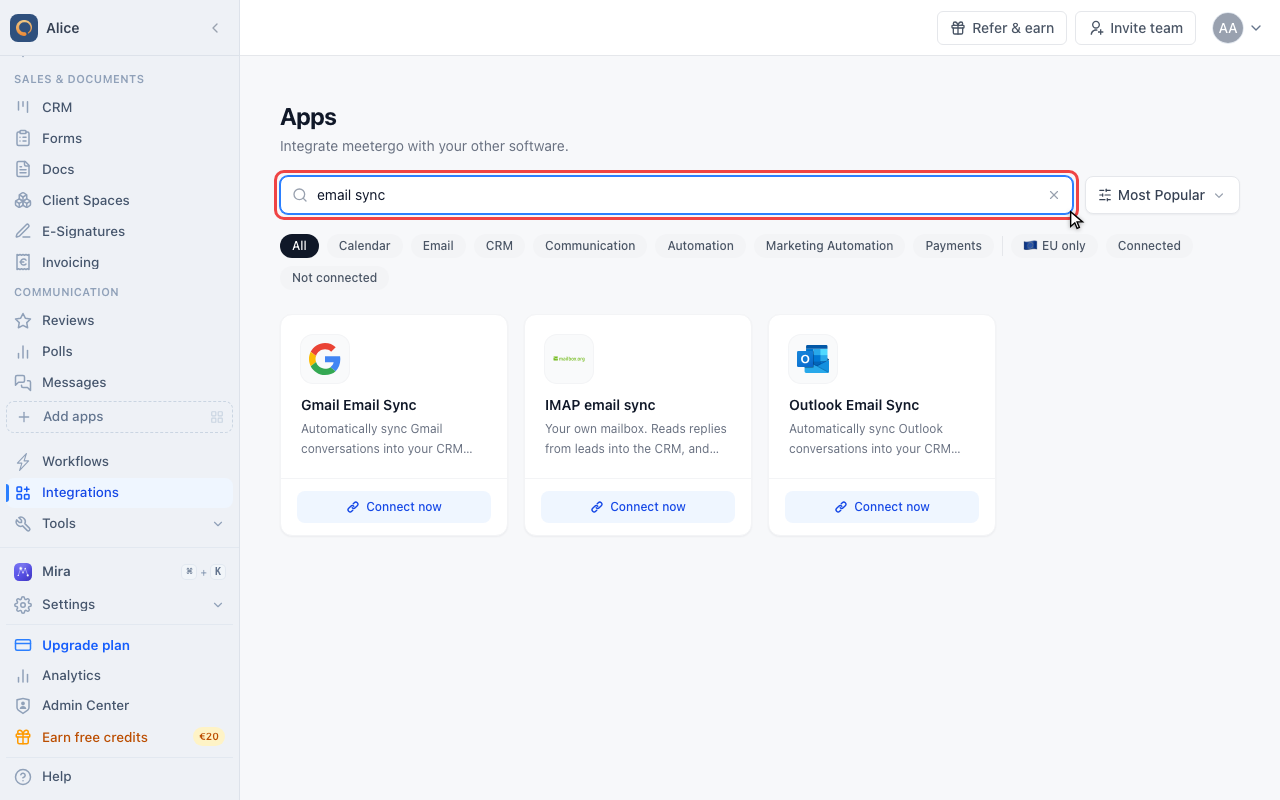
The page is called Apps and holds every integration. Type "email sync" in the search box to narrow it to the three that matter here: Gmail, Outlook and IMAP.
Pick your provider
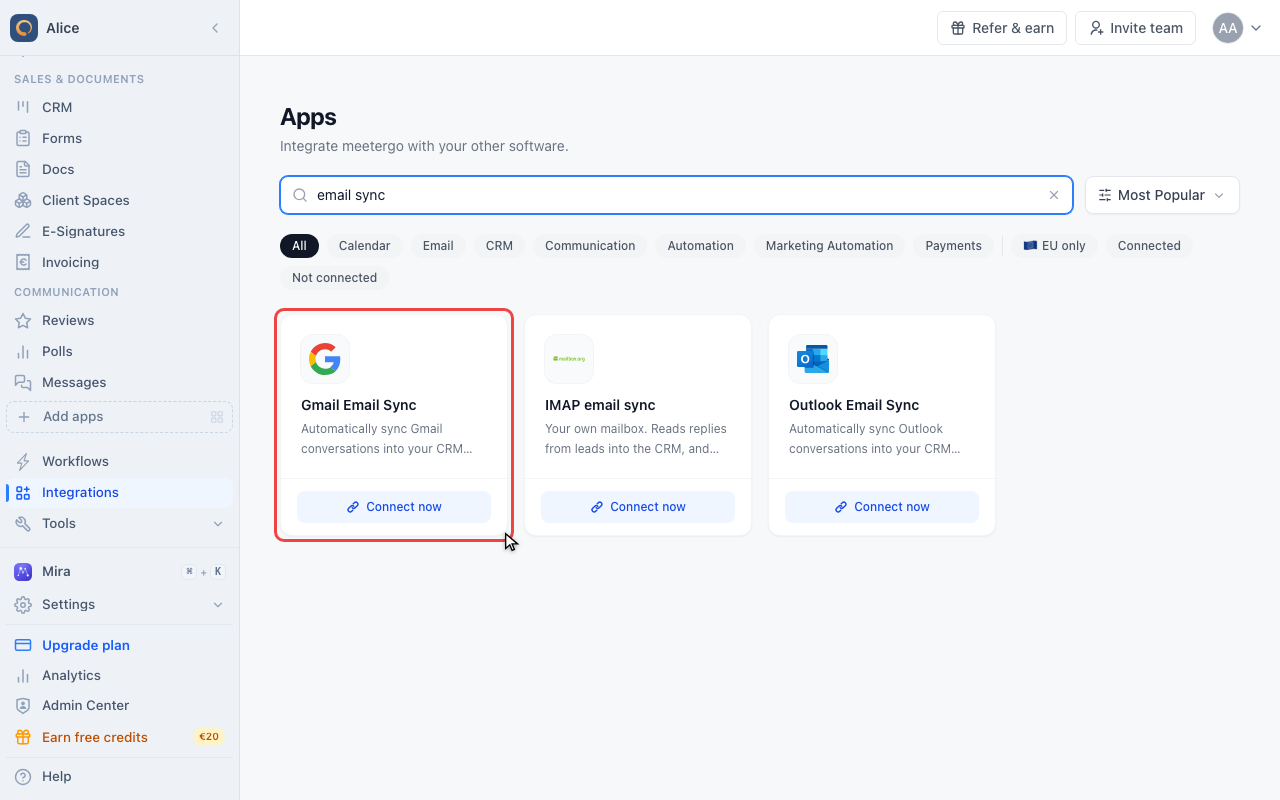
Gmail and Outlook read your mailbox through the same account you already connected for your calendar, and never ask for a password. Pick IMAP only when your provider is neither of the two.
Open the mailbox list
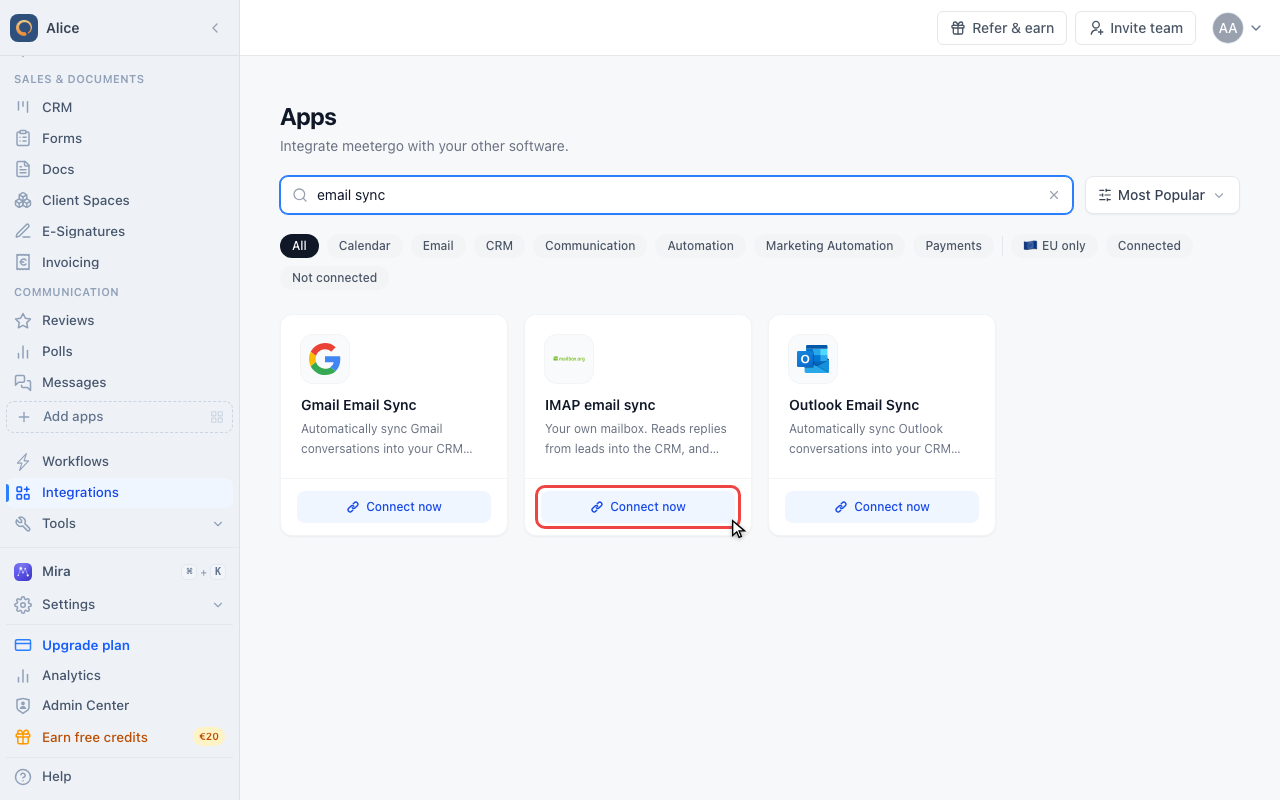
All three tiles configure the same thing, and the IMAP one opens the list of every mailbox the CRM can read, whichever way it was connected.
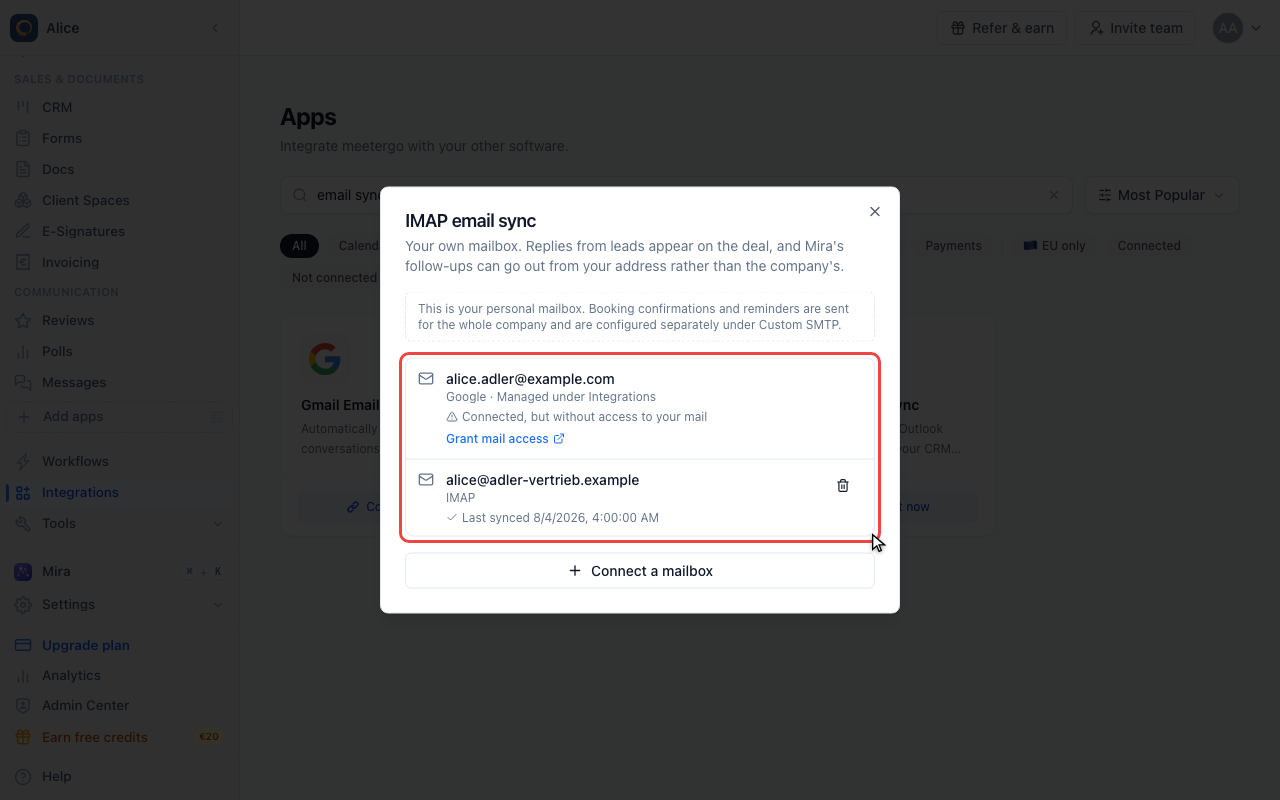
Check which mailboxes are readable
A mailbox connected for your calendar appears here too, but reading mail is a separate permission: "Connected, but without access to your mail" means the calendar half works and the mail half was never granted. Grant mail access sends you back to Google or Microsoft for that one extra read-only permission.
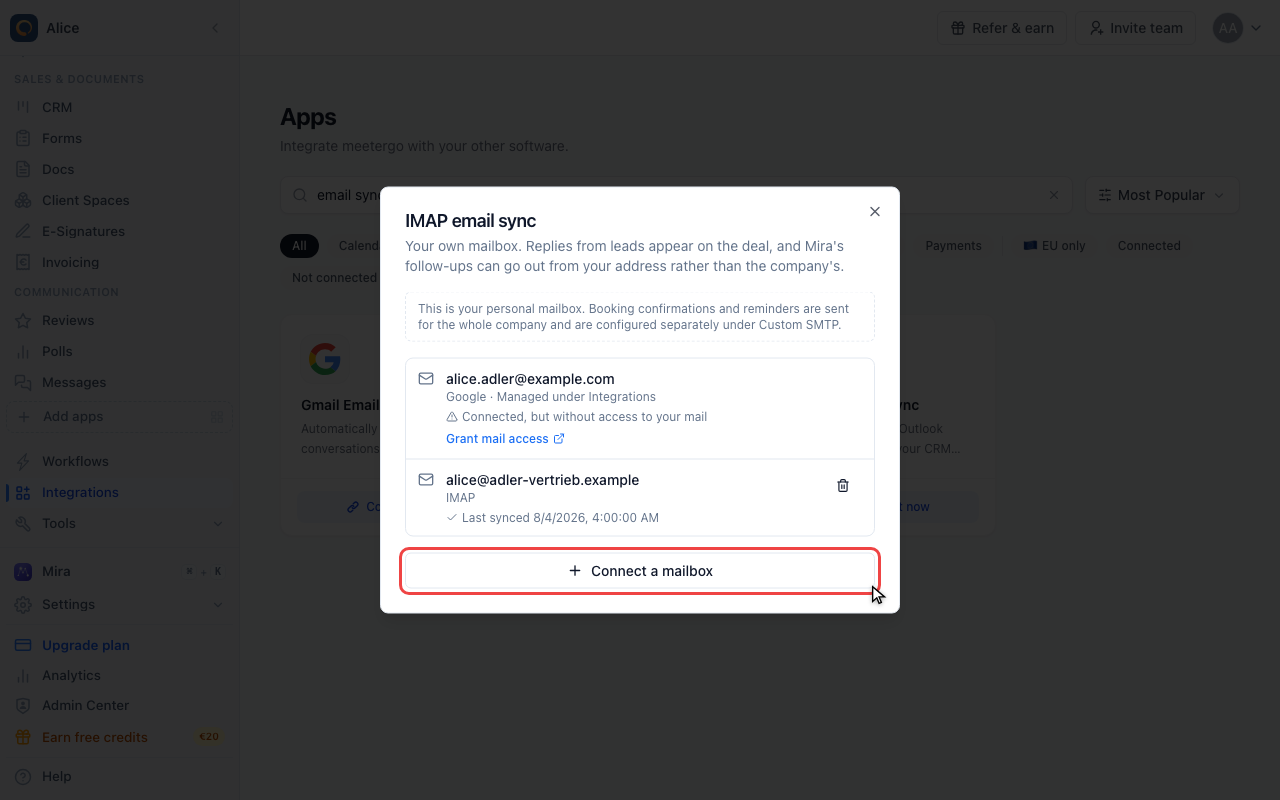
Add a mailbox by hand
Connect a mailbox opens the IMAP form for everything that is neither Gmail nor Outlook.
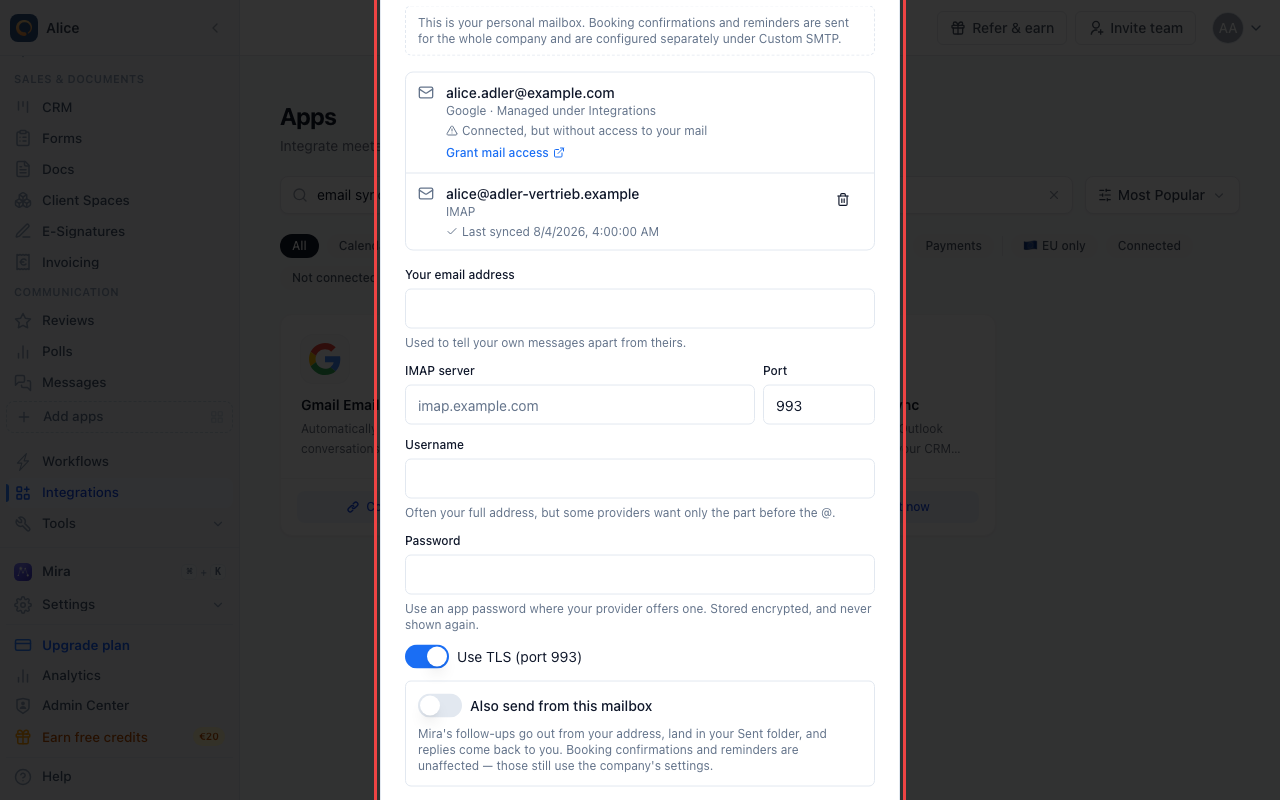
Fill in the server details
Your address, the IMAP server and port, and the username and password your provider expects. Use an app password wherever one is offered. Test checks the credentials without saving them; Connect tests and then saves.
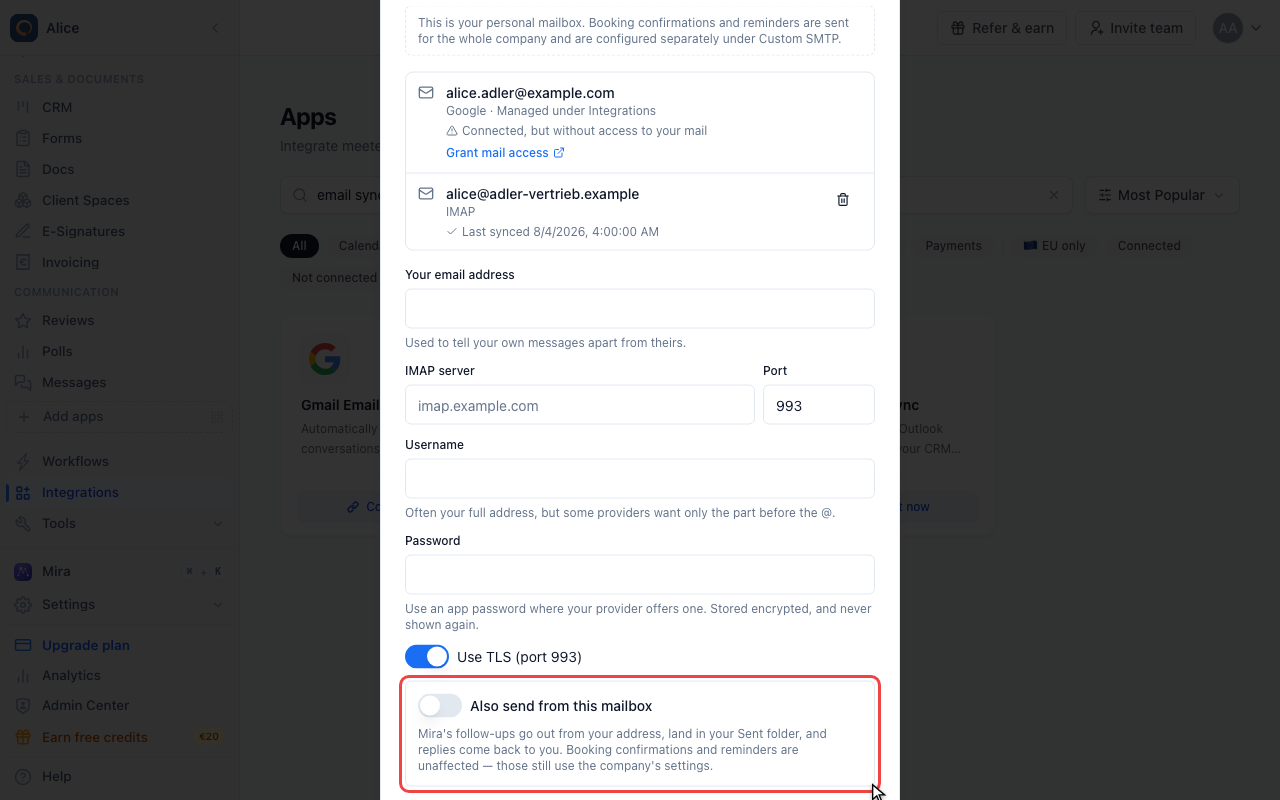
Decide whether to send too
Reading and sending are separate grants. Leave this off and the mailbox is read-only. Turn it on and the CRM can send from your address, which is what puts replies you write here into your own Sent folder. Booking confirmations and reminders are unaffected either way.
Read a contact’s email history
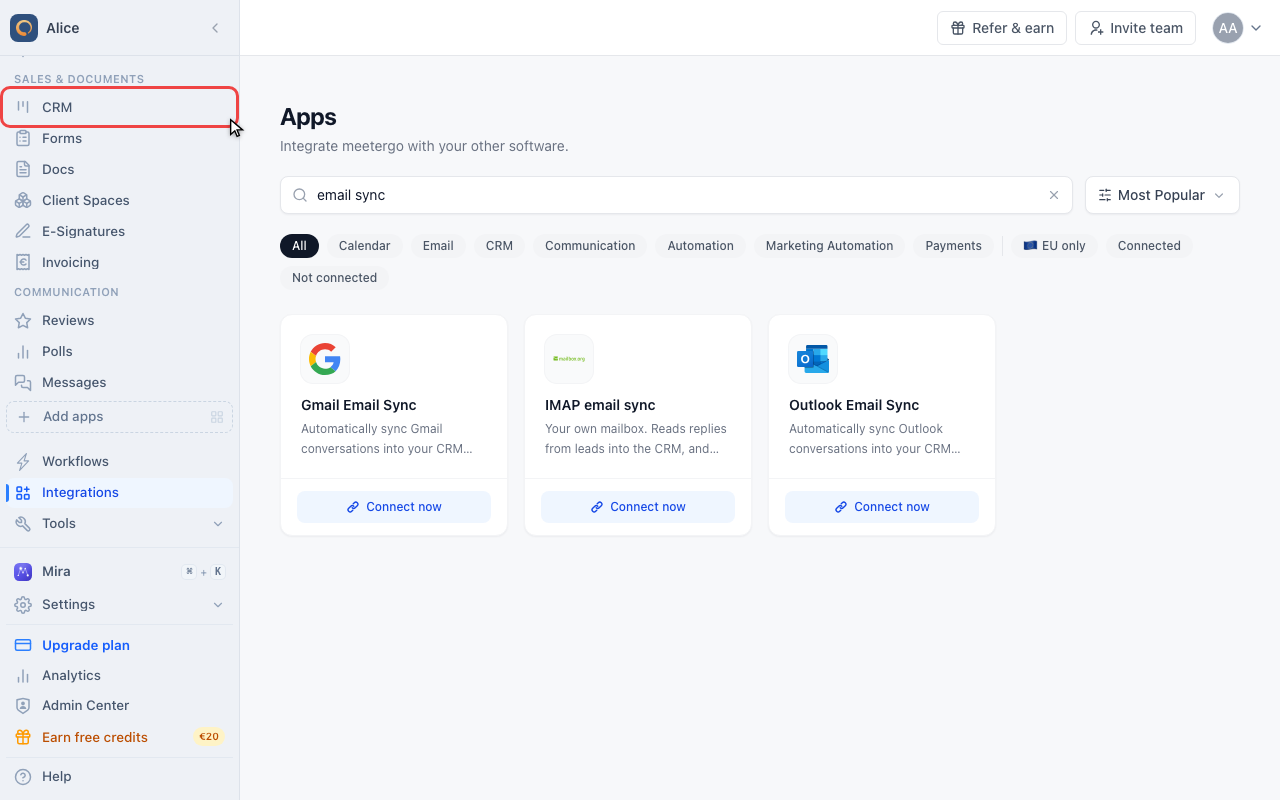
Open CRM
Nothing else has to be switched on. Once a mailbox can be read, matching messages appear on the records they belong to.
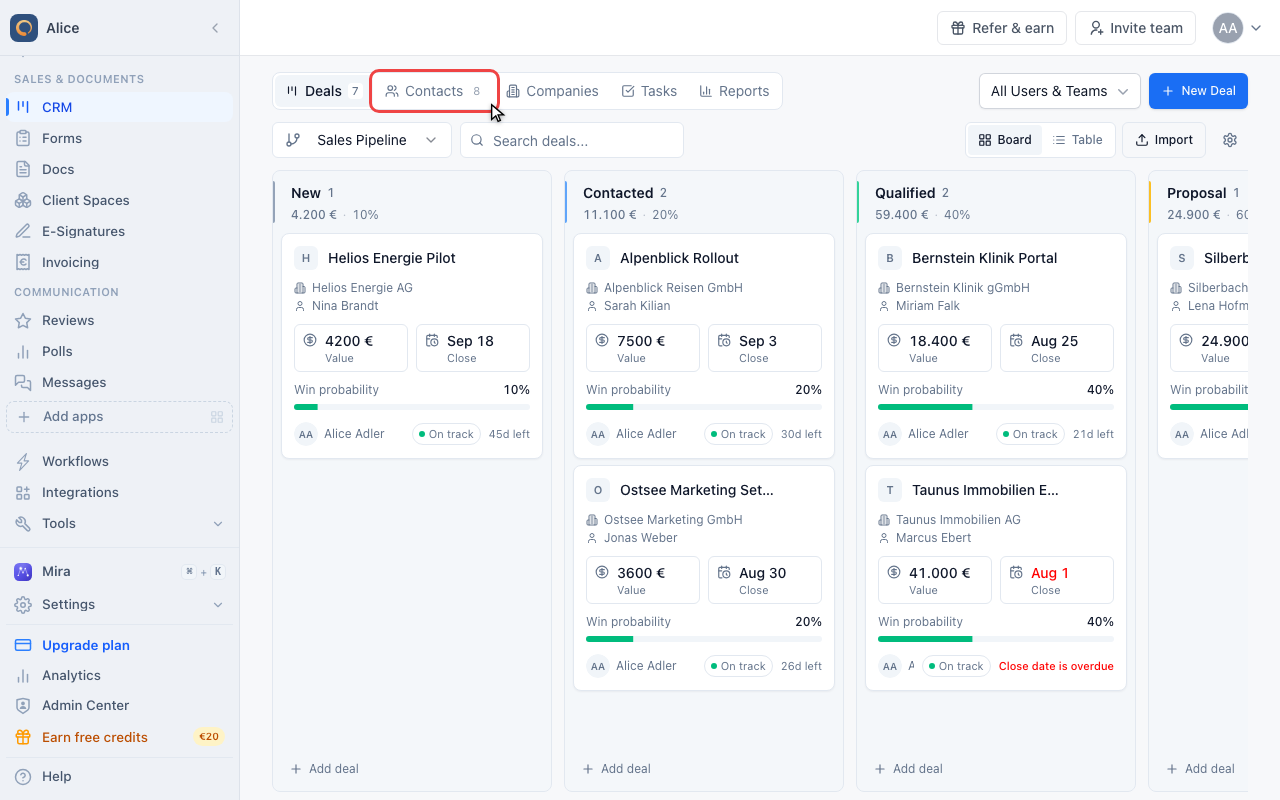
Go to Contacts
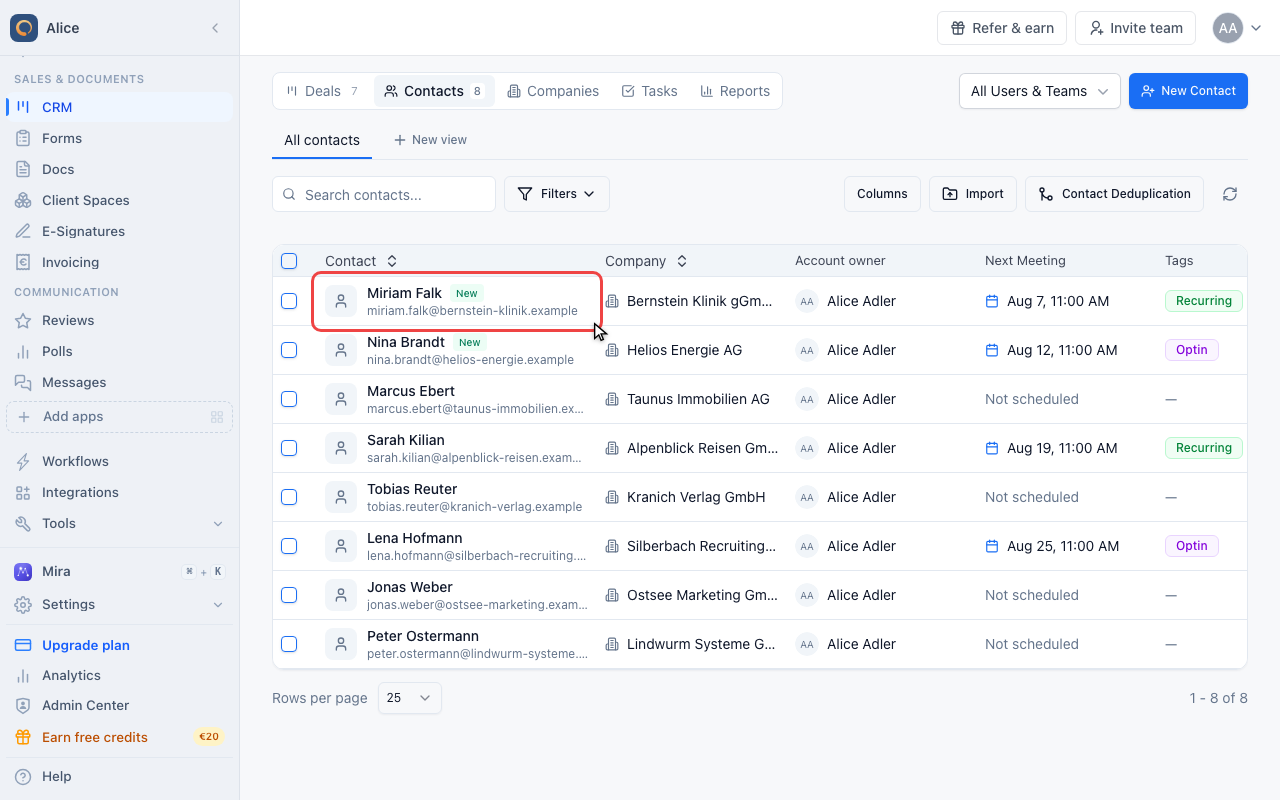
Open a contact
Messages are matched by email address, so the history sits on the contact whose address is in the From or To line.
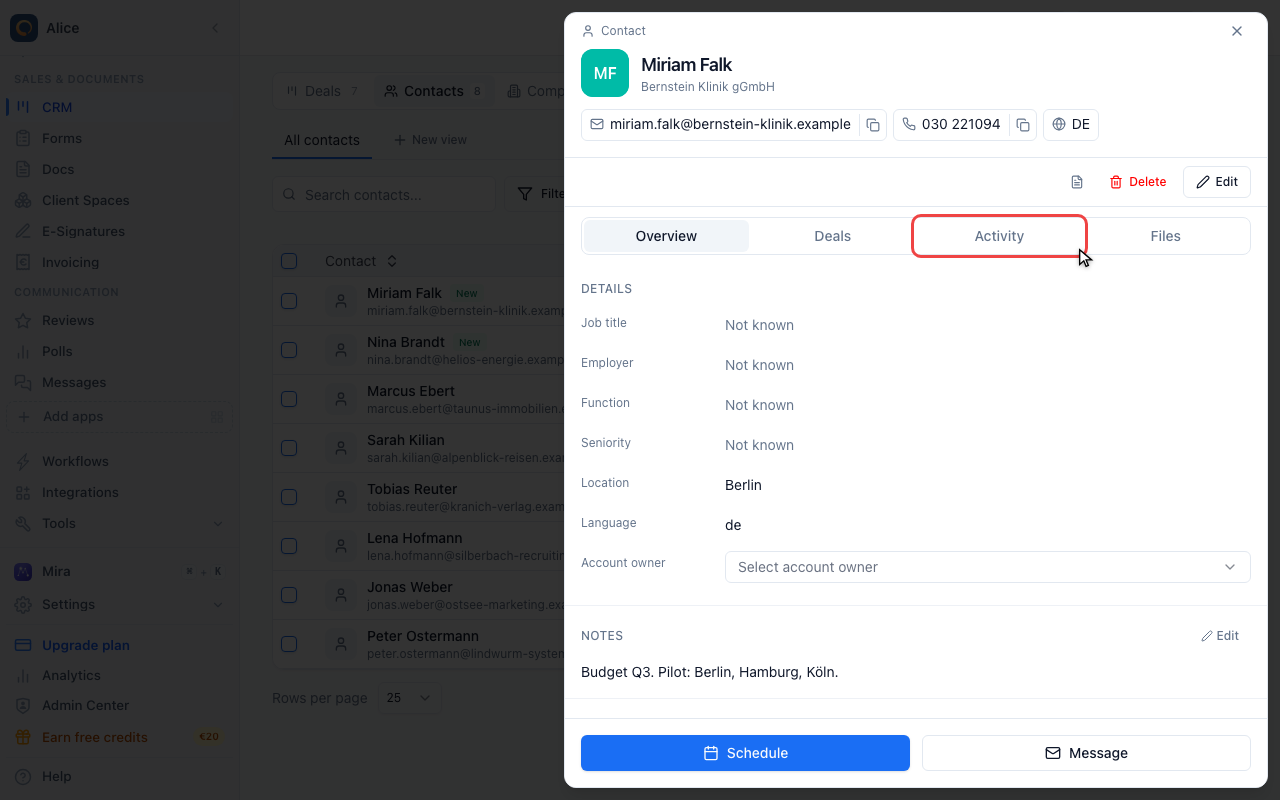
Switch to Activity
On a contact the Email History card sits at the bottom of the Activity tab, under appointments and the communications log.
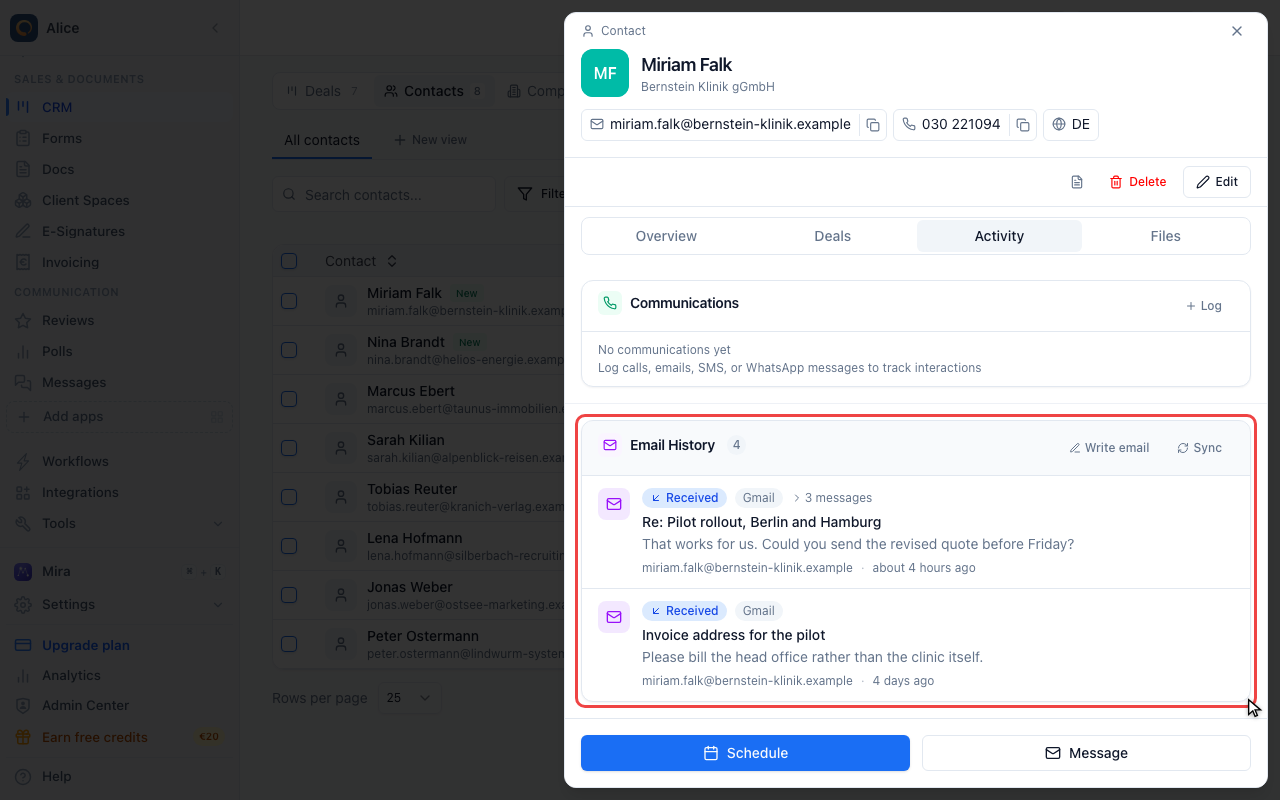
Read the history
One row per conversation, newest first, with the number beside the heading counting messages rather than threads. Each row carries whether the latest message was received or sent, the mailbox it came from, the subject, a preview and the address on the other end.
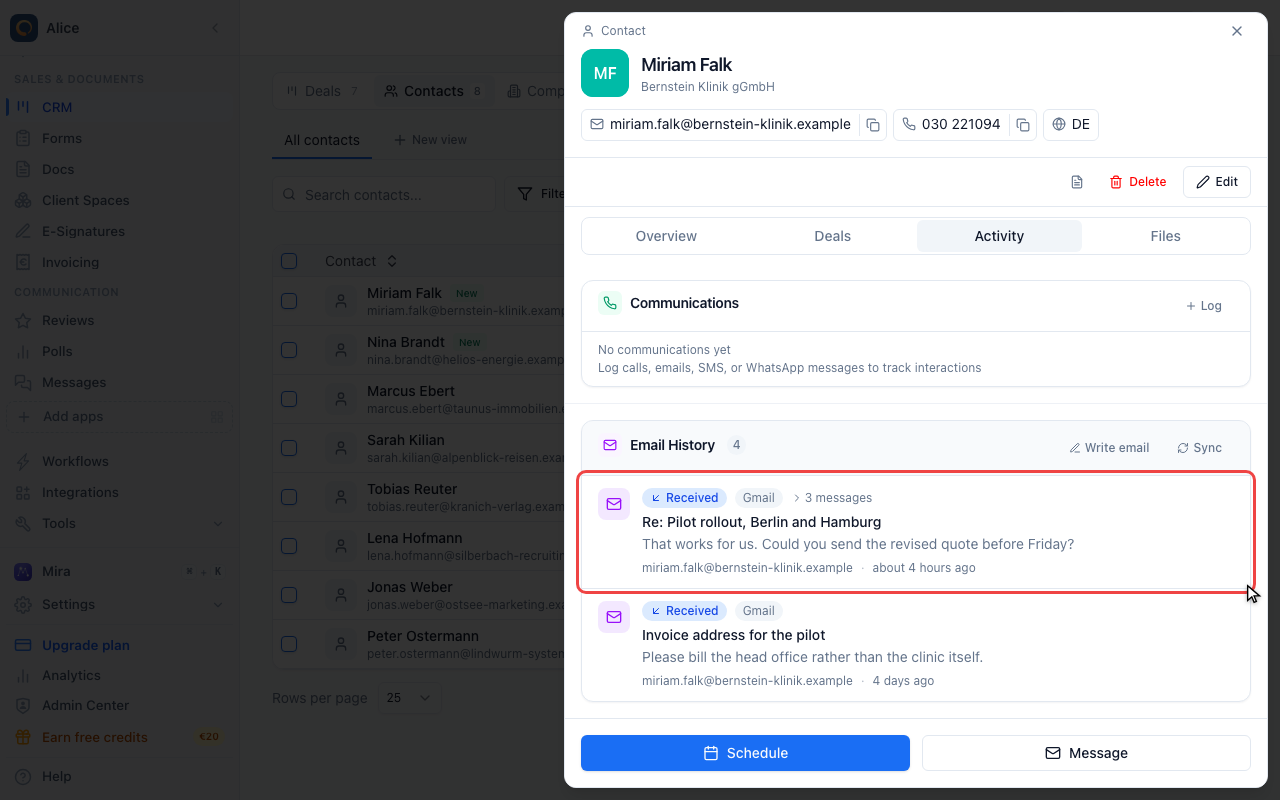
Open a conversation
A row with more than one message shows its count. Click it to unfold the thread.
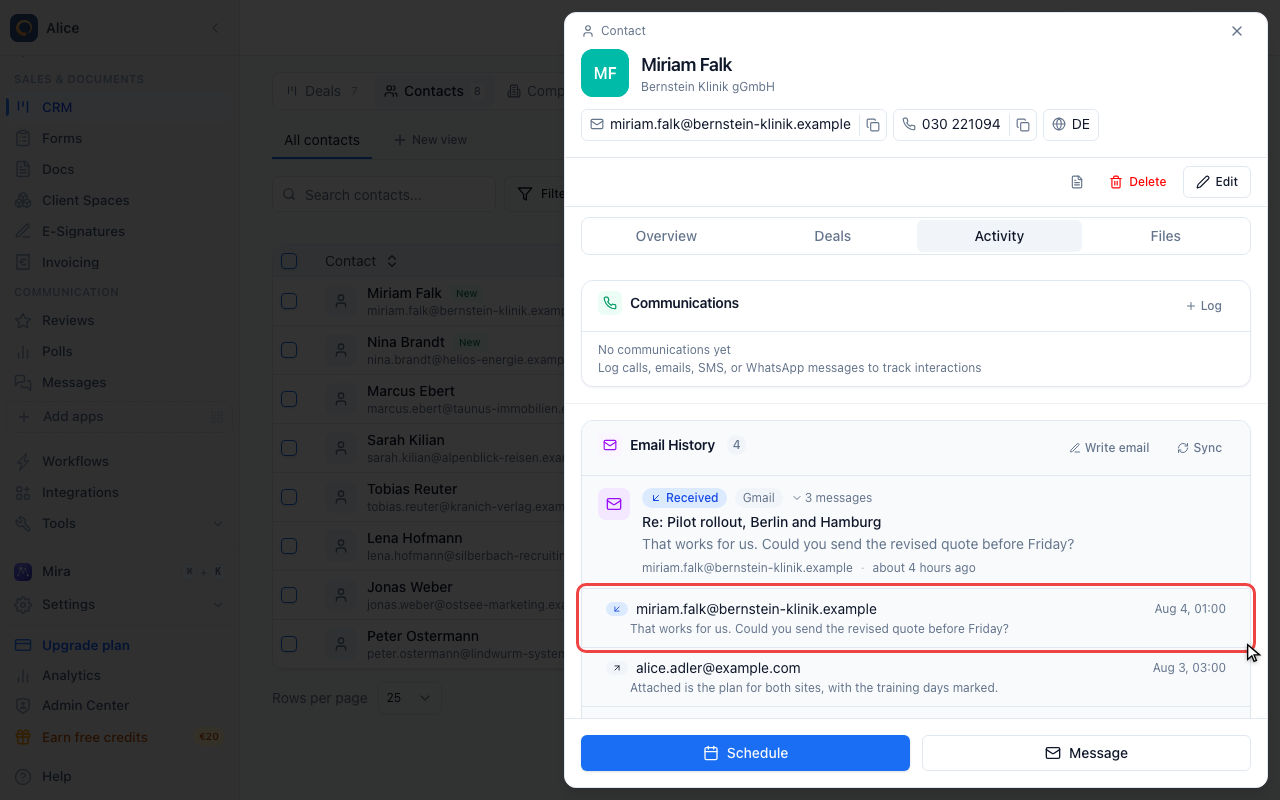
Open one message
The thread lists its messages oldest content first, each with its direction, sender and time. Click one to load its text.
Answer without leaving the CRM
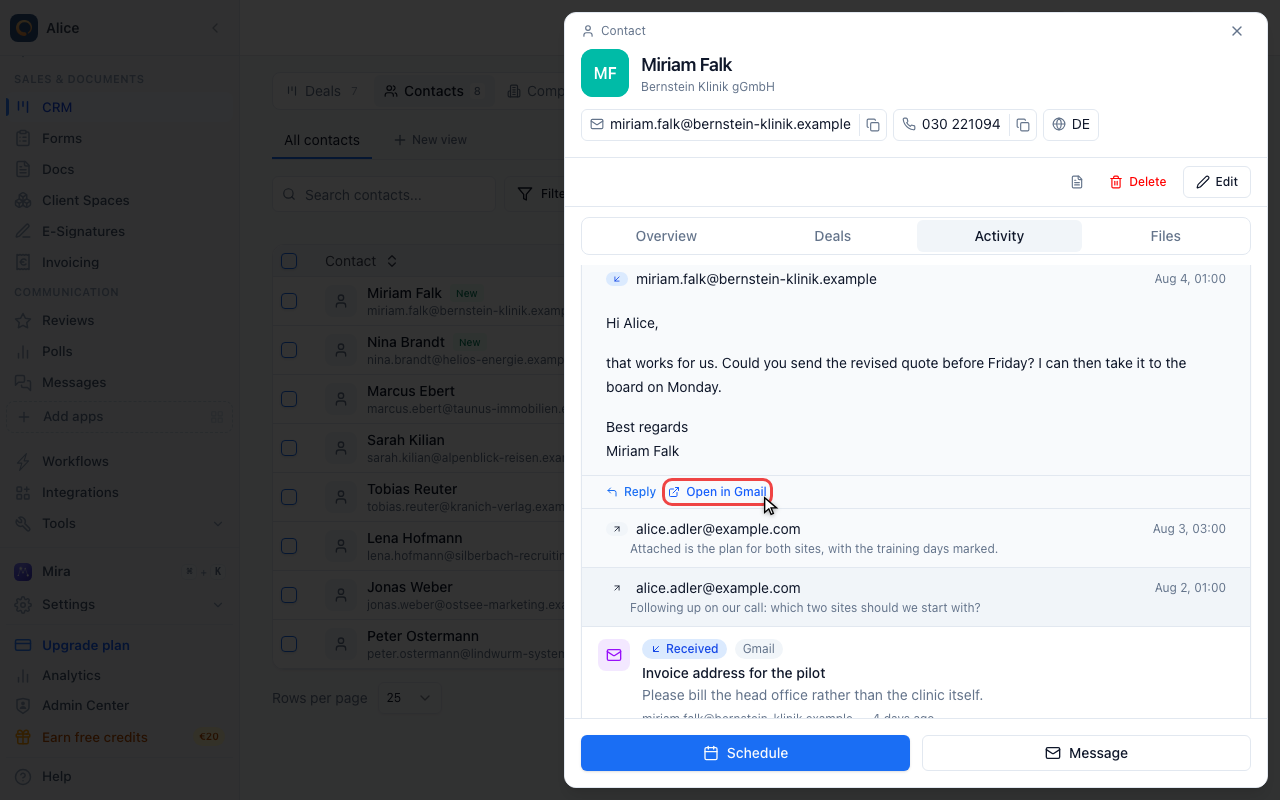
Read it or open it in your mailbox
The text is fetched from your mail provider at the moment you open it and is not stored by meetergo. Open in Gmail jumps to the original message in your mail client, where attachments and formatting are all still there.
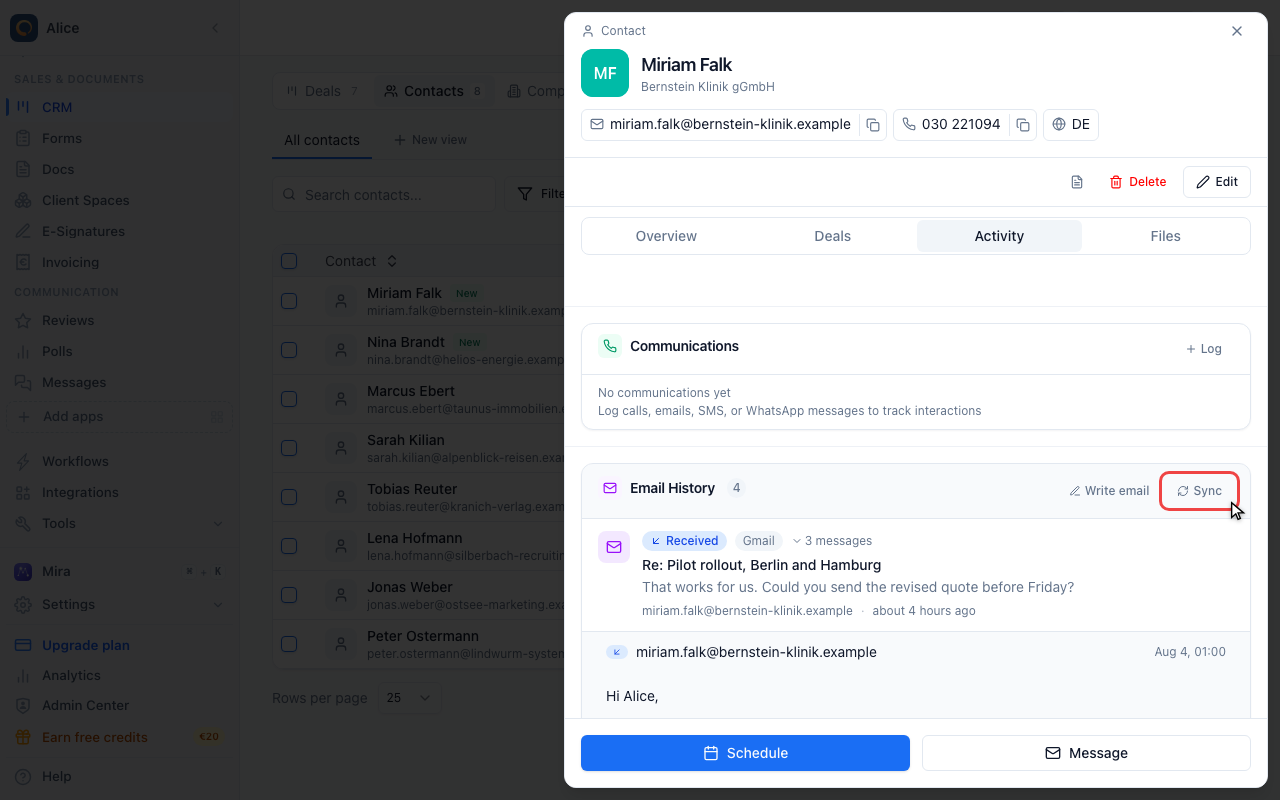
Fetch new mail yourself
meetergo checks connected mailboxes every half hour on its own, and the card also refreshes itself when you open a record it has not checked in the last fifteen minutes. Sync is the manual version, for when you have just sent something and do not want to wait.
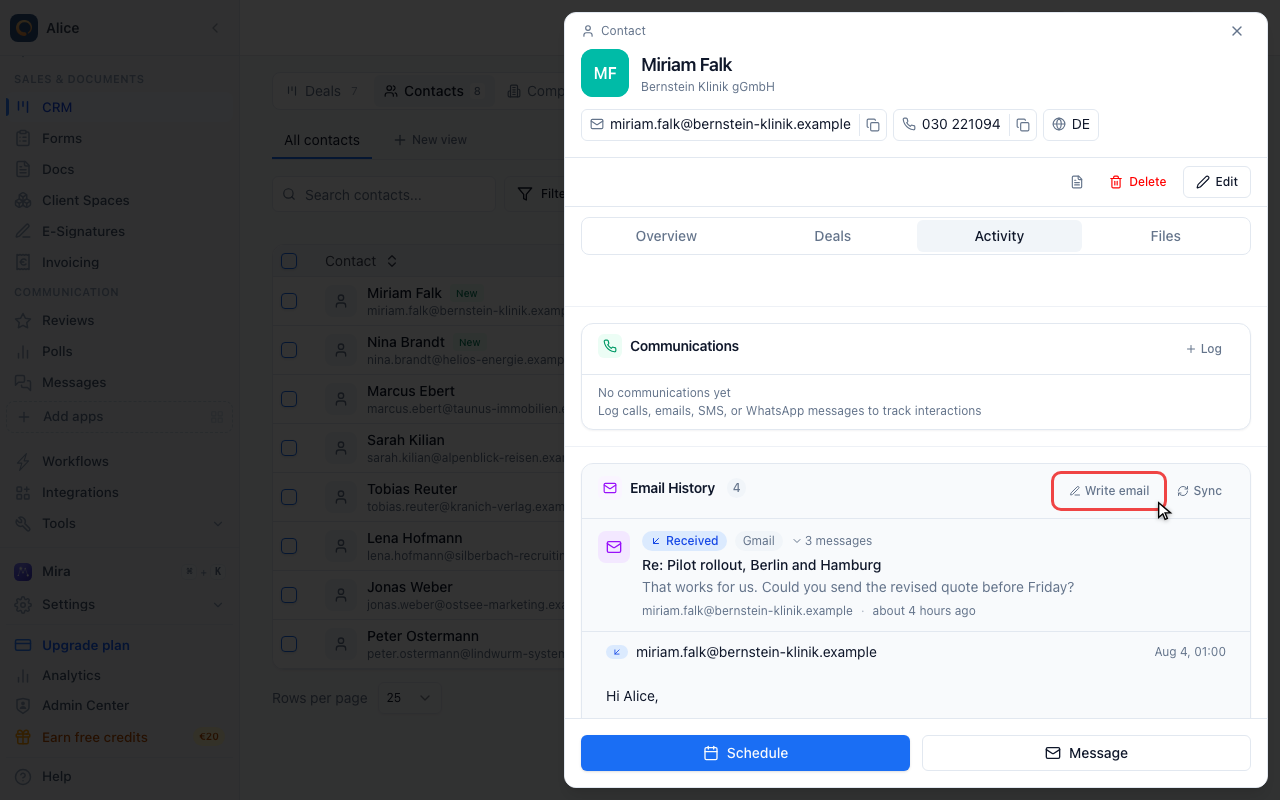
Write a new email
Write email in the card header starts a fresh message to this contact. It only appears when one of your mailboxes is allowed to send.
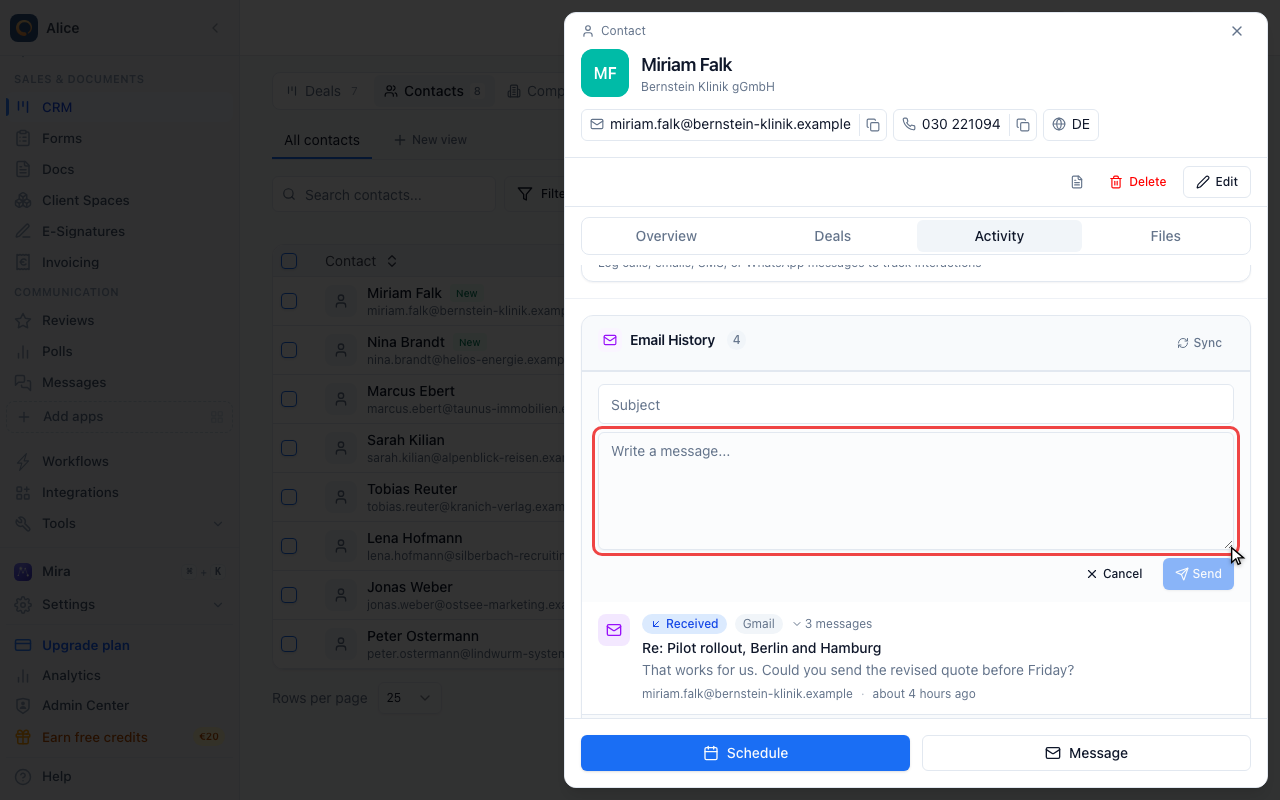
Send it from your own address
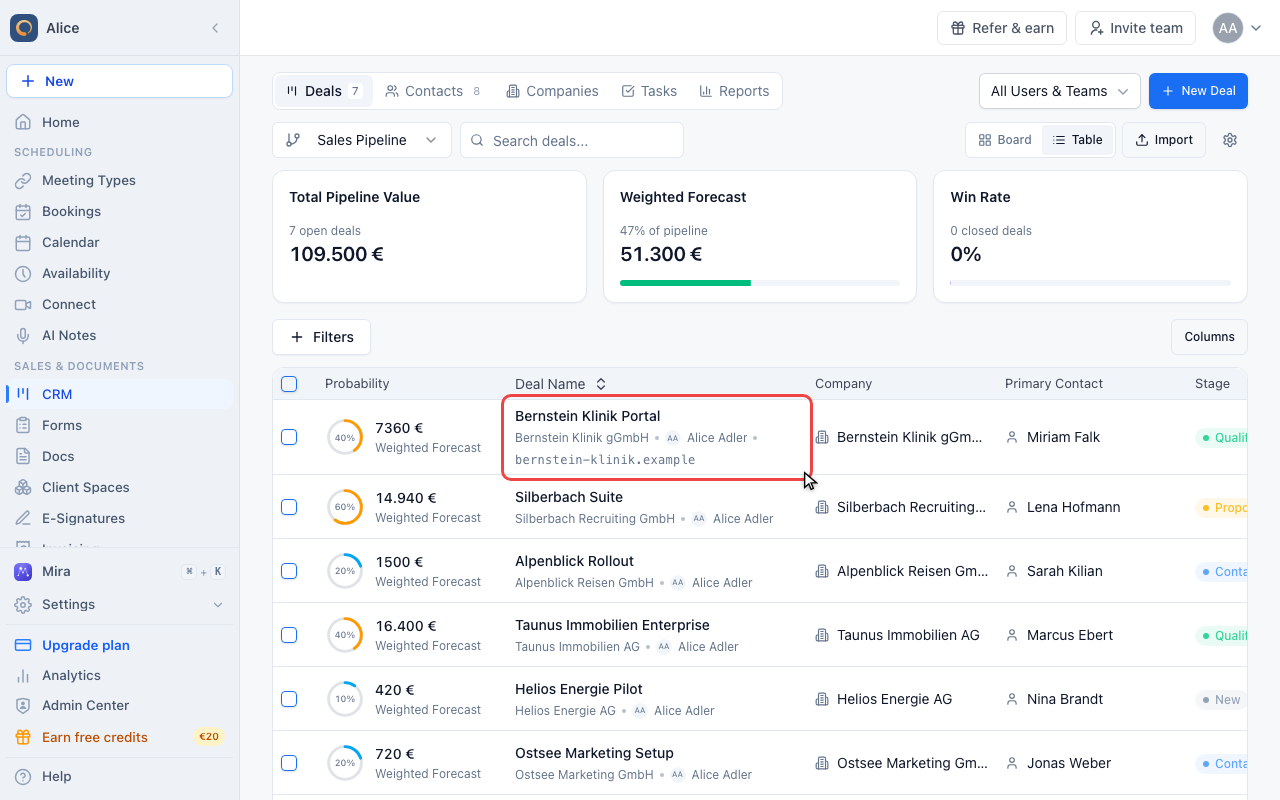
The same history on a deal
Open a deal
A message is filed on the contact first and then on one of that contact’s deals: the open one, or the deal that was still open when the message was sent.
Read the deal’s mail
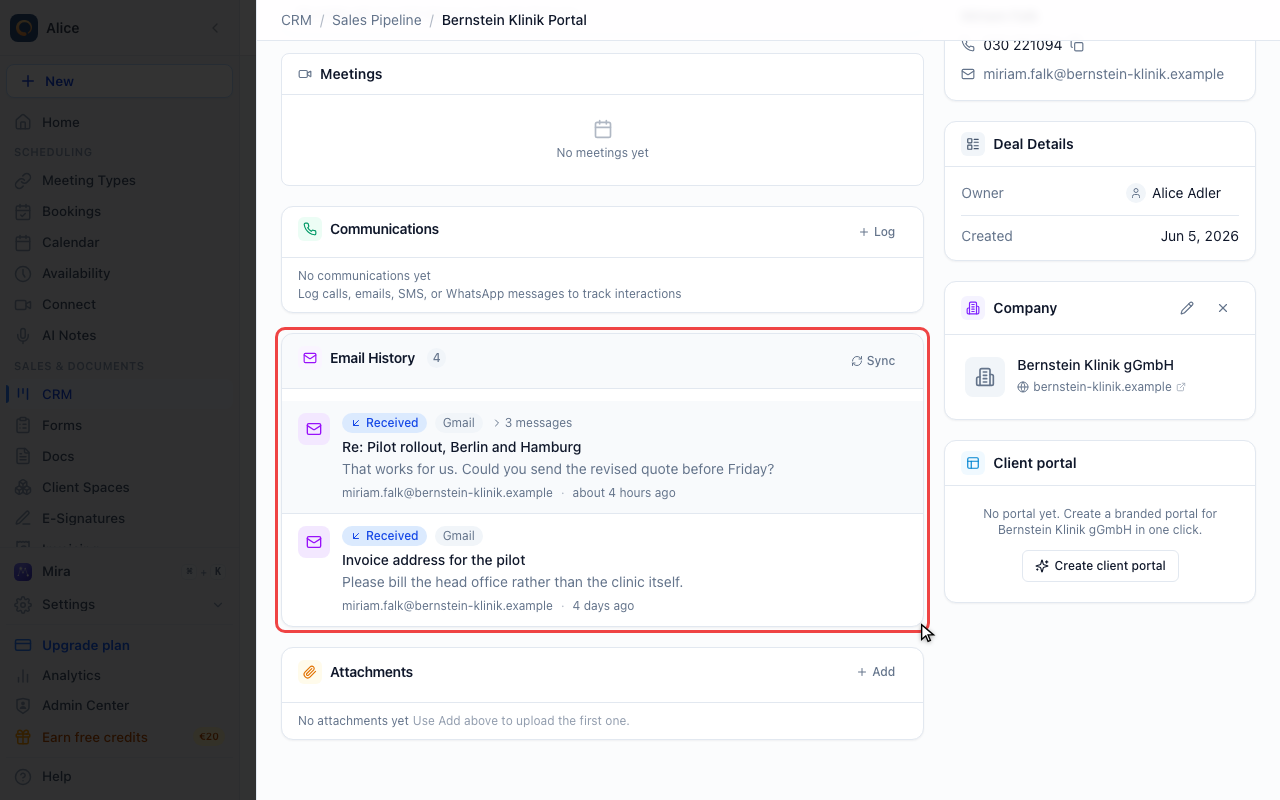
On a deal the card sits in the Overview tab between the communications log and the attachments, and it gathers the mail of every contact on the deal. There is no Write email button here, because a deal has no single recipient. Reply on a message in the thread is the way in.
What Email Sync does
Once one of your mailboxes can be read, meetergo indexes the messages that involve one of your CRM contacts and files each one on that contact. Nothing else in the mailbox is touched, and nothing is ever marked as read.
Each message is then attributed to one of that contact's deals, so the deal record shows the conversation that belongs to it. An open deal always wins. A closed deal only qualifies if it was still open when the message was sent, and where several deals qualify, the one changed most recently gets it.
Email Sync needs Suite, or a Sales CRM license on any plan. Without it the Email History card on a contact shows an upgrade prompt instead of the history, and the three Email Sync tiles under Integrations are marked Restricted.
Connecting a mailbox
Email Sync is set up per person, not per company, under Integrations in the sidebar. Search the Apps page for "email sync" and you get the three tiles that do it:
| Tile | Use it when |
|---|---|
| Gmail Email Sync | Your mail is on Gmail or Google Workspace |
| Outlook Email Sync | Your mail is on Microsoft 365 or Outlook.com |
| IMAP email sync | Anything else, and to see every mailbox already connected |
Gmail and Outlook
Reading your mail is a separate permission from reading your calendar, and the calendar connection never asks for it. If you already connected Google or Microsoft for your calendar, that account shows up in the mailbox list as "Connected, but without access to your mail", and Grant mail access sends you to Google or Microsoft to add the one extra permission (gmail.readonly for Google, Mail.Read for Microsoft).
You can also do it from the connection itself: open the Gmail or Outlook Email Sync tile, expand Calendar Options on the account, and use Enable email sync under CRM Email Sync. When it is granted the section shows a green Email sync enabled badge.
The extra permission is read-only. meetergo cannot modify or delete anything in your mailbox, and your calendar sync keeps working exactly as before.
Any other mailbox
IMAP email sync connects a mailbox with a username and password: your address, the IMAP server and port, and the credentials your provider expects. Use an app password wherever your provider offers one. Test checks the credentials without saving them, Connect tests and then saves. Passwords are stored encrypted and never shown again.
Also send from this mailbox is a second, separate decision. Off, the mailbox is read-only. On, meetergo can send from your address, which is what makes replies written in the CRM land in your own Sent folder.
This is your personal mailbox. Booking confirmations and reminders are sent for the whole company and are configured separately under Custom SMTP, so connecting a mailbox here does not change who your booking emails come from.
Reading the history
Emails appear in two places:
| Record | Where |
|---|---|
| Contact | Activity tab. Click Open email on a message |
| Deal | Overview tab, between the communications log and Attachments |
Company records have no Email History card.
The contact activity list shows individual messages. On a deal, the card shows one row per conversation, newest first. The count beside the heading counts messages, not conversations. Each row carries:
| Element | What it tells you |
|---|---|
| Received / Sent | The direction of the latest message in the conversation |
| Gmail / Outlook | Which mailbox it came through |
| n messages | How many messages the conversation holds. Only shown when there is more than one |
| Subject and preview | The subject line and the first line or two of the text |
| Address and time | The other party's address, and how long ago the latest message was sent |
Click a row to unfold it. A conversation with several messages lists them, each with its direction, sender and time; click one to load its text. A conversation with a single message opens straight into that text.
Message text is fetched from your provider at the moment you open it and is not stored by meetergo. It is sanitized before it is displayed, so scripts and other active content are stripped. Open in Gmail or Open in Outlook takes you to the original in your mail client, which is where attachments, formatting and forwarding live.
Up to 100 messages are listed per record.
Answering from the CRM
If one of your mailboxes is allowed to send, you can answer without leaving the record.
- Write email in the card header of a contact starts a new message to that contact. You get a subject and a message body, and nothing else: no attachments, no formatting, no extra recipients.
- Reply under an opened message answers that message in its thread.
Both go out through your own connected mailbox, so the message threads correctly for the recipient and lands in your Sent folder. The copy appears in the history on the next sync.
A deal has no Write email button, because a deal has no single recipient. Reply on a message in the thread is the way in.
If you see no Write email button and no Reply link, none of your mailboxes has sending enabled. Turn on "Also send from this mailbox" on an IMAP mailbox, or reconnect Google or Microsoft with the send permission.
When syncing happens
| Trigger | What it does |
|---|---|
| Every 30 minutes | meetergo sweeps every connected mailbox on its own |
| Opening a record | The card refreshes itself if it has not been checked in the last 15 minutes |
| The Sync button | Runs it now. Limited to two manual syncs per 15 minutes |
The first sync reaches back 90 days for IMAP and one year for Google, Microsoft and Exchange. Later syncs resume from their saved position.
Messages are matched by comparing your contacts' addresses against the From and To lines. IMAP also matches addresses in CC.
Data and privacy
What is stored: subject, sender, recipient addresses, direction, the time it was sent, a short preview, and the identifiers that link a message to its thread.
What is not stored: the message body and any attachments. Attachments stay with your provider and are fetched when you open them. Message text is also read during signature extraction, but the full body is not stored.
Email data is scoped to your company, and colleagues who can see a contact can see that contact's history. Removing a contact erases their indexed email with them, and removing a deal leaves the messages on the contact.
Troubleshooting
The card shows an upgrade prompt
Email Sync needs Suite or a Sales CRM license. Check your plan under Settings → Subscription.
The mailbox list says "Connected, but without access to your mail"
The account is connected for your calendar but was never granted the mail permission. Use Grant mail access on that row.
Nothing appears after connecting
- Press Sync on the card rather than waiting for the half-hourly sweep.
- Check that the contact's address matches the address in the messages exactly.
- Messages older than a year are outside the first sync's window.
- An address that only ever appears in CC is not matched.
A row shows a red error instead of a last-sync time
The credentials stopped working, usually because a password was rotated or an app password was revoked. Reconnect the mailbox.
FAQ
Which mailboxes are supported?
Gmail and Google Workspace, Microsoft 365 and Outlook.com, Exchange, and any mailbox reachable over IMAP.
Can I reply to emails from the CRM?
Yes, as long as a mailbox with sending enabled is connected. Use Write email on a contact, or Reply under an opened message. Attachments and formatting need your mail client.
Do my colleagues see my emails?
Yes. Each person syncs their own mailbox, but the indexed messages belong to the company, so anyone who can open the contact sees the history on it.
How far back does the first sync go?
For IMAP, 90 days; for Google, Microsoft and Exchange, one year. Later syncs continue from the saved position.
Does enabling email sync affect my calendar connection?
No. It adds one read-only permission beside the calendar ones, and calendar sync is unchanged.
Can I turn it off again?
Yes. Disconnect the mailbox in the IMAP email sync dialog, or reconnect Google or Microsoft without the mail permission. Messages already indexed stay on their records, and no new ones arrive.
Does it sync shared mailboxes?
No. Email Sync reads your own mailbox. Shared mailboxes and distribution lists are not supported.
Does meetergo mark my emails as read?
No. Messages are read without changing their state in your mailbox.
IMAP attachments
On a contact, open Activity and click Open email on a message. On a deal, open the message in Email History. Click a filename to download it. Attachments are fetched from the connected mailbox on demand and are not automatically copied into the CRM file storage. The mailbox must remain connected and the message must still exist.
The complete email may be up to 25 MB, with a maximum of 10 MB per downloadable attachment. Open larger messages in your email application. Sending attachments from the CRM is not supported.
IMAP reads the inbox and sent folder separately, examining up to 500 messages per folder per run. Its first sync covers the last 90 days; later runs continue from each folder’s saved position. The automatic run is every 30 minutes.
Related Articles
- CRM Overview
- Managing CRM Contacts
- Communications Log
- Connecting Google Calendar
- Connecting Outlook Calendar
Update contacts from email signatures
When CRM mailbox sync indexes incoming mail from an existing contact, meetergo checks the signature for job title, company, phone number and a German postal address. This works with Gmail, Outlook, Exchange and IMAP.
- A matching sender address, signature email and name allow automatic updates. A signature matching only the contact's name can suggest a job title or company for review. Phone numbers and addresses require an email match.
- Values you entered or explicitly accepted are preserved. Newer signatures can update values previously added automatically.
- Quoted replies, forwarded messages and signatures belonging to someone else are ignored. No new contacts are created.
- Extraction runs locally on meetergo's servers. Only extracted facts and their source reference are retained, alongside the existing email preview.
Recognition is conservative: it supports common English and German job titles, legal company names, international phone numbers and German street/postcode formats. Unsupported or ambiguous details are skipped. It processes newly indexed mail; it does not rescan the entire existing history.
To stop processing future messages, disable email sync or disconnect the mailbox in Integrations. Details already added to contacts remain editable.
Was this article helpful?
Let us know if this article answered your questions.