
Using the Kanban Board
Visualize and manage your sales pipeline with drag-and-drop functionality
The Kanban board provides a visual overview of your entire sales pipeline. See all your deals organized by stage, drag and drop to move deals forward, and quickly identify bottlenecks in your sales process.
 1 / 11
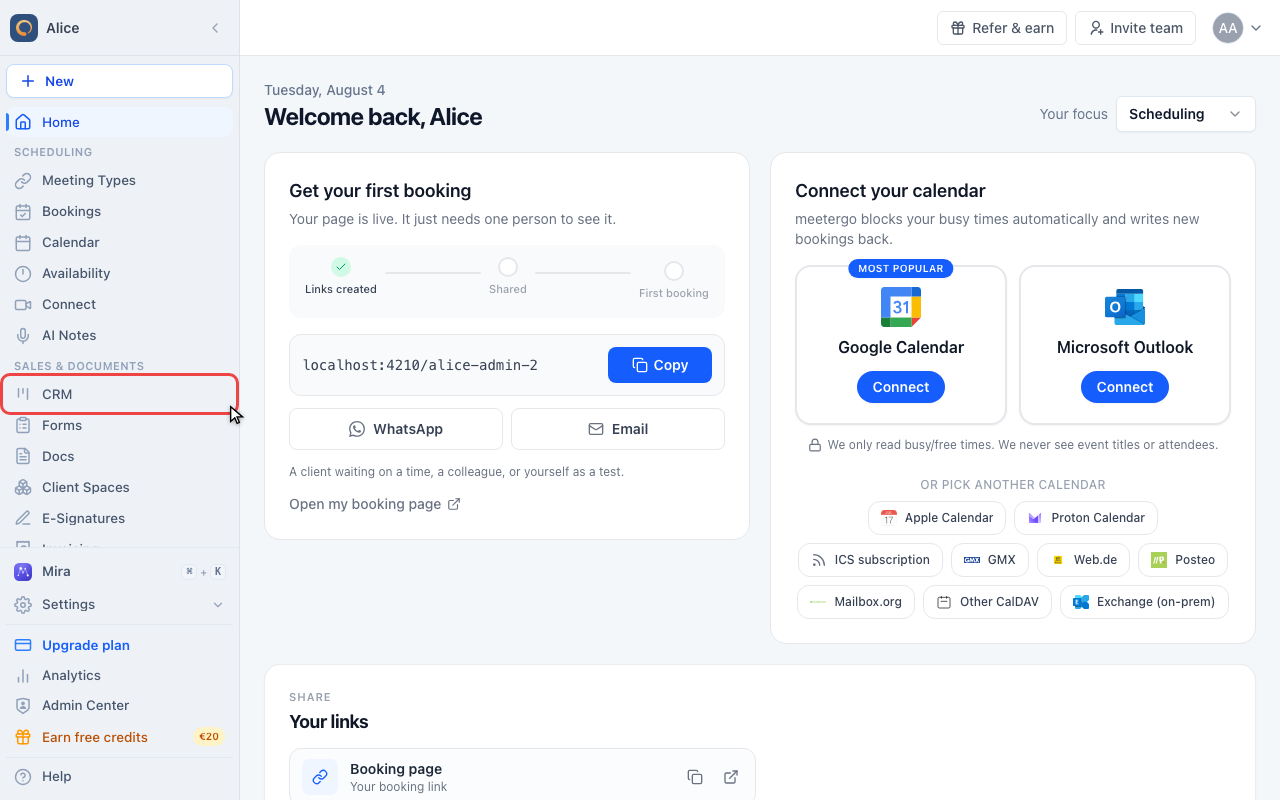
Click CRM in the sidebar.
Open the board
Open CRM
Click CRM in the sidebar.
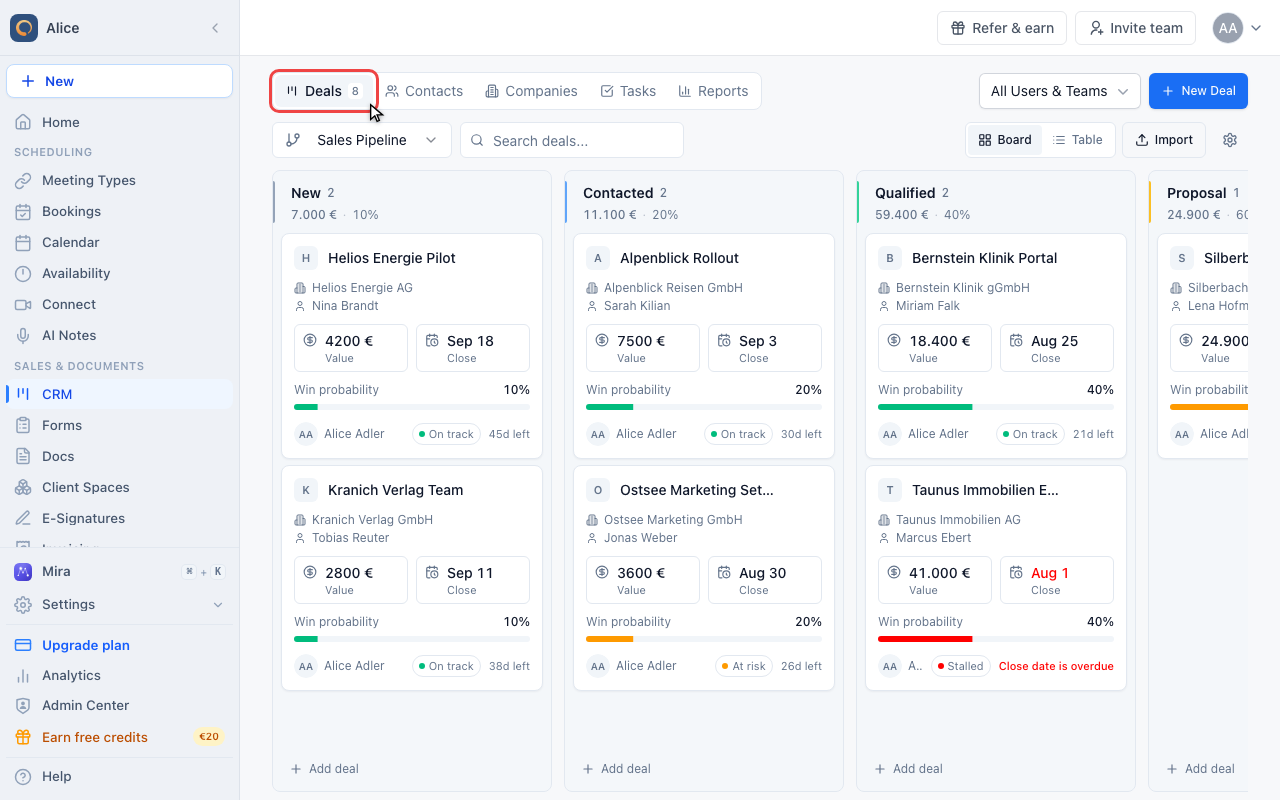
Stay on Deals
CRM opens on the Deals tab. The number beside the tab is how many open deals you have.
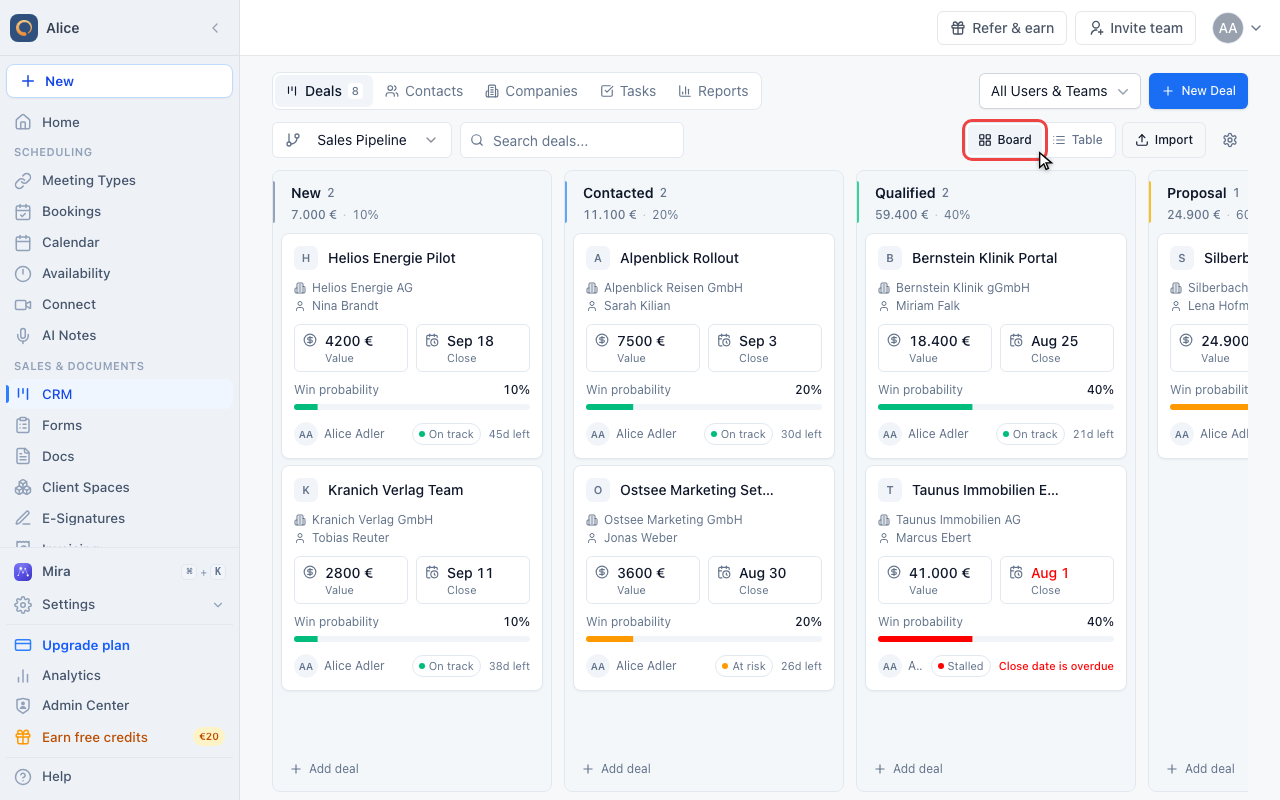
Switch between Board and Table
Deals opens on Board. Board and Table show the same deals: use Board to work the pipeline, Table to sort, select and edit in bulk.
Read the board
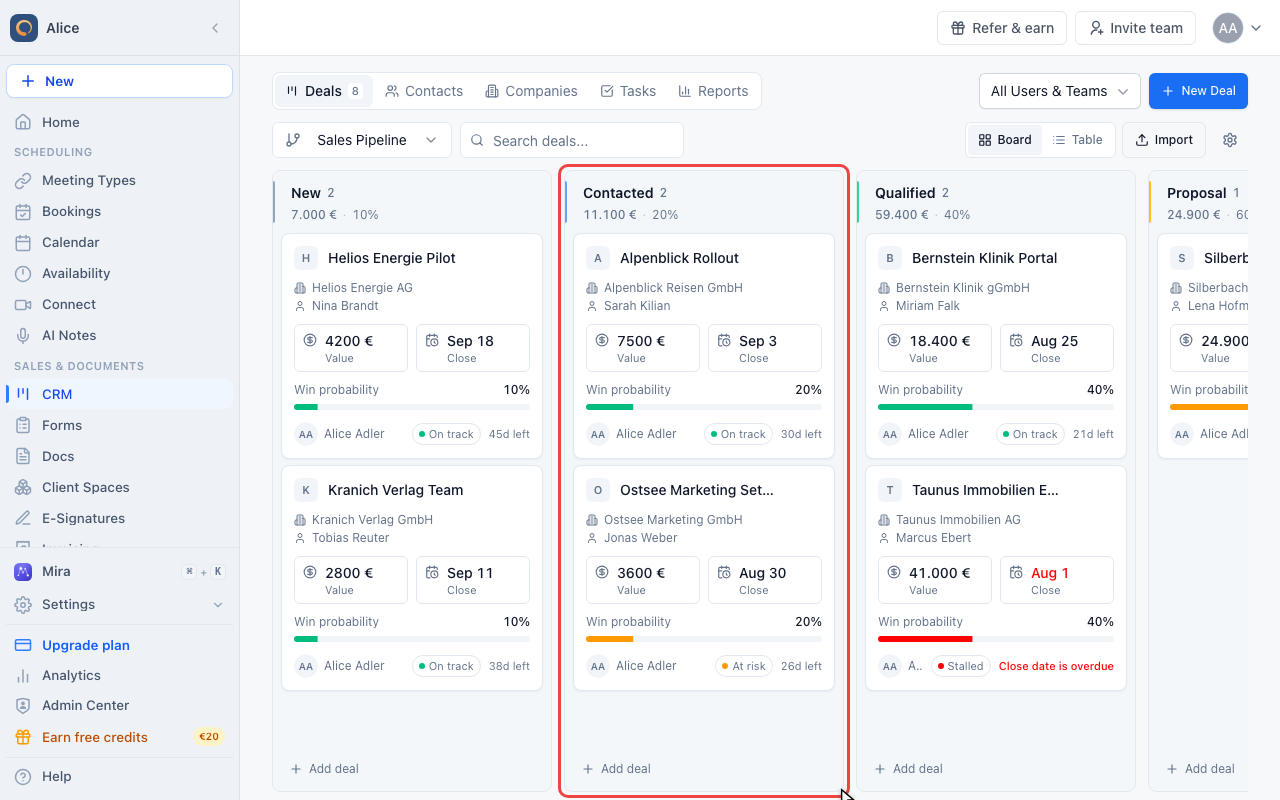
Read a stage column
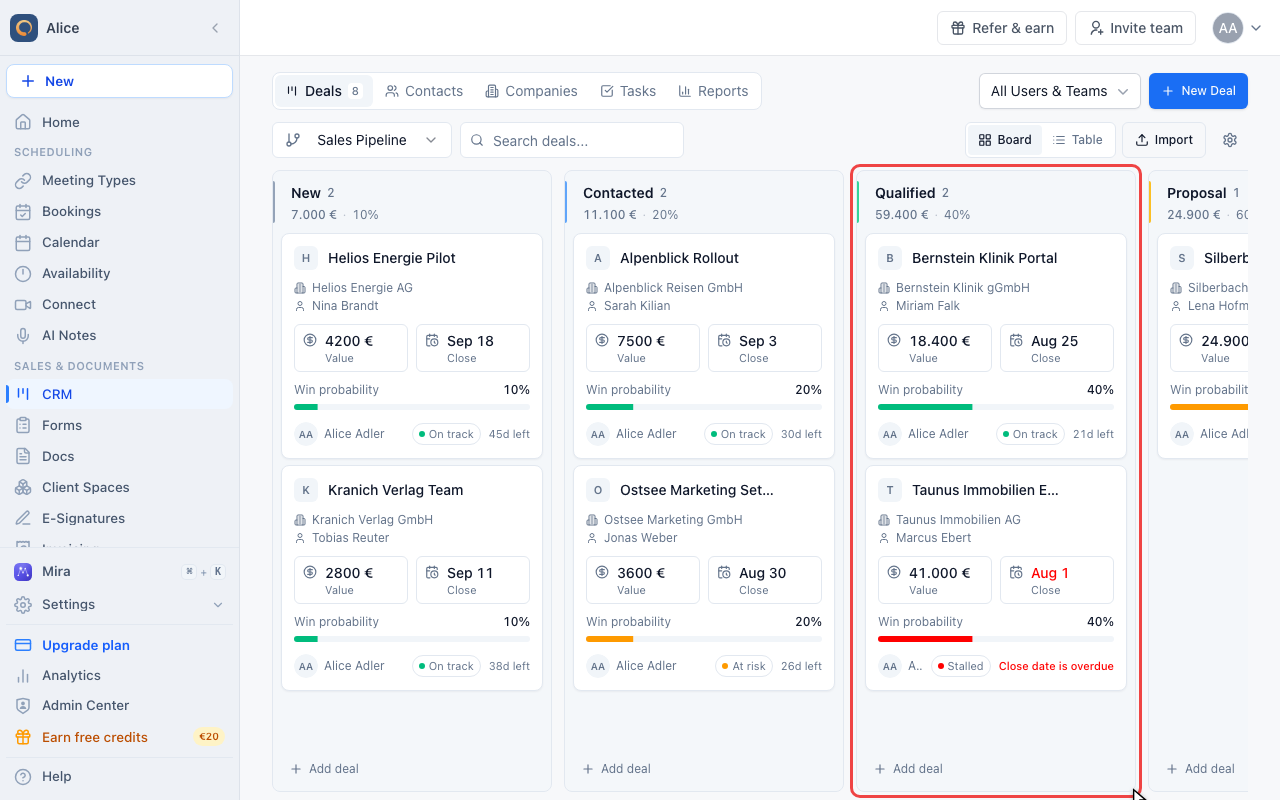
Each column is one pipeline stage. The header carries the stage name, how many deals sit there, their combined value, and the stage win probability.
Read a deal card
A card shows the deal name, company and primary contact, its value and close date, the win probability bar, the owner, and a health badge. An overdue close date turns red.
Move deals
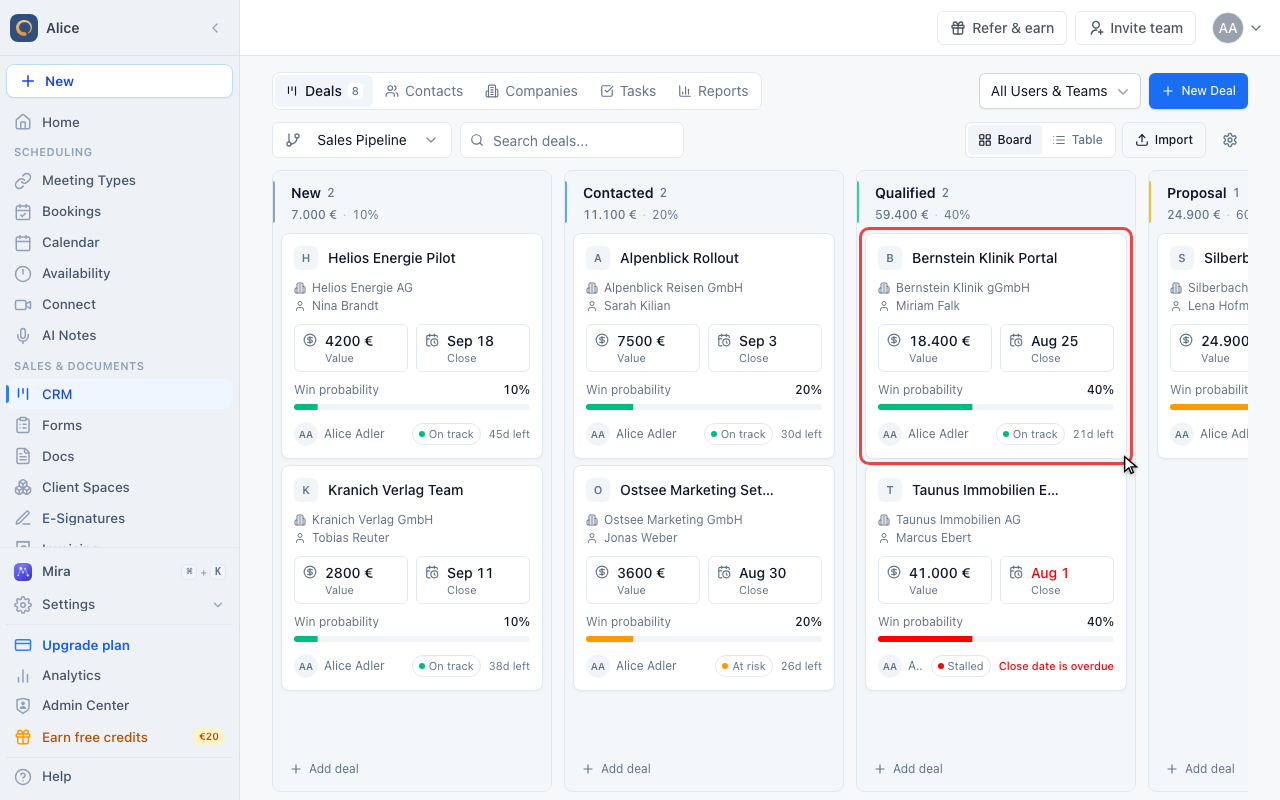
Drag a card into the next stage
Grab a card and drop it in another column to move the deal. The change saves right away and is recorded in the deal activity log.
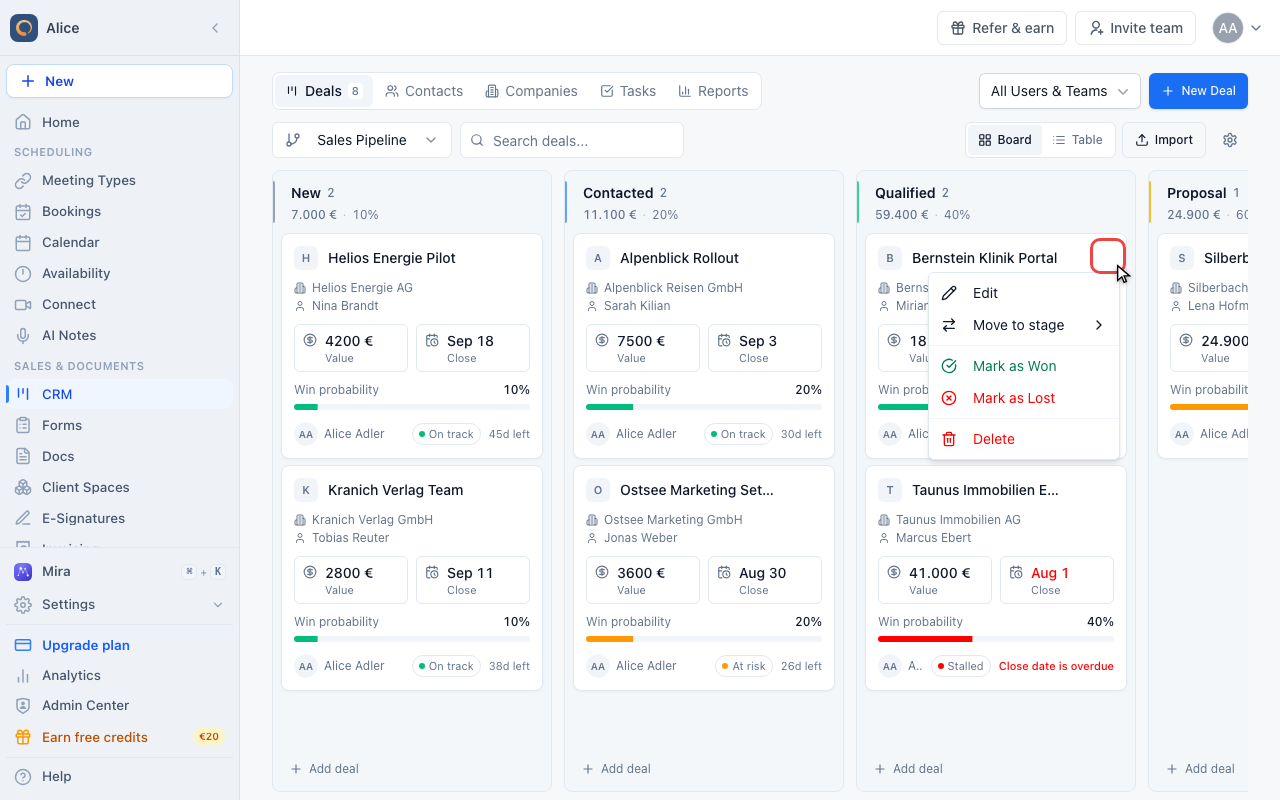
Move a deal without dragging
Hover a card and open its menu to move the deal to any stage, mark it as won or lost, edit it or delete it.
Narrow the board
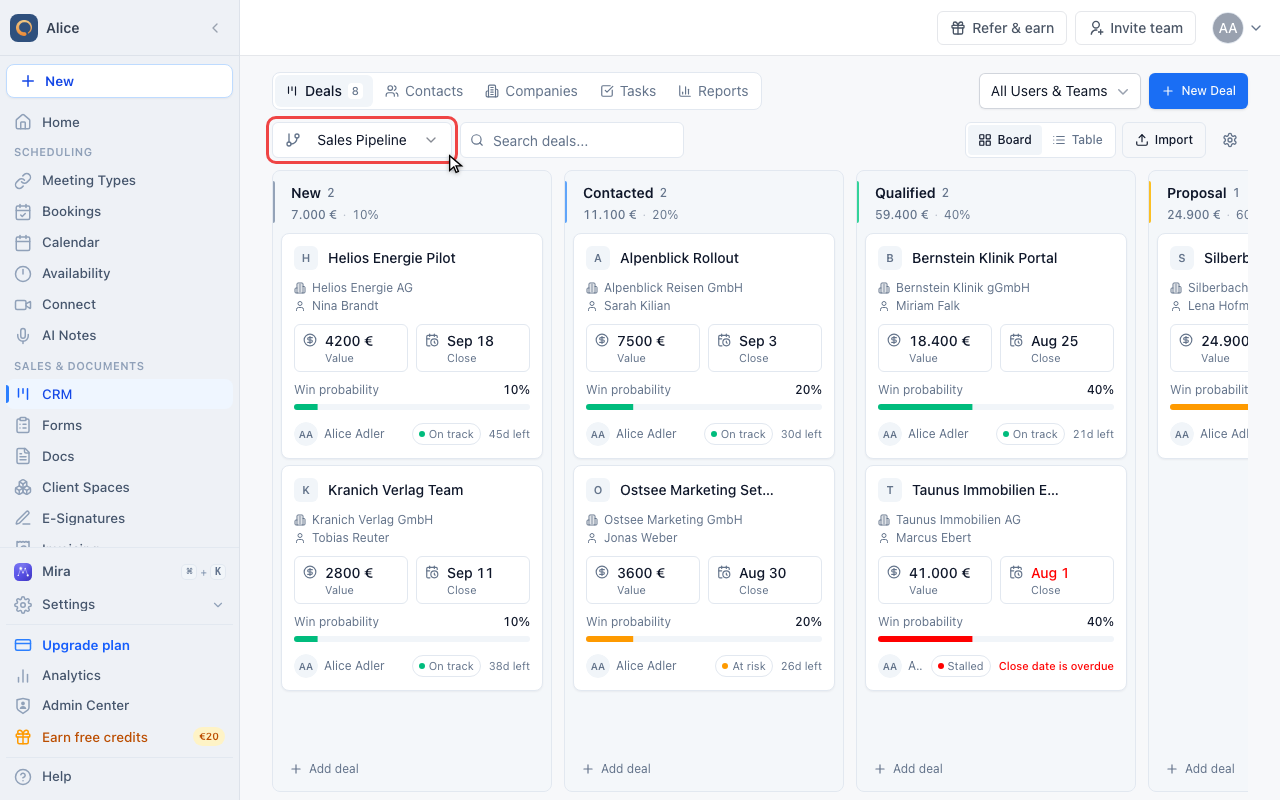
Pick a pipeline
The board shows one pipeline at a time. Switch pipelines here when you run more than one.
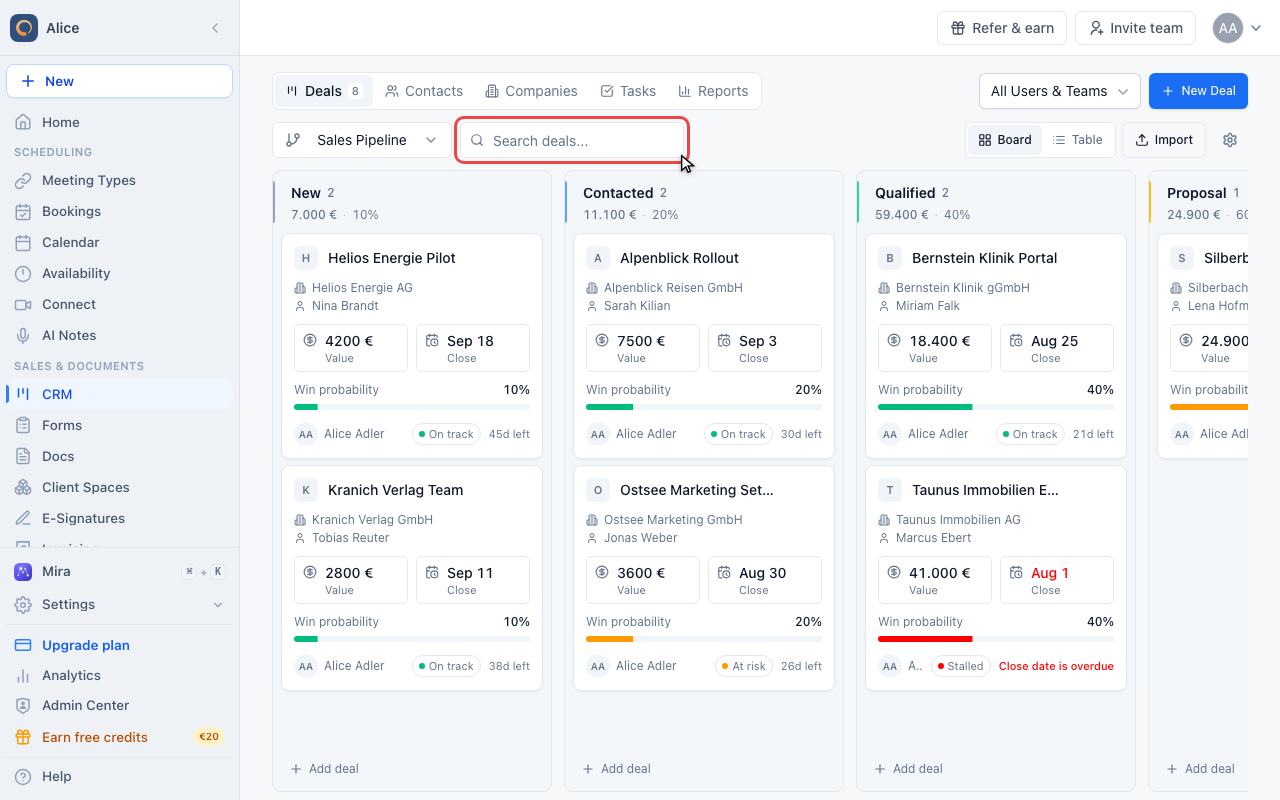
Search the board
Type to keep only the deals whose name, company or contact matches. Every column filters at once.
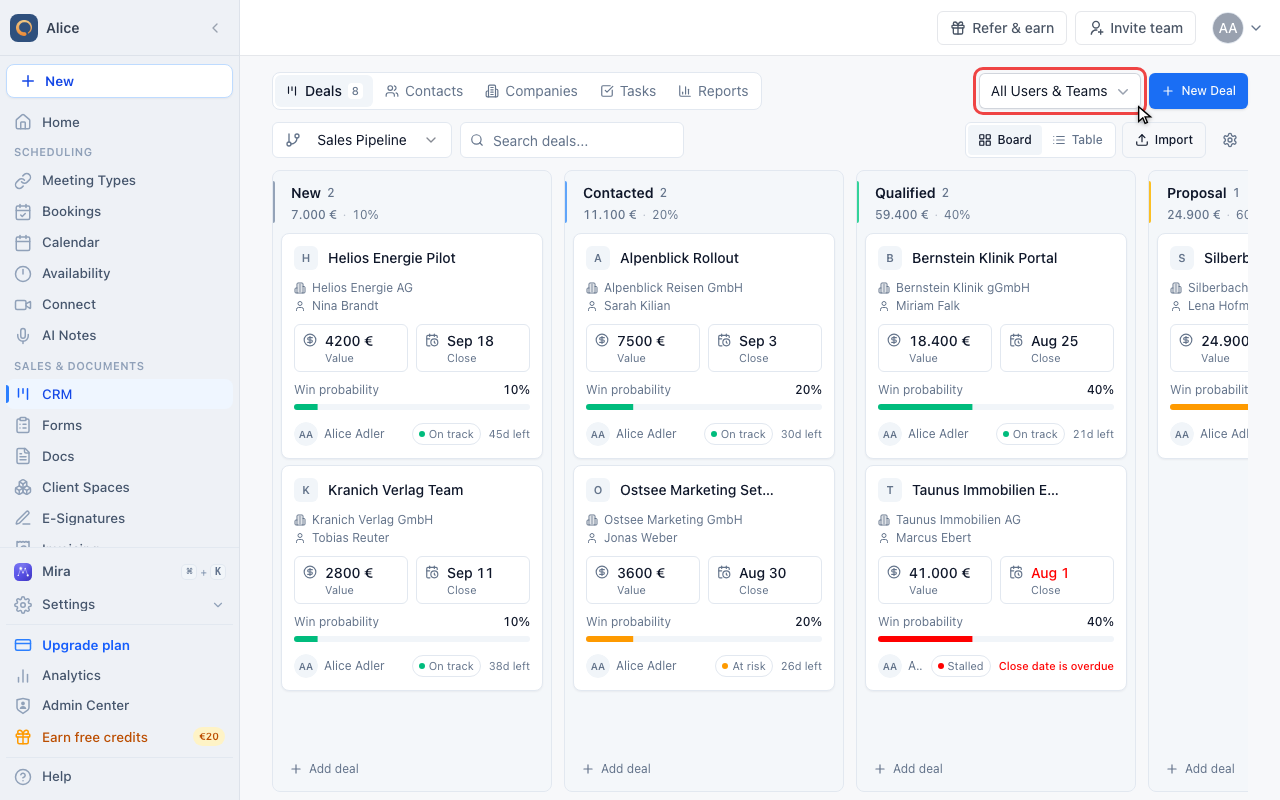
Filter by owner
Use the scope picker to switch between your own deals and everyone else on the team.
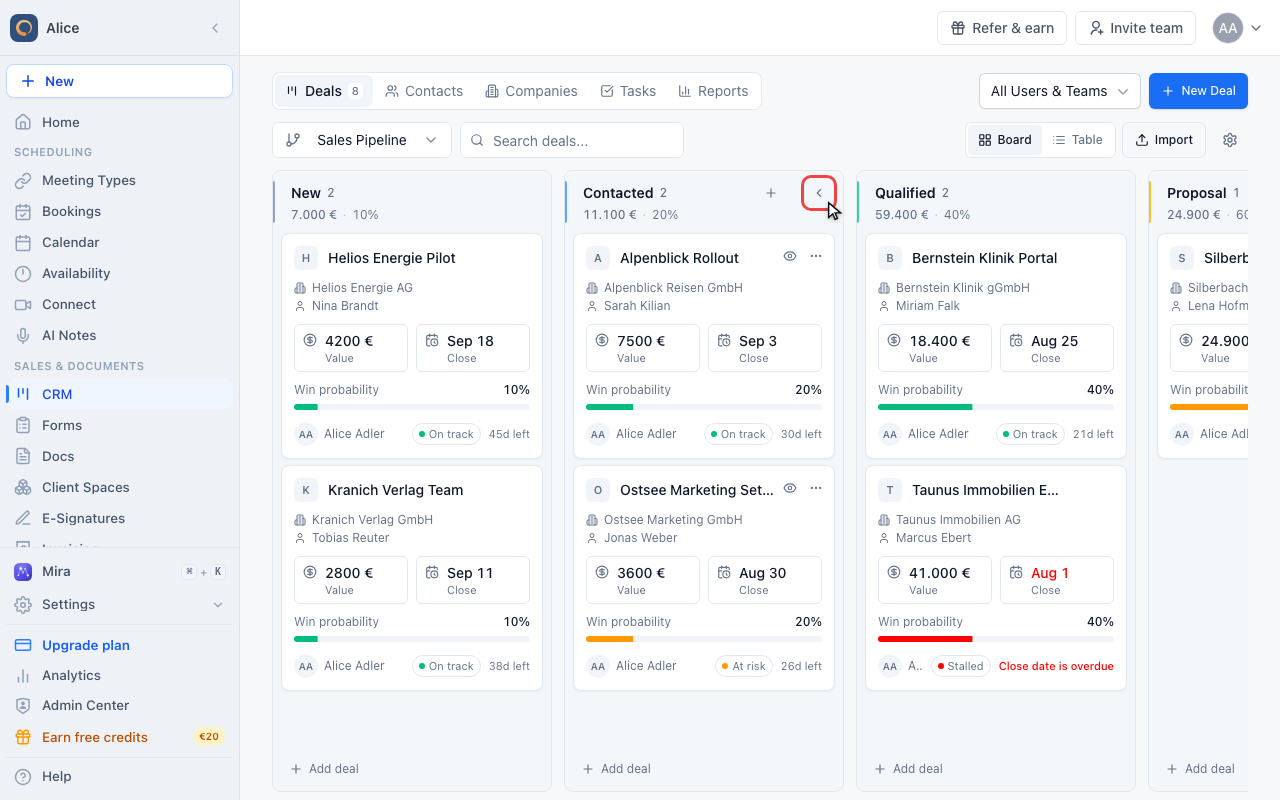
Collapse a stage
Hover a stage header and collapse it to park a stage you are not working on. The column shrinks to its name and deal count, and the rest of the pipeline gets the space.
Moving a deal to Won or Lost
The default pipeline ends in a Won and a Lost stage, so you can drag a card there like any other move. A card's menu also has Mark as Won and Mark as Lost, which do the same thing without dragging.
Moving into either stage automatically updates the deal's status and makes Archive available. Moving it back to an open stage reopens it. If your company requires a loss reason, moving to Lost asks for that reason first.
The board's Mark as Lost menu action records the reason as "Other". To capture why you actually lost it, open the deal and use Mark as Lost there. That version asks for a reason and optional notes, and stores both on the deal.
When a stage asks for more information
A pipeline stage can require custom fields before a deal is allowed to enter it. When you drop a card on such a stage, a dialog asks for those fields first. Fill them in and the move completes; cancel and the card goes back where it was.
If a deal won't move, this is almost always why. Check the target stage's required fields in Pipeline Settings (the gear beside Import).
Reordering stages
Column order follows the pipeline's stage order. Hover a stage header and drag it by its grip handle to reorder the pipeline itself, or change the order in Pipeline Settings. Either way you are changing the pipeline everywhere it is used, not just your view of it.
Adding a deal from the board
Every column has an Add deal button at the bottom, and a + appears in the stage header on hover. Both open the deal form with that stage preselected, so the deal lands in the column you started from.
Board or Table
Both views read the same deals, the same pipeline and the same filters.
| Board | Table | |
|---|---|---|
| Sorting | Manual stage and deal order | Any column |
| Changing a deal's stage | Drag and drop, or the card menu | Open the deal and pick a stage |
| Selecting several deals | No | Yes, with bulk actions |
| Fields per deal | The card summary | Every column you enable |
| Best for | Working the pipeline | Comparing and cleaning up |
Working the board
Daily scan. Read left to right and pick out the cards that need you: an overdue close date, shown in red, an At risk or Stalled badge, or a deal whose stage requirements are already met.
Pipeline reviews. Narrow to one person or team with the All Users & Teams picker, then walk the stages in order and move deals as decisions are made.
Spotting bottlenecks. A stage holding many deals and little movement is where your process is stuck. Compare the totals in the column headers, and check Pipeline Breakdown and Win Rate on the Reports tab.
Troubleshooting
A deal won't move
The target stage has required custom fields. Complete them in the dialog, or remove the requirement in Pipeline Settings.
A column is empty but should have deals
Check the search box, the pipeline selector and the All Users & Teams picker. One of the three is usually excluding them.
I can't see all my stages
The board scrolls sideways. A stage you collapsed earlier shows as a narrow strip with its name turned on its side. Click the arrow to expand it again.
Cards are different heights
A card only renders the fields the deal actually has. Deals with a company, a contact and a win probability are taller than bare ones.
FAQ
Can I reorder the columns?
Yes. Drag a stage header by its grip handle, or set the order in Pipeline Settings. Both change the pipeline, not just your view.
Is there a limit to how many deals a column holds?
No. Columns scroll on their own, but a very busy stage is easier to work through with the search box or in Table view.
Can I see deals from several pipelines at once?
No. The board shows one pipeline at a time. Switch with the pipeline selector.
Where do won and lost deals go?
They stay in the pipeline's Won and Lost stages. Switch to Table to list them alongside their close dates and values.
Does the board work on a phone?
Yes. It scrolls sideways rather than stacking, and dragging works by touch. Table view is easier for anything more involved.
Related Articles
Search the whole pipeline
Board search checks deal names, company names, and linked contacts by full name or email across the selected pipeline, including deals beyond the cards initially loaded. You can combine terms, such as a deal name and a contact surname. Pipeline and owner filters still apply. Clear the search to return to the board.
Reorder pipelines
In the pipeline selector, choose Reorder pipelines. Drag the pipelines or use the arrow buttons, then save. The order applies to everyone in your company. New pipelines appear at the end.
Archive closed deals
Open a won or lost deal and choose Archive deal, or use its card or table row menu. Archived deals disappear from the board, regular deal lists, saved views and the contact’s deal list. Their outcome, close date and reporting history stay intact.
Choose Archive in the Deals toolbar to find archived deals in the selected pipeline. Use Restore deal to return one to the regular views with its original won or lost status.
Reorder deals within a stage
Drag a deal up or down within its column. The order saves for everyone in your company and remains after reloading. With a search or owner filter active, only the visible deals change places; hidden deals keep their places. New deals and deals moved into the stage appear after manually ordered cards.
Was this article helpful?
Let us know if this article answered your questions.