
Task Management
Create, track, and complete tasks with quick shortcuts and smart scheduling
Tasks in meetergo CRM help you stay on top of follow-ups, calls, and action items. Create tasks linked to deals, set due dates and priorities, and use quick shortcuts for fast task entry.
 1 / 22
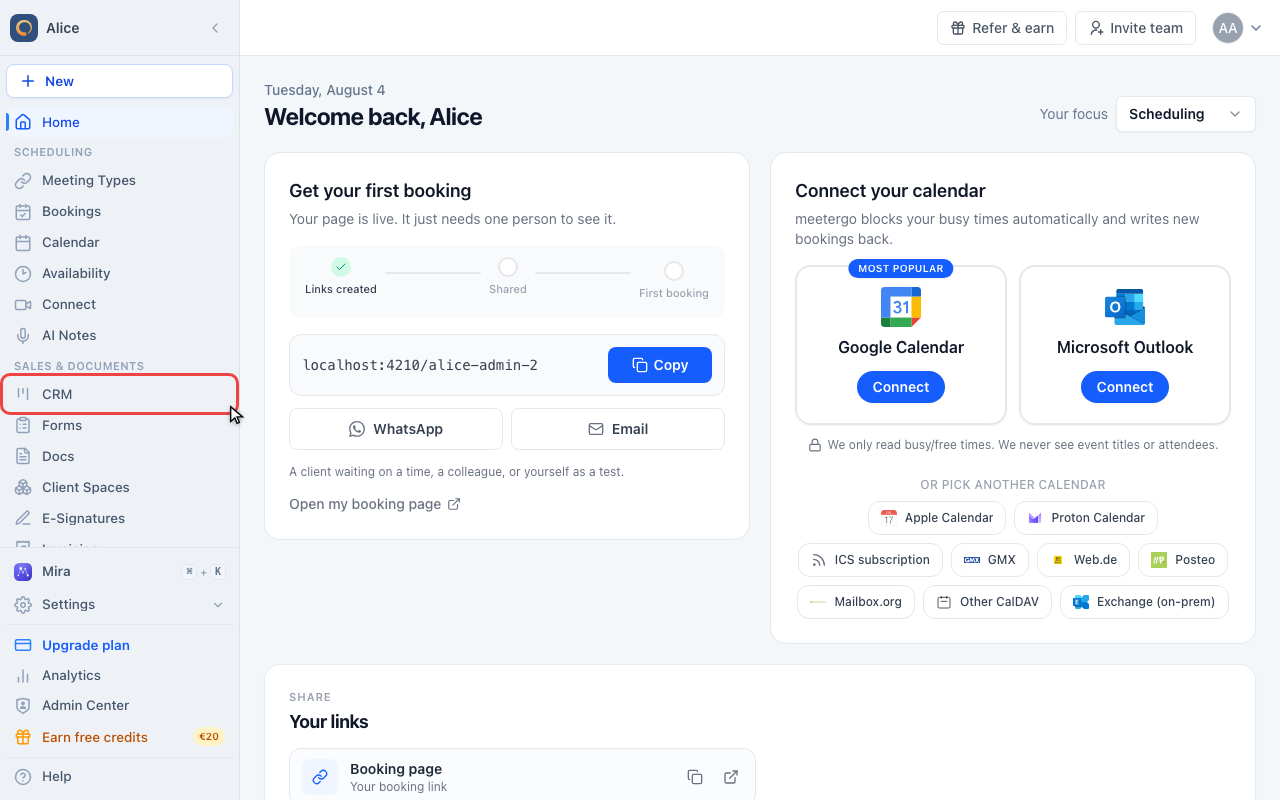
Click CRM in the sidebar.
For new tasks, including quick-add, the reminder defaults to the due date and follows changes in the full form until you edit or clear the reminder yourself. Existing tasks keep their saved reminder. You can choose a different reminder date or clear it to turn the reminder off.
Find your tasks
Open CRM
Click CRM in the sidebar.
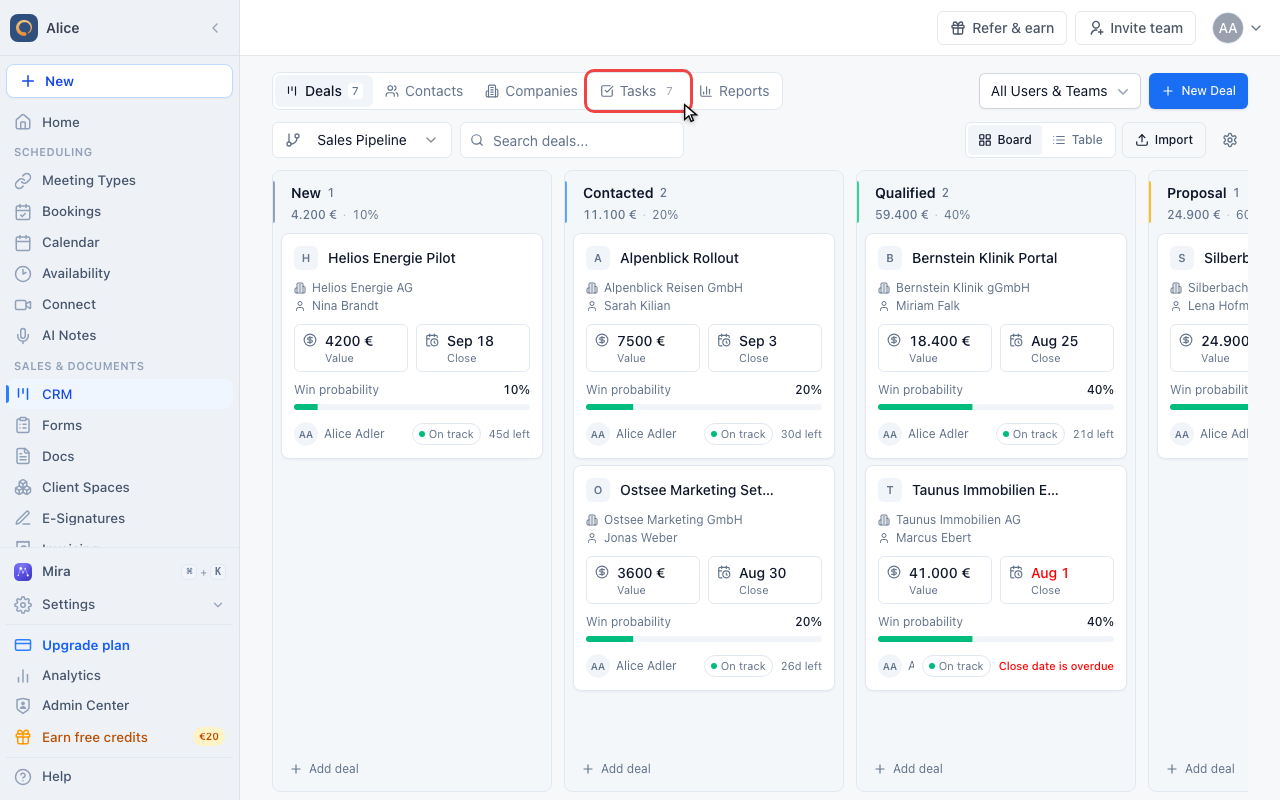
Go to Tasks
Tasks is one of the tabs in the CRM navigation, beside Deals, Contacts and Companies.
Read the grouped list
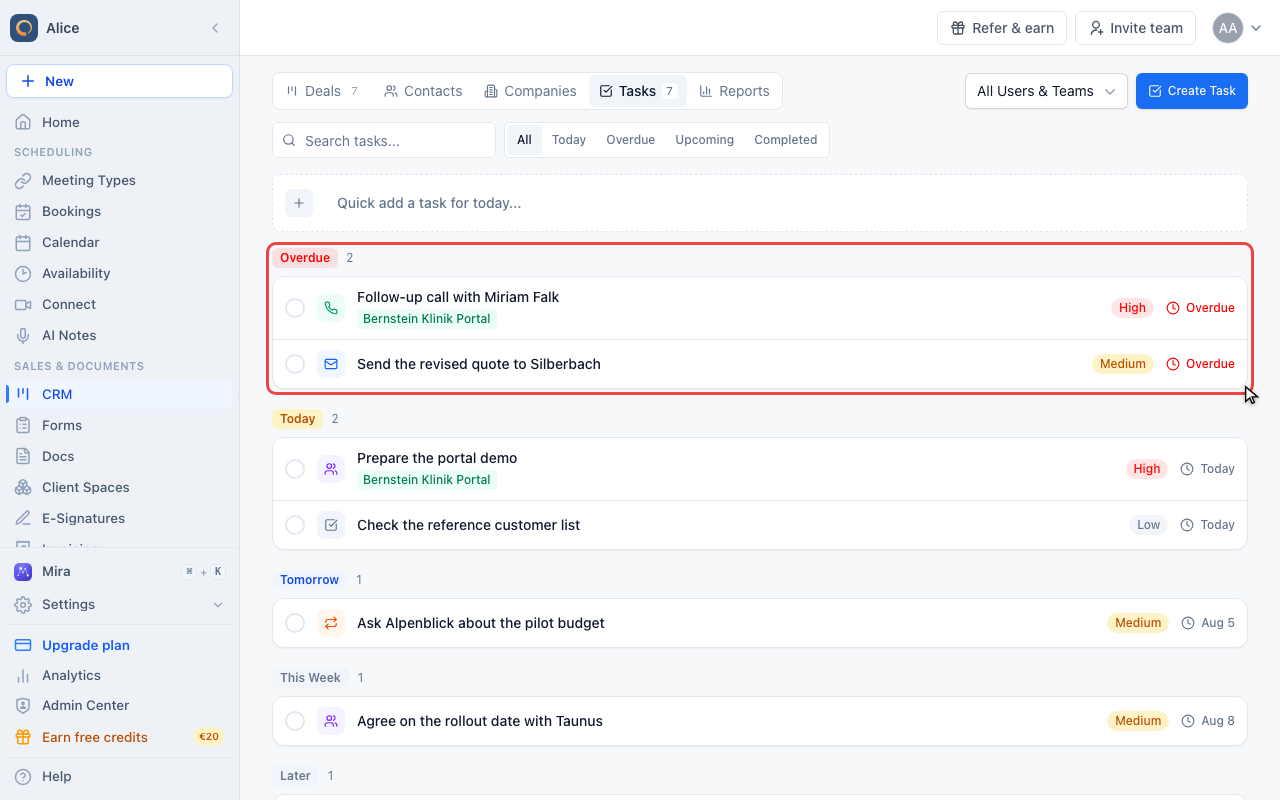
Tasks are grouped by when they are due: Overdue, Today, Tomorrow, This Week, Later and Completed. Empty groups are hidden, and within a group the highest priority comes first, so the top of the page is always the work that is most urgent.
If more tasks are available, click Load more below the list. The additional tasks appear in their due-date groups, including Later.
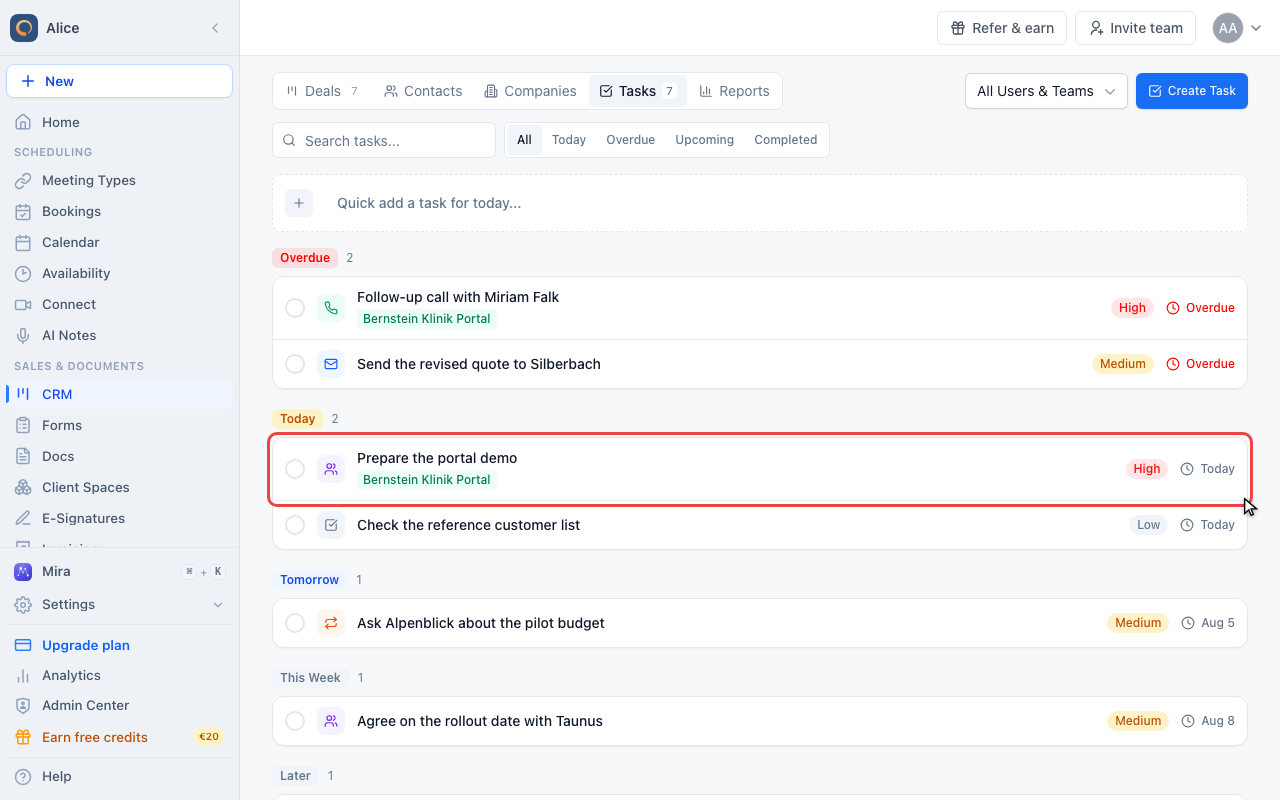
Read a task row
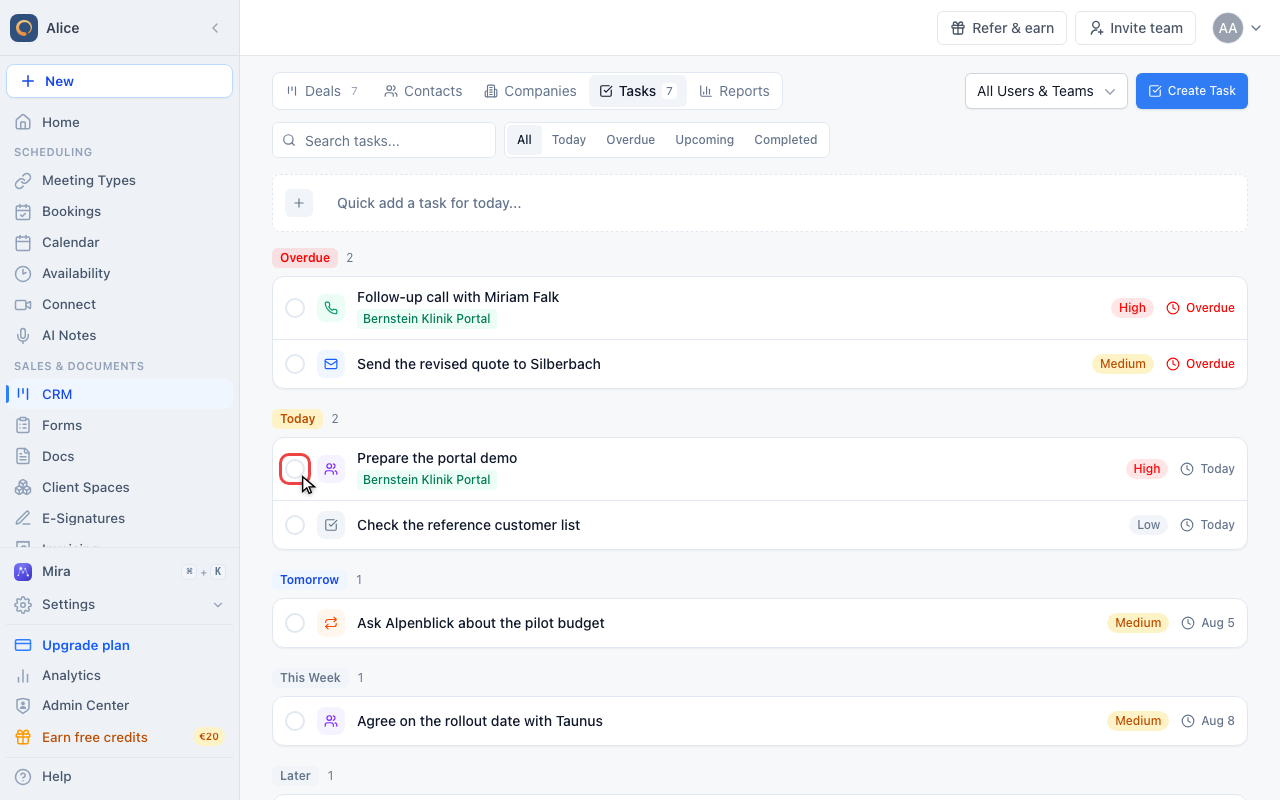
A row is the completion circle, the type icon, the title, the deal or contact it belongs to, the priority and the due date. Overdue dates are red and today reads "Today" rather than a date.
Search and filter by date
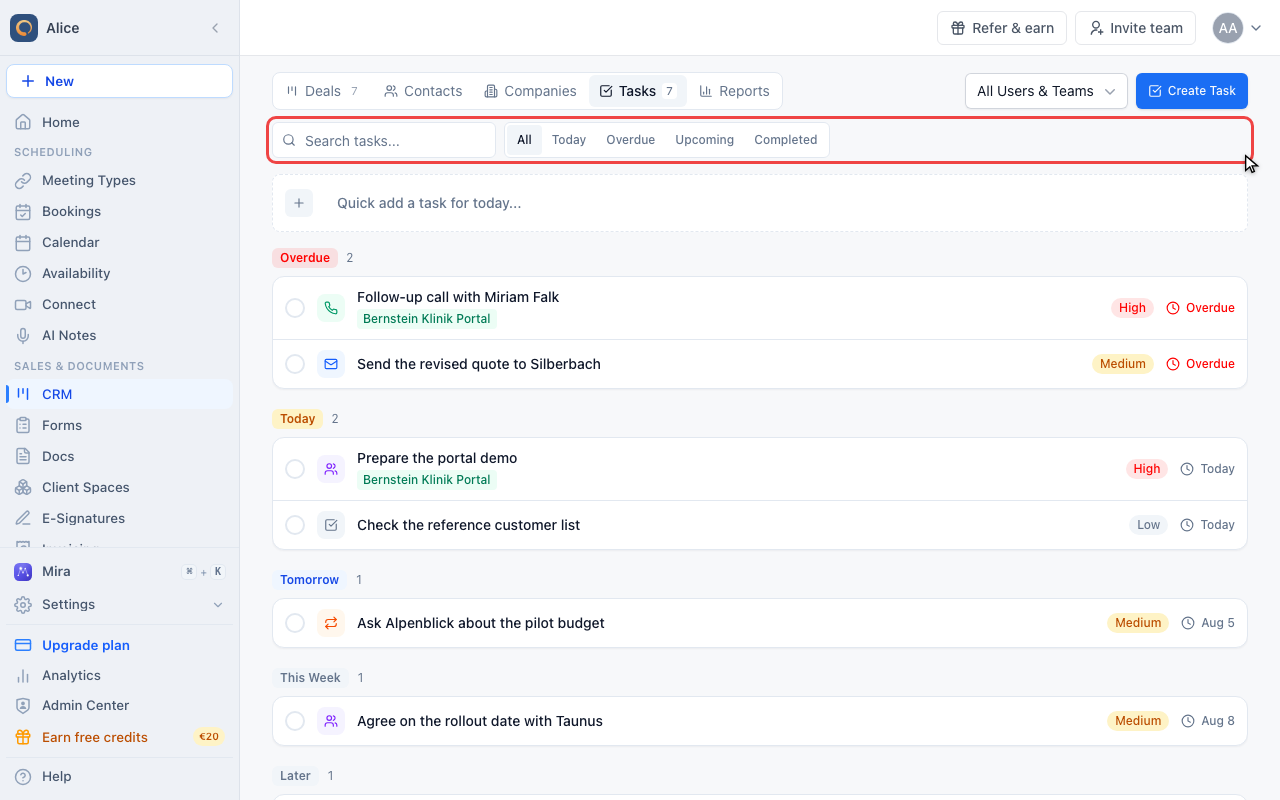
The search box matches task titles. The control beside it narrows the list to All, Today, Overdue, Upcoming (the next seven days) or Completed. There is no filter for type or priority.
Switch whose tasks you see
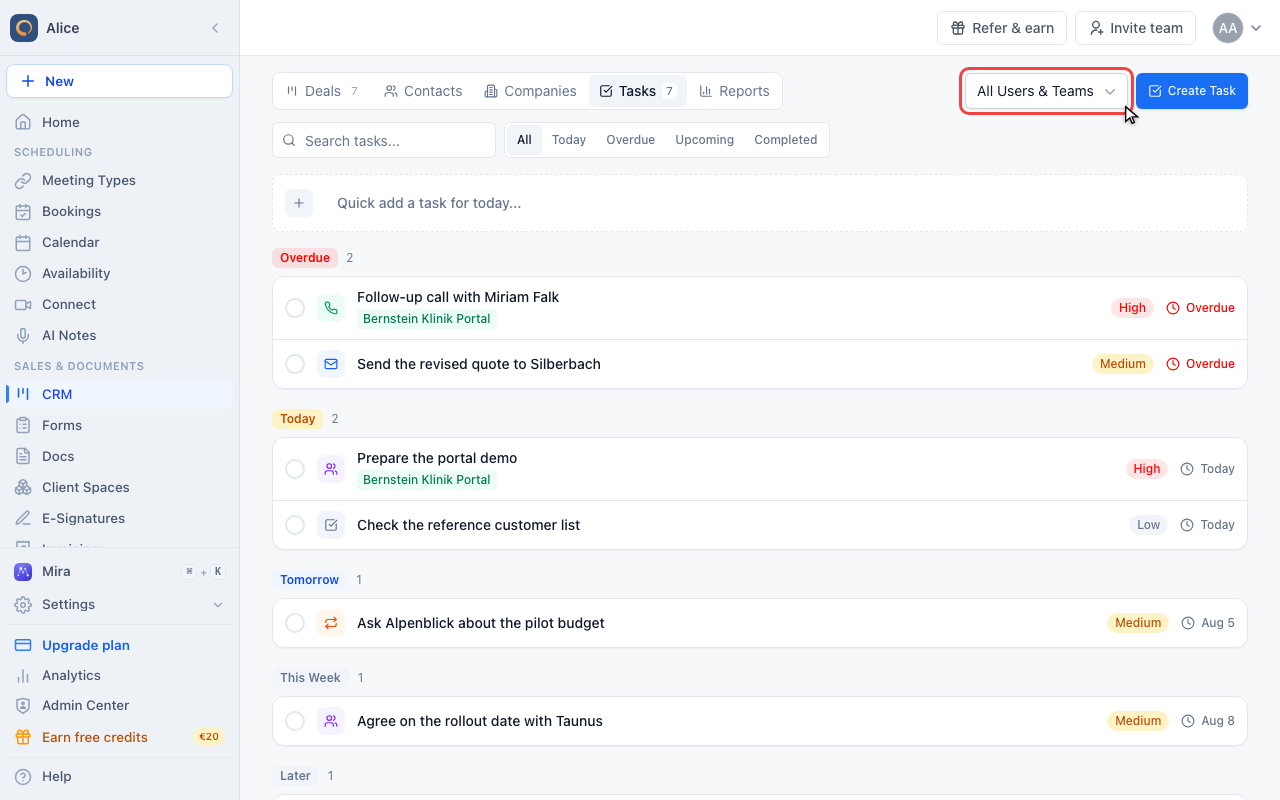
The scope picker above the list is what filters by person. It shows either everyone, one team, or a single colleague, and it applies to the assignee rather than the creator.
Add a task in one line
Type the task in the quick-add bar
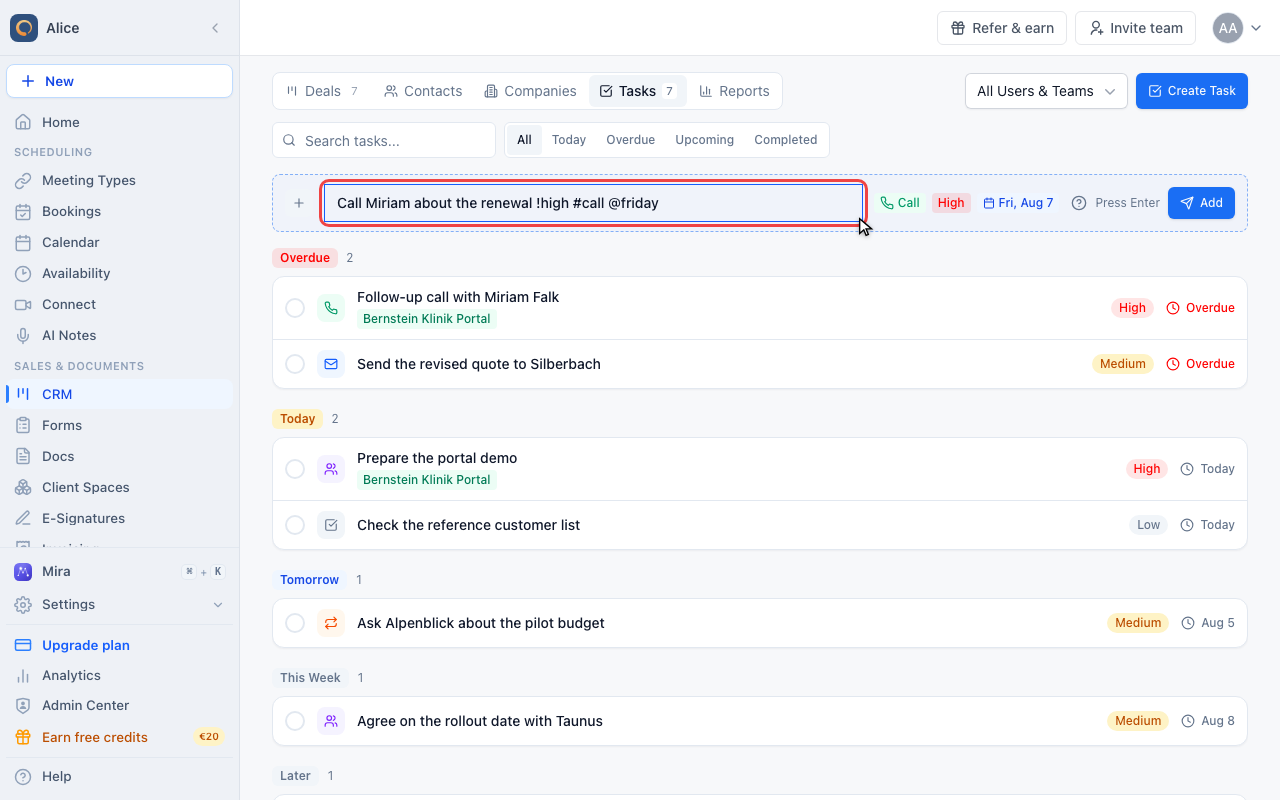
The dashed bar above the list creates a task without opening a form. Type what needs doing and add shortcuts: !high for priority, #call for the type and @friday for the due date. The chips on the right show what was recognised before you commit.
Check the shortcuts
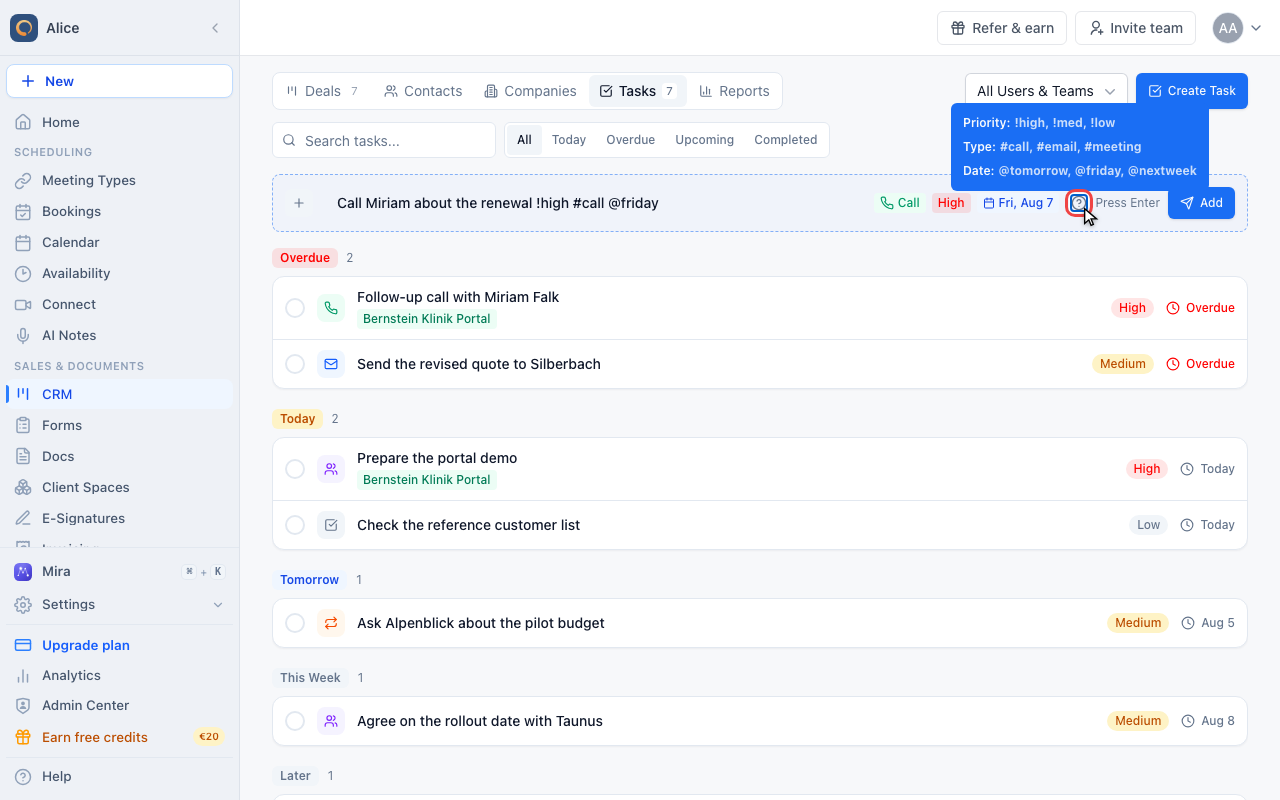
The question mark beside the bar lists the shortcuts. Press Enter or click Add to create the task; it is assigned to you, and anything you left out falls back to a to-do of medium priority due today.
Create a task with the full form
Open Create Task
Create Task at the top right opens the full form, which is where the fields the quick-add bar cannot set live.
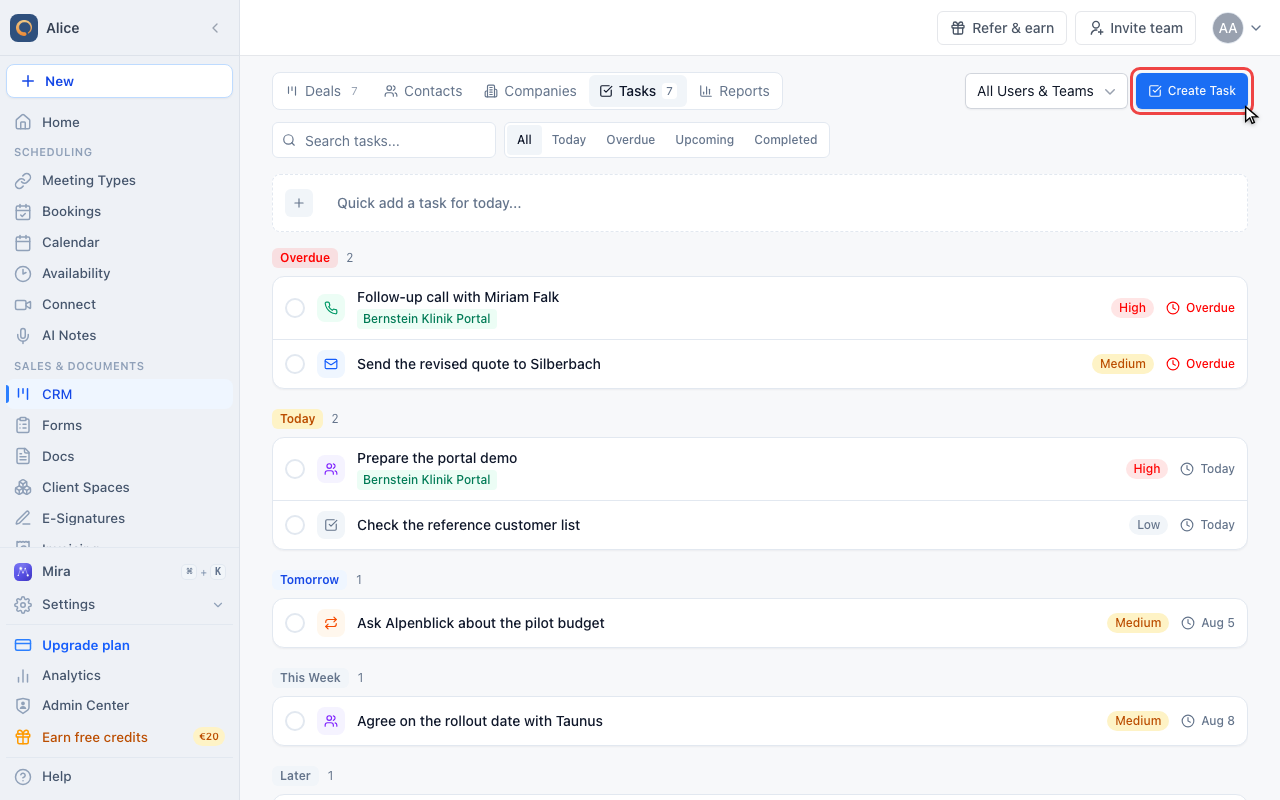
Name the task
The title is required and is what the list shows. Write the outcome, not the topic: "Call Miriam Falk about the renewal terms" beats "Call Miriam".
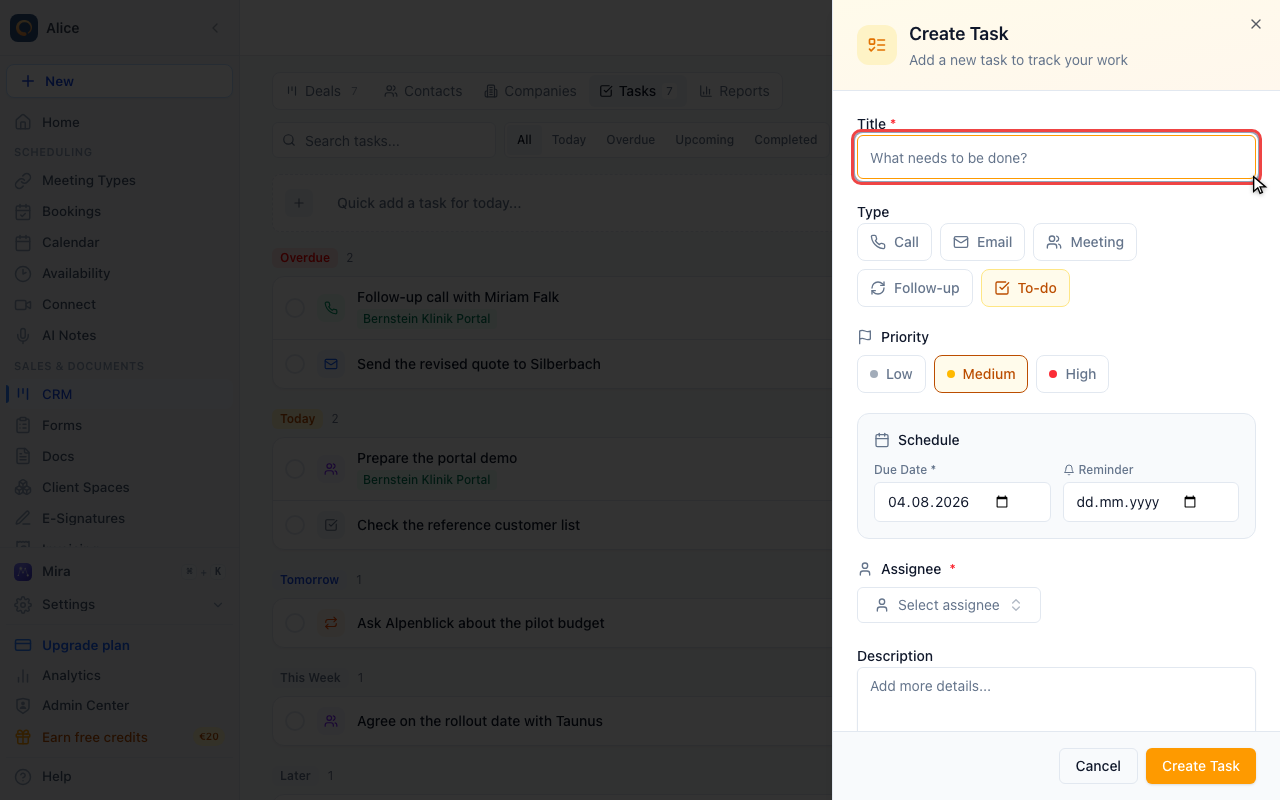
Pick a type
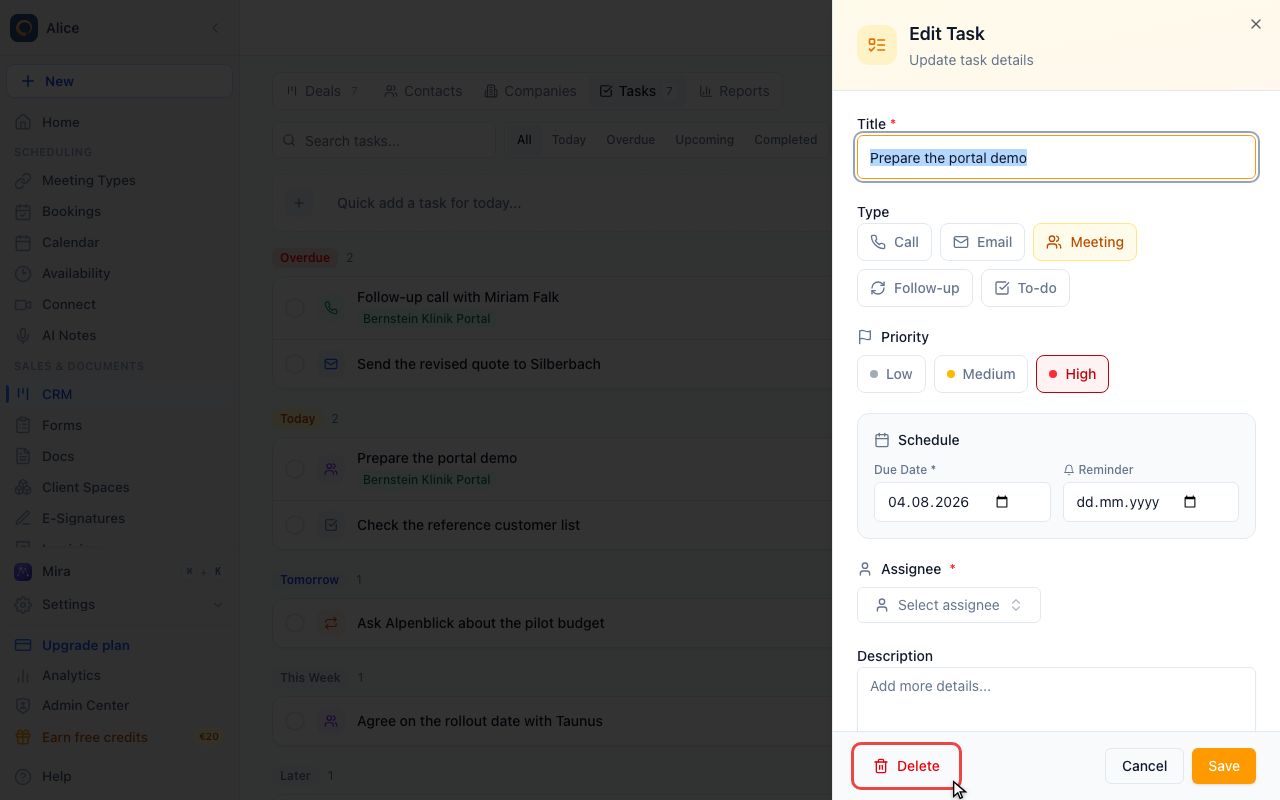
Call, Email, Meeting, Follow-up and To-do. The type is only a label and an icon in the list, so pick one and use it the same way across the team.
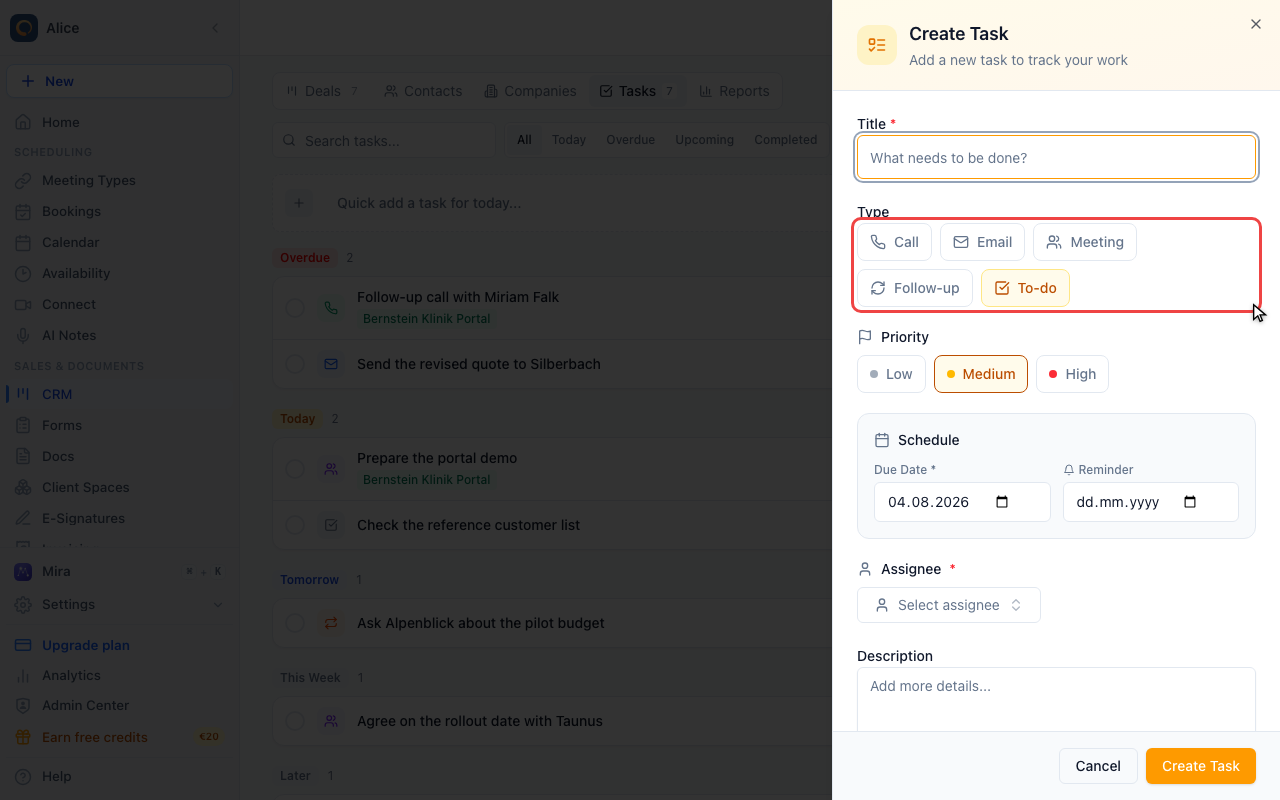
Set the priority
Low, Medium or High. Priority sorts the tasks inside a due-date group, so it decides what you see first on a busy day.
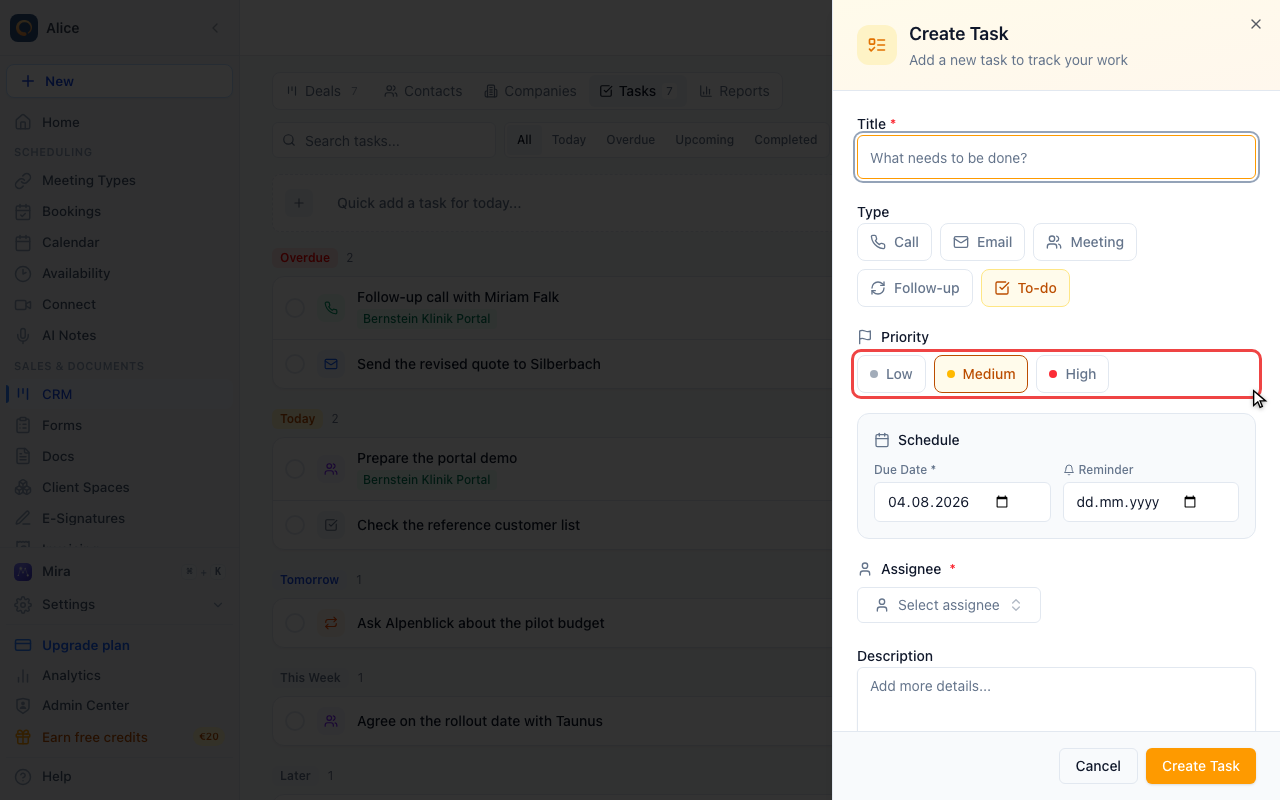
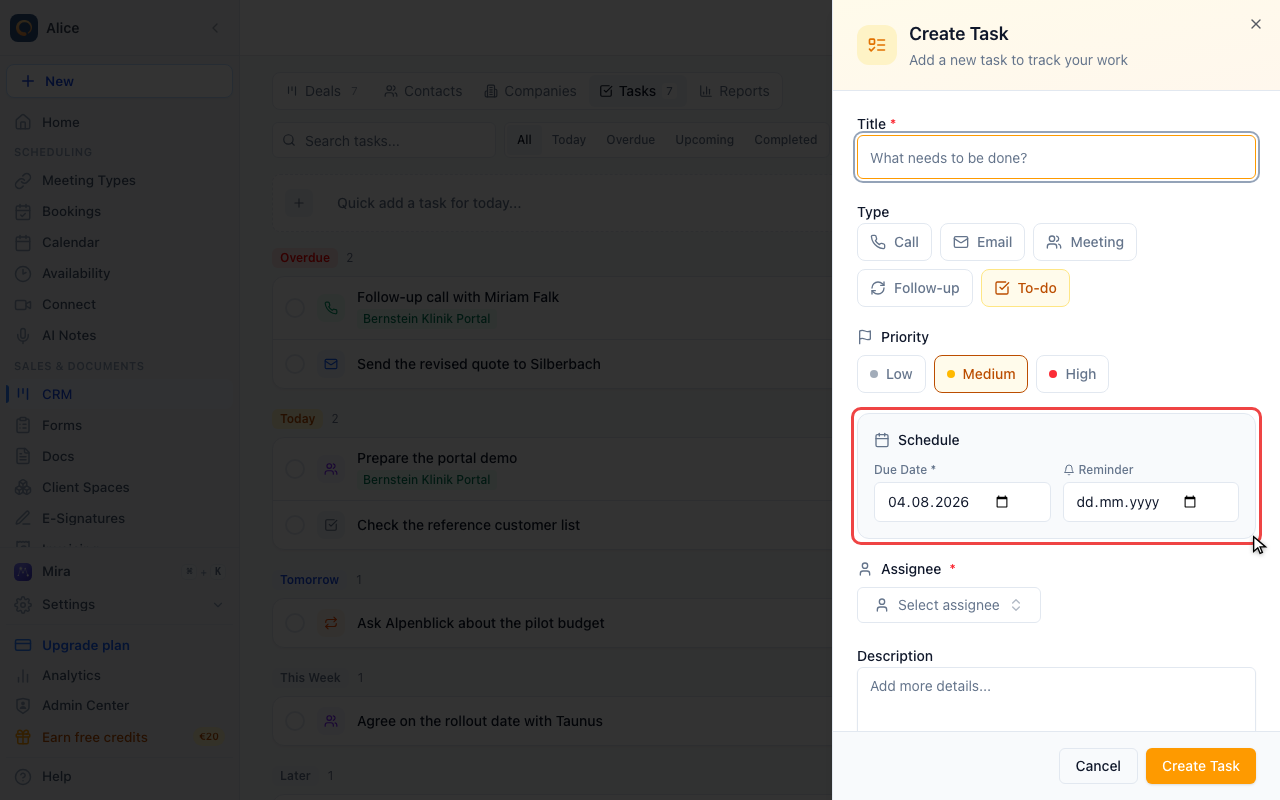
Set the due date and a reminder
The due date is required and defaults to today. The optional reminder beside it starts with the same date. You can change or clear it. Both fields use a date, not a time.
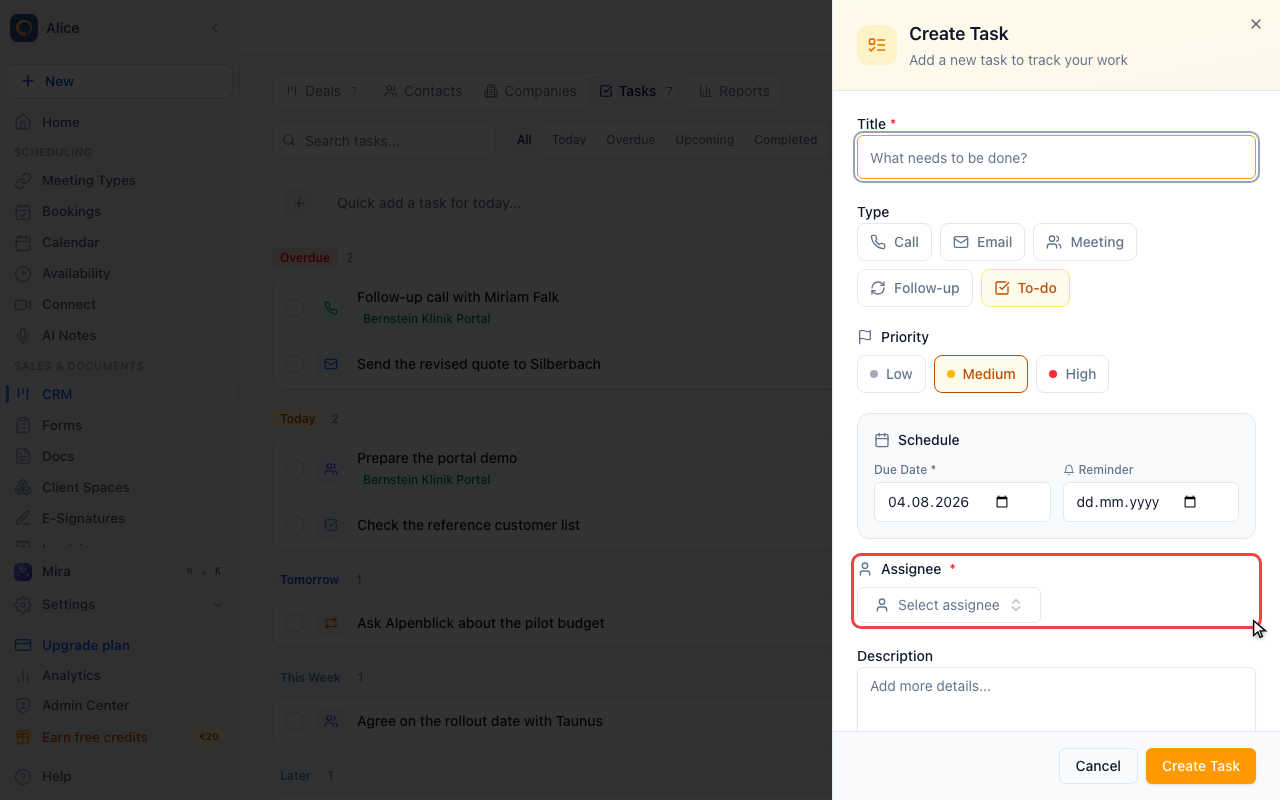
Choose who is responsible
An assignee is required. Pick a colleague and the task lands in their list; leave yourself and it stays in yours. Below it, Description is free text for anything the title cannot carry.
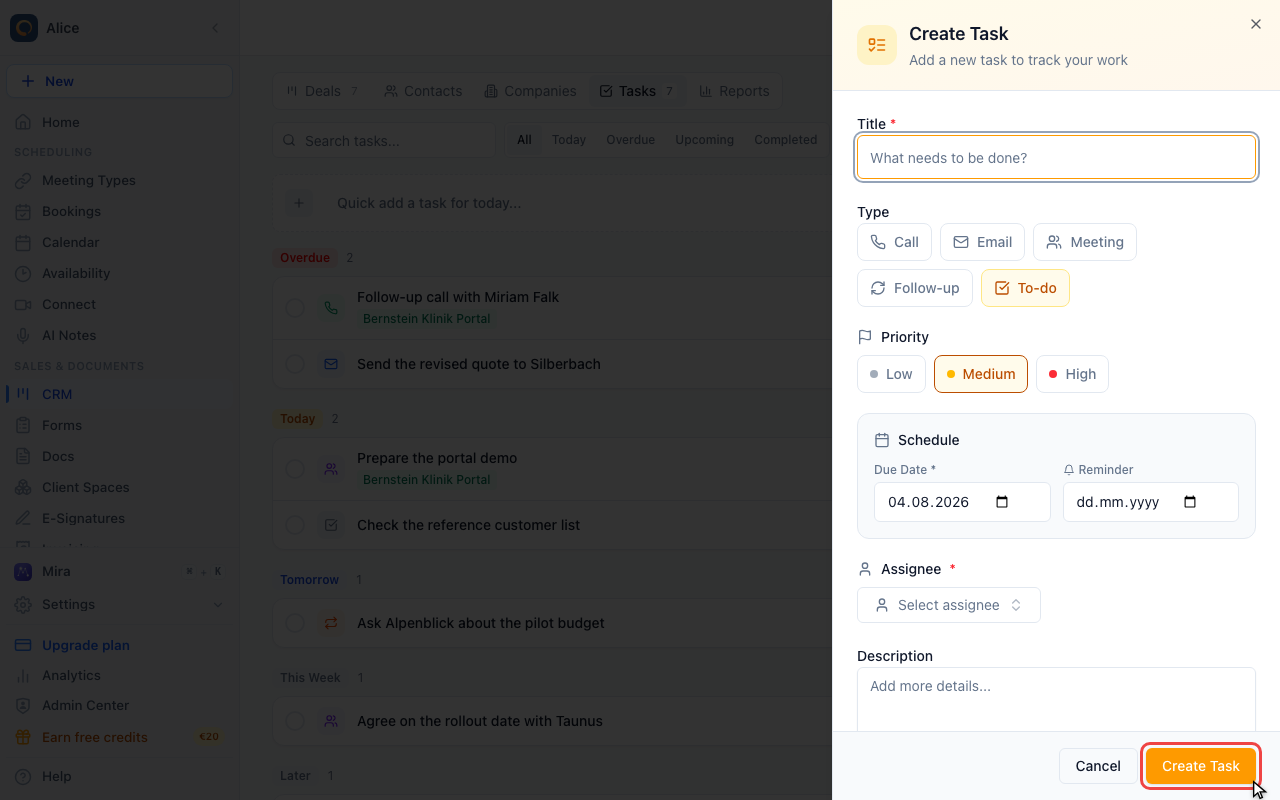
Create the task
Create Task saves it. There is no field for a deal or a contact here, so a task created this way is unlinked. To link one, create it from the deal instead.
Work through a task
Tick a task off
The circle on the left of a row marks the task done. It turns green, the title is struck through and the row moves to the Completed group. Clicking it again reopens the task.
Open a task
Clicking anywhere else on the row opens the task for editing.
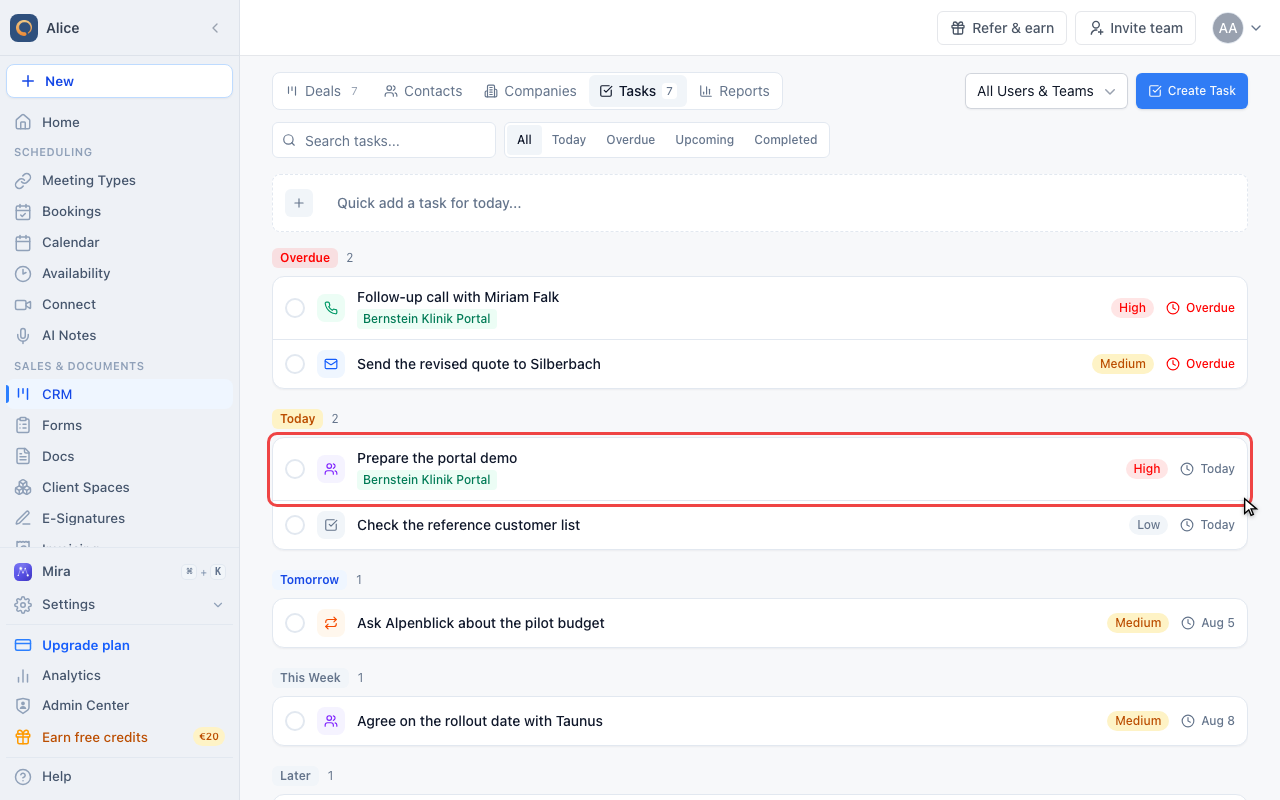
Edit or delete it
The same form reopens with the values filled in; Save writes the changes. Delete at the bottom left removes the task immediately, with no confirmation, so read the title before you use it.
Tasks on a deal
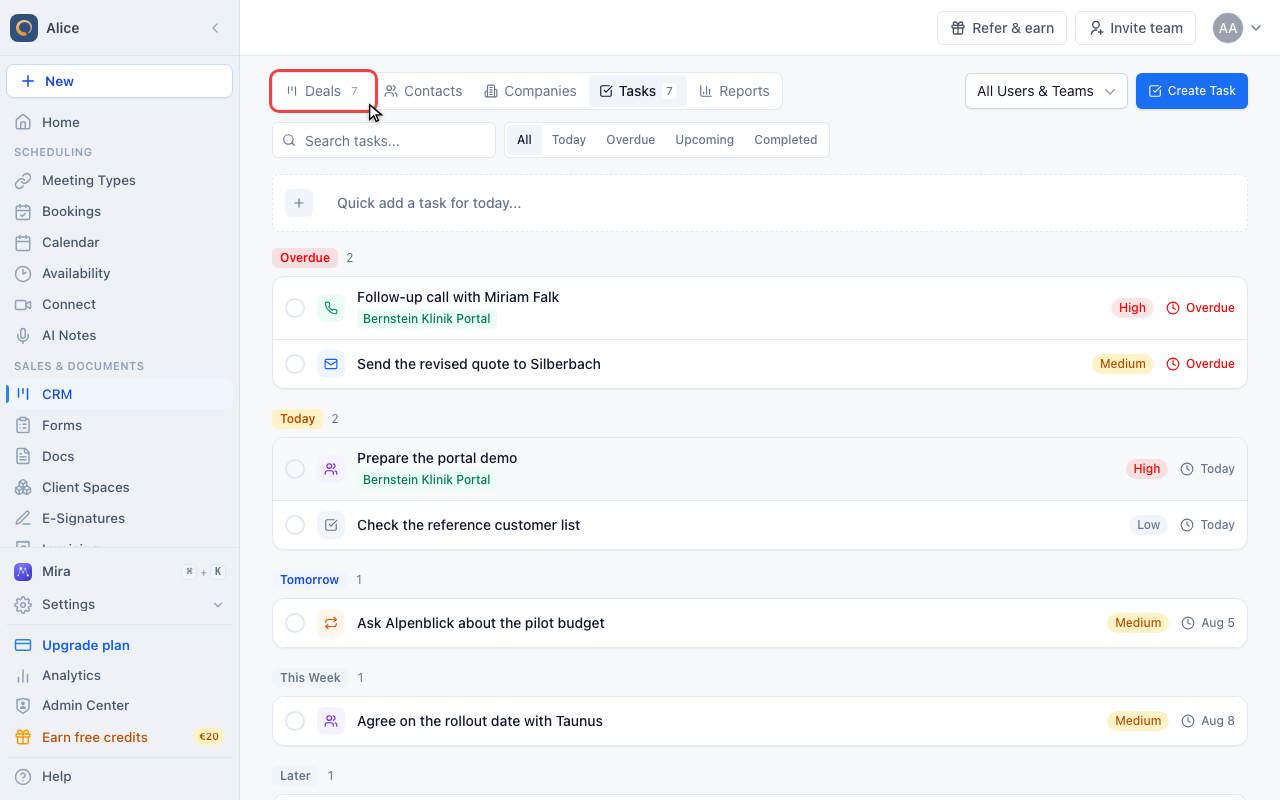
Go to Deals
A task gets its deal link from the deal, not from the task form. Start on the Deals tab.
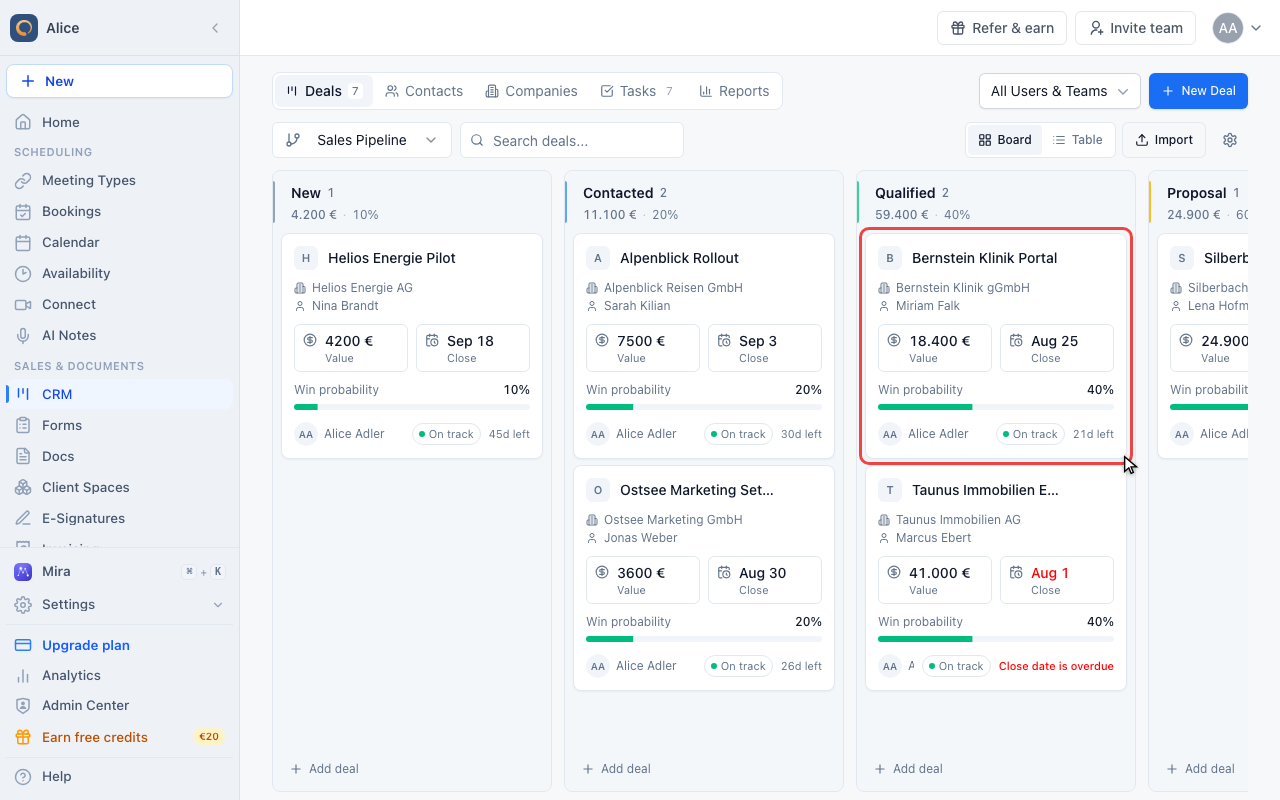
Open a deal
Click the deal you want the task attached to.
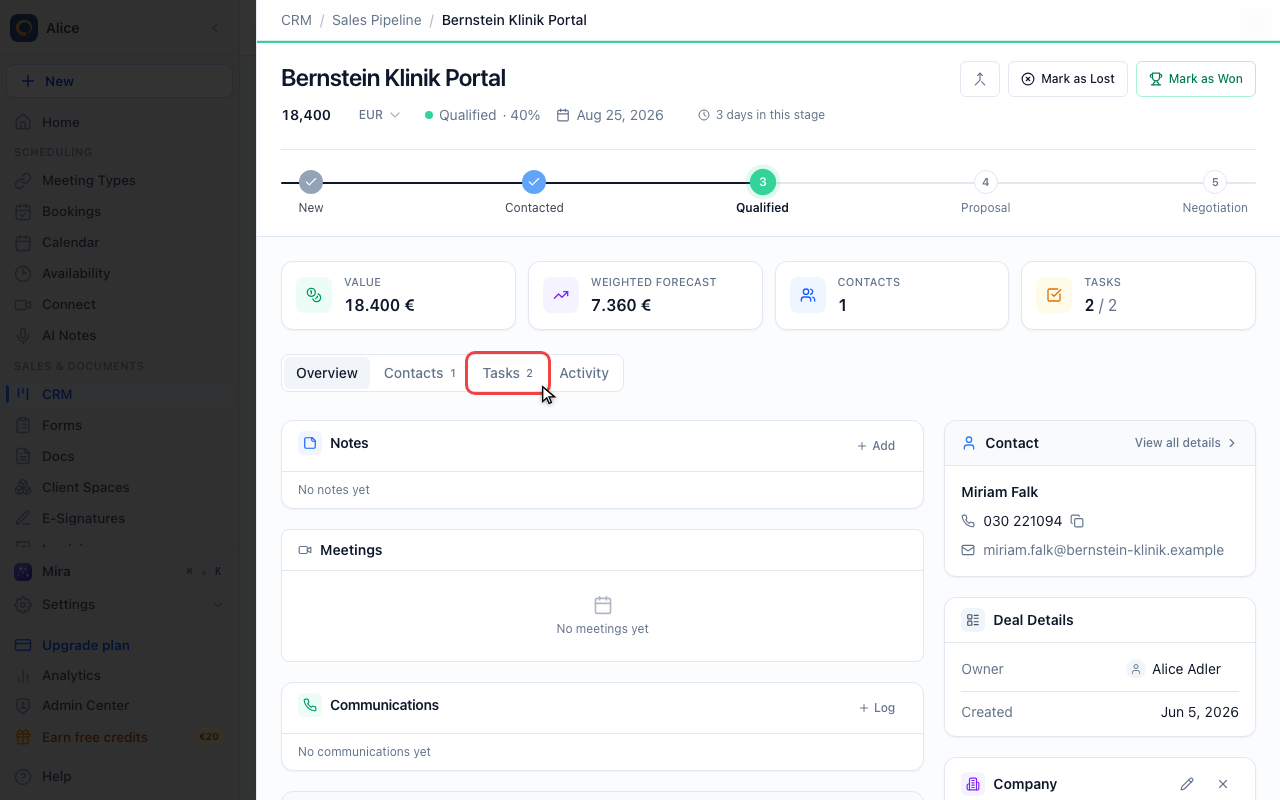
Open its Tasks tab
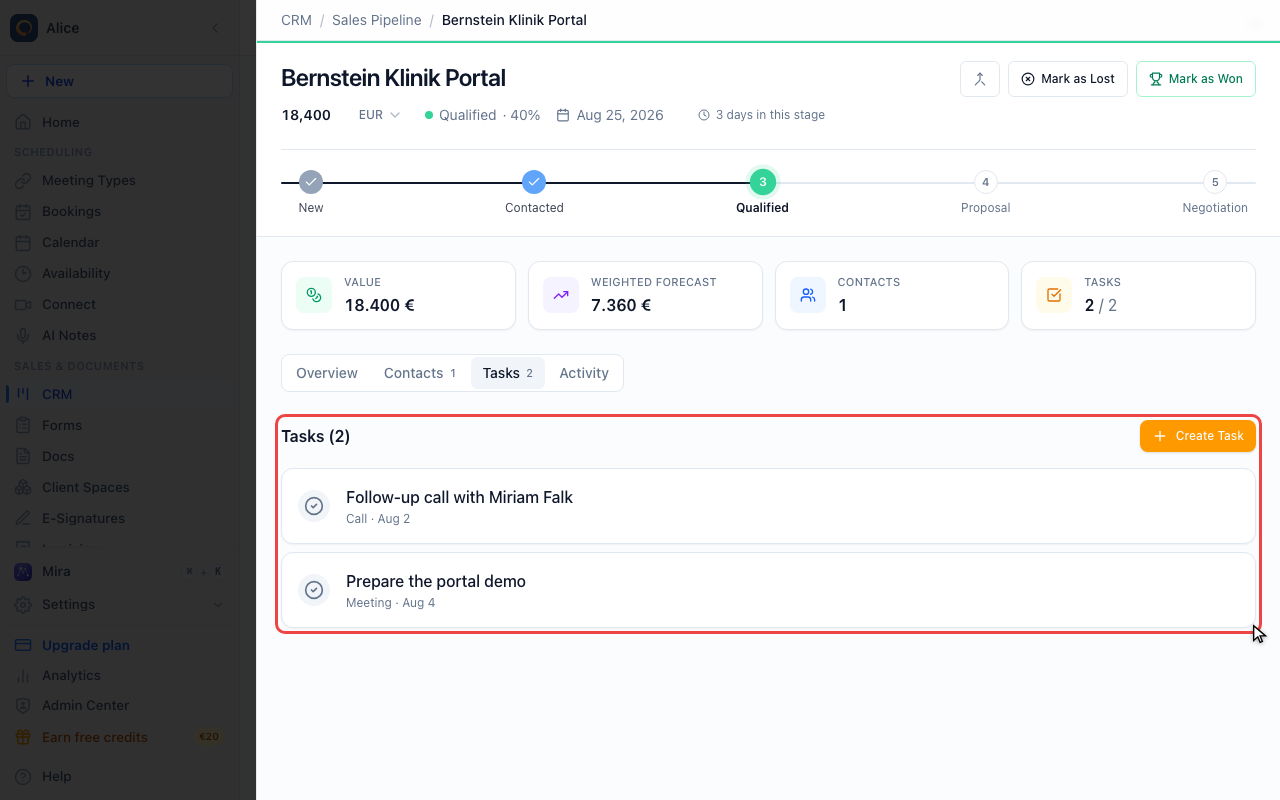
The Tasks tab of the deal record lists only that deal’s tasks. The number beside the metric above it counts the open ones against the total.
Create a task on the deal
Create Task here opens the same form, with the deal already attached. From then on the task shows the deal chip in the global list, and clicking a task in this tab reopens it for editing.
What a task is made of
The full form and the quick-add bar write the same fields.
| Field | What it does | Required |
|---|---|---|
| Title | What needs to be done. This is what the list shows. | Yes |
| Type | Call, Email, Meeting, Follow-up or To-do. Sets the icon in the list. | No, defaults to To-do |
| Priority | Low, Medium or High. Sorts the task inside its due-date group. | No, defaults to Medium |
| Due Date | The day the task is due. Decides which group it lands in. | Yes, defaults to today |
| Reminder | A second date, stored with the task. | No |
| Assignee | Whose list the task appears in. | Yes |
| Description | Free text for context the title cannot carry. | No |
When the reminder is due, you get an in-app notification and an email. Every morning at 08:00 in your timezone you also get one email with your overdue tasks, tasks due today and today's contact birthdays. Overdue tasks stay in it every day until they are done. Turn it off under CRM > Tasks.
There is no field for a deal or a contact in the form. A task picks up a deal by being created from that deal's Tasks tab.
Task types
| Type | Icon | Use for |
|---|---|---|
| Call | Phone | Phone calls to make |
| Envelope | Emails to send | |
| Meeting | People | Meetings to schedule or prepare |
| Follow-up | Circular arrows | General follow-ups |
| To-do | Checked square | Everything else |
The type is a label and an icon. It does not change how the task behaves, and you cannot filter the list by it, so its value comes from your team using it consistently.
Quick-add shortcuts
Anything you type into the quick-add bar becomes the title, minus the shortcuts it recognises. Shortcuts can go anywhere in the line and are not case sensitive. What you leave out falls back to a To-do of Medium priority, due today, assigned to you.
Date shortcuts
| Shortcut | Result |
|---|---|
@today | Due today |
@tomorrow, @tom | Due tomorrow |
@nextweek, @week | Due in seven days |
@monday, @mon | Next Monday |
@tuesday, @tue | Next Tuesday |
@wednesday, @wed | Next Wednesday |
@thursday, @thu | Next Thursday |
@friday, @fri | Next Friday |
Weekday shortcuts always mean the next one: on a Thursday, @thursday is a
week away. There are no shortcuts for Saturday or Sunday.
Priority shortcuts
| Shortcut | Result |
|---|---|
!high, !h | High priority |
!medium, !med, !m | Medium priority |
!low, !l | Low priority |
Type shortcuts
| Shortcut | Result |
|---|---|
#call, #phone | Call |
#email, #mail | |
#meeting, #meet | Meeting |
#followup, #follow | Follow-up |
#todo | To-do |
Combined example
Call Sarah about renewal !high #call @thursday
Creates a Call titled "Call Sarah about renewal", High priority, due next Thursday, assigned to you.
How the list is organised
Tasks are grouped by due date rather than listed flat:
| Group | Contains |
|---|---|
| Overdue | Due before today and not completed |
| Today | Due today |
| Tomorrow | Due tomorrow |
| This Week | Due within the next seven days |
| Later | Due after that |
| Completed | Ticked off, whatever the due date |
Empty groups are hidden. Inside a group, High priority comes first. A row shows an overdue date in red; a task due today reads "Today" instead of a date.
The date control above the list narrows it to All, Today, Overdue, Upcoming (the next seven days) or Completed. The scope picker beside the CRM navigation filters by the person the task is assigned to. Those two plus the search box are the only filters. There is no filter by type or by priority.
The Tasks tab in the CRM navigation carries a badge with the number of open tasks. That badge counts everyone's tasks and does not follow the scope picker.
Tasks and deals
A deal's Tasks tab lists only that deal's tasks, and Create Task there attaches the deal for you. In the global list those tasks show a green chip with the deal name under the title; the chip is a label, not a link, so use the Deals tab to open the deal itself.
Above the tabs, the deal's Tasks metric reads open tasks over total tasks,
for example 2 / 2.
Best practices
- Write the outcome, not the topic. "Call John Smith to discuss Q2 renewal terms" beats "Call John".
- Keep High for what is genuinely urgent. Priority is what sorts a busy day; if everything is High, nothing is.
- Use the types the same way across the team, since they are the only signal about what kind of work a row is.
- Start the day with the Overdue group and work down.
- Create anything deal-related from the deal, so the task carries its context.
Task metrics
Pending, overdue, due-today and completed counts plus your completion rate are tracked for you and your team. They live in the CRM Reports view, described under Task Metrics.
FAQ
Can I set recurring tasks?
No. Tasks are one-time. Create a new task when the previous one is complete.
Can I see tasks in my calendar?
No. Tasks are CRM-specific and do not appear in your calendar. For something with a time and attendees, schedule a meeting instead.
What happens to tasks when a deal is closed?
Tasks stay attached to the deal. You can still complete them after it is won or lost.
Can I attach files to tasks?
No. Attachments live on deals, contacts and companies. Add the file to the related record instead.
Are tasks synced anywhere?
No. Tasks exist in meetergo CRM and do not sync to external task managers.
Can I complete several tasks at once?
No. There is no multi-select in the task list. Tick each task off with its circle.
Does deleting a task ask for confirmation?
No. Delete in the open task removes it immediately, and it cannot be undone.
Related Articles
Was this article helpful?
Let us know if this article answered your questions.