
Configure full day availability
Set up a positive full-day availability exception so meeting types with a one-day-or-longer duration show bookable slots.
If you want to use a meeting type with a duration of one day or more, you need to set up a positive availability rule. This allows you to make yourself available for an extended period.
If no slots appear for a full-day meeting type, check whether your availability covers the entire day. A normal 08:00-17:00 schedule is not enough for a 24-hour booking.
 1 / 5
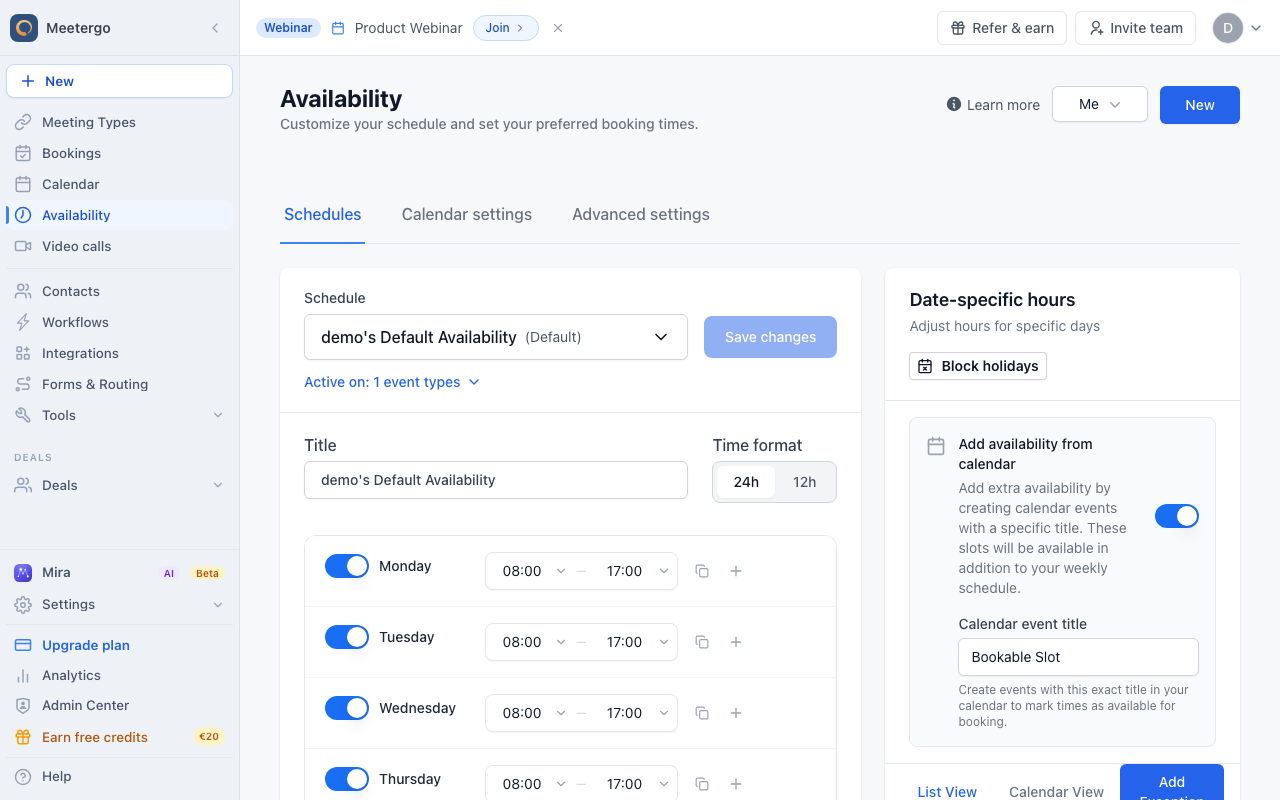
1 / 5Use Date-specific hours when a full-day meeting type needs extra availability beyond your weekly schedule.
Open date-specific hours
Find Date-specific hours
Use Date-specific hours when a full-day meeting type needs extra availability beyond your weekly schedule.
Create a full-day available rule
Click Add Exception
Click Add Exception to create a date-specific rule for the day that should become bookable.
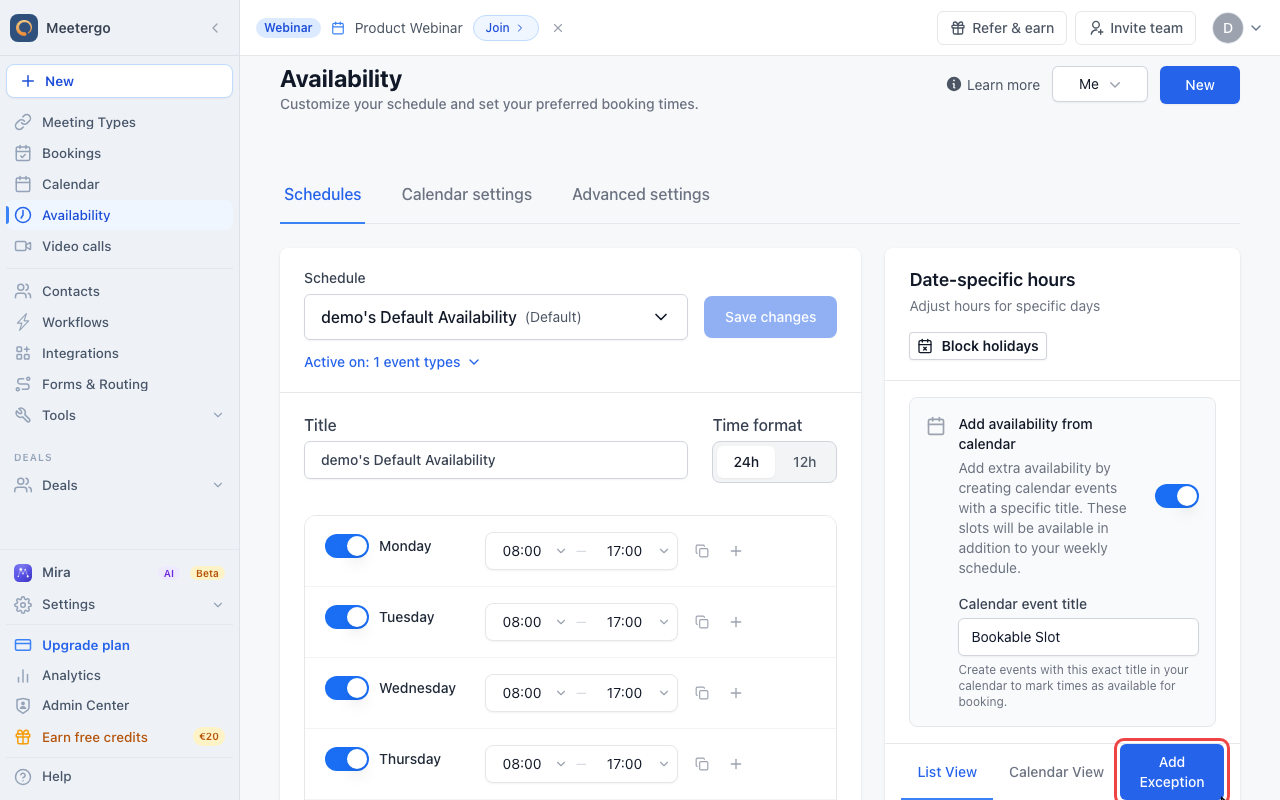
Select a date
Pick the date you want to make available. You can select multiple dates if the same full-day rule should apply more than once.
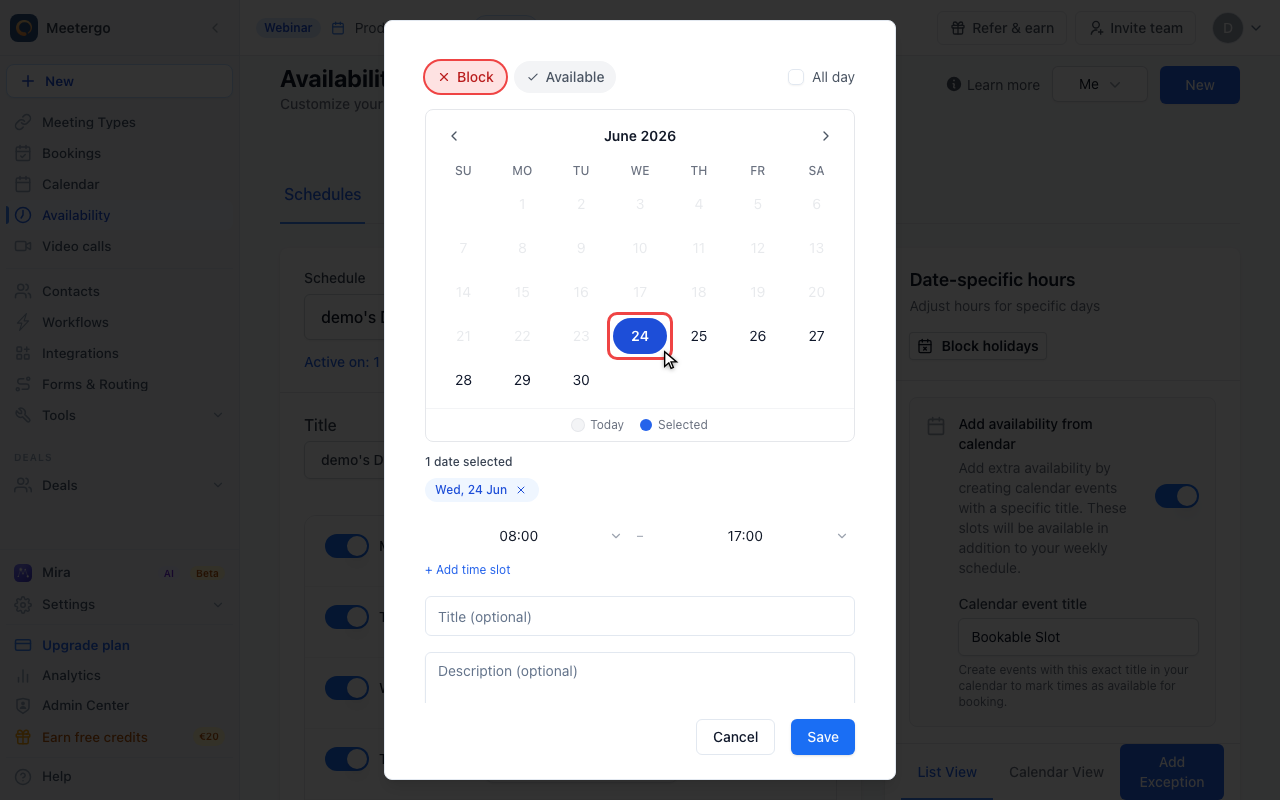
Switch to Available
Choose Available. This creates positive availability instead of blocking time.
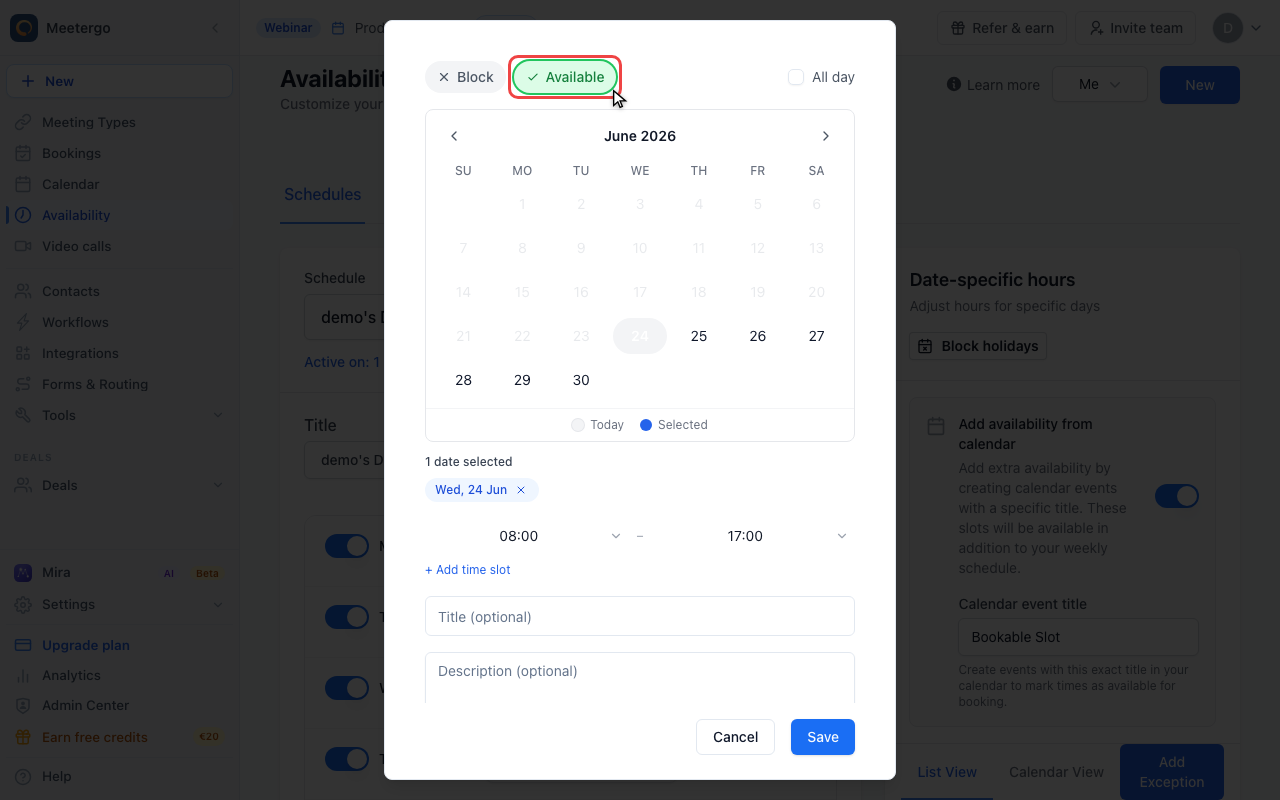
Enable All day
Enable All day so the rule covers the complete selected date. Save only after the date and rule type are correct.
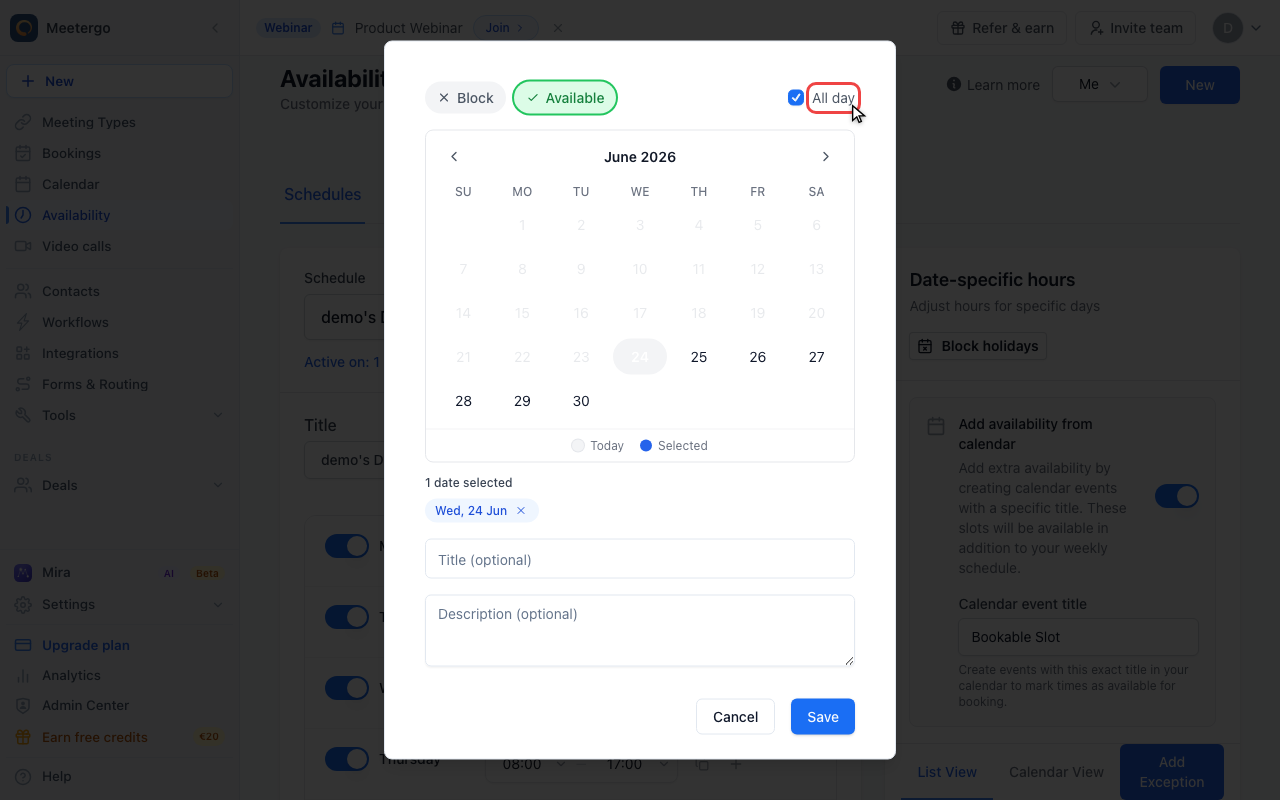
Adjusting Your Availability
Create an Available exception, enable All day, and save it only after the selected date is correct. For recurring full-day availability, select multiple dates or create additional positive exceptions.
After saving the exception, go back to your meeting type and make sure the correct availability is assigned under Availability.
Now you should see available time slots on your booking page. After a booking, these slots will be blocked in your calendar for the corresponding time.
Was this article helpful?
Let us know if this article answered your questions.
Related articles
- Add availability from calendar eventsOpen up bookable slots by creating titled events in your connected calendar, and use the right event status so other events at the same time still block correctly
- AvailabilityConfigure your weekly schedule, exceptions, holidays, and connected calendars that together determine when your booking link is bookable.
- Availability ExceptionsCreate date-specific blocking or available rules and learn the rule precedence between your schedule, exceptions, and calendar events.
- How to Block Time Off for Appointments, Holidays, or UnavailabilityBlock vacation, appointments, or focus time using date-specific hours or a busy calendar event, and enable automatic holiday blocking.