
How to Block Time Off for Appointments, Holidays, or Unavailability
Block vacation, appointments, or focus time using date-specific hours or a busy calendar event, and enable automatic holiday blocking.
Block time off when you do not want invitees to book you during appointments, holidays, focus time, or personal time. For one-off changes, use Date-specific hours in meetergo. For recurring blocks or calendar-managed events, create a busy event in your connected calendar.
Going on vacation or extended leave? Use the out-of-office feature to automatically reassign your appointments and remove yourself from round robin queues.
Need the full rule behavior? See availability exceptions.
 1 / 4
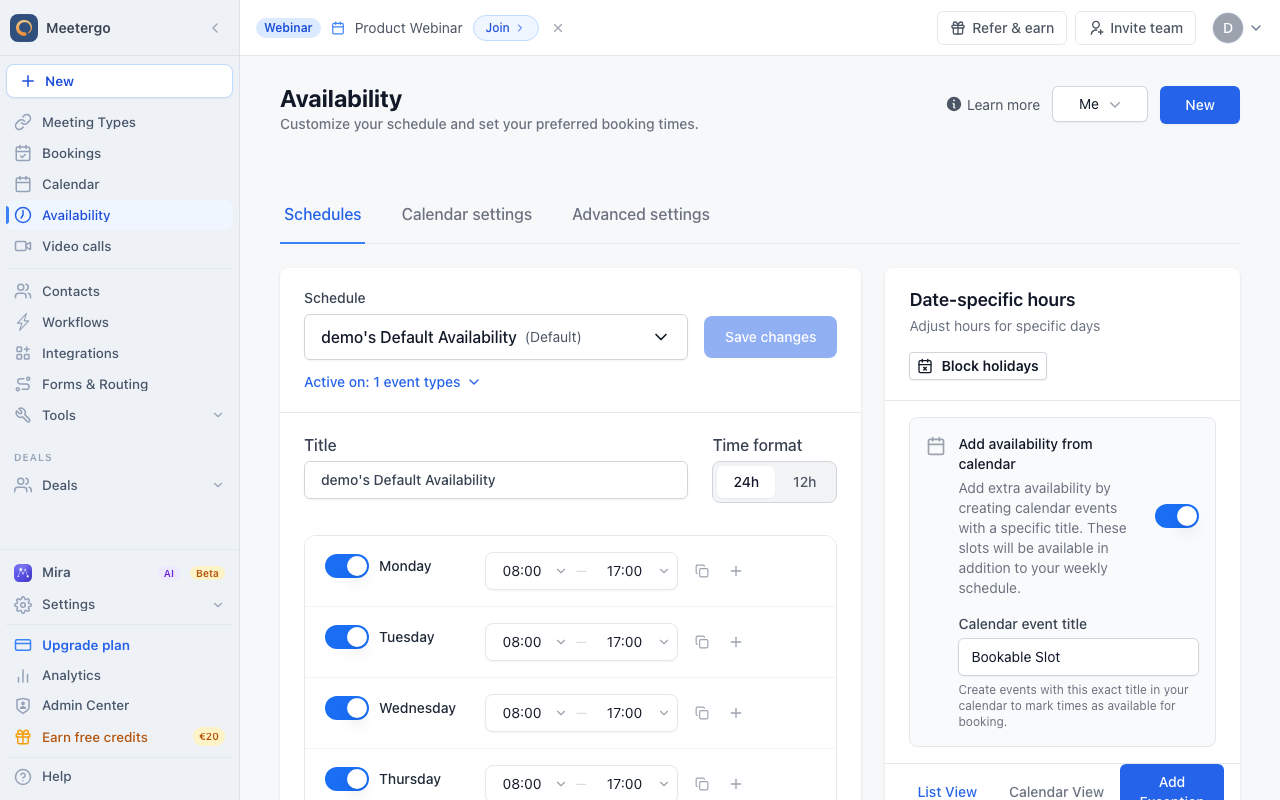
1 / 4Use Date-specific hours to block a vacation day, appointment, or short period when you would otherwise be bookable.
Open date-specific hours
Find Date-specific hours
Use Date-specific hours to block a vacation day, appointment, or short period when you would otherwise be bookable.
Block time off
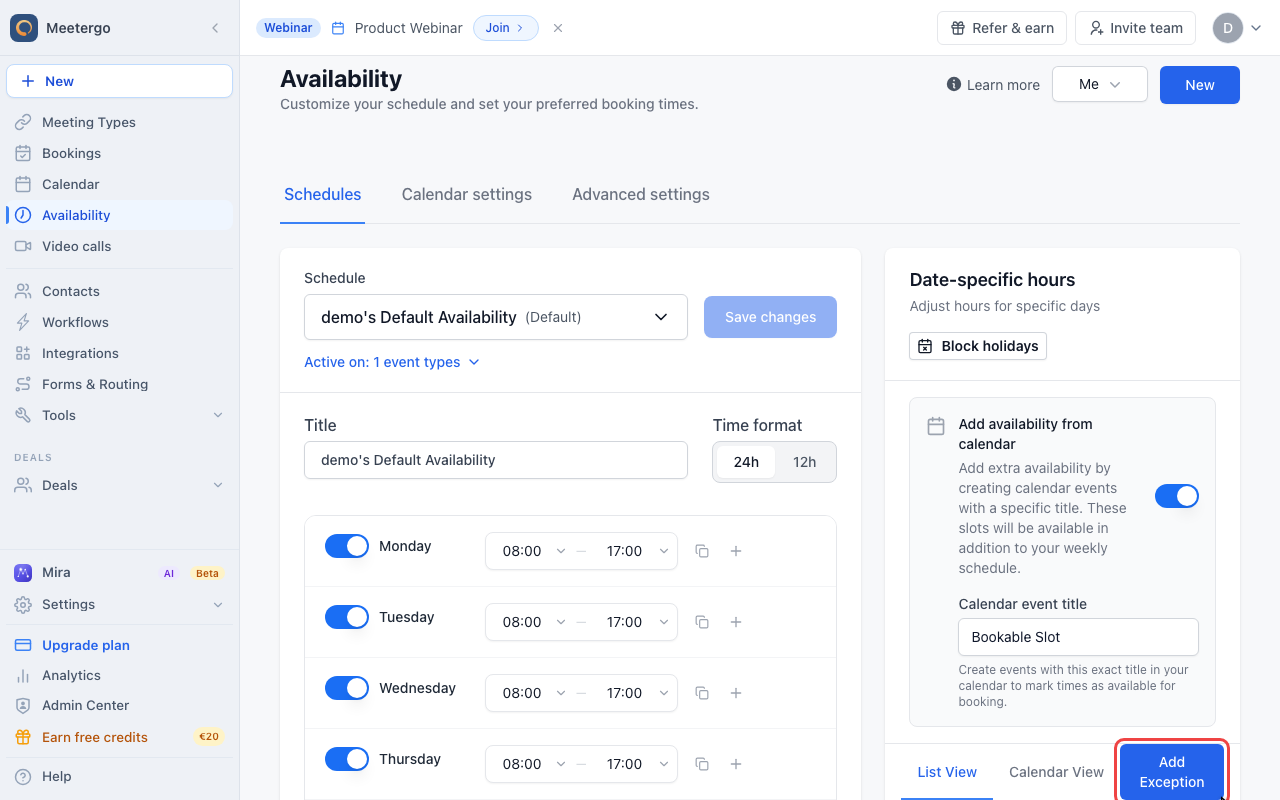
Click Add Exception
Click Add Exception to start a blocking rule for one or more specific dates.
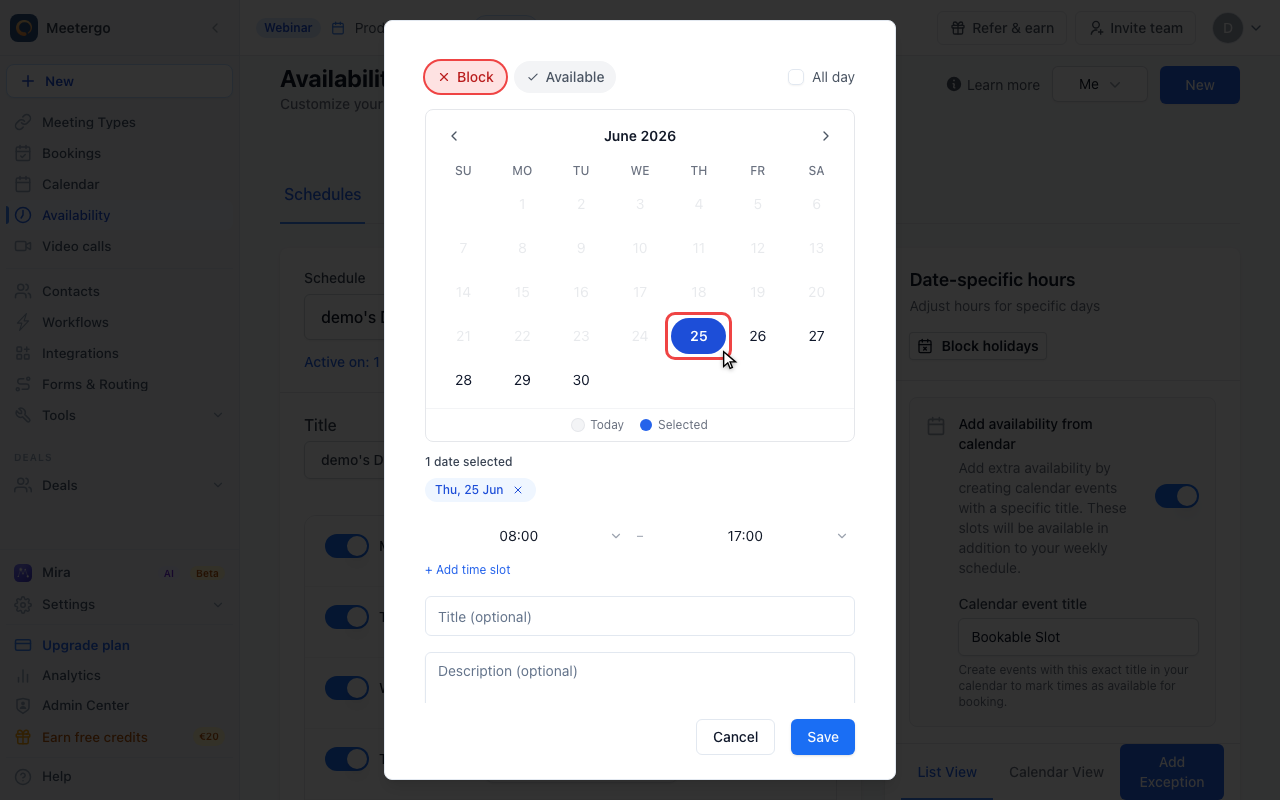
Select the day to block
Choose the date you want to make unavailable. You can select multiple dates when the same blocker should apply to each day.
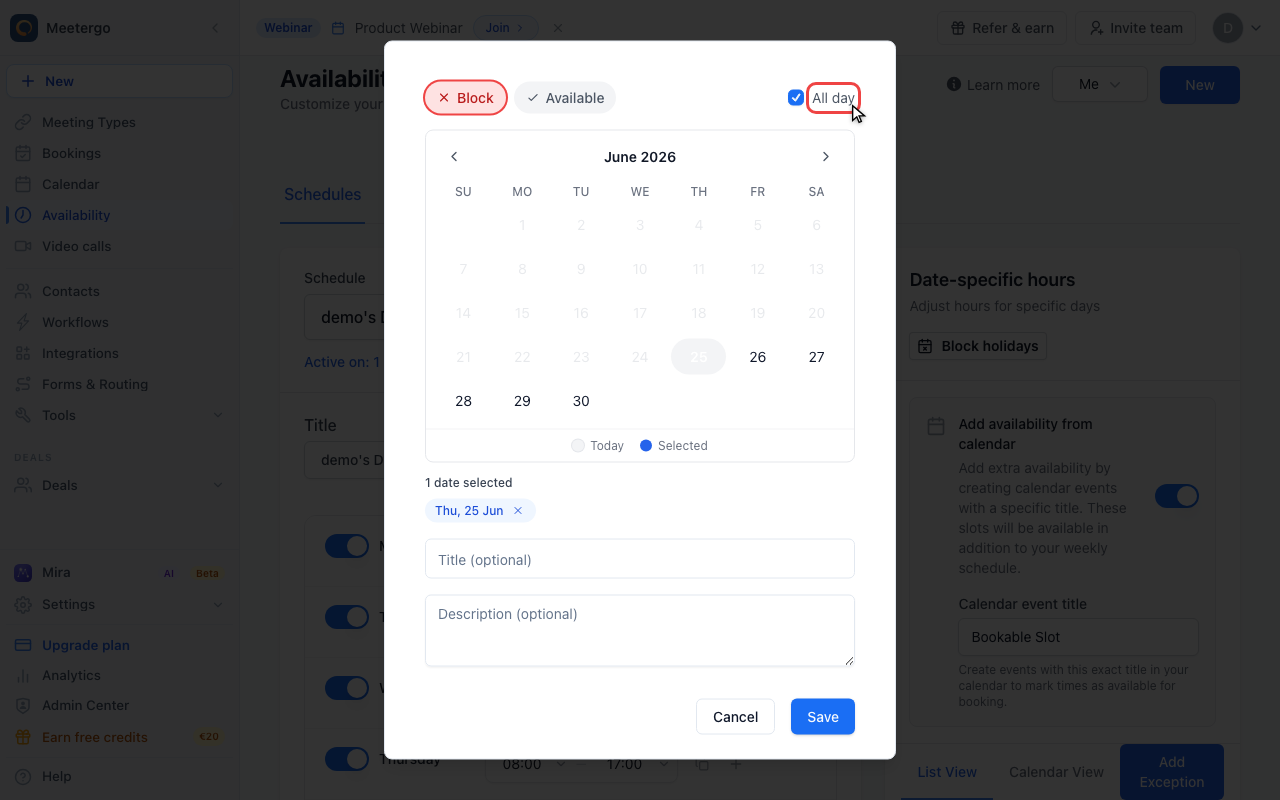
Enable All day if needed
Keep Block selected. Turn on All day for a full day off, or leave it off and set the exact start and end time for a partial-day appointment.
Use a busy calendar event instead
Create a busy event in Google Calendar, Outlook, or another connected calendar when the block is recurring or when you already manage that commitment in your calendar.
- Open your calendar app.
- Create an event for the time you will be unavailable.
- Set the event status to Busy.
- Save the event.
meetergo subtracts busy connected-calendar events from your bookable times. Calendar sync usually completes within a few minutes, but direct date-specific hours in meetergo are the fastest option for urgent one-off blocks.
Block holidays
Use Block holidays on the Availability page when public holidays should be unavailable automatically. Confirm the year, country, and state where applicable, then review the generated blocked dates in List View.
meetergo supports holiday blocking for Germany, Belgium, Denmark, the Netherlands, Estonia, Finland, France, Italy, Spain, Sweden, Switzerland, Austria, Canada, the United States, and New Zealand.
FAQ
Which method should I use to block time off?
Use your connected calendar for recurring events and blocks you already manage there. Use Date-specific hours in meetergo for one-time blocks that should apply immediately to your booking availability.
How quickly do calendar blocks sync with meetergo?
Calendar synchronization typically happens within a few minutes, but it can occasionally take longer. For urgent blocks, create the blocker directly in Date-specific hours.
Can I block partial days or just specific hours?
Yes. Leave All day off in the exception drawer and set the exact start and end time you want to block.
What happens if someone tries to book during blocked time?
The blocked time will not appear on your booking page. Invitees only see times that remain available after your weekly schedule, date-specific hours, holidays, and connected calendar events are combined.
Was this article helpful?
Let us know if this article answered your questions.
Related articles
- Add availability from calendar eventsOpen up bookable slots by creating titled events in your connected calendar, and use the right event status so other events at the same time still block correctly
- AvailabilityConfigure your weekly schedule, exceptions, holidays, and connected calendars that together determine when your booking link is bookable.
- Availability ExceptionsCreate date-specific blocking or available rules and learn the rule precedence between your schedule, exceptions, and calendar events.
- Configure availability for a specific time spanLearn how to adjust your bookability within a defined date range