
How to Offer Only Specific Time Slots Each Week
Learn how to disable regular weekly availability and only open individual time slots for booking
Use this setup when you want complete week-by-week control instead of the same recurring availability. Start with an empty weekly baseline, then add only the exact date-specific slots you want invitees to book.
This approach is perfect if:
- Your availability changes from week to week
- You only want to offer a few specific hours for appointments
- You need maximum flexibility in when you're bookable
 1 / 4
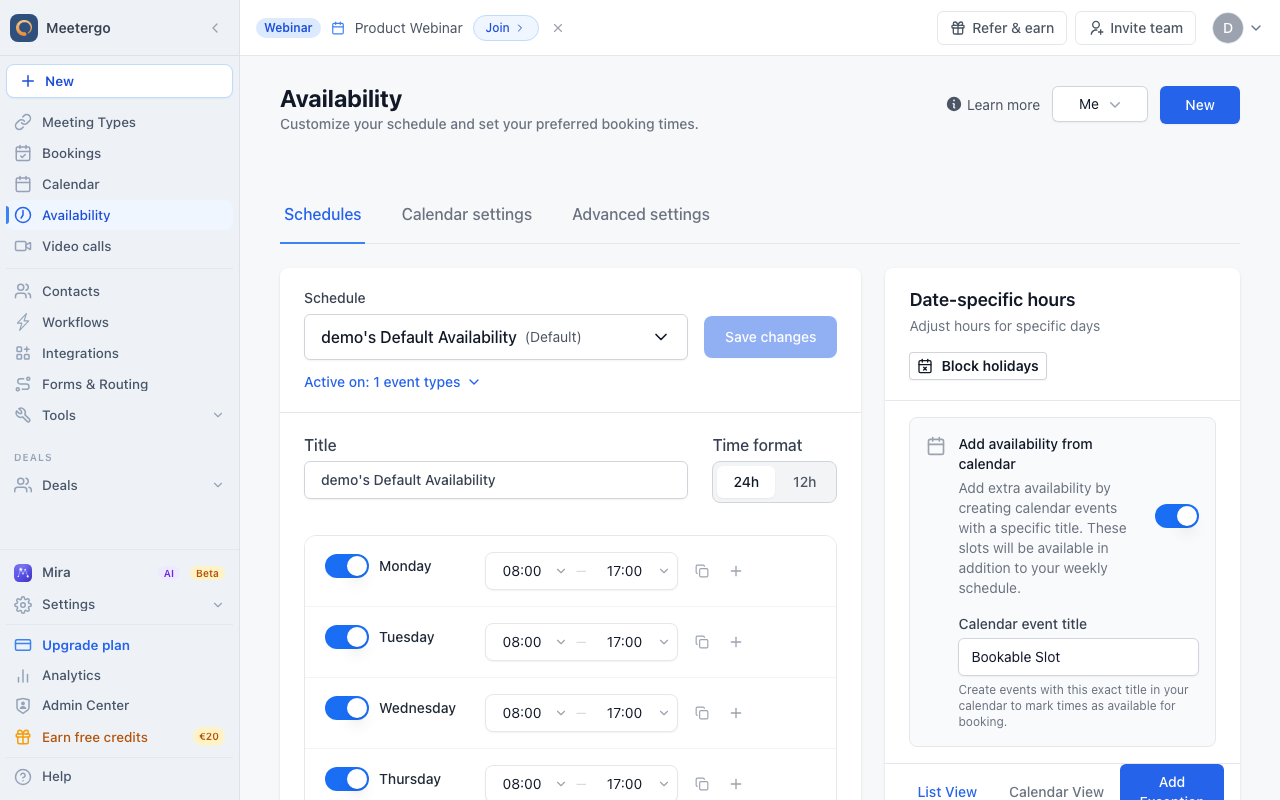
1 / 4Turn off any weekday that should not be available every week. Save after the weekly schedule reflects the empty baseline you want.
Disable recurring availability
Turn off recurring days
Turn off any weekday that should not be available every week. Save after the weekly schedule reflects the empty baseline you want.
Open specific slots
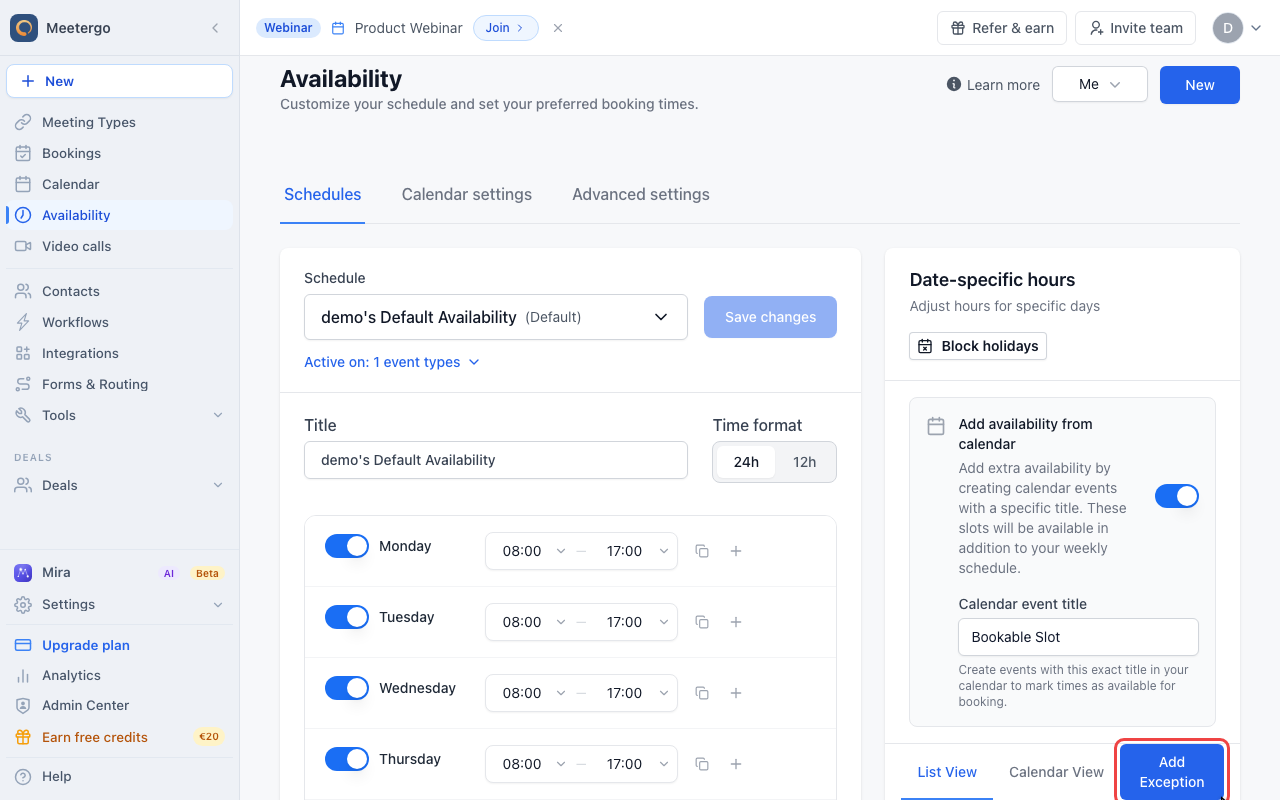
Click Add Exception
Use Date-specific hours to add the exact dates and times that should still be bookable.
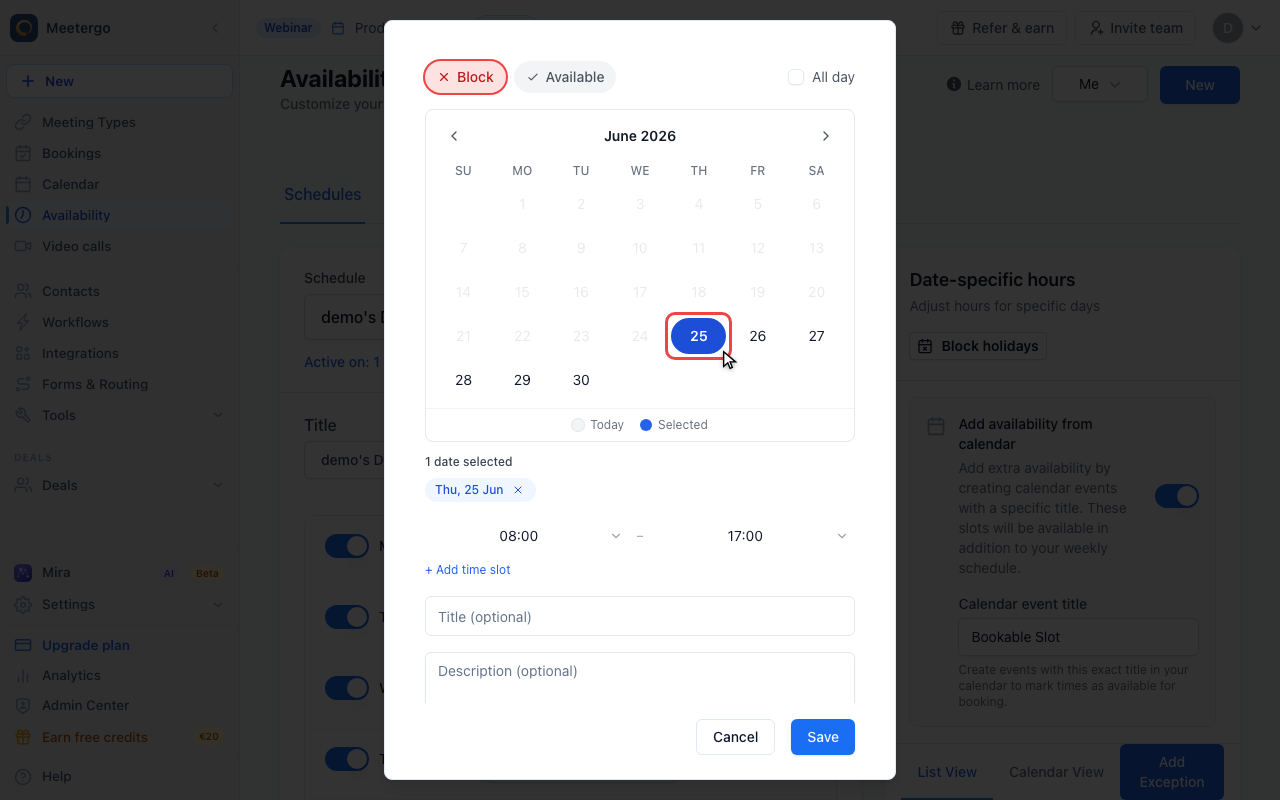
Select the date to open
Choose the specific date you want to offer. You can select multiple dates if the same time range should apply to each one.
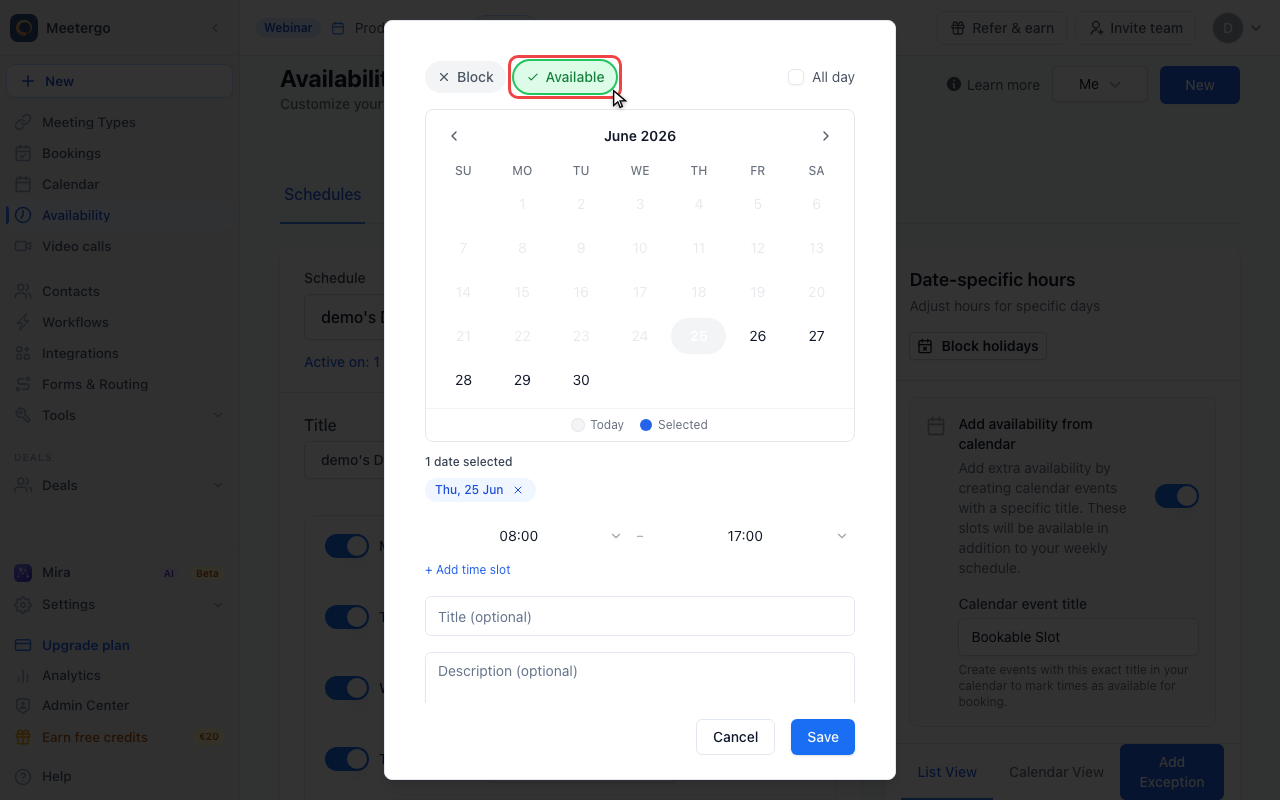
Switch to Available
Choose Available and set the exact time range, such as 14:00-16:00. Only these positive rules appear on the booking page when the weekly baseline is empty.
Example
You normally work Mondays, but this month you only want to offer:
- This Monday: 14:00-16:00
- Next Monday: 10:00-12:00
Turn Monday off in your recurring weekly schedule, then add two Available date-specific rules for those exact Mondays. Your booking page will only show those manually opened slots, assuming no meeting type settings or connected calendar events block them.
Viewing Your Exceptions
Use List View in Date-specific hours to review every slot you have opened or blocked. Available rules are the slots you intentionally opened; blocker rules remove time from a recurring schedule.
Creating Bookings Manually
If someone calls and wants to book one of your opened slots, go to Calendar, click the time, and create the booking manually.
The calendar view doesn't show which times you've opened via exceptions. You can book any time from the calendar, but clients can only book the slots you've made available.
Important Notes
- Meeting type settings still apply: Buffer times, minimum notice, and other meeting type settings still affect which slots are actually bookable
- Calendar conflicts are checked: Times that conflict with events in your connected calendar won't be offered
- Plan ahead: Since you're manually opening each slot, remember to add new availability regularly
Related Articles
Was this article helpful?
Let us know if this article answered your questions.