
Managing CRM Contacts
Organize contacts, link them to deals with roles, and maintain your contact database
Contacts in meetergo CRM represent the people you work with on deals. Link contacts to deals, assign roles, track communication history, and maintain a clean contact database with deduplication tools.
When a contact with the same email already exists in your company, new bookings and contact captures reuse that record. Capitalization and surrounding spaces do not create a different email. Existing details are kept, missing details are filled, and new bookings and tags are added. CSV imports still let you choose whether to update existing contacts. Historical duplicates can still appear in the deduplication tool.
 1 / 10
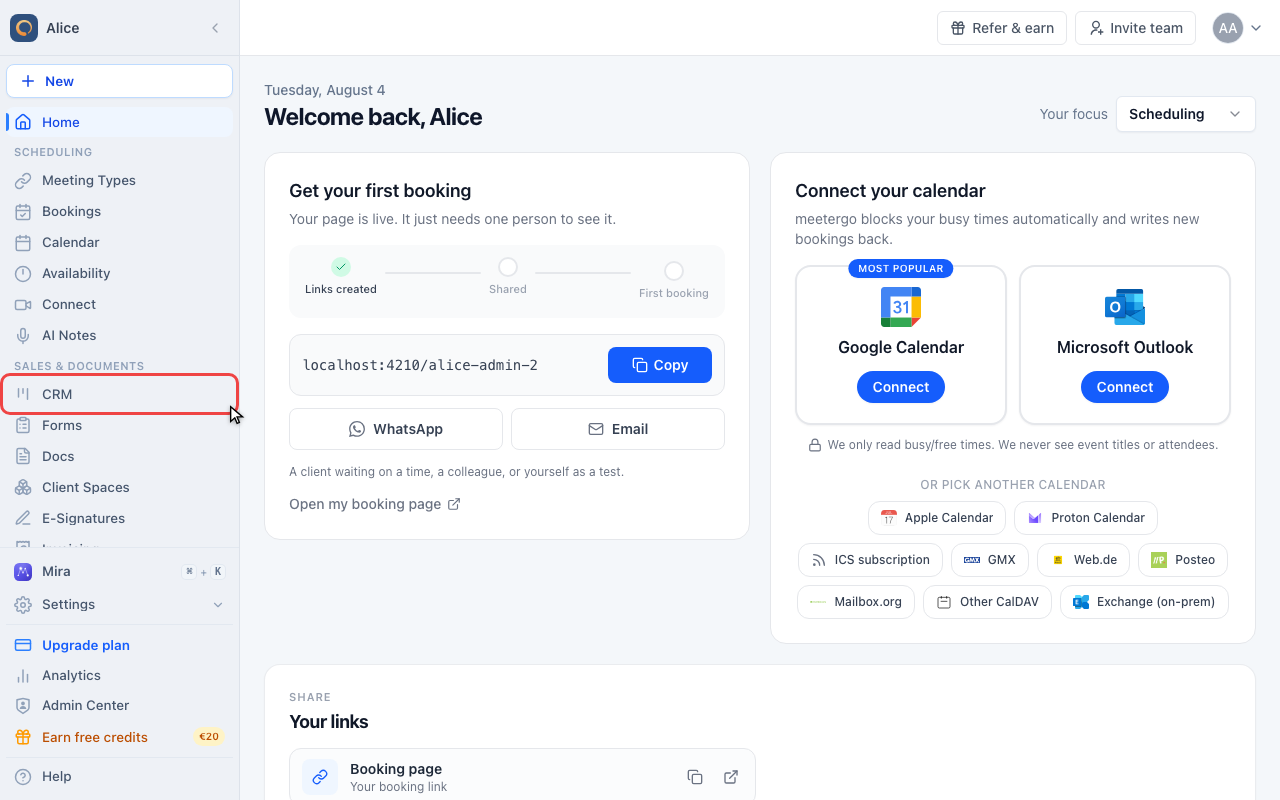
Click CRM in the sidebar.
Open your contacts
Open CRM
Click CRM in the sidebar.
Switch to Contacts
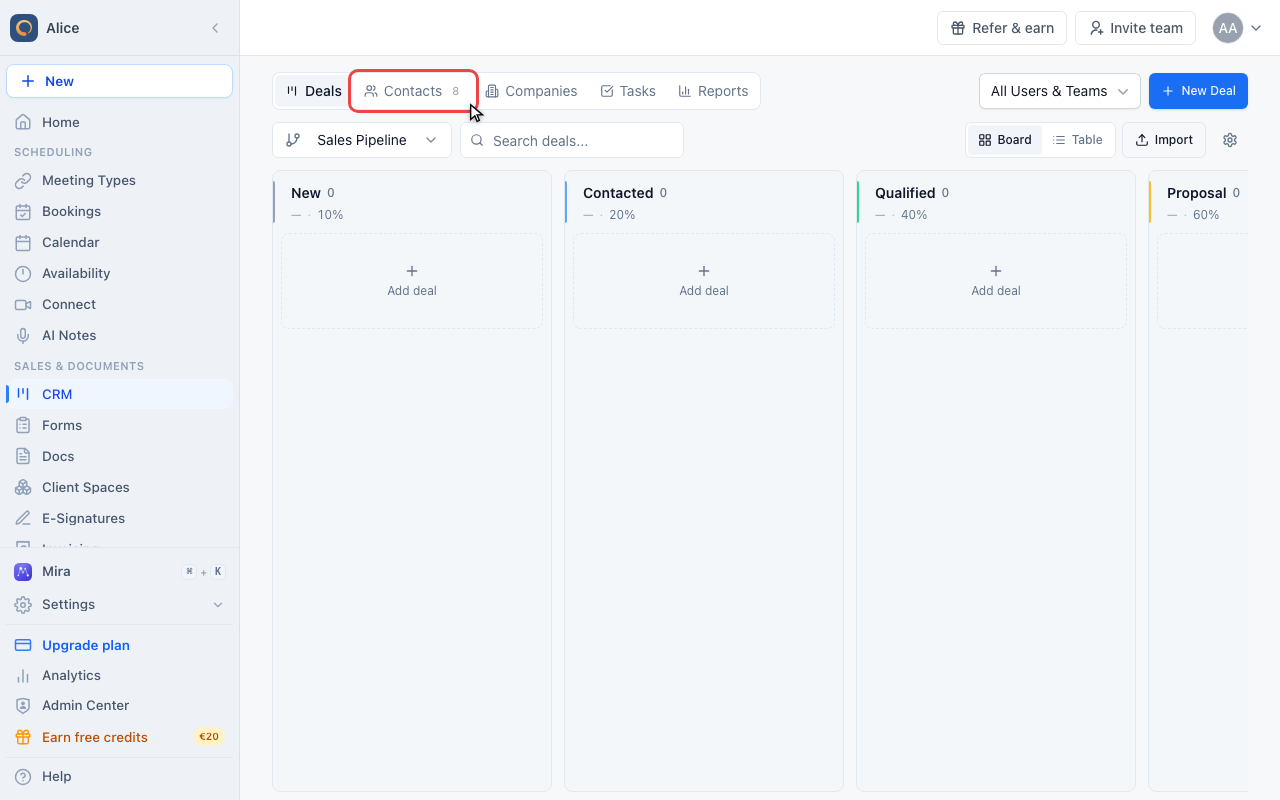
CRM opens on Deals. Click the Contacts tab to see everyone in your database. The number beside the tab is your total contact count.
Read the contact list
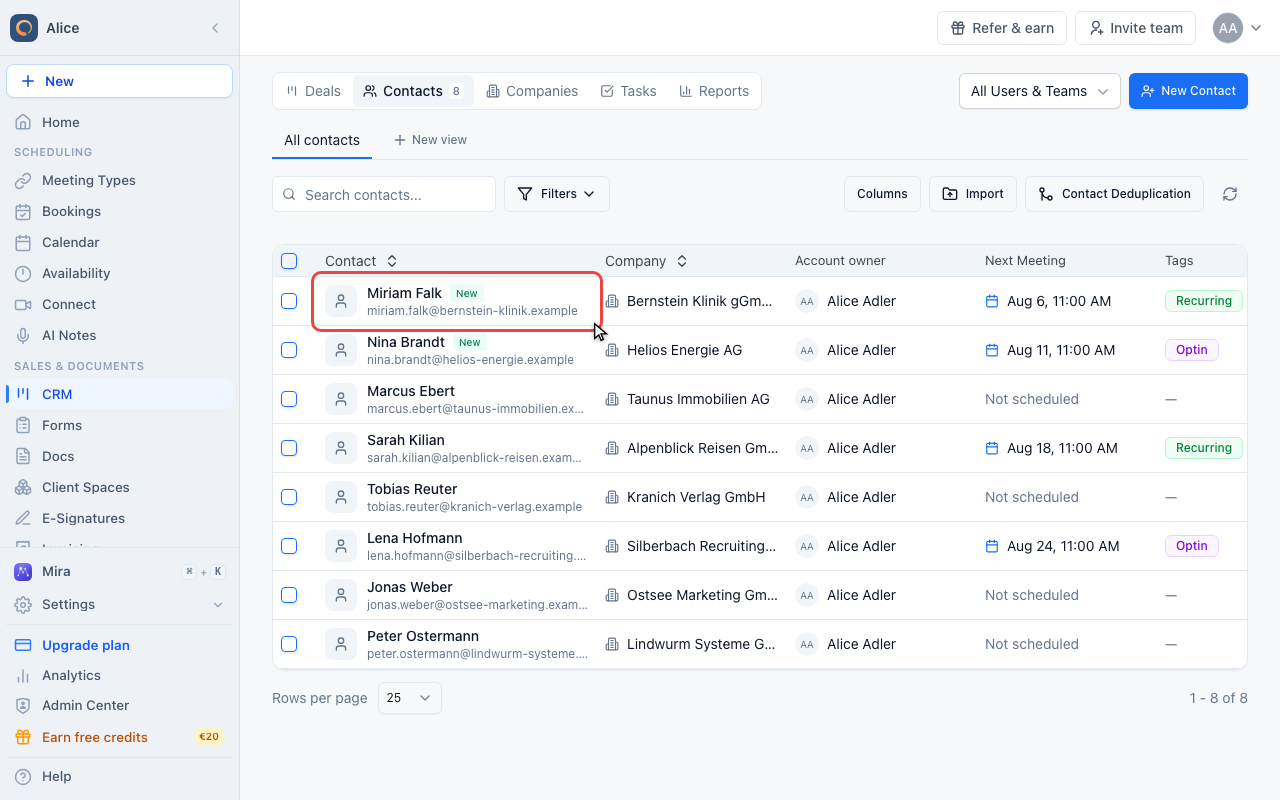
Read a contact row
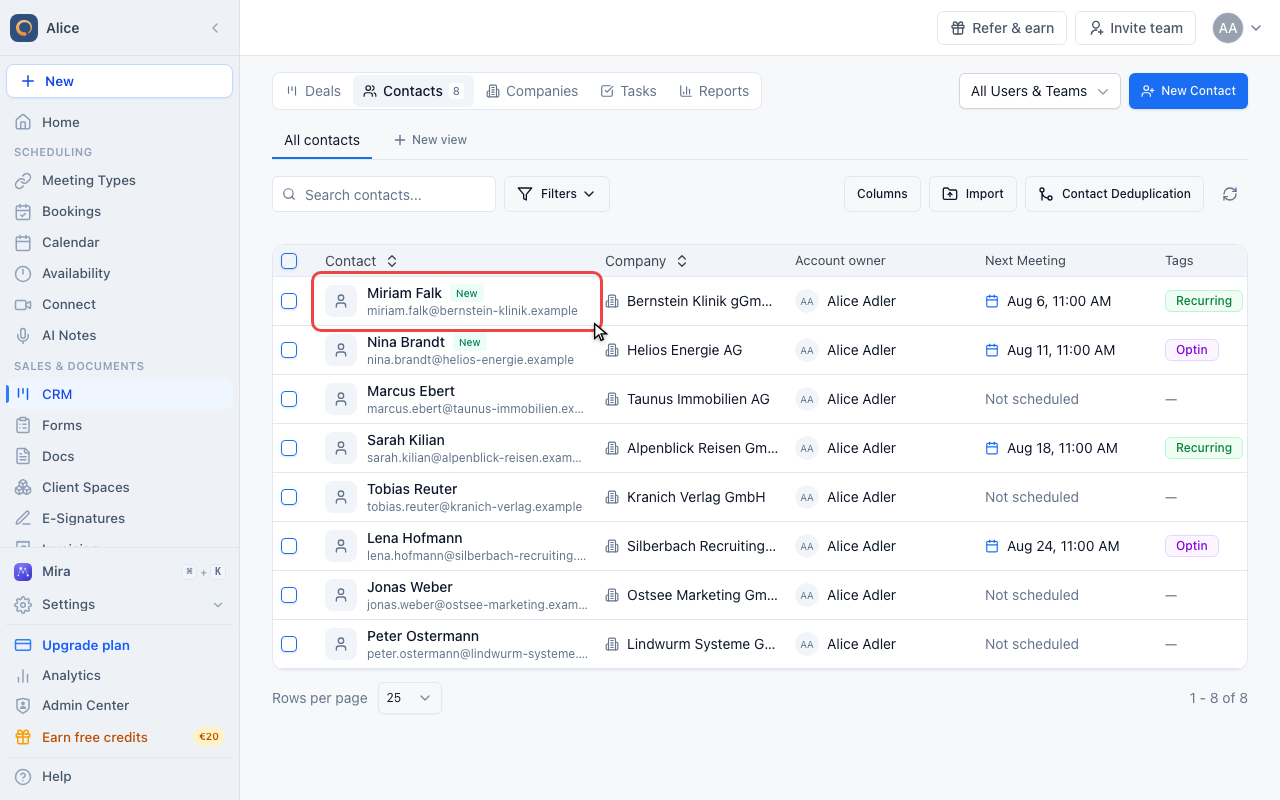
Each row leads with the contact name and their email address, then Company, Account owner, Next Meeting, Tags and Created. Use Columns to hide the ones you do not need.
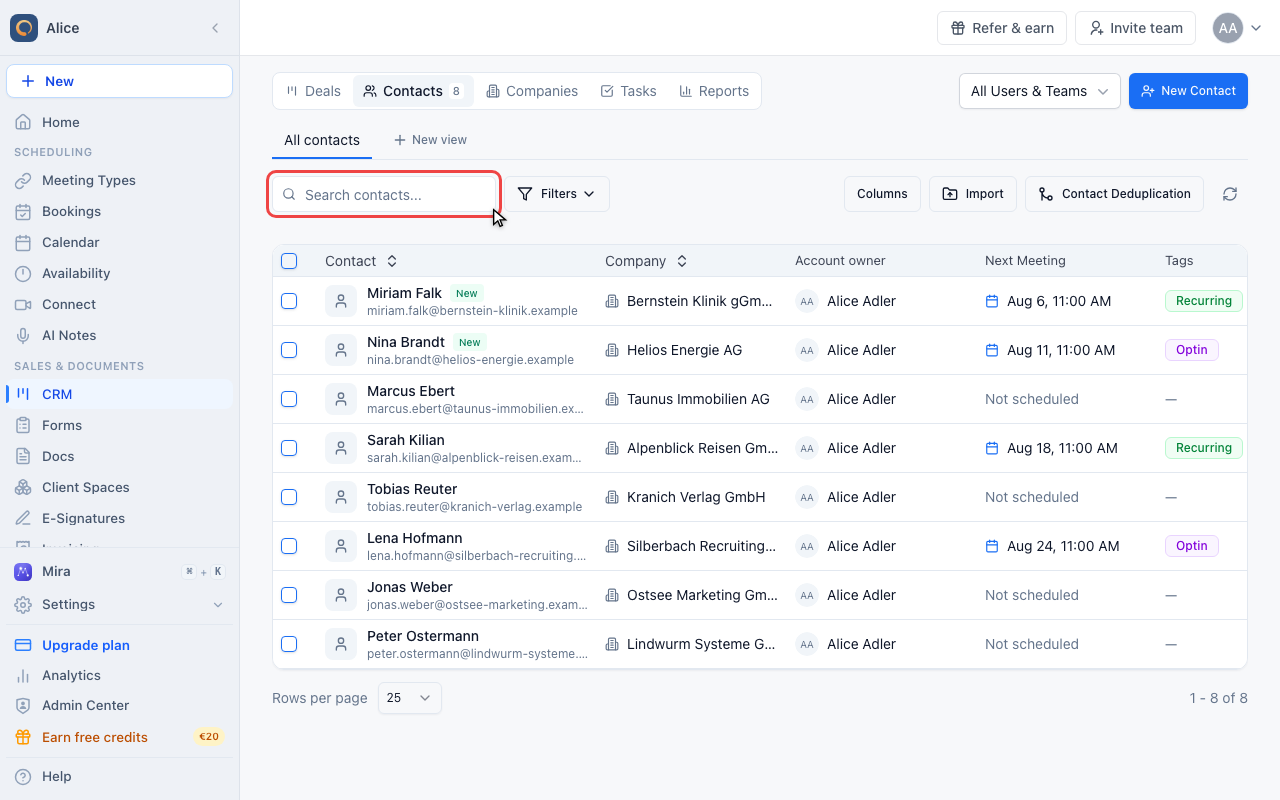
Search the list
Type a name, an email address or a company to narrow the list. The search is case-insensitive and matches partial words.
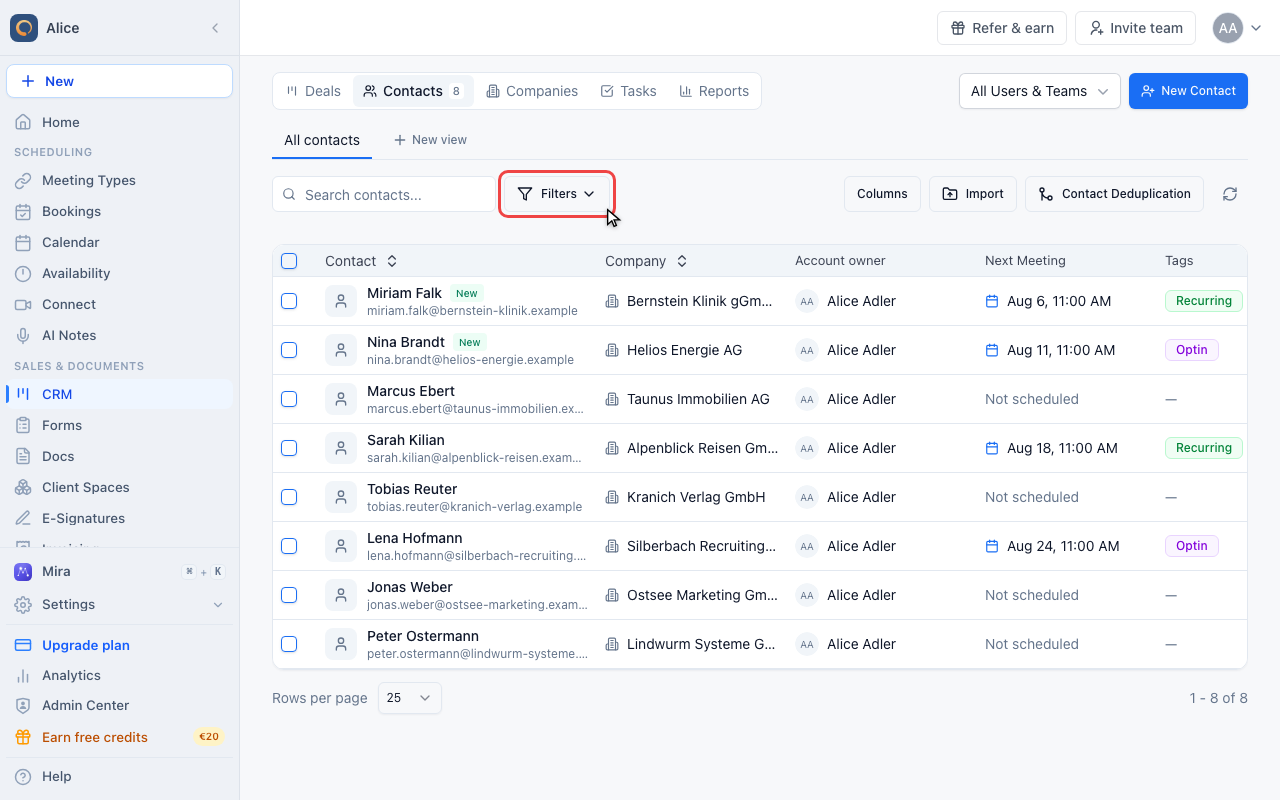
Build a filter
Filters build a condition on any contact field. Save a filter you keep reusing as a view, and it appears as a tab above the list.
Open a contact
Open a contact
Click a row to open the contact record beside the list.
Work through the tabs
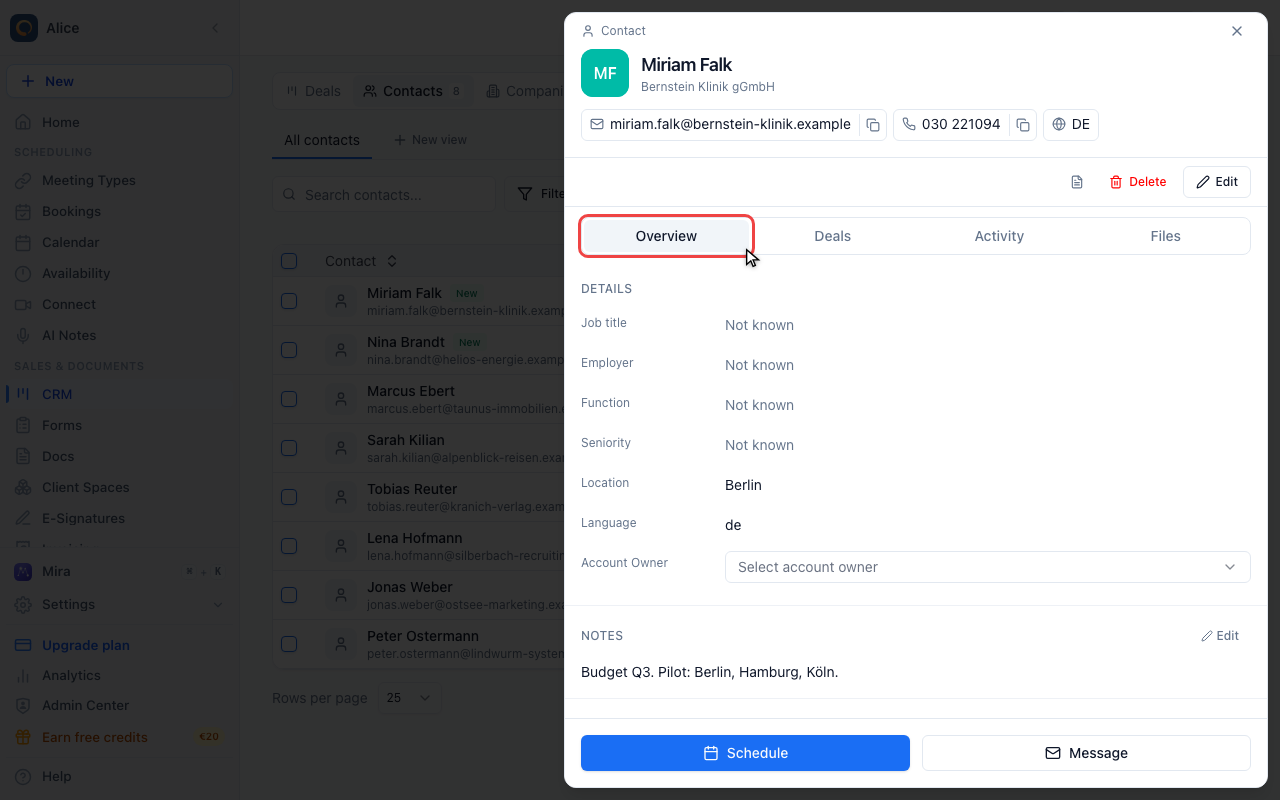
Overview starts with the next meeting, then holds the address, company, notes, booking answers and tags. Deals lists every deal this person is on, Activity shows their appointments, form submissions, notes, and logged calls and emails, and Files holds their attachments.
Add and clean up contacts
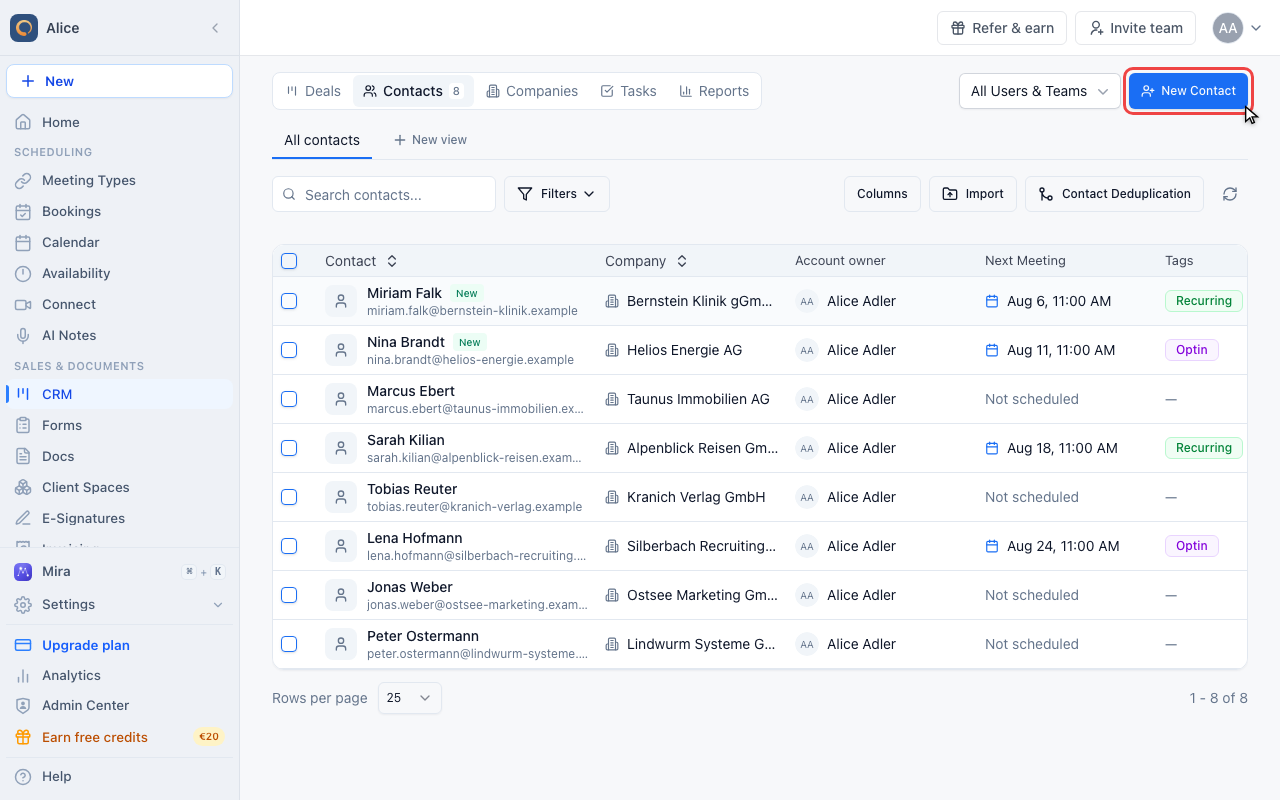
Add a single contact
New Contact opens a short form. Name and email are all you need, everything else can follow later.
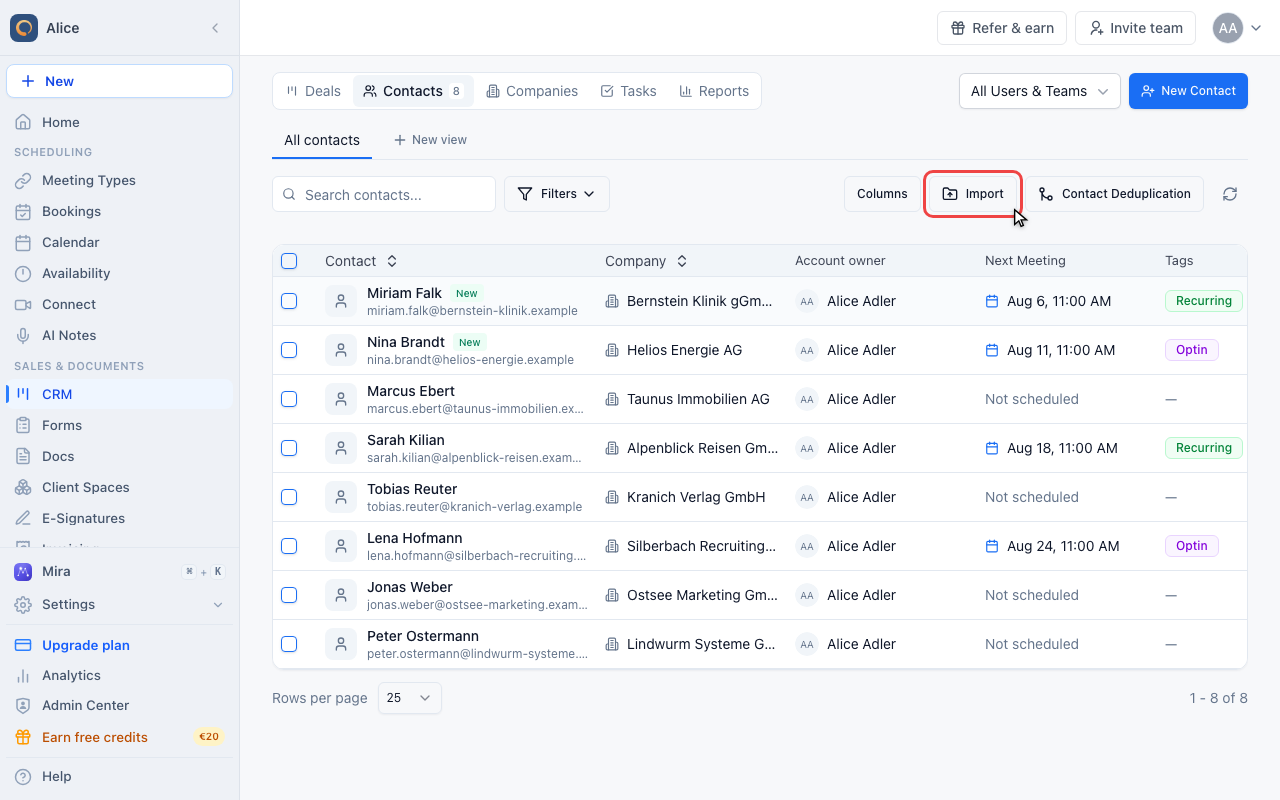
Import a CSV file
Import takes a CSV file and lets you map its columns onto contact fields before anything is created.
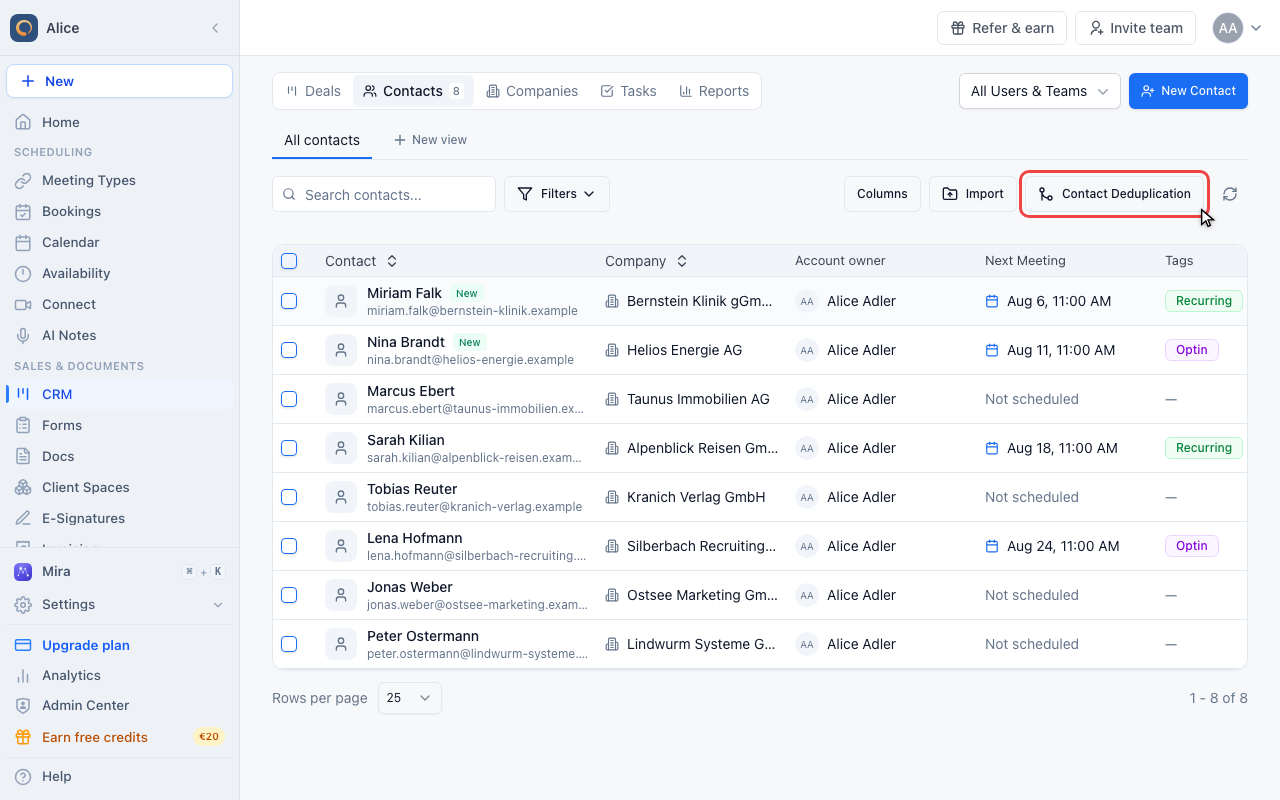
Merge duplicates
Contact Deduplication scans for records that share an email address, a phone number, or a first and last name, then lets you pick which one to keep and merge the group into it.
The contact record
Opening a contact from the list shows four tabs.
| Tab | What it holds |
|---|---|
| Overview | Job title, employer, function, seniority, location and language, plus the next meeting, address, linked company, notes, booking answers and tags |
| Deals | Every deal this contact is on |
| Activity | Appointments, logged communications, synced emails and form submissions |
| Files | Documents saved against the contact |
If CRM Email Sync is enabled, Activity also shows emails automatically synced from Gmail or Outlook, grouped by conversation thread.
Forms in Activity
A form you sent with a personal link shows as Form sent, with its status: Sent, Opened with the date, or Expired. Once the contact submits it, the submission replaces that entry.
- Open form opens the submission in the form's results.
- Forward sends it to a teammate who can open the form, or to an email address. A teammate gets a notification and an email with the link. An email address gets the answers as a PDF, or as text when the PDF is too large for an email.
- Each forward shows in Activity as Forwarded to and the recipient. You can also forward from a submission in the form's results.
Filling a contact from LinkedIn
Fetch from LinkedIn on a contact adds their photo, job title, employer, location, career history, education, skills and languages from their LinkedIn profile. You do not need their profile link: meetergo looks the person up from what the contact already has.
- Open the contact
- Click Fetch from LinkedIn below their name. On a contact that already has a profile, the button reads Update from LinkedIn. When no lookups are left, it reads Find on LinkedIn
- If several people on LinkedIn share the name, pick the right one from the list
- If nobody is found, paste the link to their LinkedIn profile
meetergo finds the profile in this order: a LinkedIn link already on the contact, their work email, then their first and last name. A name alone is only used when LinkedIn returns exactly one person with it. Otherwise you pick from a list. The list usually shows initials, and the photo arrives once you pick someone.
Job title, employer and location show up with a dotted underline, so you can see they came from LinkedIn. A value you typed yourself is never overwritten. The rest of the profile appears in a LinkedIn section on the Overview tab. Update from LinkedIn fetches it again. Remove LinkedIn data at the bottom of that section removes everything LinkedIn added: the photo, the LinkedIn section, and the job title, employer and location it filled in. Values you changed by hand stay. Fetching again brings the rest back.
Contacts with a known LinkedIn link show View LinkedIn profile in the header. It opens their profile, and it can copy the link.
Lookups are used only by Fetch from LinkedIn and Update from LinkedIn. Every plan from Light includes a monthly allowance, shared by the whole workspace: 25 per seat on Light, 100 per seat on Suite and 300 per seat on Premium. The Free plan has no lookups. The Chrome extension never uses lookups and is free on every plan.
When no lookups are left
On the Free plan, or once the month's lookups are used up, the button reads Find on LinkedIn. It opens the person's LinkedIn profile if the contact has the link. Otherwise it opens a LinkedIn people search for their name and employer. LinkedIn cannot search by email.
With the Chrome extension installed, the meetergo button on that profile reads Save to and your contact's name. One click saves the full profile onto that contact, free. Without the extension, a dialog offers Get the extension or Search LinkedIn anyway.
Adding people from LinkedIn with the Chrome extension
With the meetergo Chrome extension, every LinkedIn profile shows an Add to CRM button with the meetergo logo. It sits in LinkedIn's own button row, next to More. It is free on every plan and never uses lookups. One click saves the person as a contact. Someone already in your CRM under the same name at the same company is saved onto that contact, not added twice. If they are already in your CRM, the button reads Update in CRM and saves the page onto that contact again. It saves the full profile shown on the page: photo, job title, employer, location, About, experience, education, skills and languages. Once saved, the button reads Open in CRM. The extension has no monthly limit, only a safeguard against automated bulk use.
Creating contacts
New Contact asks for a name and an email address. Everything else can follow later from the contact record.
You can also create a contact while you are working on a deal, without leaving it. That flow is described under From the deal below.
Linking contacts to deals
From the deal
- Open the deal
- Go to the Contacts tab
- Click Add Contact
- Pick the person under Contact. The picker searches your existing contacts, so create the contact first if they are not in your database yet
- Choose a Contact Role (optional)
- Click Add Contact
Contact roles
Assign roles to clarify each contact's involvement:
| Role | Description |
|---|---|
| Primary | Main point of contact |
| Decision Maker | Has authority to close |
| Influencer | Affects the decision |
| User | End user of product/service |
| Other | Custom role as needed |
Mark your main contact as "Primary" for quick identification. Only one contact per deal can be Primary.
Removing contacts from deals
- Open the deal
- Go to the Contacts tab
- Find the contact
- Click the remove button on their row
- The contact is unlinked but not deleted from your database
Importing contacts
Import takes a CSV file and maps its columns onto contact fields before anything is created.
Preparing your CSV
Create a CSV file with columns for:
nameorfirstNameandlastNameemailphone(optional)company(optional)
Example:
name,email,phone,company
John Smith,john@acme.com,+1-555-0100,Acme Corp
Jane Doe,jane@globex.com,+1-555-0200,Globex Inc
Importing
- Click Import in the Contacts view
- Upload your CSV file
- Map CSV columns to contact fields
- Review the preview
- Start the import
Contacts are created and appear in your database.
Duplicate emails may be flagged or skipped during import. Check the import results for any issues.
Merging duplicate contacts
Contact Deduplication groups records that share an email address, a phone number, or a first and last name. Contacts at different companies are never grouped by name alone. Open it, review each group, choose the record to keep, and merge.
What gets merged
All linked records move to the contact you keep, including forms, submissions, conversations, deals, tasks, notes and files. Missing details and birthdays are filled in. Existing email addresses and phone numbers remain available for matching future messages.
Duplicate list memberships and enrollments are combined. Consent history is preserved, and links in emails already sent keep working.
Merging is permanent. Double-check before confirming a merge.
Filtering and saved views
Filters builds a condition on any contact field, and conditions can be combined. A filter you keep reusing can be saved as a view, which then appears as a tab above the list next to All contacts.
Columns controls which columns the table shows, so you can hide the ones you do not use.
Editing contacts
- Open the contact
- Click Edit
- Change the fields in the form
- Click Save Changes
Tags, notes, language, account owner and booking answers are edited directly on the Overview tab, without opening the form.
Deleting contacts
- Open the contact
- Open More actions and click Delete
- Confirm the deletion
To remove several at once, tick the checkboxes in the list and use the Delete button in the bar that appears above the table.
Deleting a contact removes them from all deals and permanently removes their data. Consider unlinking from deals instead if you want to preserve the contact for future use.
Contact and company relationship
To link a contact to a company, or move them to a different one, open the contact, click Edit, pick the company, and save. The contact then appears under that company's associated contacts.
Best Practices
Data Quality
- Use consistent name formatting
- Verify email addresses
- Keep phone numbers in a standard format
- Link contacts to companies when applicable
Regular Maintenance
- Run deduplication monthly
- Update contact information when it changes
- Remove truly outdated contacts
Complete Profiles
The more information you have:
- Easier to find contacts
- Better context for deals
- More useful for team members
Role Assignment
Always assign roles when linking to deals:
- Clarifies who's who on complex deals
- Helps prioritize outreach
- Provides context in activity history
FAQ
Can a contact be linked to multiple deals?
Yes, a contact can be associated with as many deals as needed. Each deal can have a different role for the same contact.
What's the difference between CRM contacts and booking contacts?
CRM contacts are for sales pipeline tracking. Booking contacts are created when someone books a meeting. The two can overlap, and booking contacts can be added to deals.
Can I export contacts?
Use Export CSV above the contact table. The export includes every page of the current search or filtered view, within your contact permissions and selected owner scope. Choose All contacts and clear the search and filters for a full export. Custom fields are included as separate columns.
In a contact’s activity timeline, Open task opens the existing task for editing. In the mobile app, Save to phone contacts opens a prefilled native contact form. Review it and save to your phone. This is a one-time copy, not a two-way contact sync. You can also add or remove tags and edit the contact's notes there. Changes show up in the dashboard right away.
Are contacts shared across the team?
Yes, all team members with CRM access can view and edit contacts (subject to permissions).
What happens to a contact when their company is deleted?
The contact remains but is no longer associated with a company. You can link them to a different company.
Can I see all contacts for a specific company?
Yes, open the company profile to see all associated contacts.
Related Articles
- CRM Overview
- Creating and Managing Deals
- Working with Companies
- Notes and Attachments
- Communications Log
- CRM Email Sync
Search by full name
Enter a first name and surname together to find a contact. Each word is matched against the contact’s name, email, phone number or company. Existing view filters still apply. Clear the search to return to the contact list.
Was this article helpful?
Let us know if this article answered your questions.