
Notes and Attachments
Add rich-text notes and attach files to deals, contacts, and companies
Notes and attachments help you capture important information and store relevant files directly in your CRM records. Add meeting notes to deals, attach contracts to companies, and keep everything organized in one place.
 1 / 14
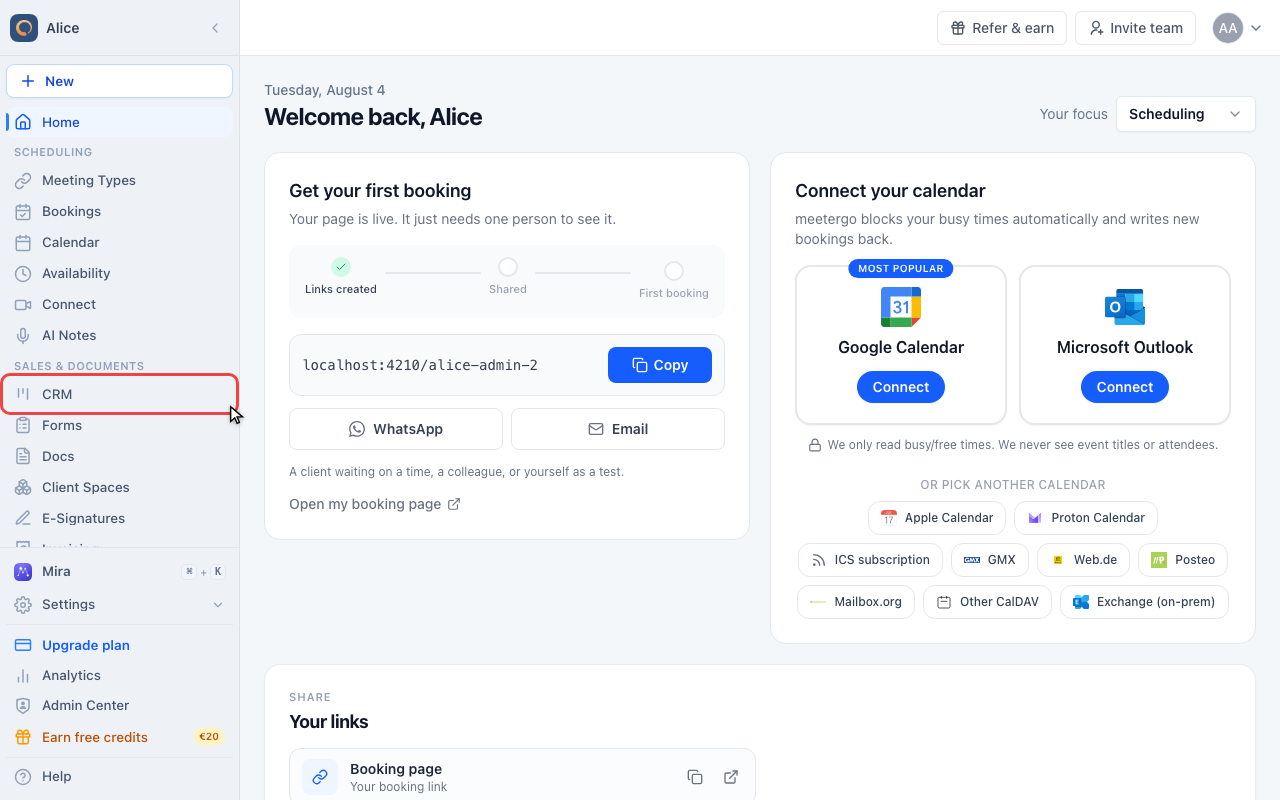
Click CRM in the sidebar. CRM opens on the Deals tab.
Write a note
Open CRM
Click CRM in the sidebar. CRM opens on the Deals tab.
Open a deal
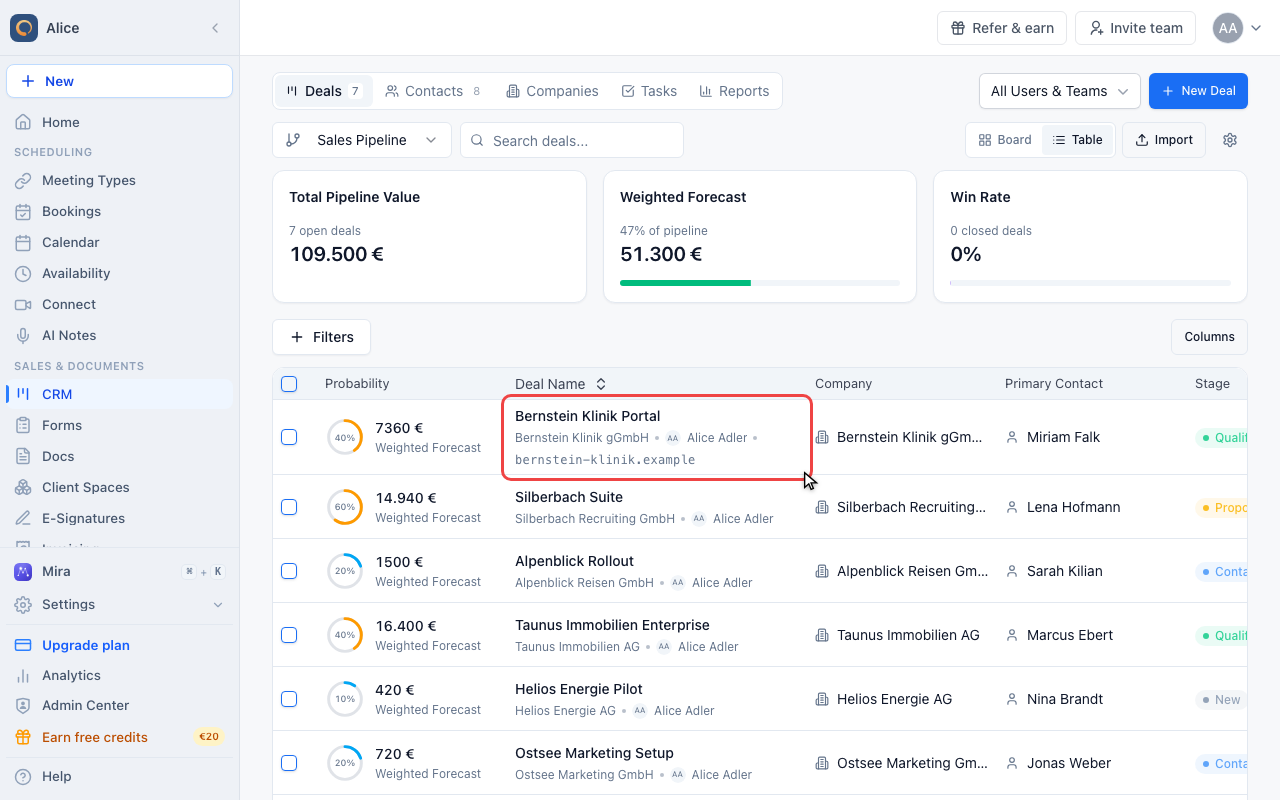
Notes and files belong to one record, so open the record you want them on. Click a deal in the table.
Find the Notes card
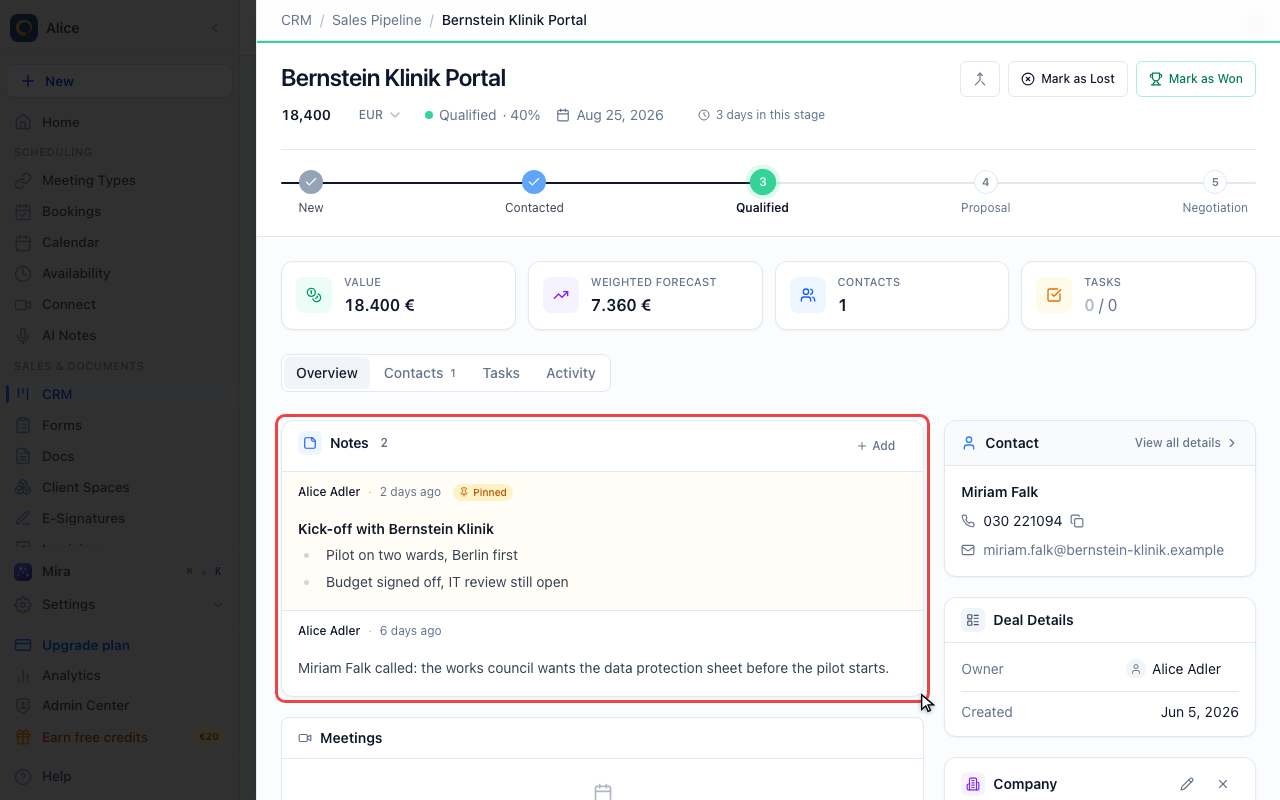
Notes is the first card in the Overview tab. The number beside the heading is how many notes the deal carries.
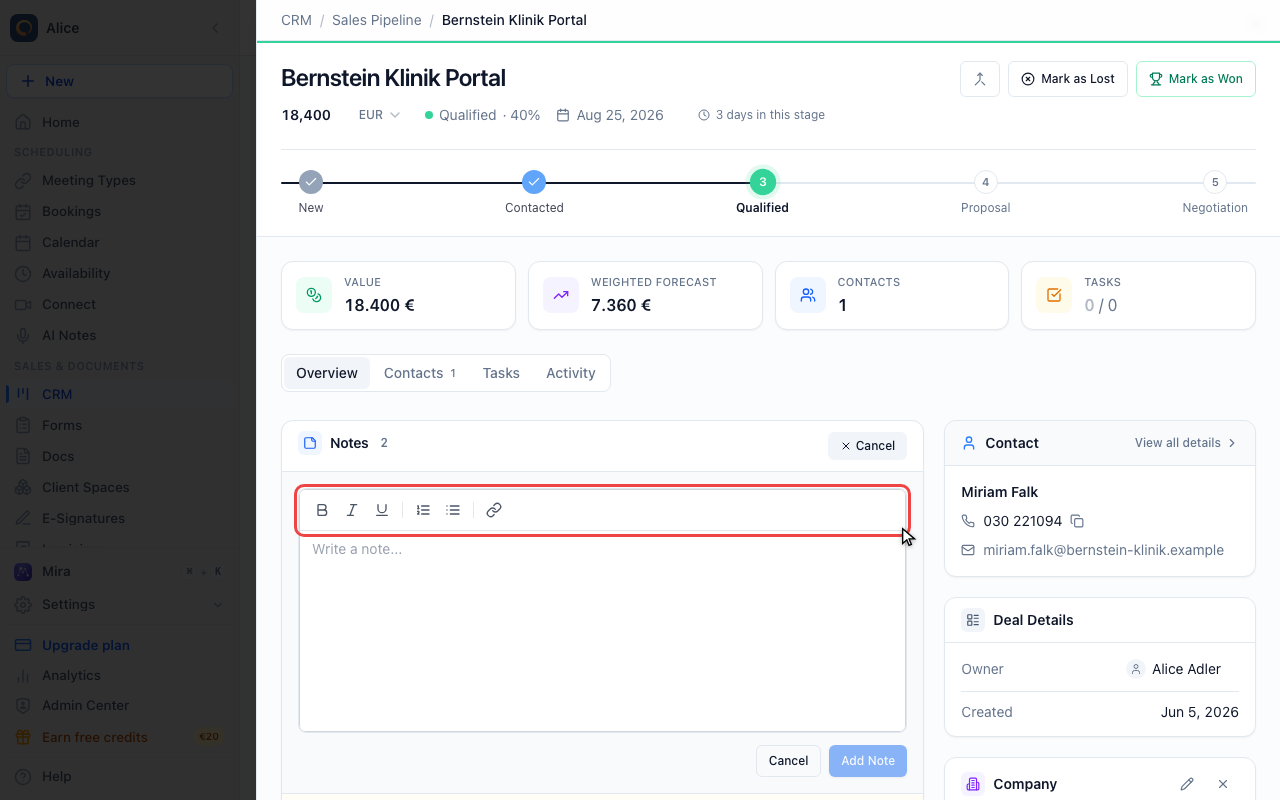
Start a note
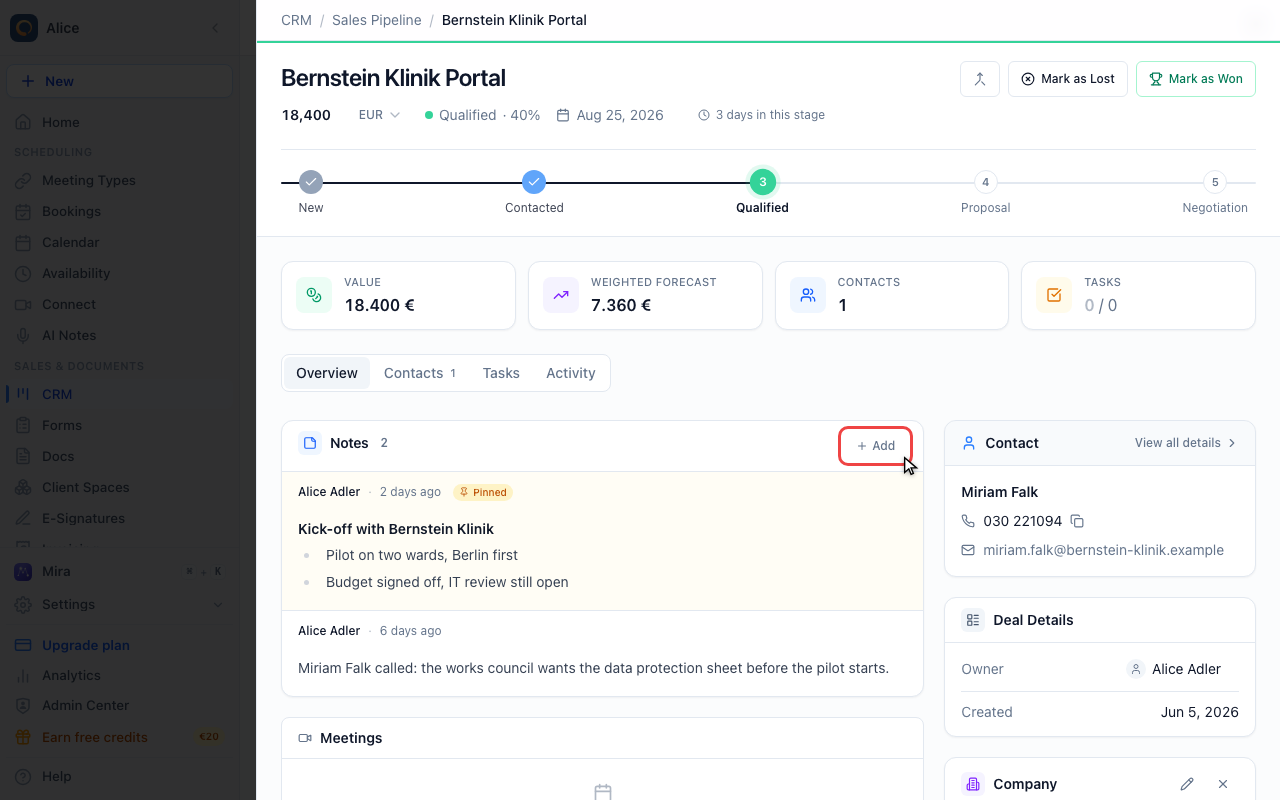
Add in the card header opens the editor. While it is open the same button reads Cancel and closes it again.
Format the text
The toolbar holds bold, italic and underline, a numbered and a bulleted list, and a link button that asks for the address in a small dialog. Bold, italic and underline also answer to the usual keyboard shortcuts.
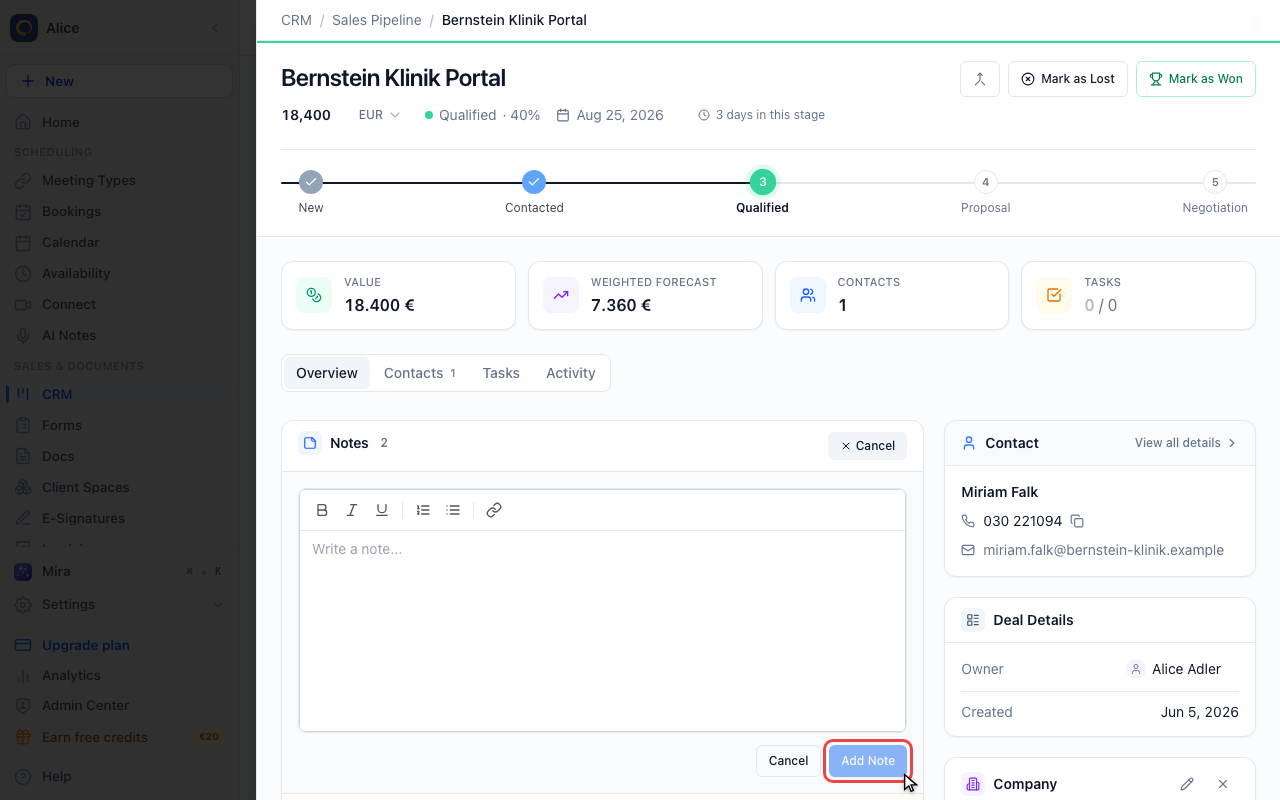
Save the note
Add Note saves it and it appears at the top of the list under your name. The button stays disabled while the editor is empty.
Pin, edit and delete notes
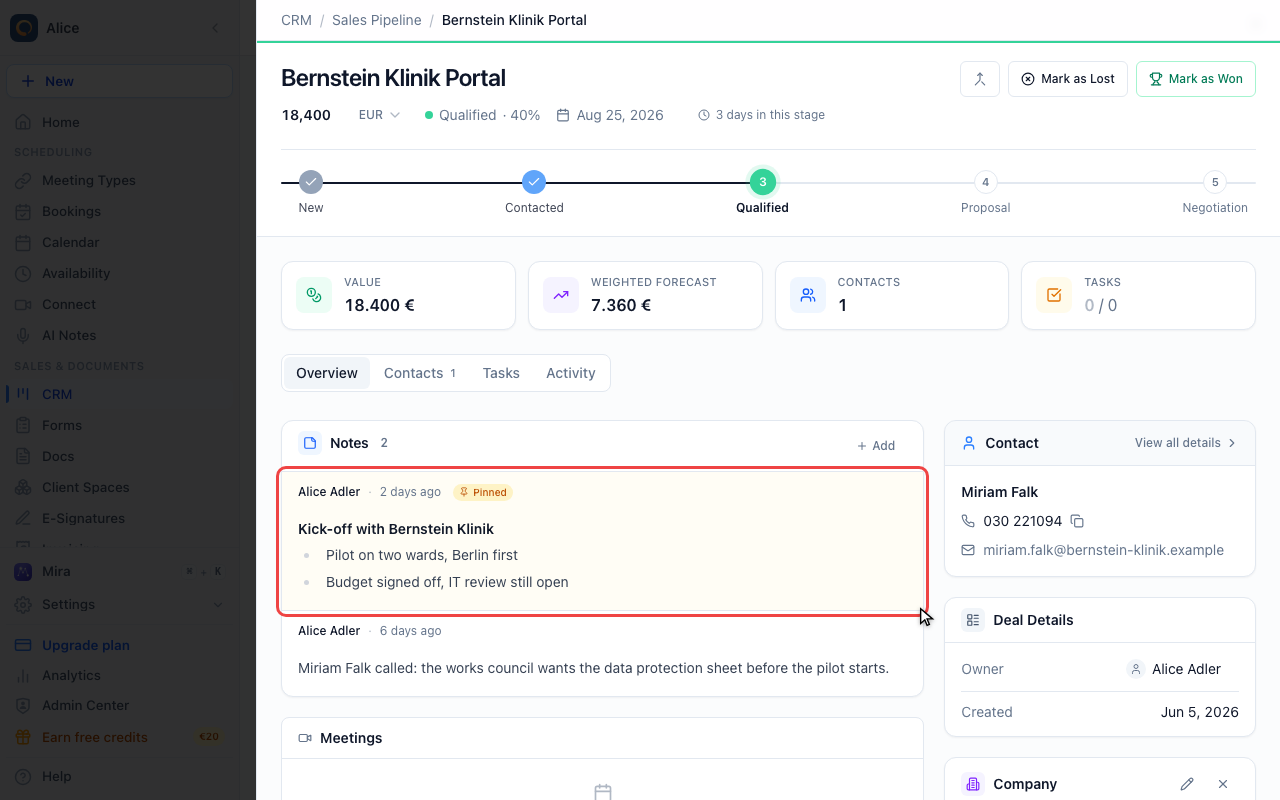
Read a note
Every note carries the author and how long ago it was written, then the text. A pinned note sits above the rest on an amber background with a Pinned badge, whatever its date.
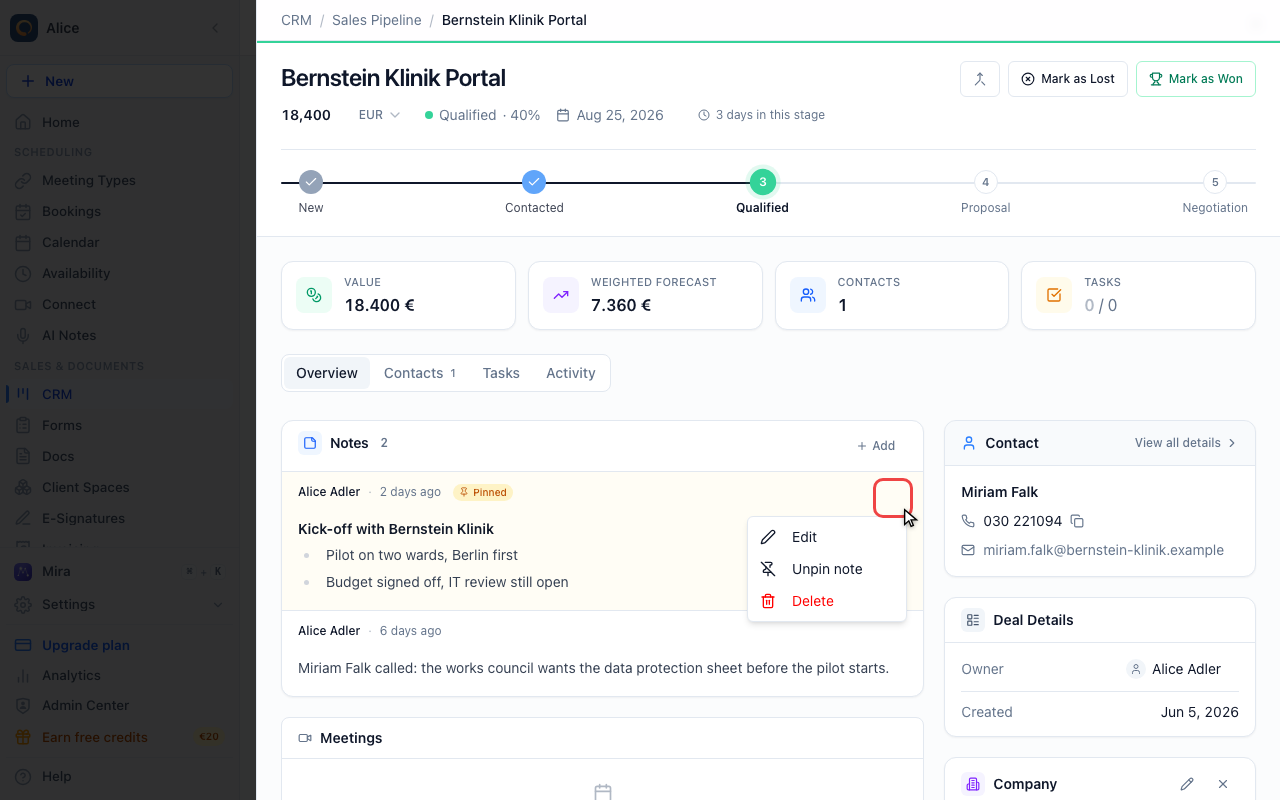
Open the note menu
Hover a note and a menu appears in its top right corner. Edit reopens the text in the editor, Pin note lifts it above the others (Unpin note on a note that is already pinned), and Delete removes it straight away without asking. You only get these on notes you wrote yourself.
Attach a file
Find the files
Attachments is the last card in the same column. Each row shows the file name, its size and how long ago it was added, with a coloured icon for documents, spreadsheets and images.
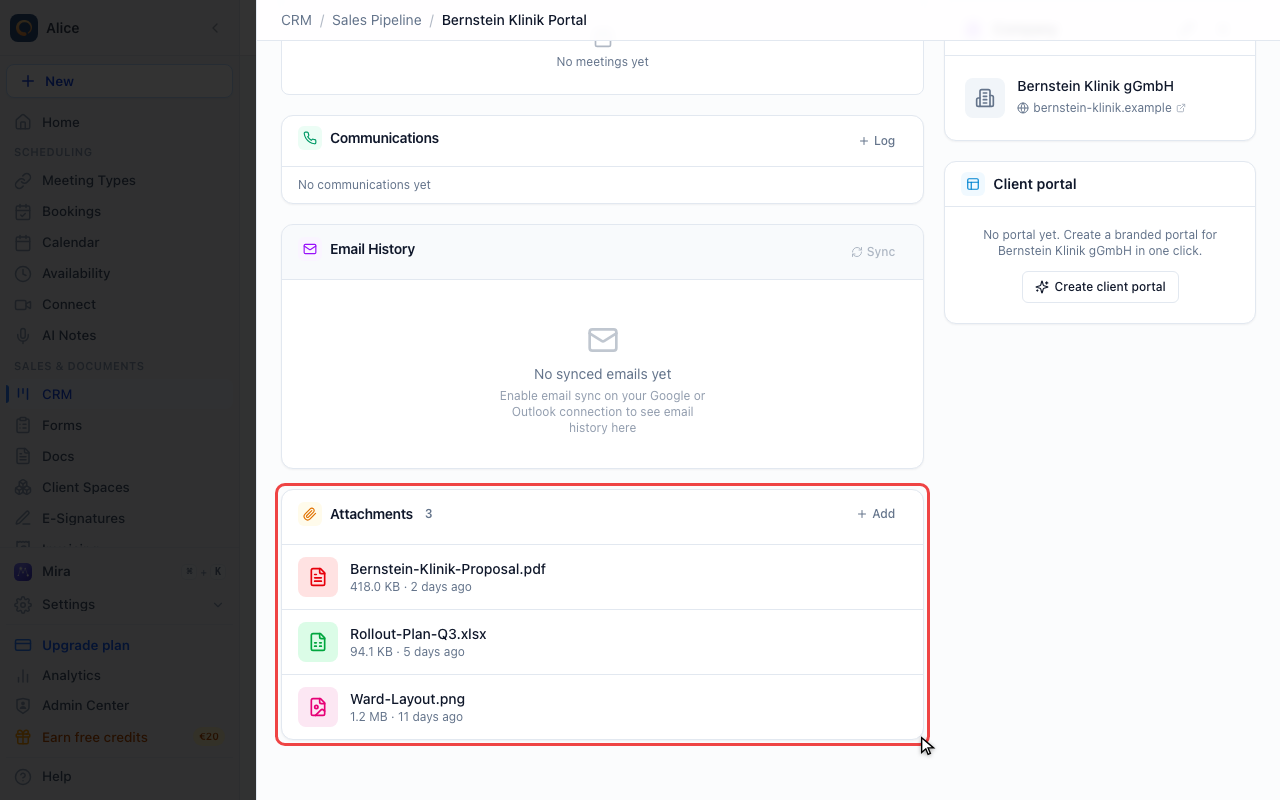
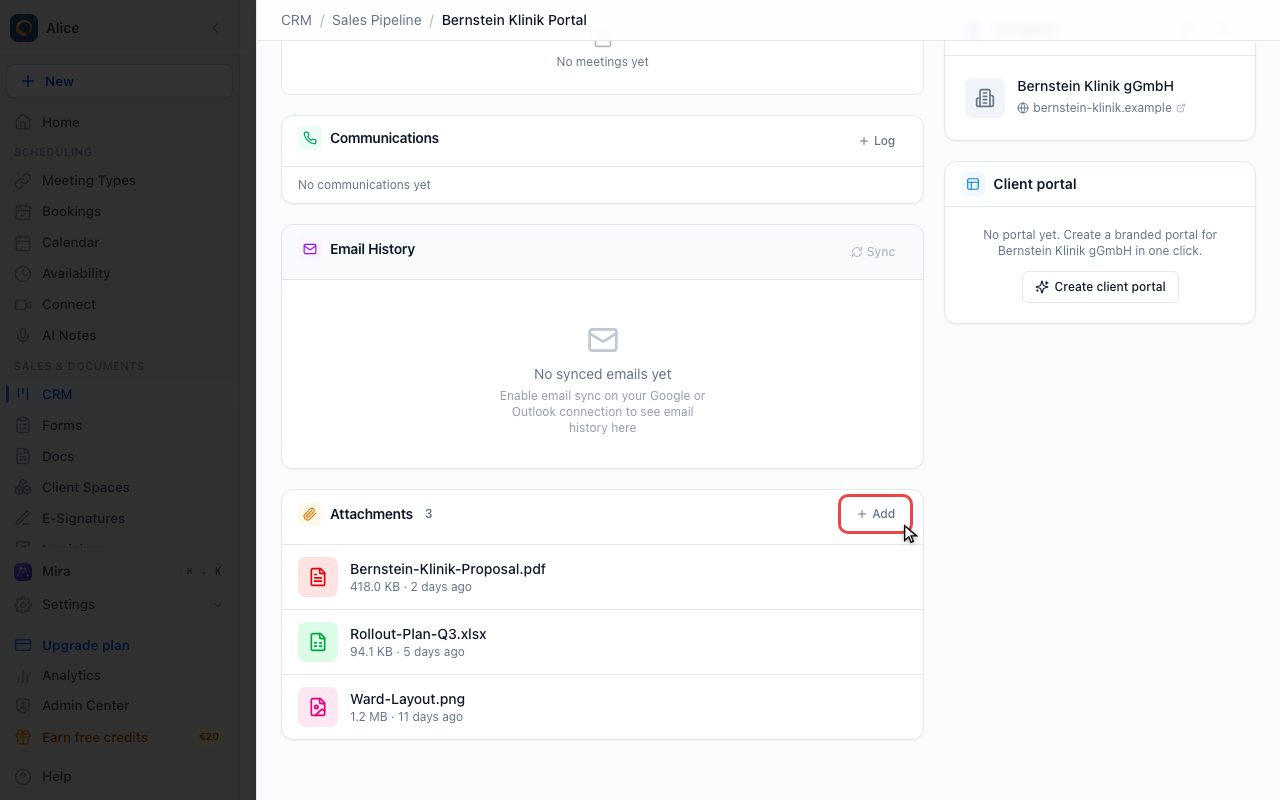
Upload a file
Add opens your file browser. You can also drag a file from your desktop onto the card, which uploads it just the same.
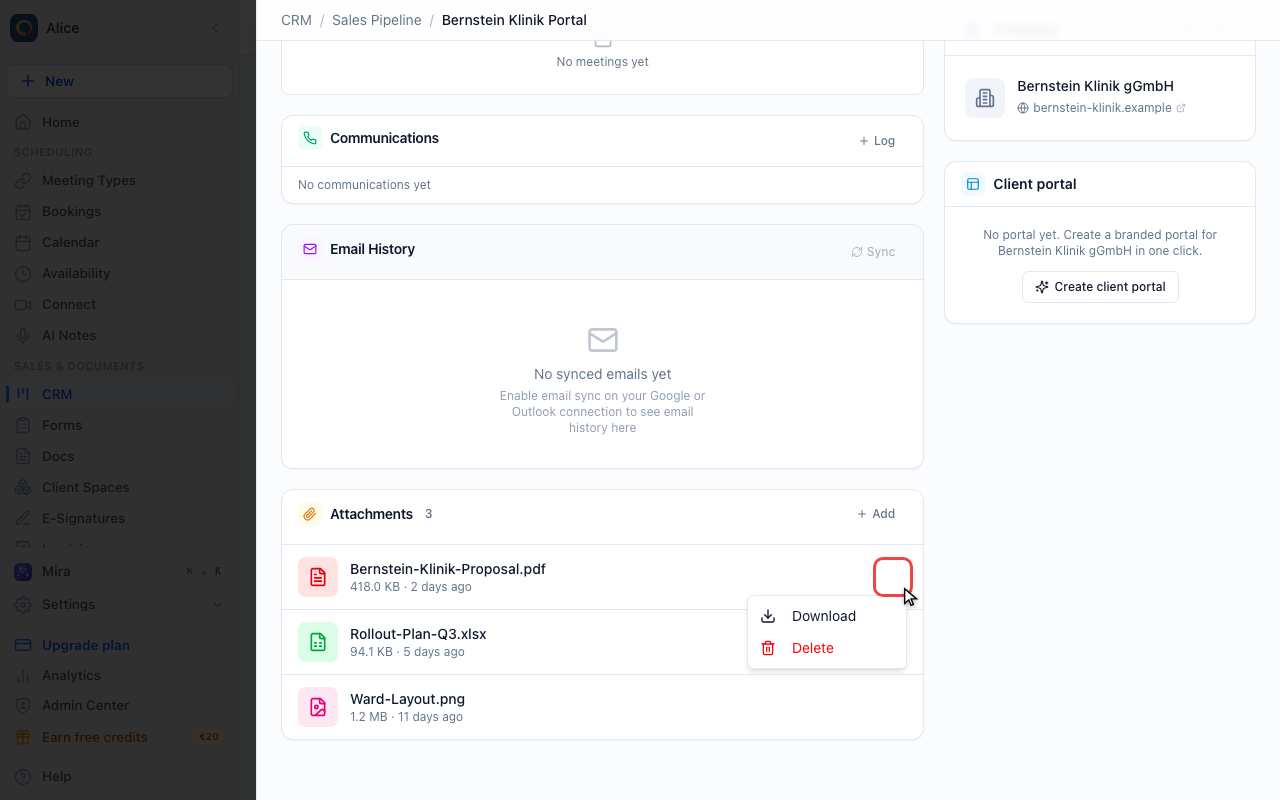
Download or remove a file
Hover a row for the download arrow and the menu beside it. The menu repeats Download and adds Delete, which takes the file off this record without asking.
The same cards on a contact
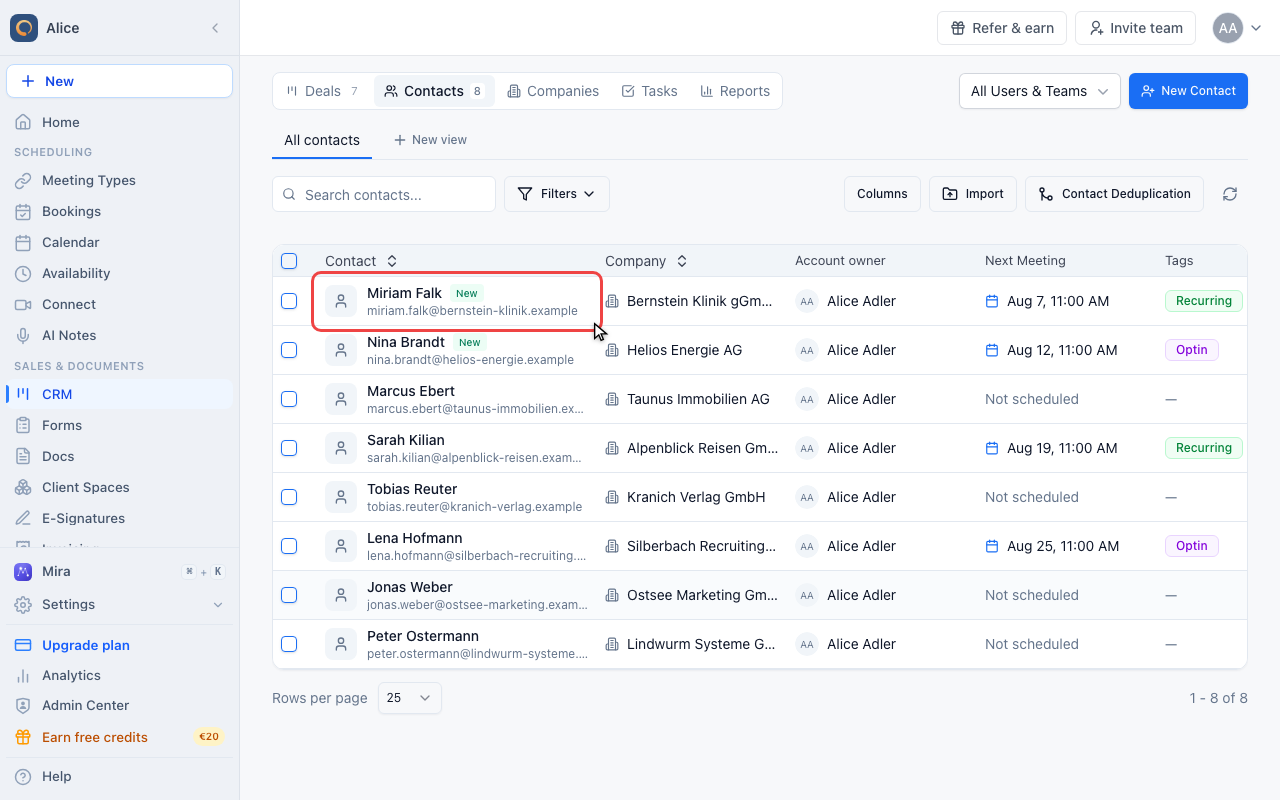
Open a contact
Contacts and companies carry the same two cards. Click a contact to open their record.
Switch to Files
On a contact the two cards sit behind the Files tab rather than in the overview.
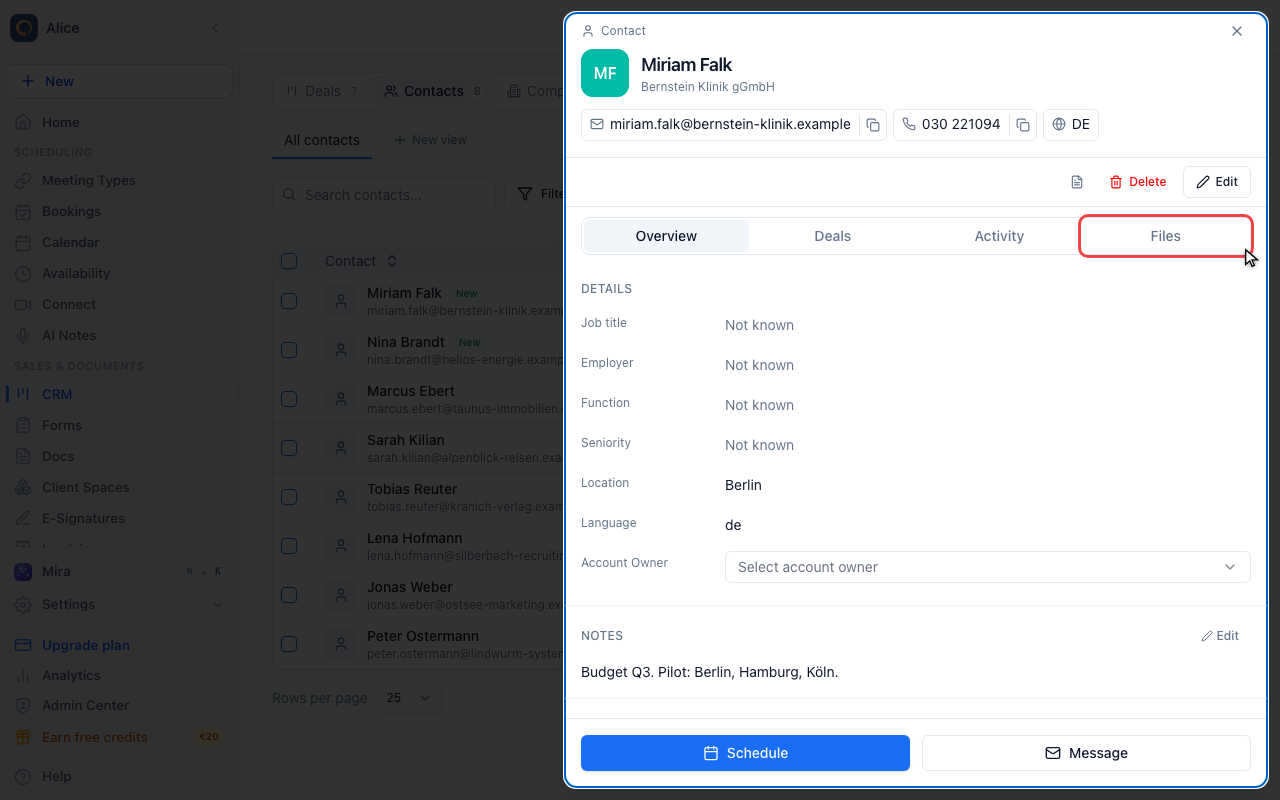
Notes and files on a contact
They behave exactly as they do on a deal. A card with nothing in it says so and doubles as the button that starts the first note or upload.
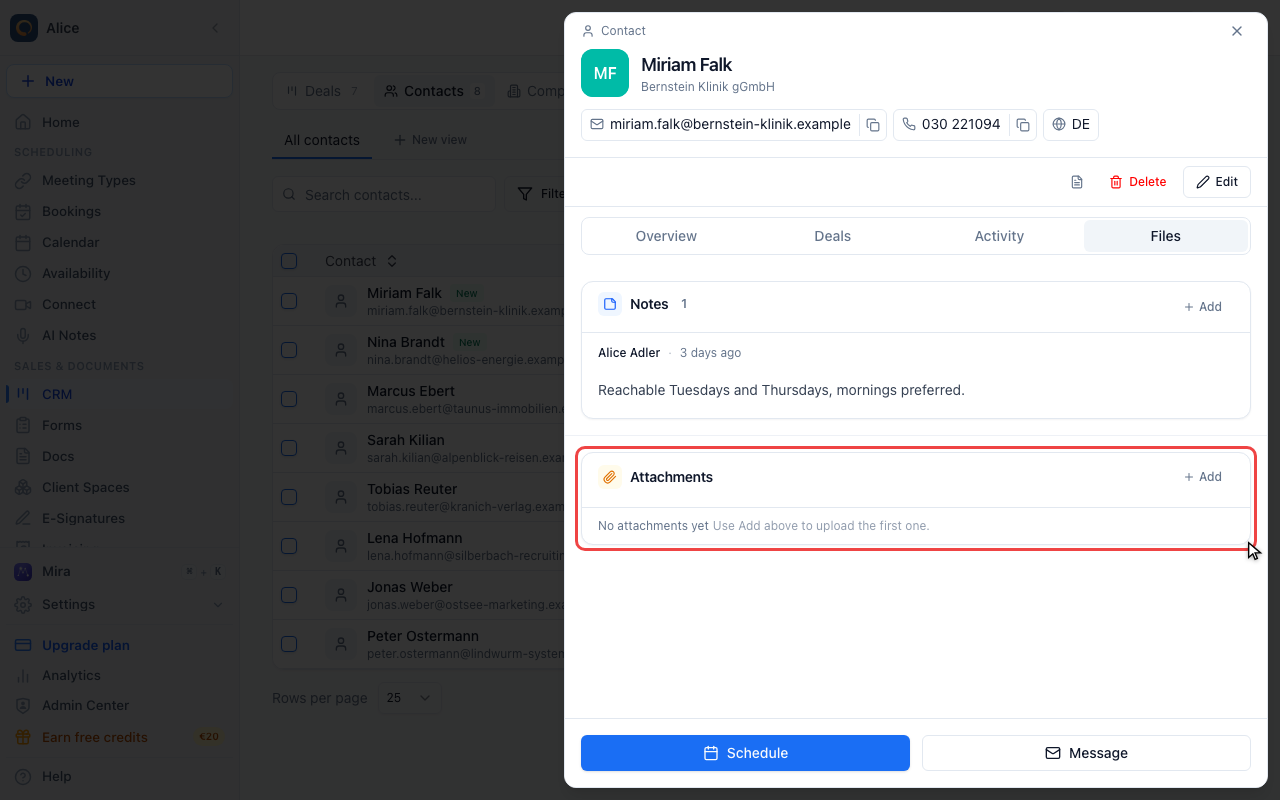
Where notes and files live
Notes and Attachments are the same two cards everywhere. Only the way you reach them changes:
| Record | Where the cards are |
|---|---|
| Deal | The Overview tab. Notes is the first card in the main column, Attachments the last one. |
| Contact | The Files tab of the contact record. |
| Company | The bottom of the company record, under the client portal card. |
They are per record. A note you write on a deal does not appear on the company the deal belongs to, and a file you attach to a contact does not follow them onto their deals.
A contact record has a second, unrelated Notes block on its Overview tab. That one is a single free-text field on the contact itself, edited with the pencil beside it. The Notes card on the Files tab is the one this article is about.
Notes
Writing one
Add in the Notes card header opens the editor. While it is open the same button reads Cancel. Add Note at the bottom of the editor saves the note, and it stays disabled until you have typed something.
A saved note appears at the top of the list with your name against it.
What the editor can do
The toolbar carries six controls, and nothing else is offered:
| Control | What it does |
|---|---|
| Bold | Also Ctrl/Cmd+B |
| Italic | Also Ctrl/Cmd+I |
| Underline | Also Ctrl/Cmd+U |
| Numbered list | Turns the current lines into 1, 2, 3 |
| Bulleted list | Turns the current lines into bullets |
| Link | Opens a small dialog that asks for the address |
There are no headings, no colours, no images and no tables. Anything you paste in beyond that vocabulary is stripped when the note is saved.
Pinning
Pinned notes sit above every other note on the record, whatever their date, on an amber background with a Pinned badge.
Pin a note from its own menu: hover the note, open the menu in its top right corner and choose Pin note. The same menu reads Unpin note once it is pinned.
Editing and deleting
The note menu also holds Edit, which reopens the text in the editor with Cancel and Save under it, and Delete.
Delete removes the note immediately. There is no confirmation step and no undo. Copy anything you might still want before you use it.
You only get that menu on notes you wrote yourself. Notes your colleagues wrote are readable, but you cannot edit, pin or delete them.
What a note shows
Each note carries the author's name, how long ago it was written ("2 hours ago", "3 days ago") and the text. Editing a note does not change that line and is not marked in any way, so a note that was rewritten still shows when it was first written.
A record lists its 100 most recent notes, newest first, with the pinned ones lifted to the top.
Attachments
Uploading a file
Two ways in, both on the Attachments card:
- Add in the card header opens your file browser.
- Drag a file from your desktop straight onto the card.
The upload starts as soon as the file is chosen. There is no confirmation step and no description field.
What you can upload
| Category | Extensions |
|---|---|
| Documents | PDF, DOC, DOCX, TXT |
| Spreadsheets | XLS, XLSX, CSV |
| Images | JPG, JPEG, PNG, GIF |
Anything else is refused, including presentations, archives and SVG. The limit is 10 MB per file, and uploads count against your account's storage allowance.
File uploads are part of the paid plans. On a plan without them the upload fails with a message asking you to upgrade.
Reading the list
Each row shows a coloured icon for the file type (red for documents, green for spreadsheets, pink for images, grey for everything else), the file name, its size and how long ago it was added. The name of the person who uploaded it is not shown.
Downloading and removing
Hover a row and two controls appear on the right: the download arrow, and a menu holding Download and Delete.
Delete takes the file off this record immediately, with no confirmation. The file itself stays in your file library, so your storage use does not go down, but the link to this deal, contact or company is gone.
Getting good use out of them
Notes
Write what a colleague would need in six months, not what you will remember tomorrow. "Met at TechConf, interested in the enterprise tier, budget approval expected Q2" earns its place. "Nice meeting" does not.
Keep data out of notes when a field exists for it. A phone number belongs in the phone field, a deal value in the value field, a close date in the close date. Notes are for the context around those numbers.
Pin sparingly. If every note is pinned, nothing is.
Attachments
Name files so the list is readable at a glance:
Acme-Proposal-Q1-2026.pdf beats proposal-final-v2-FINAL.pdf.
There is no version history, so upload the new version and delete the old one rather than keeping both.
File an email as a note
A mail sitting in one teammate's inbox is invisible to the rest of the team. Forward it to your company's CRM address and it becomes a note on the contact.
- Open the Notes card on a contact and choose By email.
- Copy the address shown. It is the same for your whole company.
- Forward a mail you received to that address. Or put the address in Bcc when you write to a customer yourself.
meetergo files the mail as a note on the contact with the customer's address: for a forward, the address in the quoted sender line; for a Bcc copy, the recipient. If the contact does not exist yet, it is created. The note carries subject, sender and the text of the mail, under your name.
Only mail sent from a team member's address is accepted. Attachments are not carried over; they stay in the mailbox.
FAQ
Do notes show up in the deal's activity log?
No. The Activity tab records stage changes, value changes, contacts, wins, losses and meetings. Notes and attachments are not among them.
Can I search inside notes?
No. Contact search looks at names, email, phone and the contact's own Notes field on the Overview tab, not at the notes on the Files tab. To find a note, open the record.
Can I move a note to another record?
No. Copy the text, write it on the target record and delete the original.
Are attachments versioned?
No. Uploading a file with the same name adds a second row rather than replacing the first.
Who can see notes and attachments?
Everybody in your company who can open the record. Notes are internal and are never shown to the person the record is about.
Who can change them?
Only the author can edit, pin or delete a note. An attachment can be downloaded and deleted by anyone who can see the record.
Can I export notes?
Not in bulk. Copy the text from the record.
What is the difference between notes and communications?
Notes are what you want your team to know. The Communications log records outbound contact you actually made, such as a call or an email, with a date and a channel. Use notes for context and communications for the record of contact.
Filing hand-filled PDFs with a contact
If you fill in your own documentation forms as PDFs during an appointment, for example with a tablet pen, you do not need a second app for it. At the bottom of a contact's Files tab, Fill in a PDF by hand opens the "Fill in a PDF" page with that contact as the destination.
- Open template lists every PDF in your file library. Upload your forms there once and the whole team can open them.
- Write into the document with a pen, a finger or the mouse. Fine pen switches to a ballpoint-like stroke that fits into form fields. In a multi-page document, the arrows at the top right move from page to page, so there is no need to swipe.
- Save to contact files the finished PDF in the contact's attachments. The file name carries the template, the contact and the date.
Without a contact chosen, the page saves the PDF to your device as before. The document itself is only uploaded when you save it to a contact. Attachments are visible to your team only, never in a portal.
Carrying one document across appointments
If you keep one running sheet per contact, open the saved PDF again at the next appointment: in the contact's attachments every PDF shows a pen icon on hover, and the menu offers Continue filling in. What you wrote last time is part of the document, and you carry on below it. Saving creates a new file with today's date and keeps the earlier one.
Saving from a video call
A PDF you open on the whiteboard in a meetergo video call can go to the contact too. As host, choose Save to contact on the whiteboard. If the booking behind the call has one contact, the document goes there straight away; otherwise you pick the contact. Your guests do not see this button.
Related Articles
Was this article helpful?
Let us know if this article answered your questions.