
Pipeline Configuration
Set up and customize sales pipelines with stages, win probabilities, and required fields
Pipelines define your sales process in meetergo CRM. Each pipeline contains stages that represent steps in your sales cycle, from initial contact to closed deal. This guide covers creating, configuring, and managing pipelines.
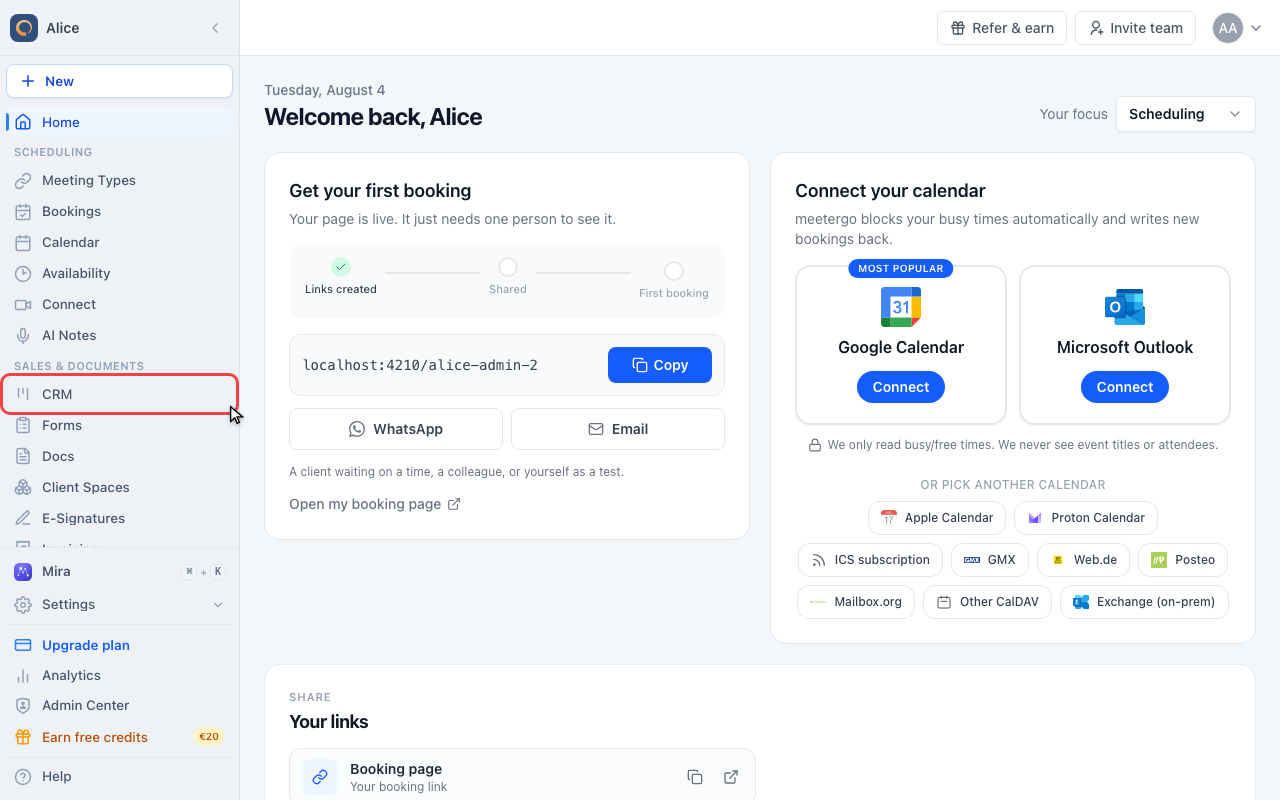 1 / 23
Click CRM in the sidebar.
Create a pipeline
Open CRM
Click CRM in the sidebar.
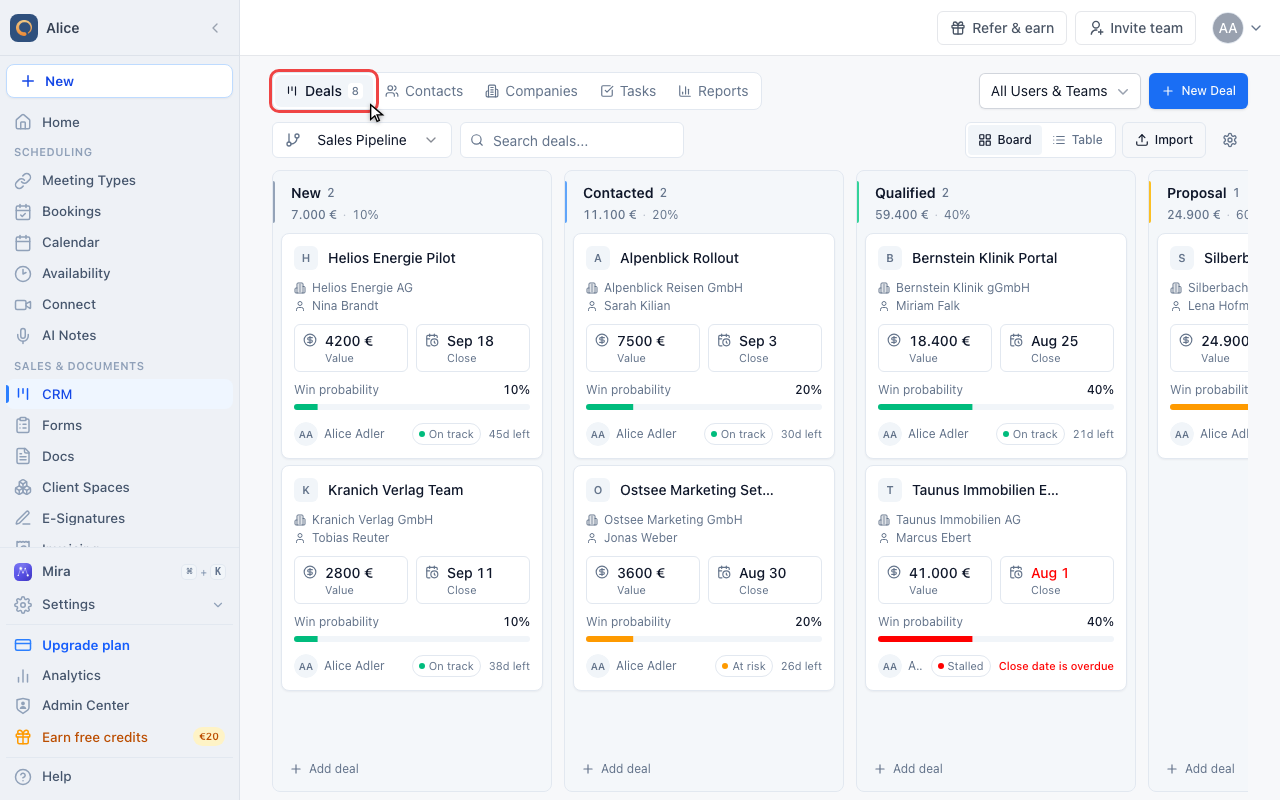
Go to Deals
Pipelines are configured from the Deals tab. There is no separate pipeline page.
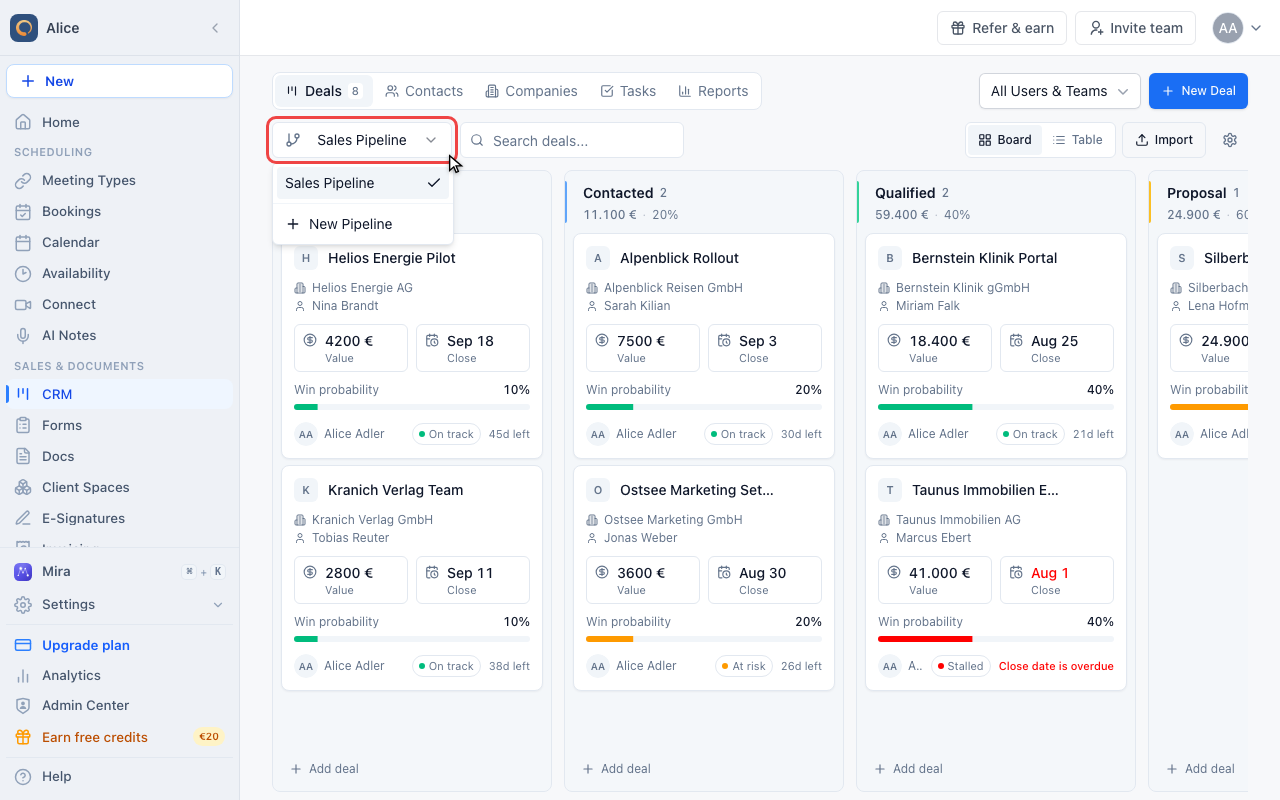
Open the pipeline picker
The picker on the left of the toolbar lists every pipeline you have and switches the board between them.
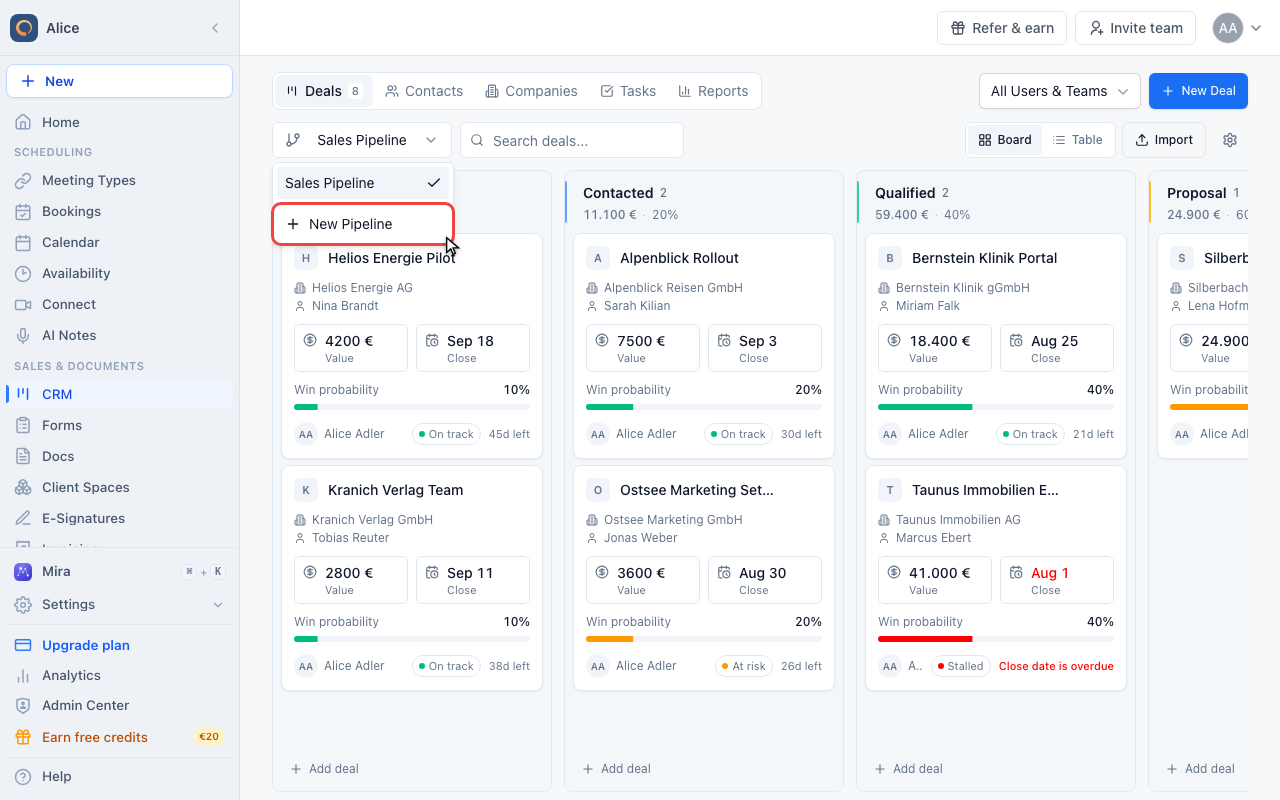
Choose New Pipeline
The last entry in the picker starts a new pipeline.
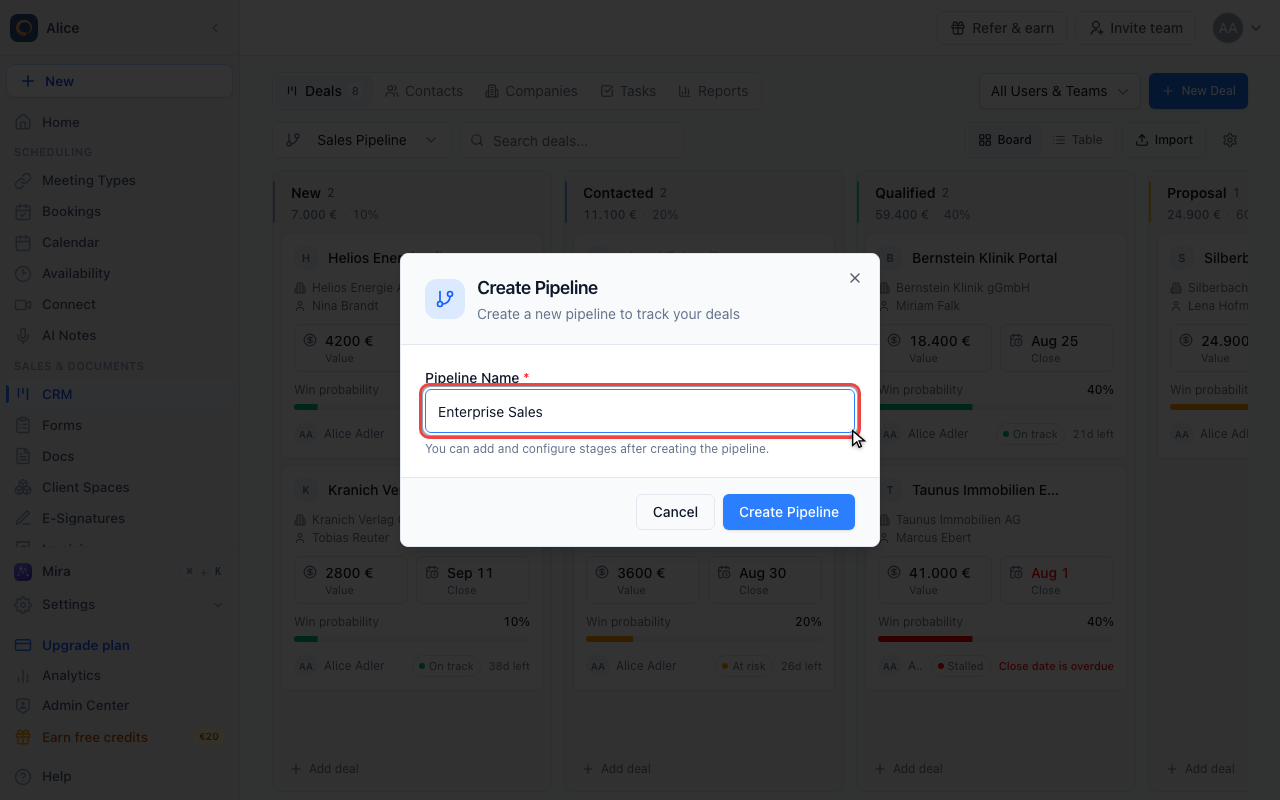
Name the pipeline
The name is the only thing you enter. Pick what the sales motion is called, for example Enterprise Sales or Inbound Leads.
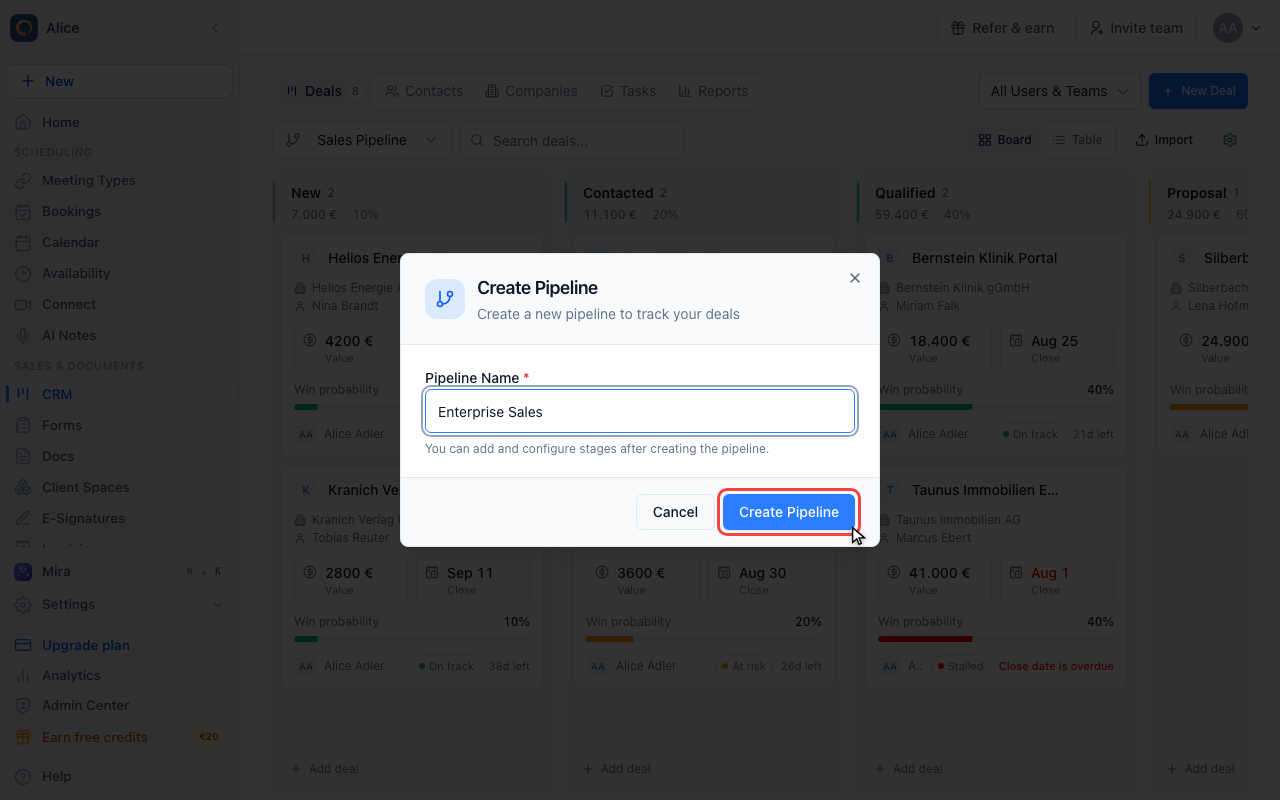
Create it
The new pipeline arrives with the same seven default stages every account starts with, ready to be renamed and reshaped.
Configure the stages
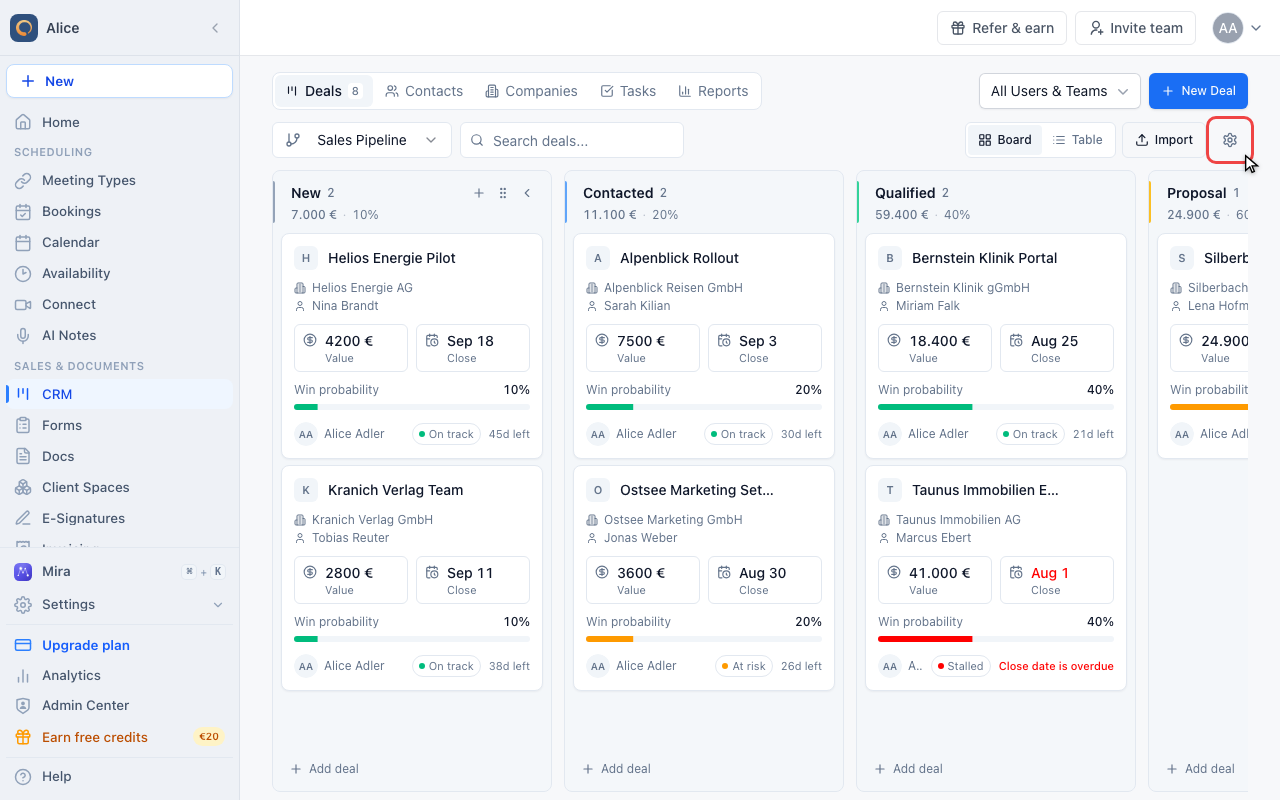
Open pipeline settings
The gear on the right of the toolbar opens the settings for whichever pipeline is currently selected.
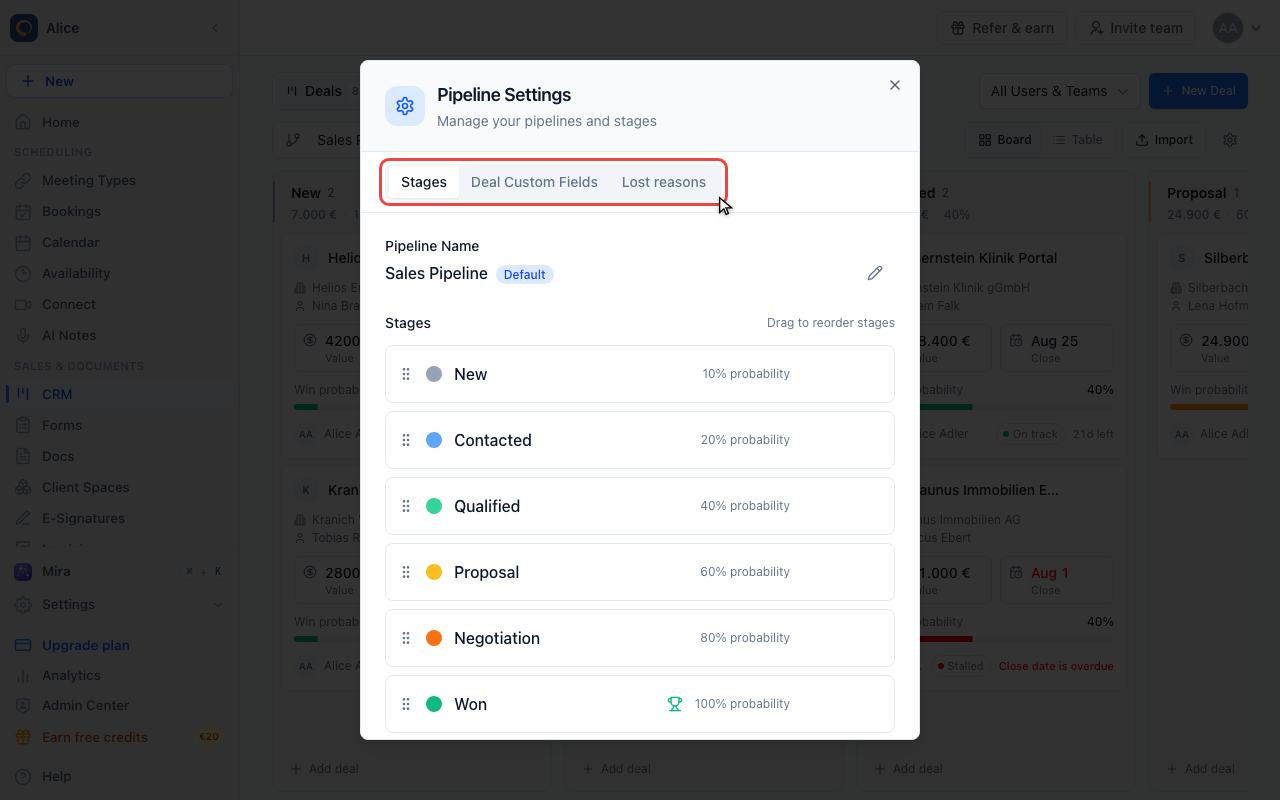
Find your way around
Pipeline Settings has three tabs: Stages for this pipeline, and Deal Custom Fields and Lost reasons, which apply to every pipeline in the account.
Rename the pipeline
The pencil beside the name turns it into an input. The Default badge marks the pipeline new deals land in when no other is chosen.
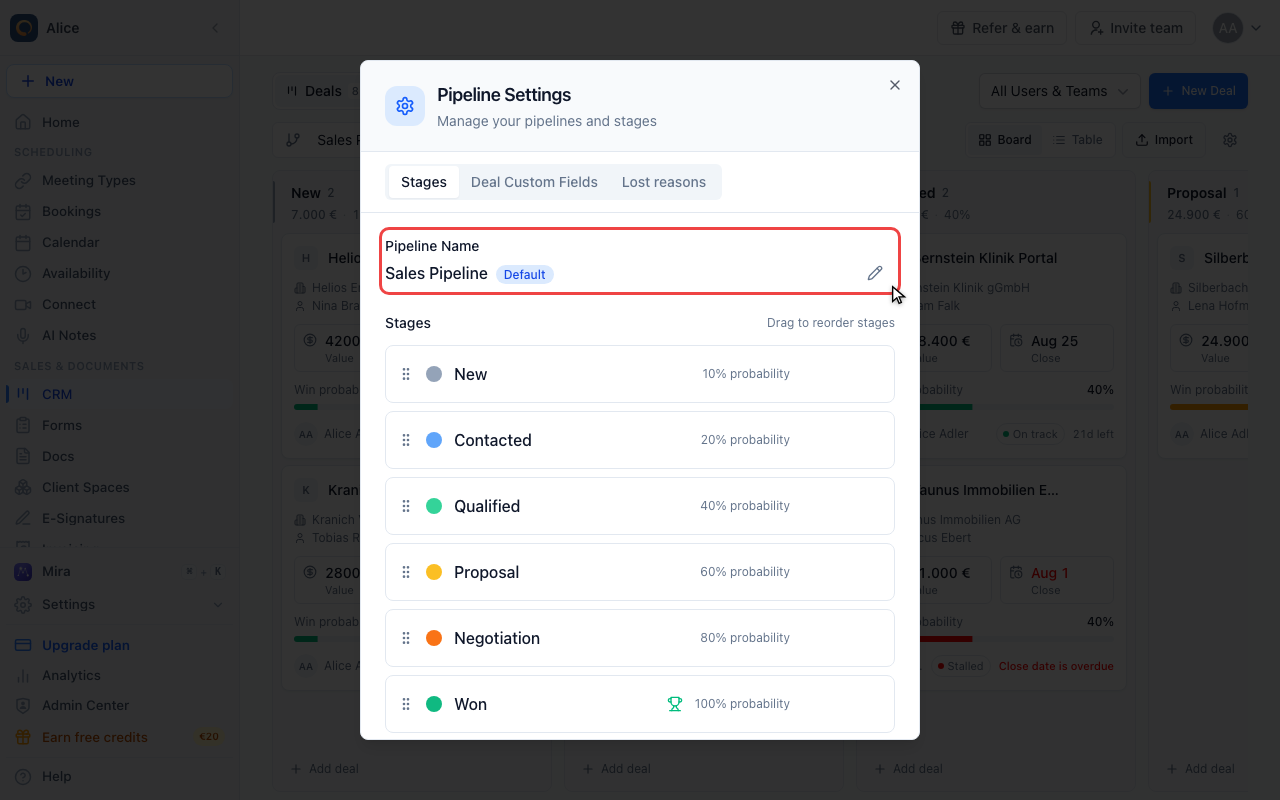
Read a stage row
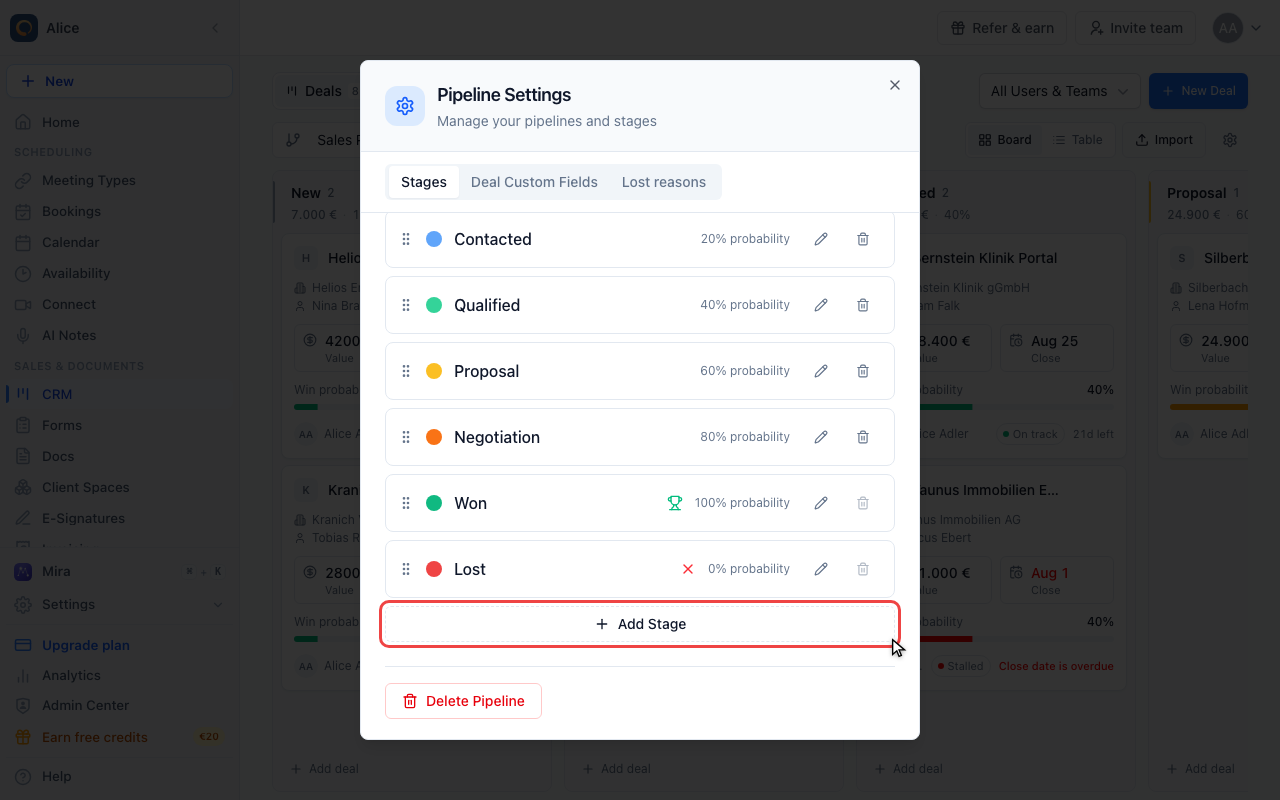
Every stage shows its colour, its name, a trophy or cross if it is the Won or Lost stage, and its win probability.
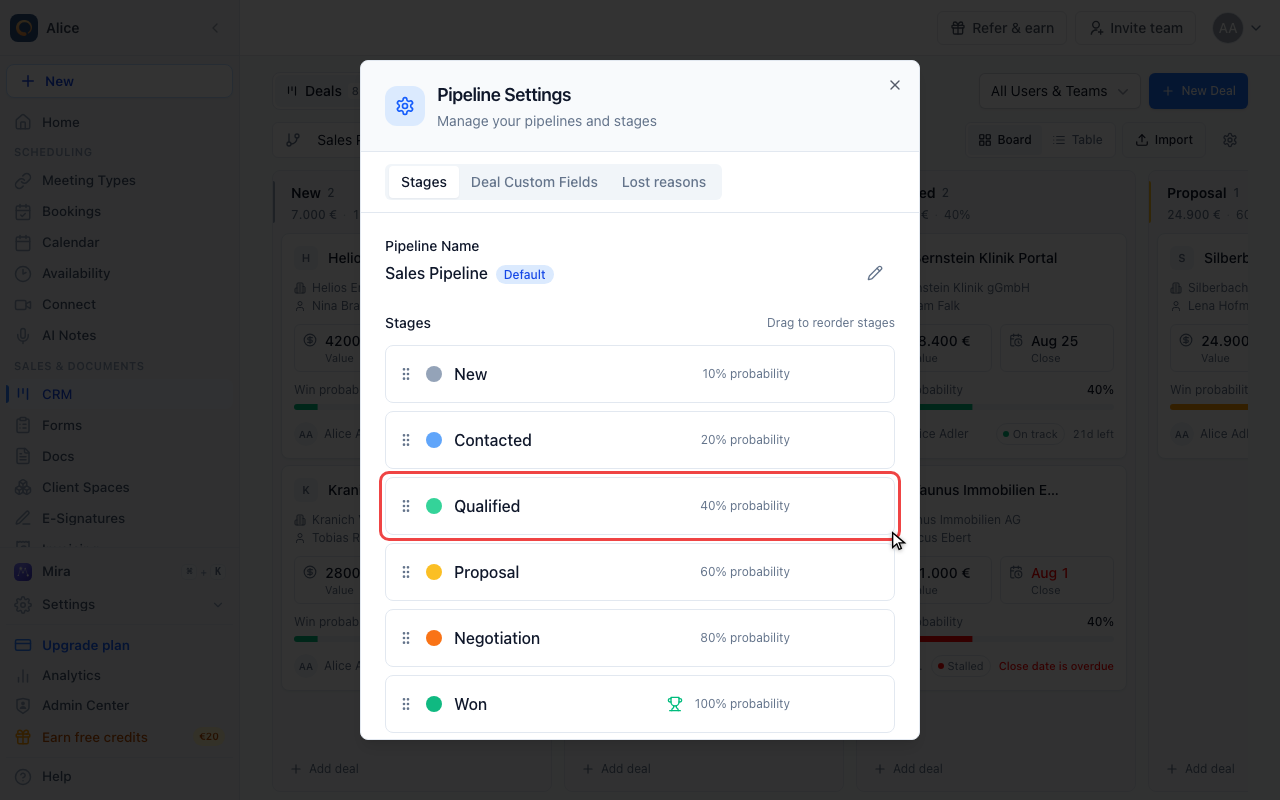
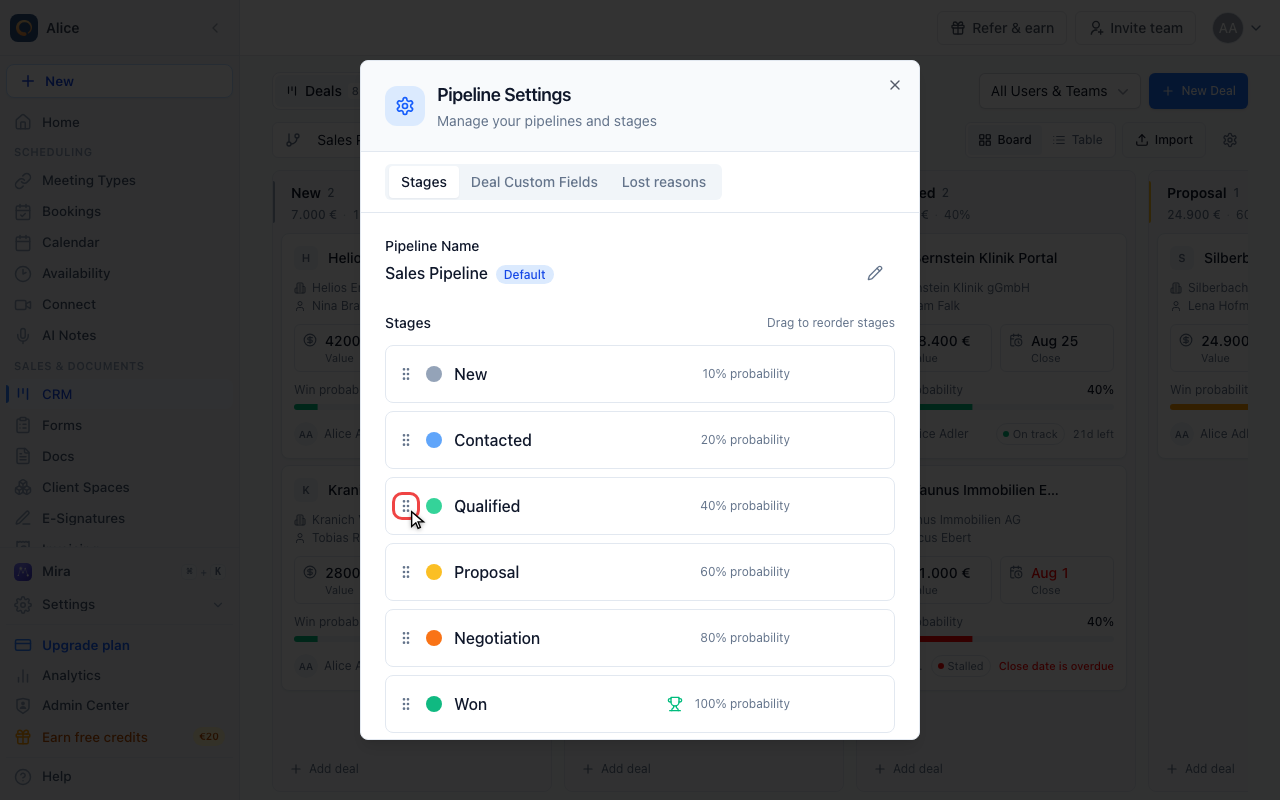
Reorder the stages
Drag a row by its grip to change the order. Stage order is the left-to-right order of the columns on the board, and the new order saves as soon as you drop.
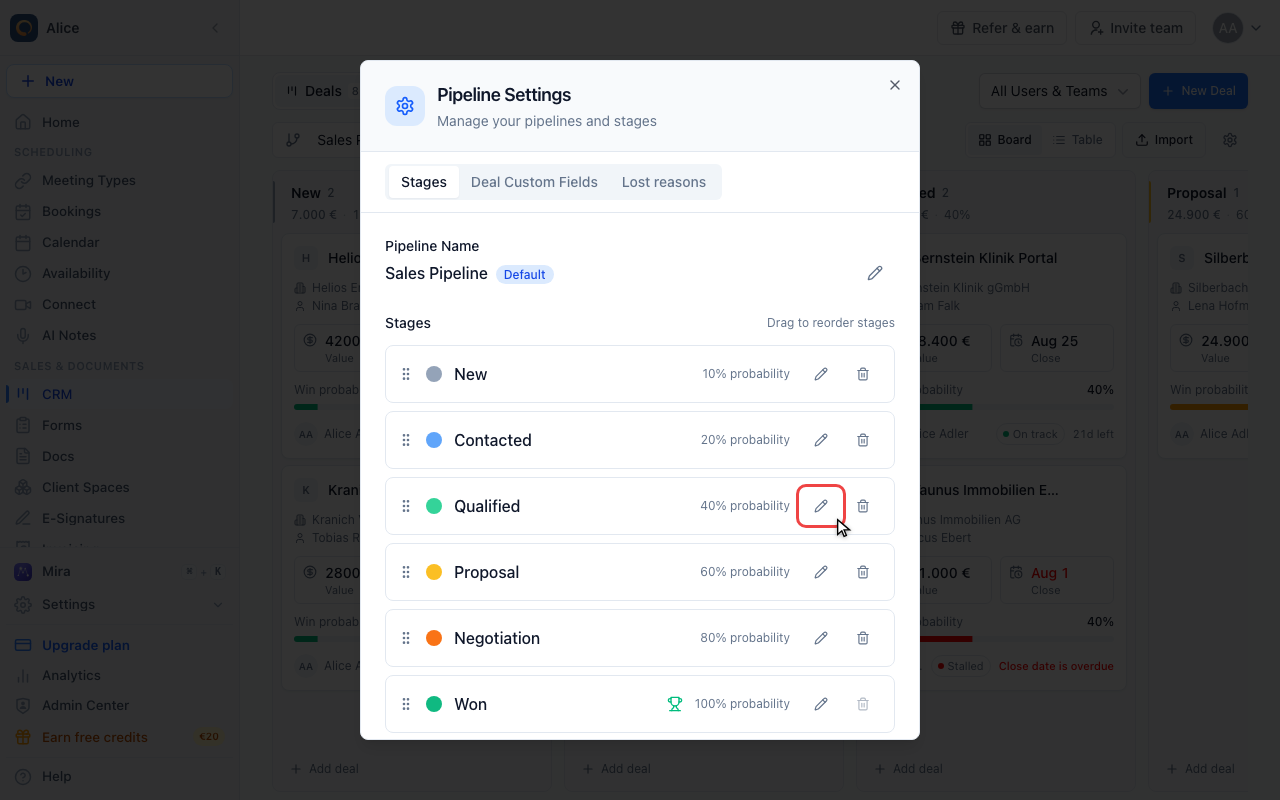
Edit a stage
Hover a stage and click the pencil to open its editor.
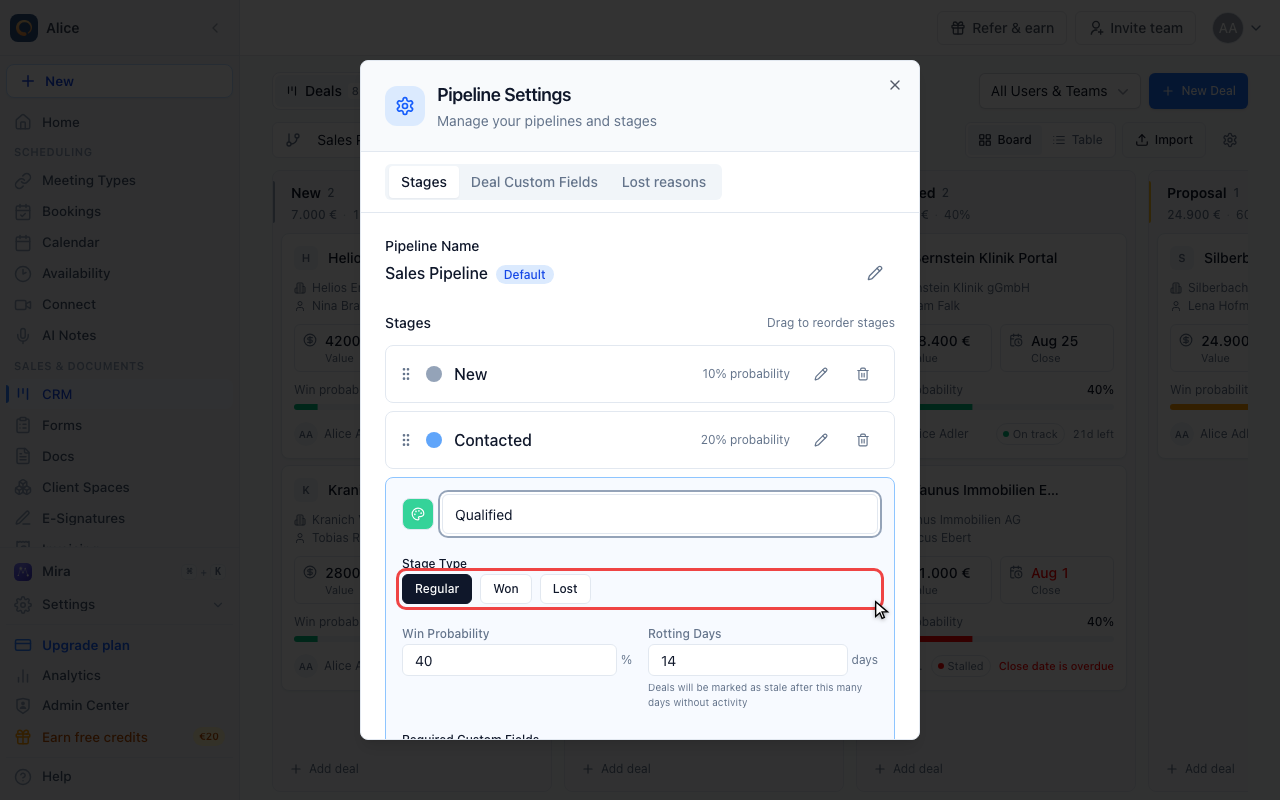
Set the stage type
A stage is Regular, Won or Lost. The Won and Lost stages are the terminal ones: a deal that reaches them leaves the open pipeline, and their win probability is fixed at 100% and 0%.
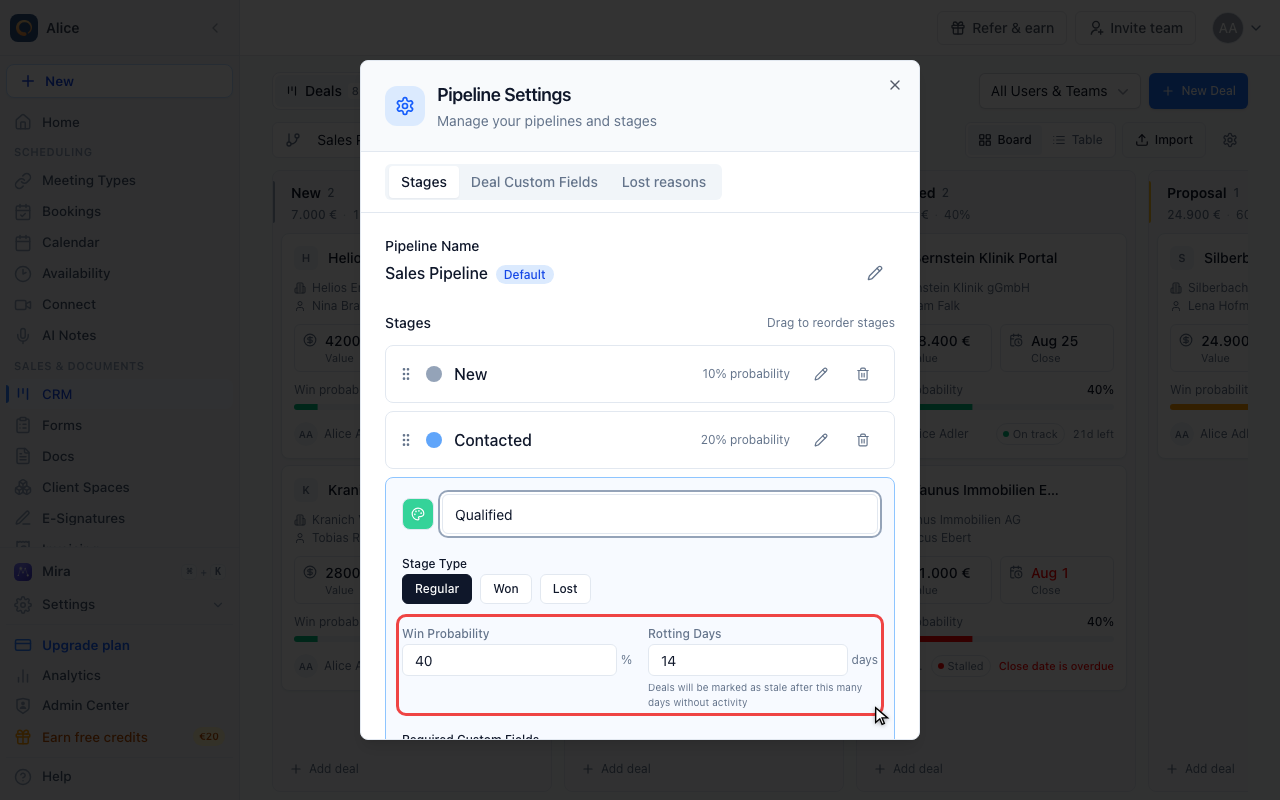
Set the win probability and rotting days
Win probability drives the weighted forecast: deal value multiplied by the probability of the stage it sits in. Rotting days is how long a deal may sit in this stage without activity before it is flagged as stale. Leave it at 0 to switch the flag off.
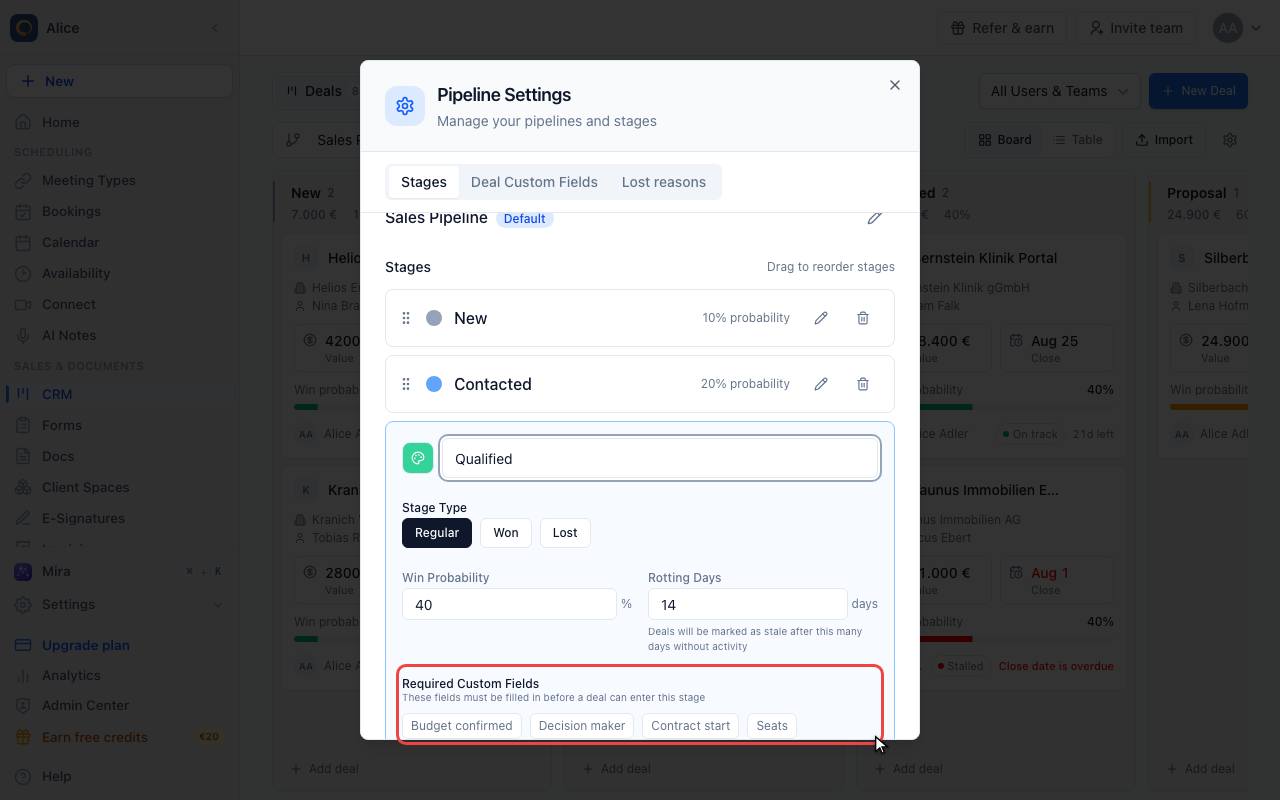
Require fields for the stage
Pick the deal custom fields that must be filled in before a deal is allowed into this stage. Anyone moving a deal here is asked for whatever is still missing.
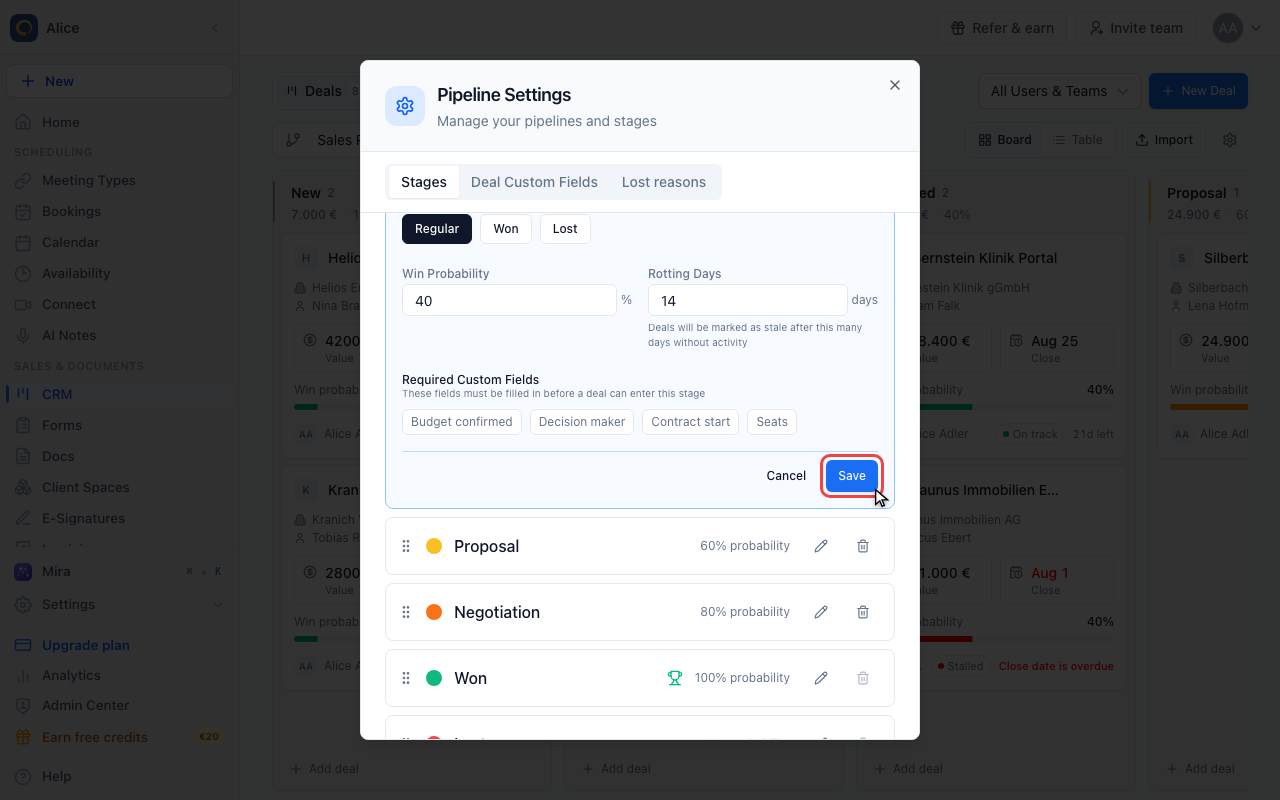
Save the stage
Save writes the stage immediately, Cancel drops the edit. There is no separate save for the dialog as a whole.
Add a stage
Add Stage appends a stage at the end of the list.
Name the new stage
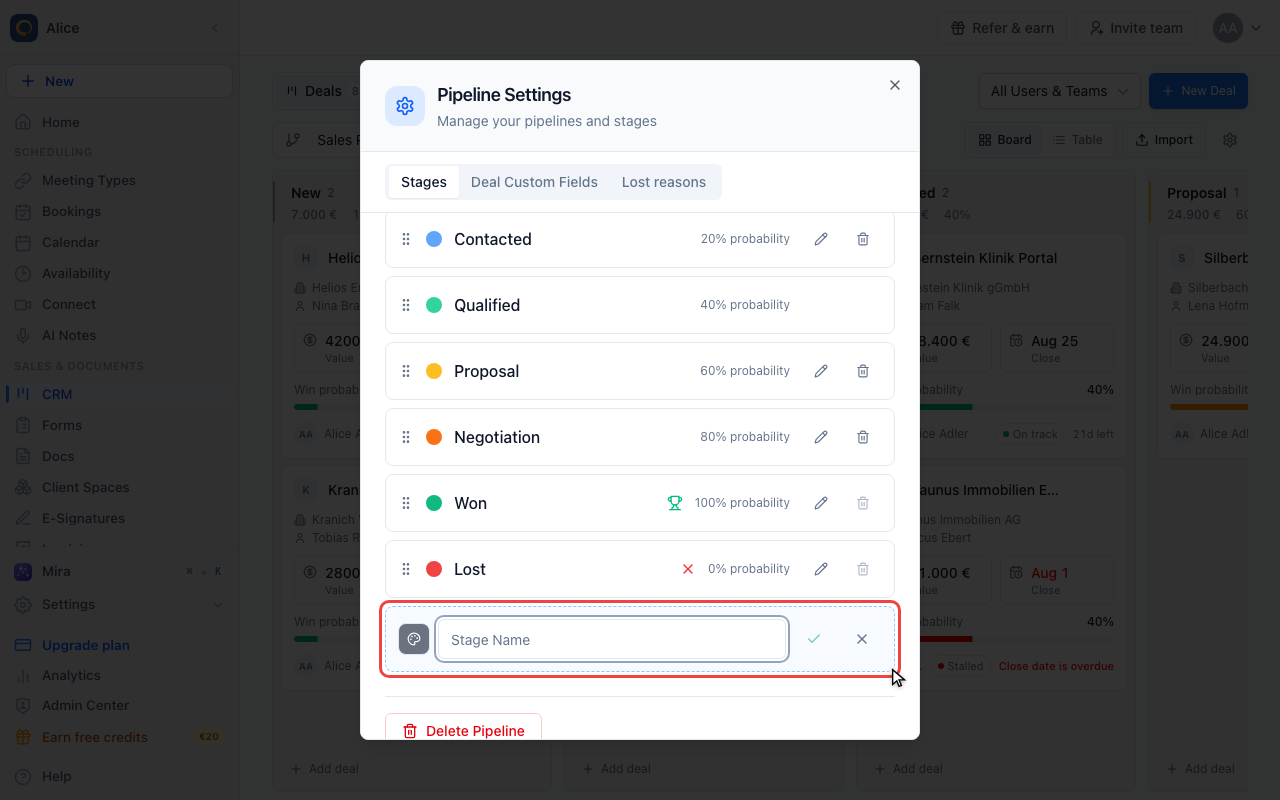
Pick a colour and a name, then confirm with the check. New stages start at a 50% win probability, which you can change straight away in the stage editor.
Custom fields and lost reasons
Open Deal Custom Fields
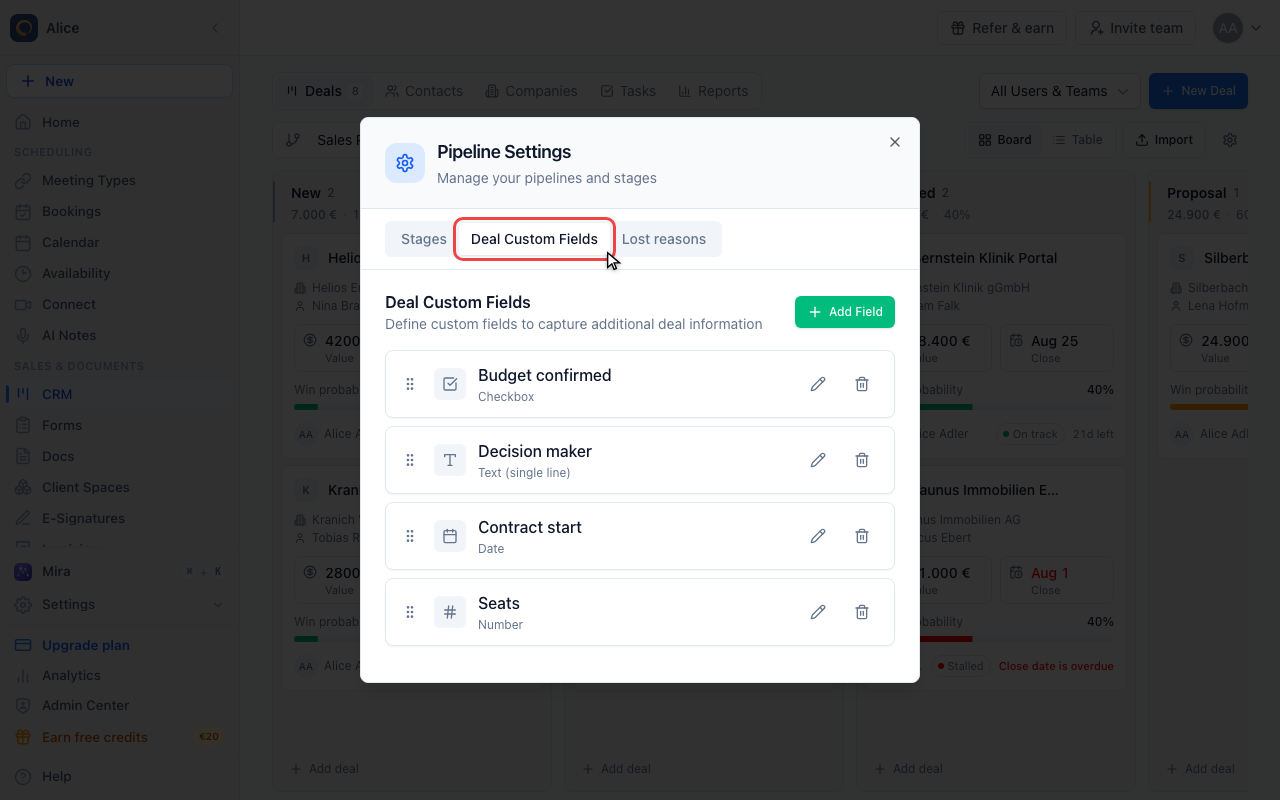
The second tab defines the extra fields a deal can carry. These are the fields a stage can then require.
Open Lost reasons
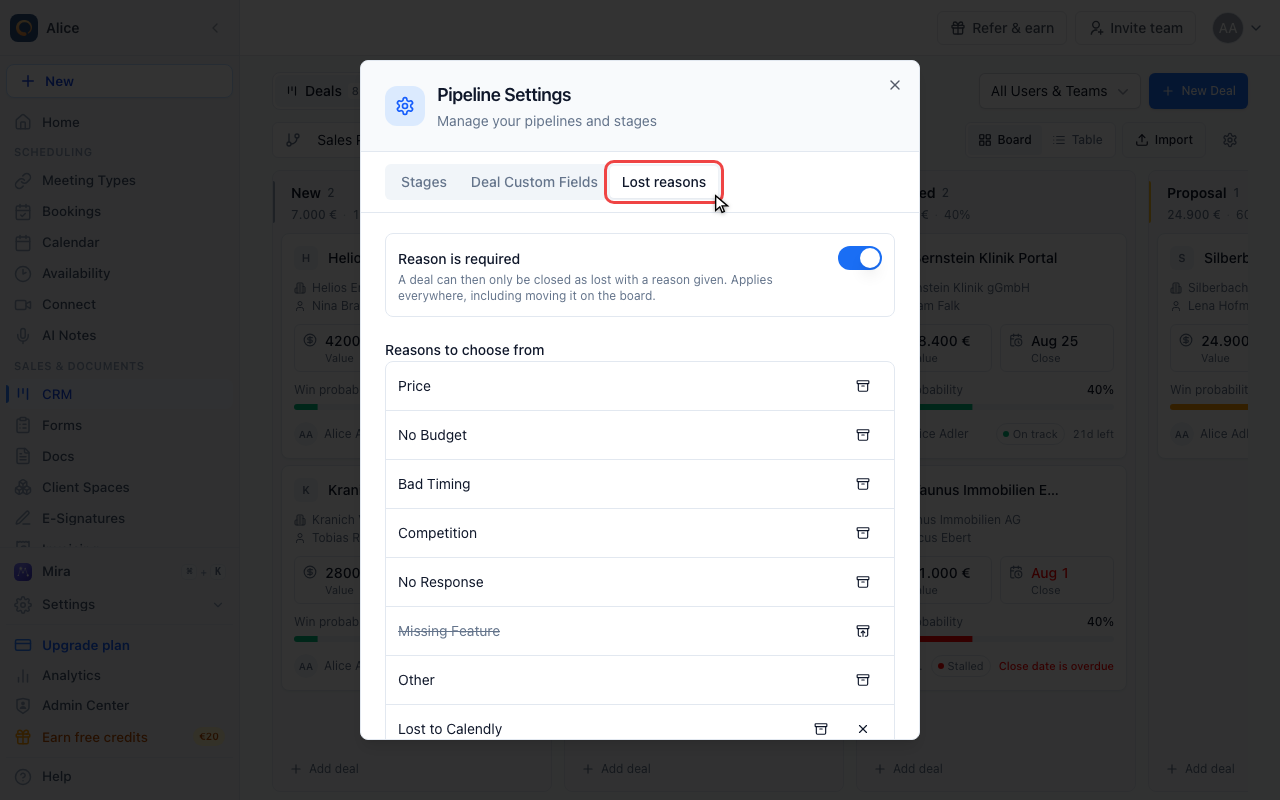
The third tab holds the reasons offered when a deal is closed as lost. Turn on the switch to make a reason mandatory, add your own, and hide the ones you do not use. Hiding keeps history readable instead of blanking out deals already closed under that reason.
Remove a stage or a pipeline
Delete a stage
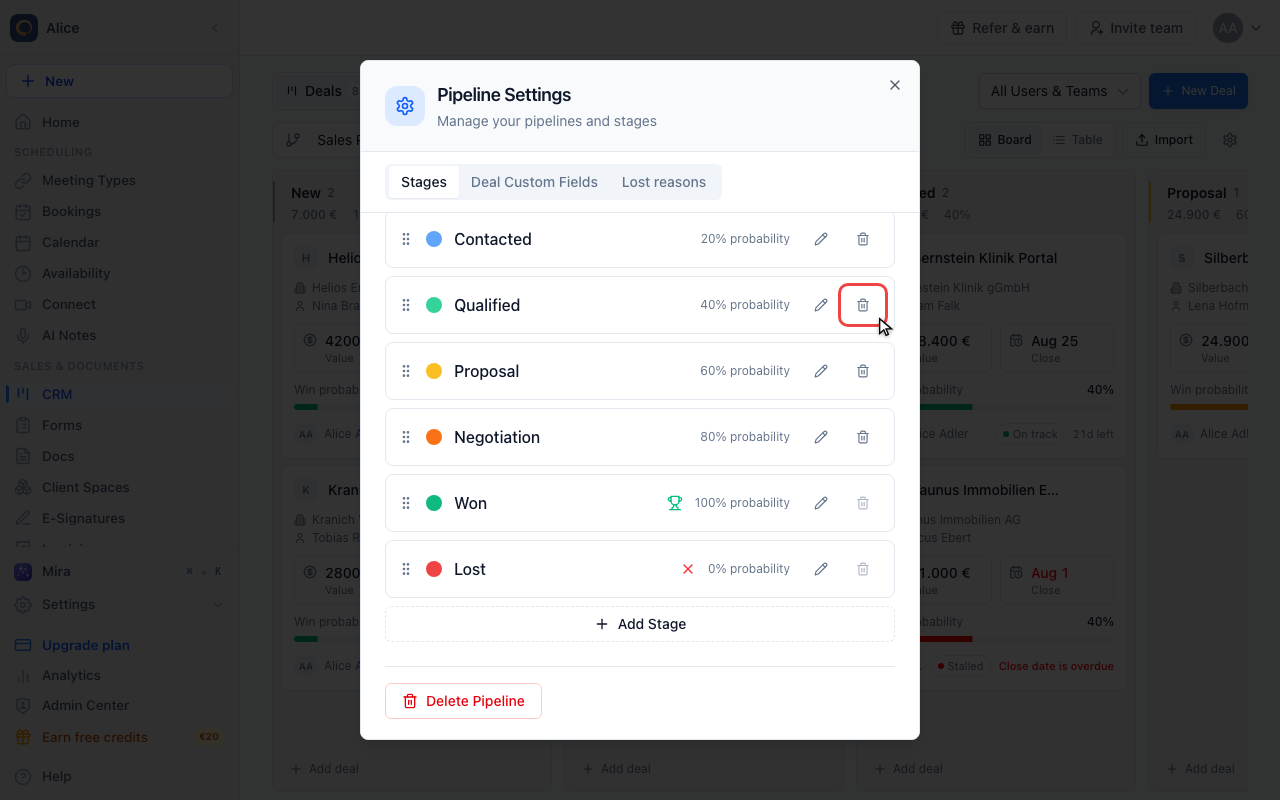
The bin beside the pencil removes a stage. It is disabled on the Won and Lost stages, which cannot be deleted.
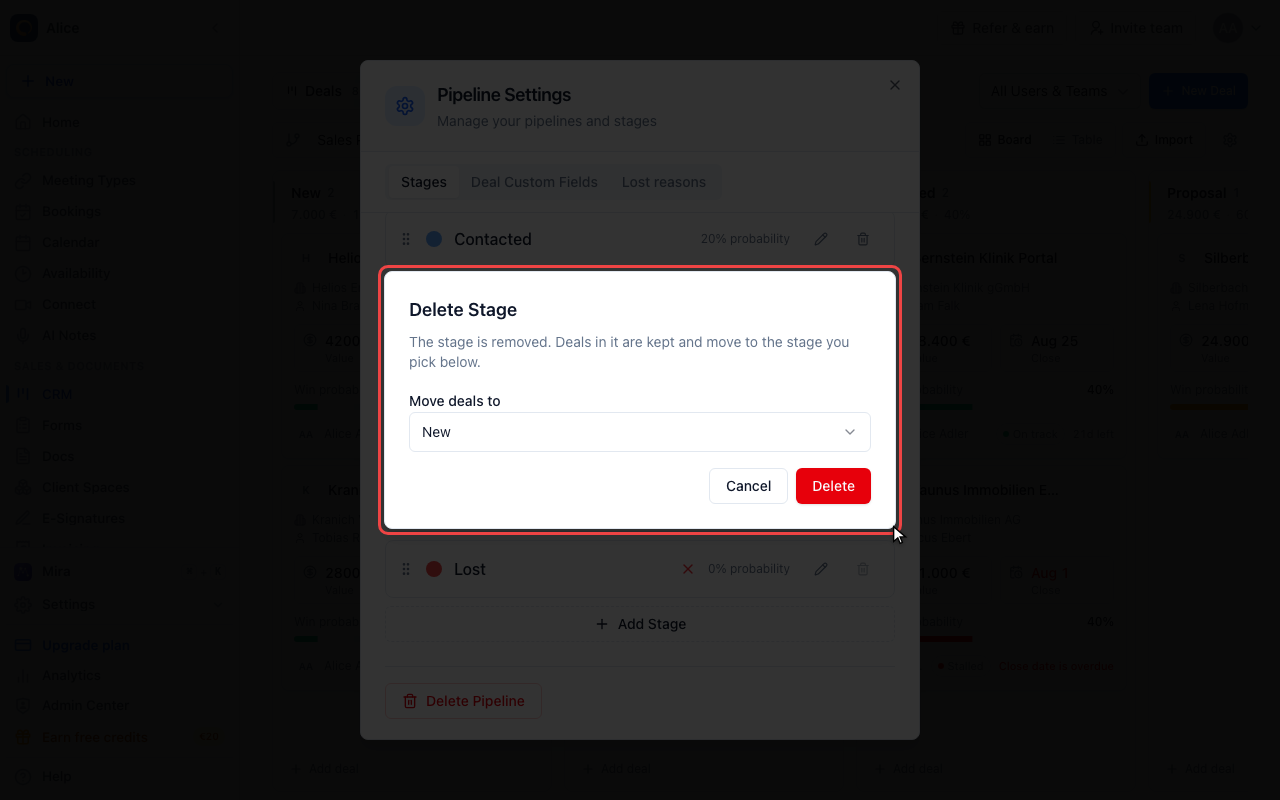
Say where the deals go
Deleting a stage never deletes what is in it. Choose the stage its deals move to and confirm. A pipeline always keeps at least one stage, so the last one cannot be removed.
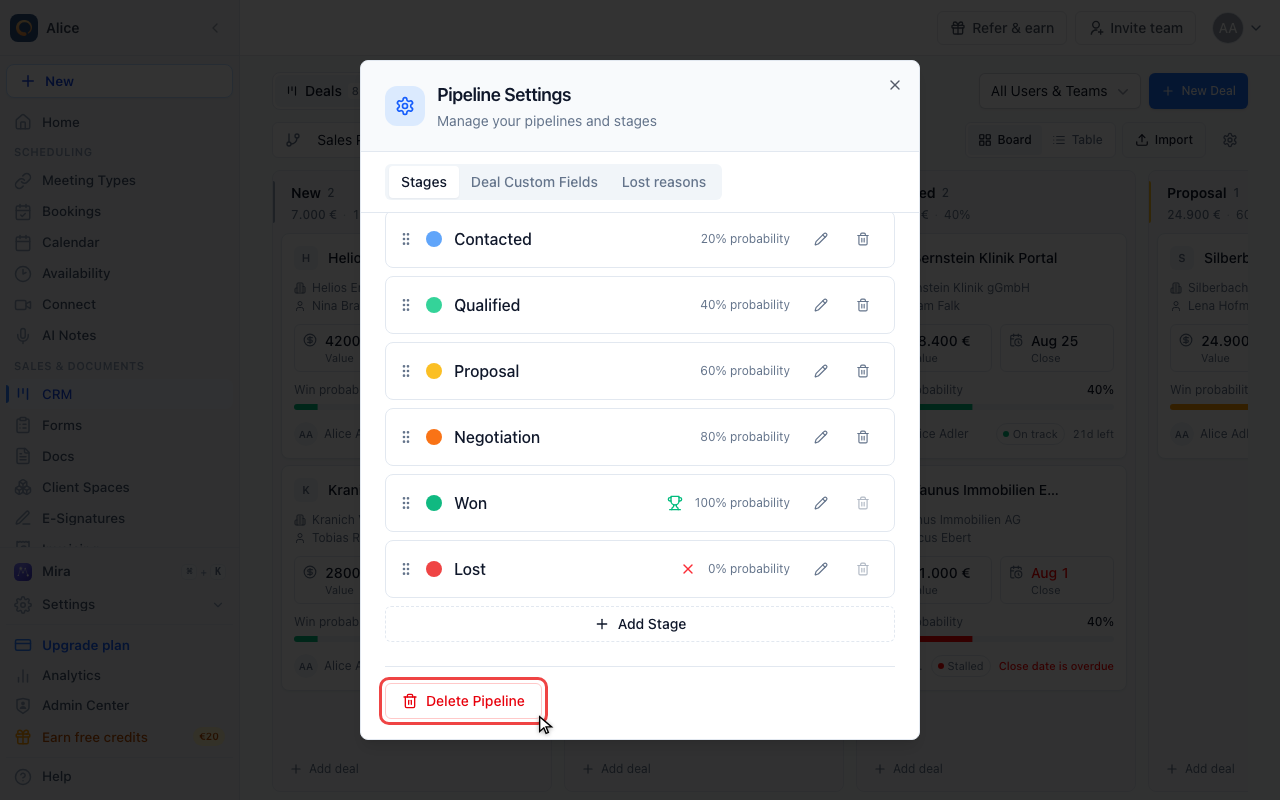
Delete the pipeline
Delete Pipeline sits at the bottom of the Stages tab and asks for confirmation. A pipeline that still holds open deals is refused: close them or move them first.
Understanding pipelines
A pipeline is a structured sequence of stages that a deal moves through. Pipelines help you:
- Visualize where deals are in your sales process
- Track progress from lead to close
- Calculate weighted forecasts based on stage probabilities
- Ensure consistent sales processes across your team
Pipeline vs. stage
| Concept | Description | Example |
|---|---|---|
| Pipeline | The overall sales process | "Enterprise Sales" |
| Stage | A step within a pipeline | "Discovery", "Proposal", "Negotiation" |
Your account starts with one pipeline called Sales Pipeline, and every new pipeline you create arrives with the same seven stages: New, Contacted, Qualified, Proposal, Negotiation, Won and Lost. Rename, reorder, add and remove them from there.
What you can set on a stage
The stage editor opens from the pencil on a stage row in Pipeline Settings.
| Setting | Description |
|---|---|
| Color | The dot on the stage row and the bar on top of the board column |
| Name | Stage display name, for example "Qualification" |
| Stage type | Regular, Won or Lost |
| Win probability | Likelihood of closing, 0 to 100% |
| Rotting days | Days without activity before a deal in this stage is flagged as stale. 0 turns the flag off |
| Required custom fields | Deal custom fields that must be filled in before a deal may enter this stage |
Stage order is not a field. Drag the rows into the order you want and it saves as soon as you drop.
Saving is per stage: Save in the stage editor writes that stage immediately. There is no save button for the dialog as a whole.
Stage types
| Type | Description | Purpose |
|---|---|---|
| Regular | Normal pipeline stages | Track deal progress |
| Won | Terminal stage for won deals | Record successful closes |
| Lost | Terminal stage for lost deals | Record unsuccessful outcomes |
The default stage set ships with one Won and one Lost stage. They cannot be deleted, their win probability is locked at 100% and 0%, and a deal that reaches them leaves the open pipeline. Any other stage can be turned into a Won or Lost stage with the Stage type buttons.
Win probability
Set the win probability for each stage to reflect the likelihood of closing:
| Example stage | Typical probability |
|---|---|
| Lead/Prospect | 10% |
| Qualification | 20% |
| Discovery | 40% |
| Proposal | 60% |
| Negotiation | 80% |
| Verbal Commit | 90% |
Win probabilities drive the weighted forecast:
- Weighted value = deal value × win probability
The weighted forecast for the whole pipeline sits above the deals list in Table view, next to the total value and the deal count. It helps prioritize deals and forecast revenue more accurately.
Stage colors
Colors distinguish stages on the Kanban board. There are eight to pick from:
- Use progression (light to dark) to indicate advancement
- Use contrasting colors for different deal types
- Consistent colors help team members quickly identify stages
Required fields per stage
Each stage can require certain custom fields before a deal is allowed to enter it, which keeps data quality high as deals advance. You configure this per stage under Pipeline Settings → the stage → Required Custom Fields, and anyone moving a deal into that stage is prompted to fill in whatever is still missing. The fields you can pick from are the ones defined on the Deal Custom Fields tab of the same dialog. For field types, examples and the full walkthrough, see Required Fields Per Stage.
Lost reasons
The third tab of Pipeline Settings, Lost reasons, is where you decide what people can pick from when they close a deal as lost. Seven reasons are built in. Add your own, hide the ones you do not use, and turn on Reason is required to make a reason mandatory everywhere, including when a deal is dragged into the Lost column on the board.
Reasons are hidden rather than deleted, so deals already closed under a reason keep showing it in the reports.
Deal custom fields and lost reasons apply to the whole account, not to the pipeline you happen to have open.
The default pipeline
One pipeline carries the Default badge beside its name in Pipeline Settings. That is the pipeline the New Deal dialog preselects. You can pick any other pipeline in that dialog before you save.
The default is the first pipeline your account got and cannot currently be moved to another pipeline from the dashboard.
Managing multiple pipelines
Create separate pipelines for different sales processes:
Common pipeline types
| Pipeline | Use case |
|---|---|
| Inbound Leads | Website inquiries, demo requests |
| Outbound Sales | Cold outreach, prospecting |
| Enterprise | Large deals with longer cycles |
| SMB | Faster-moving small business deals |
| Partnerships | Channel and partner opportunities |
| Renewals | Existing customer renewals |
When to use multiple pipelines
Use multiple pipelines when:
- Sales cycles differ significantly in length
- Stage names vary between processes
- Different teams handle different deal types
- You need separate reporting by sales motion
When to use a single pipeline
Use one pipeline when:
- Your sales process is consistent
- All deals follow the same stages
- Simpler reporting is preferred
Decide which pipeline a deal belongs in when you create it. A deal cannot be moved to another pipeline afterwards.
Pipeline best practices
Keep it simple
- 5-7 stages is typically ideal
- Too few stages lack visibility
- Too many stages create confusion
Name stages clearly
Use action-oriented or status-based names:
| Good | Avoid |
|---|---|
| "Discovery Call Scheduled" | "Stage 2" |
| "Proposal Sent" | "In Progress" |
| "Contract Review" | "Almost There" |
Set realistic probabilities
Base probabilities on actual historical data:
- Review closed deals from the past year
- Calculate close rates by stage
- Use those percentages as win probabilities
Review regularly
Evaluate pipelines quarterly:
- Are deals getting stuck at certain stages?
- Do win probabilities match actual outcomes?
- Should stages be added, removed, or renamed?
Where the numbers show up
| Metric | Where |
|---|---|
| Total value, weighted forecast, deal count | Above the deals list in Table view |
| Value and deal count per stage | The header of each column on the Board |
| Total pipeline value, won and lost deals, win rate, average deal value | Reports |
| Deals and value per stage, as a breakdown | Reports → Pipeline Breakdown |
| Every pipeline with its stage count | Reports → Pipelines |
Stale deals
A stage with Rotting Days set flags the deals that have sat in it that long without activity. The board marks them and the deal card turns its health badge to stalled, which is your prompt to:
- Follow up with the contact
- Move the deal forward
- Mark it as lost
The default stages come with 7 to 14 rotting days. Set the field to 0 on a stage that should never flag.
Removing stages and pipelines
Deleting a stage never deletes the deals in it. The confirmation asks which stage they should move to. The Won and Lost stages cannot be deleted, and neither can the last remaining stage.
A pipeline that still holds open deals cannot be deleted. Close those deals as won or lost first, and delete the pipeline afterwards.
FAQ
How many pipelines can I create?
There's no limit. Create as many as your sales process requires.
Can I move deals between pipelines?
No. A deal stays in the pipeline it was created in. You choose the pipeline in the New Deal dialog, so pick it before you save. Within a pipeline you can move a deal to any stage.
What happens to historical data if I change win probabilities?
Probability changes affect future calculations. Historical weighted values in reports reflect the probabilities at the time.
Can different team members have different pipelines?
Pipelines belong to the account, so everyone sees all of them. What you can do is give each team its own pipeline and let people pick theirs in the New Deal dialog, then read the results per pipeline in Reports.
How do I archive old pipelines?
There is no inactive flag. Either delete the pipeline once its deals are closed, or leave it in place and stop creating deals in it.
Can I duplicate a pipeline?
Not yet. A new pipeline starts from the same seven default stages, so in practice you rename and reshape those rather than building from nothing.
Example pipeline configurations
B2B SaaS sales
1. Lead (10%)
2. Qualified (25%)
3. Demo Scheduled (40%)
4. Demo Completed (55%)
5. Proposal Sent (70%)
6. Negotiation (85%)
7. Verbal Commit (95%)
Consulting services
1. Initial Inquiry (15%)
2. Discovery Call (30%)
3. Needs Assessment (50%)
4. Proposal Development (65%)
5. Proposal Review (80%)
6. Contract Negotiation (90%)
Real estate
1. Prospect (10%)
2. Viewing Scheduled (25%)
3. Viewed Property (40%)
4. Offer Made (60%)
5. Under Negotiation (75%)
6. Contract Signed (90%)
7. Awaiting Completion (95%)
Related Articles
Was this article helpful?
Let us know if this article answered your questions.