
Availability Exceptions
Create date-specific blocking or available rules and learn the rule precedence between your schedule, exceptions, and calendar events.
Availability exceptions allow you to customize your schedule beyond your regular availability settings. Whether you need to block off time or make yourself available during unusual hours, exceptions give you the flexibility to manage your calendar with precision. This article will guide you through creating, using, and managing availability exceptions.
 1 / 7
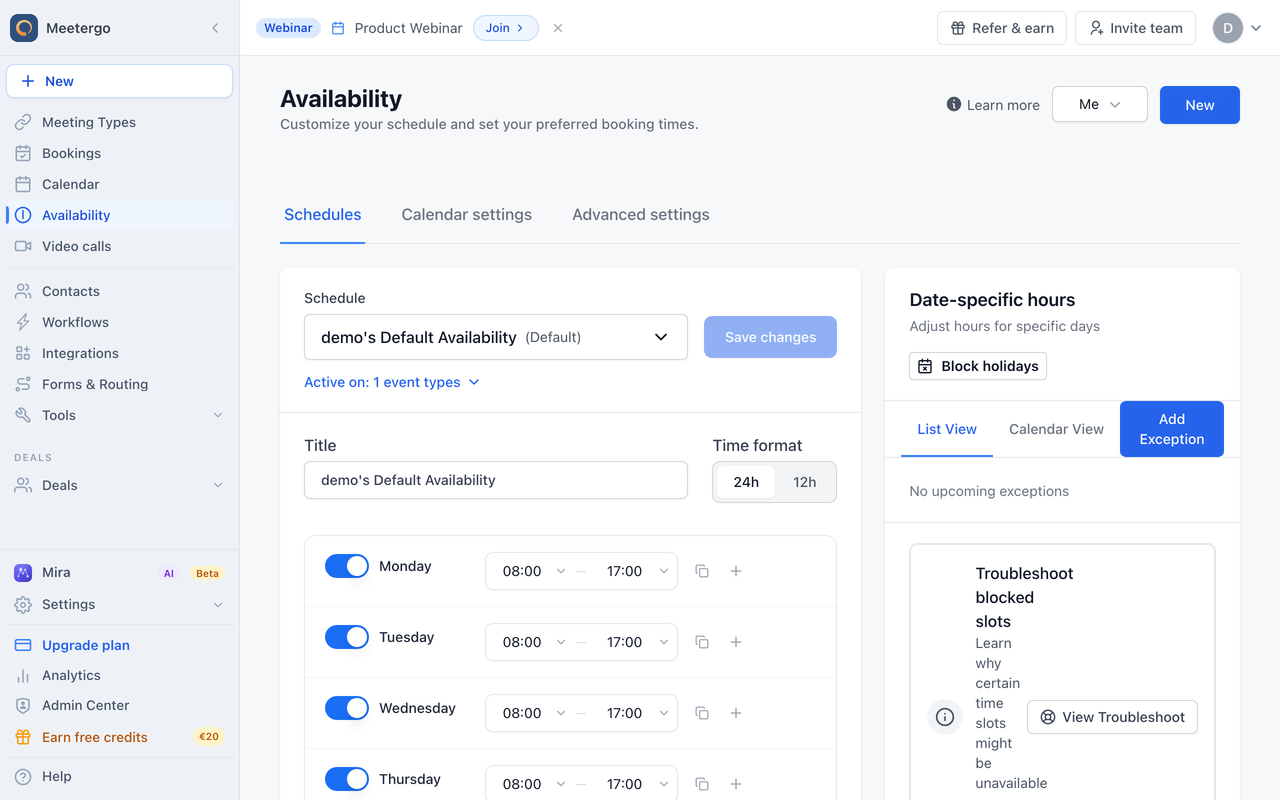
1 / 7Use Date-specific hours for one-off changes. Existing exceptions appear in List View; Calendar View shows them on a month grid.
Open date-specific hours
Find Date-specific hours
Use Date-specific hours for one-off changes. Existing exceptions appear in List View; Calendar View shows them on a month grid.
Click Add Exception
Click Add Exception to create a blocker or an extra availability rule for specific dates.
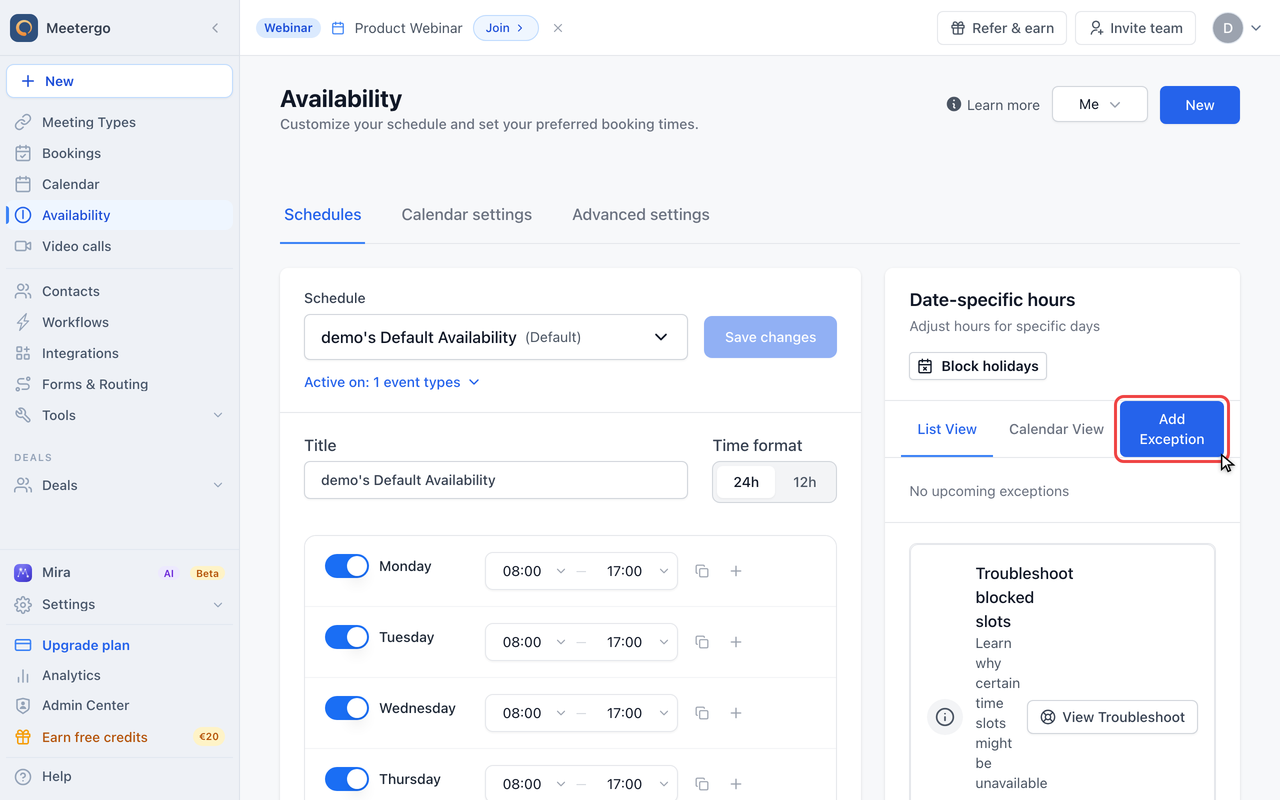
Block time
Select a date
Pick the date you want to adjust. You can select more than one date when the same exception should apply to multiple days.
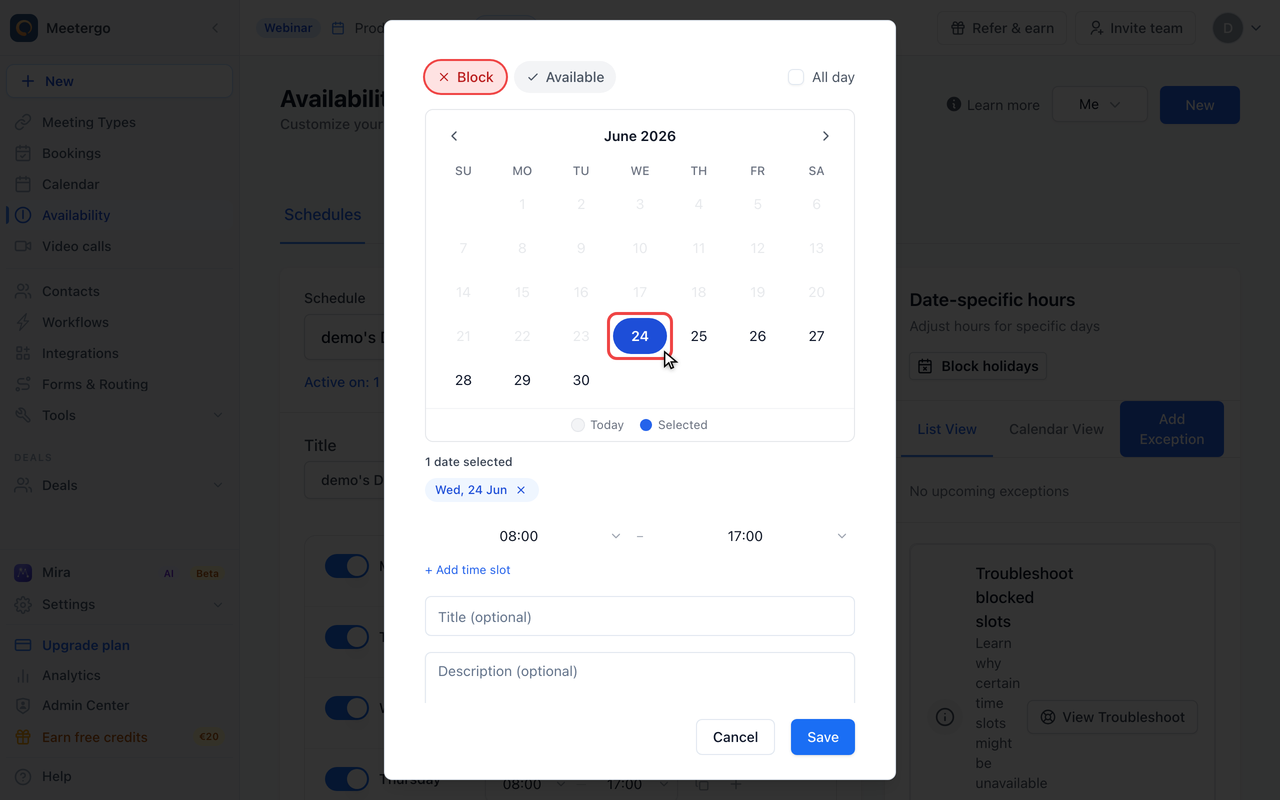
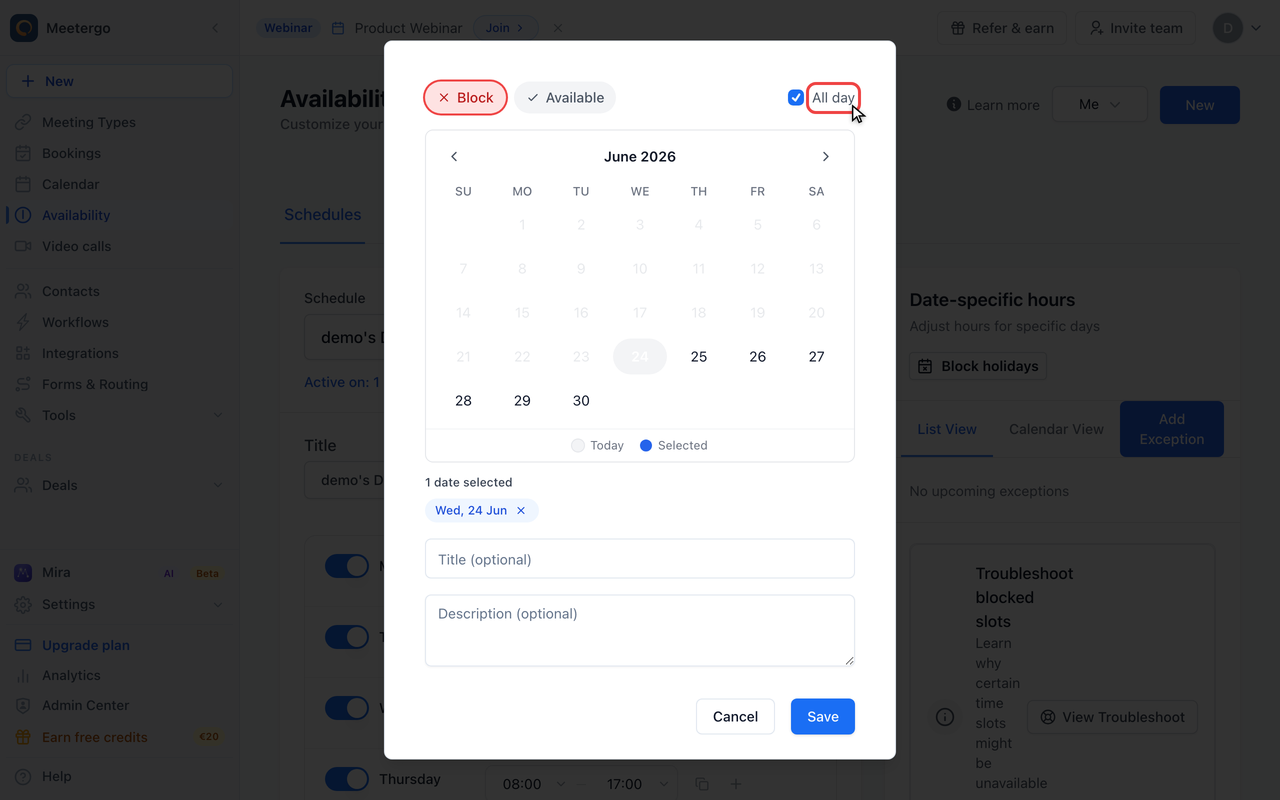
Keep Block selected
Block is selected by default. Use it to remove availability for the selected date or time range.
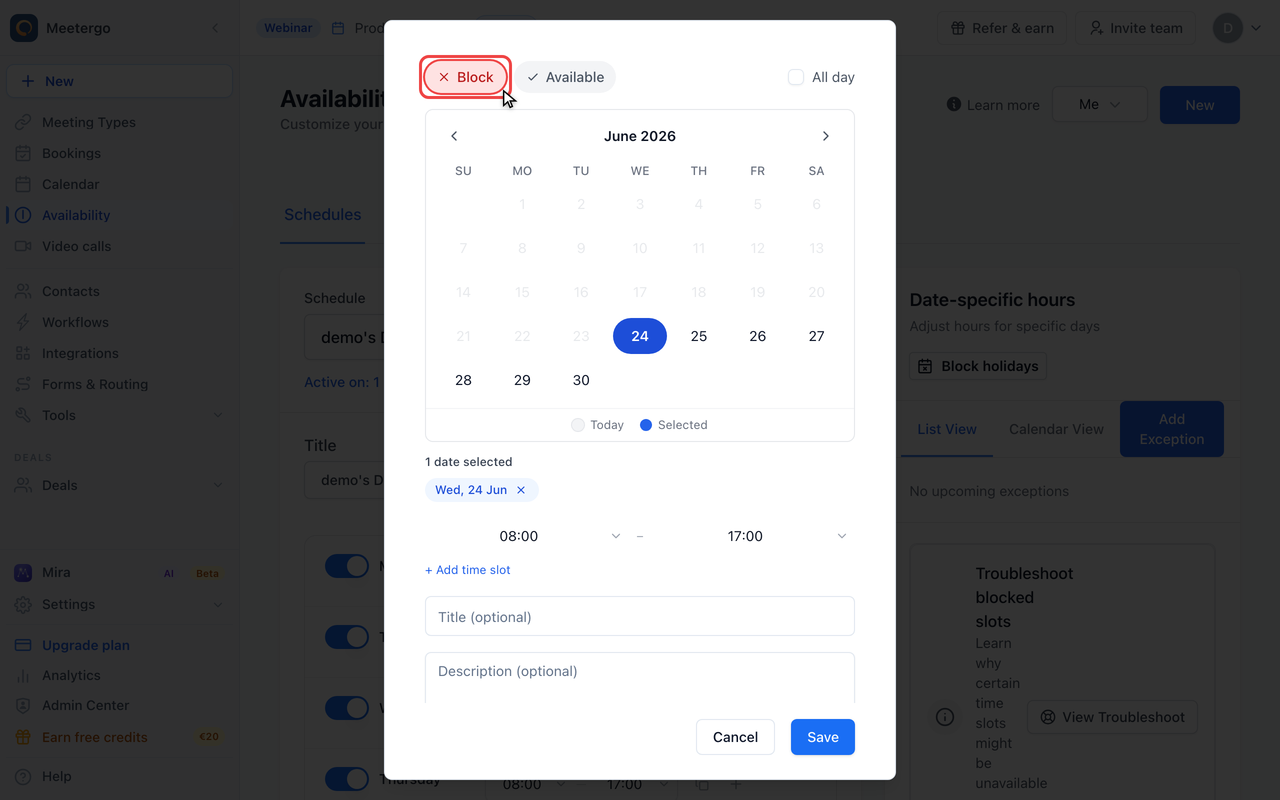
Make it all day
Enable All day when the whole selected day should be unavailable. Leave it off to set an exact start and end time.
Add available time
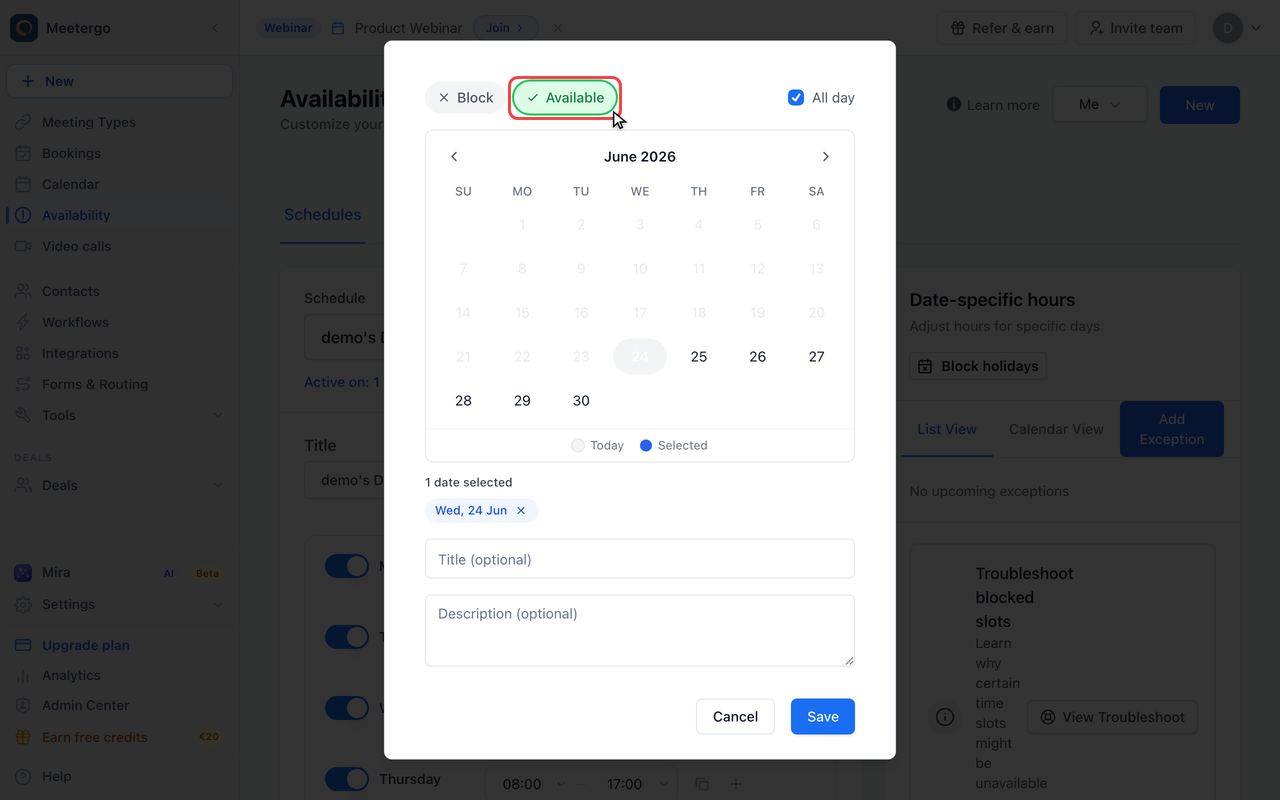
Switch to Available
Choose Available when you want to open bookable time outside your regular schedule, such as a special Saturday slot.
Review before saving
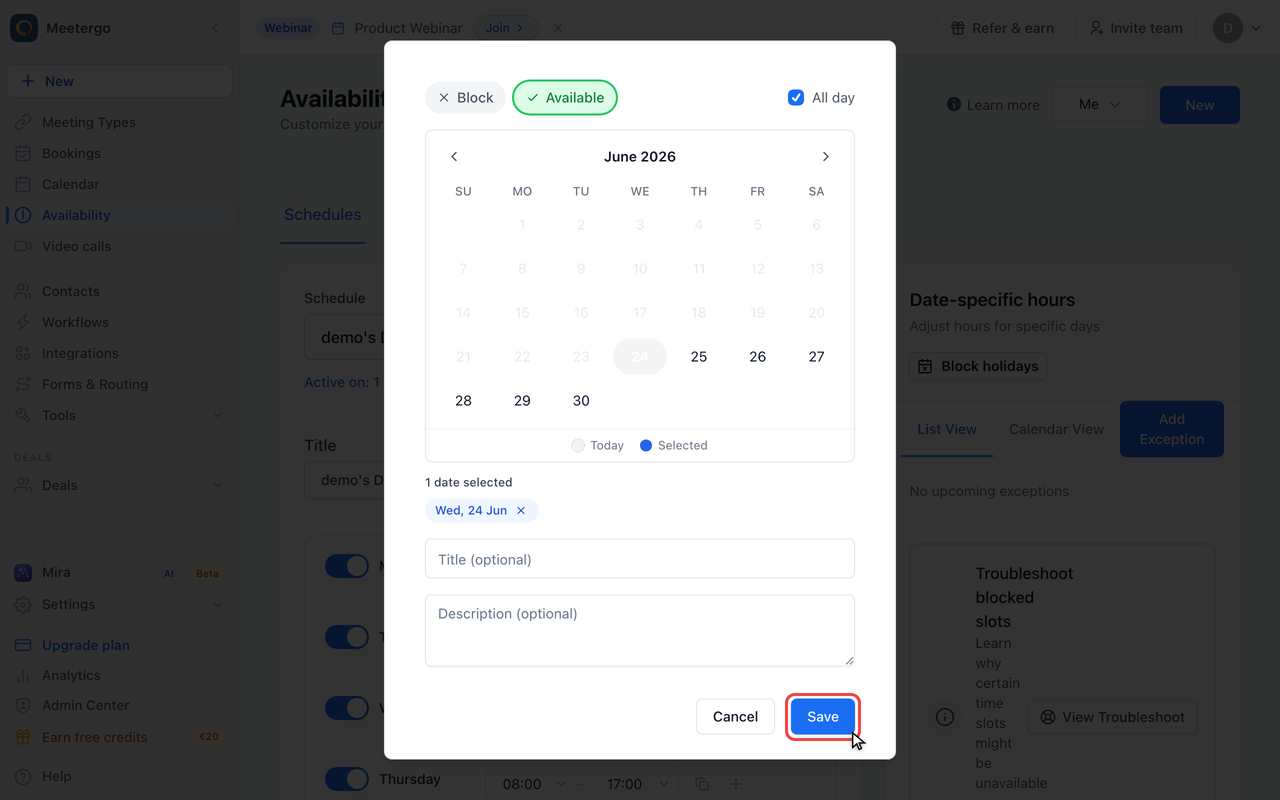
Check the selected dates, type, and time range. Click Save only when the exception is correct.
Blocking Rules 🚫
Blocking rules let you mark yourself as unavailable during times when you'd normally be available. This is helpful when blocking off time for a personal appointment or vacation or reserving time for focused work.
In the exception drawer, keep Block selected, choose one or more dates, then decide whether the block lasts All day or only for a specific time range. Blocking rules can span multiple days for extended periods of unavailability.
Available Rules ✅
Available rules (or "Open Rules") allow you to mark yourself as available during times when you'd normally be unavailable. This is helpful when opening up extra hours on a specific day, creating availability outside your regular working hours for a special event or offering appointments on a day you're usually off.
In the same drawer, switch from Block to Available, choose the date, and set the hours you want to open. Available rules can also span multiple days for extended periods of availability.
Understanding Rule Precedence
meetergo determines your availability by combining four layers, applied in order:
| Priority | Layer | Effect |
|---|---|---|
| 1 (lowest) | Regular availability | Your weekly schedule defines the base hours you're bookable |
| 2 | Blocking rules | Remove time from your schedule (e.g., vacation, focus time) |
| 3 | Available rules | Add time back — even outside your schedule or over a blocking rule |
| 4 (highest) | Connected calendar events | Always block, even during an available rule |
How it works step by step:
- meetergo starts with your weekly schedule as the base availability
- Blocking rules remove time from that base (e.g., "Out of office Friday 14–17")
- Available rules add bookable time — they can override both your schedule gaps and blocking rules (e.g., "Available Saturday 9–17" works even though Saturday is normally off, and "Available Friday 14–17" overrides the blocker above)
- Calendar events from connected calendars (Google, Outlook, iCloud, etc.) are then subtracted from whatever availability remains. They always win — an available rule cannot override a busy calendar event
Example: You create an available rule for Saturday 9:00–17:00, but you have a Google Calendar event on Saturday from 10:00–12:00. Your booking page will show Saturday as available from 9:00–10:00 and 12:00–17:00. The calendar event blocks the middle, even though the available rule covers the whole day.
If you've created an available rule but times still appear as blocked, check your connected calendars for busy events during that period. Use the Troubleshoot Tool to see exactly what is blocking each slot. Also see Why are events in my calendar not blocking my availability? for calendar-specific issues.
Managing Exceptions
Use List View to review upcoming exceptions in order, or Calendar View to find them by date. To change an exception, open it, adjust the dates, type, or time range, and save. To remove one, use the trash icon in List View or open the exception and delete it from the drawer.
FAQ
Can I create recurring exceptions?
Currently, exceptions are created for specific dates. For recurring changes, consider adjusting your regular availability settings.
What happens if I create overlapping exceptions?
If an available rule and a blocking rule overlap, the available rule wins — that time will be bookable (unless a connected calendar event also covers it). See the precedence table above for the full order.
Can I modify an exception after creating it?
To modify an exception, open it, adjust the dates, type, or time range, and save your changes.
Will my clients see my availability exceptions?
Clients will only see the final result of your availability. They won't know whether a time slot is unavailable due to regular settings or an exception.
Was this article helpful?
Let us know if this article answered your questions.
Related articles
- Add availability from calendar eventsOpen up bookable slots by creating titled events in your connected calendar, and use the right event status so other events at the same time still block correctly
- Configure full day availabilitySet up a positive full-day availability exception so meeting types with a one-day-or-longer duration show bookable slots.
- Flexible Buffer Scheduling Within Your AvailabilityEnable Keep buffers within working hours so meeting buffers stay inside your availability blocks instead of spilling past them.
- How to Block Time Off for Appointments, Holidays, or UnavailabilityBlock vacation, appointments, or focus time using date-specific hours or a busy calendar event, and enable automatic holiday blocking.