
How to Offer Different Meeting Types on Specific Days
Set up flexible weekly scheduling with online meetings on some days and in-person meetings on others
Use separate meeting types when different services should be bookable on different days. For example, you can offer online consultations on Wednesday afternoon and in-person consultations on Saturday, while keeping each booking page clear for invitees.
The setup has two parts: create one meeting type per service, then control each service with the right availability schedule and date-specific available rules.
 1 / 4
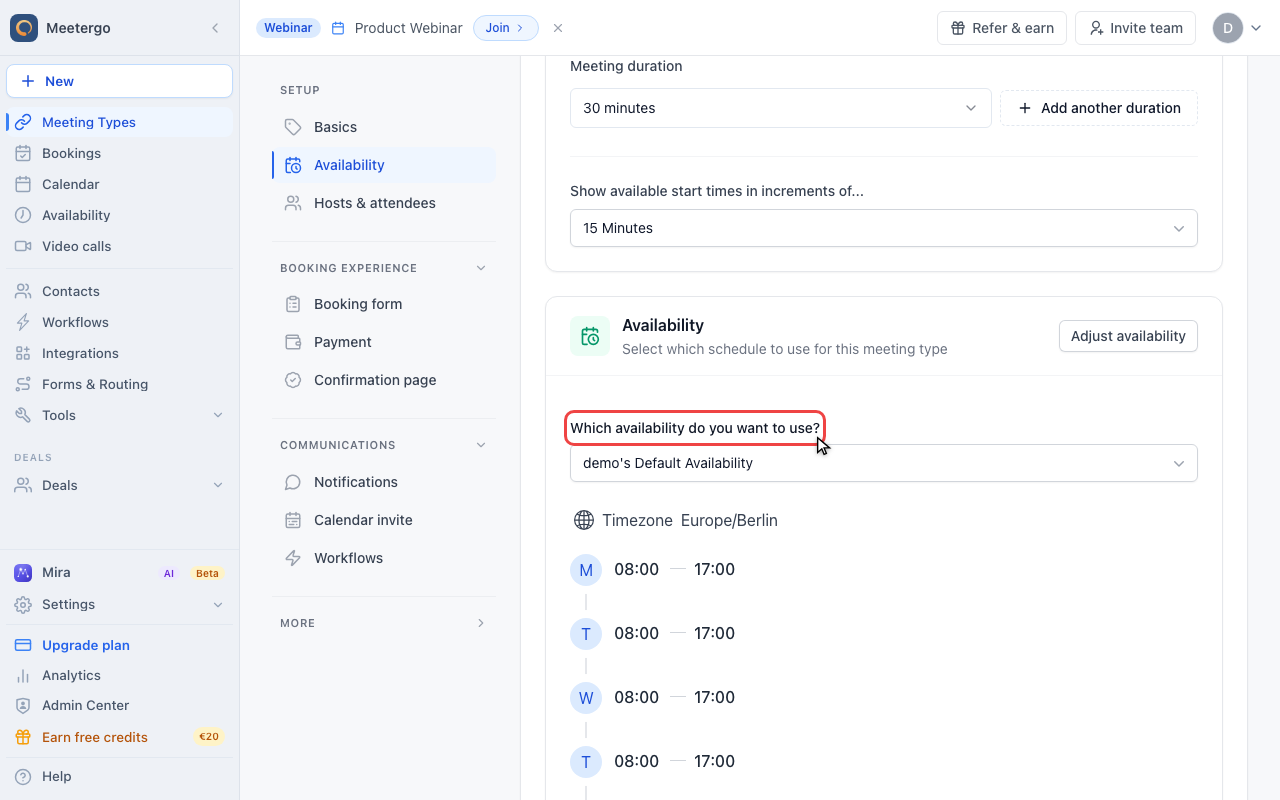
1 / 4Use a separate availability schedule for each service when online and in-person appointments should follow different days or hours.
Assign availability per meeting type
Choose the schedule for this meeting type
Use a separate availability schedule for each service when online and in-person appointments should follow different days or hours.
Open specific days
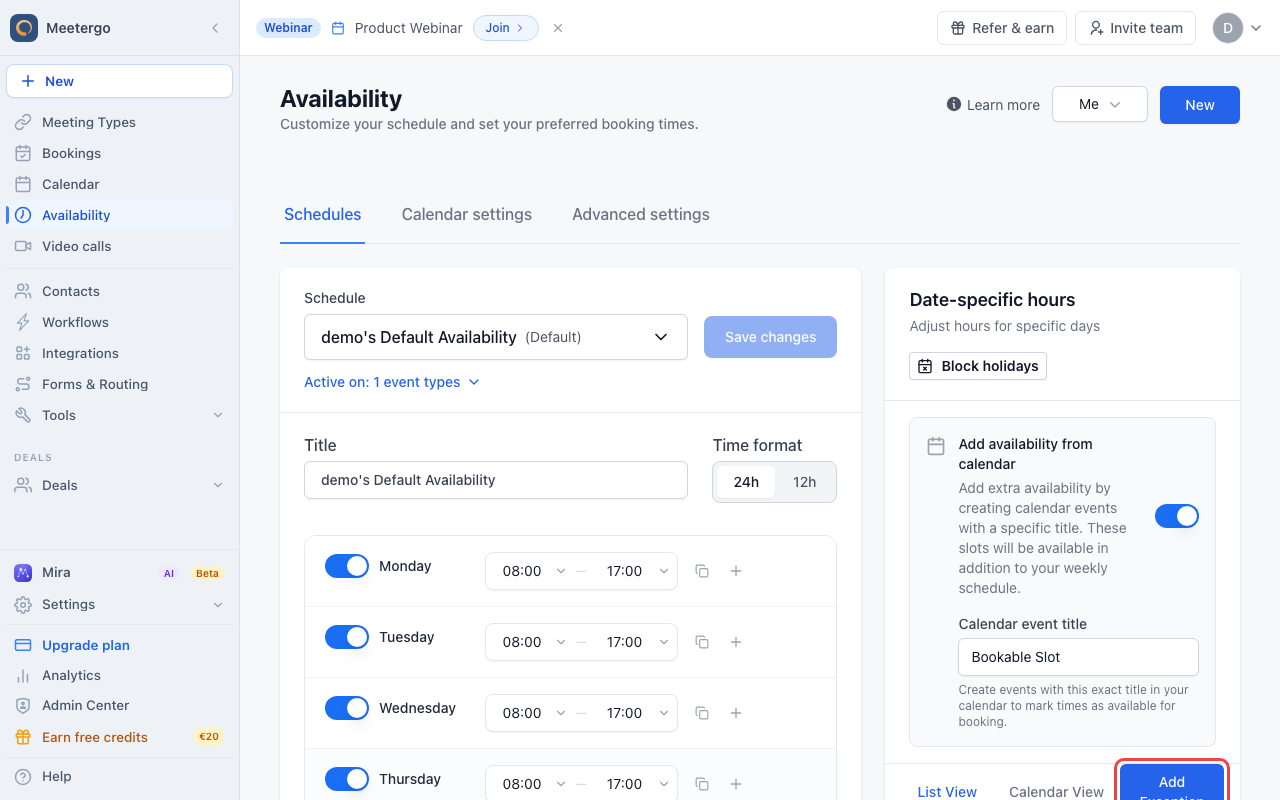
Click Add Exception
Click Add Exception in Date-specific hours to create a rule for the day this service should be offered.
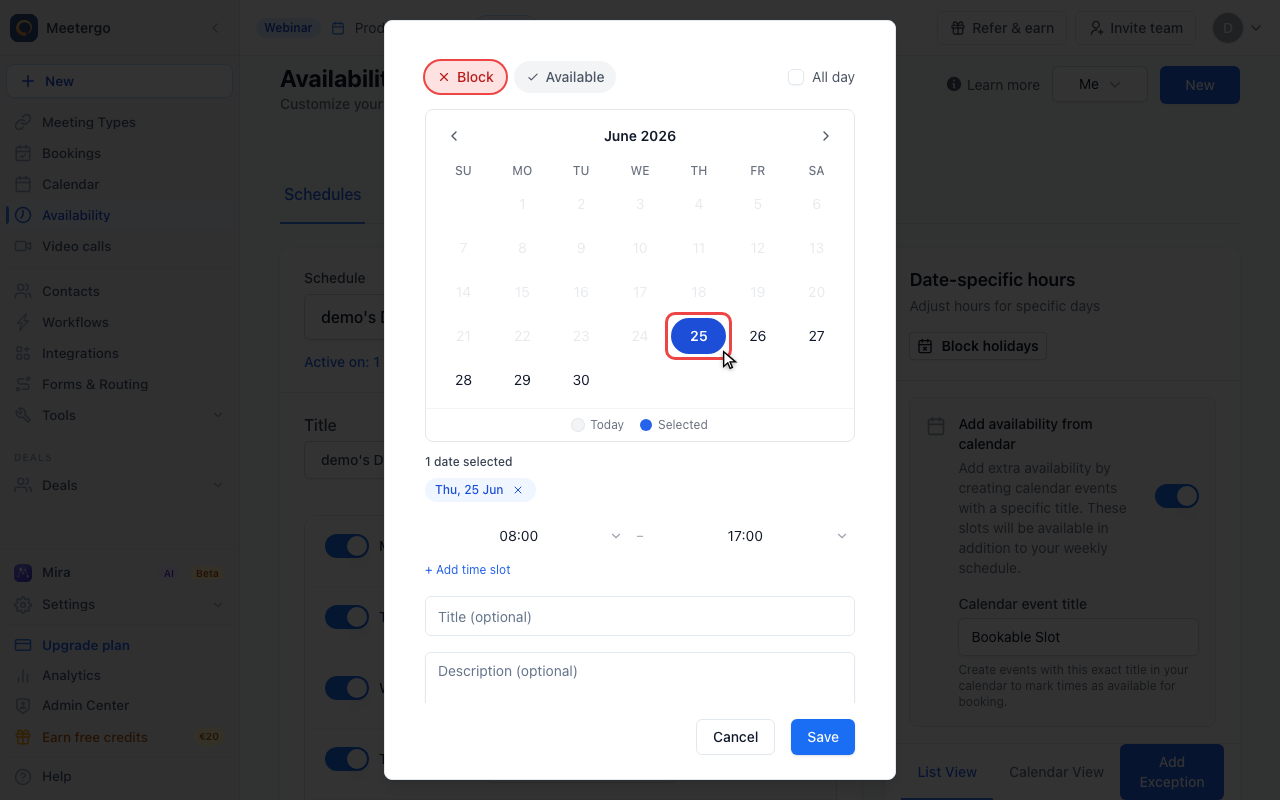
Select the service day
Choose the date when this meeting type should become bookable. You can select multiple dates if the same service repeats irregularly.
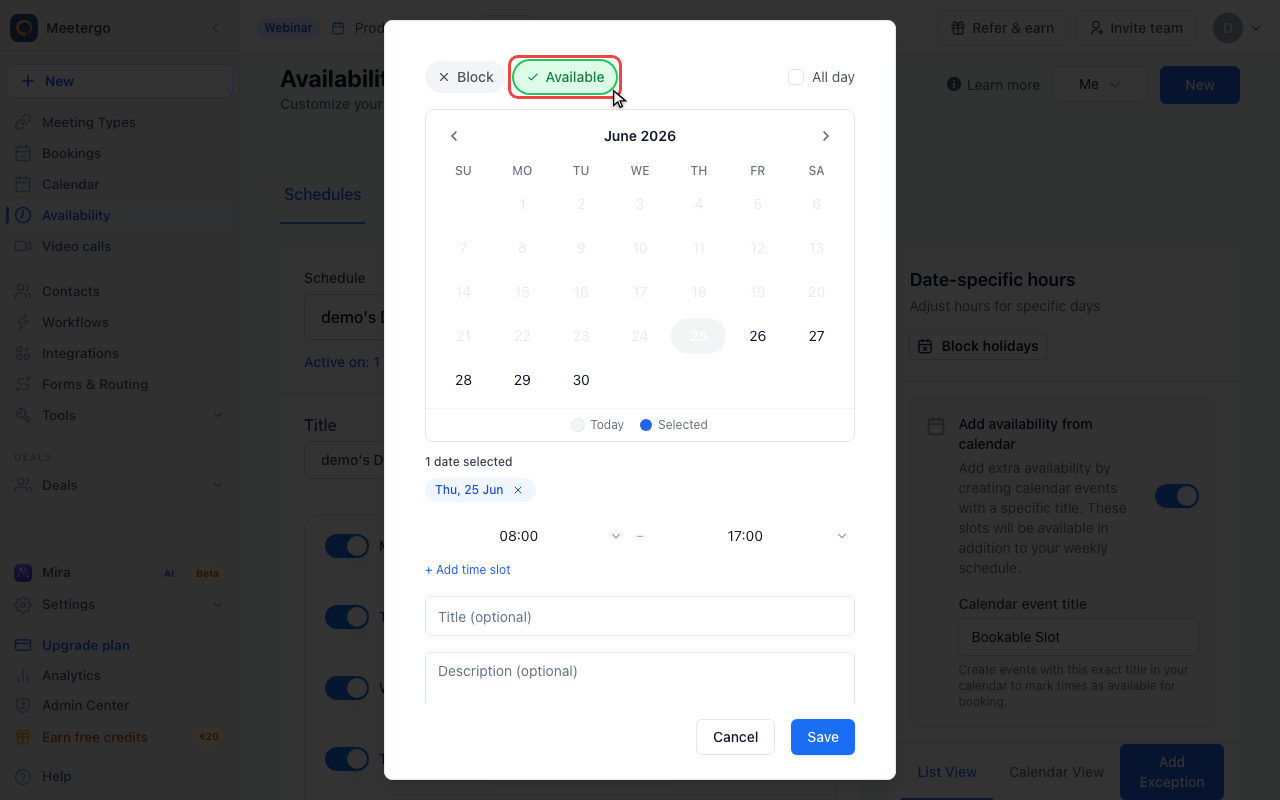
Switch to Available
Choose Available and set the time range, for example Wednesday 15:00-18:00 for online consultations.
Recommended setup
Create a separate meeting type for each service people should choose from. For example, use one meeting type for Online consultations with a video channel and another for In-person consultations with a local address.
Then decide how strict the schedule should be:
- Use separate availability schedules when each service has a predictable weekly pattern.
- Use Date-specific hours with Available rules when you plan service days week by week.
- Use Block rules when a service normally follows a weekly schedule but needs a one-off day removed.
If two services share the same weekly hours most of the time, you can assign them the same availability schedule and only add date-specific rules for exceptions.
Example Setup
| Day | Online Consultations | In-Person Consultations |
|---|---|---|
| Monday | Blocked | Blocked |
| Tuesday | Available 9-12 | Blocked |
| Wednesday | Available 15-18 | Blocked |
| Thursday | Blocked | Available 10-14 |
| Friday | Blocked | Available 10-14 |
Tips for weekly planning
- Create the next week of Available rules in one planning session.
- Use List View in Date-specific hours to review upcoming exceptions.
- Select multiple dates in the exception drawer when the same service repeats irregularly.
- Keep names clear, such as
Online consultationsandIn-person consultations, so invitees choose the right booking page.
See Also
Was this article helpful?
Let us know if this article answered your questions.
Related articles
- Add availability from calendar eventsOpen up bookable slots by creating titled events in your connected calendar, and use the right event status so other events at the same time still block correctly
- AvailabilityConfigure your weekly schedule, exceptions, holidays, and connected calendars that together determine when your booking link is bookable.
- Availability ExceptionsCreate date-specific blocking or available rules and learn the rule precedence between your schedule, exceptions, and calendar events.
- Configure availability for a specific time spanLearn how to adjust your bookability within a defined date range