
How to troubleshoot unavailable times that should be available
My booking page shows no available times, or fewer than expected. Open troubleshoot mode, read the label on each blocked slot, and fix the setting or calendar event it names.
When your booking page shows fewer available times than expected, or when invitees report they can't find suitable booking slots, meetergo's Troubleshoot Tool reveals exactly what's blocking those time slots and provides clear solutions to resolve the conflicts.
 1 / 2
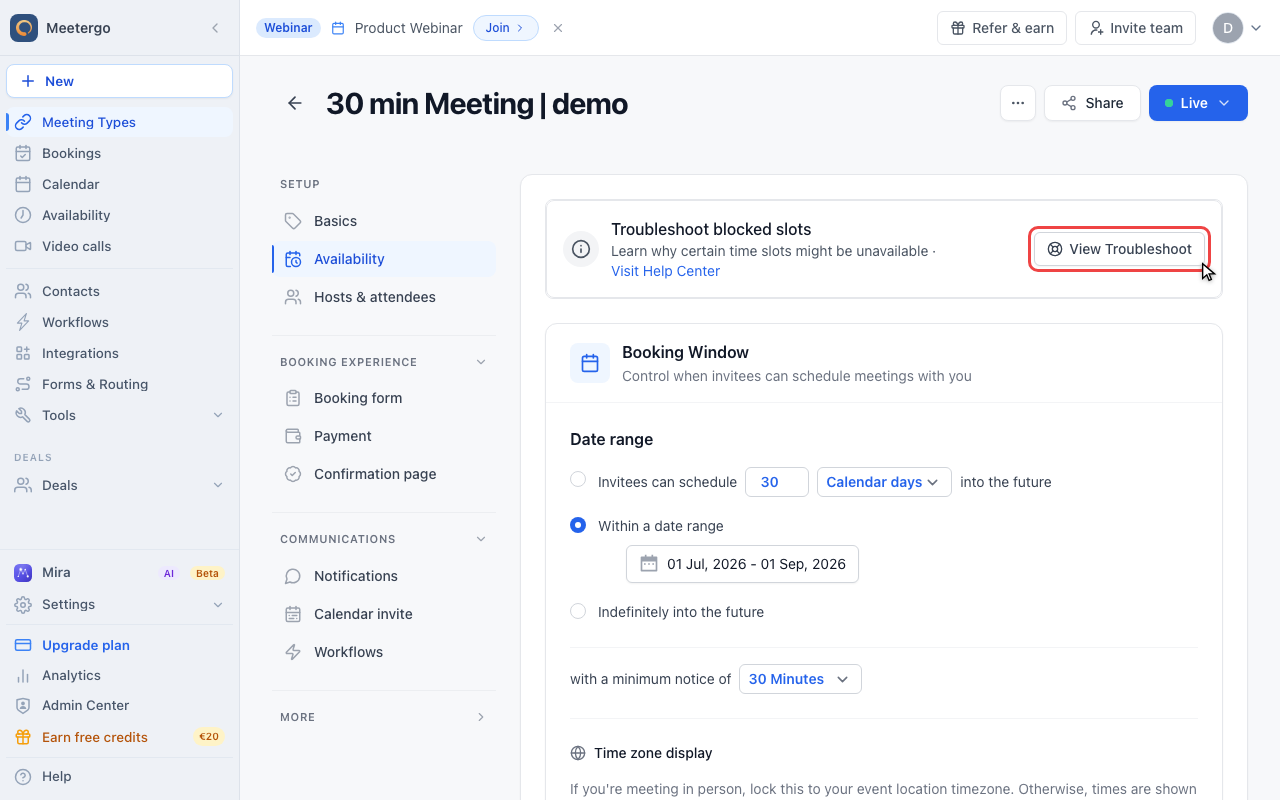
1 / 2Use View Troubleshoot to open the booking page in diagnostic mode. This view is only visible to hosts.
Open troubleshoot mode
Click View Troubleshoot
Use View Troubleshoot to open the booking page in diagnostic mode. This view is only visible to hosts.
Review blocked slots
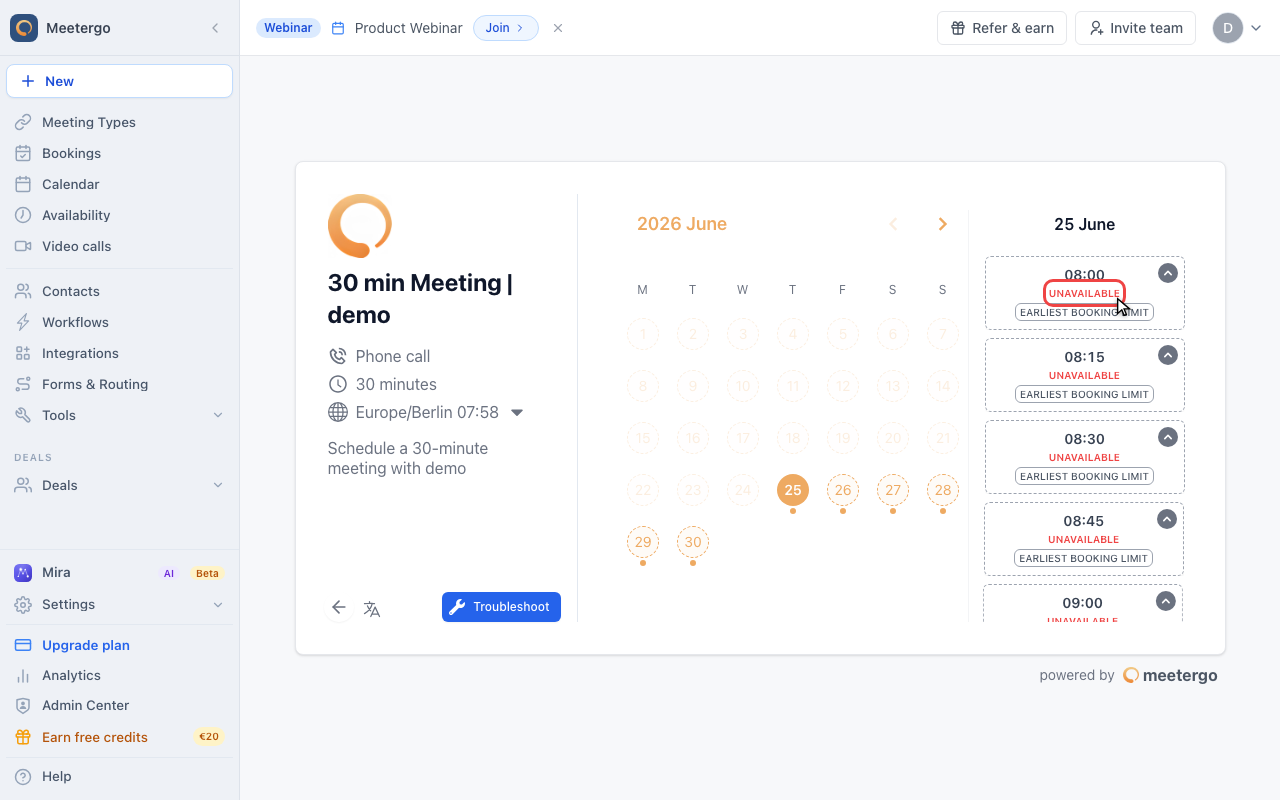
Review the blocked slots
Each unavailable slot shows one or more diagnostic labels. Use those labels to decide whether to adjust availability, buffers, booking limits, or connected calendar events.
The Troubleshoot Tool analyzes your availability settings, connected calendars, and meeting type configuration. For an overview of how meetergo combines these layers, see Understanding rule precedence.
At the top of the diagnostic view, the day and month summaries show how many slots are blocked and rank the causes by impact. Select a blocked slot to see every overlapping cause. Each cause includes a direct action for the relevant calendar, availability schedule, buffer, booking window, or booking-limit setting. After changing a setting, return to the diagnostic view and use Recheck.
Two ways to open it
- From the meeting type — Meeting Types → open the meeting type → Edit → Availability tab → the Troubleshoot blocked slots card → View Troubleshoot. Your booking page opens in a new tab.
- From any booking link — add
?troubleshoot=trueto the end of the link, for examplehttps://cal.meetergo.com/yourname/30min?troubleshoot=true.
Troubleshoot mode only works when you are signed in to meetergo as one of the hosts of that meeting type. In a private window, on someone else's device, or as a colleague who is not a host on that page, the link opens as a normal booking page with no labels at all. That is also why sending the ?troubleshoot=true link to support or to a teammate does not show them what you see.
What the labels mean
Each blocked slot carries one or more grey labels, shown in capitals on the booking page. Hover a slot to see the full explanation.
| Label | Explanation shown on hover | What to check |
|---|---|---|
| Event | Existing appointment | A meetergo meeting already occupies this time. Reschedule or cancel it on your Meetings page. |
| Google, Outlook, Exchange, Teams, iCloud, CalDAV, SmartWe, ICS | Calendar event from that provider | A connected calendar blocks the slot. Open the source calendar and set the event to Free, or remove it. Which statuses block differs per provider, and an iCloud all-day event cannot be set to Free at all. |
| Exception | Blocked by availability exception | A date override blocks the time. Check Availability → your schedule → the exception for that date. |
| Outside hours | Outside working hours | The slot is outside your weekly availability, or your timezone is not what you think it is. |
| Buffer | Buffer time before event / Buffer time after event | Buffer time around another meeting blocks the slot. Reduce the buffer under Availability → Buffer & Optimization. |
| Booking limit | Minimum notice period not met, or Outside the booking window | The slot is too soon or too far in the future. Check Minimum notice and Booking window on the Availability tab. |
| Day limit, Week limit, Month limit, Year limit | Daily / weekly / monthly / yearly booking limit reached | A booking frequency limit is full. Check both the meeting type's Booking Limits and the account-wide Host meeting limits under Availability → Advanced settings. |
| Back-to-back | Not adjacent to existing appointments | Back-to-Back Meetings is enabled, so only slots directly next to an existing booking stay open. |
| Calendar not readable | A connected calendar could not be read | meetergo could not reach one of your calendars and has nothing stored for it, so the time stays blocked instead of risking a double booking. The label names the calendar. Open Integrations, reconnect it if it asks you to, and the slots reopen on their own once it can be read again. |
| Group full | Spots booked: 1 of 1 | Every spot of the group meeting is taken. Raise Spots on the meeting type's Hosts & attendees tab, or accept that this time is full. |
One time slot can have more than one blocking reason. Select the slot to review every cause, fix the calendar conflict, availability rule, or limit shown, then use Recheck.
Common fixes
If your calendar looks empty but slots are still blocked, check for all-day events. These often block the whole day and can be easy to miss. On Apple iCloud every all-day event blocks regardless of its status, and the only way to stop that is Ignore all day appointments in the Apple connection's advanced settings — see Why are events in my calendar not blocking my availability?.
If no dates appear at all, review the meeting type's availability, timezone, minimum booking notice, and booking window. The slot must pass all of those checks before it can appear as bookable.
If a day was fine until the first booking landed on it and then went almost empty, the cause is usually Back-to-Back Meetings or a Day limit of one booking per day, not your calendar.
If a group meeting time disappears as soon as it has a booking, its spots are used up. Troubleshoot mode labels that time Group full. Raise Spots on the meeting type to let more people join.
If invitees cannot book a specific time, use troubleshoot mode on that exact date and adjust the setting named by the label instead of changing unrelated availability rules.
Slots are blocked but no label is shown
If troubleshoot mode shows the slots as unavailable without naming a reason, or a slot looks bookable and the booking then fails with This time slot is no longer available, check these in order:
- The right meeting type is linked to the right schedule. A meeting type that still uses your default schedule ignores the separate schedule you edited. See Meeting Type-Specific Availability (Restriction Schedules).
- The duration fits. A 60-minute meeting needs a 60-minute gap. If the booking page requests a different duration than the one the slot was calculated for, the booking is rejected at the last step.
- Another host on the page. On team and round robin pages the labels do not say which host is blocked, so check every host's calendar, buffers and limits, not only your own.
- The booking really happened in the meantime. Someone else may have taken the slot between loading the page and confirming.
FAQ
Why doesn't changing a calendar event to "Free" make the time available?
If the event was created by meetergo, cancel or reschedule the meeting in meetergo. Calendar status changes do not remove the original booking block.
Can I override diagnostic labels to force availability?
Some labels can be resolved by changing Meeting Type settings, such as buffers, booking windows, or overlap rules. Calendar conflicts and existing bookings need to be changed at the source.
Why do I see different labels for the same time on different days?
Availability is calculated per date. The same clock time can be blocked by weekly hours on one day, a calendar event on another day, and a booking limit on a third day.
I sent the troubleshoot link to a colleague and they see no labels. Why?
The labels only render for a host of that meeting type who is signed in to meetergo. Everyone else sees the normal booking page. Take a screenshot instead of sharing the link.
Related articles
Was this article helpful?
Let us know if this article answered your questions.