
Understanding Why Your Booking Page Shows as Unavailable
No available times on your booking page? Open troubleshoot mode to see why each slot is blocked, and fix the calendar event, working hours, buffer or booking limit behind it.
If your booking page shows no available times — or fewer than expected — the quickest way to find out why is to use the Troubleshoot tool. It opens your booking page and shows every time slot, with a clear reason for why each one is unavailable.
 1 / 2
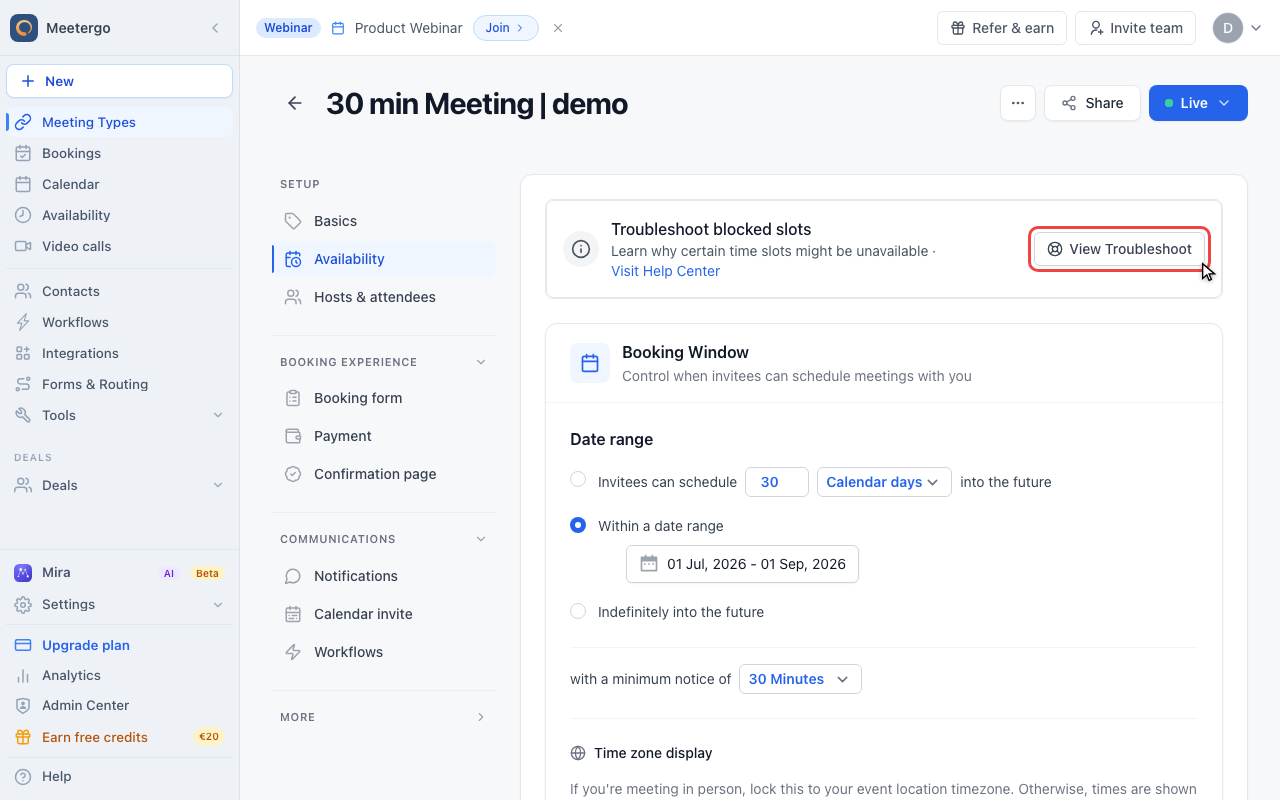
1 / 2Open troubleshoot mode from the Availability tab to view your booking page with host-only diagnostics.
Open the diagnostic view
Click View Troubleshoot
Open troubleshoot mode from the Availability tab to view your booking page with host-only diagnostics.
Check blocked slots
Read the unavailable slot labels
Use the labels on each unavailable slot to decide whether to check calendars, availability hours, buffers, or booking limits.
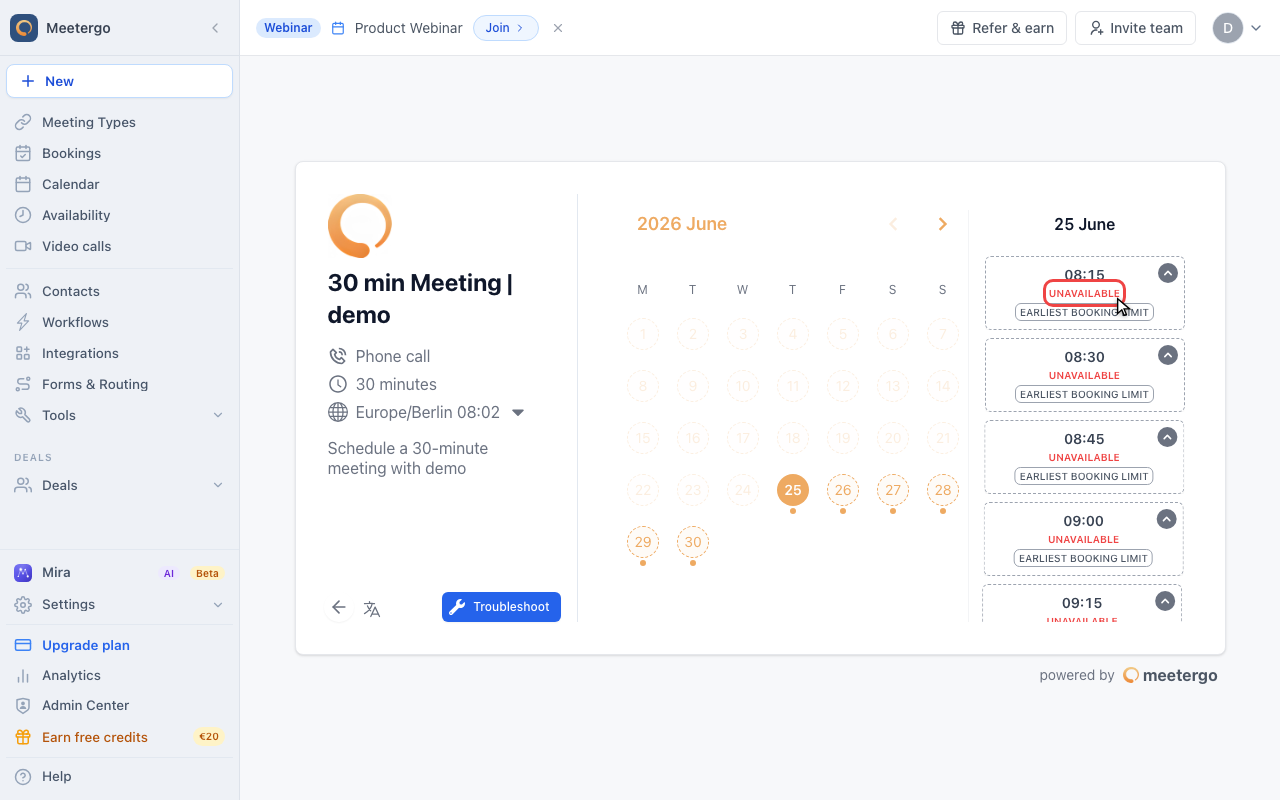
In the diagnostic view, pick the affected date and read the label on each blocked slot. That label points to the setting, calendar event, or booking rule you need to adjust.
The most common causes
Three causes account for most empty booking pages:
- A connected calendar event blocks the time. Any event marked as busy in Google, Outlook, Exchange, iCloud, CalDAV or an ICS feed removes that slot. All-day events are the usual surprise, because they can block a whole day without looking like it.
- The slot is outside your working hours, or your timezone is off. Check your weekly hours and the timezone on the schedule the meeting type actually uses.
- A rule on the meeting type filters the slot out. Minimum notice, the booking window, buffers, availability exceptions and booking limits each remove slots before the page renders.
Every blocked slot names its own reason, so you rarely have to guess. The full list of labels, what each one means on hover, and the exact setting to change for each are in How to troubleshoot unavailable times that should be available.
On Apple iCloud an all-day event always blocks, whatever its status says, because Apple Calendar cannot mark one as free. The only switch is Ignore all day appointments in the Apple connection's advanced settings. See Why are events in my calendar not blocking my availability?.
Still stuck?
If the troubleshoot tool doesn't reveal the cause:
- Check that you are signed in as a host — troubleshoot mode shows no labels to anyone else, so an incognito window or a colleague's browser will look like a normal booking page
- Check all connected calendars — sometimes events sync from a secondary calendar you forgot about
- Check for a calendar meetergo cannot read. A calendar that fails to answer blocks the whole day rather than risking a double booking. The slot label reads Calendar not readable and names the calendar. Reconnect it under Integrations
- Check which schedule the meeting type uses — a meeting type still set to your default schedule ignores the separate schedule you edited
- Verify your time range — on the Availability tab, make sure the booking window isn't too narrow
If you continue to have problems, reach out to our support team.
Was this article helpful?
Let us know if this article answered your questions.
Related articles
- Add availability from calendar eventsOpen up bookable slots by creating titled events in your connected calendar, and use the right event status so other events at the same time still block correctly
- AvailabilityConfigure your weekly schedule, exceptions, holidays, and connected calendars that together determine when your booking link is bookable.
- Availability ExceptionsCreate date-specific blocking or available rules and learn the rule precedence between your schedule, exceptions, and calendar events.
- Configure availability for a specific time spanLearn how to adjust your bookability within a defined date range